 TutorialKart.com
Android phone backup software sounds simple, but it usually means several different things: copying photos to a computer, restoring messages to a new phone, keeping app settings available after a reset, or creating a separate local copy that does not depend only on Google.
The important point is that Android backups are not always complete device clones. Google, phone manufacturers, desktop tools, cloud backup services, and manual file copies all protect different parts of your phone.
This guide explains the practical Android backup options, what each method can and cannot do, and how to choose a safe setup for everyday use, phone upgrades, or local/offline backup.
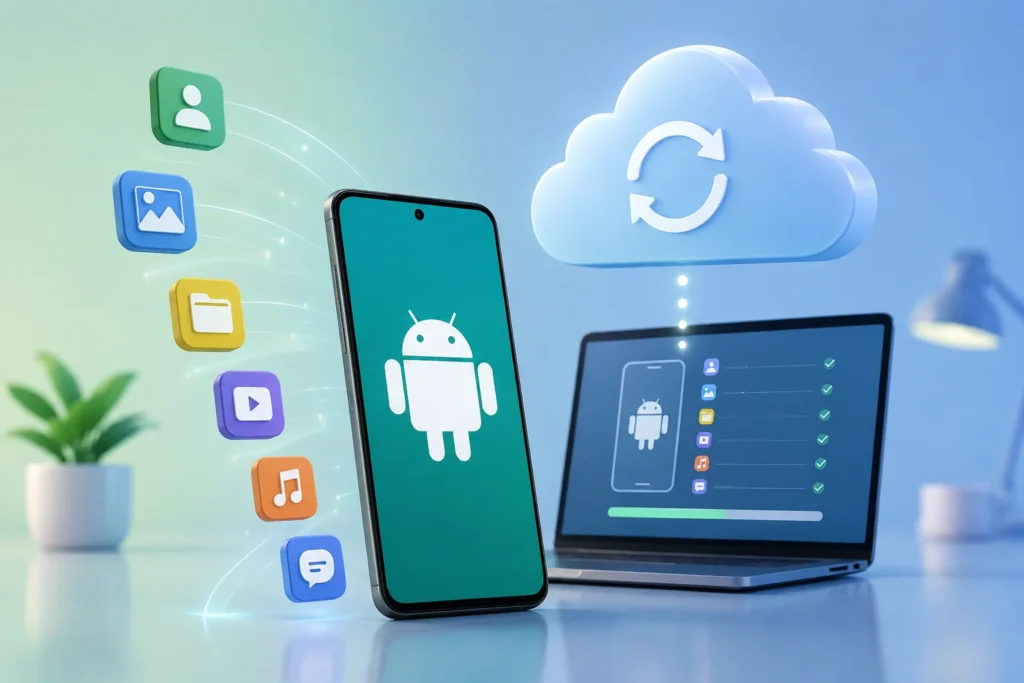
Best Android Phone Backup Software for Most Users
For most Android users, the best starting point is the built-in Google backup combined with Google Photos for pictures and videos. It is automatic, built into Android, and works well when restoring to a new Android phone during setup.
Samsung Galaxy users should also consider Samsung Smart Switch for PC or Mac backups, especially before a factory reset or phone upgrade. It can save many common data categories locally to a computer.
If you want a separate local copy on your computer, tools such as Coolmuster Android Backup Manager, MobiKin Backup Manager for Android, and SyncDroid can back up selected categories such as contacts, messages, call logs, photos, videos, music, documents, and apps. These are useful, but they should not be treated as guaranteed full system-image backups.
Main Android Backup Options
Before choosing any app or service, decide what you actually need to protect. Photos, contacts, app data, SMS messages, files, and phone settings are handled differently.
| Method | Best for | Storage location | Main limitation |
|---|---|---|---|
| Google / Android backup | Most users, new phone setup, automatic device backup | Google Account | Not all apps restore all settings or data |
| Google Photos and Drive | Photos, videos, files, folders | Google cloud storage | Uses Google storage quota |
| Samsung Smart Switch | Galaxy phone backup to PC, Mac, SD card, or USB storage | Computer or external storage | Best suited to Samsung Galaxy devices |
| Desktop Android backup managers | Local backups of selected data categories | Windows or Mac computer | Usually require USB debugging, a companion app, or manual connection |
| Acronis mobile backup | Cloud, local, or hybrid mobile backup with scheduling | Acronis Cloud, local PC/Mac, or both | Check plan, device support, and exact data categories before relying on it |
| Manual copy or self-hosted/NAS sync | Photos, videos, downloads, documents, privacy-focused storage | Computer, external drive, NAS, or private server | Does not usually restore Android app data, SMS, or settings |
Method 1: Use Built-In Google Backup
Android’s built-in backup saves supported phone data to your Google Account. Google’s Android Help page says phone backups can include apps and app data, call history, contacts, device settings, and SMS/MMS messages. Photos and videos are handled through Google Photos when that backup is enabled.
You can verify the official steps in Google’s guide to back up or restore data on your Android device.
When it makes sense
Use this method if you want the simplest restore path when switching to another Android phone. It is also the right default option for users who do not want to connect a phone to a computer regularly.
How to turn it on
- Open the Settings app on your Android phone.
- Go to Google or Google services.
- Open Backup.
- Turn on backup.
- Review the backup details to confirm which data types are included.
- Use Back up now if you want to start a manual backup.
What it can back up
- Apps and app data, when supported by the app
- Call history
- Contacts
- Device settings
- SMS and MMS messages
- RCS messages when using Google Messages
- Photos and videos when Google Photos backup is enabled
Important limitations
Do not assume every app will restore perfectly. Google notes that not all apps can back up or restore all settings and data. Android Developers documentation also explains that Android Auto Backup for apps is available on Android 6.0 and higher and has a 25 MB per-app limit for file-based app data, so large app content may need the app’s own sync or backup system.
Google also states that you cannot restore a backup from a higher Android version onto a phone running a lower Android version. Some data can only be restored during initial setup or after a factory reset, so do not wait until after setup and expect every category to be restorable from a settings screen.
Method 2: Back Up Photos, Videos, and Files Separately
Why media needs separate attention
Photos and videos usually take the most storage and are often the most valuable personal files on a phone. Google’s device backup flow can work with Google Photos, but you should still check the Google Photos app directly to confirm media backup is active.
How to check Google Photos backup
- Open the Google Photos app.
- Tap your profile picture.
- Open Photos settings.
- Check Backup.
- Confirm the Google Account, upload quality, and whether mobile data backup is allowed.
Manual file backup to Google Drive
If you have documents, downloads, ZIP files, PDFs, or exported backups from other apps, upload those files manually to Google Drive or another cloud storage service. A phone backup does not always mean every file in every folder is easy to find later.
What this method cannot do
Photo and file backup does not restore app settings, SMS history, call logs, or home screen layout by itself. Treat it as media and document protection, not as a full Android restore solution.
Method 3: Back Up Samsung Galaxy Phones with Smart Switch
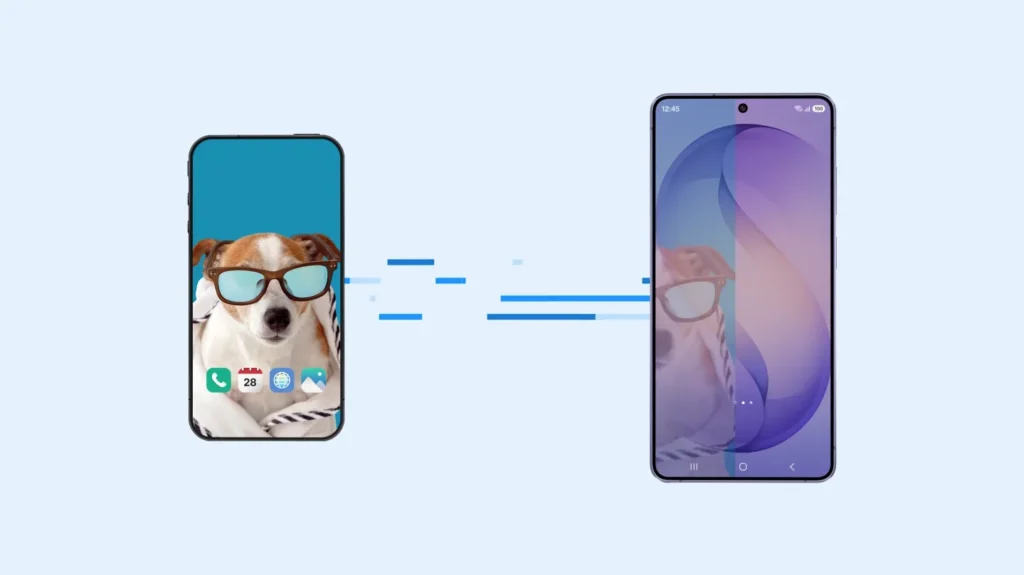
Samsung Smart Switch is Samsung’s official tool for transferring and backing up Galaxy phone data. It can back up a Galaxy device to a Windows PC or Mac, and Samsung also documents backup options using external storage such as a microSD card or USB storage device.
Samsung’s Smart Switch PC backup guide lists supported backup categories including contacts, SMS messages, call logs, photos, videos, music, documents, calendar events, Samsung Notes, clock data, voice memos, home screen settings, and network settings.
When it makes sense
Use Smart Switch if you own a Samsung Galaxy phone and want a local backup before a factory reset, repair, software update, or phone upgrade. It is especially useful when you want a computer-based copy instead of relying only on cloud backup.
How to back up with Smart Switch on PC or Mac
- Install Smart Switch on your Windows PC or Mac from Samsung’s official source.
- Use a data-capable USB cable, not a charge-only cable.
- Connect your Galaxy phone to the computer.
- Open Smart Switch on the computer.
- Tap Allow on the phone when prompted.
- Select Backup in Smart Switch.
- Wait for the backup to finish and review any excluded categories.
Limitations
Smart Switch is best for Samsung Galaxy devices. Samsung also notes compatibility requirements, and not every external storage option works with every phone model. For Mac users, Samsung warns that Android File Transfer can conflict with Smart Switch on the same machine.
Even with Smart Switch, third-party app data may not always transfer exactly as expected because Android restricts access to many app-private areas.
Method 4: Use Desktop Android Backup Software
Desktop Android backup software connects your phone to a computer through USB or Wi-Fi and saves selected data categories locally. This is useful when you want a backup that stays on your own PC or external drive.
Examples from the researched sources
| Tool | Supported backup categories mentioned by the source | Connection method mentioned | Practical note |
|---|---|---|---|
| Coolmuster Android Backup Manager | Contacts, text messages, call logs, music, videos, photos, books, documents, apps | USB or Wi-Fi | Local PC/Mac backup; verify current device and Android version support before purchase |
| MobiKin Backup Manager for Android | Contacts, messages, call logs, photos, videos, music, documents, apps | USB or Wi-Fi through QR code/app connection | Can select categories and restore from computer backups |
| SyncDroid | Music, videos, photos, contacts, messages, call logs, calendar, apps | USB and Wi-Fi | The page mentions Android 11 and iOS 15 compatibility, so check whether it suits newer phones |
How desktop backup usually works
- Install the desktop program on your Windows PC or Mac.
- Connect the Android phone with a USB cable or approved Wi-Fi method.
- Enable USB debugging only if the tool requires it and you understand the security implication.
- Allow the companion app or permission request on the phone.
- Select the data categories to back up.
- Choose a local folder, preferably on an external drive or a folder that is backed up elsewhere.
- Run the backup and do not disconnect the phone during the process.
- After backup, open the destination folder and confirm files were created.
What it can and cannot do
These tools are useful for contacts, SMS, call logs, media, documents, and app installer packages. Some tools also restore selected categories to the same or another Android device.
However, they should not be treated as full phone imaging software. Backing up an app installer is not the same as backing up that app’s private data, login state, database, or cloud account. Android’s security model limits what third-party tools can access without root or special permissions.
Method 5: Use Acronis for Cloud, Local, or Hybrid Mobile Backup
Acronis mobile backup is a commercial backup option for Android and iOS devices. Its product page describes backing up mobile data such as photos, videos, contacts, calendar appointments, documents, and other mobile files to cloud storage, local storage, or a hybrid setup.
When it makes sense
Acronis makes sense if you already use Acronis for computer backup or want one backup service that can include phones along with PCs or Macs. It is also relevant if you want scheduled mobile backups and a local computer destination.
How it works
Acronis describes two main approaches: backing up to Acronis Cloud and backing up mobile devices automatically over Wi-Fi to a local Mac or PC. It also mentions restore options to the same phone or a new phone, and the ability to retrieve individual files.
Limitations
Check the exact plan, device count, storage destination, and mobile data categories before relying on it. Do not assume it captures every app’s private data or every Android system setting unless Acronis explicitly confirms that for your device and version.
Method 6: Manual Copy, External Drive, or Self-Hosted Backup
Manual backup means copying files from your Android phone to a computer, external drive, NAS, or private server. This is often the simplest non-cloud way to protect photos, videos, downloads, exported documents, and folders you can see through Android file transfer.
When it makes sense
Use this method if you are privacy-focused, have a large media library, do not want recurring cloud storage costs, or already run a NAS at home. Community discussions such as this self-hosted Android backup discussion show that many users want a Google-like automatic experience without Google, but the safer assumption is that self-hosted tools are strongest for photos and files, not full Android system restore.
How to manually copy files to a computer
- Connect your Android phone to your computer with a data-capable USB cable.
- Unlock the phone.
- Choose File transfer or MTP if Android asks how to use the USB connection.
- Open the phone storage from your computer.
- Copy folders such as DCIM, Pictures, Movies, Download, Documents, and any app export folders you use.
- Paste them into a dated backup folder on your computer or external drive.
- Open a few copied files to confirm the backup is readable.
Limitations
Manual file copy does not usually back up SMS, call logs, app-private data, saved logins, launcher settings, or system settings. It also requires discipline: if you do not repeat it regularly, it quickly becomes outdated.
Comparison Table: Which Android Backup Method Should You Choose?
| Need | Best method | Why | Extra step to add |
|---|---|---|---|
| Simple protection for most users | Google backup + Google Photos | Automatic, built into Android, useful during new phone setup | Check backup details and storage quota |
| Samsung Galaxy local backup | Samsung Smart Switch | Official Samsung PC/Mac backup with many Galaxy data categories | Encrypt the local backup if offered |
| Copy SMS, contacts, call logs, and media to PC | Desktop Android backup manager | Good category-based local backup | Test restore before depending on it |
| Cloud plus local mobile backup | Acronis mobile backup | Supports scheduled and Wi-Fi backup options described by Acronis | Confirm plan, data types, and restore behavior |
| Large photo/video library | Google Photos, manual copy, NAS, or external drive | Media files are large and easy to protect separately | Keep at least one off-device copy |
| Privacy-focused local storage | Manual copy, encrypted external drive, NAS | Reduces dependence on a cloud provider | Still keep a second copy off-site if the data matters |
Important Limitations You Should Not Ignore
Android backups are not always full backups
A “backup” can mean different things depending on the tool. Some tools back up files. Some back up selected categories. Some restore only during setup. Some only save app installers, not the app’s private data.
App data depends on the app
Google’s Android Help warns that not all apps can back up or restore all settings and data. Android Developers documentation also shows that app backup behavior depends on how the app is built and what Android allows.
Restore may require setup or reset
Google One Help explains that some data, such as app data, settings data, and messages, may only be restored during device setup. If you have already completed setup, you may need to reset the phone to restore those categories from a cloud backup.
Storage limits matter
Google provides free storage up to the standard Google Account quota, but photos, videos, Drive files, Gmail, and backups can all compete for space. If storage is full, backups may fail or remain incomplete.
Security and encryption vary
Google says backup data is encrypted in transit and some data is additionally encrypted using the device screen lock. However, Google also notes that photos and videos in Google Photos, and MMS media received from your carrier, are not encrypted by your device’s screen lock. For local backups, use encryption if the software offers it, and protect the computer or external drive.
Work profiles and company-owned devices may behave differently
Google’s Android Help notes that backup is not available in some work profile, work-only, or company-owned setup situations. If your phone is managed by an employer, follow your organization’s policy instead of installing random backup tools.
Recommended Backup Approach
For most users
Turn on Google backup and Google Photos backup. Then, once a month or before any major reset, copy your DCIM, Download, Pictures, and Documents folders to a computer or external drive. This gives you both convenience and a second copy of important files.
For Samsung Galaxy users
Use Google backup for cloud restore and Smart Switch for a local computer backup. This is a strong combination because one method handles Android cloud restore while the other gives you a separate local copy.
For privacy-focused users
Use manual copy, encrypted external storage, or a trusted NAS/self-hosted sync setup for media and documents. Still keep Android backup enabled if you want easier restoration of settings, SMS, and supported app data, or use a carefully chosen local desktop backup tool for selected categories.
For business or advanced users
Do not rely on consumer backup apps for managed work devices. Use your organization’s Android Enterprise, MDM, or endpoint backup policy. For personal phones used in business, separate personal data from work data and confirm whether work profile data can be backed up at all.
Common Mistakes to Avoid
- Assuming one Android backup app backs up everything.
- Waiting until the phone is broken before testing backup.
- Backing up photos but forgetting SMS, contacts, documents, and app exports.
- Using a charge-only USB cable and thinking the backup software is broken.
- Turning off Google backup and later discovering that device backup data was deleted.
- Keeping the only local backup on the same laptop without copying it to an external drive or cloud storage.
- Enabling USB debugging for a backup tool and leaving it on unnecessarily.
- Not checking whether a new phone is on the same or newer Android version before restoring.
Conclusion
The best Android phone backup software is usually not one single app. For most people, the safest practical setup is Google backup for Android restore, Google Photos for media, and a separate local copy of important files.
Samsung Galaxy users should add Smart Switch before resets or upgrades. Users who want local PC backups can consider tools such as Coolmuster, MobiKin, or SyncDroid, but they should verify supported data types, Android version compatibility, and restore behavior first.
If privacy or long-term control matters, keep at least one backup outside your phone and outside a single cloud account. The goal is not to find a magic “complete” Android clone; it is to make sure the data you would actually miss is backed up in a place you can restore from.
FAQs
What is the best Android phone backup software?
For most users, the best option is built-in Google backup plus Google Photos. Samsung users should also use Smart Switch for local PC or Mac backups.
Does Google backup everything on my Android phone?
No. Google backup can include apps and app data, call history, contacts, settings, and SMS/MMS, but not all apps restore all data. Photos and videos need Google Photos backup.
Can I back up my Android phone to my computer?
Yes. You can manually copy files by USB, use Samsung Smart Switch for Galaxy phones, or use desktop Android backup software such as Coolmuster, MobiKin, or SyncDroid for selected categories.
Is a desktop Android backup manager a full phone clone?
Usually no. Most desktop tools back up selected categories such as contacts, messages, media, documents, and apps. Android app-private data and system areas may not be fully accessible.
Do I need root access for Android backup?
Most normal backup methods do not require root. Root may allow deeper app-data backups, but it adds security risk, may void support, and is not recommended for ordinary users.
Can I restore an Android backup after setting up the phone?
Some data can be restored after setup, but Google notes that app data, settings data, and messages may need to be restored during initial setup or after a factory reset.
How often should I back up my Android phone?
Keep automatic cloud backup on all the time, and create a local backup before phone repairs, factory resets, major OS updates, or switching phones.
Is self-hosted Android backup a replacement for Google backup?
Usually not completely. Self-hosted tools and NAS apps can be good for photos, videos, and files, but they generally do not replace Android’s device restore for app data, SMS, and settings.