 TutorialKart.com
Windows 10 file backup is about protecting your personal files before something goes wrong: accidental deletion, drive failure, malware, a failed update, or a clean installation of Windows. The confusing part is that Windows has more than one backup feature, and they do not all protect the same things.
For example, File History protects personal files on an external drive or network location, Windows Backup syncs selected folders and settings through a Microsoft account and OneDrive, and a system image is meant for recovering the whole PC rather than only documents and photos.
This guide explains the practical Windows 10 file backup options, what each one includes, what it does not include, and how to choose the right method for your situation.
Best Windows 10 File Backup Method
For most Windows 10 users, the best basic setup is File History to an external drive, plus a separate cloud copy of your most important folders through OneDrive or another cloud storage service. File History is useful because it can automatically save versions of personal files and let you restore deleted or changed files later.
If you use a Microsoft account and want your Desktop, Documents, Pictures, Videos, and Music folders available on a new PC, Windows Backup can sync selected folders and settings to your Microsoft account through OneDrive. This is convenient, but it depends on OneDrive storage and is not the same as a complete offline backup.
If you are preparing for a hard drive failure, a major upgrade, or a full recovery plan, add a system image or a trusted third-party imaging tool. A file backup protects files; an image backup is designed to restore the operating system, installed apps, settings, and files together.
Windows 10 File Backup Options Compared
Windows 10 has several backup and transfer options. The right choice depends on whether you want to protect personal files, move to a new PC, recover older file versions, or restore the whole computer.
| Method | Best for | Backup destination | Main limitation |
|---|---|---|---|
| File History | Automatic backup of personal files and previous versions | External drive or network location | Does not back up the whole system or installed apps |
| Windows Backup | Syncing selected folders, settings, preferences, and some app-related information | Microsoft account and OneDrive | Requires a personal Microsoft account and enough OneDrive storage |
| OneDrive folder backup | Cloud access to Desktop, Documents, Pictures, and supported folders | OneDrive cloud storage | Sync is not the same as a full offline backup |
| Backup and Restore (Windows 7) | Legacy backups and system image workflows | External drive, network location, or other supported storage | Older interface; not the simplest daily file backup method |
| PC-to-PC transfer | Moving files and settings from Windows 10 to a new Windows 11 PC | Network transfer during new PC setup | Not a long-term backup; apps and credentials are not transferred |
| Manual copy | Simple one-time backup before reinstalling Windows | External drive, USB drive, or network share | Easy to miss hidden folders or scattered files |
Method 1: Back Up Windows 10 Files with File History
File History is the most practical built-in Windows 10 feature for regular personal file backup. Microsoft describes it as a backup system that automatically saves copies of your files and lets you restore deleted files or previous versions later.
When File History Makes Sense
- You want automatic local backup without paying for cloud storage.
- You have an external hard drive, external SSD, or network location.
- You mainly care about documents, photos, videos, music, desktop files, and other personal folders.
- You want to recover older versions of changed files.
- You want protection from accidental deletion or unwanted edits.
What File History Backs Up
File History focuses on personal files and folders, not the entire Windows installation. Microsoft says it automatically backs up libraries such as Documents, Pictures, Videos, and Music, and you can include other folders by adding them to a library or configuring the backup scope.
Dell’s Windows 10 backup instructions also point users to File History through Settings > Update & Security > Backup, where an external drive or network location can be selected as the backup destination.
How to Turn On File History in Windows 10
- Connect an external drive, external SSD, or make sure your network backup location is available.
- Open Settings.
- Go to Update & Security.
- Select Backup.
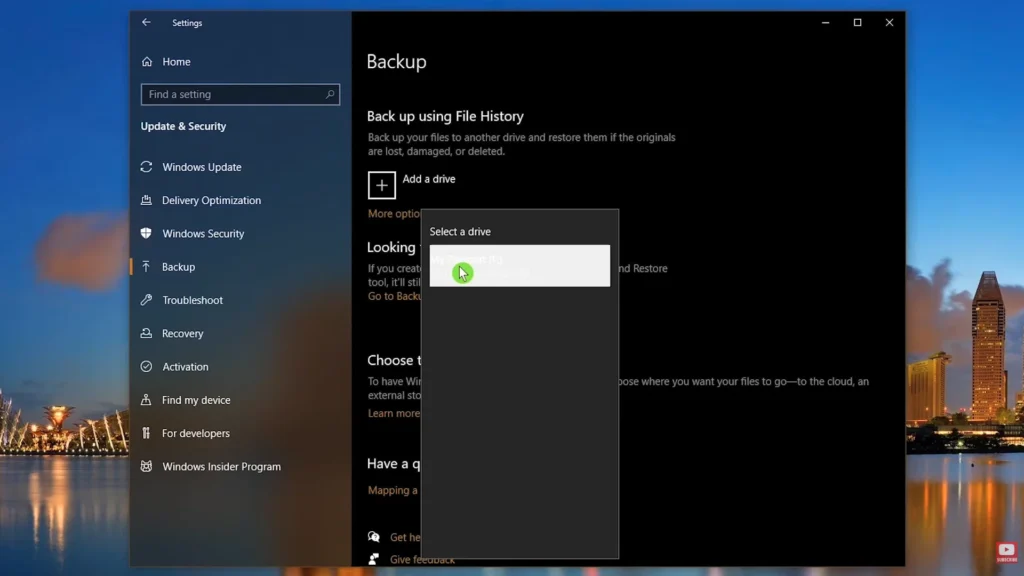
- Click Add a drive.
- Choose your external drive or network location.
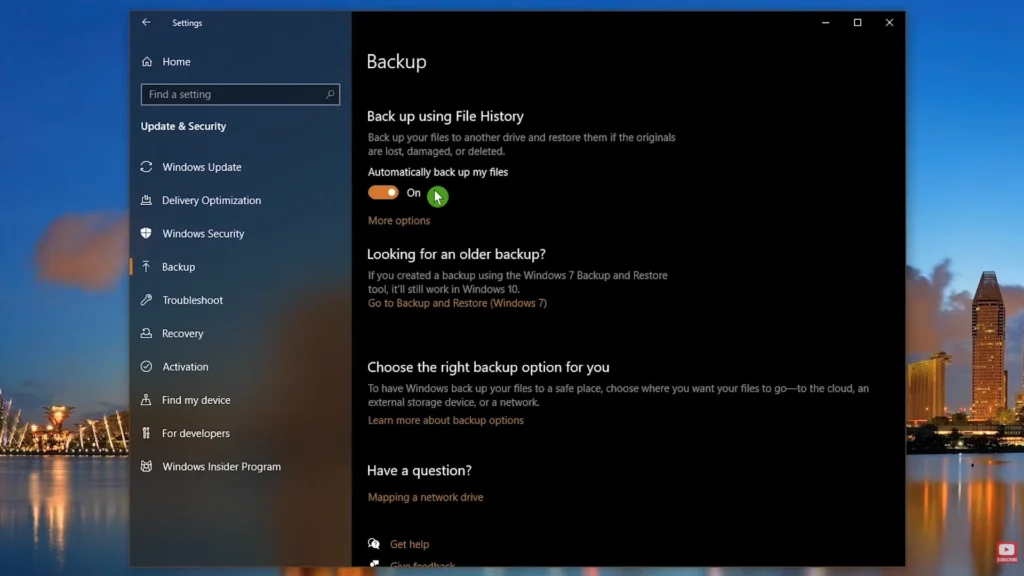
- Make sure Automatically back up my files is turned on.
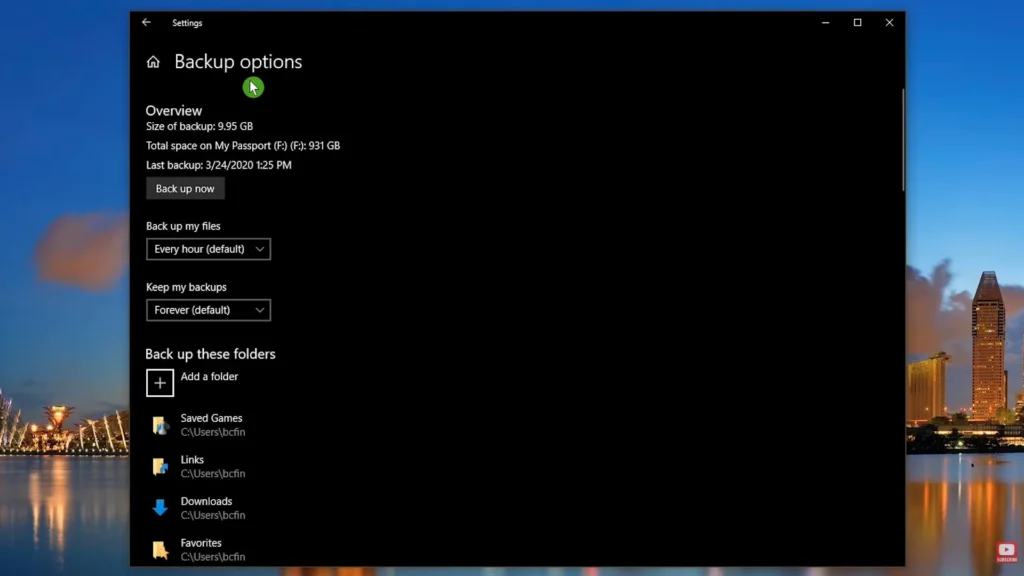
- Open More options to review backup frequency, retention, included folders, and excluded folders.
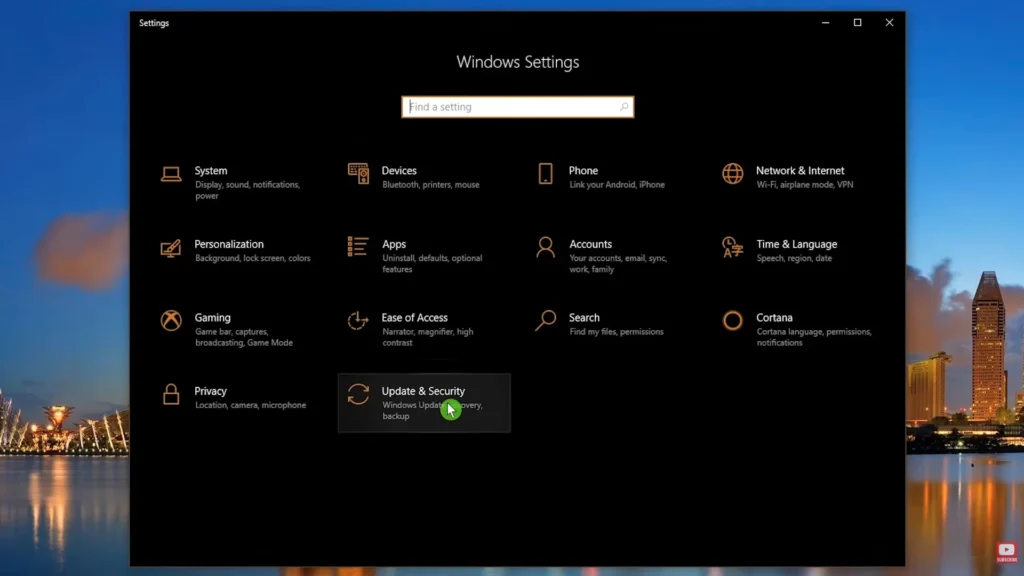
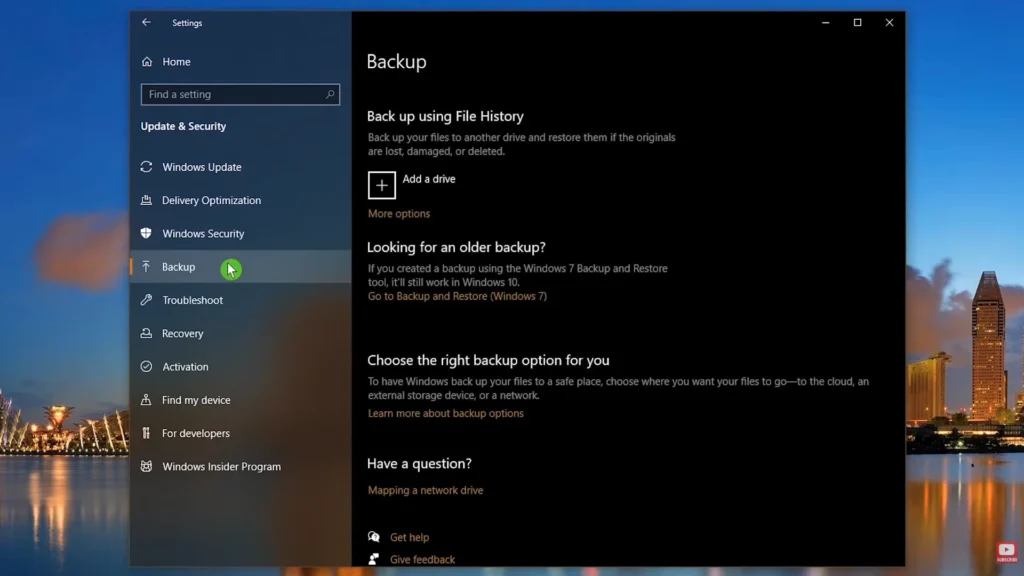
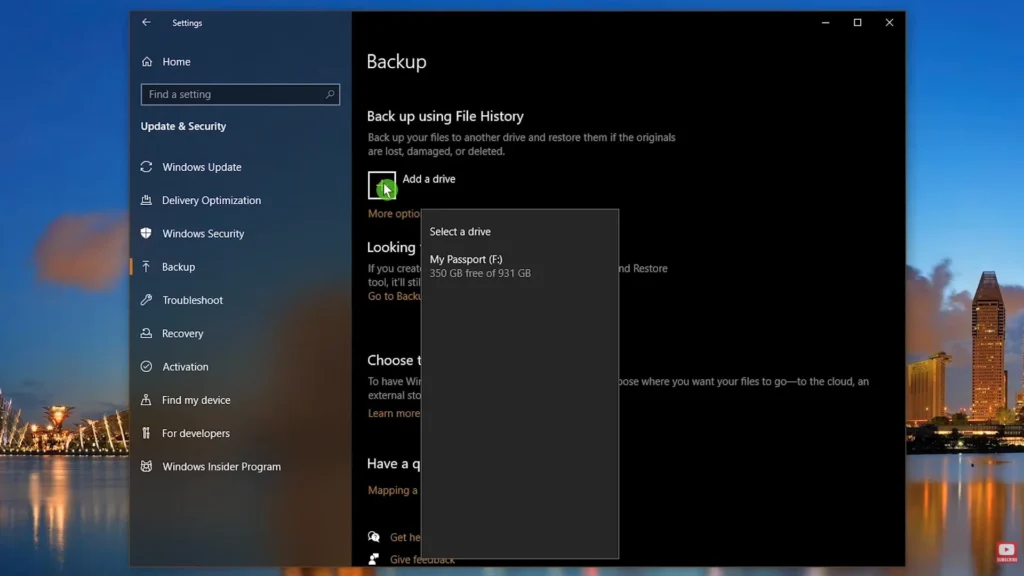
Reference YouTube Video
How to Restore Files with File History
- Open the Start menu and search for Restore your files with File History.
- Browse to the file or folder you want to recover.
- Use the arrows to move through available backup versions.
- Select the version you want.
- Click Restore to put it back in the original location.
- To avoid replacing the current version, choose a restore-to option and save it somewhere else.
File History Limitations
- It is not a full system backup.
- It does not reinstall Windows or your apps.
- It only protects folders that are included in its backup scope.
- It needs the external drive or network location to be available when backups run.
- If you keep the backup drive connected all the time, ransomware or accidental changes may also affect accessible backup storage.
Method 2: Use Windows Backup and OneDrive
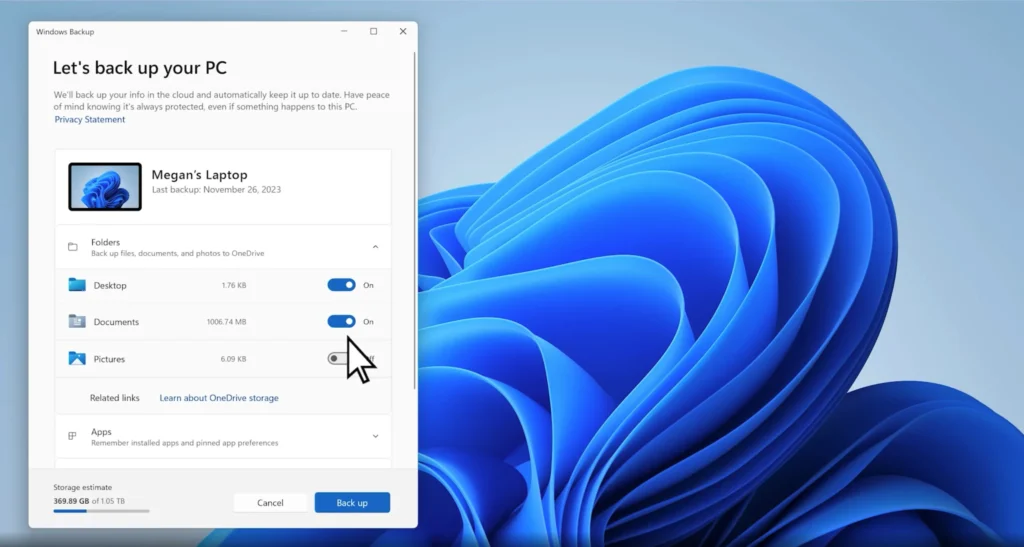
Windows Backup is Microsoft’s newer backup experience for Windows 10 and Windows 11. It is designed to back up selected files, settings, preferences, installed app information, Wi-Fi information, and other items to your Microsoft account so that restoring on a new PC is easier.
For file backup, the important detail is that Windows Backup uses OneDrive folder syncing for user folders. Microsoft says a free Microsoft account includes 5 GB of OneDrive storage, with more storage available if needed.
When Windows Backup Makes Sense
- You sign in to Windows with a personal Microsoft account.
- You want selected folders available across devices.
- You are moving to a new Windows PC.
- You want Windows settings and preferences remembered.
- You are comfortable using OneDrive cloud storage.
What Windows Backup Can Back Up
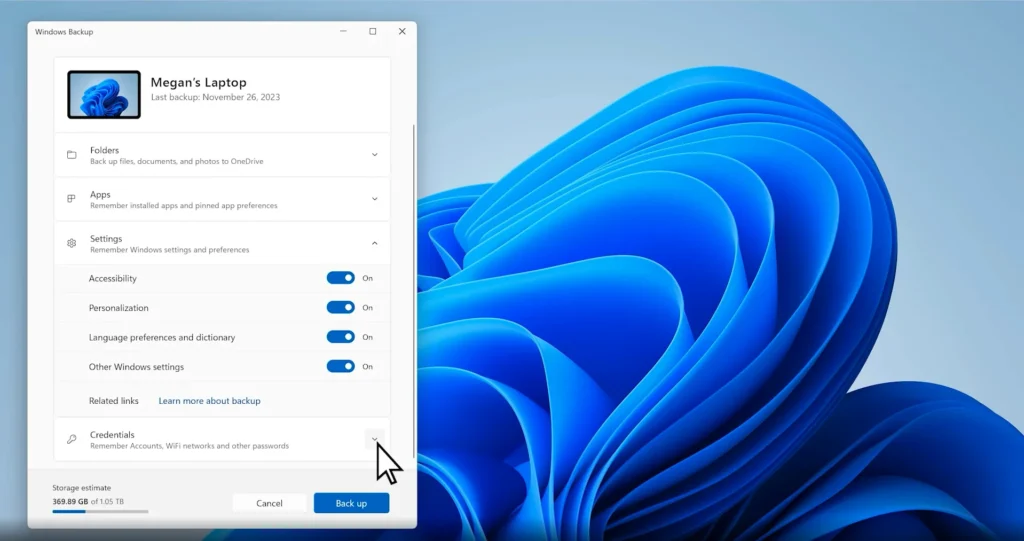
Microsoft lists several Windows Backup categories, including files, themes, settings, many installed apps, Wi-Fi information, accessibility preferences, accounts, personalization, language preferences, dictionary, and other Windows settings. For folders, Windows Backup can back up common user folders such as Desktop, Documents, Pictures, Videos, and Music by syncing them with OneDrive.
How to Use Windows Backup in Windows 10
- Sign in to Windows with a personal Microsoft account.
- Open the Start menu.
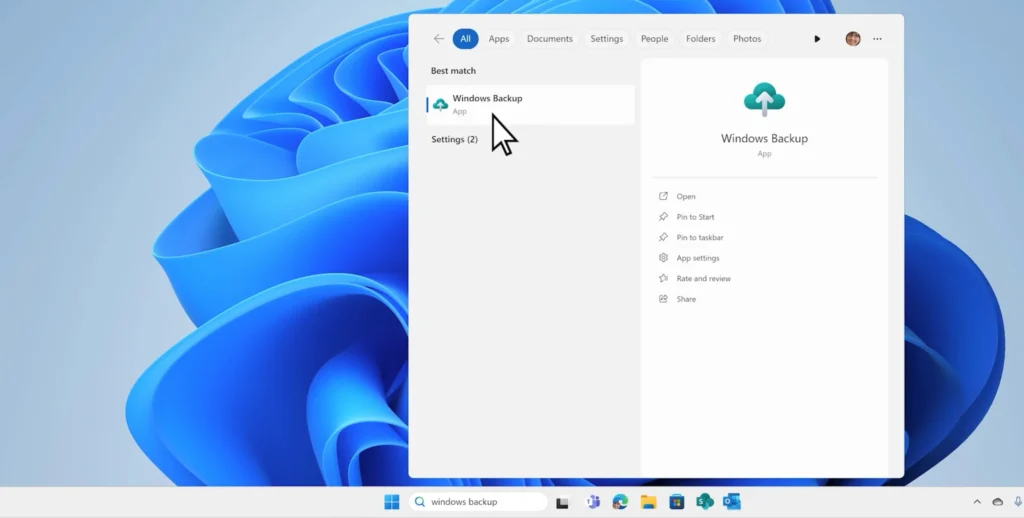
- Search for Windows Backup.
- Open the Windows Backup app.
- Expand Folders.
- Turn on the folders you want backed up to OneDrive.
- Review settings and preferences you want Windows to remember.
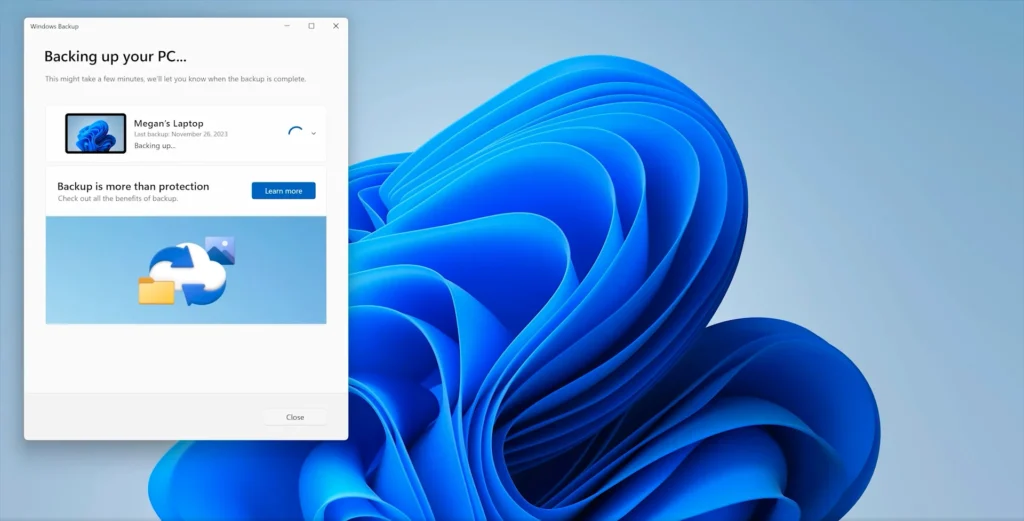
- Select Back up.
You can also review related settings from Settings > Accounts > Windows backup.
Important Windows Backup Limitations
- It is focused on consumer devices using a personal Microsoft account.
- Work or school Microsoft accounts do not work for the consumer Windows Backup app in the same way.
- Folder backup depends on OneDrive storage.
- It does not create a full offline copy of your Windows system.
- If OneDrive has sync problems or storage is full, folder backup can stop working correctly.
Method 3: Use OneDrive Folder Backup Carefully
OneDrive folder backup is useful if you want your Desktop, Documents, and Pictures available online and on other signed-in devices. It is especially helpful for laptops because files can still be available if the laptop is lost, damaged, or replaced.
When OneDrive Makes Sense
- You want cloud access to important files.
- You use multiple Windows PCs.
- You want a simple way to move files to a new PC.
- You are already paying for Microsoft 365 or extra OneDrive storage.
- You want cloud-based recovery options for deleted or changed files.
How to Turn On OneDrive Folder Backup
- Click the OneDrive cloud icon in the Windows notification area.
- Open Settings.
- Go to the backup or sync settings area.
- Select Manage backup.
- Choose folders such as Desktop, Documents, and Pictures.
- Start the backup or sync process.
- Wait for files to finish uploading before resetting or replacing the PC.
Why OneDrive Sync Is Not the Same as a Full Backup
OneDrive is very useful, but users often misunderstand it. Sync means files are kept updated across locations. If you delete or change a file, that change may sync too. OneDrive has recovery features, but you should still treat it differently from an offline external-drive backup.
For important files, keep at least one additional copy outside the synced OneDrive folder, especially before major Windows changes.
Method 4: Use Backup and Restore (Windows 7) for Older Backups and System Images
Windows 10 still includes the older Backup and Restore (Windows 7) interface. Dell notes that if you used Backup and Restore to back up files or create a computer image backup in earlier Windows versions, the old backup is still available in Windows 10.
When Backup and Restore Makes Sense
- You already have backups created with the older Windows backup tool.
- You need to access or restore older Windows 7-style backups.
- You want to create a system image using the built-in legacy interface.
- You are preparing for full-drive recovery rather than only file recovery.
How to Open Backup and Restore in Windows 10
- Open the Start menu.
- Search for Control Panel.
- Open System and Security.
- Select Backup and Restore (Windows 7).
- Use the available options to restore older backups or create a system image.
File Backup vs System Image
A file backup saves selected personal files and folders. A system image is a larger recovery snapshot that can include Windows, installed programs, settings, and files. If your goal is to restore the entire PC after a drive failure, a file-only backup is not enough.
Community discussions often separate these two use cases clearly: file and folder backups are for data recovery, while drive image backups are for recovering the operating system, applications, and data together. That distinction is important before a Windows reinstall or disk replacement.
Limitations of System Images
- They take more storage space than ordinary file backups.
- They are not as convenient for restoring one document or photo.
- Restoring an image can overwrite the current Windows installation.
- You should create recovery media and test the recovery process before relying on it.
Method 5: Manual File Backup to an External Drive
Manual copy is the simplest Windows 10 file backup method. It is not elegant, but it can work well before a one-time event such as a clean Windows installation, laptop repair, or upgrade to Windows 11.
When Manual Backup Makes Sense
- You want a one-time backup before reinstalling Windows.
- You do not want to use a Microsoft account.
- You prefer a local external drive over cloud storage.
- You understand where your important files are stored.
- You want a readable copy of files instead of a proprietary backup archive.
Folders to Check Before Manual Backup
- Desktop
- Documents
- Downloads
- Pictures
- Videos
- Music
- Browser export files or bookmarks
- Game saves and project folders
- Accounting, tax, design, editing, or work-app folders
- AppData, only if you know which app data you need
How to Make a Manual Windows 10 File Backup
- Connect an external drive with enough free space.
- Create a folder such as Windows 10 Backup – Before Reinstall.
- Copy your main user folders into it.
- Export browser bookmarks and password manager data if needed.
- Export data from apps that have their own export option.
- Open several copied files from the external drive to confirm they work.
- Safely eject the drive and keep it disconnected until you need it.
Manual Backup Limitations
- You can easily miss hidden folders or app-specific storage locations.
- It does not preserve installed programs.
- It does not automatically save future changes.
- It may not capture browser profiles, email archives, game saves, or application databases unless you select them deliberately.
Method 6: Transfer Files and Settings to a New Windows PC
Microsoft’s PC-to-PC transfer experience is meant for moving files and settings from an older PC to a new Windows PC during setup. It is useful for migration, but it should not be treated as a regular backup plan.
When PC-to-PC Transfer Makes Sense
- You are setting up a new Windows 11 PC.
- Your old computer runs Windows 10 or Windows 11.
- Both PCs can be connected to the same Wi-Fi or LAN network.
- You want to copy files and settings during setup.
What It Transfers
Microsoft says the transfer process can copy documents, photos, videos, and other files saved across folders or drives. It can also transfer settings and preferences such as wallpaper, themes, and personalization settings.
What It Does Not Transfer
- System and operating system files such as Program Files, Program Data, and temporary folders
- OneDrive files, which should be accessed by signing in to OneDrive on the new PC
- Installed applications
- Saved passwords and sign-in credentials
- BitLocker-encrypted drive data unless the drive is decrypted before transfer
This option is helpful for moving to a new PC, but it is not a substitute for an external backup. Create a separate backup before migration in case the transfer is incomplete, interrupted, or not available for your device.
What Gets Backed Up and What Does Not
| Data type | Best method | Important note |
|---|---|---|
| Documents, photos, videos, music | File History, OneDrive, manual copy, or third-party file backup | Make sure the folders are actually included in the backup scope. |
| Desktop files | Windows Backup, OneDrive folder backup, File History where included, or manual copy | Desktop files are easy to forget during manual backup. |
| Downloads | Manual copy or custom backup selection | Downloads may not be included by default in every backup method. |
| AppData | Manual copy, app export, or imaging backup | Hidden app data can be complex and may not restore cleanly by copying alone. |
| Installed programs | System image or reinstall manually | File backups do not normally back up installed applications as restorable programs. |
| Windows settings and preferences | Windows Backup or Microsoft account sync | Work and school accounts may be restricted by organization policy. |
| Operating system | System image or recovery media | File History and OneDrive do not restore the full Windows installation. |
| Passwords and credentials | Password manager export or account sync | Do not assume file backup includes saved passwords. |
| OneDrive files | OneDrive account sync plus separate export if needed | Cloud-only files may not exist as full local files unless downloaded. |
Important Limitations Before You Rely on a Windows 10 Backup
Windows 10 Support Has Ended
Microsoft states that support for Windows 10 ended on October 14, 2025. Your PC can still work, but Microsoft no longer provides free software updates, technical assistance, or security fixes through normal Windows Update. This makes reliable backup more important, especially if you continue using Windows 10.
File Backup Is Not a Full PC Restore
File History, OneDrive, and manual copy can protect personal files. They do not automatically restore Windows, drivers, installed applications, activation states, or every setting. For full recovery, you need a system image, recovery drive, or a reinstall plan.
OneDrive Depends on Storage and Sync Health
If OneDrive storage is full or sync is paused, files may not upload. Before resetting a PC, open OneDrive and confirm that important folders show as fully synced.
External Drives Can Fail Too
An external hard drive is not permanent protection. Keep more than one copy of important files, and do not leave your only backup drive permanently connected to a PC that could be hit by malware, ransomware, power problems, or user error.
Hidden App Data Needs Special Care
Some users need browser profiles, email archives, game saves, accounting files, design project libraries, or other app-specific data. These may live outside normal Documents and Pictures folders. Check each important app before reinstalling Windows.
Restore Testing Matters
A backup is only useful if it restores correctly. Open several files from the backup drive, restore a test file with File History, or confirm that your cloud copy is accessible from another device.
Recommended Backup Approach
For Most Windows 10 Home Users
- Use File History with an external drive for automatic local file backup.
- Use OneDrive or another cloud storage service for your most important documents and photos.
- Check backup status at least once a month.
- Keep the external backup drive disconnected when not actively backing up if ransomware risk is a concern.
- Before reinstalling Windows, make a fresh manual copy of critical folders.
For Users Moving to a New PC
Use Windows Backup or Microsoft’s PC-to-PC transfer if available, but also create an external backup first. Migration tools are convenient, but they do not replace a separate copy of your files.
For Users Avoiding Microsoft Accounts
Use File History to an external drive or network location, plus a manual copy of important folders. If you need cloud backup without OneDrive, use a separate backup or cloud storage provider, but verify exactly which folders are included.
For Advanced Users
Combine file backup with periodic image backup. File backup is better for everyday recovery of documents, while an image backup is better for recovering from a failed drive or badly damaged Windows installation. Community discussions often mention tools such as Macrium Reflect, Veeam, Rescuezilla, FreeFileSync, and SyncBack Free, but treat those as options to evaluate rather than built-in Windows features.
For Business or Work Devices
Follow your organization’s backup policy. Work or school accounts may have restrictions, and company data may not be allowed in personal OneDrive, personal external drives, or consumer backup tools.
Common Mistakes to Avoid
- Assuming Windows backs up everything automatically: File History and Windows Backup must be configured and checked.
- Backing up only after a problem starts: If a drive is already failing, copying files may become slow, incomplete, or impossible.
- Forgetting Downloads and Desktop: Many users store important files outside Documents.
- Ignoring AppData: Some app profiles and local databases are hidden under AppData, but copying it blindly may not restore every app correctly.
- Leaving the only backup drive connected all the time: A connected drive may be exposed to malware, accidental deletion, or power events.
- Confusing OneDrive sync with offline backup: Sync is convenient, but changes and deletions can sync too.
- Never testing restore: A backup that has never been tested is only an assumption.
- Expecting file backup to reinstall apps: Installed programs usually need to be reinstalled unless you restore from a system image.
Conclusion
The best Windows 10 file backup setup depends on what you want to recover. For everyday personal files, File History to an external drive is the most practical built-in local option. For cloud access and easier PC migration, Windows Backup and OneDrive are useful, especially if you use a personal Microsoft account. For full disaster recovery, add a system image or another tested imaging solution.
The safest approach is layered: keep one local backup, one cloud or off-site copy, and a clear restore plan. Before resetting, upgrading, or replacing a Windows 10 PC, confirm that your files are actually present in the backup and that you can open or restore them.
FAQs
Does Windows 10 have built-in file backup?
Yes. Windows 10 includes File History for backing up personal files to an external drive or network location. It also supports Windows Backup and OneDrive folder backup for selected files and settings through a Microsoft account.
What is the best way to back up Windows 10 files?
For most users, use File History with an external drive and keep a separate cloud copy of critical files. This gives you local recovery and off-site protection.
Does File History back up everything?
No. File History focuses on personal files and included folders. It does not back up the full Windows operating system, installed applications, or every folder on the drive unless configured to include the data you need.
Can I back up Windows 10 files without OneDrive?
Yes. Use File History with an external drive or network location, or manually copy important folders to an external drive. OneDrive is useful but not required for local file backup.
Does Windows Backup work with a work or school account?
Microsoft says the Windows Backup app is focused on consumer devices using personal Microsoft accounts. Work or school accounts may not work with it in the same way and may be restricted by organization policy.
Can File History restore deleted files?
Yes, if the deleted file was included in File History before it was deleted. You can search for “Restore your files with File History,” browse versions, and restore the file.
Should I use a system image for Windows 10?
Use a system image if you want a recovery option for the whole PC, including Windows, apps, settings, and files. For daily document recovery, File History is usually simpler.
What should I back up before reinstalling Windows 10 or upgrading to Windows 11?
Back up Desktop, Documents, Downloads, Pictures, Videos, Music, browser bookmarks, password manager exports, app-specific data, project folders, and any files stored outside your user folders. Also make a system image if you want a full rollback option.