 TutorialKart.com
A multi-container Docker application runs separate parts of an application in separate containers and manages them as one project with Docker Compose. A typical setup may include a frontend, an API, a database, a cache, and background workers.
This tutorial explains how multi-container applications work, how to define services in a Compose file, how containers communicate, how to persist database data, and how to start and troubleshoot the complete application.
Why Docker applications use multiple containers
A container can technically run more than one process, but a multi-container design usually assigns one main responsibility to each service. For example, a web application can place its frontend, backend, and database in separate containers.
- Frontend service: Serves the user interface or browser application.
- Backend service: Processes requests, applies application logic, and communicates with other services.
- Database service: Stores persistent application data.
- Optional supporting services: Provide caching, queues, scheduled jobs, monitoring, or reverse-proxy functions.
Separating these responsibilities makes it possible to build, replace, restart, and scale services independently. A database restart, for example, does not require the frontend image to be rebuilt.
Docker image layers and multi-container services
A Dockerfile contains instructions used to build an image. Instructions such as FROM, RUN, and COPY contribute to the image’s filesystem layers. Docker can reuse unchanged build layers, which reduces unnecessary work during later builds.
Image layers and application services solve different problems. Layers are part of an image’s build structure, while services are runtime definitions in a Compose application. A multi-container project can build several images, pull existing images, or combine both approaches.
Frontend service in a multi-container Docker application
The frontend is the part users interact with directly. It can be a static HTML, CSS, and JavaScript site, a server-rendered web application, or a browser application created with a framework such as React, Angular, or Vue.
A frontend container may serve compiled files through a web server or run a development server. When it needs application data, it sends requests to the backend API rather than connecting directly to the database.
Backend API service in a multi-container Docker application
The backend contains the application’s server-side logic. It receives requests, validates input, applies business rules, reads or updates stored data, and returns a response to the frontend or another client.
An API is a defined interface through which clients communicate with the backend. In a Compose project, the backend can connect to the database by using the database service name as the hostname. It does not need to know the database container’s changing IP address.
Database service and persistent Docker volumes
A database container runs the database server process, but important database files should not depend on the writable container layer. Containers can be recreated during updates, rebuilds, or configuration changes.
A named Docker volume stores database data separately from the container lifecycle. Recreating the database container can then preserve the data as long as the volume is retained.
Managed database services can also be used instead of a database container. The following existing references describe PostgreSQL services from AWS and Google Cloud:
- https://aws.amazon.com/rds/postgresql/
- https://cloud.google.com/sql/docs/postgres
When an externally managed database is used, the backend container connects through the database endpoint supplied by the provider. The database does not need to be declared as a local Compose service.
Docker Compose workflow for a multi-container application
Docker Compose defines a group of related containers in a YAML file and manages them as one application. Current Docker installations use the docker compose command. Older installations may provide the standalone docker-compose command shown in the original examples.
- Create a Dockerfile for each service that needs a custom image.
- Define the application’s services, networks, volumes, environment values, and port mappings in
compose.yamlordocker-compose.yml. - Run
docker compose upfrom the project directory. - Inspect the service status and logs.
- Stop and remove the project’s containers with
docker compose down.
The following image shows the original Compose file used in this tutorial:
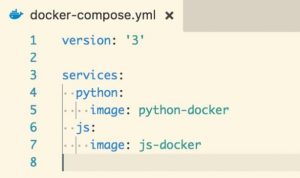
The original accompanying code was placed at Code/Lesson-2/example-docker-compose.yml. The existing code reference is https://goo.gl/11rwXV.
Check Docker Compose before creating the application
Docker Engine and Docker Compose must be installed before you start the project. Run the following commands to verify that the command-line tools are available:
docker --version
docker compose version
On a system that still uses the legacy standalone Compose tool, the second command may instead be:
docker-compose --versionRun Docker commands from a user account that has permission to access the Docker daemon. On Linux, the exact permission setup depends on how Docker was installed.
Create a multi-container application with a web service and database
The following example defines a small Python web service and a PostgreSQL database. The web service is built from the current project directory, while the database uses an existing image.
Create the Docker multi-container project files
Create a directory named multi-container-app with this structure:
multi-container-app/
├── app.py
├── Dockerfile
├── requirements.txt
└── compose.yaml
Add the following application code to app.py:
import os

from flask import Flask, jsonify

app = Flask(__name__)


@app.get("/")
def index():
    return jsonify(
        message="Multi-container application is running",
        database_host=os.getenv("DATABASE_HOST", "not configured"),
    )


if __name__ == "__main__":
    app.run(host="0.0.0.0", port=5000)
Add the Python dependency to requirements.txt:
Flask>=3.0,<4.0Create the following Dockerfile for the web service:
FROM python:3.13-slim

WORKDIR /app

COPY requirements.txt .
RUN pip install --no-cache-dir -r requirements.txt

COPY app.py .

EXPOSE 5000

CMD ["python", "app.py"]
Create compose.yaml with a web service, a database service, and a named volume:
services:
  web:
    build: .
    ports:
      - "8000:5000"
    environment:
      DATABASE_HOST: db
      DATABASE_NAME: exampledb
      DATABASE_USER: exampleuser
      DATABASE_PASSWORD: examplepassword
    depends_on:
      db:
        condition: service_healthy

  db:
    image: postgres:17
    environment:
      POSTGRES_DB: exampledb
      POSTGRES_USER: exampleuser
      POSTGRES_PASSWORD: examplepassword
    volumes:
      - postgres_data:/var/lib/postgresql/data
    healthcheck:
      test: ["CMD-SHELL", "pg_isready -U exampleuser -d exampledb"]
      interval: 5s
      timeout: 5s
      retries: 10

volumes:
  postgres_data:
The Compose Specification does not require a top-level version field. Older Compose files may contain values such as version: "3", but current Compose implementations use the specification supported by the installed Compose tool.
Start the Docker multi-container application
Open a terminal in the project directory and run:
docker compose up --buildThe --build option rebuilds images before the services are started. Compose also creates the project network and named volume when they do not already exist.
Open http://localhost:8000/ in a browser. The host port 8000 is forwarded to port 5000 inside the web container.
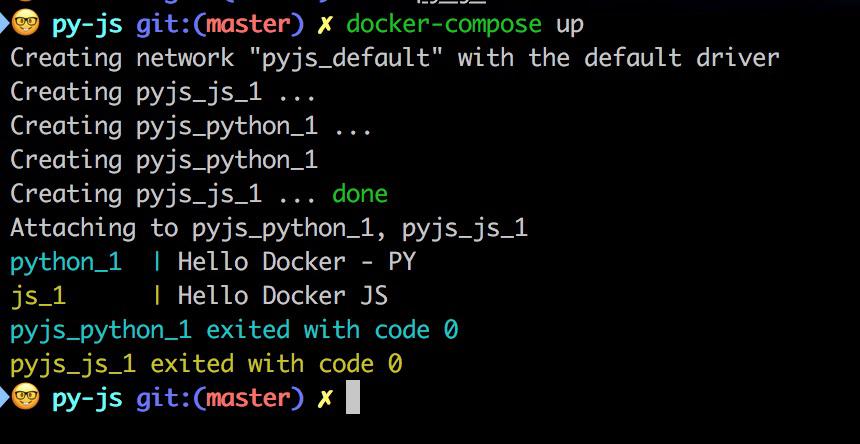
The original tutorial demonstrated the output of two locally built services named js-docker and python-docker:
How Docker Compose service networking works
Compose normally creates a default network for the project. Each service container joins that network and can be reached by its service name.
In the example, the web service uses db as the database hostname because db is the Compose service name. Do not use localhost for this connection. Inside the web container, localhost refers to the web container itself, not the database container.
Container IP addresses can change when containers are recreated. Service-name discovery avoids depending on those addresses.
Docker Compose ports and internal service connections
A Compose port mapping uses the format HOST_PORT:CONTAINER_PORT. The mapping below makes a service listening on container port 5000 available through host port 8000:
ports:
  - "8000:5000"
Other containers on the Compose network should normally connect to the service’s container port, not its published host port. For example, another service would reach the web service at http://web:5000.
A database port does not need to be published to the host unless a host-side administration tool or another external client must connect to it. The backend can access the database over the private Compose network.
Docker Compose depends_on and service readiness
The depends_on setting defines a dependency between services and controls their startup and shutdown order. Starting a database container does not necessarily mean the database server is immediately ready to accept connections.
A health check can test whether the database is ready. The dependent service can then use condition: service_healthy, as shown in the example. Applications should still handle temporary connection failures because a dependency can restart after the application has already started.
Run WordPress and MySQL as a Docker multi-container application
WordPress provides a practical example of a two-service application. One service runs WordPress and its web server, while another runs MySQL. A named volume stores the database files.
- Create a directory named
sandbox. - Create a
compose.yamlordocker-compose.ymlfile inside the directory. - Define the WordPress and database services.
- Run the project from the same directory.
The following image shows the original WordPress Compose configuration:
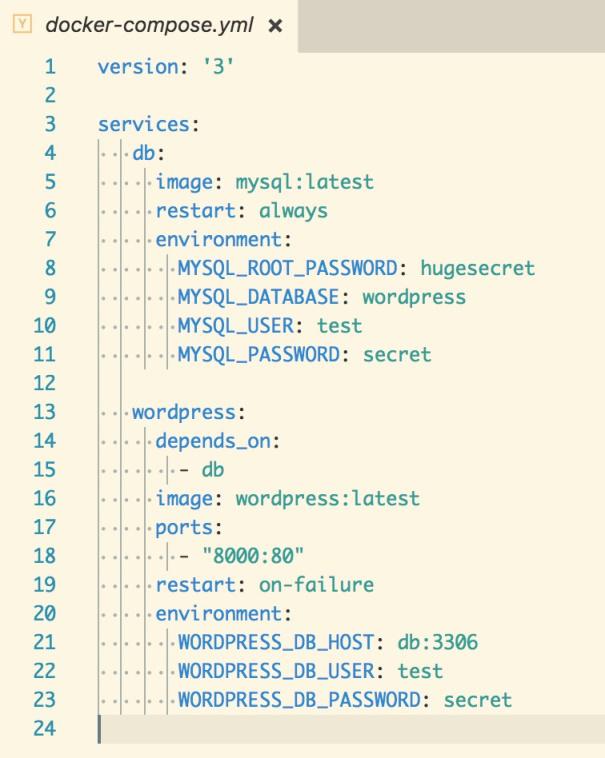
The original code was placed at Code/Lesson-2/wordpress-docker-compose.yml. The existing code reference is https://goo.gl/t7UGvy. YAML indentation must be consistent. Use spaces rather than tabs for indentation.
A current Compose example can be written as follows:
services:
  db:
    image: mysql:8.4
    restart: unless-stopped
    environment:
      MYSQL_DATABASE: wordpress
      MYSQL_USER: wordpress
      MYSQL_PASSWORD: change-this-password
      MYSQL_ROOT_PASSWORD: change-this-root-password
    volumes:
      - db_data:/var/lib/mysql
    healthcheck:
      test: ["CMD", "mysqladmin", "ping", "-h", "localhost"]
      interval: 10s
      timeout: 5s
      retries: 10

  wordpress:
    image: wordpress:latest
    restart: unless-stopped
    depends_on:
      db:
        condition: service_healthy
    ports:
      - "8000:80"
    environment:
      WORDPRESS_DB_HOST: db:3306
      WORDPRESS_DB_USER: wordpress
      WORDPRESS_DB_PASSWORD: change-this-password
      WORDPRESS_DB_NAME: wordpress

volumes:
  db_data:
For a real deployment, do not commit production passwords to a public repository. Supply sensitive values through an appropriate secrets or environment-management workflow.
Start the WordPress Compose services
Run the following command in the sandbox directory:
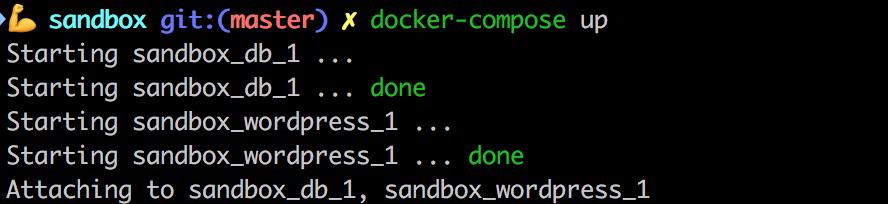
docker compose up -dThe original tutorial showed the foreground Compose startup output in the following screenshot:
List the containers belonging to the current Compose project:
docker compose psYou can also run docker ps to list running containers across Docker projects. The original container listing is shown below:

Open http://0.0.0.0:8000/, http://localhost:8000/, or the Docker host’s address on port 8000. The browser should display the WordPress installation screen. Complete the web-based setup to create the site.
Docker Compose file services, networks, and volumes
A Compose file describes the application model. Its primary top-level sections can include services, networks, volumes, configs, and secrets.
| Compose section | Purpose |
|---|---|
services | Defines the application’s containerized components. |
networks | Controls which services can communicate over named networks. |
volumes | Defines persistent data stores that services can mount. |
configs | Provides non-sensitive configuration data to services. |
secrets | Describes sensitive data made available to services through supported mechanisms. |
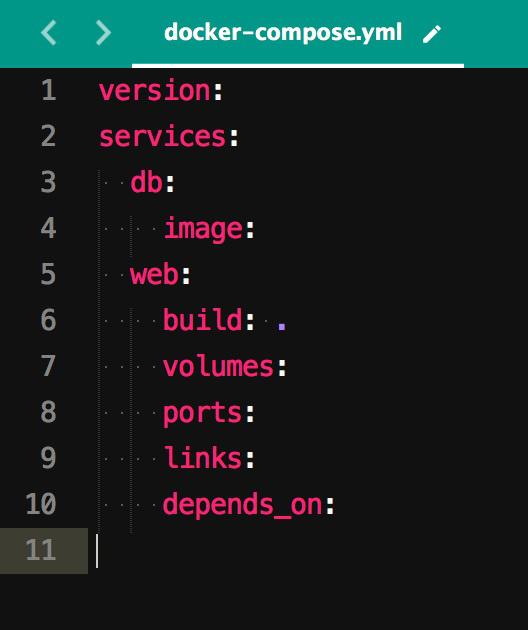
The original simplified services structure is shown in the following image:
Define a service from an existing Docker image
The image property tells Compose which image to use for a service. Compose uses a local copy when the required image is available and may pull it from the configured registry when needed.
services:
  db:
    image: postgres:17
Use a specific version tag that matches the application’s compatibility requirements. An explicit tag also makes updates more deliberate than relying on an unpinned moving tag.
Build a Compose service from a Dockerfile
The build property tells Compose to build an image from source. A short value such as build: . uses the current directory as the build context and looks for a file named Dockerfile.
services:
  web:
    build: .
Use the expanded build form to select another Dockerfile:
services:
  web:
    build:
      context: .
      dockerfile: Dockerfile.web
Persist service data with named volumes
A service mounts a named volume by listing it under the service’s volumes property. The same name is declared in the top-level volumes section.
services:
  db:
    image: postgres:17
    volumes:
      - postgres_data:/var/lib/postgresql/data

volumes:
  postgres_data:
Use environment variables in Compose services
The environment section passes configuration values into a container. These values can include service hostnames, database names, feature settings, and credentials.
services:
  web:
    environment:
      DATABASE_HOST: db
      DATABASE_NAME: exampledb
A Compose file can interpolate values from the shell or an environment file. Avoid placing real production secrets directly in version-controlled files.
Docker Compose commands for multi-container applications
| Command | Purpose |
|---|---|
docker compose config | Parses and renders the resolved Compose configuration. |
docker compose config --services | Lists service names defined by the project. |
docker compose build | Builds images for services that use build. |
docker compose up | Creates and starts the application services. |
docker compose up -d | Starts the services in detached mode. |
docker compose up --build | Builds images before starting services. |
docker compose ps | Shows containers associated with the Compose project. |
docker compose images | Lists images used by the created service containers. |
docker compose logs | Displays logs from the project’s services. |
docker compose logs -f web | Follows logs from the web service. |
docker compose exec web sh | Runs a shell inside a running web service container. |
docker compose run --rm web command | Runs a one-off command using the service configuration. |
docker compose stop | Stops containers without removing them. |
docker compose down | Stops and removes the project’s containers and networks. |
View logs from one Docker Compose service
Use the service name after the logs command to focus on one component:
docker compose logs -f dbPress Ctrl+C to stop following the log stream. This does not stop services that were started in detached mode.
Stop a Compose project without deleting database data
Run the following command to remove the project containers and default network:
docker compose downNamed volumes are retained by the standard down command. Adding --volumes removes the project’s declared named volumes and can delete stored database data:
docker compose down --volumesUse the volume-removal option only when the stored data is no longer required or has been backed up.
Run multiple containers from the same Docker image
Multiple containers can run from the same image. Each container receives its own writable layer, process state, and network identity while sharing the image’s read-only layers.
To run more than one container for a stateless Compose service, scale that service:
docker compose up -d --scale web=3A service with a fixed host-port mapping cannot normally publish the same host port from several containers. Scaled web containers are commonly placed behind a reverse proxy or load balancer instead of each binding the same host port.
Use separate Compose configurations for development and production
Development and production environments often require different settings. Development may use source-code bind mounts, debugging ports, and automatic reload. Production may use prebuilt images, stricter resource policies, managed secrets, and no source-code mounts.
Compose supports combining multiple files. For example:
docker compose -f compose.yaml -f compose.dev.yaml upThe later file can override or extend values from the earlier file. Review the resolved configuration before starting the project:
docker compose -f compose.yaml -f compose.dev.yaml configTroubleshoot a Docker multi-container application
A Compose service exits immediately
Inspect the service status and logs:
docker compose ps -a
docker compose logs service-name
Common causes include an invalid command, a missing environment variable, a configuration-file error, an application exception, or a dependency that is not ready.
The backend cannot connect to the database container
- Use the database service name, such as
db, instead oflocalhost. - Use the database’s internal container port.
- Check that both services are attached to a shared network.
- Verify the database name, user, and password.
- Inspect the database health check and startup logs.
- Confirm that the application retries temporary connection failures.
Docker Compose reports a YAML parsing error
YAML structure depends on indentation. Use spaces consistently, verify that child properties are indented below their parent, and avoid tabs. Run the following command to validate and render the configuration:
docker compose configA host port is already allocated
Another process or container is already using the requested host port. Stop the conflicting process or change the host side of the mapping. For example, change 8000:80 to 8080:80, and then open port 8080 in the browser.
Database data disappears after recreating containers
Verify that the database’s data directory is mounted to a named volume and that the volume was not removed with docker compose down --volumes. Also confirm that the mount targets the correct data directory for the selected database image.
Docker multi-container application FAQs
What is a multi-container Docker application?
A multi-container application divides related components into separate containers. Docker Compose can define and manage the services, networks, volumes, environment values, and dependencies as one project.
Can one Docker container run multiple applications?
A container can run multiple processes, but separating unrelated application responsibilities into different containers is generally easier to build, update, scale, observe, and troubleshoot. Some tightly coupled supporting processes may still be packaged together when the design requires it.
How do Docker Compose containers communicate with each other?
Services attached to the same Compose network can communicate by using service names as hostnames. For example, an API service can connect to a database service named db at db:5432 for PostgreSQL.
What is the difference between docker compose and docker-compose?
docker compose is the current Compose command integrated with the Docker CLI. docker-compose is the older standalone command. Existing projects may still show the hyphenated syntax, but current documentation and installations generally use docker compose.
Does docker compose down delete database data?
The standard docker compose down command does not remove named volumes. Running it with --volumes removes the project’s named volumes and can delete the database data stored in them.
Docker multi-container application editorial QA checklist
- Verify that each Compose service has one clearly described application responsibility.
- Confirm that inter-container connections use Compose service names rather than fixed container IP addresses.
- Check that host and container ports are identified correctly in every port mapping.
- Confirm that database files are mounted to a named volume and that destructive volume-removal commands include a warning.
- Validate all YAML examples with
docker compose config. - Confirm that service readiness is distinguished from container startup and that health checks are used where needed.
- Check that current commands use
docker composewhile legacydocker-composereferences are clearly identified. - Verify that example passwords are marked as values that must be changed and are not presented as production credentials.
- Start the example with
docker compose up --build, inspect it withdocker compose ps, and stop it withdocker compose down.
Docker Compose provides a single application definition for related containers while keeping the frontend, backend, database, and supporting services independently manageable. The Compose file records how the services are built, connected, configured, started, and supplied with persistent storage.