 TutorialKart.com
What Minishift is and when to use it
Learn about Minishift in this guest post by Tomasz Adamski, the author of Hands-On Cloud Development with WildFly.
Minishift is a command-line tool that starts a virtual machine on a local computer and creates a single-node OpenShift cluster inside that virtual machine. It was designed for local development, demonstrations, experimentation, and testing with OpenShift 3.x.
Current status: Minishift is an older OpenShift development tool and is no longer the normal choice for current OpenShift releases. It does not provide an OpenShift 4 cluster. For a current local OpenShift environment, review Red Hat OpenShift Local, formerly called CodeReady Containers, or another local Kubernetes or OpenShift-compatible development environment. The Minishift instructions below remain useful when maintaining an existing OpenShift 3.x setup or studying an older project.
Difference between Minishift and OpenShift
OpenShift is the container application platform. Minishift is a local development utility that creates a small OpenShift cluster inside a virtual machine. Minishift is therefore not a separate replacement for OpenShift; it is one way of running an older OpenShift environment on a developer workstation.
| Term | Purpose |
|---|---|
| OpenShift | A container application platform used to build, deploy, and manage applications. |
| Minishift | A local tool that runs a single-node OpenShift 3.x cluster in a virtual machine. |
| OpenShift Local | A newer local OpenShift environment intended for current OpenShift development workflows. |
Minishift system requirements and prerequisites
Before installing Minishift, verify that the host computer can run hardware-assisted virtualization and has enough free resources for both the virtual machine and the applications deployed inside it.
- A supported 64-bit operating system.
- Hardware virtualization enabled in the system firmware.
- A supported hypervisor, such as VirtualBox, Hyper-V, KVM, or another driver supported by the selected Minishift release.
- At least several gigabytes of free memory for the Minishift virtual machine.
- Enough free disk space for the virtual disk, OpenShift images, application images, logs, and persistent volumes.
- Permission to create virtual machines and modify local networking.
- Internet access for downloading Minishift, the OpenShift image, and container images.
The original example starts Minishift with 4 GB of memory and a 30 GB virtual disk. These values are reasonable for a small demonstration, but the correct allocation depends on the number of services, builds, image streams, and databases used in the cluster. The host computer must also retain enough memory for its operating system and other applications.
Installing Minishift on a local computer
You can download the latest version of Minishift from the GitHub page. You also have to install the virtual machine that you’ll use and configure your environment variables accordingly. The process is very simple and takes a few minutes to complete. The details of the particular installation steps differ a bit between operating systems. They are described thoroughly in the attached installation guide.
Minishift binaries were distributed through the Minishift GitHub releases page. Choose the archive that matches the host operating system and processor architecture, extract the executable, and place it in a directory included in the system PATH.
After installing the executable, verify that the command can be found from a new terminal window:
minishift versionIf the command is not recognized, confirm that the executable filename is correct, the containing directory is in PATH, and the terminal was reopened after changing environment variables.
Selecting a Minishift virtual-machine driver
Minishift requires a hypervisor driver that matches the host platform and installed virtualization software. The driver may be selected in the start command or stored in Minishift configuration.
minishift start --vm-driver=<driver-name>Do not install multiple competing hypervisors unless their coexistence is supported on the host. Hyper-V, VirtualBox, KVM, and other virtualization products can require different networking, permissions, and firmware settings.
Starting a Minishift OpenShift cluster
After you have installed the cluster, you can start it using the minishift start command. It is a good practice to boost the default parameters to provide enough memory and disk space for the services that you will develop and use:
minishift start --memory=4096 --disk-size=30gbAfter you run the preceding command, you have to wait a few minutes for the cluster to start:
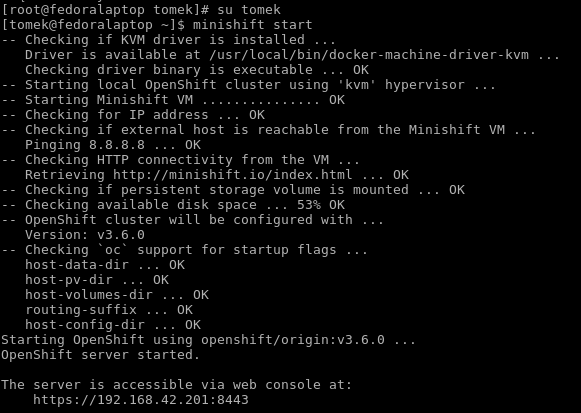
The first start usually takes longer because Minishift must create the virtual machine and download the required OpenShift and container images. Later starts can be faster because the virtual machine and cached files already exist.
After startup, check the cluster status and obtain the IP address assigned to the Minishift virtual machine:
minishift status
minishift ip
After minishift has started, you can access it using the provided address in the startup log. The first screen is a login screen. On this screen, you can use any credentials (as Minishift is a test tool) and click the Login button. After you do this, you will see the web console, which is one way of managing the OpenShift cluster.
Credential behavior depends on the OpenShift version and Minishift configuration. Do not assume that arbitrary credentials are accepted in every installation. Use the credentials shown by the startup process or the documented local developer account for the selected Minishift profile.
Opening the Minishift OpenShift console
Minishift can print or open the web console URL through its console command:
minishift console --url
minishift console
The first command prints the console URL. The second attempts to open it in the default browser.
Managing Minishift projects in the OpenShift web console
A web console is a graphical tool that enables you to view and manage the content of an OpenShift project. From a technical point of view, the console is a graphical interface that provides convenient abstraction over the OpenShift REST API, which it uses to modify the cluster model according to user operations.
Here’s the main console window:
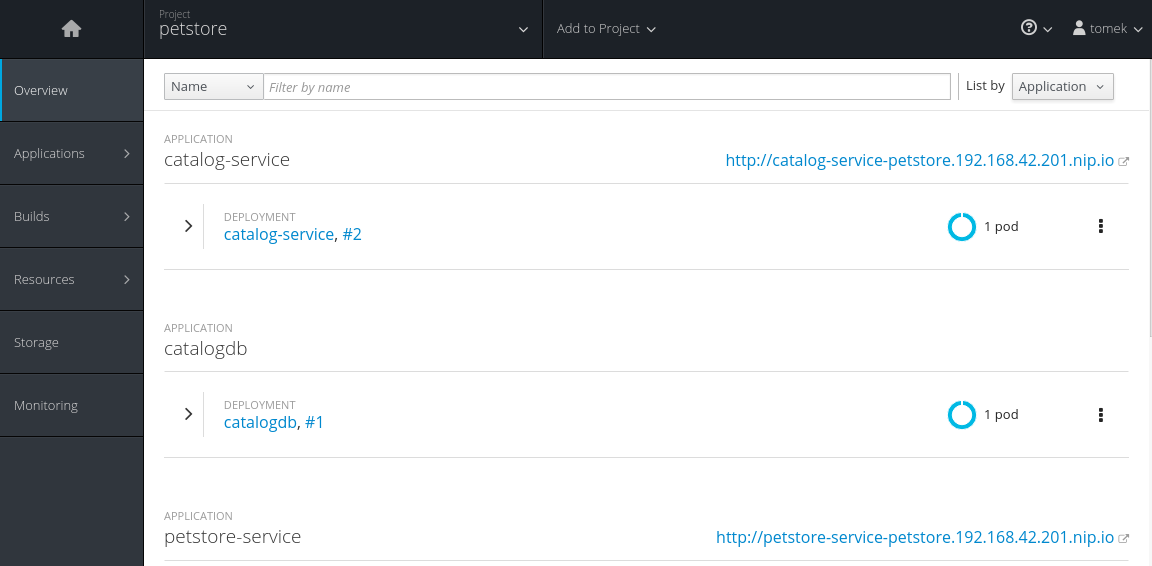
As you can see in the preceding screenshot, the console allows you to manage projects, view their content, and modify it. The overview (presented in the preceding screenshot) contains an application deployed in the petstore namespace. The menu on the left allows you to view and modify different aspects of the cluster, such as builds, deployments, or persistent resources.
In OpenShift terminology, a project provides an administrative and user-facing layer over a Kubernetes namespace. Resources such as deployments, pods, services, routes, build configurations, image streams, secrets, and persistent volume claims are commonly organized within a project.
Editing OpenShift objects in YAML notation
Although the majority of configuration can be done using the graphical interface, sometimes it will be necessary to edit the internal representation of OpenShift objects.
Each object in an OpenShift model can be represented using this kind of notation. If you click on Applications | Deployments, choose one of them, click on Actions in the top-right corner. You will be able to choose the Edit YAML option. This applies to all objects in the console.
A deployment definition contains fields such as the resource name, labels, desired replica count, pod template, container image, ports, and environment variables. The exact API version and object kind depend on the OpenShift release and resource type.
apiVersion: apps/v1
kind: Deployment
metadata:
  name: example-app
spec:
  replicas: 1
  selector:
    matchLabels:
      app: example-app
  template:
    metadata:
      labels:
        app: example-app
    spec:
      containers:
        - name: example-app
          image: example/app:latest
          ports:
            - containerPort: 8080
The YAML above is a general syntax example rather than a resource copied from the older Minishift screenshots. Before applying a manifest, confirm that its API version and object kind are supported by the OpenShift version running in the cluster.
Using the OpenShift CLI with Minishift
Sometimes, it is more convenient to use a command-line tool instead of graphical interface. OpenShift provides it too. The OpenShift CLI implements the oc command-line tool, which allows for managing the cluster from the terminal.
Minishift can configure the current shell so that the matching oc client is available. The exact command differs between shells, so use the output returned for the current operating system.
minishift oc-envThe first thing that you have to do in order to use oc is to log in to the cluster, as follows:
oc loginYou will be asked for your credentials, and will have to provide the same credentials that were used to create your project in the web console.
After logging in, check the active server, user, and project:
oc whoami
oc whoami --show-server
oc project
There are a number of operations that the oc tool provides.
The get operation allows you to obtain available information about the availability of a given type of object. Here’s how you can invoke the command:
oc getThe tool will suggest a type of object that you can inspect; take a look:
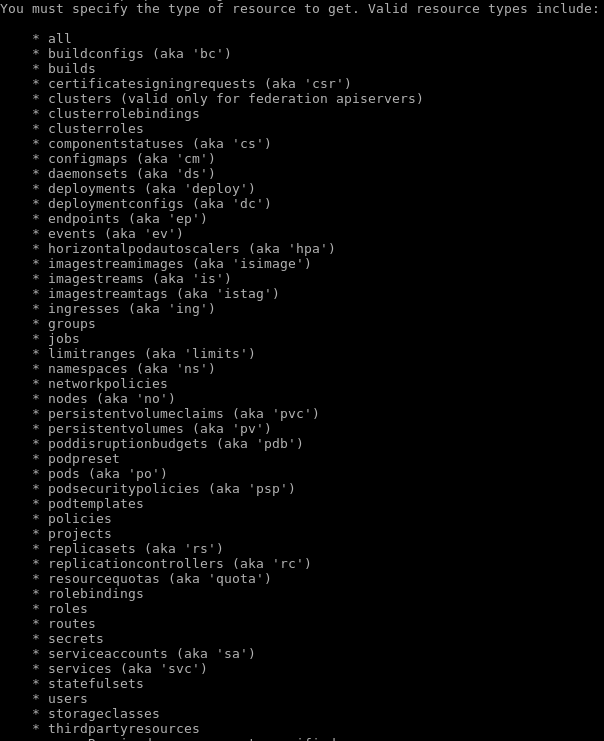
You can use the oc get command to inspect the services available in the cluster:
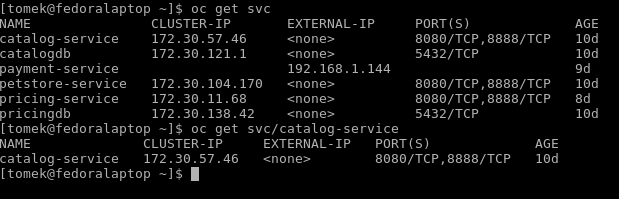
Specify a resource type when using oc get. The following commands list common resources in the current project:
oc get pods
oc get services
oc get routes
oc get deployments
oc get all
You can also take advantage of labels. If you write:
oc get all -l app=catalog-serviceThen you will be able to see all kinds of objects associated with the service.
The label selector returns only resources carrying the exact app=catalog-service label. If an expected object is absent, inspect its labels with the --show-labels option.
oc get all --show-labelsAs you can see in the preceding code, you can list the objects that you are interested in using the get command. If you want to get some more information about them, you need to use the oc describe command, as follows:
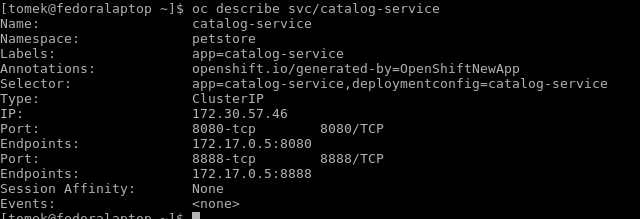
The describe command allows you to read all the information about the given type of object.
Provide both the resource type and resource name when requesting detailed information:
oc describe pod <pod-name>
oc describe service <service-name>
oc describe route <route-name>
Creating a test project and deploying an application in Minishift
A basic Minishift workflow is to create a project, deploy an application image, expose it through a route, and verify the resulting endpoint. The image must be compatible with the OpenShift version and accessible to the cluster.
oc new-project minishift-demo
oc new-app <container-image> --name=demo-app
oc expose service demo-app
oc get pods
oc get route
Replace <container-image> with an image that can run under the security restrictions of the OpenShift cluster. Avoid assuming that an image requiring a root user will work without modification.
Stopping, restarting, and deleting a Minishift cluster
Stopping Minishift preserves the virtual machine and its cluster data so it can be started again later. Deleting the profile removes the virtual machine and the data stored inside it.
minishift stop
minishift start
minishift delete
Use minishift delete only after exporting any configuration, manifests, database data, or persistent files that must be retained. A local development cluster should not be treated as the only copy of important application data.
Common Minishift installation and startup problems
| Problem | What to check |
|---|---|
| Minishift reports that virtualization is unavailable | Confirm that hardware virtualization is enabled in firmware and supported by the selected hypervisor. |
| The virtual machine fails to start | Check the VM driver, hypervisor service, host permissions, conflicting virtualization software, and available memory. |
| The cluster starts but the console does not open | Use minishift status, obtain the console URL, verify the VM IP, and check local firewall or proxy settings. |
The oc command is not found | Run minishift oc-env and apply the shell-specific environment command it prints. |
| Pods remain pending | Inspect pod events, node capacity, persistent volume claims, image pull errors, and memory limits. |
| An image cannot run in OpenShift | Check registry access, image architecture, entry point, exposed ports, file permissions, and whether the image requires root privileges. |
| The Minishift download does not support OpenShift 4 | Minishift targets older OpenShift versions. Use a current local OpenShift tool for OpenShift 4 development. |
Minishift alternatives for current local OpenShift development
Developers searching for Minishift 4 or Minishift for OpenShift 4 should use a current alternative rather than expecting a newer Minishift release. The appropriate choice depends on whether the goal is OpenShift-specific testing or general Kubernetes development.
- Red Hat OpenShift Local: Runs a local OpenShift environment intended for current OpenShift development.
- Remote OpenShift development cluster: Suitable when the workstation lacks enough CPU, memory, or virtualization support.
- Minikube or kind: Useful for local Kubernetes development when OpenShift-specific APIs and behavior are not required.
- Podman or Docker: Suitable for testing individual containers without running a complete Kubernetes or OpenShift cluster.
Minishift frequently asked questions
What is Minishift?
Minishift is a command-line utility that creates a local single-node OpenShift 3.x cluster inside a virtual machine. It is mainly relevant to older OpenShift development and testing workflows.
What is the difference between OpenShift and Minishift?
OpenShift is the container platform. Minishift is a local tool used to run a small OpenShift cluster on a workstation. Minishift depends on OpenShift and is not an alternative container platform.
Can Minishift run OpenShift 4?
No. Minishift is associated with older OpenShift 3.x environments. Use a current OpenShift local-development product when an OpenShift 4 cluster is required.
What are the Minishift hardware requirements?
The computer needs a 64-bit operating system, hardware virtualization, a supported hypervisor, and enough free CPU, memory, and disk space for the virtual machine and deployed workloads. The original example allocates 4 GB of memory and a 30 GB virtual disk, but larger applications may require more.
Which Minishift alternative should I use?
Use OpenShift Local when OpenShift-specific behavior is required. Use Minikube or kind for general Kubernetes testing, and use Podman or Docker when only an individual container needs to be tested.
Editorial QA checklist for this Minishift tutorial
- Confirm that the tutorial clearly identifies Minishift as an OpenShift 3.x-era tool.
- Do not describe Minishift as a way to run OpenShift 4.
- Verify that the selected hypervisor and Minishift VM driver are compatible with the host operating system.
- Confirm that hardware virtualization is enabled before troubleshooting cluster startup.
- Check that the host has enough free memory beyond the amount assigned to the Minishift virtual machine.
- Verify that
ocis configured from the Minishift environment before running OpenShift CLI commands. - Confirm that deleting a Minishift profile will not remove the only copy of important local data.
- Use a current OpenShift local-development tool for new OpenShift 4 tutorials.