 TutorialKart.com
Knowing how to create an iPhone backup matters before your phone is lost, damaged, erased, replaced, or stuck during an update. A backup is not just a copy of your photos. It can also preserve settings, app data, Home Screen layout, messages, and other device information depending on the method you use.
The main choices are iCloud Backup, a Mac backup through Finder, a Windows backup through Apple Devices or iTunes, and manual exports for specific files such as photos. Each option works differently, and none of them should be treated as a perfect clone of the iPhone.
This guide explains the practical backup methods, what each one includes, where the limitations are, and which option makes sense for most users.
How to create an iPhone backup
For most users, the best option is to turn on iCloud Backup because it runs automatically when the iPhone is connected to power, locked, and connected to Wi-Fi. Apple explains the official process in its guide to backing up iPhone or iPad with iCloud.
Use a computer backup if you do not want to depend only on cloud storage, if your iCloud storage is full, or if you want a local encrypted backup on a Mac or Windows PC. Apple also recommends that users can keep both an iCloud backup and a computer backup as an alternative backup method.
For the safest practical setup, use both: keep iCloud Backup on for automatic protection, and occasionally create an encrypted computer backup before major iOS updates, repairs, device trade-ins, or phone changes.
Main iPhone backup options
Apple supports two main backup categories: iCloud backups and computer backups. Manual photo or file exports can be useful, but they are not a full iPhone backup.
| Method | Best for | Requires | Main limitation |
|---|---|---|---|
| iCloud Backup | Most users who want automatic backup | Apple Account, Wi-Fi, iCloud storage | May require paid iCloud+ storage if 5 GB is not enough |
| Mac Finder backup | Local backup without using iCloud storage | Mac, cable, enough disk space | Encrypted backup must be enabled manually for the most complete local backup |
| Windows backup | Users with a Windows PC and enough local storage | Apple Devices app or iTunes, cable, enough disk space | Windows app/version confusion can make setup less straightforward |
| Manual photo/file export | Saving selected photos, videos, or documents | Cloud app, iCloud.com, File Explorer, Photos app, or external storage | Not a full device backup and usually does not restore settings or app data |
Method 1: Back up iPhone with iCloud
iCloud Backup stores a copy of iPhone information that is not already being synced separately to iCloud. Apple’s explanation of what iCloud backs up is important because iCloud syncing and iCloud Backup are not the same thing.
For example, if iCloud Photos is turned on, your photos and videos sync through iCloud Photos and are not duplicated inside your daily iCloud Backup. If Messages in iCloud is turned on, messages sync through iCloud instead of being stored as part of the daily backup.
When iCloud Backup makes sense
- You want an automatic backup without connecting your iPhone to a computer.
- You are replacing, repairing, or upgrading your iPhone.
- You have enough iCloud storage for the backup.
- You want to restore from anywhere with Wi-Fi.
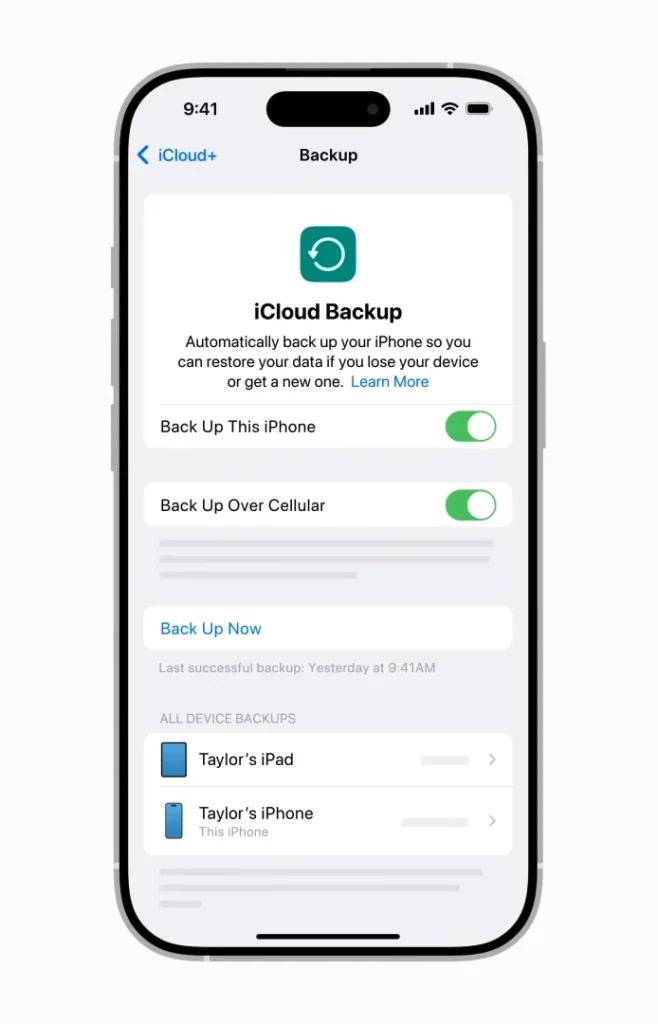
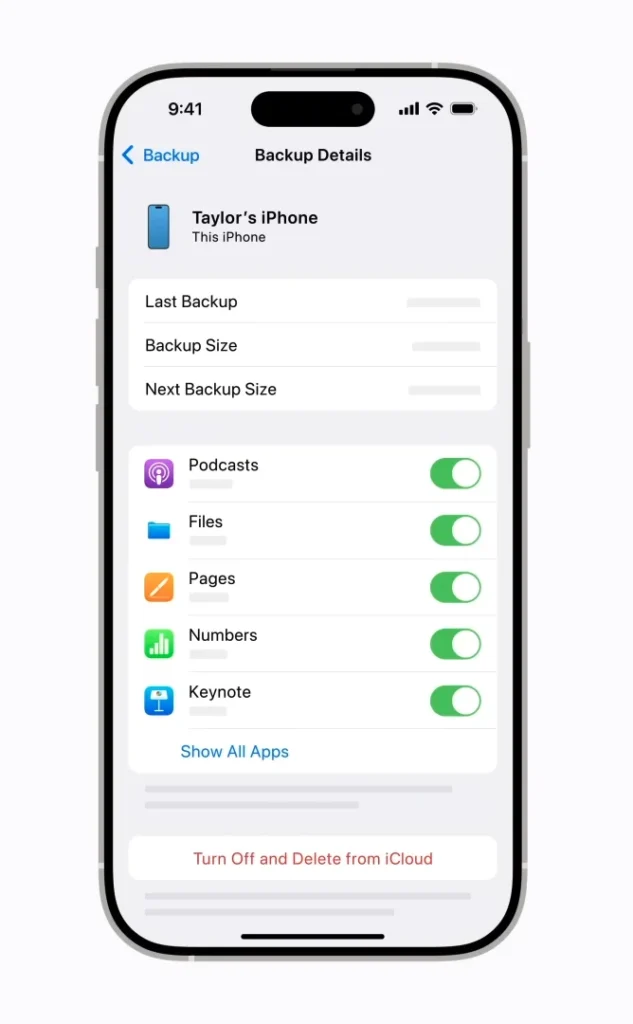
How to create an iCloud backup
- Connect your iPhone to Wi-Fi.
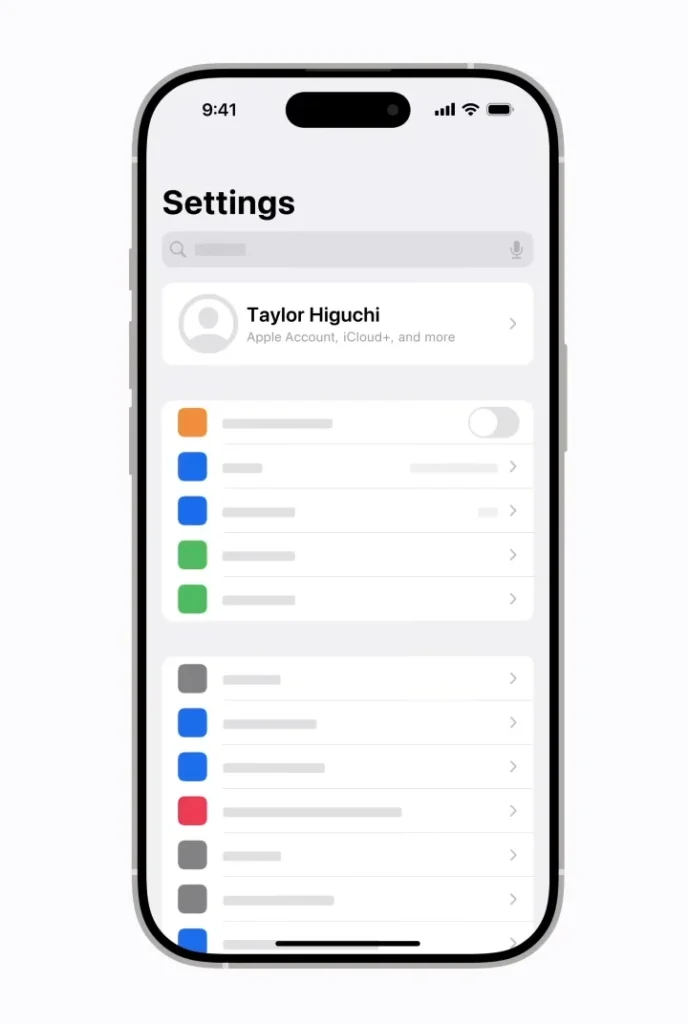
- Open Settings.
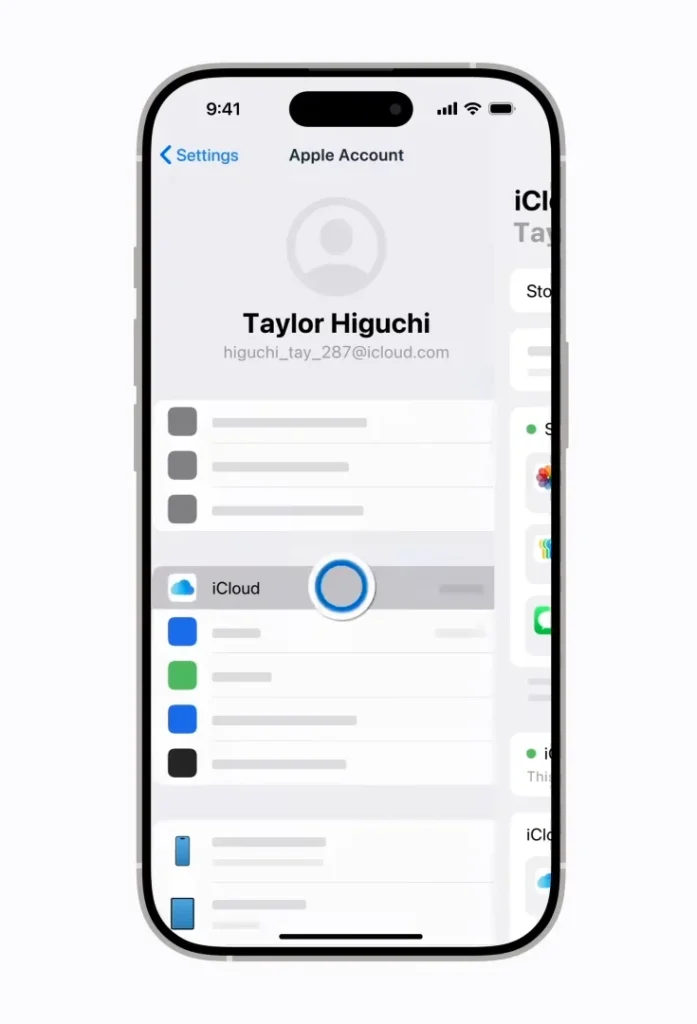
- Tap your name at the top.
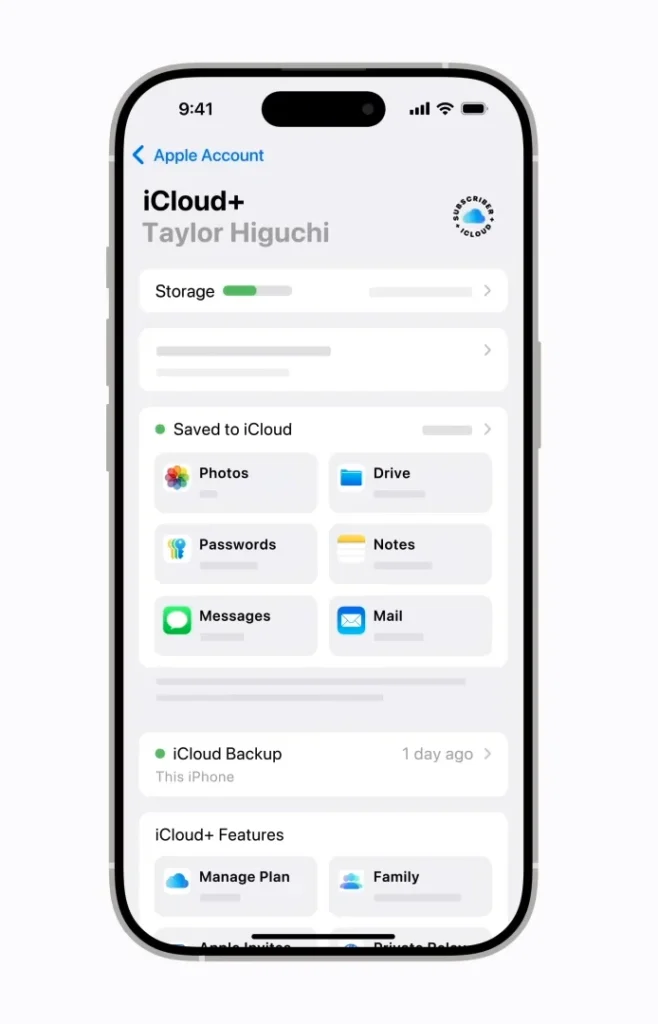
- Tap iCloud.
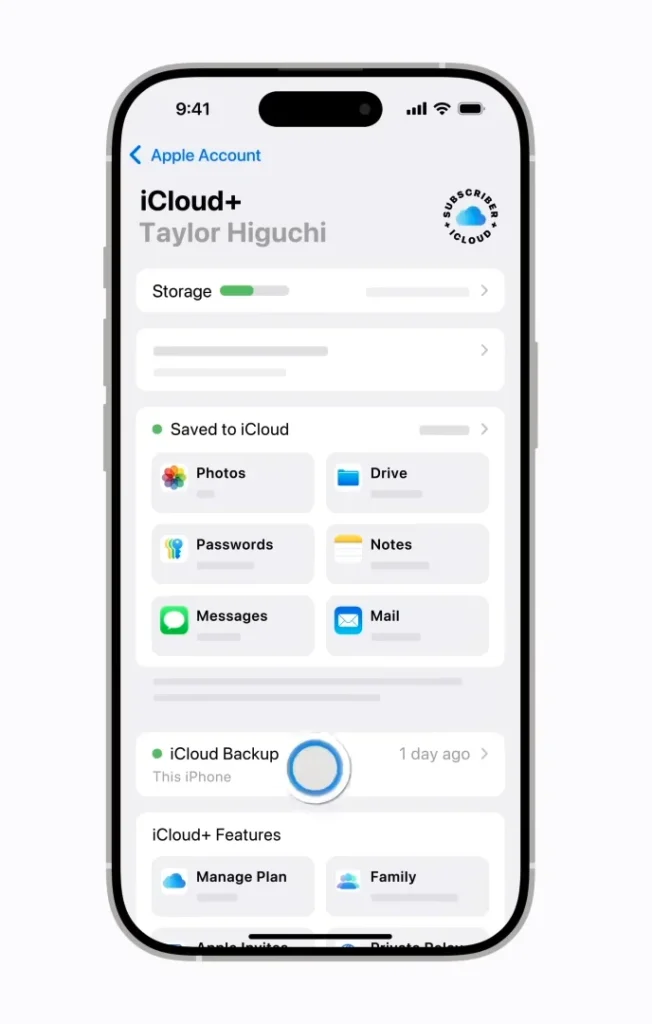
- Tap iCloud Backup.
- Turn on Back Up This iPhone.
- Tap Back Up Now if you want to start a manual backup immediately.
- Keep the iPhone connected to Wi-Fi until the backup finishes.
Reference YouTube Video
After setup, iCloud can back up automatically when the iPhone is connected to power, locked, and connected to Wi-Fi. On some 5G models, the carrier may also allow backup over cellular, but Wi-Fi remains the safer general recommendation for large backups.
What iCloud Backup can include
- Device settings
- Home Screen layout and app organization
- Apple Watch backup
- Visual Voicemail password, where supported and with the same SIM or eSIM
- Photos and videos if iCloud Photos is not turned on
- Messages if Messages in iCloud is not turned on
- App data for many downloaded apps, unless the app stores that data separately in iCloud Drive or another service
What iCloud Backup does not include
Apple states that iCloud backups do not include data already synced to iCloud, such as iCloud Photos, iCloud Drive, Notes, or Messages in iCloud. They also do not include Apple Pay information and settings, Face ID or Touch ID settings, Apple Mail data, iCloud Music Library, App Store content, data stored in other cloud services such as Gmail or Exchange, and offline maps.
iCloud storage limitation
Apple provides 5 GB of free iCloud storage. That space is shared across backups, iCloud Photos, iCloud Drive, messages, and other iCloud data. If your iPhone contains many photos, videos, or app data, 5 GB may not be enough. Apple lists current storage tiers on its iCloud+ plans and pricing page.
Temporary iCloud storage for a new iPhone
If you bought a new iPhone and do not have enough iCloud storage for transfer, Apple may provide temporary iCloud storage for moving data to the new device. Apple explains eligibility and timing in its guide to temporary iCloud storage for a new iPhone or iPad.
Method 2: Back up iPhone to a Mac
A Mac backup saves the iPhone backup on your computer instead of in iCloud. This is useful if you have enough Mac storage, want a local copy, or prefer not to rely only on cloud backup.
On macOS 10.15 Catalina or later, Apple uses Finder for iPhone backups. On macOS 10.14 Mojave or earlier, Apple uses iTunes.
How to back up iPhone using Finder on Mac
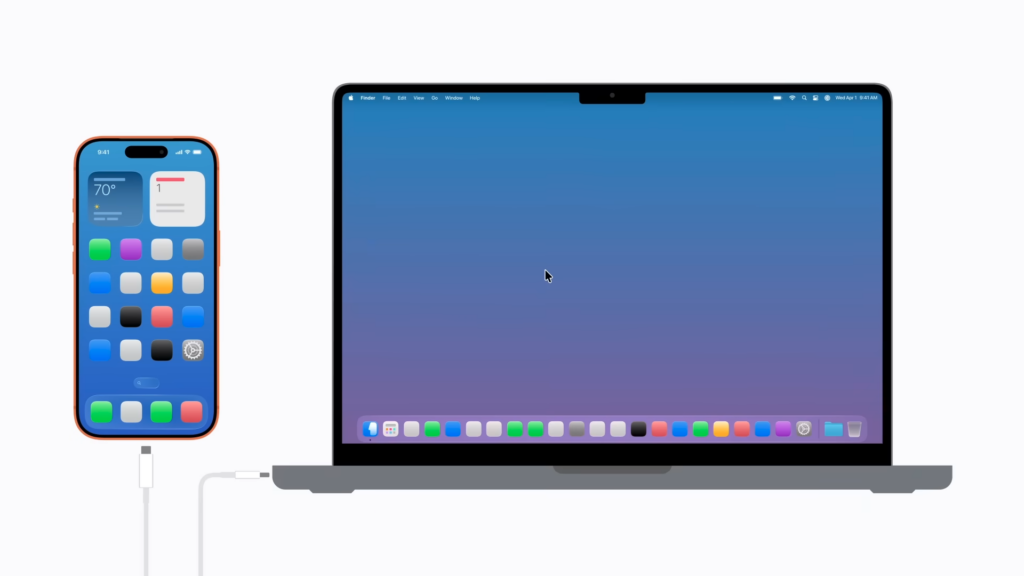
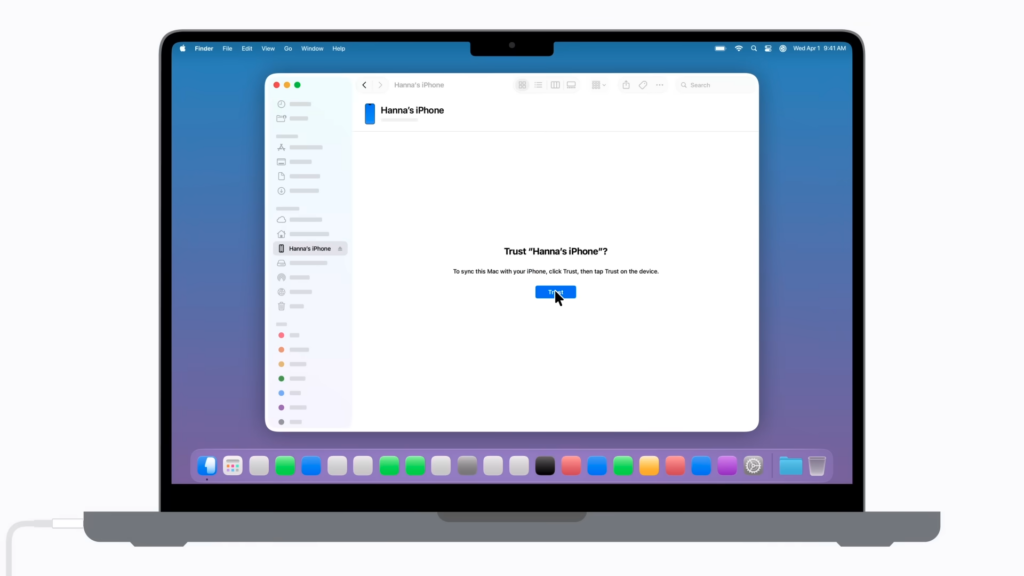
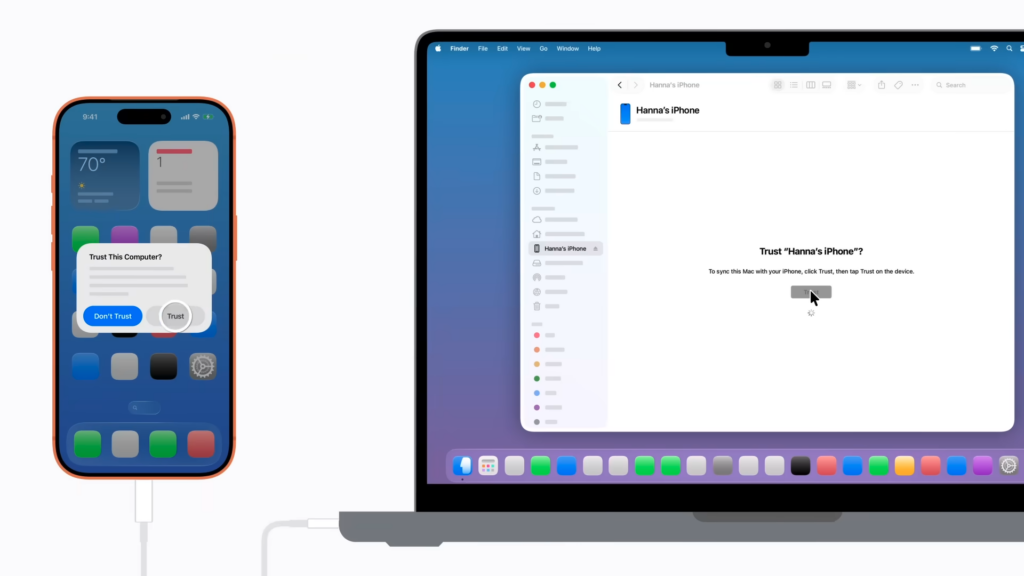
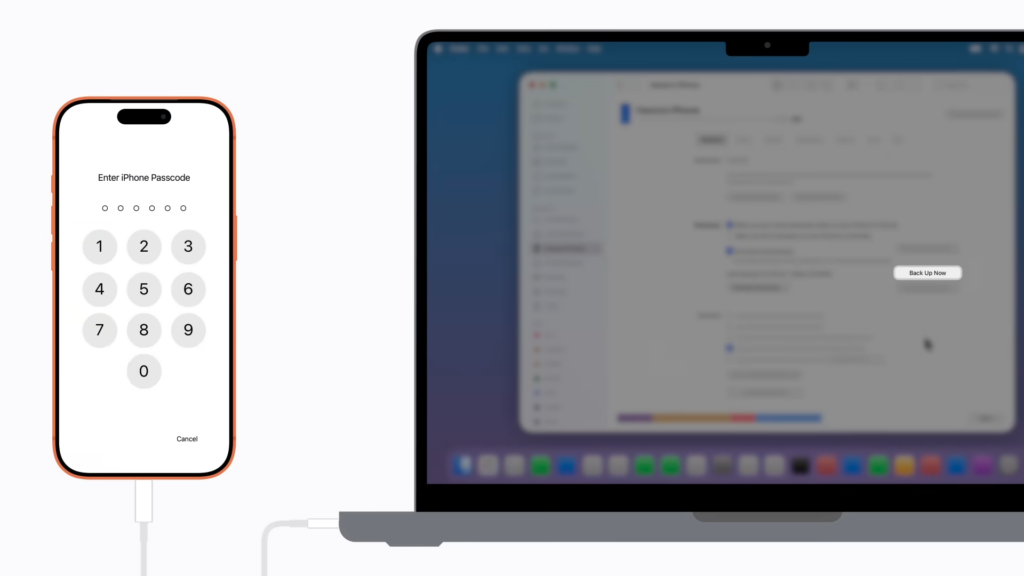
- Connect your iPhone to your Mac with a cable.
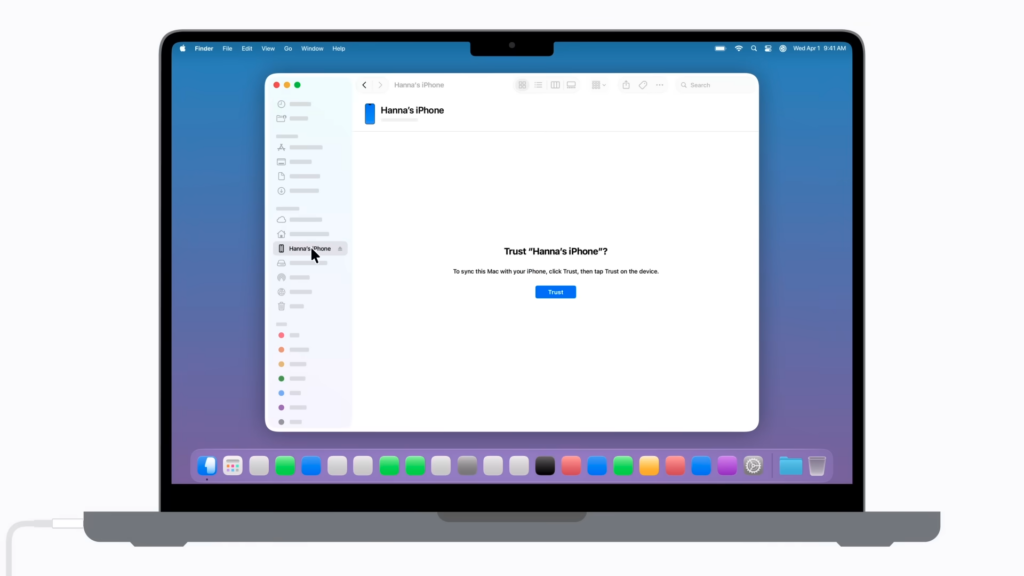
- If asked, tap Trust This Computer on the iPhone and enter your passcode.
- Open Finder.
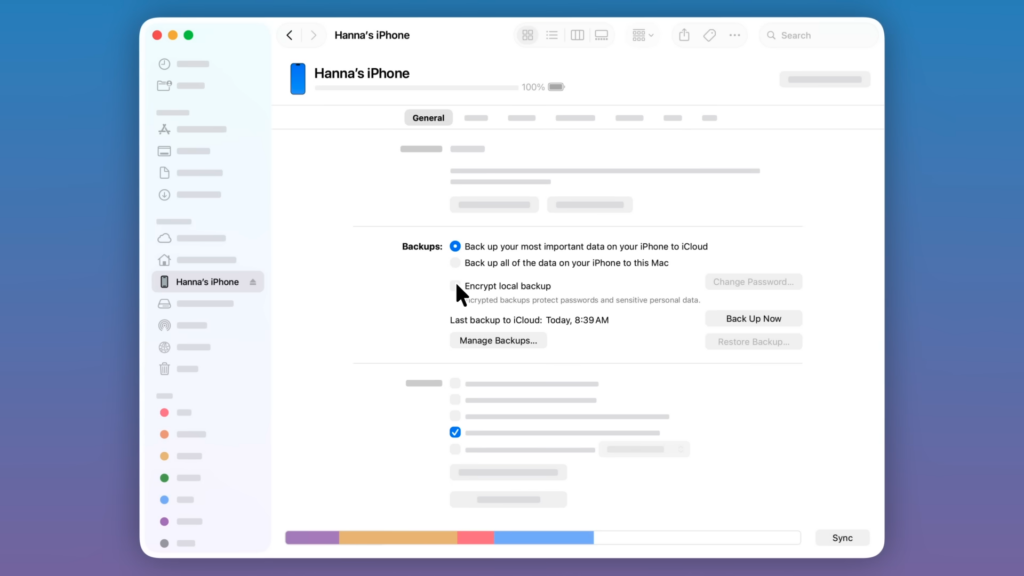
- Select your iPhone in the Finder sidebar.
- Click General.
- Select Back up all of the data on your iPhone to this Mac.
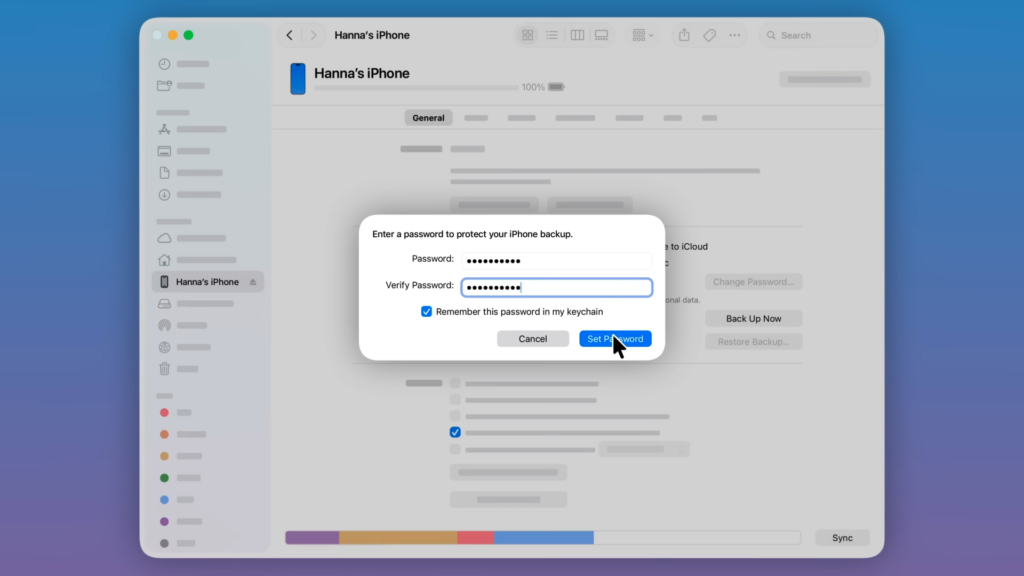
- For a more complete and protected backup, select Encrypt local backup and set a password.
- Click Back Up Now.
Why encrypted local backup matters
Computer backups are not encrypted by default. Apple says encrypted computer backups can include sensitive data categories such as Health, Activity, and Keychain data. If you do not encrypt the local backup, some of that information is not included.
The password is critical. If you forget the encrypted backup password, you cannot use previous encrypted backups. Store the password somewhere safe before you rely on that backup.
Mac backup limitations
- The backup uses your Mac’s available storage.
- A computer backup is not the same as syncing music, photos, or files.
- Content already synced from your Mac, such as imported music or synced photos, is not part of the backup.
- App Store content itself is not stored as a normal backup copy; purchases may need to be downloaded again where available.
- If the Mac drive fails and the backup is not copied elsewhere, the backup can be lost.
Method 3: Back up iPhone to a Windows PC
On Windows, Apple documentation currently references both the Apple Devices app and iTunes depending on the guide and setup. Apple’s Windows guide explains how to use the Apple Devices app to back up and restore an iPhone. Apple’s iPhone guide also still documents iTunes for Windows in some backup instructions.
For a modern Windows 10 or Windows 11 setup, start with Apple Devices from the Microsoft Store. If your setup still uses iTunes and Apple’s support page for your device directs you there, follow the iTunes path.
How to back up with Apple Devices on Windows
- Install the Apple Devices app from the Microsoft Store. Apple explains this in its guide to installing Apple Devices on Windows.
- Connect your iPhone to the Windows PC using a USB or USB-C cable.
- If asked, tap Trust on your iPhone and enter the passcode.
- Open the Apple Devices app.
- Select your iPhone in the sidebar.
- Select General.
- Choose whether to back up important data to iCloud or back up all data to this computer.
- Select Encrypt local backup if you want an encrypted backup.
- Click Back Up Now.
How to back up with iTunes on Windows
- Connect your iPhone to the Windows PC with a cable.
- Open iTunes.
- Click the iPhone button near the top left of the iTunes window.
- Click Summary.
- Click Back Up Now.
- To encrypt the backup, select Encrypt local backup, set a password, and keep that password safe.
Windows backup limitations
- You need enough free space on the PC.
- Device detection can fail if the cable, trust prompt, drivers, Apple software, or app version is not working correctly.
- Encrypted backup passwords cannot be ignored later; you need the password to restore an encrypted backup.
- Some users report confusion between iTunes and Apple Devices on Windows. Treat forum discussions such as Microsoft Tech Community threads as experience signals, not as official Apple backup instructions.
Method 4: Manually export photos, videos, and files
Manual export is useful when you only care about specific files, especially photos and videos. It is not a replacement for iCloud Backup or a computer backup because it does not preserve the full device state, app data, settings, Home Screen layout, or restore workflow.
Common manual export options
- Use iCloud.com to access supported synced data such as photos, files, contacts, notes, and other available iCloud categories.
- Use iCloud Photos if you want photos and videos synced across Apple devices.
- Use the Windows Photos app or File Explorer to import photos and videos from the DCIM folder.
- Use another cloud service for selected photos, videos, or documents if that fits your workflow.
- Copy exported files to an external drive for an extra offline copy.
What manual export cannot do
- It cannot restore your iPhone like a full iCloud or computer backup.
- It usually does not preserve app data.
- It does not restore device settings or Home Screen layout.
- It depends on you remembering to repeat the export regularly.
- It may miss files stored inside apps unless those apps provide their own export or cloud sync option.
Comparison: iCloud vs Mac vs Windows vs manual export
| Decision point | iCloud Backup | Mac backup | Windows backup | Manual export |
|---|---|---|---|---|
| Automatic backup | Yes, when conditions are met | No, unless using sync-related workflows | No, unless configured through supported app options | No |
| Needs computer | No | Yes | Yes | Sometimes |
| Uses cloud storage | Yes | No, local storage | No, local storage | Depends on method |
| Best for full restore | Yes | Yes | Yes | No |
| Encryption | Always encrypted; Advanced Data Protection can add end-to-end encryption for more categories | Available, but must be enabled | Available, but must be enabled | Depends on service or storage device |
| Biggest risk | Not enough iCloud storage | Mac storage or forgotten encryption password | App/version confusion or forgotten encryption password | Incomplete backup |
Important limitations users often miss
iCloud sync is not the same as iCloud Backup
If iCloud Photos, Notes, iCloud Drive, or Messages in iCloud are enabled, that data is synced separately. It may not be duplicated inside the daily iCloud Backup. This is normal, but it means you should understand whether your data is being synced, backed up, or manually exported.
Deleting synced iCloud data can delete it everywhere
If iCloud Photos is turned on and you delete a photo on one device, it can also be deleted from iCloud and your other devices signed in with the same Apple Account. Do not treat iCloud Photos as a separate archive unless you understand how syncing works.
A computer backup is not a clone
A computer backup includes almost all device data and settings, but Apple lists exclusions. It does not include content from the iTunes and App Stores, synced media from a Mac or PC, data already stored in iCloud, Apple Pay information, Face ID or Touch ID settings, Apple Mail data, or offline maps.
Encrypted local backup password is essential
Encrypted computer backups are useful, but the password is not optional later. If you forget it, you cannot restore from those previous encrypted backups.
Restoring may require erasing the iPhone
Apple’s restore instructions state that if an iPhone is already set up, you may need to erase it before restoring from an iCloud backup. Review Apple’s guide to restoring iPhone from a backup before erasing anything.
Third-party backup tools need caution
Community discussions, including Reddit threads about the best way to back up an iPhone, often mention third-party tools for selective backups or easier Windows workflows. Those comments are useful for understanding user concerns, but they should not replace Apple’s official backup instructions. Avoid unknown tools that request deep device access unless you fully trust the developer and understand where your data is stored.
Recommended approach
Most users should turn on iCloud Backup and check that the last backup completed successfully. It is the simplest method because it can run automatically and does not require a computer.
Users with a Mac or Windows PC should also create an encrypted computer backup before important moments: iOS updates, battery replacement, screen repair, trade-in, factory reset, or switching to a new iPhone. This gives you a second recovery path if iCloud storage, Wi-Fi, or account access becomes a problem.
Privacy-focused users should consider encrypted local backups and review Apple’s iCloud data security overview. Apple also offers Advanced Data Protection for iCloud, which can extend end-to-end encryption to more iCloud categories, including iCloud Backup. If you enable it, set up account recovery carefully because Apple cannot help recover end-to-end encrypted data if you lose access.
Users who mainly care about photos should still use a full backup method. Manual photo exports are helpful as a second copy, but they do not preserve the complete iPhone setup.
Common mistakes to avoid
- Assuming iCloud’s free 5 GB is enough for a modern iPhone.
- Turning on iCloud Photos and then deleting photos without realizing the deletion syncs across devices.
- Creating a computer backup without encryption and expecting Health, Activity, and Keychain data to be included.
- Forgetting the encrypted backup password.
- Relying only on manual photo export and calling it a full iPhone backup.
- Erasing an iPhone before confirming that a recent usable backup exists.
- Using third-party tools without checking reputation, privacy practices, and restore reliability.
Conclusion
The simplest way to create an iPhone backup is to use iCloud Backup. It is built into iOS, works wirelessly, and can run automatically when the phone is locked, charging, and connected to Wi-Fi.
The strongest everyday setup is to combine iCloud Backup with an occasional encrypted computer backup. iCloud gives convenience, while a local backup gives you an extra recovery option. Manual exports are useful for photos and files, but they should be treated as an add-on, not as a complete backup strategy.
FAQs
Does iCloud Backup include my photos?
It depends. If iCloud Photos is turned off, iCloud Backup may include photos and videos stored on the iPhone. If iCloud Photos is turned on, photos and videos sync through iCloud Photos instead of being included in the daily iCloud Backup.
Is an iPhone computer backup better than iCloud?
Not always. iCloud is easier and automatic. A computer backup is useful when you want a local copy, do not have enough iCloud storage, or want an encrypted backup before a major change.
Should I encrypt my iPhone backup on Mac or Windows?
Yes, if you want the most complete local backup. Apple says encrypted computer backups are needed for certain sensitive categories such as Health, Activity, and Keychain data. Keep the password safe.
Can I back up an iPhone to Windows without iTunes?
Yes, Apple’s Windows guide supports the Apple Devices app for backing up and restoring an iPhone on Windows. Some older setups or Apple instructions may still refer to iTunes, so use the official method that matches your system.
Can I view my full iPhone backup on iCloud.com?
No. iCloud.com is useful for accessing supported synced data such as photos, files, notes, and contacts, but it is not a file browser for a full iPhone backup.
Do I need paid iCloud storage to back up my iPhone?
Not always, but many users do. Apple includes 5 GB of free iCloud storage, and that space is shared with other iCloud data. If your backup is larger than the available storage, you need to reduce backup size, delete unused iCloud data, or upgrade storage.
Can I restore an iCloud backup without erasing my iPhone?
For a normal full iCloud backup restore, Apple’s setup process is designed for a new or newly erased iPhone. If your iPhone is already set up, you may need to erase it before restoring from that backup.
Is manual photo import enough as an iPhone backup?
No. It may protect selected photos and videos, but it does not restore your iPhone settings, app data, messages, Home Screen layout, or full device state.