 TutorialKart.com
How to Create a Master Planning Object Structure (MPOS) in SAP SCM
A Master Planning Object Structure, commonly called an MPOS, defines the characteristics that can be used to create planning objects in SAP Supply Chain Management. It forms the structural basis for Demand Planning and Supply Network Planning master data.
Characteristics in the MPOS determine the level at which demand data can be created, displayed, changed, aggregated and disaggregated. For example, an MPOS may contain characteristics such as product, location, customer, sales organization or distribution channel, depending on the planning model.
SAP SCM MPOS Menu Path
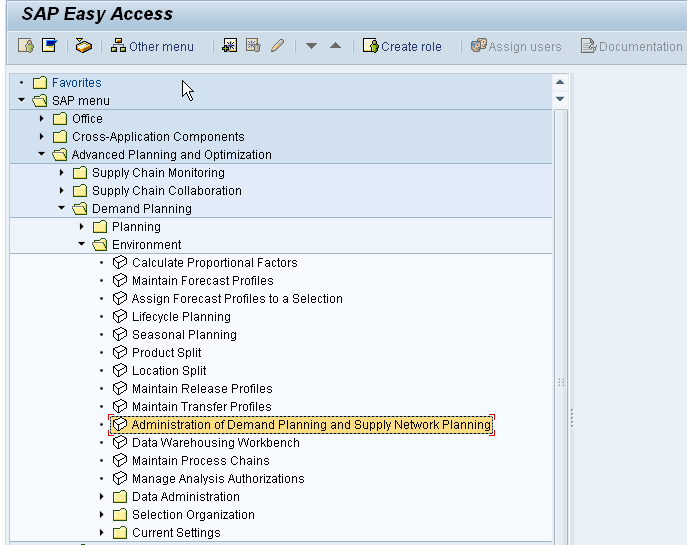
- Menu path: Advanced Planning and Optimization > Demand Planning > Environment > Administration of Demand Planning > Administration of Demand Planning and Supply Network Planning.
Before creating the MPOS, confirm that the required characteristics are available in the system and that their data types and definitions match the intended planning process. The characteristics selected during MPOS configuration become part of the planning object structure and should therefore be chosen carefully.
Step 1: Open S&DP Administration in SAP SCM
From the SAP Easy Access screen, follow the menu path Advanced Planning and Optimization > Demand Planning > Environment > Administration of Demand Planning. Select Administration of Demand Planning and Supply Network Planning.
Step 2: Select Planning Object Structure
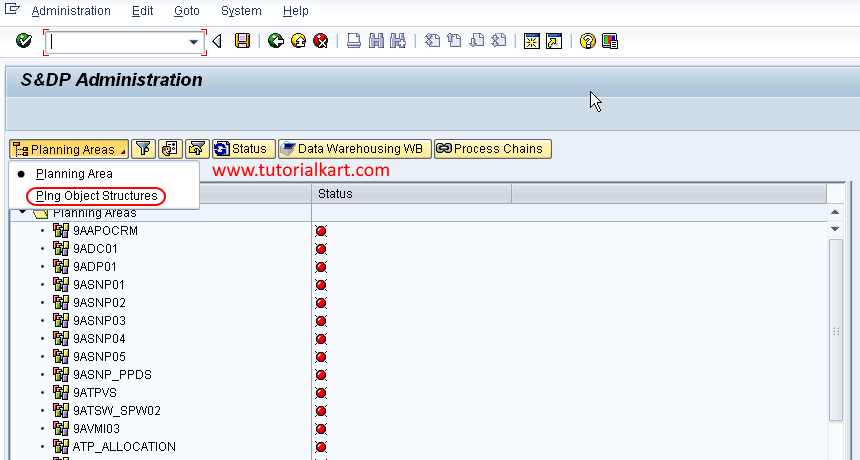
In the S&DP Administration screen, expand or select the planning-area-related administration options. Choose Plng Object Structure to display the available master planning object structures.
Step 3: Start Creating the SAP SCM MPOS
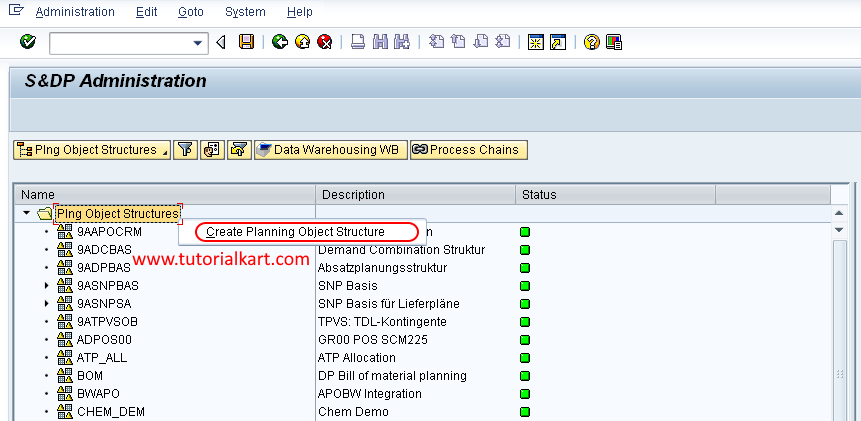
Right-click Plng Object Structure and select Create Planning Object Structure.
Step 4: Enter the Master Planning Object Structure Name
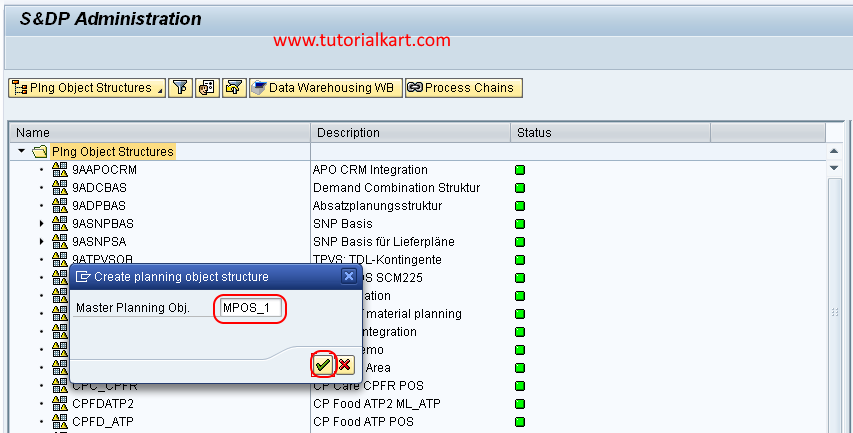
In the Create Planning Object Structure dialog box, enter a unique technical name for the MPOS in the provided field. Use the naming convention defined for your SAP SCM implementation, and then press Enter to continue.
Step 5: Assign Characteristics to the MPOS
The S&DP Administration – Configure Planning Object Structure screen appears. Maintain the description and assign the characteristics required for the planning model.
- Text: Enter a clear description for the master planning object structure.
- Available characteristics: Review the characteristics displayed in the left pane.
- Selected characteristics: Choose each required characteristic and use the right-arrow button to move it to the right pane.
- Characteristic order: Review the selected sequence because it should reflect the logical structure of the planning model.
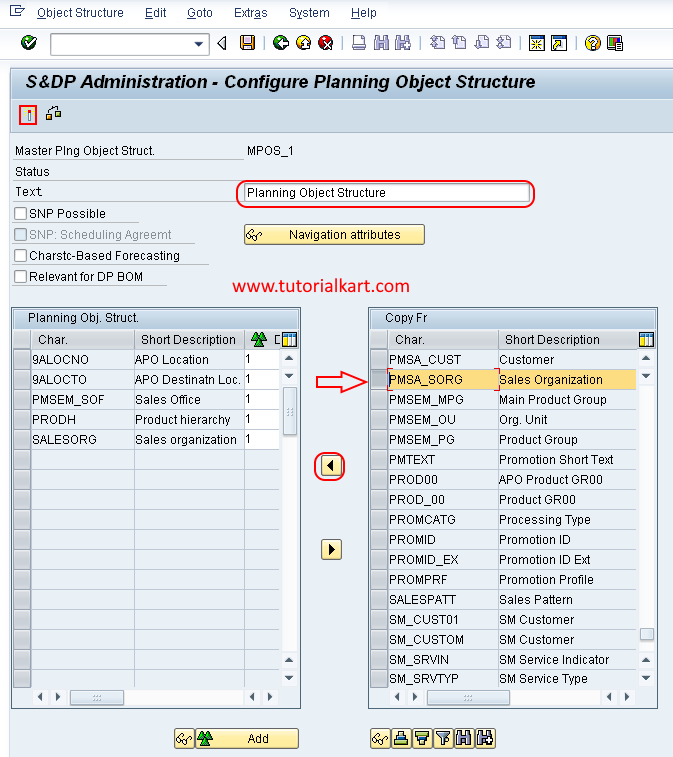
Select only the characteristics required for planning. Adding unnecessary characteristics can create more detailed characteristic combinations than the business process needs and can increase master-data maintenance.
Step 6: Activate the MPOS and Review the Activation Log
After maintaining the description and required characteristics, click the Activate icon. SAP checks the planning object structure and displays an activation log. Review the log for errors, warnings or missing configuration before continuing.
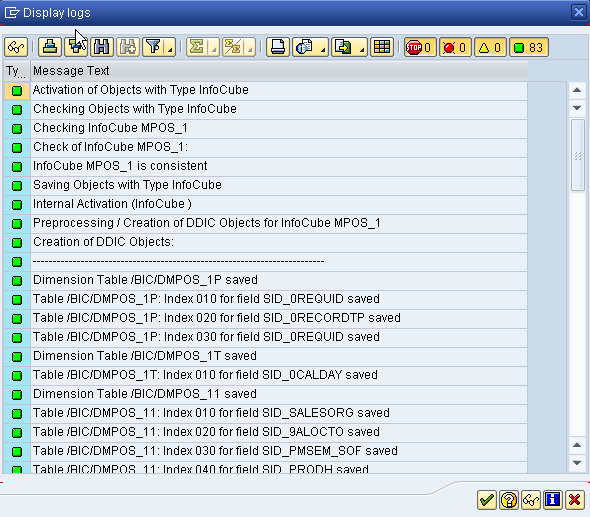
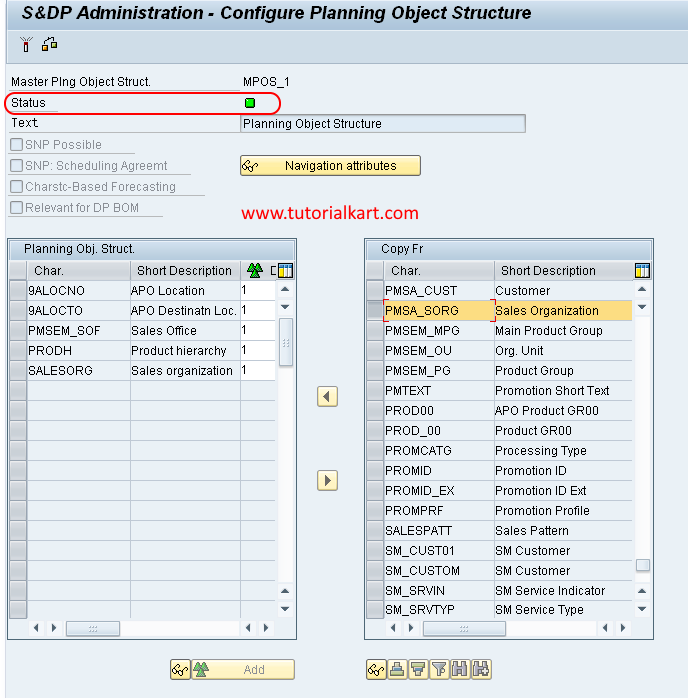
If the activation completes successfully, press Enter to return to the administration screen. The MPOS status changes to green, indicating that the master planning object structure is active.
What to Do After Activating the MPOS
After activation, the MPOS can be used as the structural basis for creating related planning objects and planning areas. The next configuration steps normally depend on the Demand Planning or Supply Network Planning design used in the implementation.
- Create or maintain the characteristic combinations required for planning.
- Create the planning area that references the appropriate planning object structure.
- Assign key figures and time-bucket settings to the planning area.
- Initialize the planning area for the required planning horizon.
- Test whether planning data can be created and viewed at the intended characteristic levels.
Common MPOS Configuration Issues in SAP SCM
- Required characteristic is unavailable: Confirm that the characteristic has been created and activated before configuring the MPOS.
- MPOS activation fails: Open the activation log and correct each reported error before trying again.
- Incorrect planning level: Review whether all selected characteristics are necessary for the intended demand-planning level.
- Existing dependent objects: Be cautious when changing an activated MPOS that is already referenced by planning areas or master data.
- Excessive characteristic combinations: Avoid creating combinations that are not required by the business planning process.
SAP SCM MPOS Editorial Review Checklist
- Verify that the MPOS technical name follows the project naming convention.
- Confirm that the description clearly identifies the planning purpose.
- Check that every selected characteristic is required by the planning model.
- Review the characteristic sequence before activation.
- Confirm that the activation log contains no unresolved errors.
- Verify that the MPOS status is green after activation.
- Test the MPOS with the intended planning area and characteristic combinations.
Frequently Asked Questions About MPOS in SAP SCM
What is an MPOS in SAP SCM?
An MPOS is a Master Planning Object Structure that contains the characteristics used to define planning objects in SAP SCM Demand Planning and Supply Network Planning.
Why must the MPOS be activated?
Activation checks and generates the planning object structure so that it can be used by dependent planning configuration and master-data processes.
Can characteristics be added after an MPOS is activated?
Changes may be possible, but they must be assessed carefully when the MPOS is already connected to planning areas, characteristic combinations or existing planning data. Review dependent objects and follow the change procedure used in the SAP SCM implementation.
What does a green MPOS status indicate?
A green status indicates that the planning object structure has been activated successfully. The activation log should still be reviewed for any relevant warnings.
The Master Planning Object Structure is now created and activated in SAP SCM and can be used for the next stages of Demand Planning or Supply Network Planning configuration.