 TutorialKart.com
A Windows backup and restore guide should start with one simple point: a file that exists only on your computer is not backed up. If the drive fails, Windows becomes unbootable, ransomware damages files, or you accidentally delete a folder, you need another copy somewhere else.
Windows includes several built-in backup and recovery tools, but they do different jobs. Windows Backup helps move files, settings, and some app information to a new PC through your Microsoft account and OneDrive. File History protects personal files on an external drive or network location. Recovery tools can repair or reinstall Windows, but they are not the same as a data backup.
This guide explains the practical options, how to use them, what each one can restore, and where the limits are so you can choose the safest setup for your PC.
Windows Backup and Restore Guide: Quick Answer
For most home users, the best setup is a combination of Windows Backup with OneDrive and File History on an external drive. Windows Backup is useful when setting up a new PC or reinstalling Windows, while File History gives you a local versioned backup of personal files.
Use a system image only if you want a full snapshot of your Windows installation, programs, and system state. Use System Restore, Recovery Drive, Reset this PC, or reinstall options for Windows repair, not as your only backup plan.
Main Windows Backup Options
Windows uses several tools because “backup” can mean different things: file backup, cloud sync, PC transfer, system repair, or full system recovery.
| Method | Best for | Storage needed | Main limitation |
|---|---|---|---|
| Windows Backup | Moving files, settings, app pins, Wi-Fi info, and preferences to a new or reset PC | Microsoft account and OneDrive storage | Not a complete system image; work or school accounts are not supported for the Windows Backup app |
| File History | Automatic local backup of personal files and previous versions | External drive or network location | Does not back up the full operating system or every app |
| Manual file copy | Simple one-time backup of documents, photos, exports, and archives | External drive, USB drive, NAS, or cloud folder | Easy to forget; no automatic version history unless you manage it |
| System image backup | Full recovery to a known working Windows setup | Large external drive or network location | Not a replacement for regular file backup; restore is less flexible |
| Recovery Drive, Reset, System Restore | Repairing or reinstalling Windows | USB drive or built-in recovery tools | May not protect personal files; apps and settings can be removed depending on the option |
Method 1: Use Windows Backup With OneDrive
Windows Backup is Microsoft’s current consumer backup tool for Windows 11 and Windows 10. It is designed mainly to help you restore key items when you set up a new PC or reinstall Windows.
What Windows Backup Can Back Up
Windows Backup can help back up selected user folders, themes, Windows settings, accessibility preferences, personalization, language preferences, some installed app information, and Wi-Fi information. Folder backup works through OneDrive, so your selected folders are synced to the Microsoft account you use on the PC.
Microsoft states that a free Microsoft account includes 5 GB of OneDrive storage. If your Desktop, Documents, Pictures, Videos, or Music folders are larger than the available storage, the backup will not fully work until you free up space or add storage.
When Windows Backup Makes Sense
- You are moving to a new Windows PC.
- You want selected folders available after signing in with your Microsoft account.
- You want Windows to remember supported preferences and app pins.
- You already use OneDrive and are comfortable storing selected files in the cloud.
How to Set Up Windows Backup
- Sign in to Windows with a personal Microsoft account.
- Open the Start menu and search for Windows Backup.
- Open the Windows Backup app.
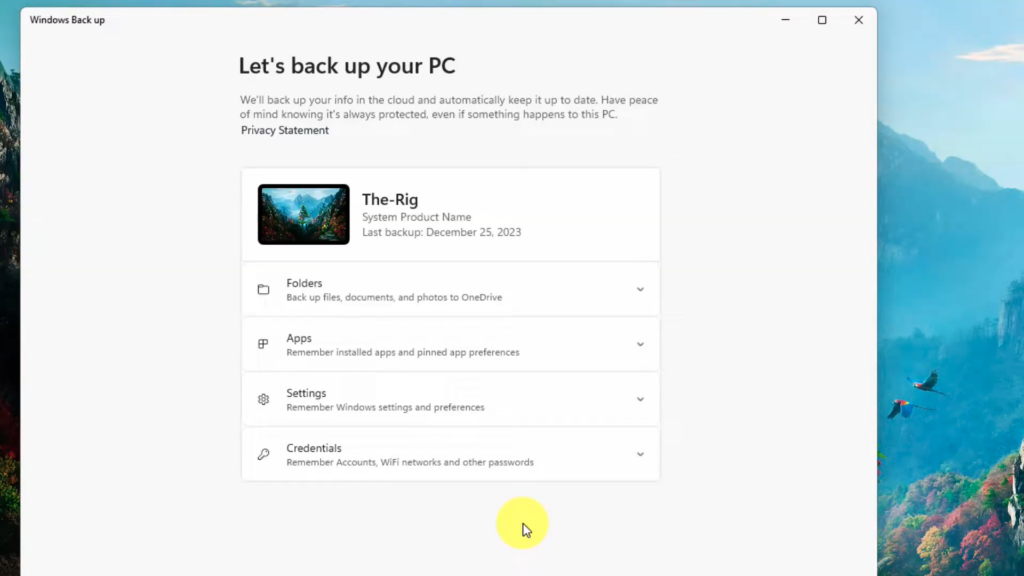
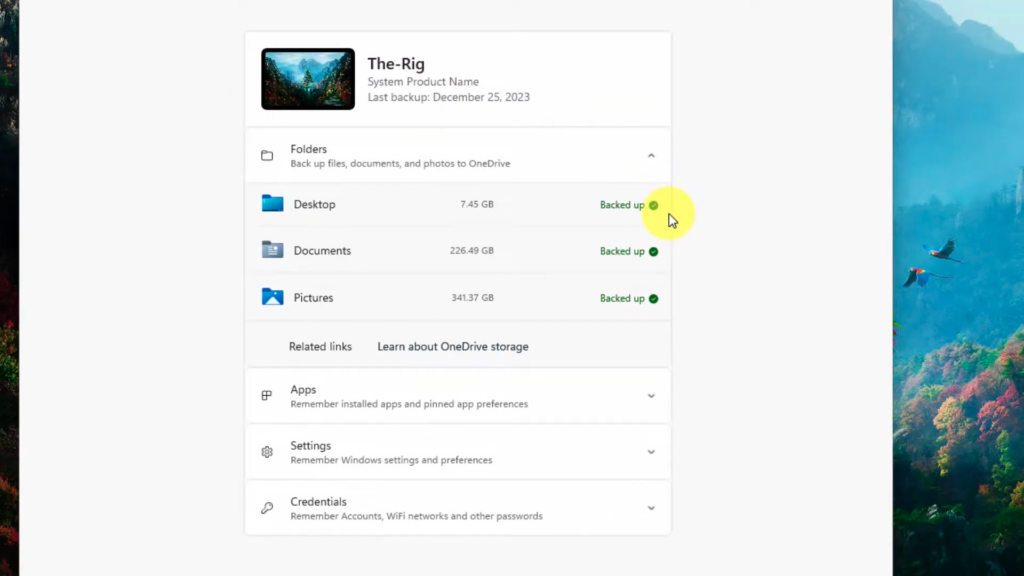
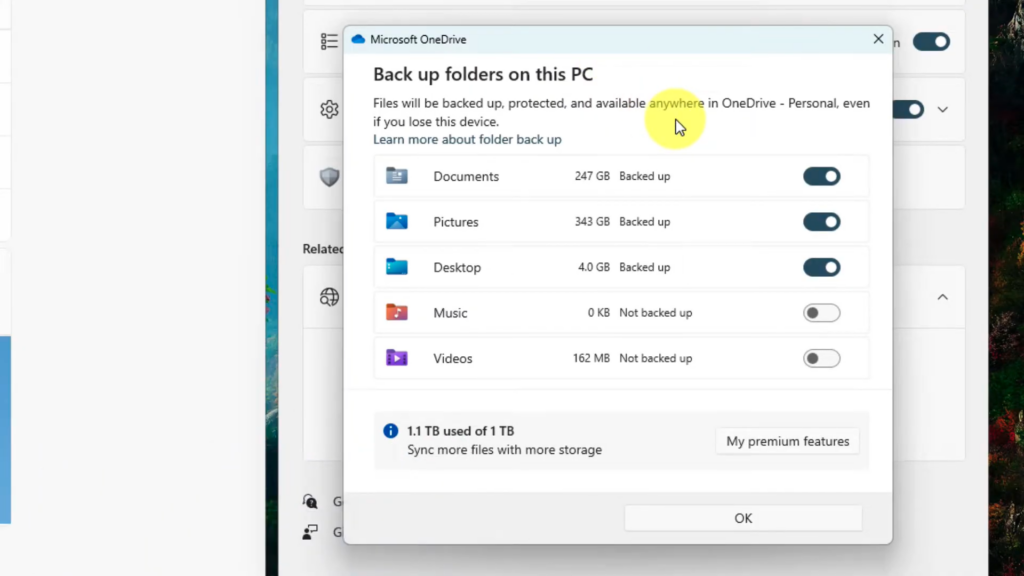
- Expand Folders and choose the folders you want backed up to OneDrive.
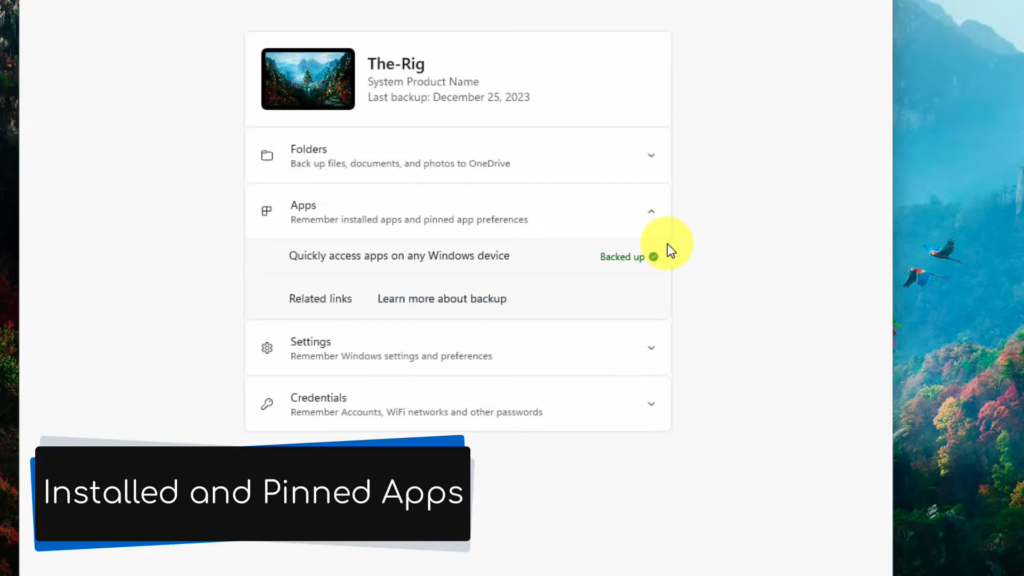
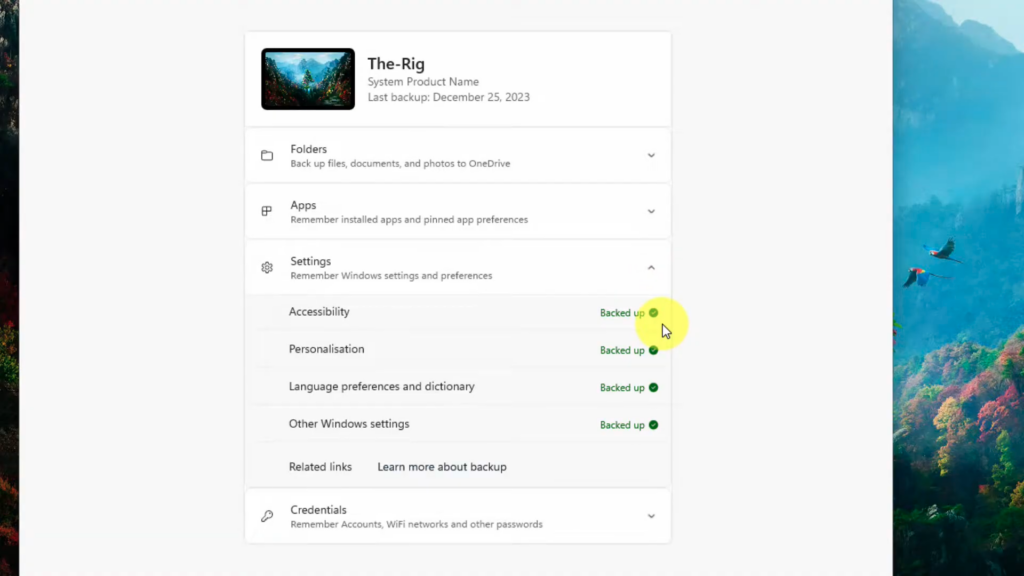
- Review settings such as apps, accessibility, accounts, Wi-Fi, personalization, language preferences, and other Windows settings.
- Select Back up.
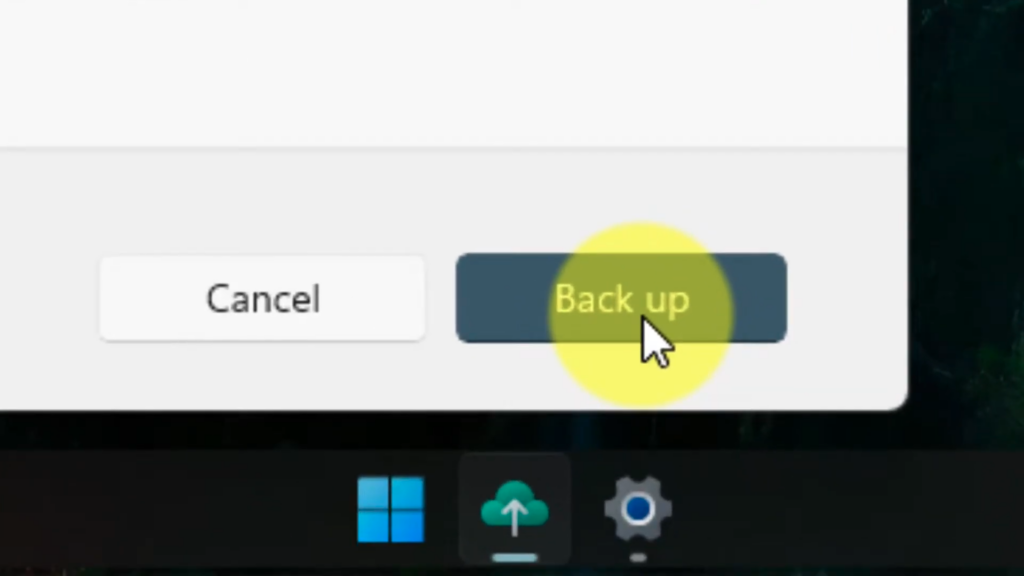
- Check the backup status from the Windows Backup app or from Settings > Accounts > Windows backup.
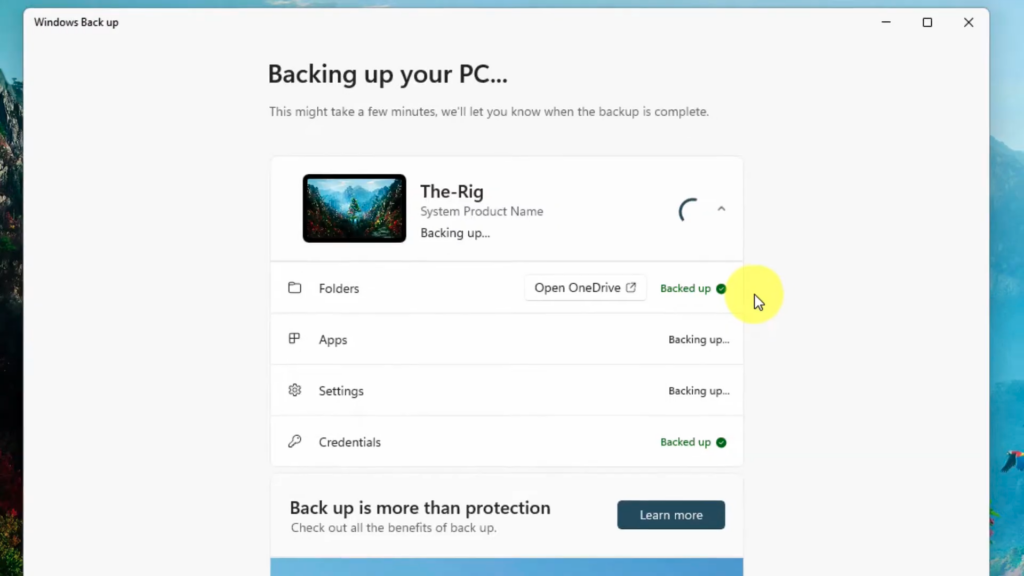
- Note: You can check OneDrive to check which got backed up.
How Restore Works
When you set up a new PC or reinstall Windows, sign in with the same Microsoft account used for the backup. Windows can offer a restore option during setup. If more than one PC has been backed up, you can choose which backup to restore.
Files backed up through OneDrive can be restored by signing in to OneDrive with the same Microsoft account. App pins can return to their previous locations, but this does not mean every desktop program is automatically reinstalled. Microsoft Store apps can be restored from their pins, while apps outside the Store may direct you to the web to download installers again.
Important Limitations
- Windows Backup is not a full disk image.
- It depends on a personal Microsoft account; Microsoft says work or school accounts do not work with the Windows Backup app.
- Folder backup depends on OneDrive storage and sync status.
- It does not guarantee that all third-party apps, app data, licenses, or custom program settings will be restored.
- If you do not want your files in cloud storage, use File History or another local backup method instead.
Method 2: Use File History for Local File Backup
File History is a Windows feature that automatically saves copies of personal files to an external drive or network location. It is useful when you accidentally delete a file, overwrite a document, or need an earlier version of a folder.
What File History Backs Up
File History focuses on personal files and folders, especially libraries such as Documents, Pictures, Videos, and Music. Microsoft also notes that you can include other folders by adding them to a library.
It is not a full operating system backup. It does not restore Windows, installed programs, drivers, or every system setting.
When File History Makes Sense
- You want automatic backup to an external drive.
- You want previous versions of files.
- You do not want to rely only on cloud sync.
- You keep important documents, photos, and work files on your PC.
How to Turn On File History
- Connect an external drive or make sure your network backup location is available.
- Open Control Panel.
- Select System and Security.
- Select File History or Save backup copies of your files with File History.
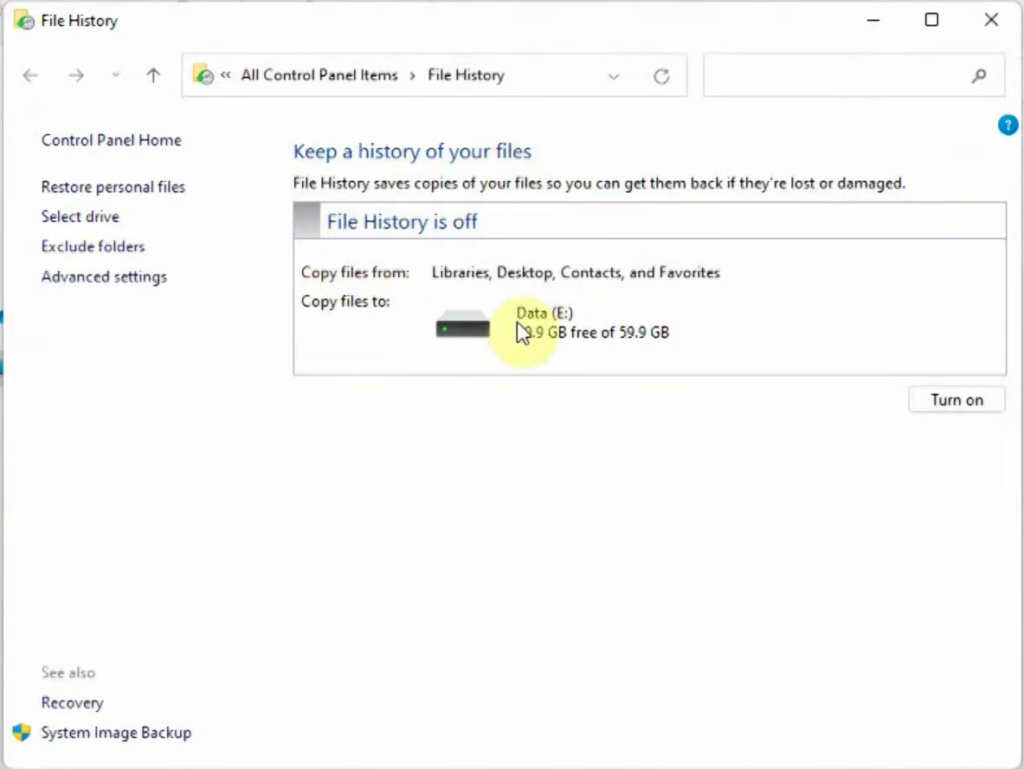
- Choose the external drive or network location.
- Select Turn on.
Dell’s support instructions for Windows 10 also describe the Settings path as Start > Settings > Update & Security > Backup > Add a drive, then selecting an external drive or network location.
How to Restore Files With File History
- Open File Explorer and go to the folder where the file or folder used to be.
- Right-click the folder and choose Restore previous versions.
- Select a previous version from the list.
- Open the version to preview it if needed.
- Select Restore to put it back in the original location, or choose Restore to to save it somewhere else.
Caution: Restoring to the original location can replace the current version of a file or folder. If you are not sure, restore to a different folder first and compare the files.
Important Limitations
- The backup drive must be connected or the network location must be reachable.
- File History protects files, not the whole Windows installation.
- Files outside backed-up libraries may be missed unless you include them.
- If the backup drive fails, your File History backup can be lost too.
Method 3: Make a Manual Backup to an External Drive
Manual backup means copying files yourself to another location, such as an external hard drive, USB drive, NAS, or cloud folder. It is the simplest method, and it is useful before repairs, upgrades, factory resets, or major Windows changes.
What to Copy
- Desktop
- Documents
- Pictures
- Videos
- Music
- Downloads, if it contains files you still need
- Browser bookmarks if they are not synced
- Email exports, accounting files, project folders, game saves, or app-specific folders if needed
- License keys, recovery codes, and installer files for paid software
How to Make a Basic Manual Backup
- Connect an external drive with enough free space.
- Create a dated folder, such as PC Backup 2026-06-04.
- Copy your important user folders into that backup folder.
- Open a few copied files from the external drive to confirm they work.
- Safely eject the drive.
- Store the drive away from the computer when not backing up.
What Manual Backup Cannot Do
Manual copying is easy, but it is also easy to forget. It usually does not provide automatic version history, scheduled backups, or full system recovery. Use it as a quick safety copy, not as your only long-term backup routine.
Method 4: Create a System Image Backup
A system image is a snapshot of a Windows installation at a point in time. It can include Windows, system partitions, installed programs, settings, and files stored on the imaged drive. This is different from File History, which focuses on personal files.
Windows still exposes system image recovery through the older Backup and Restore (Windows 7) area and through Windows Recovery Environment. Community guides and Microsoft Answers articles commonly refer to this path for Windows 10 and Windows 11 system image creation, while Microsoft’s current consumer guidance focuses more on Windows Backup, File History, Recovery Drive, Reset, and reinstall options.
When a System Image Makes Sense
- You want to preserve a working setup before major system changes.
- You have many desktop programs that would take time to reinstall.
- You want a disaster recovery option if the system drive fails.
- You understand that restoring an image is usually an all-or-nothing recovery process.
Basic Steps to Create a System Image
- Connect a large external drive.
- Open Control Panel.
- Go to System and Security.
- Open Backup and Restore (Windows 7).
- Select Create a system image.
- Choose the external drive or network location.
- Confirm the drives included in the image.
- Start the backup and wait for it to finish.
- Create or keep recovery media so you can restore the image if Windows will not boot.
How System Image Restore Works
To restore a system image, you usually boot into Windows Recovery Environment and use System Image Recovery. Microsoft’s Windows Recovery Environment documentation lists System Image Recovery as a tool for restoring a computer using a system image backup.
Important Limitations
- A system image can be large and slow to create.
- It is not ideal for restoring one individual file quickly.
- If the image is old, restoring it can bring back old settings and outdated apps.
- You should still keep separate file backups for documents, photos, and active work.
Method 5: Use Windows Recovery Tools Correctly
Windows recovery tools are useful, but they are often misunderstood. They can repair Windows or reinstall it, but they do not replace a proper file backup.
System Restore
System Restore uses restore points to return Windows system files, registry settings, and installed programs to an earlier state. It is useful after a bad driver, update, or software installation.
System Restore is not a personal file backup. It is meant for system troubleshooting and does not replace File History or Windows Backup.
Recovery Drive
A Recovery Drive creates USB recovery media that can help restore a Windows device to its original state, even after serious system problems. Microsoft recommends using an empty USB drive because the process erases the drive.
The key limitation is important: a Recovery Drive does not include your personal files. Use Windows Backup, File History, or another file backup method separately.
Reset This PC
Reset this PC reinstalls Windows. The Keep my files option keeps personal files but removes apps and settings. The Remove everything option removes personal files, apps, and settings.
Before using Reset this PC, back up important files. If your device is encrypted, make sure you have the BitLocker recovery key before starting recovery from Windows Recovery Environment.
Fix Problems Using Windows Update
On Windows 11, Microsoft provides a recovery option to reinstall the current version of Windows using Windows Update. Microsoft says this process preserves apps, files, and settings while repairing system files and components. It is useful for Windows Update-related issues, but it is still wise to back up files before using it.
Reinstall Windows With Installation Media
Reinstalling Windows with installation media is useful when built-in recovery does not work. Depending on the option you choose, Windows may keep only personal files or remove files, apps, and settings. Treat this as a repair or reinstall method, not as a backup method.
Comparison: Which Windows Backup Method Should You Choose?
| Need | Best choice | Why |
|---|---|---|
| Move to a new Windows PC | Windows Backup + OneDrive | Restores supported folders, preferences, and app pins after signing in with the same Microsoft account |
| Recover deleted or changed files | File History | Lets you browse previous versions and restore files from an external drive or network location |
| Quick copy before repair or reset | Manual external drive backup | Simple, direct, and easy to verify |
| Recover an entire Windows setup | System image backup | Can restore a full system state, but is less flexible for individual files |
| Undo a bad driver or system change | System Restore | Targets Windows system state, not personal files |
| Reinstall or repair Windows | Reset, Recovery Drive, or installation media | Repairs or reinstalls Windows, but may remove apps, settings, or files depending on the option |
Important Limitations You Should Not Ignore
Cloud Sync Is Not the Same as a Full Backup
OneDrive folder backup is very useful, but it is still sync-based. Changes can sync across devices. That is convenient, but it also means you should understand deletion recovery, version history, and storage limits before treating it as your only backup.
Recovery Tools Do Not Always Preserve Everything
Reset, reinstall, and recovery options can remove apps, settings, or files depending on your choices. Always back up important data first, even when an option says it keeps personal files.
External Drives Can Fail
An external drive is a good backup target, but it is still hardware. For important files, keep more than one copy and store at least one copy away from the PC.
Windows 10 Support Has Ended
Microsoft states that Windows 10 support ended on October 14, 2025. If you still use Windows 10, your PC may continue to work, but you should back up your files before upgrading, resetting, or moving to a Windows 11 device.
Work and School PCs May Be Managed Differently
The Windows Backup app is focused on consumer devices using personal Microsoft accounts. If your PC is managed by an organization, ask your IT administrator before changing backup, OneDrive, reset, or recovery settings.
Recommended Backup Approach
For Most Home Users
- Use Windows Backup for supported folders, settings, and new-PC setup convenience.
- Turn on File History to an external drive for local file versions.
- Keep a manual copy of your most important files on a second external drive or another safe location.
- Test restore by opening files from the backup, not just by checking that the drive exists.
For Advanced Users
Add a system image before major upgrades, hardware changes, or large software installations. Keep it separate from your regular File History backup. A system image is best for disaster recovery, while File History is better for everyday file recovery.
For Business or Work PCs
Do not rely on consumer Windows Backup alone. Business PCs often need managed backup, retention policies, encryption, administrator control, and restore testing. Confirm the organization’s backup policy before using Reset, reinstall, or personal cloud accounts.
For Privacy-Focused Users
Use local backups to an external drive or network storage, and encrypt sensitive backup data where appropriate. Cloud backup is convenient, but it requires trust in the account, provider, storage limits, and recovery process.
Common Windows Backup Mistakes
- Backing up to the same internal drive: If that drive fails, both the original and backup can be lost.
- Assuming Windows Backup is a full PC image: It is not the same as a system image.
- Forgetting folders outside Documents and Pictures: Check Downloads, Desktop, project folders, accounting files, and app-specific data.
- Never testing restore: A backup is only useful if you can restore from it.
- Leaving the backup drive connected all the time: This is convenient, but it can expose backups to accidental deletion, malware, power issues, or drive wear.
- Resetting Windows before backing up: Reset options can remove apps, settings, and sometimes personal files depending on the choice.
- Not saving recovery keys: If BitLocker is enabled, keep your recovery key somewhere safe before using recovery tools.
Conclusion
The safest Windows backup plan uses more than one method. Windows Backup is useful for Microsoft account-based restore and PC transfer. File History is better for everyday personal file protection. Manual external copies are simple and valuable before risky changes. A system image is useful when you want a full recovery point, but it should not replace regular file backups.
For most users, start with Windows Backup and File History, then add a second offline copy of your most important files. Once it is set up, test a small restore. That one step tells you more about your backup health than any settings screen.
FAQs
Does Windows Backup back up everything on my PC?
No. Windows Backup can back up selected folders, supported settings, preferences, app pins, and related information through your Microsoft account and OneDrive. It is not a full system image of your entire PC.
Is File History better than Windows Backup?
They solve different problems. File History is better for restoring older versions of personal files from an external drive or network location. Windows Backup is better for restoring supported items when setting up a new or reinstalled Windows PC.
Do I need OneDrive for Windows Backup?
For folder backup through Windows Backup, yes, the files are synced to OneDrive under your Microsoft account. If you do not want cloud storage, use File History or another local backup method.
Will Reset this PC keep my files?
The Keep my files option keeps personal files but removes apps and settings. The Remove everything option removes personal files, apps, and settings. Back up important data before choosing either option.
Does a Recovery Drive include my personal files?
No. Microsoft states that a Recovery Drive does not include personal files. It is for recovery media and system recovery, so you still need Windows Backup, File History, or another data backup.
Should I create a system image?
Create one if you want a full recovery snapshot of a working Windows setup. It is useful before major changes, but it is less convenient than File History for restoring one document or photo.
Can I back up Windows 10 after support ended?
Yes, you can still back up files from a Windows 10 PC, but Microsoft says Windows 10 no longer receives free security updates after October 14, 2025. Back up before upgrading or moving to a newer PC.
How often should I back up my Windows PC?
Back up important files as often as they change. Daily work files need frequent backup. Large media folders that rarely change can be backed up less often. The more important the file, the more often you should have another copy.