 TutorialKart.com
Appium Tutorial for Mobile Test Automation
Appium is an open-source test automation framework for automating mobile applications through the WebDriver protocol. It can drive an application in much the same way a user does: opening screens, tapping controls, entering text, scrolling, and checking the resulting interface or application state.
Appium can be used to test:
- Native applications built for platforms such as Android and iOS.
- Hybrid applications that combine native containers with web content.
- Mobile web applications opened in a browser on a device or emulator.
This tutorial focuses on getting started with Appium and JavaScript for Android testing. The same client-and-server model also applies when Appium tests are written in Java, Python, C#, Ruby, or another supported WebDriver client language.
What You Will Set Up for Appium Android Testing
- Node.js and npm for installing the Appium server and JavaScript dependencies.
- The Appium command-line server.
- An Android platform driver, commonly UiAutomator2.
- Java and the Android SDK for communicating with an Android emulator or physical device.
- A WebDriver-compatible JavaScript client for creating the test session.
How Appium Automation Works
An Appium test does not usually call Android or iOS automation APIs directly. The test script sends WebDriver commands to the Appium server. Appium then routes each command to the platform driver selected for the session. For Android, that driver can translate commands such as finding an element or tapping a button into Android-specific automation actions.
- Test script: Contains the steps and assertions written in JavaScript or another client language.
- Appium server: Receives WebDriver requests and manages the automation session.
- Platform driver: Implements automation for a particular platform, such as Android.
- Device or emulator: Runs the application under test.
This separation is important because the Appium server and the platform drivers are installed and maintained independently in current Appium setups.
Appium with JavaScript
Software Prerequisites for Appium with JavaScript
Following are the list of prerequisites required to get started with Appium using JavaScript.
- Node
- NPM
To install Node, download latest node package from https://nodejs.org/download/release/latest/, unzip the package, and include the folder path in System Environment Path variable.
For complete step by step process, refer:
NPM gets included with Node during its installation.
Confirm that both commands are available before installing Appium.
node --version
npm --version
Install the Appium Server from npm
The command-line server is the standard starting point for a current Appium installation. Install it globally with npm, and then verify that the command is available.
npm install --global appium
appium --version
If the operating system reports that appium is not recognized, close and reopen the terminal and check that npm’s global executable directory is included in the system PATH.
Install the Appium Android UiAutomator2 Driver
The Appium server requires a platform driver before it can create an Android automation session. Install the UiAutomator2 driver and confirm that it appears in the installed-driver list.
appium driver install uiautomator2
appium driver list --installed
Driver installation is separate from the server installation. This makes it possible to update or remove a platform driver without replacing the whole Appium server.
Configure Java, Android SDK, and an Android Device
Android automation also requires a Java Development Kit and the Android SDK. Install Android Studio or the Android command-line tools, then make the SDK tools available through the environment variables used by your operating system.
- Set
JAVA_HOMEto the JDK installation directory. - Set
ANDROID_HOMEorANDROID_SDK_ROOTto the Android SDK directory, according to the tools in your environment. - Add the Android SDK platform-tools directory to PATH so that the
adbcommand is available. - Start an Android emulator or connect a physical Android device with USB debugging enabled.
Use Android Debug Bridge to confirm that the target device is visible.
adb devicesA connected target should be listed with the status device. A status such as unauthorized means the debugging authorization prompt must be accepted on the physical device.
Check the Appium Environment Before Running Tests
Appium Doctor can help identify missing environment variables and Android command-line dependencies. Install the package and run the Android check.
npm install --global @appium/doctor
appium-doctor --android
Review each reported warning instead of assuming every warning prevents a test from running. The essential checks are that Java, the Android SDK, ADB, the Appium server, and the required Appium driver are available.
Start the Appium Server
Run the following command in a terminal and leave that terminal open while the test executes.
appiumBy default, a local Appium server commonly listens on port 4723. The server log shows session requests, driver selection, commands sent to the device, and errors returned during execution.
Create a First Appium JavaScript Project
Create a separate directory for the test project, initialize npm, and install WebdriverIO as the WebDriver client used by the example below.
mkdir appium-javascript-demo
cd appium-javascript-demo
npm init -y
npm install webdriverio
Create a file named test.js. Replace the sample application path, package name, activity name, and element selector with values from the application you are testing.
const { remote } = require('webdriverio');

async function runTest() {
    const driver = await remote({
        hostname: '127.0.0.1',
        port: 4723,
        path: '/',
        capabilities: {
            platformName: 'Android',
            'appium:automationName': 'UiAutomator2',
            'appium:deviceName': 'Android Emulator',
            'appium:app': '/absolute/path/to/app.apk',
            'appium:newCommandTimeout': 120
        }
    });

    try {
        const button = await driver.$('accessibility id:Continue');
        await button.click();
    } finally {
        await driver.deleteSession();
    }
}

runTest().catch(console.error);
Run the script from a second terminal while the Appium server remains active.
node test.jsAppium Capabilities Used in the JavaScript Example
platformNameselects the target platform.appium:automationNameselects the installed Appium driver.appium:deviceNamesupplies a device label required by the Android session configuration.appium:apppoints to the application package that Appium should install and launch.appium:newCommandTimeoutcontrols how long the server waits between commands before ending an inactive session.
Capabilities that belong to Appium use the appium: vendor prefix. A real project may also use appium:udid, appium:appPackage, and appium:appActivity, depending on whether the test installs an APK or launches an application already present on the device.
Locate Elements in an Appium Android Test
Stable selectors make mobile tests easier to maintain. Prefer identifiers intended for automation instead of long XPath expressions tied to the current screen hierarchy.
- Accessibility ID: Usually the most readable choice when the application exposes a stable accessibility identifier.
- Android resource ID: Useful for native Android controls with consistent resource identifiers.
- Class name: Suitable only when combined with additional filtering because many controls can share the same class.
- XPath: Helpful as a fallback, but often more fragile when layouts change.
const byAccessibilityId = await driver.$('accessibility id:Continue');
const byResourceId = await driver.$('id=com.example.app:id/continueButton');
const byXPath = await driver.$('//android.widget.Button[@text="Continue"]');
An inspector tool can be used to view the current application hierarchy and test selectors before adding them to the automation code. Keep in mind that the inspector is a separate client tool; the Appium server still needs the relevant platform driver and a valid device connection.
Appium Desktop Download Screens from Earlier Releases
Older Appium tutorials commonly installed Appium through a desktop package. The following screenshots and links are retained as historical references for that workflow. For a current project, use the npm server and separately installed platform driver described above unless a specific tool or project requires an older desktop release.
Install Appium
Go to http://appium.io/.
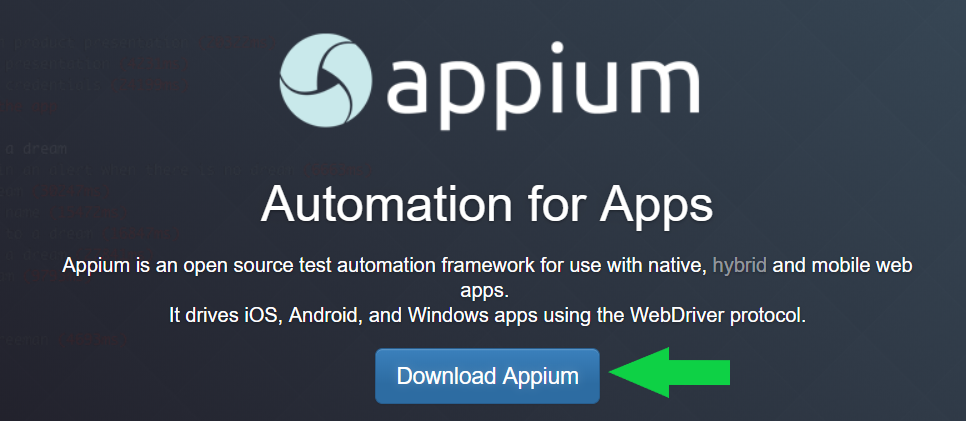
Click on Download Appium. It redirects to a github page where all the sources and binaries or Appium are present.
https://github.com/appium/appium-desktop/releases/tag/v1.7.1
The above link may change from version to version. So, going through http://appium.io is advisable.
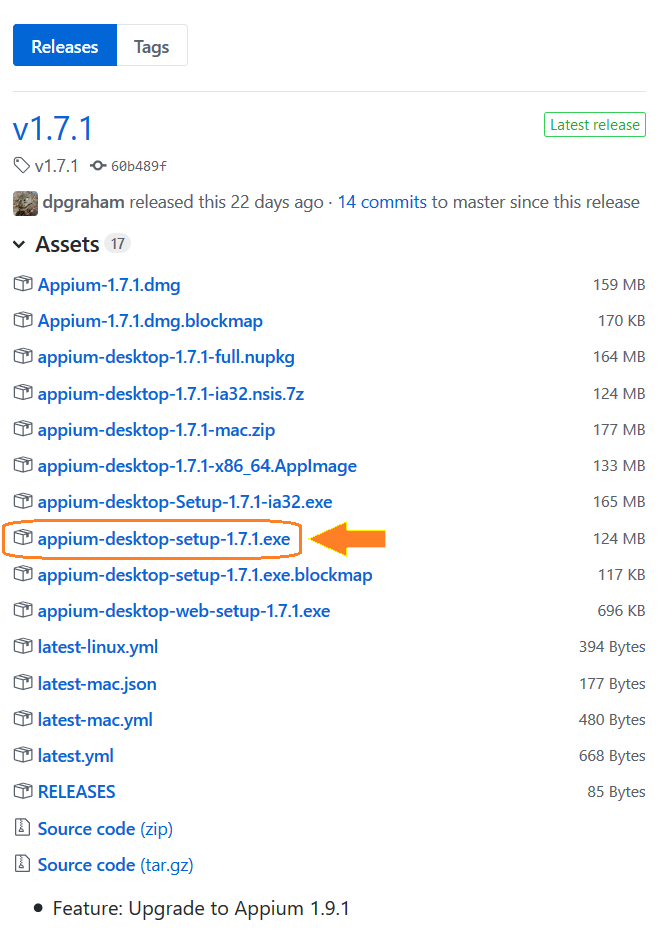
Based on your Operating System, you can choose a suitable download.
For this Appium Tutorial, we are using Windows 10 PC. So, we shall download appium-desktop-setup-1.7.1.exe.
Common Appium Setup and Session Errors
Appium Cannot Find the UiAutomator2 Driver
Check the installed-driver list and install the driver if it is missing. Also confirm that the capability uses the exact automation name expected by the driver.
appium driver list --installed
appium driver install uiautomator2
ADB Shows No Android Device
Start the emulator completely or reconnect the USB device. On a physical device, enable developer options and USB debugging, then accept the computer authorization prompt. Run adb devices again before starting the test.
The Appium Session Fails to Launch the Application
Verify the APK path when using appium:app. When launching an installed application, verify its package and activity names. Also check that the device API level and application build are compatible.
The Test Cannot Find an Element
Wait for the screen to finish loading, inspect the current hierarchy, and confirm that the selector matches the active context. Hybrid applications may require switching between native and web contexts before web content can be located.
Appium and Selenium: Different Test Targets
Appium and Selenium both use WebDriver concepts, but they are normally applied to different targets. Selenium is primarily used for desktop web browser automation. Appium extends WebDriver-style automation to native, hybrid, and mobile web applications on mobile platforms. A test team may use both tools when one product includes a browser-based application and separate Android or iOS applications.
Appium Tutorial FAQs
Is Appium easy to learn for a beginner?
The basic Appium workflow is approachable when you already understand one programming language, command-line tools, and simple test automation concepts. Beginners usually need additional time to learn Android SDK setup, device troubleshooting, element selectors, waits, and test assertions.
Do I need Selenium before learning Appium?
Selenium experience is helpful because Appium uses familiar WebDriver ideas such as sessions, capabilities, element lookup, and commands. It is not mandatory. You can start directly with Appium if you first learn basic JavaScript and automated testing concepts.
Can Appium test both Android and iOS applications?
Yes. Appium supports both platforms through separate drivers and platform-specific development tools. Android testing typically uses Android SDK tools, while iOS testing requires Apple’s development environment and a compatible macOS system.
Can I write Appium tests in Python or Java instead of JavaScript?
Yes. Appium clients are available for multiple programming languages. The server and platform-driver setup remains similar, while the client library, syntax, project structure, and test framework change with the selected language.
Does Appium require the application source code?
Appium can automate a compiled application package, so the test runner does not always require access to the source code. However, cooperation from the development team can improve testability by providing stable accessibility identifiers, dedicated test builds, and predictable test data.
Appium Tutorial Editorial QA Checklist
- Confirm that the Appium server command and Android driver commands match the Appium version used by the project.
- Verify that Node.js, npm, Java, Android SDK tools, and ADB are available on the test machine.
- Run
adb devicesand confirm that the intended emulator or physical device is authorized. - Replace all sample capabilities, APK paths, package names, activity names, and selectors before running the JavaScript example.
- Check that Appium-specific capabilities use the
appium:prefix and that the selected automation driver is installed. - Prefer stable accessibility IDs or resource IDs over layout-dependent XPath selectors.