 TutorialKart.com
SharePoint Online is the cloud-based SharePoint service included with eligible Microsoft 365 plans. It is used to create team sites, communication sites, intranet pages, document libraries, lists, and shared workspaces. Before getting started with SharePoint Online, decide whether you need to administer sites, build client-side customizations, automate business processes, or simply create and manage content.
The original setup process for this tutorial used an Office 365 trial, an Azure virtual machine, and Visual Studio. Those steps may still be relevant to a controlled lab or older SharePoint development project, but they are not required for every modern SharePoint Online user. Administrators can work in a browser, while modern SharePoint Framework development commonly uses a supported Node.js toolchain and a code editor.
SharePoint Online setup requirements
- Microsoft 365 tenant: You need an organization account in a tenant that includes SharePoint Online.
- Appropriate permissions: A Global Administrator or SharePoint Administrator can configure tenant-wide SharePoint settings. Site owners can manage only the sites assigned to them.
- Supported browser: Administrative and content-management tasks are performed through the Microsoft 365 and SharePoint web interfaces.
- Development tools when required: Custom SharePoint Framework solutions require a compatible development environment. Visual Studio is mainly relevant to older SharePoint solutions, server-side projects, or other Microsoft development workloads.
- Governance plan: Define site ownership, naming, external sharing, permissions, retention, and lifecycle rules before creating many sites.
Choose the correct SharePoint Online starting path
| Goal | Recommended starting point |
|---|---|
| Create pages, news, lists, and document libraries | Open an existing SharePoint site or create a team site or communication site if permitted. |
| Manage sites and tenant settings | Use the SharePoint admin center with a SharePoint Administrator or Global Administrator account. |
| Automate approvals and notifications | Use SharePoint lists or libraries with Microsoft Power Automate. |
| Create forms or business applications | Use SharePoint lists with Microsoft Power Apps where appropriate. |
| Build modern client-side web parts and extensions | Prepare a SharePoint Framework development environment. |
| Maintain older farm solutions | Use the tools and platform documentation that match the specific SharePoint Server edition. |
Original SharePoint Online environment preparation sequence
The following sequence reflects the original environment used when this tutorial was created. An Azure virtual machine is optional for SharePoint Online and is generally used only when a separate Windows development or testing environment is needed.
- Sign-up for Office 365 Trail.
- Sign-up for Microsoft Azure.
- Creating a Virtual Machine in Azure.
- Installing developer tools for Visual Studio.
- Creating a Developer site collection.
- Creating an App Catalog.
For a current SharePoint Online project, confirm which of these steps are actually necessary. A standard administrator or site owner does not need an Azure virtual machine, Visual Studio, a developer site collection, or an App Catalog merely to create sites and manage content.
Create a Microsoft 365 account for SharePoint Online
A Microsoft 365 tenant provides the organization identity and services used by SharePoint Online. During registration, the organization chooses an initial tenant name and creates an administrator account. Trial availability, plan names, and included services can change, so verify that the selected plan includes SharePoint Online before completing registration.
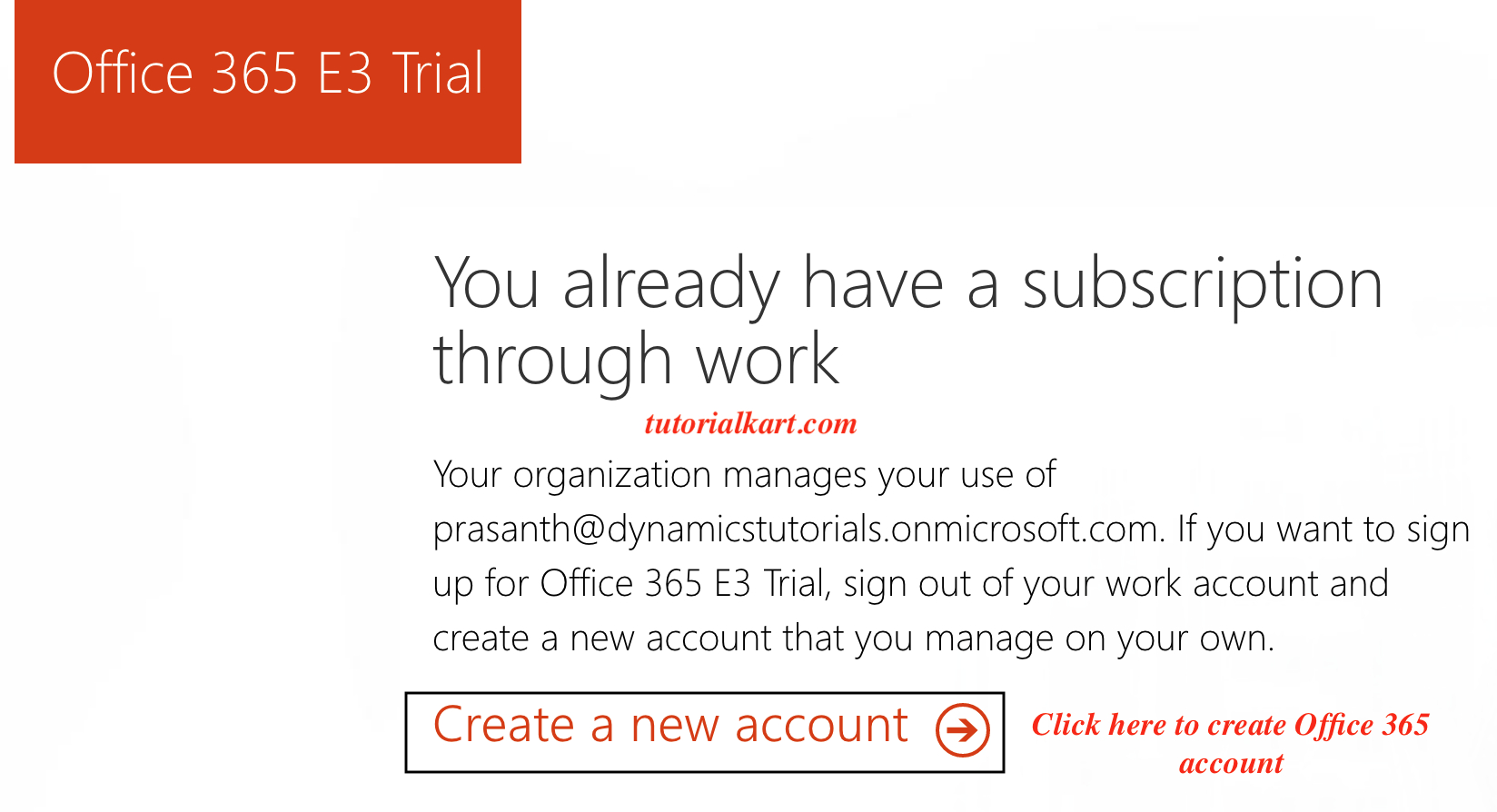
The image above shows an older Office 365 registration page. The current registration interface may use different labels. Follow the current prompts to create the organization account, enter the required business and contact information, verify the account, and create the initial administrator credentials.
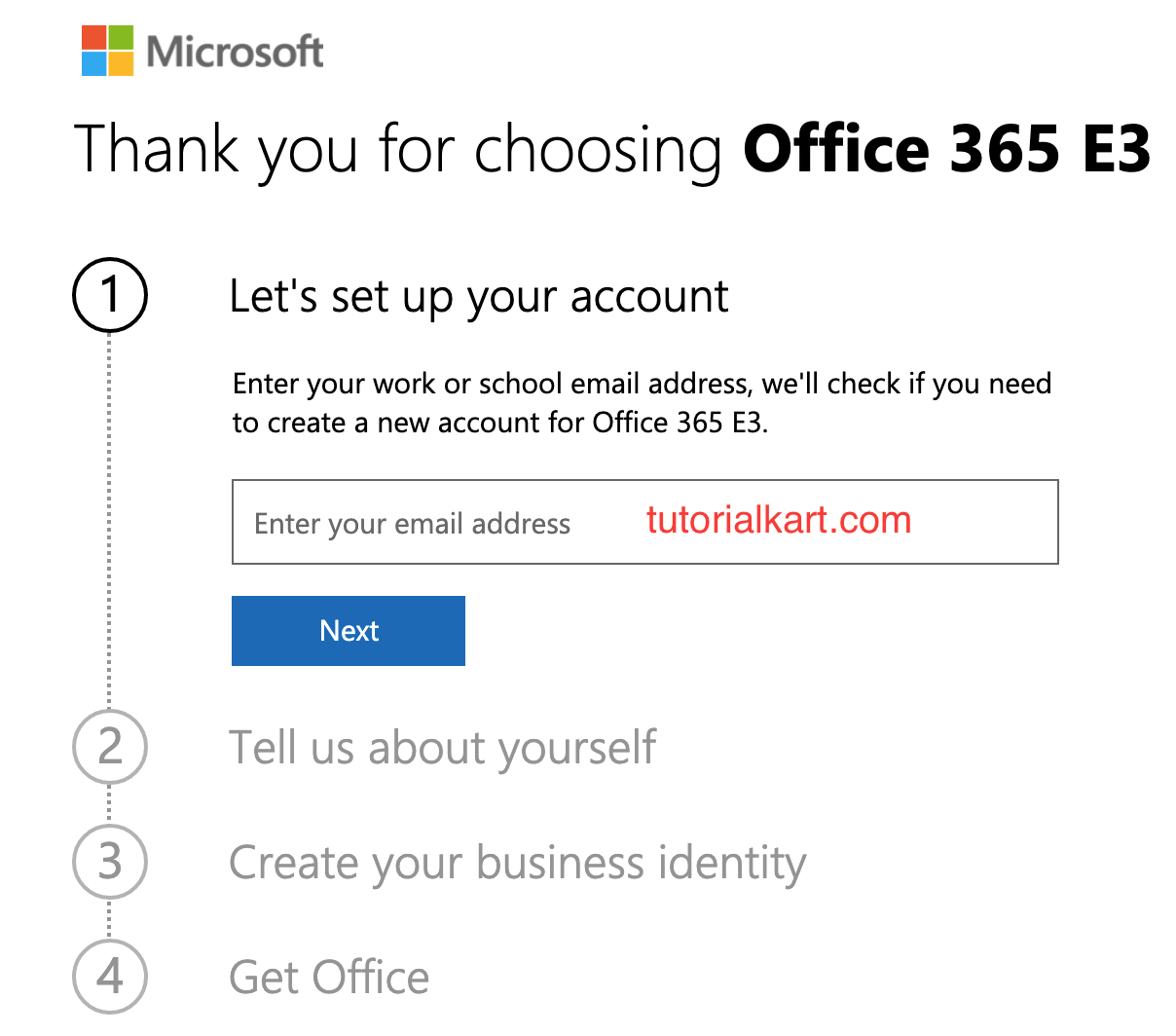
After the tenant is provisioned, sign in with the Microsoft 365 administrator account. The account usually has a sign-in name based on the tenant domain selected during registration. Record the tenant name and administrator account securely because they are used to access Microsoft 365 and SharePoint administration pages.
Decide whether Visual Studio is required for SharePoint development
Visual Studio is not required for routine SharePoint Online administration, page editing, list creation, document management, or standard Power Platform automation. It is also not the primary requirement for a typical modern SharePoint Framework project.
Microsoft provides a free version of visual studio, which also contains SQL Server and it can be downloaded from https://www.visualstudio.com/en-us/downloads/download-visual-studio-vs.aspx.
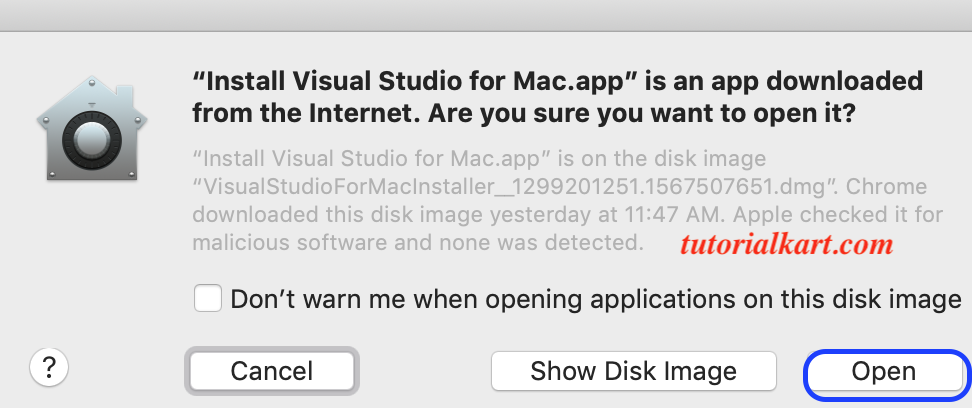
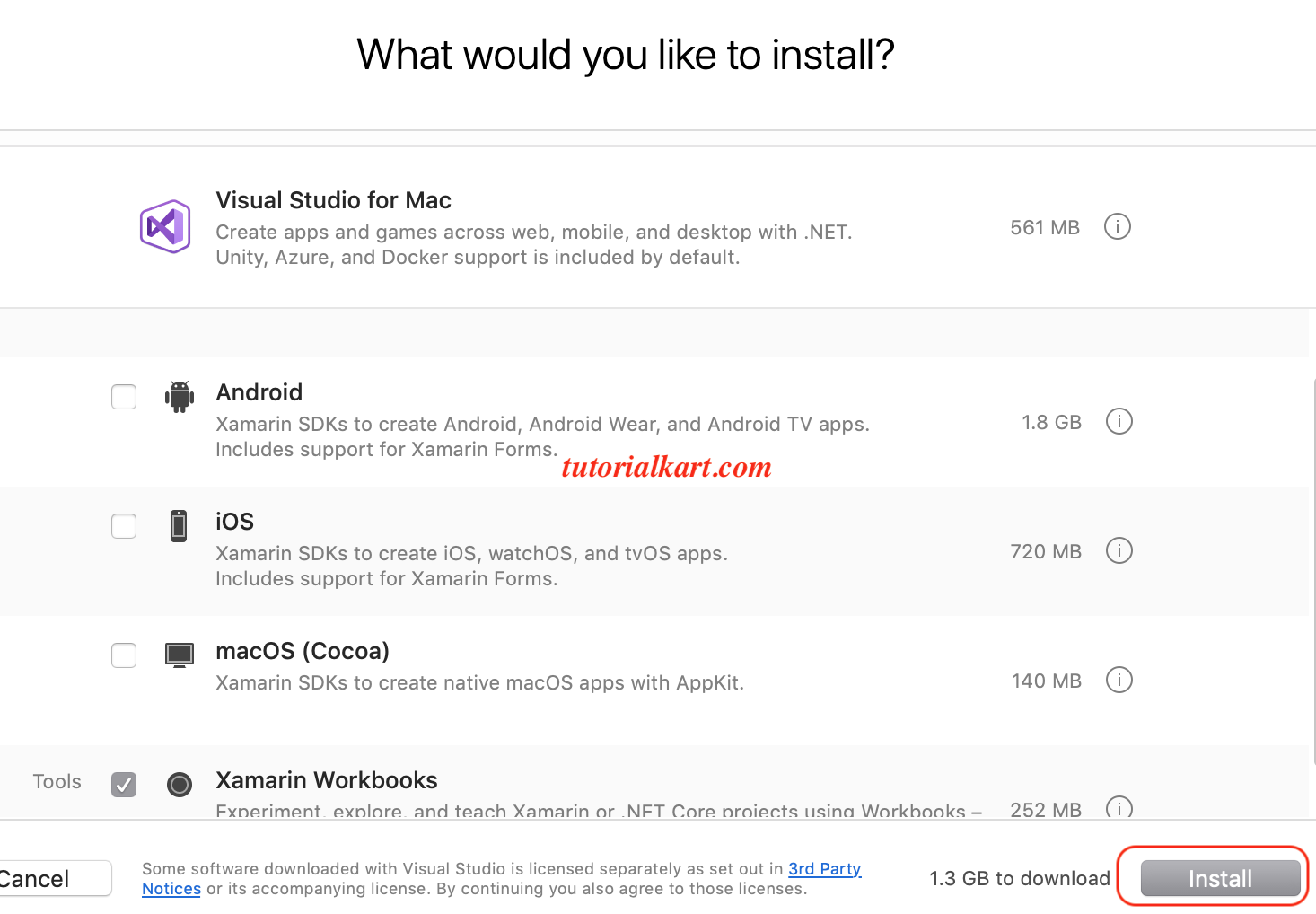
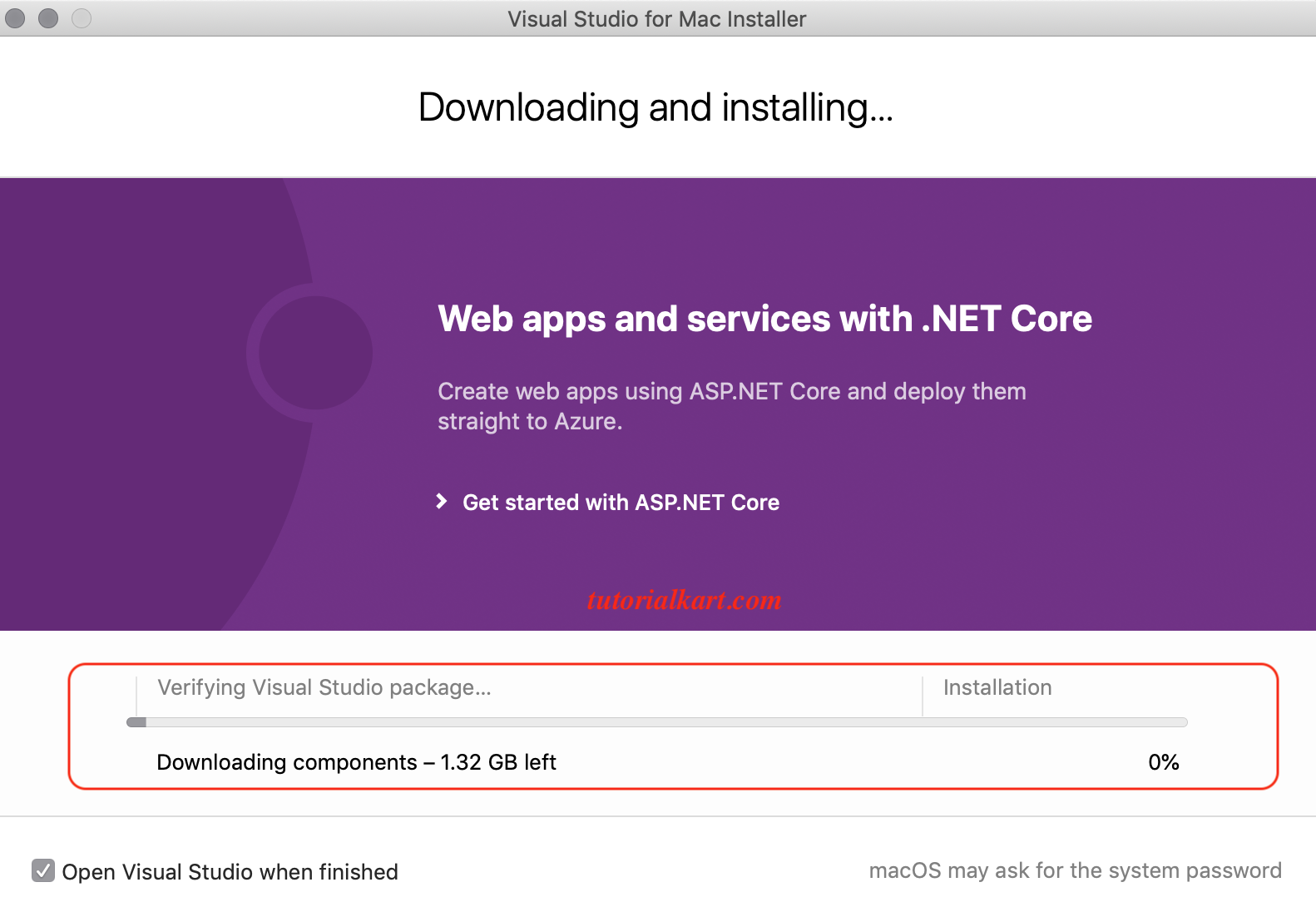
The paragraph and screenshots below document the older Visual Studio for Mac installation process. Visual Studio for Mac is no longer the correct choice for a new SharePoint Online setup. Keep these images as historical reference only, and select current tools according to the solution type you are building.
Legacy Visual Studio installation shown in this tutorial
After downloading Visual Studio from the above link, we need to install it now. Double click on the downloaded folder to open. Click on Open button to install Visual Studio for Mac.
Select the list of software that to be installed along with Visual Studio for Mac. Now click on the Install button.
Now Visual studio packages will be downloaded and Installed as shown below.
Modern SharePoint Framework development environment
SharePoint Framework, commonly abbreviated as SPFx, is the supported client-side development model for building modern SharePoint web parts and extensions. A typical SPFx workstation includes a supported operating system, a compatible Node.js release, npm, the Microsoft 365 developer tooling required by the selected SPFx version, and a source-code editor.
- Check the compatibility table for the SharePoint Framework version used by the project.
- Install only the Node.js release supported by that SPFx version.
- Use a source-control repository from the beginning of the project.
- Use a dedicated test site instead of developing directly in a production site.
- Create or request access to the tenant App Catalog only when deploying packaged SharePoint solutions.
- Review tenant-wide deployment options before making an application available to every site.
Do not assume that the newest Node.js version is compatible with every SPFx project. The supported toolchain depends on the SharePoint Framework release, so verify compatibility before installing or upgrading development tools.
Open the SharePoint admin center
Getting started with SharePoint Online.
SharePoint Online has administration and Management interface called as SharePoint Admin Center. In the SharePoint Admin Center, we can create new site collections and configure any built-in services provided by Microsoft SharePoint. To open the Admin center (https://portal.office.com), you need to be a SharePoint Admin or a Global Admin for your organization.
In the current Microsoft 365 interface, sign in with an authorized account, open the Microsoft 365 admin center, expand the available admin centers, and select SharePoint. A user who is only a site owner may not see the tenant-level SharePoint admin center.
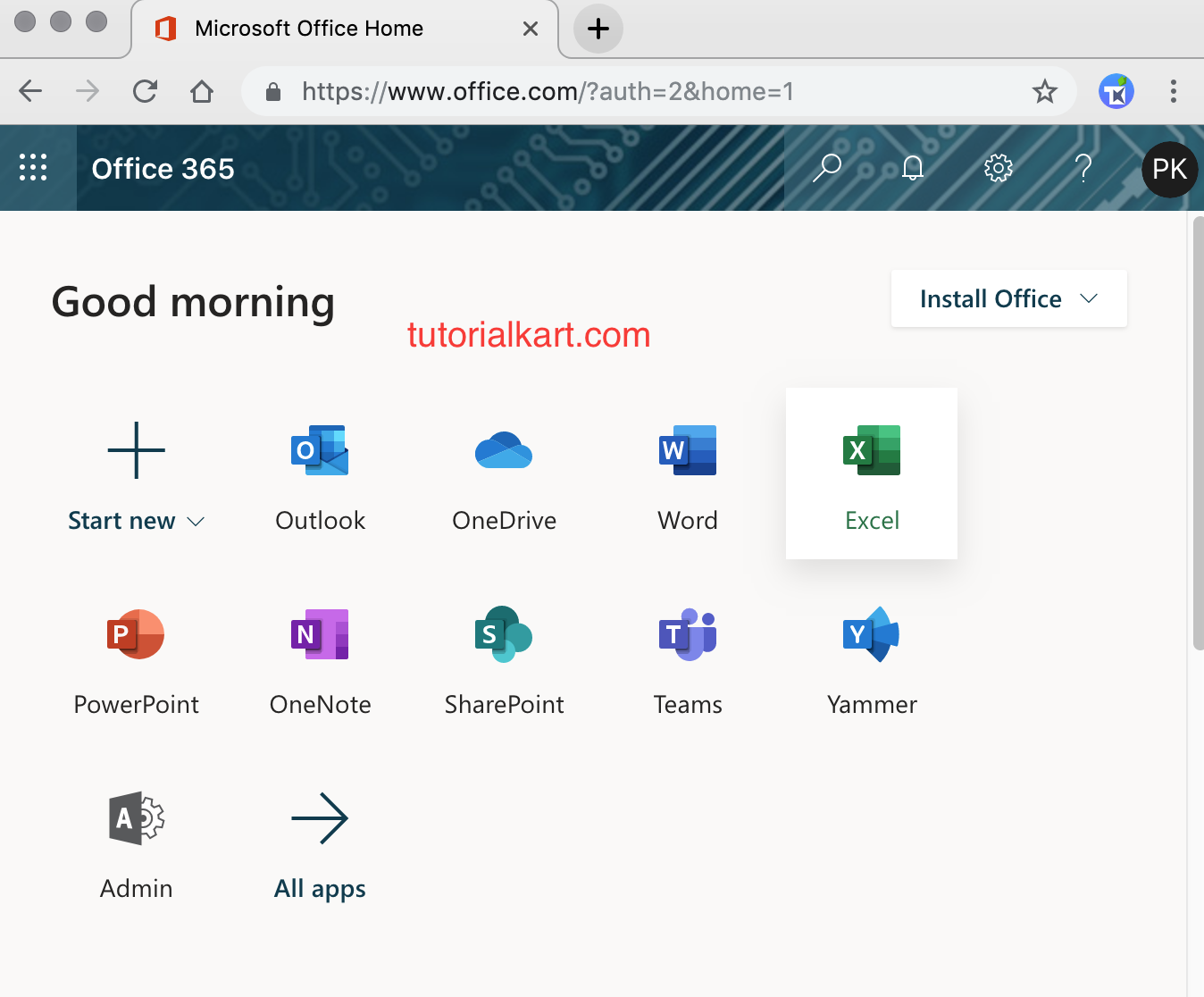
Under Office 365 admin center, click on Admin as shown above and navigate to SharePoint as shown below.
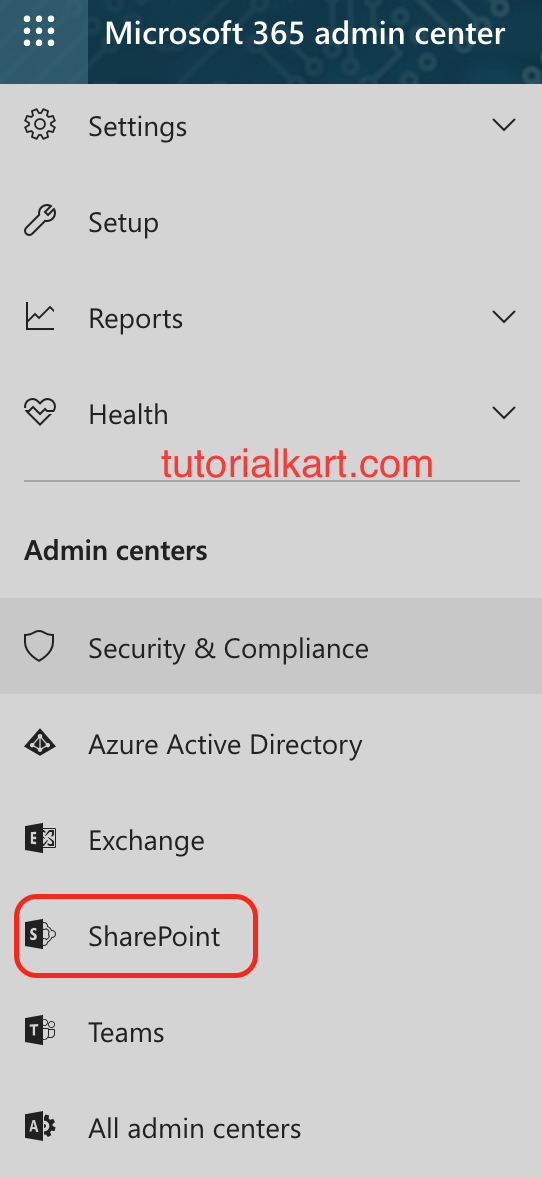
The screenshots above show an older Office 365 admin interface. The location and appearance of the Admin and SharePoint options may differ, but the permission requirement remains important: use an account assigned an appropriate Microsoft 365 administrative role.
Understand the SharePoint Online admin URL
Now we are redirected to SharePoint admin center with direct address format like https://{tenant}-admin.sharepoint.com, where {tenant} is your Office 365 tenant name that you specified during Office 365 provisioning and sign-up phase. Our Address is https://dynamicstutorials-admin.sharepoint.com.
The tenant placeholder represents the organization’s SharePoint tenant name. For example, if the main SharePoint address is structured as https://contoso.sharepoint.com, the administration address is generally structured as https://contoso-admin.sharepoint.com. Access is still controlled by the signed-in account’s assigned roles.
Create the first SharePoint Online site
After confirming access to SharePoint Online, create a site that matches the intended use. A team site is generally suitable for ongoing collaboration among members, while a communication site is designed for publishing information to a broader audience.
- Open SharePoint from the Microsoft 365 application launcher or use the SharePoint admin center if site creation is centrally managed.
- Select the available site-creation option.
- Choose a team site for collaborative work or a communication site for publishing.
- Enter a clear site name and description.
- Assign at least two responsible owners where organizational policy permits.
- Configure privacy, membership, and sharing according to the site’s content.
- Create the site and review its default pages, document library, navigation, and permissions.
Do not use a development or test site to store production records. Use a separate site with representative sample content when testing web parts, workflows, permissions, or navigation changes.
When a SharePoint App Catalog is needed
An App Catalog is used to distribute approved SharePoint applications and SharePoint Framework solution packages. It is not required for basic site creation, document libraries, lists, pages, or standard web parts.
- Tenant App Catalog: Used by administrators to manage applications that may be deployed across the tenant.
- Site Collection App Catalog: Used in supported scenarios to limit application availability to a particular site collection.
- Deployment review: Administrators should examine requested API permissions, tenant-wide deployment choices, solution ownership, update procedures, and rollback plans.
Creating an App Catalog changes the organization’s application deployment surface. Complete this task with an authorized administrator and follow the organization’s security and release-management process.
SharePoint Online permissions to verify before development
- Confirm that the developer can access the designated test site.
- Grant site ownership only when the work requires site-level configuration.
- Keep tenant administrator roles separate from day-to-day development accounts.
- Review external sharing before adding guest users or test identities.
- Check whether custom scripts, application deployment, or API permissions are restricted by organizational policy.
- Document who approves production deployment and who maintains each custom solution.
Common SharePoint Online setup problems
The SharePoint admin center is not visible
Verify that the signed-in account has the SharePoint Administrator or Global Administrator role. A site owner role does not provide access to tenant-wide administration.
SharePoint site creation is unavailable
The organization may restrict site creation to administrators or use an approval process. Contact the Microsoft 365 administrator instead of trying to bypass the tenant policy.
An SPFx project fails after installing Node.js
The installed Node.js release may not match the SharePoint Framework version. Check the project’s SPFx version and install the compatible toolchain rather than automatically using the newest available release.
A custom SharePoint package cannot be deployed
Confirm that an App Catalog exists, the account has permission to upload or deploy applications, the package was built successfully, and any requested API permissions were reviewed and approved.
Getting Started with SharePoint Online FAQs
Do I need Azure to use SharePoint Online?
No. A separate Azure subscription or virtual machine is not required for normal SharePoint Online administration, site creation, document management, or page editing. Azure resources may be used for development, integration, testing, or other related workloads.
Do I need Visual Studio for SharePoint Online?
No. Visual Studio is not required for standard SharePoint Online use. Modern SharePoint Framework development normally uses a compatible Node.js toolchain and a source-code editor. Visual Studio may still be used for other Microsoft development projects or legacy SharePoint solutions.
What is the difference between a SharePoint administrator and a site owner?
A SharePoint Administrator manages tenant-level SharePoint settings and sites across the organization. A site owner manages the content, membership, navigation, and settings of specific sites but does not automatically receive tenant-wide administrative access.
Is a developer site collection still required for SharePoint Online development?
Not for every project. Modern SharePoint development can use a dedicated test site that is separated from production. The exact site and tenant requirements depend on the SharePoint Framework version, solution features, and deployment method.
When should I create a SharePoint App Catalog?
Create or request an App Catalog when the organization needs to deploy approved SharePoint application packages, including SharePoint Framework solutions. It is unnecessary for ordinary pages, lists, libraries, and built-in web parts.
SharePoint Online setup editorial QA checklist
- Mark the Office 365 and Visual Studio for Mac screenshots as historical interfaces.
- Do not state that Azure, an Azure virtual machine, or Visual Studio is mandatory for standard SharePoint Online use.
- Distinguish tenant administrator permissions from site owner permissions.
- Verify the supported Node.js and SharePoint Framework compatibility before publishing version-specific commands.
- Explain that an App Catalog is required for application package deployment, not for basic site creation.
- Confirm that tenant names, administrator URLs, and example accounts do not expose active credentials or confidential information.
- Test all setup steps in a non-production tenant or site before applying them to an organization’s live SharePoint environment.