 TutorialKart.com
Customer Service Queues in Dynamics 365
Customer service queues in Dynamics 365 are containers that organize work requiring attention. A queue can hold cases and activities such as email, tasks, appointments, and phone calls. Agents use queue views to find available work, take responsibility for an item, route it to another queue or user, and monitor its progress.
For example, an organization can create separate queues for billing questions, technical support, product returns, or different service regions. Cases can be added manually or routed automatically according to the Customer Service configuration.
In this Dynamics 365 tutorial, you will learn how queue types work, how to create a queue, configure incoming email, add cases to queues, and manage queue items from the agent workspace.
How Dynamics 365 Customer Service Queues Organize Work
When a record is added to a queue, Dynamics 365 creates a queue item that references the underlying case or activity. The original record and its queue item are related but distinct. Queue-item information can include the queue, the date the item entered the queue, its current worker, and other processing details.
- Cases: Place unresolved customer issues into the appropriate service queue.
- Email: Convert or route incoming messages to a queue for review.
- Tasks and phone calls: Collect follow-up activities that agents must complete.
- Work distribution: Let agents pick work manually or use configured routing and assignment features.
- Operational visibility: Use queue views to see available, active, and assigned work.
Adding a case to a queue does not necessarily transfer ownership of the case. Queue placement determines where the work appears, while record ownership controls responsibility and security. The exact behavior can also depend on routing and assignment configuration.
Public and Private Queue Types in Dynamics 365
Dynamics 365 supports public and private queues. The correct type depends on who should be able to see and work with the queue items.
| Queue type | Access model | Typical use |
|---|---|---|
| Public queue | Queue items are available to users who have the required security privileges. | A general support, billing, or returns queue used across a service department. |
| Private queue | Access is restricted to members added to the queue, subject to their security privileges. | A specialist, escalation, management, or confidential service queue. |
Dynamics 365 also creates private queues for users and teams in relevant scenarios. These system-associated queues support work assigned to a particular user or team and should be distinguished from public service queues created for departmental workloads.
Queue, Team, and Queue Item Differences in Dynamics 365
| Component | Primary purpose |
|---|---|
| Queue | Collects and presents work that requires processing. |
| Team | Groups users for ownership, security-role assignment, access, or collaboration. |
| Queue item | Represents a case or activity while it is present in a queue. |
A team and a queue can be used together, but they are not interchangeable. A team addresses access and ownership requirements. A queue addresses workload organization and processing. For a private queue, selected users or teams can be added as queue members.
How to Create a Queue in Dynamics 365 Customer Service
Before creating a queue, identify the records it will contain, the agents who require access, the expected incoming email behavior, and whether work will be picked manually or distributed by routing rules. This prevents overlapping queues and unclear ownership.
In the classic interface shown below, the navigation path is Settings > Service Management > Queues.
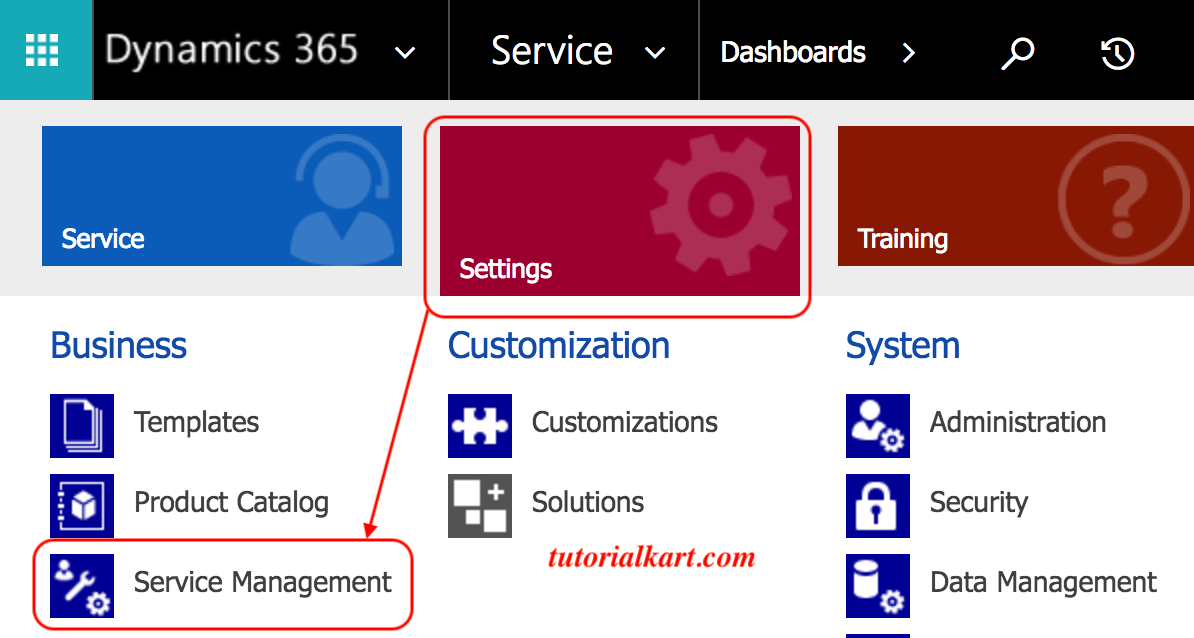
In current model-driven environments, administrators commonly manage queues through the Customer Service admin center. Navigation labels can differ by application version and enabled features, so use the administration search or the queues option under case or support settings when the classic path is unavailable.
Open the queue list to create and manage queues and, where applicable, maintain private-queue membership.
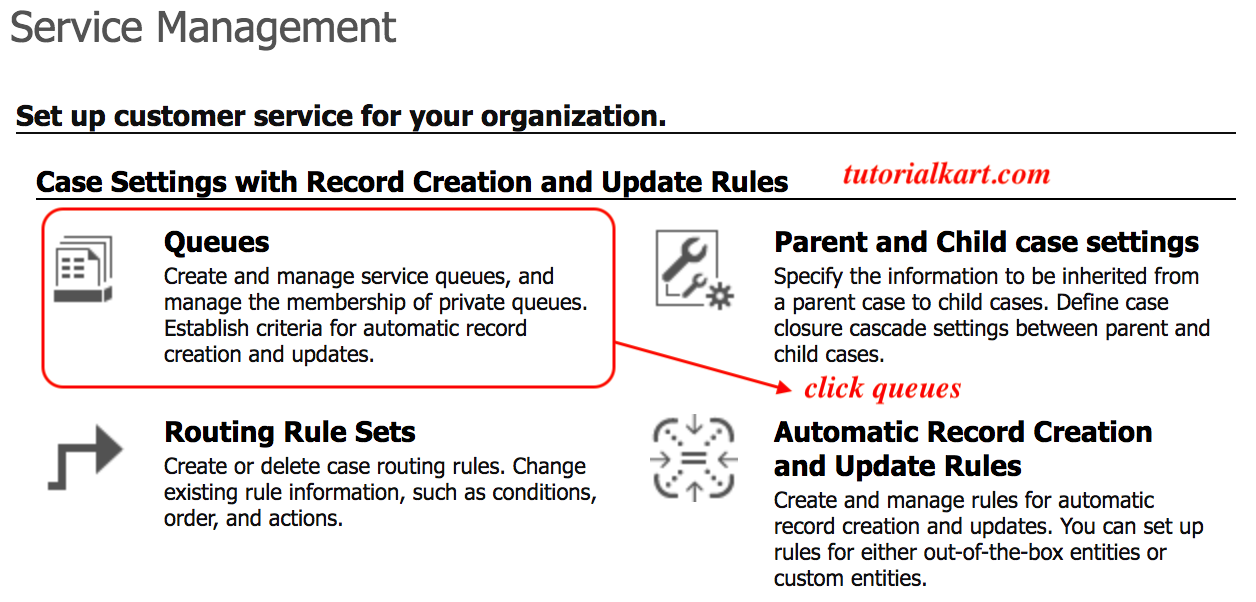
- Select New to create a queue.
- Enter a clear queue name, such as Mobile Service Support.
- Select Public or Private according to the required access model.
- Add a description that states which records should enter the queue.
- Enter an incoming email address if the queue will receive email.
- Configure the available email-conversion settings for the business requirement.
- Save the queue before configuring related mailbox or membership settings.
- For a private queue, add the users or teams that should be members.
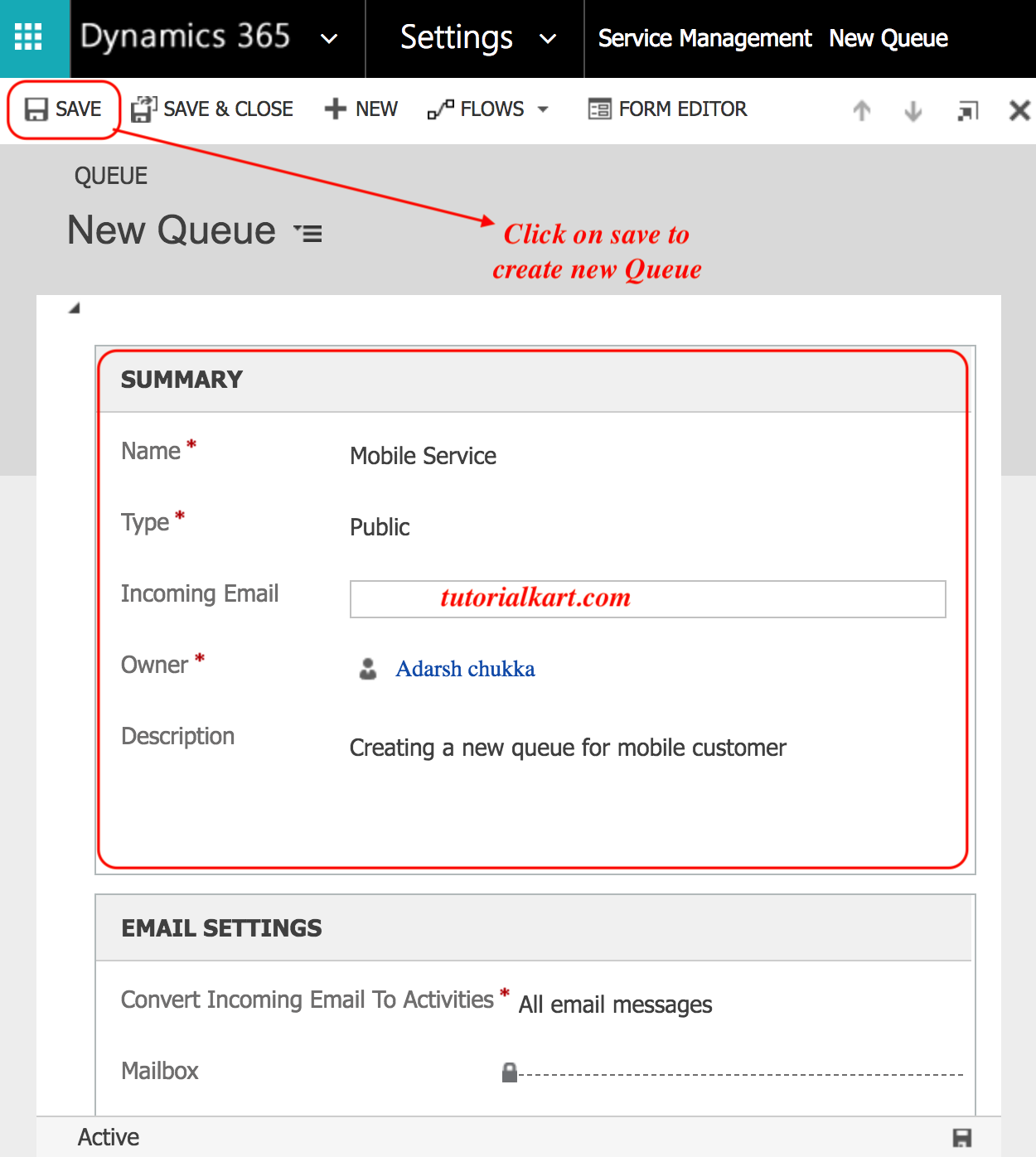
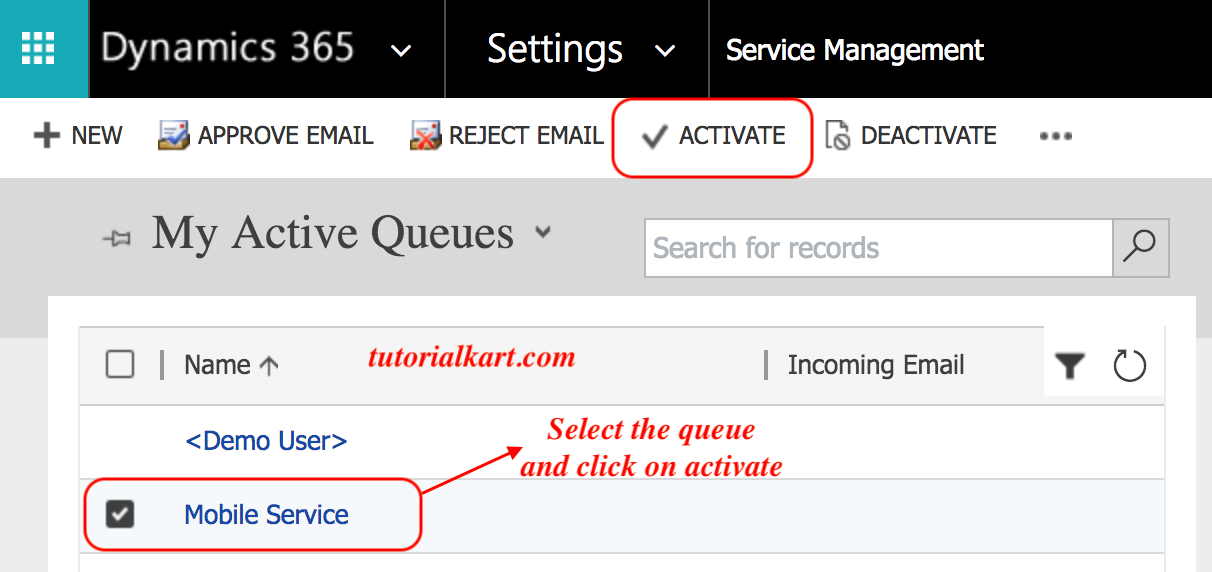
Save the queue and complete any activation or mailbox configuration required by the interface and environment.
Configuring a Dynamics 365 Queue for Incoming Email
A queue can be associated with an email address so that messages sent to a shared support address are processed in Dynamics 365. Creating the queue record alone does not complete server-side email configuration.
- Enter the queue’s incoming email address.
- Save the queue so that its related mailbox can be configured.
- Open the mailbox associated with the queue.
- Select the appropriate server profile and incoming-email synchronization method.
- Obtain mailbox approval when required by the organization’s email-processing policy.
- Run the available mailbox test and enable operation.
- Verify that a test email is received and processed as expected.
Email-to-case behavior depends on the organization’s automatic record-creation, routing, mailbox, and security configuration. Administrators should test the complete process with a non-production address before relying on it for customer messages.
How to Add a Case to a Dynamics 365 Queue
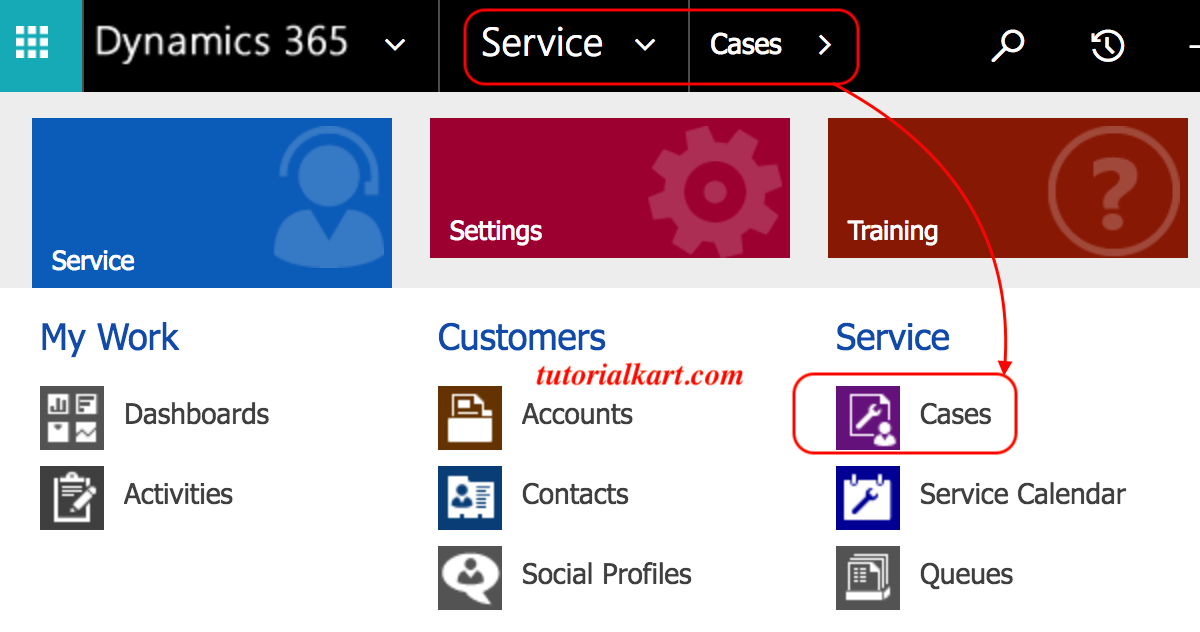
A case can be routed to a queue when it needs attention from a particular service group. In the interface shown here, open Service > Cases and select the required case.
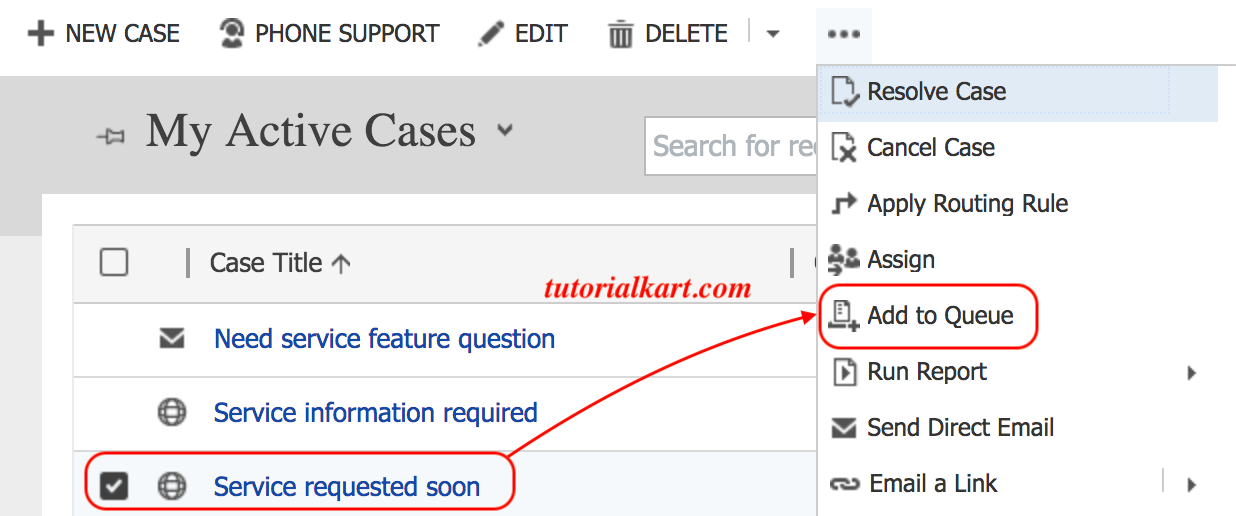
Select one or more cases to add to a queue. Depending on the application, the command may appear as Add to Queue, Route, or under the command bar’s additional actions.
Search for and select the destination queue. In this example, the selected destination is the Mobile Service queue.
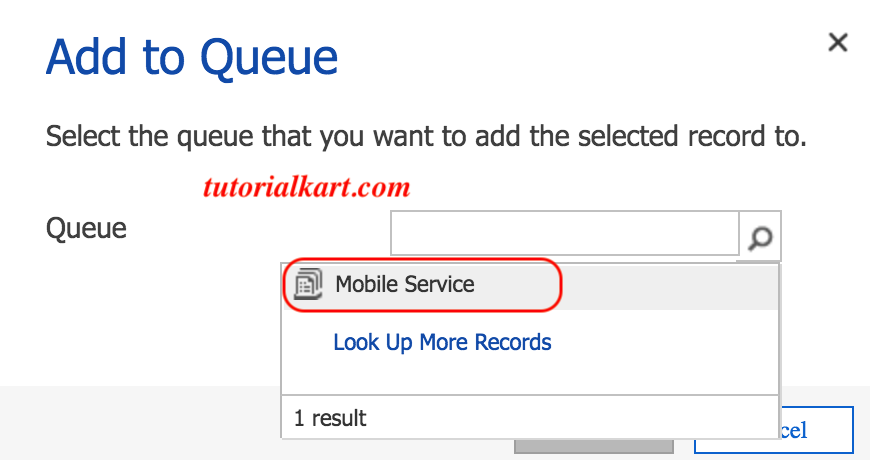
- Select Add or the equivalent confirmation command to place the case in the chosen queue.
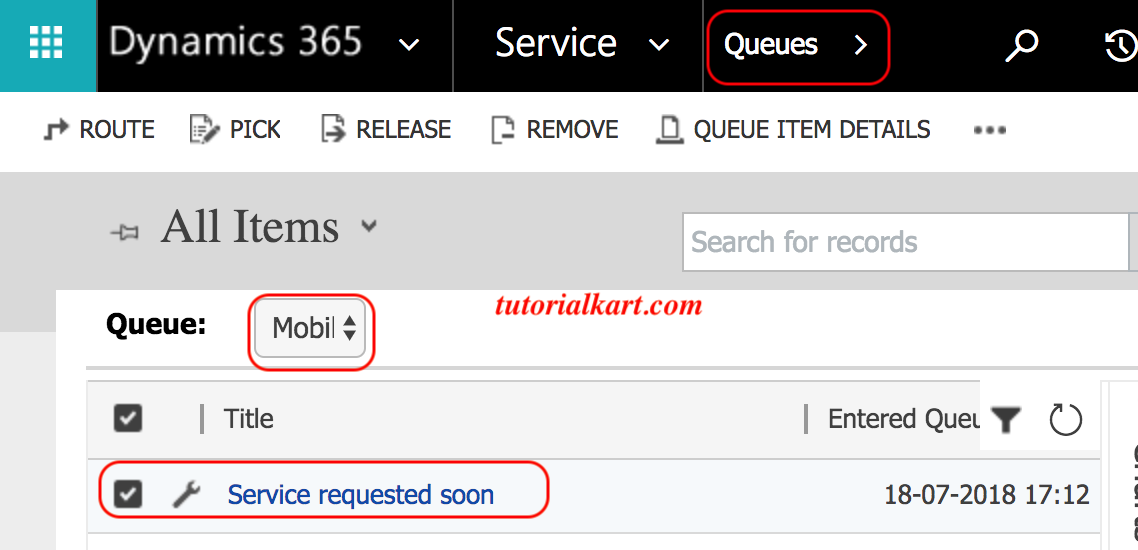
After the operation succeeds, confirm that the case appears in the destination queue. Also verify its owner and assigned worker if the business process expects routing to update either value.
How Agents Work with Queue Items in Dynamics 365
Agents can open a queue view in Customer Service Hub or the configured workspace and filter the available records. The exact commands depend on the application and queue configuration, but common queue operations include the following:
| Queue operation | Result |
|---|---|
| Pick | Indicates that the current user is working on the queue item. |
| Route | Sends work to another user or queue when the user has the required privileges. |
| Release | Returns a picked item to the available queue workload. |
| Remove | Removes the queue item from the queue without necessarily deleting the underlying case or activity. |
| Open | Displays the underlying case or activity so that the agent can process it. |
Agents should distinguish between completing the underlying activity, resolving a case, releasing an item, and removing it from a queue. These actions serve different purposes and can produce different reporting results.
Manual Queues, Routing Rules, and Unified Routing
A queue stores work, but it does not by itself define every assignment decision. Dynamics 365 Customer Service can use different routing approaches depending on the installed applications and licenses.
- Manual queue management: Users add records to a queue, and agents select available items.
- Routing rule sets: Case conditions determine the destination queue or user.
- Automatic record creation: Incoming activities can create cases that are then routed according to configuration.
- Unified routing: Eligible work can be classified, routed, and assigned according to configured workstreams, queues, skills, capacity, and assignment methods.
Round-robin assignment is not an automatic property of every basic queue. It requires an applicable assignment configuration, such as the assignment methods available with unified routing or a separately implemented process. Confirm product capabilities and licensing before designing automatic distribution around a particular feature.
Dynamics 365 Queue Security and Membership Checks
Queue visibility alone does not guarantee access to every underlying case or activity. A user’s security roles, business-unit access, record ownership, sharing, team membership, and queue membership can all affect what the user can see or change.
- Confirm that agents have privileges for queues, queue items, cases, and required activity tables.
- Add the correct users or teams to private queues.
- Test access with a standard agent account rather than only an administrator account.
- Verify that agents can open the underlying records, not merely see queue-item entries.
- Review routing-user privileges when automatic processes fail to add or assign work.
Troubleshooting Dynamics 365 Customer Service Queues
| Queue problem | Checks to perform |
|---|---|
| A user cannot see a private queue | Check queue membership, team membership, security roles, and business-unit access. |
| A case does not appear in the expected queue | Confirm that the routing condition matched, the destination queue is active and available, and a queue item was created. |
| Incoming email is not processed | Review the queue mailbox, approval status, server profile, test-and-enable result, synchronization method, and automatic record-creation configuration. |
| Agents can see an item but cannot open it | Check access to the underlying case or activity and its related records. |
| Work is not distributed automatically | Verify the routing rule or workstream, assignment method, user presence, capacity, skills, and applicable licensing. |
| A removed item is still present as a case | Removing a queue item does not necessarily delete or resolve the underlying record. |
Customer Service Queues in Dynamics 365 FAQs
What is a queue in Dynamics 365 Customer Service?
A queue is a container for cases and activities that require processing. It helps agents find, pick, route, and monitor customer-service work without treating the queue itself as the underlying case or activity.
What queue types are available in Dynamics 365?
The main access types are public and private queues. Public queues are available according to user security privileges, while private queues restrict access to their members, again subject to security privileges. User and team queues are private system-associated queues.
What is the difference between a Dynamics 365 queue and a team?
A queue organizes work items. A team groups users for security, ownership, access, or collaboration. A team can be associated with queue access or membership, but it does not replace the queue’s workload function.
Does adding a case to a queue change its owner?
Not necessarily. Adding a case creates or moves a queue item so the case appears in a queue. Ownership and assignment are separate concepts and change only when the selected command, routing configuration, or business process updates them.
Can Dynamics 365 queues assign cases using round robin?
A basic queue does not automatically provide round-robin distribution merely because records are added to it. Automatic distribution requires an appropriate assignment method, such as configured unified-routing capabilities, or a custom automation designed for that requirement.
Editorial QA Checklist for Dynamics 365 Queues
- Confirm that public and private queue descriptions match the security behavior of the current Dynamics 365 environment.
- Verify the queue administration path in Customer Service admin center because navigation labels can change between application versions.
- Check that every original queue screenshot, URL, and image alt attribute remains unchanged.
- Validate that adding a case to a queue is not described as automatically transferring case ownership.
- Confirm that incoming-email instructions include mailbox approval, test-and-enable, and automatic record-creation checks where applicable.
- Verify that round-robin assignment is linked to an actual assignment configuration rather than presented as a default queue feature.
- Test private-queue visibility and underlying record access with a non-administrator agent account.
- Confirm current licensing and feature availability before publishing unified-routing instructions.
Dynamics 365 Customer Service Queue Summary
Dynamics 365 queues collect cases and activities so that customer-service teams can organize and process work. Public and private queues control the queue’s access model, while security roles and record privileges continue to govern the underlying records. Administrators can add cases manually, process incoming email, apply routing rules, or configure unified routing where available. After setup, test queue visibility, mailbox processing, ownership behavior, and agent actions with realistic user accounts.