 TutorialKart.com
Business Process Flow in Dynamics 365: meaning and use
A Business Process Flow (BPF) in Dynamics 365 is a guided process bar shown across the top of a model-driven app record form. It divides a business process into stages and steps so that users know where the record is, what information is needed, and what should happen next.
Business Process Flow in Dynamics 365 is useful for repeatable work such as lead qualification, opportunity management, case resolution, onboarding, and approvals. In older Dynamics 365 screens, Microsoft uses the term Entity. In newer Power Platform documentation, the same concept is usually called a table.
A BPF is different from a workflow or Power Automate cloud flow. A workflow usually performs automation in the background, while a BPF gives users a visible guide on the form. Both can be used together, but they solve different problems.
Business Process Flow in Dynamics 365 compared with workflow and BPM
- Business Process Flow: guides users through stages and important fields on a record.
- Workflow or cloud flow: runs automation such as email, field updates, notifications, or record creation.
- Business Process Management: refers to the wider discipline of designing, measuring, and improving business processes.
How to check available Business Process Flow (BPF) in Dynamics 365?
To check the list of Business Process Flow (BPF) that are available in Dynamics 365, navigate to Settings | Process Center | Processes. In modern environments, administrators may also review business process flows from a solution in Power Apps or from the relevant process area in Power Automate.
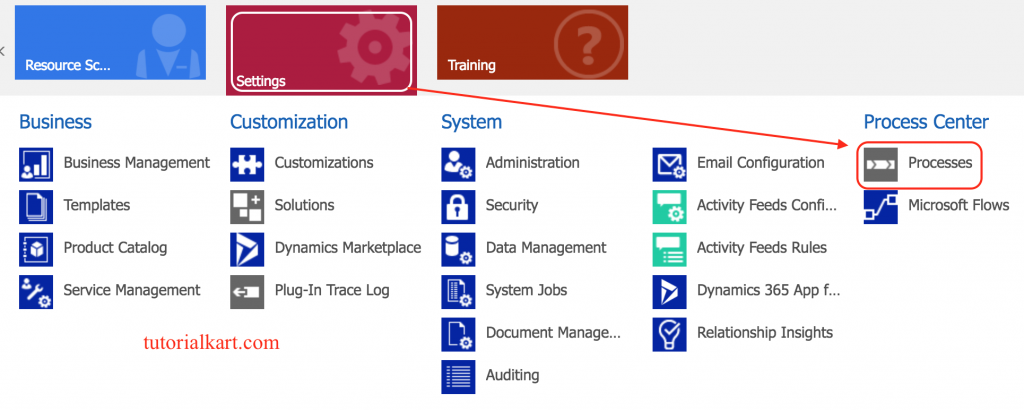
Click on Processes and navigate to processes, change your view to Business Process Flows.
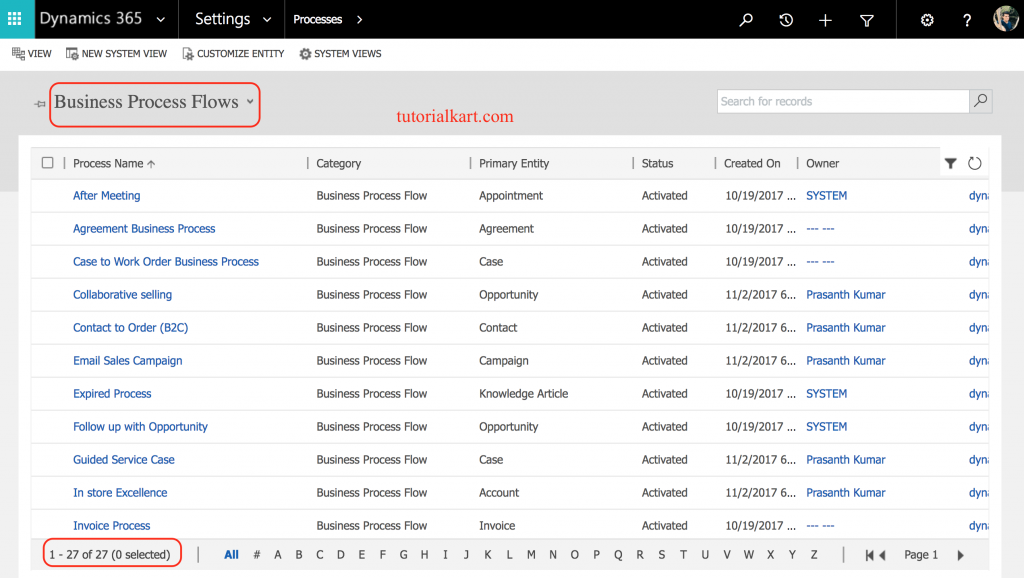
As shown above, this Dynamics 365 environment has a list of default Business Process Flow (BPF) records. The exact number can vary by app, version, solution, and customisation. The important point is that each active BPF can be made available to the right users so that they can follow a defined process on the current record.
Business Process Flow components in Dynamics 365
- Process: The complete BPF definition, such as a sales process or service process.
- Stage: A major phase in the process, such as Qualify, Develop, Propose, or Close.
- Step: A field or data item that the user should enter or review inside a stage.
- Condition: A branching rule that sends the process through a different path based on data.
- Security role: A way to control which users can see and use the BPF.
Keep the BPF focused on process progress. If every field on the form is added as a step, the process bar becomes difficult to use. Add only the fields that help a user make a decision or move the record to the next stage.
Designing or creating Business Process Flow (BPF) in Dynamics 365
To create Business Process Flow (BPF) in Dynamics 365, navigate to Settings | Processes | New. In a production project, create and maintain the BPF inside a solution so that it can be moved between development, test, and production environments in a controlled way.

- Click on the New button to create a new process in Dynamics 365.
Business process flows in Dynamics 365 are associated with a primary entity or table. A BPF can also be designed to move across related tables in supported scenarios, but the process starts from the primary table selected during creation.
- Enter Process name.
- Select Category from the drop-down list.
- Select Entity from the drop-down list.
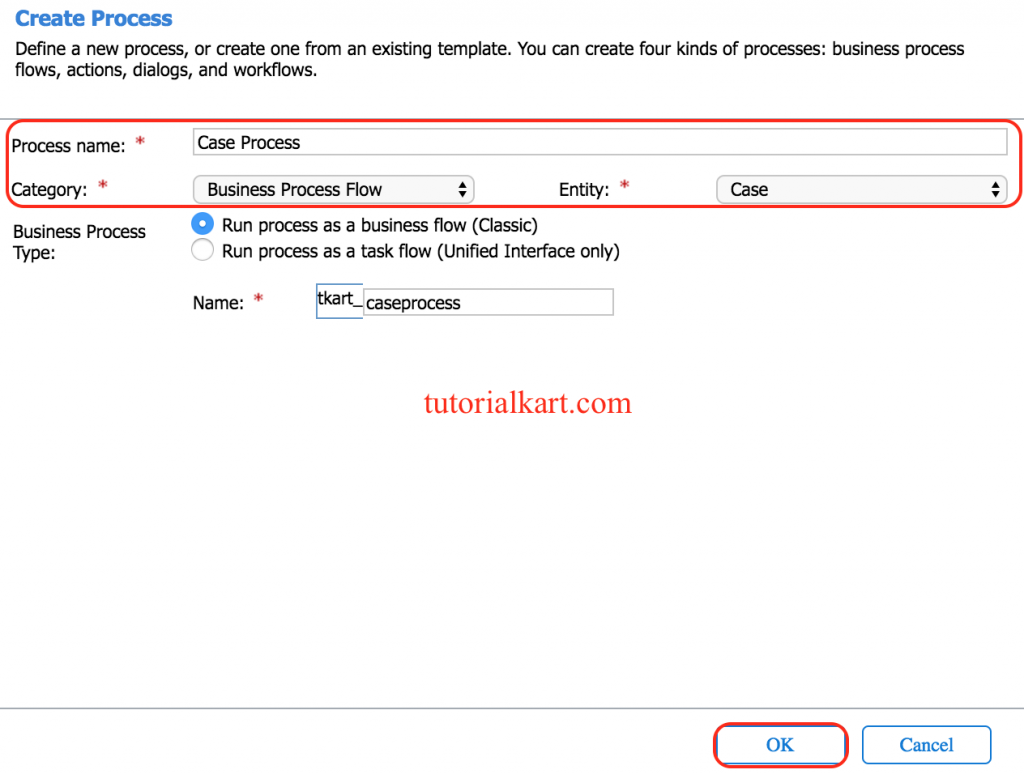
- Click on the OK button.
The new process is created, and the Business Process Flow designer opens with a single stage already created for you. The designer includes tools and options to set up the process flow in Dynamics 365.
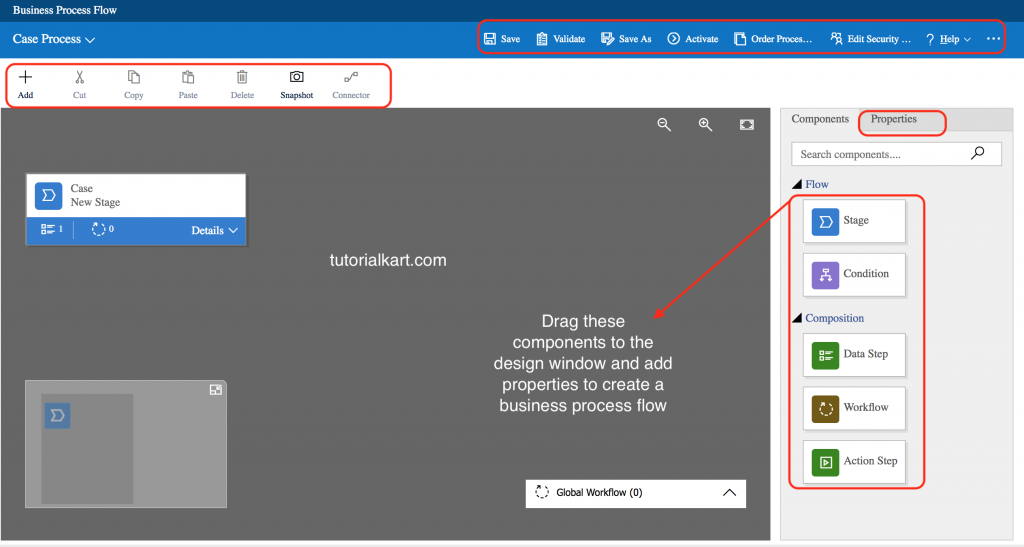
- Click on the + Add button to add Stage, Condition, Data Step, Workflow, and Action components to your business process.
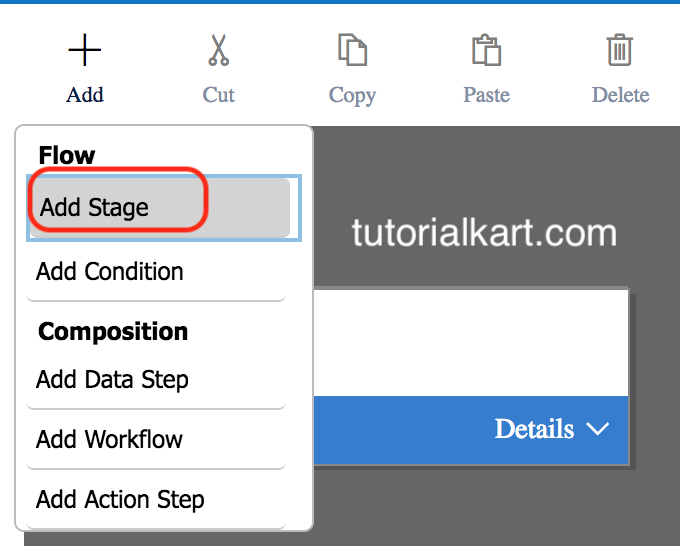
Setting stage properties in a Dynamics 365 Business Process Flow
To set the properties for a stage, click the stage, and then set the properties in the Properties tab on the right side of the screen:
- Enter a display name.
- Select Category.
- Select Entity Name.
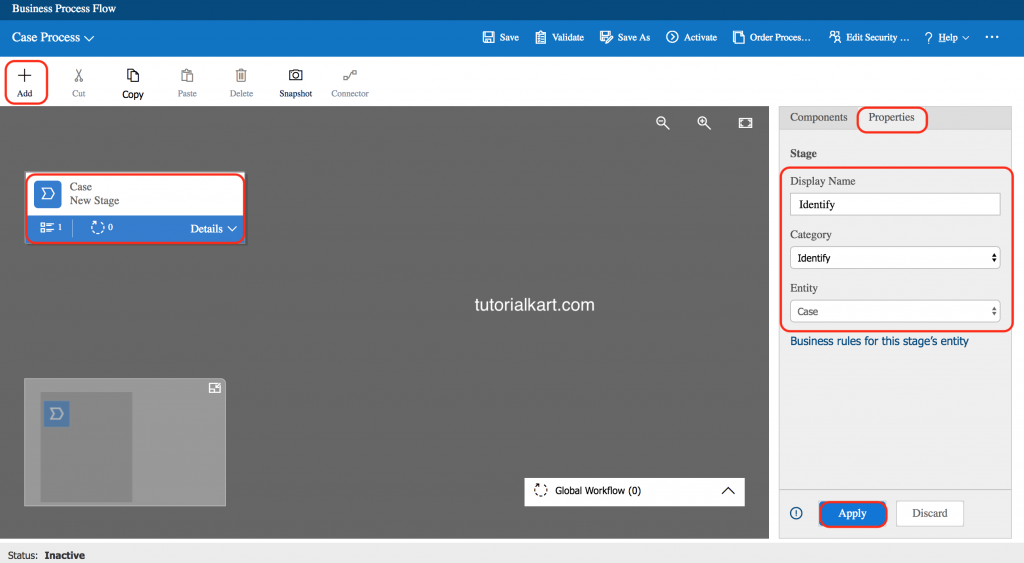
Use stage names that match the language used by the business team. A sales process may use stages such as Qualify, Develop, Propose, and Close. A service process may use stages such as Identify, Research, Resolve, and Review.
- To add Steps to a Stage, Drag the Step component to the stage from the Components tab.
- Add a branch (condition) to the process. To add a branching condition, Drag the Condition component from the Components tab to a + sign between two stages.
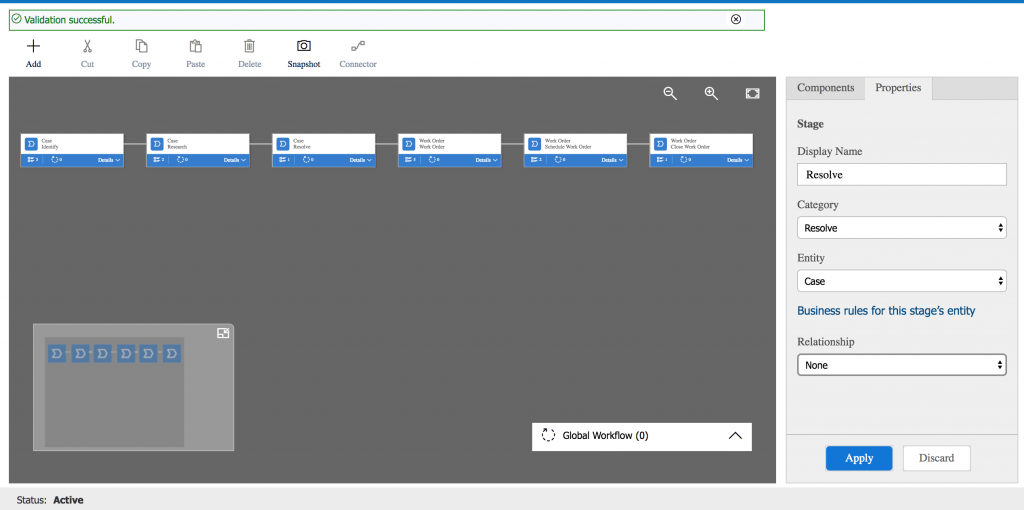
Adding steps, required fields, and branches in a Dynamics 365 BPF
A step usually points to a field on the selected table. When the step appears in the BPF bar, the user can enter or review that value without searching through the full form. Mark a BPF step as required only when the information is genuinely needed before the user moves to the next stage.
Conditions allow a Business Process Flow to take different paths. For example, an opportunity may follow one path when the estimated revenue is high and another path when the value is low. Branching should reflect a real process decision, not every small form variation.
- Unique tables in one process: up to 5.
- Stages in one process: up to 30.
- Steps in one stage: up to 30.
- Branch depth: up to 5 levels.
These limits are useful planning checks, but usability should be stricter than platform capacity. A technically valid BPF can still be confusing if it has too many stages, required steps, or branches.
Saving, activating, and ordering Business Process Flow in Dynamics 365
- Finally, click the Save button in the action bar, validate the design, and activate the process.
After saving the BPF, validate it before activation. Validation helps catch missing information in the process design. After activation, users can use the BPF on records where the selected table, app, and security settings allow it.
If more than one Business Process Flow is available for the same table, the default process can depend on process order and the user’s security roles. Administrators should review process order so that the correct BPF opens first for the intended users.
Security role settings for Business Process Flow in Dynamics 365
Business Process Flow availability can be controlled by security roles. This is useful when different teams use different processes on the same table. For example, an inside sales team and an enterprise sales team may both work with opportunities but follow different stages.
- Give access only to the roles that should use the BPF.
- Check whether the user has access to the table and fields used in the process steps.
- Confirm that the BPF is active and available in the app where users work.
- Review process order when multiple active BPFs exist for the same table.
Common reasons a Dynamics 365 BPF does not appear on a record
- The BPF is not activated: A draft process will not appear for normal users.
- The user does not have the required security role: Role-based access may hide the process.
- The BPF is created for a different entity or table: A process created for Lead will not automatically appear on Opportunity unless the process design includes that table path.
- The process is not available in the app experience: Review the model-driven app, solution, and environment where users are working.
- Another BPF opens first: When multiple BPFs are active, process order can affect the default process shown.
Business Process Flow design example for a sales opportunity
- Qualify: customer need, budget, and decision maker.
- Develop: estimated revenue, close date, and stakeholders.
- Propose: proposal sent, products, and discount approval.
- Close: close status, reason won or lost, and final amount.
This kind of structure keeps the Business Process Flow focused on progress. The detailed record form can contain many more fields, but the BPF should highlight the fields that help users move the opportunity to the next stage.
Best practices for Business Process Flow in Dynamics 365 configuration
- Start with the real business process: write the stages before opening the designer.
- Keep stage names short and familiar: users should immediately understand where they are in the process.
- Add only meaningful steps: use the BPF for fields that guide progress, not for every field on the form.
- Use branching only for real process differences: too many branches can make maintenance difficult.
- Test with security roles: a process that works for an administrator may not appear for a standard user.
- Build inside solutions: this makes it easier to move the BPF between development, testing, and production environments.
Official Microsoft references for Dynamics 365 Business Process Flow
For current platform behaviour, compare this tutorial with Microsoft documentation on business process flows overview, business process flow branching, and business process flows in Dynamics 365 Customer Engagement. Screens and navigation can differ between classic Dynamics 365, modern Power Apps, and on-premises environments.
Editorial QA checklist for this Dynamics 365 BPF tutorial
- Confirm whether the screenshots are from the same Dynamics 365 version used by the reader or from the classic process designer.
- Verify that the selected entity or table is the correct starting point for the business process flow.
- Check that every BPF stage has a clear business purpose and is not just a duplicate of the form layout.
- Test the activated process with a non-admin user who has the intended security role.
- Review whether multiple active BPFs on the same table have the correct order and access settings.
FAQs on Business Process Flow in Dynamics 365
What is a Business Process Flow in Dynamics 365?
A Business Process Flow in Dynamics 365 is a guided process bar on a model-driven app form. It divides a business process into stages and steps so that users know what information to complete and where the record is in the process.
Is a Dynamics 365 Business Process Flow the same as a workflow?
No. A Business Process Flow guides users through stages on a record form. A workflow or Power Automate cloud flow usually runs automation, such as sending email, updating records, or creating tasks. They can be used together, but they serve different purposes.
Can a Business Process Flow use more than one Dynamics 365 entity or table?
Yes. A BPF can be designed to span multiple related tables in supported scenarios. However, it starts from a primary table, and the table relationships and process design must be planned carefully before activation.
Why is my Business Process Flow not visible in Dynamics 365?
Common causes include an inactive BPF, missing security role access, the wrong entity or table, app visibility issues, or another active BPF taking priority. Test the process with the same role and app used by the affected user.
How many steps should a Dynamics 365 BPF stage contain?
A stage should contain only the steps that help users move the record forward. Although the platform supports many steps, a practical BPF is easier to use when each stage focuses on a small set of important fields.