 TutorialKart.com
Create a PDF file and write text into it using PDFBox 2.0
Create a PDF file and write text into it using PDFBox 2.0 – In this PDFBox Tutorial, we shall see how to create a PDF file and write text into it using PDFBox 2.0. We shall take a step by step understanding in doing this.
Apache PDFBox lets a Java program create a PDF document, add pages, open a page content stream, and draw text at a specific position on the page. The example in this tutorial creates a new PDF file named sample.pdf and writes one line of text using the built-in Helvetica bold font.
PDFBox classes used to create a PDF and write text
The basic PDFBox text-writing flow uses these classes.
PDDocumentrepresents the in-memory PDF document.PDPagerepresents a single page in the PDF document.PDPageContentStreamwrites drawing operations, including text, to the page.PDFontandPDType1Fontselect the font used for text.
Always close the content stream and the document after writing. Closing the stream finishes the page drawing instructions, and closing the document releases resources used by PDFBox.
Programmatical steps to create a PDF file and add text in Java
Following are the programatical steps required to create and write text to a PDF file using PDFBox 2.0 :
Step 1: Create a PDF document in-memory
PDDocument doc = new PDDocument();Step 2: Create a PDF page.
PDPage page = new PDPage();Step 3: Add the page to the PDF document.
page.add(doc)In PDFBox 2.0, the usual method call is doc.addPage(page). The complete program below uses this form.
Step 4: Ready the contents to be written in the page. Use a stream. This stream has to be closed after usage.
PDPageContentStream contents = new PDPageContentStream(doc, page);Step 5: Begin some text operations.
contents.beginText();Step 6: Set the font and font size of text, to draw it on PDF page.
PDFont font = PDType1Font.HELVETICA_BOLD;
contents.setFont(font, 30);
Step 7: Start a new line at offset (x,y) as shown below (say for a characters ‘g’) :
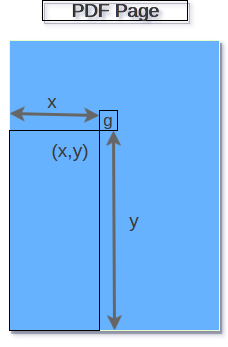
contents.newLineAtOffset(50, 700);Step 8: Show the text at the location specified.
contents.showText(message);Step 9: Stop the text operations.
contents.endText();Step 10: Close the content stream.
contents.close();Step 11: Save the PDF document.
doc.save(filename);Step 12: Close the in-memory pdf document.
doc.close();Complete Java program to write text into a PDF with PDFBox 2.0
The complete program is given below.
CreatePdfWithTextDemo.java
import java.io.IOException;

import org.apache.pdfbox.pdmodel.PDDocument;
import org.apache.pdfbox.pdmodel.PDPage;

import org.apache.pdfbox.pdmodel.PDPageContentStream;

import org.apache.pdfbox.pdmodel.font.PDFont;
import org.apache.pdfbox.pdmodel.font.PDType1Font;

/**
 * Creates a sample.pdf document and write a message at an offset with HELVETICA_BOLD font style.
 */
public class CreatePdfWithTextDemo {
    public static void main(String[] args) throws IOException {
        String filename = "sample.pdf";
        String message = "This is a sample PDF document created using PDFBox.";

        PDDocument doc = new PDDocument();
        try {
            PDPage page = new PDPage();
            doc.addPage(page);

            PDFont font = PDType1Font.HELVETICA_BOLD;

            PDPageContentStream contents = new PDPageContentStream(doc, page);
            contents.beginText();
            contents.setFont(font, 30);
            contents.newLineAtOffset(50, 700);
            contents.showText(message);
            contents.endText();
            contents.close();

            doc.save(filename);
        }
        finally {
            doc.close();
        }
    }
}
The pdf generated is as shown in the following picture.
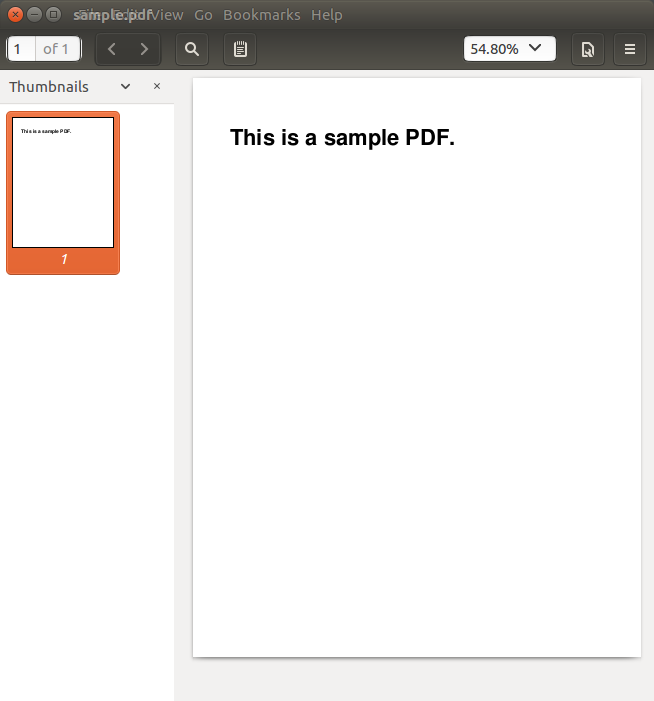
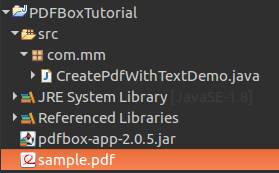
The pdf file is created at the root of project.
How PDFBox page coordinates place text on the PDF
PDFBox uses a coordinate system where the origin is at the bottom-left of the page. In the call contents.newLineAtOffset(50, 700), the first value moves the text 50 units from the left edge, and the second value moves it 700 units from the bottom edge.
If the text does not appear in the generated PDF, first check the offset values. A very large y-coordinate can place text above the visible page area, and a negative coordinate can place it outside the page. For a default PDFBox page, values such as (50, 700), (50, 650), and (50, 600) are commonly used for text lines near the top part of the page.
Write multiple lines of text in a PDFBox PDF page
To write more than one line, call setLeading() after setting the font, write the first line with showText(), and then call newLine() before writing the next line. The following PDFBox example shows the text-writing part only.
contents.beginText();
contents.setFont(PDType1Font.HELVETICA, 14);
contents.setLeading(18f);
contents.newLineAtOffset(50, 700);
contents.showText("First line written using PDFBox.");
contents.newLine();
contents.showText("Second line written using the same content stream.");
contents.newLine();
contents.showText("Third line on the PDF page.");
contents.endText();
This approach is useful when writing short labels, headings, addresses, or generated report text. For long paragraphs, you need to calculate line width and wrap text before calling showText(), because showText() does not automatically wrap a paragraph to the next line.
Create a PDFBox project with Maven dependency
If you are using Maven, add the PDFBox dependency in your pom.xml. Choose the PDFBox version used by your project. The example below shows the dependency format.
<dependency>
    <groupId>org.apache.pdfbox</groupId>
    <artifactId>pdfbox</artifactId>
    <version>2.0.30</version>
</dependency>
After adding the dependency, refresh the Maven project and run the Java class. The generated PDF file will be saved at the path passed to doc.save(filename). In this tutorial, that filename is sample.pdf.
Writing normal text versus creating fillable text boxes in a PDF
The code in this tutorial writes normal visible text on a PDF page. This is different from creating a fillable PDF form field. A fillable text box is an interactive form field that users can type into when they open the PDF in a compatible PDF reader.
Use the text-writing approach shown here when you want a generated PDF to contain fixed text such as a title, invoice number, report label, or printed message. Use PDF form fields when the PDF must be filled by a user after it is created.
Common PDFBox text writing mistakes to check
- Make sure the page is added to the document using
doc.addPage(page). - Call
beginText()beforeshowText()and callendText()after finishing the text operations. - Set a font with
setFont()before showing text. - Keep the x and y offsets inside the visible page area.
- Close
PDPageContentStreambefore saving the document. - Close
PDDocumentin afinallyblock or use try-with-resources in new code.
QA checklist for this PDFBox create-and-write-text example
- Run the Java program and confirm that
sample.pdfis created in the expected project folder. - Open the generated PDF and verify that the message appears near the top-left area of the page.
- Change the text size from
30to a smaller value and confirm that the font size changes in the PDF. - Change
newLineAtOffset(50, 700)to another visible coordinate and confirm that the text position changes. - Confirm that both the content stream and document are closed after the PDF is saved.
FAQs on creating a PDF file and writing text using PDFBox
How do I create a PDF file in Java using PDFBox?
Create a PDDocument, create a PDPage, add the page to the document with doc.addPage(page), write content using PDPageContentStream, save the document with doc.save(), and close the document.
How do I write text at a specific position in a PDFBox PDF?
Use beginText(), set a font with setFont(), move to a position with newLineAtOffset(x, y), and write the text using showText(). The x and y values decide the text position on the page.
Why is my PDFBox text not visible in the PDF?
The common reasons are missing setFont(), missing beginText() or endText(), coordinates outside the visible page, not closing the content stream, or saving the document before the text operations are completed.
Can PDFBox automatically wrap long text into multiple lines?
No. showText() writes the text given to it at the current text position. For paragraphs, calculate line breaks in your Java code and write each line separately using newLine() or another offset.
Is writing text with PDFBox the same as adding a fillable text field?
No. Writing text draws fixed text on the PDF page. A fillable text field is an interactive form control. Use fixed text for generated labels and report content, and use form fields when users must type values into the PDF later.
Summary: create a PDF file and write text using PDFBox 2.0
In this PDFBox Tutorial, we have seen how to create a PDF file and write text into it using PDFBox 2.0. The key steps are to create a PDDocument, add a PDPage, open a PDPageContentStream, set the font, position the text with newLineAtOffset(), write the message with showText(), and save the PDF file.