 TutorialKart.com
In this tutorial, we shall learn how to setup a Java project with PDFBox and verify the setup by running a simple PDF text extraction example. Apache PDFBox can be added to a Java project either with a build tool such as Maven or Gradle, or manually by downloading the required JAR files and adding them to the project build path.
The original Eclipse setup steps are included below, and this updated guide also shows the Maven and Gradle dependency methods because they are easier to maintain when a Java project grows.
PDFBox Java project setup options
Before you start writing PDFBox examples, decide how you want to manage the PDFBox library in your Java project.
- Maven project: Add the PDFBox dependency in
pom.xml. Maven downloads PDFBox and its required dependencies automatically. - Gradle project: Add the PDFBox dependency in
build.gradleorbuild.gradle.kts. Gradle manages the library files for you. - Plain Eclipse Java project: Download the PDFBox JAR files and add them to the Java Build Path manually.
If you are creating a new Java project for learning PDFBox examples, Maven or Gradle is usually simpler. If you already have a plain Eclipse Java project, the manual JAR setup method also works.
Add PDFBox to a Maven Java project
For a Maven-based Java project, open the pom.xml file and add the PDFBox dependency inside the <dependencies> element.
<dependencies>
    <dependency>
        <groupId>org.apache.pdfbox</groupId>
        <artifactId>pdfbox</artifactId>
        <version>2.0.30</version>
    </dependency>
</dependencies>
After saving the file, refresh or reload the Maven project in your IDE. Maven will download PDFBox along with the required supporting libraries. The verification example later in this tutorial uses PDFBox 2.x style code.
Add PDFBox to a Gradle Java project
For a Gradle project using the Groovy DSL, add PDFBox in the dependencies block of build.gradle.
dependencies {
    implementation 'org.apache.pdfbox:pdfbox:2.0.30'
}
For a Gradle Kotlin DSL project, add the dependency in build.gradle.kts.
dependencies {
    implementation("org.apache.pdfbox:pdfbox:2.0.30")
}
Sync the Gradle project after adding the dependency. Once the sync is complete, PDFBox classes such as PDDocument and PDFTextStripper should be available in your Java source files.
Steps to Setup a Java project with PDFBox in Eclipse
Following are the steps to be followed to setup PDFBox in Eclipse Java Project. The steps should remain the same for other IDEs as well.
- Create a new Java Project in Eclipse, PdfBox2Examples.
File ? New ? Java Project - Download jars from https://pdfbox.apache.org/download.cgi.
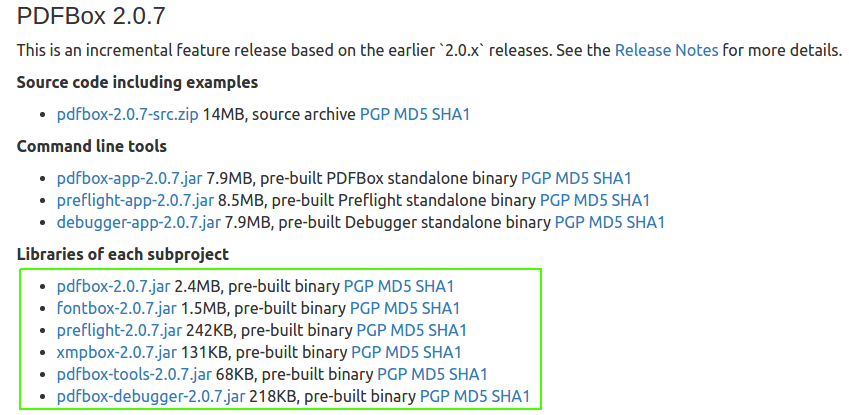
Download apache commons logging jar from here.
Add all these jars to the Build Path.
Select Project “PdfBox2Examples” ? File ? Properties ? Java Build Path ? Libraries ? Add JARs
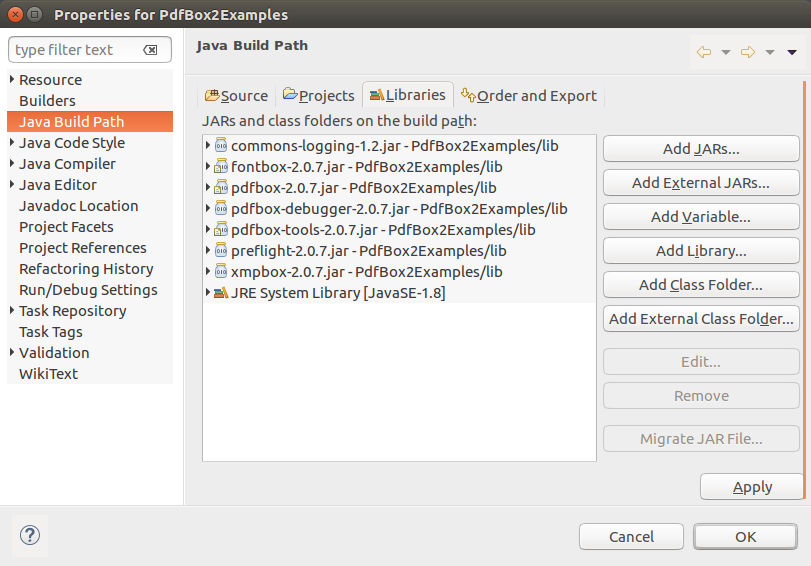
The Java Project, PdfBox2Examples, is ready to work with PDFBox libraries.
Verify PDFBox setup with a Java text extraction example
Run the following example to verify if the setup is successful.
Now, we shall run the following example in the project, to confirm if the setup is successful.
ExtractPdfText.java
import org.apache.pdfbox.pdmodel.PDDocument;
import org.apache.pdfbox.text.PDFTextStripper;

import java.io.File;
import java.io.IOException;

/**
 * Example program to verify the setup of pdfbox libraries
 */
public final class ExtractPdfText {

	/**
	 * Print text present in the document
	 */
	public static void main( String[] args ) throws IOException
	{
		String fileName = "sample.pdf"; // provide the path to pdf file
		PDDocument document = null;

		try
		{
			document = PDDocument.load( new File(fileName));
			PDFTextStripper stripper = new PDFTextStripper();
			String pdfText = stripper.getText(document).toString();
			System.out.println( "Text in the area:" + pdfText);
		}
		finally
		{
			if( document != null )
			{
				document.close();
			}
		}
	}
}
Place a PDF file named sample.pdf in the project working directory, or replace sample.pdf with the full path of an existing PDF file. If the setup is correct, the program prints the extracted text to the console.
Text in the area:Text extracted from the PDF file appears here.Create a PDF file in Java after PDFBox setup
After the PDFBox dependency is available in the Java project, you can also create a new PDF document. The following small example creates a blank PDF file named created-with-pdfbox.pdf.
import org.apache.pdfbox.pdmodel.PDDocument;
import org.apache.pdfbox.pdmodel.PDPage;

import java.io.IOException;

public class CreatePdfDocument {
    public static void main(String[] args) throws IOException {
        try (PDDocument document = new PDDocument()) {
            document.addPage(new PDPage());
            document.save("created-with-pdfbox.pdf");
        }
    }
}
This example is useful for checking whether the project can both load PDFBox classes and write a PDF file to disk. If the file is created successfully, the PDFBox library is configured correctly.
Common PDFBox Java setup errors and fixes
If the Java project does not compile or run after adding PDFBox, check these common setup issues.
| Problem | Likely cause | Fix |
|---|---|---|
PDDocument cannot be resolved | PDFBox is not available on the project classpath. | Add the PDFBox dependency using Maven or Gradle, or add the required JAR files to the Eclipse Build Path. |
NoClassDefFoundError at runtime | A required dependency is missing from the runtime classpath. | Use Maven or Gradle where possible, or verify that all required JAR files were added manually. |
FileNotFoundException: sample.pdf | The PDF file is not present in the working directory. | Place sample.pdf in the correct folder or provide the absolute file path. |
| PDF text output is empty or not readable | The PDF may contain scanned images instead of embedded text. | PDFBox extracts existing text. Scanned PDFs usually need OCR before text extraction. |
PDDocument.load is not found | The project may be using a newer PDFBox major version while following PDFBox 2.x code. | Use PDFBox 2.x for the examples on this page, or update the loading code according to the PDFBox version used in your project. |
PDFBox and iText difference for Java PDF projects
PDFBox and iText are both Java libraries used for PDF-related tasks, but they are commonly chosen for different project needs. PDFBox is often used for reading, creating, modifying, splitting, merging, and extracting content from PDF files in Java. iText is also a PDF library and is frequently used in projects that need advanced PDF generation features.
When choosing between them, check the feature requirements and license terms for your application. For learning PDF processing in Java, PDFBox is a good starting point because setup is straightforward and the examples are easy to run in a normal Java project.
PDFBox Java setup checklist for this tutorial
- The Java project compiles without PDFBox import errors.
- The PDFBox dependency is added through Maven, Gradle, or the Eclipse Build Path.
- The PDF file used in the example exists at the path given in
fileName. - The project uses a PDFBox version that matches the sample code.
- The
PDDocumentobject is closed after processing the PDF file.
FAQs on setting up a Java project with PDFBox
How to create a PDF file in Java using PDFBox?
Create a PDDocument object, add one or more PDPage objects, and call save() with the output file name. The CreatePdfDocument example in this tutorial creates a simple blank PDF file using PDFBox.
How do I setup a Java project for PDFBox examples?
You can setup a Java project for PDFBox examples by creating a normal Java project and adding the PDFBox library. Use Maven or Gradle for automatic dependency management, or download the PDFBox JAR files and add them manually to the Eclipse Java Build Path.
Why is PDFBox not found in my Java project?
PDFBox is not found when the library is not on the compile classpath. In Eclipse, add the PDFBox JAR files to the Build Path. In Maven or Gradle, make sure the dependency is saved correctly and the project has been refreshed or synced.
Can I use PDFBox without Maven?
Yes. You can use PDFBox without Maven by downloading the required JAR files and adding them to your Java project manually. However, Maven or Gradle is easier for most projects because required dependencies are handled automatically.
What should I check if the PDFBox example runs but prints no text?
Check whether the PDF contains real selectable text. If the PDF is a scanned image, a normal PDFBox text extraction example may return little or no text because there is no embedded text layer to extract.
Conclusion
In this PDFBox Tutorial, we have learnt to setup a Java project with PDFBox, add the PDFBox library using Maven, Gradle, or Eclipse Build Path, and verify the setup with simple Java examples.