 TutorialKart.com
In this Salesforce tutorial, we are going to write an Apex Class to perform addition, subtraction and multiplication based on the button we clicked. And also we learn how to call Apex method in a Visualforce page.
This example uses a small Visualforce calculator. The page accepts two integer values, sends them to an Apex controller, and calls a different controller method when the user clicks Addition, Subtraction, or Multiplication. The same pattern can be used for other simple Apex methods that are called from Visualforce buttons.
- Create an Apex class in Developer Console
- Call an Apex method from a Visualforce commandButton
- Apex class for addition, subtraction and multiplication
- Visualforce page for the Apex calculator
- Apex test class for arithmetic methods
How to Write an Apex Class for a Visualforce Calculator
Apex class is a collection of data members and methods. Let us learn how to write an Apex Class. To write an Apex class navigate to Developer Console | File | New | Apex Class.
- Enter the name for Apex Class.
For this tutorial, the class acts as a Visualforce controller. It stores the two input numbers, stores the calculated result, and exposes methods that the page can call from buttons.
Apex Class

- Integer and String are the Data members of the class.
- System.
In this calculator example, Integer properties are used for the input values and result. A String property is used to show which operation was performed.
How to Call Apex Methods from a Visualforce Page
A Visualforce button can call a controller method through its action attribute. The controller method usually returns a PageReference. Returning null keeps the user on the same Visualforce page after the method finishes.
Apex class
public Class Demo {
	public pageReference Show() {
		return null;
	}
}- return null : When we give return null, it will come back to the same page.
- pageReference is the return type of every method that we have called from Visualforce page.
For Visualforce action methods, PageReference is commonly used when the method may navigate to another page or stay on the same page. In simple examples like this one, returning null is enough because the result is displayed on the same page.
Visualforce page
<apex: CommandButton value = "Click"action="{!show}" />- When we click on the “Click” button it will invoke pageReference Show() method.
In a Visualforce page, the component name is normally written without a space, as <apex:commandButton>. The action expression {!show} maps to the Apex method named Show() or show() in the controller.
<apex:commandButton value="Click" action="{!show}"/>Apex Class to perform addition, subtraction and Multiplication.
In our previous Salesforce tutorial, we have learned about Apex Setter method and Getter method. We can also define Setter and getter methods in a single line.
- public Integer{set;get;}
In Apex property syntax, the property name must be included. For example, a writable integer property can be written as shown below.
public Integer xvalue { get; set; }Apex Class for Addition, Subtraction and Multiplication
public class subtraction  {
	public Integer xvalue {get;set;}
	public Integer yvalue {get;set;}
	public Integer result {get;set;}
	public string operation {get;set;}

	public pagereference sub() {
		result = xvalue-yvalue;
		operation = 'Subtraction';
		return null;
	}
	public pagereference add() {
		result = xvalue+yvalue;
		operation = 'Addition';
		return null;
	}
	public pagereference mul() {
		result = xvalue*yvalue;
		operation = 'Multiplication';
		return null;
	}
}
As shown above, we have named the Apex class as Subtraction.
The class contains four public properties. xvalue and yvalue receive input from the Visualforce page. result stores the calculated value. operation stores a text label such as Addition, Subtraction, or Multiplication.
| Apex member | Type | Role in calculator |
|---|---|---|
xvalue | Integer | First number entered in Visualforce |
yvalue | Integer | Second number entered in Visualforce |
result | Integer | Stores the answer after button click |
operation | String | Stores the name of the operation performed |
add() | PageReference | Adds xvalue and yvalue |
sub() | PageReference | Subtracts yvalue from xvalue |
mul() | PageReference | Multiplies xvalue and yvalue |
Visualforce Page for Calling Addition, Subtraction and Multiplication Methods
<apex:page controller="subtraction" sidebar="false" >
    <apex:form>
        <apex:pageBlock title="Calculator">
            <apex:pageBlockSection columns="1" title="Mathematical Operations" collapsible="false">
            <apex:pageBlockSectionItem>
                <apex:outputLabel>Enter X value </apex:outputLabel>
                <apex:inputText value="{!xvalue}"/>
            </apex:pageBlockSectionItem>
            <apex:pageBlockSectionItem>
                <apex:outputLabel>Enter Y value </apex:outputLabel>
                <apex:inputText value="{!yvalue}"/>
            </apex:pageBlockSectionItem>
            <apex:pageBlockSectionItem>
                <apex:outputLabel>Result </apex:outputLabel>
                <apex:inputText value="{!result}"/>
            </apex:pageBlockSectionItem>
             <apex:pageBlockSectionItem>
                    <apex:outputLabel> You have performed {!operation} of {!xvalue} and {!yvalue}.
                    </apex:outputLabel>
            </apex:pageBlockSectionItem>
            <apex:pageBlockSectionItem>
                <apex:commandButton value="Addition" action="{!add}"/>
            </apex:pageBlockSectionItem>
            <apex:pageBlockSectionItem>
                <apex:commandButton value="Subtraction" action="{!sub}"/>
            </apex:pageBlockSectionItem>
            <apex:pageBlockSectionItem>
                <apex:commandButton value="Multiplication" action="{!mul}"/>
            </apex:pageBlockSectionItem>
          </apex:pageBlockSection>
       </apex:pageBlock>
    </apex:form>
</apex:page>
In the above Visualforce page, we have added some Visualforce components like <apex:form>, <apex:pageBlock>, <apex:pageBlockSection>, <apex:pageBlockSectionItem>,<apex:commandButton>. All these components are for Styling, adding buttons like Salesforce Salesforce buttons.
- <apex:pageBlockSection> consists of one or more columns.
The value="{!xvalue}" and value="{!yvalue}" bindings connect the Visualforce input boxes to the Apex controller properties. When a command button is clicked, Visualforce submits the form values to the controller and then executes the method specified in the button’s action attribute.
| Button clicked | Visualforce action | Apex method called | Calculation |
|---|---|---|---|
| Addition | action="{!add}" | add() | xvalue + yvalue |
| Subtraction | action="{!sub}" | sub() | xvalue - yvalue |
| Multiplication | action="{!mul}" | mul() | xvalue * yvalue |
Output of Visualforce Calculator for Apex Arithmetic Methods
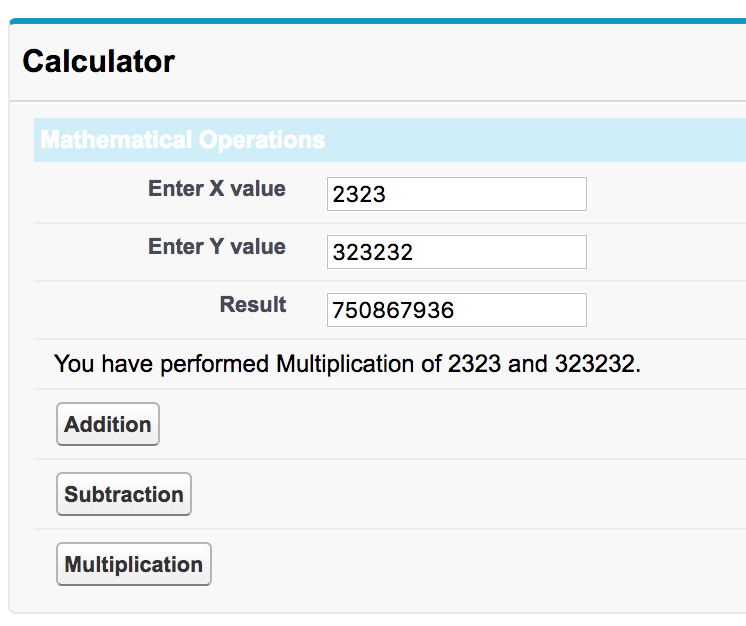
As shown above example, enter X value and Y value then click on Addition or Subtraction or Multiplication button. Suppose when we click on Multiplication, the result will be displayed in Result section.
Arithmetic Operators Used in the Apex Calculator Class
Apex supports common arithmetic operators for numeric values. This tutorial uses addition, subtraction and multiplication. You can extend the same controller pattern for division or modulus after handling cases such as division by zero.
| Operator | Meaning | Apex example |
|---|---|---|
+ | Addition | result = xvalue + yvalue; |
- | Subtraction | result = xvalue - yvalue; |
* | Multiplication | result = xvalue * yvalue; |
/ | Division | result = xvalue / yvalue; |
Math.mod() | Remainder after division | result = Math.mod(xvalue, yvalue); |
For this example, integer arithmetic is enough. If your calculator needs decimal answers, use Decimal instead of Integer for the input and result properties.
Improved Apex Calculator Class with Division and Safe Input Checks
The earlier class is intentionally simple. In a practical controller, it is better to handle blank values and division by zero. The following version keeps the same idea but uses clearer naming and adds a division method.
public class CalculatorController {
    public Decimal xvalue { get; set; }
    public Decimal yvalue { get; set; }
    public Decimal result { get; set; }
    public String operation { get; set; }
    public String message { get; set; }

    private Boolean hasValidInputs() {
        if (xvalue == null || yvalue == null) {
            message = 'Enter both X value and Y value.';
            result = null;
            return false;
        }
        message = null;
        return true;
    }

    public PageReference add() {
        if (hasValidInputs()) {
            result = xvalue + yvalue;
            operation = 'Addition';
        }
        return null;
    }

    public PageReference sub() {
        if (hasValidInputs()) {
            result = xvalue - yvalue;
            operation = 'Subtraction';
        }
        return null;
    }

    public PageReference mul() {
        if (hasValidInputs()) {
            result = xvalue * yvalue;
            operation = 'Multiplication';
        }
        return null;
    }

    public PageReference div() {
        if (hasValidInputs()) {
            if (yvalue == 0) {
                message = 'Y value cannot be zero for division.';
                result = null;
            } else {
                result = xvalue / yvalue;
                operation = 'Division';
            }
        }
        return null;
    }
}
This version uses a helper method named hasValidInputs(). The helper method prevents the arithmetic methods from running when either input value is blank.
Apex Test Class for Addition, Subtraction and Multiplication Methods
An Apex class should have test coverage before it is deployed to production. For this calculator controller, a test class can create an instance of the controller, assign input values, call each method, and verify the result using System.assertEquals().
@IsTest
private class SubtractionControllerTest {
    @IsTest
    static void testAdditionSubtractionAndMultiplication() {
        subtraction controller = new subtraction();
        controller.xvalue = 10;
        controller.yvalue = 5;

        controller.add();
        System.assertEquals(15, controller.result);
        System.assertEquals('Addition', controller.operation);

        controller.sub();
        System.assertEquals(5, controller.result);
        System.assertEquals('Subtraction', controller.operation);

        controller.mul();
        System.assertEquals(50, controller.result);
        System.assertEquals('Multiplication', controller.operation);
    }
}
The test class above is written for the original subtraction controller shown in this tutorial. If you rename the controller class, update the test class to use the new class name.
Common Issues When Calling Apex Calculator Methods from Visualforce
- Controller name mismatch: The
controllerattribute in<apex:page>must match the Apex class name. - Button action mismatch: If the button uses
action="{!add}", the Apex controller must contain anadd()method. - Input values not submitted: The input fields and command buttons should be inside
<apex:form>. - Unexpected blank result: Check whether
xvalueandyvaluehave values before the calculation method runs. - Decimal division required: Use
Decimalinstead ofIntegerwhen the result may contain decimal places.
FAQs on Apex Class for Addition, Subtraction and Multiplication
What is an example of an Apex class?
An example of an Apex class is a Visualforce controller class that stores input values and contains methods such as add(), sub(), and mul(). The class in this tutorial performs arithmetic operations based on the button clicked in the Visualforce page.
How do I create a new Apex class for a Visualforce page?
Open Developer Console, select File | New | Apex Class, enter a class name, and save the class. Then use that class name in the Visualforce page’s controller attribute.
How does a Visualforce commandButton call an Apex method?
A Visualforce <apex:commandButton> calls an Apex method through the action attribute. For example, action="{!add}" calls the add() method in the page controller.
How do I create an Apex test class for this calculator?
Create a class with the @IsTest annotation, instantiate the calculator controller, assign values to its properties, call the arithmetic methods, and verify the results using System.assertEquals().
What is the math mod in Apex?
In Apex, the remainder of a division can be calculated using Math.mod(number1, number2). For example, Math.mod(10, 3) returns the remainder after dividing 10 by 3.
Editorial QA Checklist for Apex Arithmetic Class Tutorial
- Confirm that the Visualforce page controller name matches the Apex class name used in the example.
- Verify that each command button action has a matching Apex method:
add(),sub(), andmul(). - Check that all input fields and command buttons are placed inside
<apex:form>. - Keep Apex examples in
language-javablocks and Visualforce examples inlanguage-xmlblocks. - Include a test class when the tutorial is used as a deployment-ready Apex example.