 TutorialKart.com
SAS Basics: Set Up Sample Data in SAS Studio
This guide covers the SAS basics needed before working through the SAS tutorial. You will identify your SAS environment, check whether the SASUSER library is writable, assign a library to a writable folder, and create or import sample data for practice.
The screenshots include SAS Studio and the former SAS University Edition environment. Menu labels and folder paths can differ in newer hosted or locally administered SAS installations, but the underlying concepts—programs, libraries, data sets, the log, and results—remain applicable.
Identify the SAS Studio Environment
Before assigning folders or importing files, determine which SAS environment you are using. In SAS Studio, open the software menu and select Help > About. The displayed information can help you distinguish a hosted SAS Studio session from a locally managed installation.
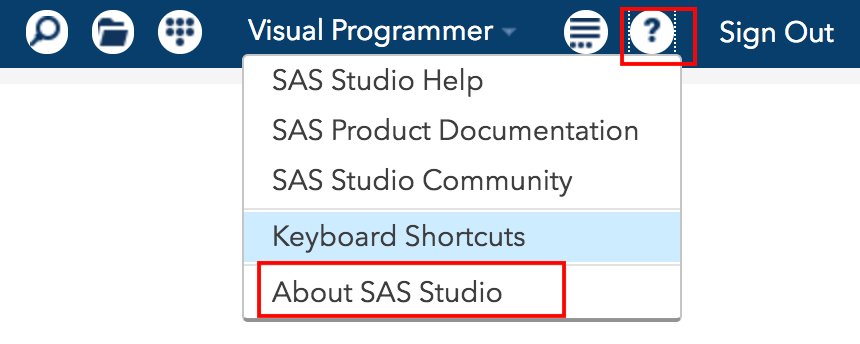
The environment matters because a physical path that works in one installation might not exist in another. When possible, select folders through the SAS Studio interface or ask the SAS administrator which location is available for persistent files.
Check SASUSER Write Access with PROC OPTIONS
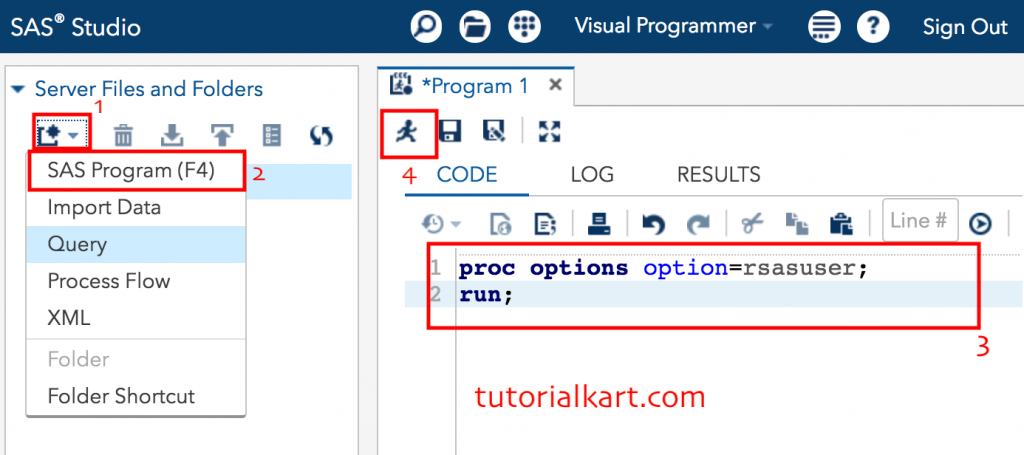
SASUSER is a permanent library that can store user-specific files between sessions. Some SAS Studio environments configure it as read-only. Run the following existing program to display the current RSASUSER option:
proc options option=rsasuser;
run;
In the navigation pane, select New > SAS Program. Enter the code and click Run or Run All. After execution, inspect the Log tab rather than relying only on the Results tab.
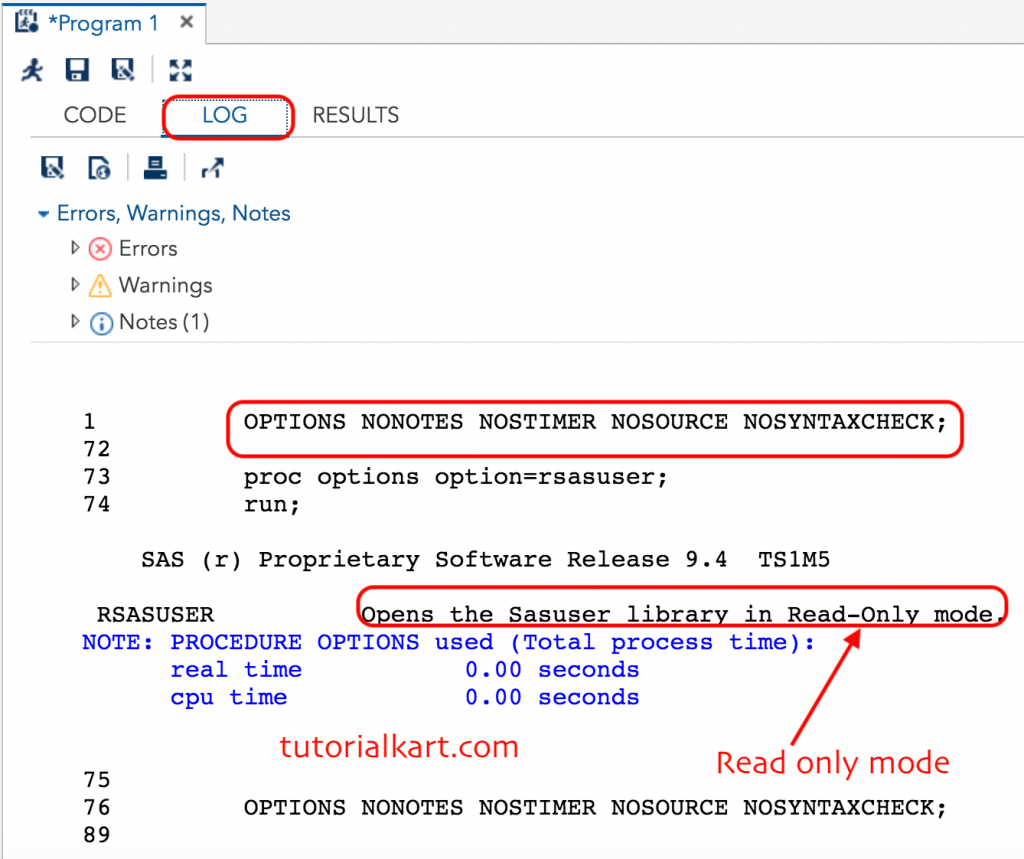
If the log reports NORSASUSER, the RSASUSER read-only option is not active. If it reports RSASUSER, SASUSER is operating in read-only mode. The option reports the session configuration; it does not by itself create a writable directory.
Assign SASUSER to a Writable Folder
The following steps document the folder-based workflow used by SAS University Edition. If your current SAS Studio installation does not expose /folders/myfolders, use a path supplied by your SAS administrator or assign a separate library to a folder available in your environment.
- Open the folder pane and select My Folders.
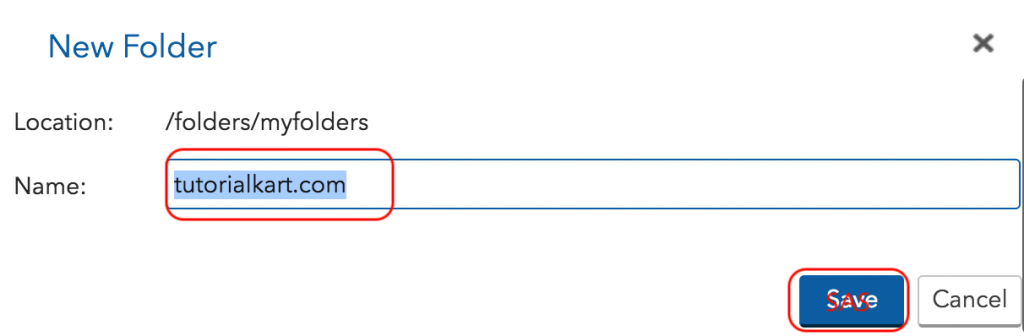
- Right-click the folder location and select New > Folder.
- Create a folder named tutorialkart.com.
- Confirm that the new folder appears in the folder pane before running the LIBNAME statement.
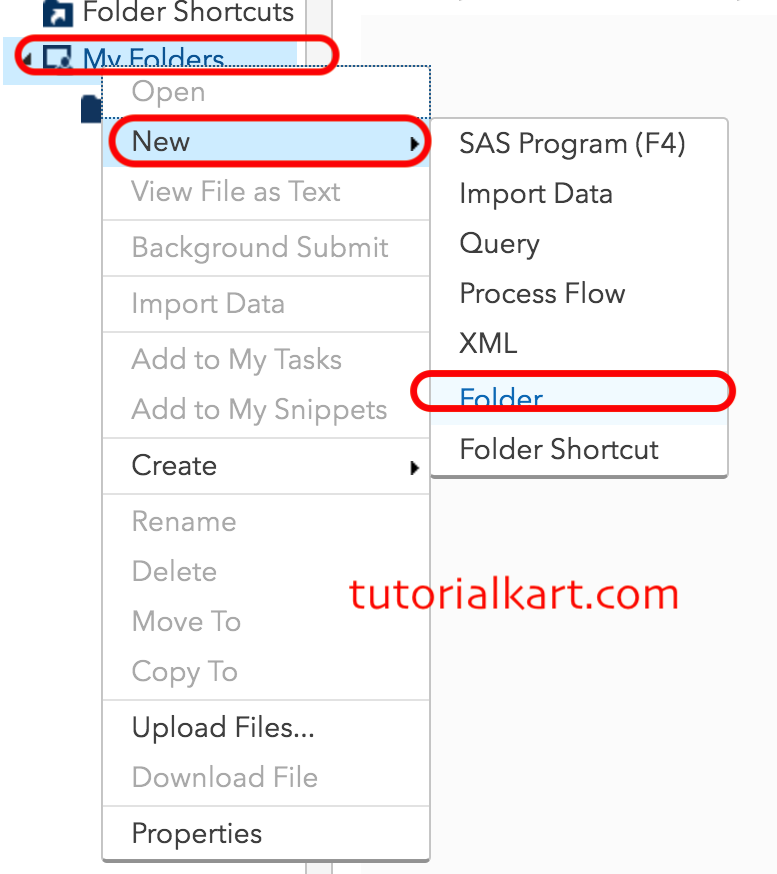
Enter tutorialkart.com as the folder name.
For the legacy SAS University Edition folder layout, the existing LIBNAME statement is:
libname sasuser "/folders/myfolders/tutorialkart.com";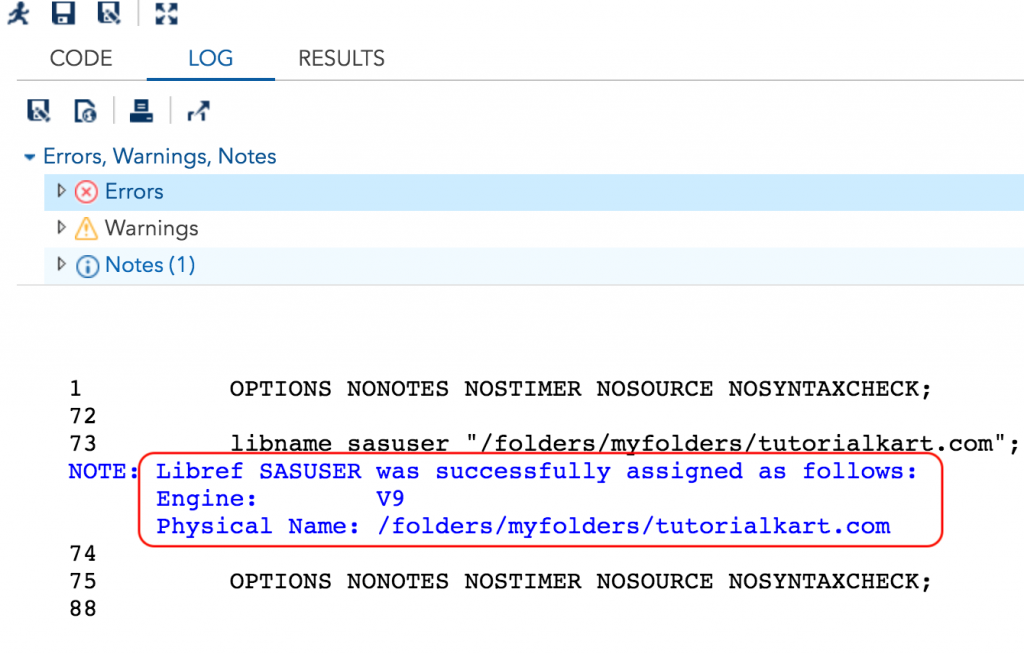
Check the log after running the statement. A successful assignment normally produces a note identifying the library and its physical location. An error such as “physical file does not exist” indicates that the path must be corrected for the current environment.
Save the program as libname_tutorialkart.com if you want to retain this setup code. A LIBNAME assignment usually applies to the current SAS session, so it may need to be submitted again after signing in or restarting the session.
Create a Separate Practice Library in SAS Studio
For practice projects, a separate library reference is often clearer than reassigning SASUSER. A SAS library name, or libref, can contain up to eight characters. The following example assigns the libref PRACTICE to the same legacy folder:
libname practice "/folders/myfolders/tutorialkart.com";

proc datasets library=practice;
quit;
PROC DATASETS lists the members stored in the library. If your installation uses a different writable path, replace only the quoted path while keeping the libref consistent throughout the program.
Create Sample SAS Data Without Downloading a File
SAS includes sample data sets in the SASHELP library. You can copy SASHELP.CLASS into the temporary WORK library and inspect the result. This provides a quick way to verify that DATA steps and procedures run correctly.
data work.class_copy;
    set sashelp.class;
run;

proc print data=work.class_copy(obs=5);
run;

proc contents data=work.class_copy;
run;
The DATA step creates WORK.CLASS_COPY. The OBS=5 data set option limits PROC PRINT to the first five observations, while PROC CONTENTS displays variable names, types, lengths, and other metadata.
The WORK library is temporary and is cleared when the SAS session ends. To retain the copied data, replace work.class_copy with a two-level name such as practice.class_copy after assigning the PRACTICE library.
Import the SAS Sample Data Program
To set up the sample data used in the original exercises:
- Open a new SAS Program window.
- Copy the sample data program from http://support.sas.com/publishing/cert/sampdata.txt.
- Paste the complete program into the code editor.
- Click Run.
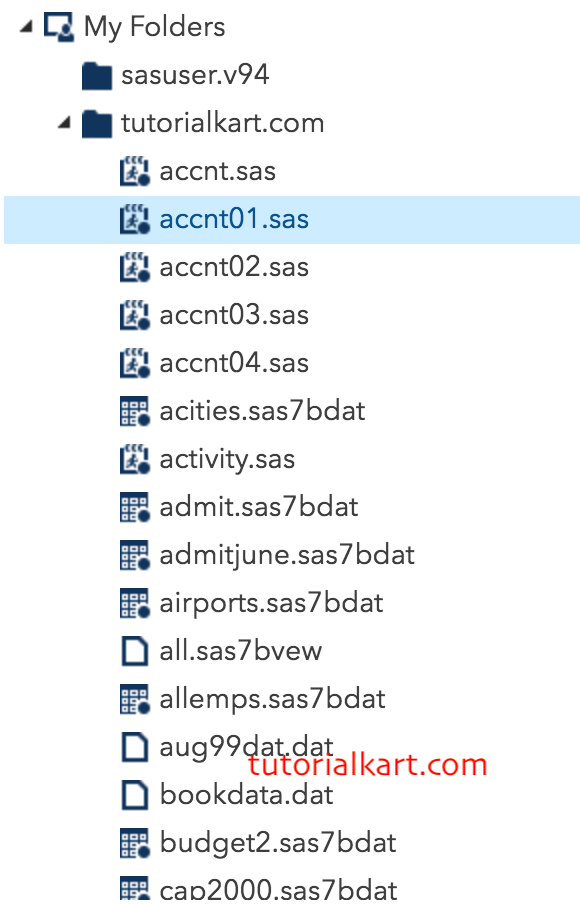
- Review the log for errors and confirm that the expected tables appear under the assigned library.
Read the SAS Log After Creating Sample Data
The SAS log records whether each step compiled and executed. Review it whenever you assign a library, create a table, or import data. In particular, check for:
- ERROR: The step did not complete as intended and requires correction.
- WARNING: SAS completed some processing but detected a condition that needs review.
- NOTE: SAS reports actions such as the number of observations read or written and the location assigned to a library.
A table appearing in the Libraries pane does not guarantee that every preceding statement ran correctly. Confirm the observation count, variable definitions, and log messages before using the data in later examples.
SAS Program Structure for Beginners
A basic SAS program commonly contains DATA steps and PROC steps. A DATA step reads, transforms, or creates a SAS data set. A PROC step analyzes, displays, or manages data. Most SAS statements end with a semicolon, and each step normally ends with a RUN; or QUIT; statement.
data output-library.output-table;
    set input-library.input-table;
run;

proc print data=output-library.output-table;
run;
The two-level table name consists of a library reference followed by a member name. For example, WORK.CLASS_COPY identifies the CLASS_COPY data set in the WORK library.
SAS Basics FAQ
Is SAS a programming language?
SAS is an analytics software platform that includes a programming language. SAS programs use statements organized into steps to access, transform, analyze, and report data.
What is the difference between SAS and SaaS?
SAS commonly refers to the statistical and analytics software platform. SaaS means software as a service, a delivery model in which software is accessed as an online service. The terms are unrelated despite their similar spelling.
Why is the SASUSER library read-only?
An administrator or hosted environment may start SAS with the RSASUSER option, which makes SASUSER read-only for that session. Use PROC OPTIONS to check the setting and use an approved writable library when SASUSER cannot be changed.
What is the difference between WORK and SASUSER?
WORK holds temporary data that normally disappears when the SAS session ends. SASUSER is intended for user-specific permanent files, although an installation can configure it as read-only. For project data, a separately assigned permanent library is often easier to manage.
Can I practise SAS without importing external sample data?
Yes. The SASHELP library contains sample data sets such as SASHELP.CLASS and SASHELP.CARS. You can query them directly or copy them into WORK or another assigned library.
SAS Sample Data Setup QA Checklist
- Confirm that the displayed SAS Studio environment matches the paths used in the instructions.
- Verify whether PROC OPTIONS reports RSASUSER or NORSASUSER.
- Confirm that every LIBNAME statement points to an existing, authorized folder.
- Check the SAS log for errors, warnings, and the number of observations written.
- Verify whether practice tables must persist after the session; use a permanent library instead of WORK when persistence is required.
- Open the created data set and confirm its variables and observation count before continuing with later SAS exercises.