 TutorialKart.com
First Sample SAS Program
A SAS program is a sequence of statements that reads, transforms, analyzes, or reports data. Most introductory programs contain two main parts: a DATA step and a PROC step. SAS statements normally begin with a SAS keyword and end with a semicolon.
DATA step: A DATA step reads raw data or an existing SAS data set, applies transformations, and creates a new SAS data set. It can define variables, calculate values, filter observations, and combine data from multiple sources.
PROC step: A PROC step invokes a SAS procedure to examine or process data. Procedures can print observations, calculate statistics, sort records, create reports, and produce graphs.

SAS Program Structure and Execution Order
SAS compiles and executes one step at a time. A step boundary is usually marked by a new DATA or PROC statement, while RUN; explicitly tells SAS to execute the current step. Although SAS can sometimes detect a boundary without RUN;, including it makes the program easier to read and troubleshoot.
- The
DATAstatement names the data set that the step will create. - The
INPUTstatement describes the variables in inline or external raw data. - The
DATALINESstatement tells SAS that data records follow in the program. - The standalone semicolon after the records ends the inline data.
- The
RUN;statement submits the completed step for execution. - A procedure such as
PROC PRINTthen works with the created data set.
In this tutorial, we will create a small employee data set in SAS Studio, inspect the execution log, and print the observations. If you are following the older local setup shown in the screenshots, the related installation instructions remain available in this download & Install SAS university Edition guide.
Opening SAS Studio for the First Program
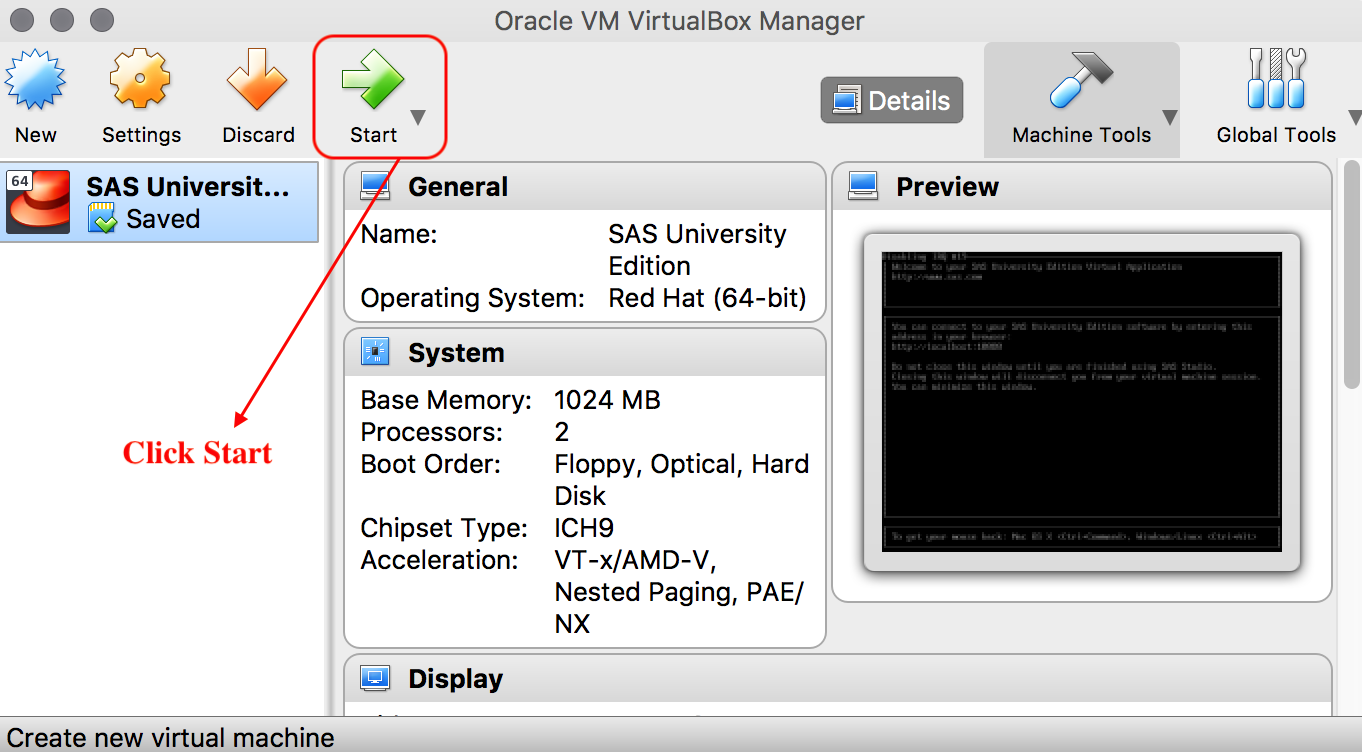
The following screenshots show the earlier SAS University Edition workflow in Oracle VM VirtualBox. If you use another SAS Studio environment, sign in to that environment and open a new SAS program directly; the sample SAS code and the DATA-step concepts are the same.
- In the local virtual-machine setup, open Oracle VM VirtualBox Manager and click the start button for the SAS virtual machine.
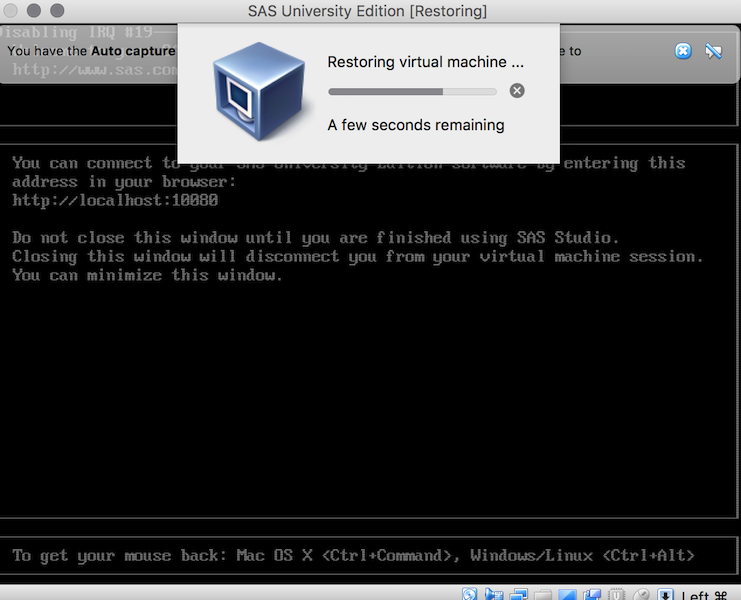
- For the setup illustrated here, connect to SAS University Edition by entering
http://localhost:10080in a web browser after the virtual machine finishes starting.
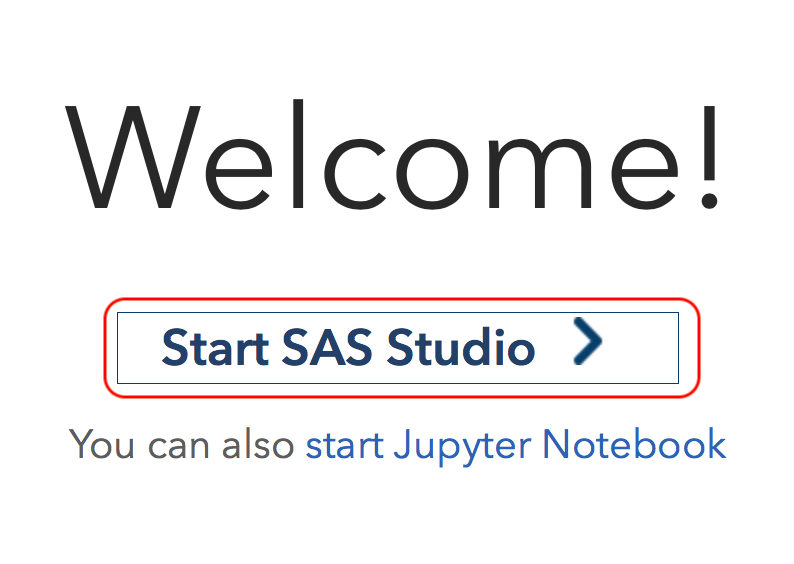
- On the page that opens, click the Start SAS Studio link.
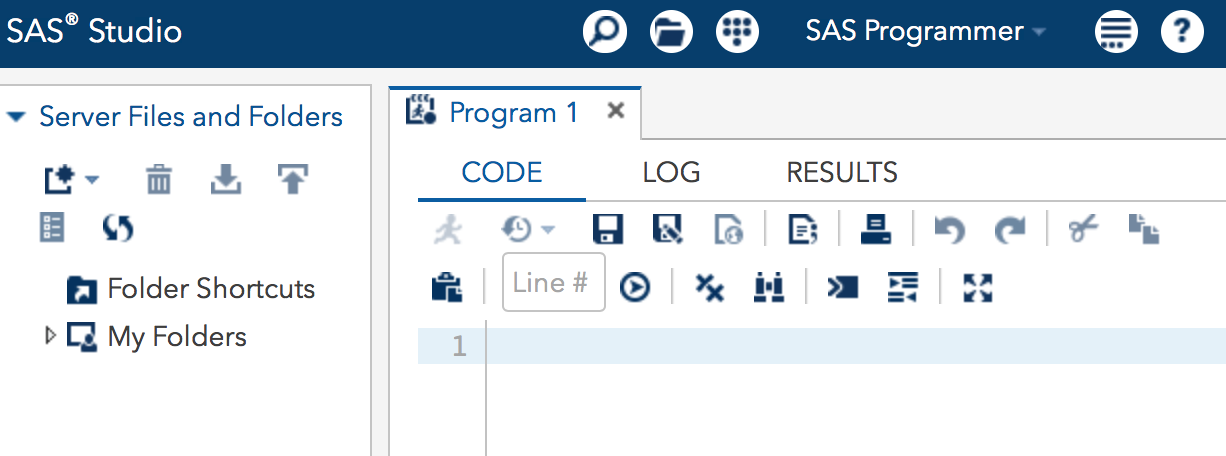
In SAS Studio, navigate to the New options and select New SAS Program. Depending on the SAS Studio version, you may instead see a new-program icon or a menu such as New > SAS Program.
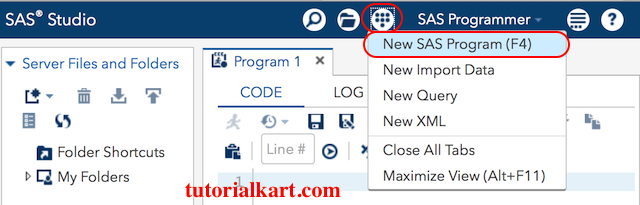
A blank program editor opens. This is where you enter and submit SAS statements. SAS Studio also provides areas for viewing the execution log, generated results, libraries, files, and tasks.
Creating an Employee Data Set with DATALINES
The first DATA step enters five employee records directly in the program. This approach is convenient for short examples and test data. The DATALINES statement, also known as CARDS, marks the beginning of the inline records.
By default, ordinary DATALINES input ends when SAS encounters a line containing a single semicolon. It is therefore unsuitable when a raw data record itself must contain a semicolon. More advanced input requirements can be handled with external files or other DATALINES forms.
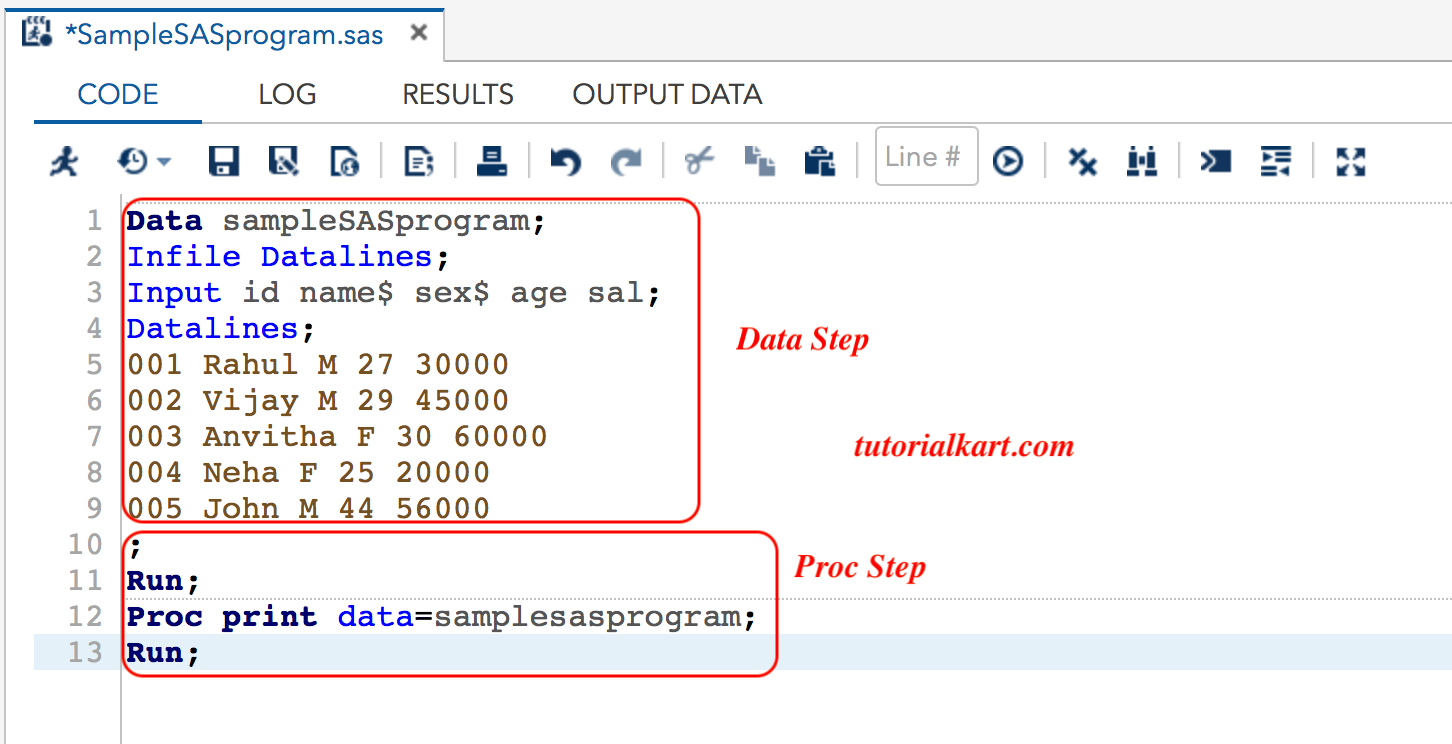
The following original example names the output data set sampleSASprogram and defines five variables. A dollar sign after a variable name in the INPUT statement tells SAS to read that variable as character data. Variables without the dollar sign are read as numeric values.
Data sampleSASprogram;
Infile Datalines;
Input id name$ sex$ age sal;
Datalines;
001 Rahul M 27 30000
002 Vijay M 29 45000
003 Anvitha F 30 60000
004 Neha F 25 20000
005 John M 44 56000
;
Run;
How SAS Interprets the Variables
idis numeric in this program. Values such as001are stored numerically, so leading zeros are not retained unless a format is applied or the variable is defined as character.nameandsexare character variables because their names are followed by$.ageandsalare numeric variables and can be used directly in calculations.- List input uses spaces to separate values, so each row must supply the values in the order specified by the
INPUTstatement.
If an identifier must preserve its leading zeros, define it as a character variable. The following syntax demonstrates that change:
input id $ name $ sex $ age sal;Printing the First SAS Data Set with PROC PRINT
The DATA step creates the data set but does not, by itself, produce a tabular report of all observations. Add a PROC PRINT step to display the data. Run this procedure after the preceding DATA step succeeds.
proc print data=sampleSASprogram;
    title "Employee Data";
run;
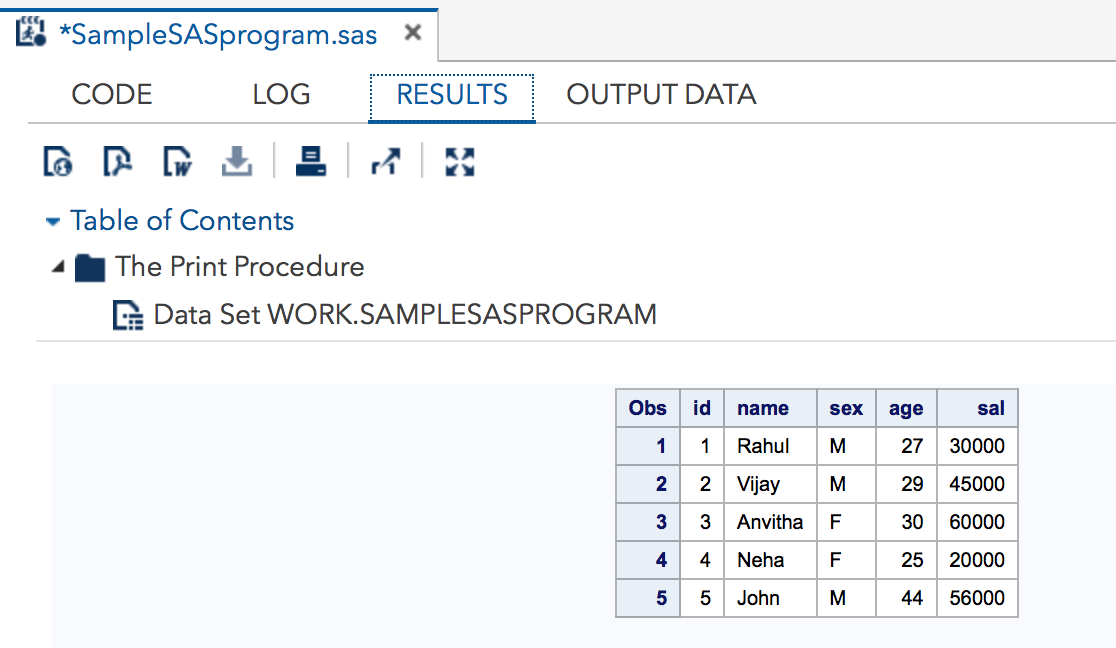
The DATA= option identifies the input data set for the procedure. The TITLE statement supplies a heading for the generated report. The results should contain five observations and the variables id, name, sex, age, and sal.
Reading an Existing SAS Data Set with SET
A DATA step can also read observations from an existing SAS data set. The SET statement names the source data set, while the DATA statement names the data set to create.
Example:-
Data ds2;
Set ds;
Run;

Data work.ds;
Set sashelp.class;
Run;
In the first DATA step, SAS reads ds and creates ds2. Whether these one-level data-set names refer to temporary or permanent data depends on the active library settings. In the second DATA step, sashelp.class is copied to work.ds.
SASHELP is a SAS-supplied library containing sample and reference data sets. WORK is a temporary library. Data sets stored in WORK normally remain available only for the current SAS session.
Submitting the SAS Program and Checking Its Status
- Enter the DATA step in the program editor.
- Add the
PROC PRINTstep beneath it. - Click Run or Submit in SAS Studio.
- Open the Log tab and read the messages for both steps.
- Open the Results or Output area to view the printed employee table.
- Correct any errors in the editor and submit the program again.
Do not rely only on the appearance of a result. SAS may produce partial output while also writing warnings or data-conversion notes to the log. A reliable workflow always includes reviewing the log after submission.
SAS Program Editor
The SAS program editor is used to write, modify, save, and submit code. Syntax highlighting distinguishes keywords, quoted text, comments, and other program elements, making missing semicolons and typing errors easier to locate. The exact editor layout depends on the SAS interface and version being used.
SAS Log Messages for the Sample Program
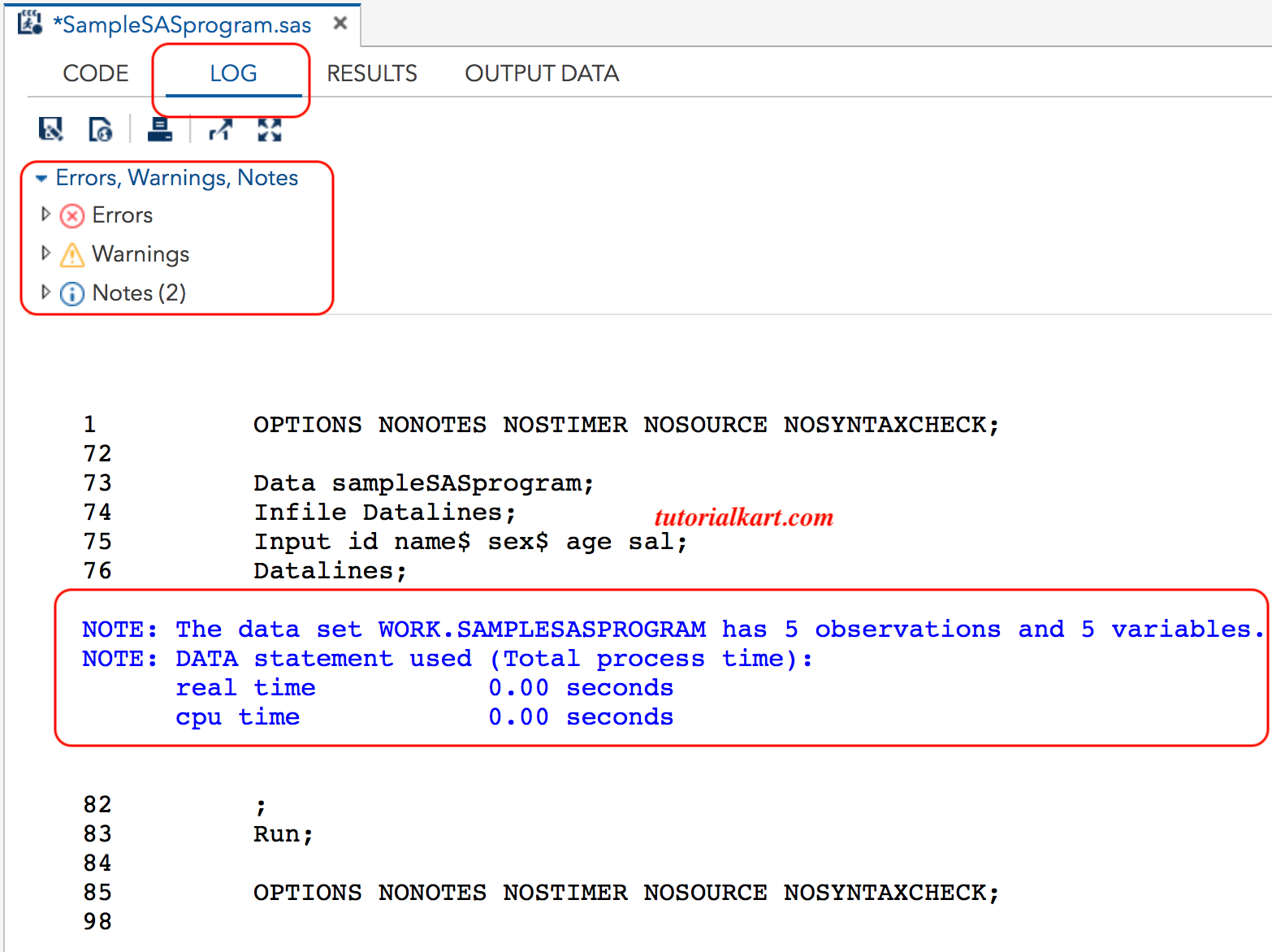
The SAS log records how the submitted program was processed. It can show the number of observations read or written, execution-time information, source-code lines, notes, warnings, and errors.
- NOTE: Usually provides execution details, such as the number of observations and variables created. Some notes also identify data-quality or conversion issues and should not be ignored.
- WARNING: Indicates a condition that may affect the result even though SAS continued processing.
- ERROR: Identifies a problem that prevented a statement or step from running correctly.
SAS Results Tree for PROC Output
The Results area organizes output generated by SAS procedures. When a program contains several procedures, the results tree helps you locate the report, table, or graph produced by each step. Select the PROC PRINT result to view the employee table created in this example.
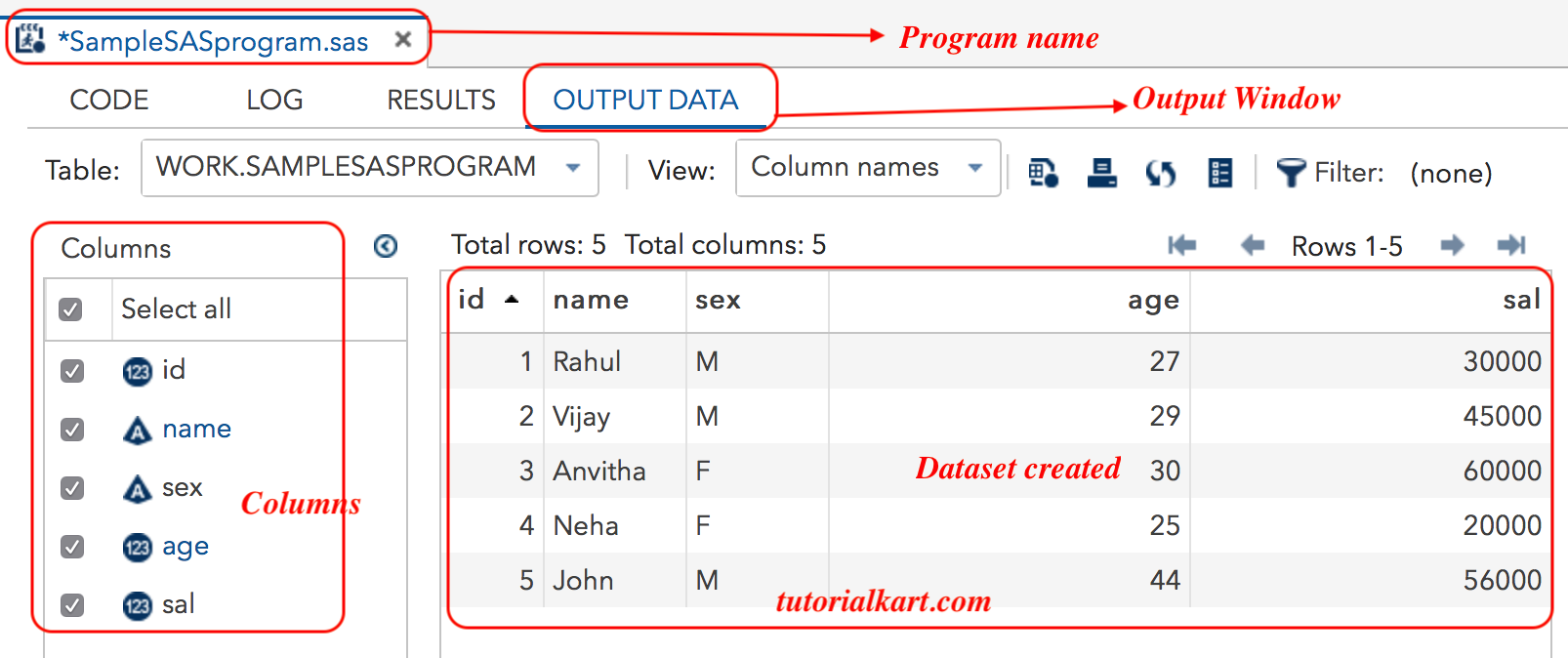
SAS Output Generated by the Sample Program
Printable results generated by procedures appear in the output or results viewer. For this tutorial, PROC PRINT displays the observations stored in sampleSASprogram. The available output formats and viewer controls depend on the SAS environment.
Common Errors in a First SAS Program
- Missing semicolon: SAS statements normally end with a semicolon. A missing delimiter can cause the following line to be interpreted as part of the same statement.
- Incorrect character-variable definition: Omitting
$from a character variable in simple list input can produce invalid-data messages and missing values. - Missing DATALINES terminator: Inline records must be followed by a line containing the required terminating semicolon.
- Values entered in the wrong order: Each inline record must follow the variable order in the
INPUTstatement. - Spaces inside character values: Basic list input treats spaces as value separators. Names or descriptions containing spaces require an appropriate informat or another input method.
- Wrong data-set name: A PROC step must reference the data set created by the DATA step, including its library name when necessary.
- Checking output but not the log: A visible report does not prove that every statement ran without warnings or data problems.
First SAS Program Editorial QA Checklist
- Confirm that every SAS statement in the sample ends with the required semicolon.
- Verify that the five inline records match the five variables listed in the
INPUTstatement. - Confirm that
nameandsexare defined as character variables. - Check that the standalone semicolon correctly terminates the DATALINES records.
- Run
PROC PRINTand verify that five observations appear in the result. - Review the SAS log for invalid-data messages, warnings, and errors.
- Verify that explanations distinguish the temporary WORK library from the SASHELP sample library.
- Keep the legacy VirtualBox screenshots clearly identified as an older SAS University Edition workflow.
Frequently Asked Questions About the First SAS Program
How do I write a basic SAS program?
Start with a DATA step that reads or creates a data set, end the step with RUN;, and then add a PROC step to analyze or display the data. End each SAS statement with a semicolon and review the log after running the program.
What is the difference between a DATA step and a PROC step in SAS?
A DATA step creates or modifies a SAS data set. A PROC step passes a data set to a SAS procedure for an operation such as printing, sorting, statistical analysis, reporting, or graphing.
How do I run a SAS program in SAS Studio?
Open a SAS program editor, enter or paste the code, and click Run or Submit. After execution, inspect the Log for processing messages and open Results or Output to view anything generated by the PROC steps.
Why is a dollar sign used in a SAS INPUT statement?
In simple input syntax, the dollar sign tells SAS to read the associated variable as character data. Without it, SAS expects a numeric value. For example, name $ defines name as a character variable.
Why should I check the SAS log when the output looks correct?
The log can reveal warnings, invalid data, automatic type conversions, missing values, or incomplete processing that may not be obvious in the displayed output. Checking it is part of validating every SAS program.