 TutorialKart.com
How to Download and Install SAS University Edition
Current status: SAS University Edition has been discontinued and is no longer available for new downloads. The VirtualBox and VMware instructions on this page are retained for readers maintaining an existing installation. For current academic access, use SAS OnDemand for Academics, which runs through a supported web browser and does not require the former University Edition virtual machine.
SAS University Edition was a free, non-commercial learning environment intended for students, educators, and independent learners. It bundled SAS Studio with a preconfigured virtual machine so that users could write and run SAS programs locally through a browser interface.
SAS originated from statistical software developed at North Carolina State University during the 1960s and 1970s. Its programming environment supports data management, reporting, statistical analysis, and related analytical work. The University Edition provided access to a limited academic configuration of these tools rather than the complete set of licensed SAS products.
SAS University Edition Availability and Its Current Replacement
The former SAS University Edition download consisted of a virtual-machine image containing SAS software. Users also needed compatible virtualization software, normally Oracle VM VirtualBox or VMware Workstation Player/Fusion. SAS Studio then opened in a browser while the virtual machine continued running in the background.
The original download page was available through the following link: Get free Software. Because University Edition has been retired, this address may redirect to information about another SAS learning product or may no longer provide the virtual-machine image.
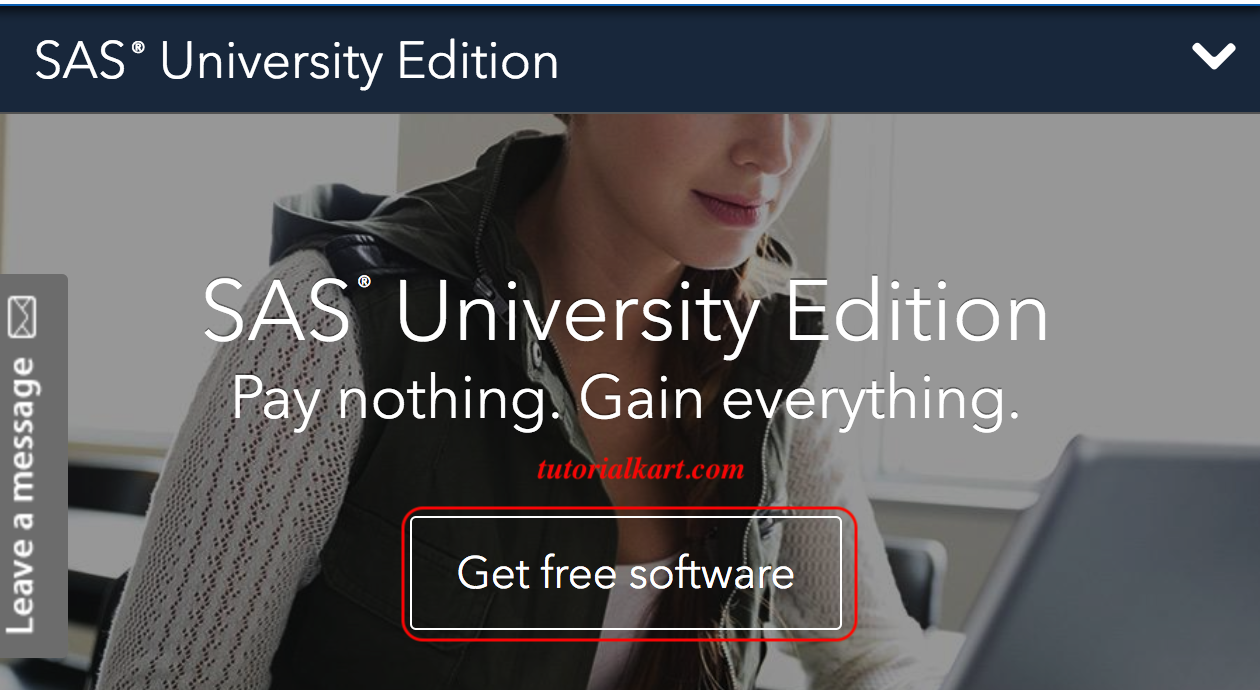
The image above shows the former University Edition download page. The download option displayed in the screenshot should not be expected on the current SAS website.
Historical SAS University Edition Download Requirements
When the product was available, users selected a package that matched both their operating system and virtualization platform. The SAS virtual-machine image and the virtualization application were separate downloads.
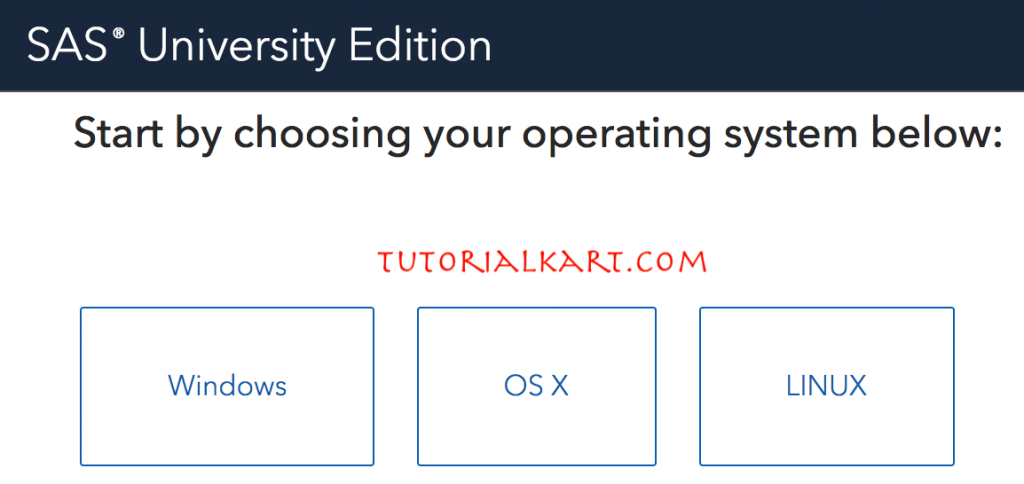
- Select the package created for the host operating system and the intended virtualization software.
- Install a compatible release of Oracle VM VirtualBox or VMware before importing the SAS appliance.
- The archived VirtualBox 5.2 downloads remain listed at https://www.virtualbox.org/wiki/Download_Old_Builds_5_2. An old virtualization release may not support a current operating system, so check host compatibility before installing it.
- Extract the downloaded SAS package if it is supplied as a compressed archive.
- Import the appliance into VirtualBox when the package contains an
.ovafile. A.vmxfile belongs to VMware and should be opened with the matching VMware product rather than VirtualBox. - Configure the shared folder required for moving SAS programs and data between the host computer and the virtual machine.
Historical SAS University Edition Installation on Mac
The following steps describe the retired local virtual-machine workflow shown in the original screenshots. They apply only when the SAS University Edition appliance was downloaded previously. They do not provide a way to obtain a new copy of the discontinued software.
Start the SAS Virtual Machine
Open the virtualization application, select the imported SAS University Edition machine, and choose its start or power-on command. Keep the virtual-machine window open while using SAS Studio.
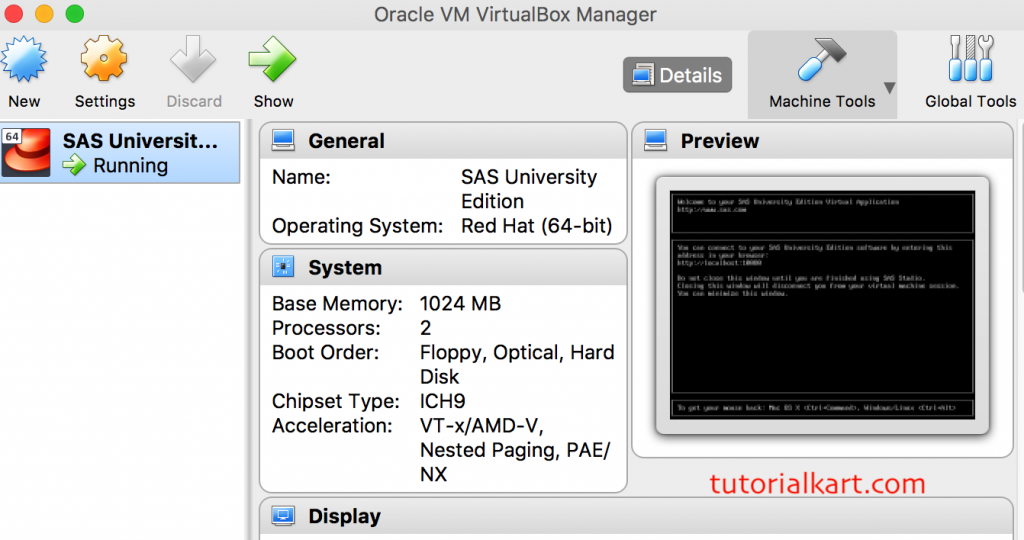
Wait for the SAS Studio Address
Allow the appliance to finish starting. The virtual-machine screen displays a local web address after its SAS services are ready. The address is supplied by the appliance and must be opened on the same computer that is running the virtual machine.
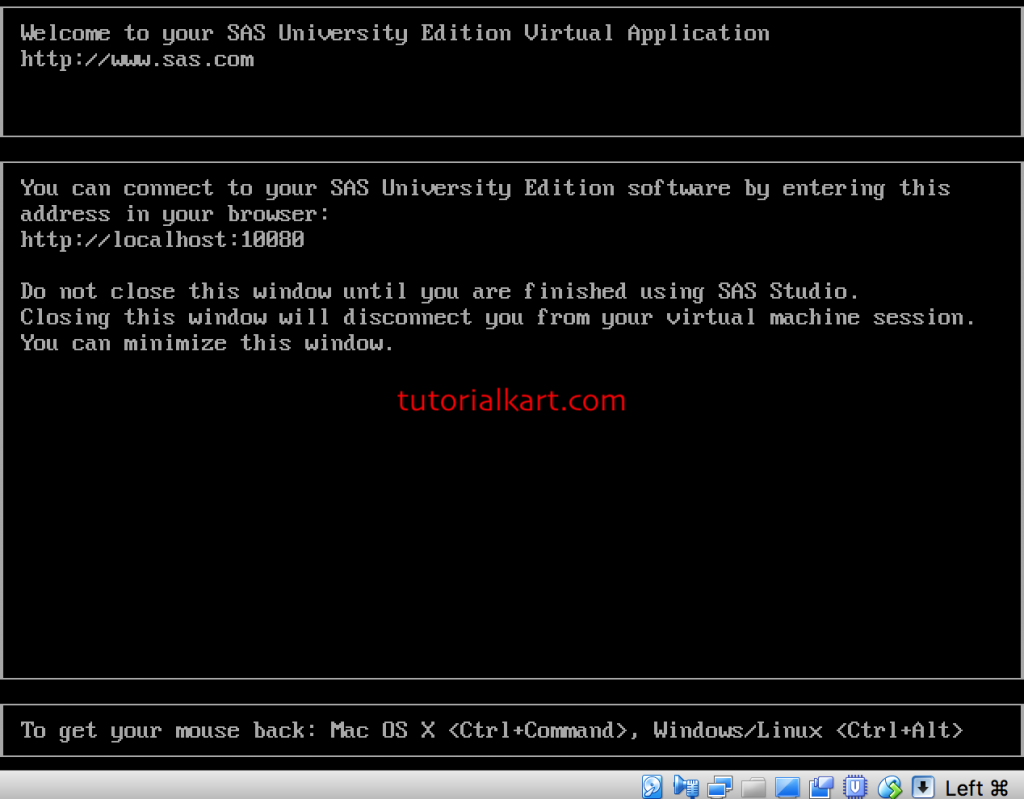
- Copy the local address displayed by the virtual machine into a supported browser.
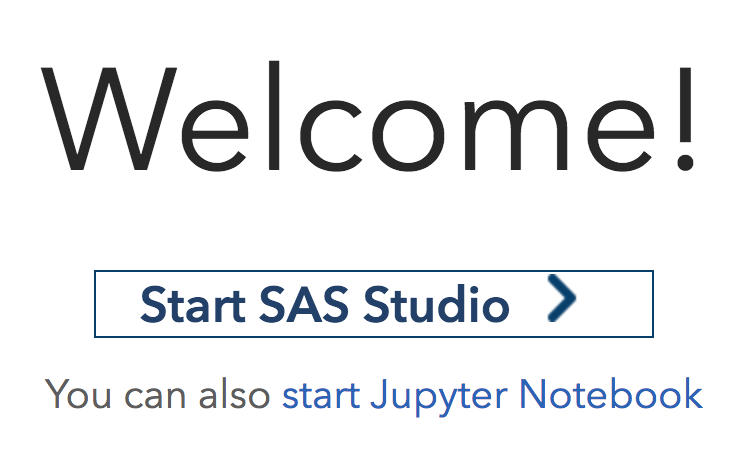
- On the landing page, select Start SAS Studio.
- If the page does not open, confirm that the appliance has completed startup and that its virtual network adapter is enabled.
Open the SAS Studio Programming Workspace
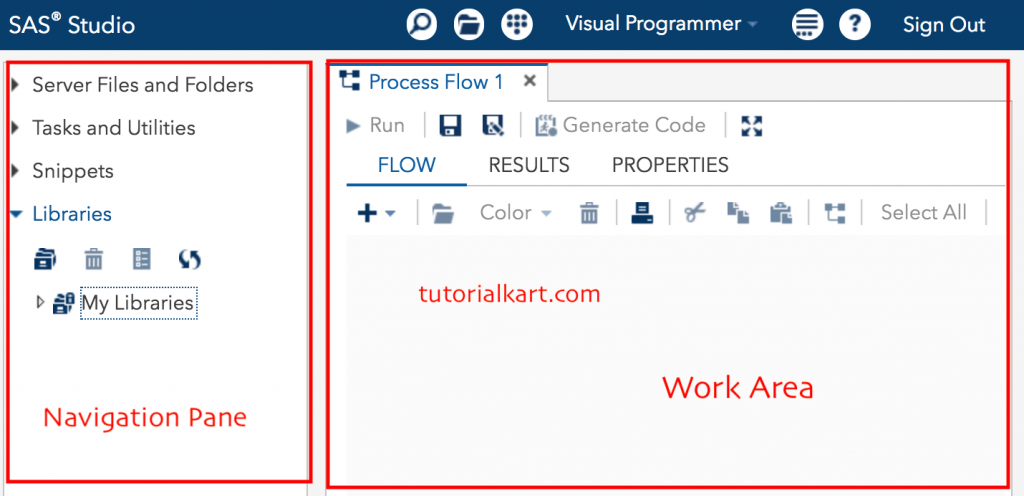
In the SAS Studio interface, the navigation pane appears on the left and the main work area appears on the right. The navigation pane provides access to files, folders, libraries, tasks, and snippets. The work area contains the program editor, log, and results generated when code runs.
Run a Test Program in SAS Studio
After SAS Studio opens, create a new SAS program and run a short test. A successful run produces a table in the results area and completion messages in the log.
data class_scores;
    input name $ score;
    datalines;
Asha 82
Ravi 91
Meera 88
;
run;

proc print data=class_scores;
run;
Review the log after every submission. Errors and warnings in the log usually identify misspelled statements, inaccessible files, or invalid data values.
Use SAS OnDemand for Academics Instead of University Edition
New learners should use SAS OnDemand for Academics rather than trying to locate an unofficial copy of SAS University Edition. The current service is hosted by SAS, so it does not require VirtualBox, VMware, or a local SAS appliance.
- Open the official SAS OnDemand for Academics page.
- Create or sign in to the SAS profile required by the service.
- Complete the registration process shown for your learner or instructor access.
- Launch SAS Studio from the service dashboard in a supported browser.
- Upload permitted data files or create SAS programs in the hosted workspace.
Files stored in an old University Edition shared folder do not automatically appear in SAS OnDemand for Academics. Download or copy the required programs and data from the old environment, and then upload them through the hosted SAS Studio interface. Do not upload confidential, regulated, or restricted data unless the applicable institution and service terms permit it.
SAS University Edition Virtual Machine Troubleshooting
- Virtual machine does not start: Verify that hardware virtualization is enabled, sufficient memory is available, and the virtualization release supports the host operating system.
- Appliance cannot be imported: Use VirtualBox for an
.ovaappliance and the appropriate VMware application for a.vmxconfiguration. - SAS Studio page does not load: Wait until the appliance displays its ready message, use the exact local address shown, and check the virtual network adapter.
- Shared files do not appear: Confirm that the host folder is mapped to the expected shared-folder name and that the virtual machine has permission to read it.
- Existing installation stopped working after an OS update: The retired appliance or its older virtualization platform may be incompatible with the updated host. Migrating programs and data to SAS OnDemand for Academics is generally the practical option.
SAS University Edition Download and Installation FAQs
Is SAS University Edition still available?
No. SAS University Edition has been discontinued and its official virtual-machine download is no longer offered. SAS directs academic learners toward its current hosted learning options, including SAS OnDemand for Academics.
Can I download SAS University Edition from another website?
Unofficial downloads should be avoided. They may be outdated, modified, insecure, or distributed without appropriate permission. Use a current SAS service obtained through the official SAS website.
Do I need VirtualBox to use SAS OnDemand for Academics?
No. SAS OnDemand for Academics is a hosted service accessed through a browser. VirtualBox or VMware was required only for the former local University Edition appliance.
Can an existing SAS University Edition installation still run?
An already installed appliance may continue to run on a compatible computer, but the product is unsupported and can fail after operating-system, browser, or virtualization updates. Back up accessible SAS programs and data before changing the host system.
Can I move SAS University Edition programs to SAS OnDemand for Academics?
Standard SAS program files can usually be copied from the old shared folder and uploaded to the hosted environment. File paths and library assignments may need adjustment because the hosted service uses different storage locations.
SAS Installation Editorial QA Checklist
- Confirm that the page clearly states that SAS University Edition is discontinued.
- Do not describe the retired University Edition link as an active download source.
- Keep VirtualBox, VMware,
.ova, and.vmxinstructions technically distinct. - Direct new users to an official, currently supported SAS academic service.
- Retain the historical screenshots while identifying them as views of the former installation process.
- Advise existing users to back up programs and data before upgrading the host operating system or virtualization software.
SAS University Edition Installation Summary
SAS University Edition formerly ran SAS Studio inside a VirtualBox or VMware appliance. It is now discontinued, so new users cannot follow the historical screenshots to obtain the software. Use SAS OnDemand for Academics for current browser-based academic access, and treat the virtual-machine steps above only as guidance for maintaining or recovering files from an existing University Edition installation.