 TutorialKart.com
How to Create an Issue in a JIRA Scrum Board
An issue in a JIRA Scrum project represents a unit of work that the team needs to track. Depending on the project configuration, an issue may be a story, task, bug, epic or another custom issue type.
This tutorial explains how to create an issue directly from a Scrum board, add a clear summary and complete the issue details needed for planning and assignment. The exact field names and screen layout may vary according to the JIRA project type, permissions and administrator settings.
Before Creating an Issue in the JIRA Scrum Board
- Open the correct JIRA project and Scrum board.
- Confirm that you have permission to create issues in the project.
- Decide whether the work should be recorded as a story, task, bug or another available issue type.
- Prepare a short summary that describes the expected work or problem.
- Collect any acceptance criteria, screenshots, error messages or supporting details that should be added to the issue.
Step 1 – Select Create Issue on the JIRA Scrum Board
Open the Scrum board for the required project. In the board or backlog view, click the Create issue button.
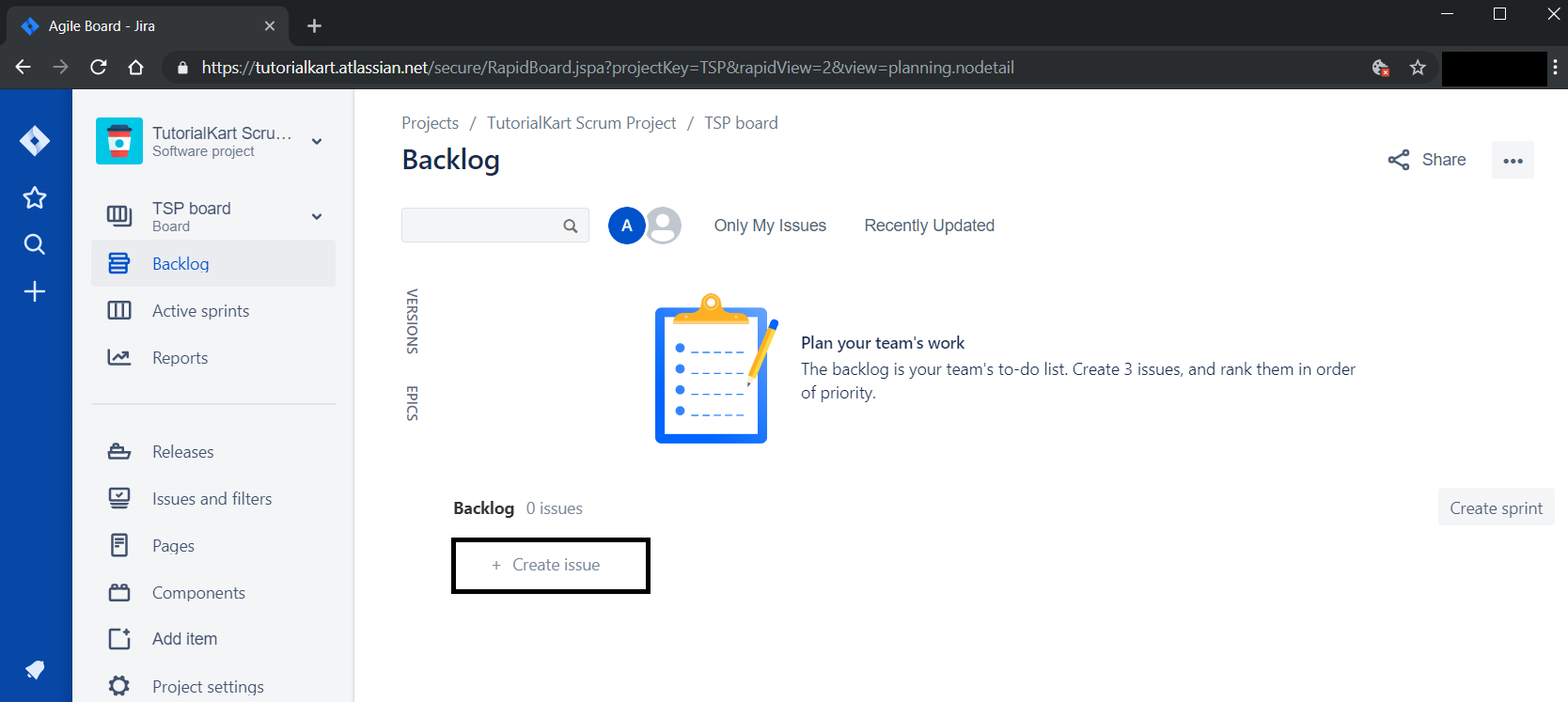
In some JIRA layouts, the create option may appear as a global Create button near the top of the page instead of an inline board button. Both methods open a form for creating a new issue.
Step 2 – Enter a Clear JIRA Issue Summary
When you click the Create issue button, an input form appears in place of the button.
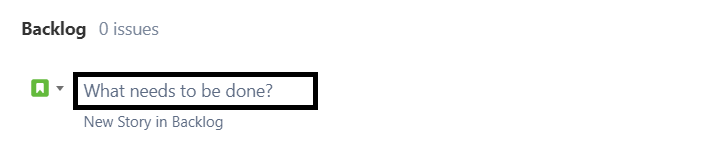
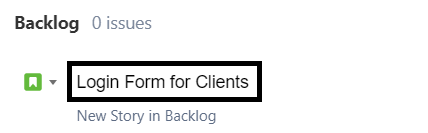
Enter a short summary that clearly identifies the work. The summary should describe the required action or observable problem without including unnecessary background information.
- Task example: Add password visibility control to the login form
- Bug example: Checkout page displays an error after coupon removal
- Story example: Allow customers to download previous invoices
Avoid summaries such as “Fix issue,” “Update page” or “Something is not working.” These do not give the team enough information to identify the work from the board.
After entering the issue summary, press Enter or use the available create control.
After submission, JIRA creates the issue and displays it on the board or in the backlog.
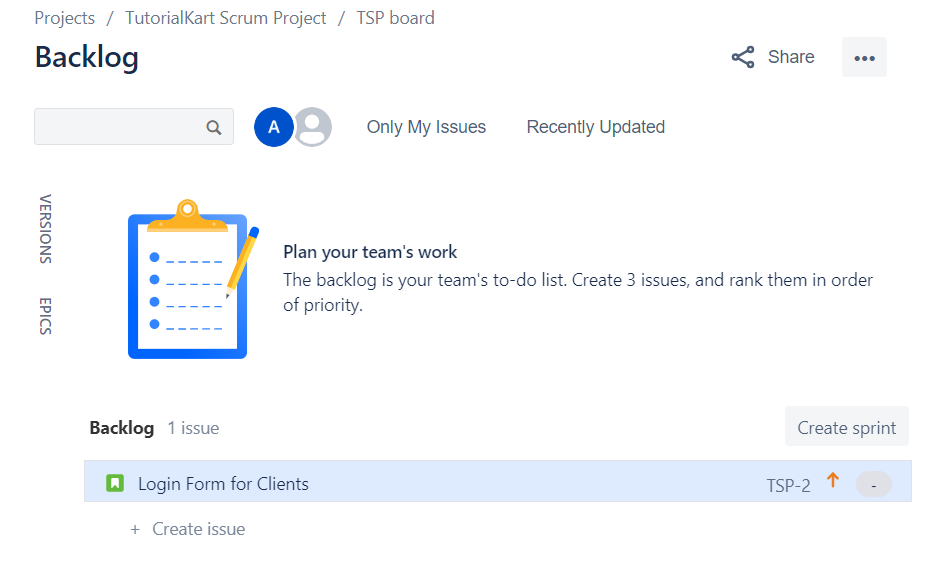
You can repeat this process to create additional stories, tasks, bugs or other issue types supported by the project.
Step 3 – Open the Newly Created JIRA Issue
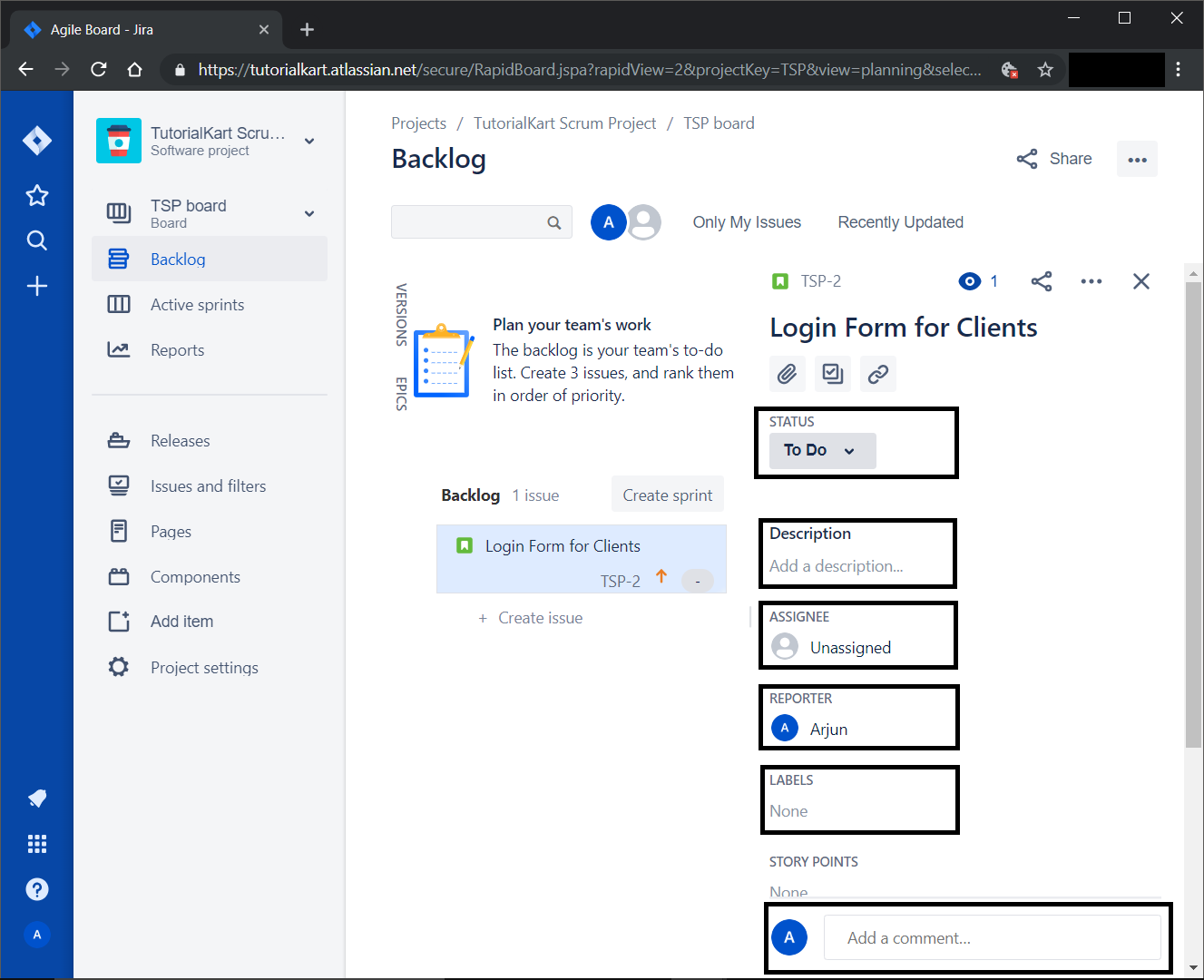
Click the newly created issue card to open its details. Depending on the JIRA layout, the issue may open in a side panel, dialog or full issue page.
Step 4 – Complete the JIRA Issue Details
Add the information required by the team to understand, estimate, assign and complete the issue. Available fields depend on the project configuration.
- Issue type: Identifies whether the issue is a story, task, bug or another work type.
- Status: Shows the current workflow stage, such as To Do, In Progress or Done.
- Description: Provides the background, requirements and expected result.
- Assignee: Identifies the person responsible for working on the issue.
- Reporter: Identifies the person who created or reported the issue.
- Labels: Adds searchable keywords used to group related issues.
- Story points: Records the team’s relative estimate when story-point estimation is enabled.
- Priority: Indicates the relative attention required according to the project’s priority scheme.
- Epic or parent: Connects the issue to a larger work item when supported by the project.
- Sprint: Places the issue in a planned sprint when sprint assignment is available.
- Attachments: Adds screenshots, documents, logs or other supporting files.
Writing a Useful Description for a JIRA Issue
A useful description gives the assignee enough context to begin work without relying entirely on a separate conversation. For a task or story, include the objective, scope and acceptance criteria. For a bug, include the steps to reproduce, actual result and expected result.
A task or story description can follow this structure:
- Objective: State what needs to be added or changed.
- Background: Explain why the change is needed.
- Requirements: List the expected behaviour and important constraints.
- Acceptance criteria: Define the conditions that confirm the issue is complete.
- Dependencies: Mention related issues, services or approvals.
For a bug report, include:
- Environment, browser, device or application version
- Steps required to reproduce the problem
- Actual behaviour
- Expected behaviour
- Frequency of occurrence
- Relevant screenshots, logs or error messages
Step 5 – Assign the JIRA Issue and Set Its Priority
Select an assignee when responsibility is known. You may assign the issue to yourself or to another project member who has permission to receive issues. Some teams leave new backlog issues unassigned until sprint planning.
Set the priority according to the team’s agreed rules. Priority should reflect business impact, risk and required response rather than personal preference. Common priority names include Highest, High, Medium, Low and Lowest, although administrators can configure different values.
Step 6 – Add Story Points and Sprint Information
If the Scrum project uses story points, enter the estimate agreed by the team. Story points represent relative effort, complexity and uncertainty; they are not necessarily equivalent to hours.
Assign the issue to a sprint only when it has been selected for that sprint. An issue that is not yet scheduled can remain in the product backlog until it is reviewed and prioritized.
Step 7 – Review the Updated JIRA Issue
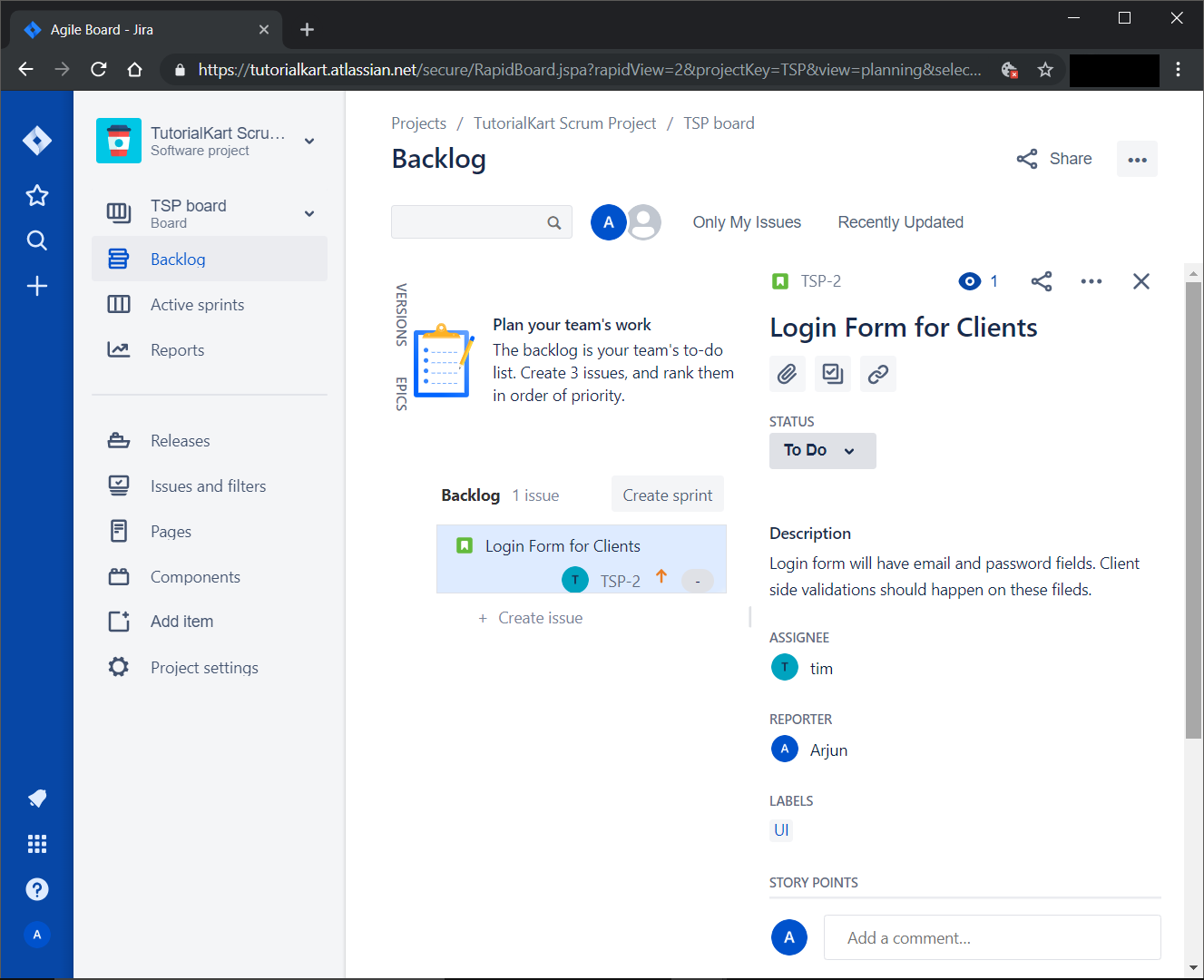
Review the completed fields and confirm that the summary, description, assignee, priority and planning details are correct. JIRA commonly saves individual field changes as they are made, although behaviour may vary by screen and project configuration.
In the following screenshot, some of the issue fields have been updated.
Using Comments and Activity on a JIRA Issue
Use the comments section to record issue-specific questions, decisions, progress notes and review feedback. Keeping relevant discussion on the issue helps team members understand why a change was made and what remains unresolved.
- Add a comment when requesting clarification from another team member.
- Mention a project member when their response is required.
- Record important decisions that affect scope or acceptance criteria.
- Avoid adding unrelated discussion that belongs in another issue.
- Do not place passwords, access tokens or other sensitive information in comments.
Creating a JIRA Issue from the Backlog and Active Sprint
Creating an issue from the backlog normally adds it to the backlog until it is assigned to a sprint. Creating an issue from an active sprint or from a specific board location may place it in that sprint, depending on the project layout and configuration.
After creating the issue, verify its sprint field and board position. This prevents an unplanned issue from being added to the current sprint or a planned issue from remaining outside it.
Common Problems When Creating Issues in a JIRA Scrum Board
The Create Issue Button Is Not Available
You may not have permission to create issues in the project, or the board may not provide an inline creation option. Check for the global Create button or ask the project administrator to review your permissions.
The Required JIRA Fields Prevent Issue Creation
A project may require fields such as issue type, description, component, priority or assignee. Complete every field marked as required before submitting the issue.
The New Issue Does Not Appear on the Scrum Board
The issue may not match the board filter, may be assigned to a different sprint or project, or may have a status that is not mapped to a board column. Open the issue and verify its project, status, sprint and other fields used by the board filter.
The Assignee Is Missing from the JIRA Issue
The selected user may not have assignable-user permission for the project, or the project may restrict assignment. Choose an eligible project member or ask the administrator to review the permission scheme.
JIRA Scrum Issue Creation Checklist
- Confirm that the issue is being created in the correct project.
- Select the issue type that accurately represents the work.
- Write a specific summary that can be understood from the Scrum board.
- Add enough description for the assignee to begin work.
- Include acceptance criteria for stories and planned changes.
- Include reproduction steps, actual behaviour and expected behaviour for bugs.
- Add an assignee only when responsibility is known.
- Apply priority according to the team’s agreed criteria.
- Add story points only after the team has estimated the issue.
- Verify the sprint before treating the issue as committed work.
- Attach supporting screenshots or logs without exposing sensitive data.
JIRA Scrum Issue Creation Summary
To create an issue in a JIRA Scrum board, open the required board, select Create issue, enter a clear summary and submit the issue. Open the created issue to add its description, issue type, assignee, priority, story points, sprint and supporting information.
A well-prepared issue should explain what needs to be done, how completion will be verified and who is responsible for the next action. In this JIRA Tutorial, we learned how to create and complete an issue in a JIRA Scrum Board.