 TutorialKart.com
MongoDB Default Port Number
The default MongoDB port is 27017. A standard mongod database server and a mongos query router listen for client connections on TCP port 27017 unless another port is configured.
A local MongoDB connection therefore commonly uses the following address:
mongodb://localhost:27017When the port is omitted from a standard mongodb:// connection string, MongoDB drivers normally use port 27017. Applications must specify the port explicitly when the server is running on a custom port.
MongoDB Ports Used by Different Server Roles
MongoDB uses different default ports for some processes and cluster roles.
| MongoDB process or role | Default port | Purpose |
|---|---|---|
mongod | 27017 | Normal database server connections |
mongos | 27017 | Client connections to a sharded cluster |
| Shard server | 27018 | Default when mongod is started with the shard-server role |
| Config server | 27019 | Default when mongod is started with the config-server role |
These are defaults rather than mandatory values. The active port can be changed through a command-line option or the MongoDB configuration file.
Is MongoDB Port 27017 TCP or UDP?
MongoDB client-to-server communication uses TCP. Firewall and security-group rules for a self-managed MongoDB deployment should therefore refer to TCP port 27017, or to the custom TCP port configured for the server.
Opening the port alone does not make a remote connection work. The server must also listen on an appropriate network interface, and authentication and network-access rules must permit the connection.
Connect to MongoDB on Port 27017
Use mongosh with a connection string to connect to a local server on the default MongoDB port.
mongosh "mongodb://127.0.0.1:27017"For a server on another host, replace 127.0.0.1 with the server’s hostname or IP address.
mongosh "mongodb://db.example.com:27017"An application connection string can also include a username, password, database name, and other connection options. Credentials containing reserved URI characters must be encoded correctly.
Change the MongoDB Port with the –port Option
To start a MongoDB server on a different port for the current process, pass the --port option to mongod. The selected port must be available and permitted by the operating system and firewall.
The following existing Windows example starts MongoDB on port 27052.
C:\>"C:\Program Files\MongoDB\Server\4.0\bin\mongod.exe" --port 27052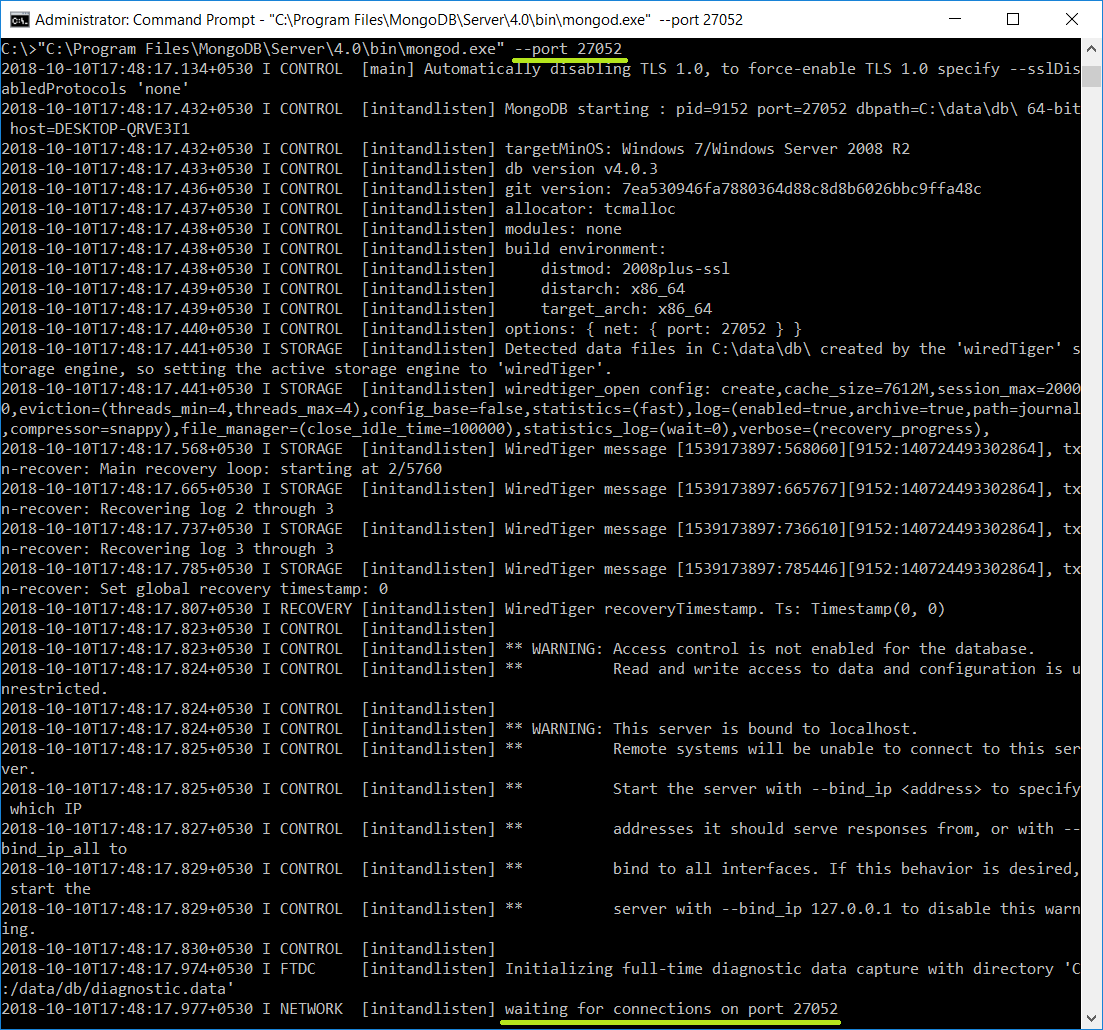
After changing the port, include the same value in the client connection string.
mongosh "mongodb://127.0.0.1:27052"Set a Permanent MongoDB Port in mongod.conf
For a persistent self-managed server configuration, set net.port in the MongoDB configuration file. The exact file location depends on the installation method and operating system. Package-based Linux installations commonly use /etc/mongod.conf.
net:
  port: 27052
  bindIp: 127.0.0.1
Restart the MongoDB service after saving the configuration.
sudo systemctl restart mongod
sudo systemctl status mongod
Do not change bindIp to expose MongoDB broadly without first configuring authentication, firewall restrictions, and other required security controls. A port change by itself is not an access-control mechanism.
Check Which Port MongoDB Is Using
You can inspect the configuration file, the MongoDB startup log, or the operating system’s listening sockets to find the active port.
Check the MongoDB port on Linux
sudo ss -ltnp | grep mongodYou can also check whether the default port is listening directly.
sudo ss -ltnp | grep ':27017'Check the MongoDB port on Windows
netstat -ano | findstr :27017A listening result confirms that a process has opened the port. Use the displayed process ID with Windows Task Manager or tasklist to verify that the process is MongoDB.
tasklist /FI "PID eq PROCESS_ID"Check the port from mongosh
After connecting to the server, run db.serverCmdLineOpts() to inspect parsed command-line and configuration-file options.
db.serverCmdLineOpts()Look for the port value under the returned network configuration. Access to this command can depend on the user’s privileges.
MongoDB Port 27017 Not Working
If a connection to port 27017 fails, check the server and network configuration in this order:
- Confirm that the
mongodservice is running. - Verify the configured port in
mongod.confor the startup command. - Check that MongoDB is listening on the expected IP address and port.
- Use the correct hostname and port in the client connection string.
- Confirm that a local firewall, cloud firewall, or security group permits the required TCP traffic.
- Verify that the client address is allowed and that valid MongoDB credentials are being used.
- Review the MongoDB log for startup, binding, authentication, or port-conflict errors.
A message such as ECONNREFUSED commonly means that no reachable process accepted the connection at the specified host and port. It does not by itself identify whether the cause is a stopped service, incorrect port, IP binding, firewall rule, or network route.
MongoDB Atlas Port and Connection Strings
For MongoDB Atlas, use the connection string supplied by the Atlas interface rather than manually constructing an address from a presumed hostname and port. Atlas connections require the appropriate database user, network access configuration, and TLS settings.
An SRV connection string begins with mongodb+srv://. The SRV format does not place a port directly after the hostname because the driver obtains connection details through DNS records.
mongodb+srv://username:password@cluster.example.mongodb.net/databaseIf an organization restricts outbound traffic, its network policy must allow the destinations and ports required by the specific Atlas deployment and connection method.
MongoDB Port Security Considerations
Do not expose a self-managed MongoDB port to unrestricted public traffic. Limit network access to trusted application servers or administrative networks, enable authentication, apply least-privilege database roles, and use encrypted connections where required.
Changing port 27017 to a less familiar number may reduce accidental connection attempts, but it does not replace authentication, authorization, TLS, firewall rules, secure IP binding, patching, and monitoring.
MongoDB Port FAQs
What is port 27017 used for?
Port 27017 is the default TCP port used by standard MongoDB mongod instances and mongos query routers for client connections.
Is MongoDB port 27017 TCP or UDP?
MongoDB uses TCP for its client-to-server wire protocol. Configure firewall rules for TCP rather than UDP.
Can the MongoDB default port be changed?
Yes. Use the --port command-line option for a particular server process or set net.port in the MongoDB configuration file for a persistent configuration.
How do I connect to MongoDB on a custom port?
Add the custom port after the hostname in a standard connection string, such as mongodb://127.0.0.1:27052. The server, client connection string, and applicable firewall rules must use the same port.
Does changing port 27017 secure MongoDB?
No. A custom port is not a substitute for authentication, restricted network access, TLS, secure IP binding, and appropriate database permissions.
MongoDB Port Configuration QA Checklist
- Confirm that 27017 is described as the default TCP port for standard
mongodandmongosprocesses. - Verify that every custom-port connection string matches the server’s
--portornet.portvalue. - Check that command examples distinguish executable commands from terminal output.
- Ensure remote-access guidance includes IP binding, authentication, and firewall restrictions.
- Confirm that MongoDB Atlas instructions direct readers to the deployment-provided connection string.
MongoDB Port Summary
The standard MongoDB port is TCP 27017. You can change it temporarily with mongod --port or persist the setting with net.port in the configuration file. After changing the port, update application connection strings and narrowly scoped firewall rules to use the same value.
In this MongoDB Tutorial, we learned how MongoDB ports work, how to connect through port 27017, how to configure a custom port, and how to troubleshoot a MongoDB port that is not accepting connections.