 TutorialKart.com
In this Python tutorial, we learn how to install Anaconda Python in Ubuntu OS, verify the installation, start Anaconda Navigator, and use conda from the terminal.
Install Anaconda Python in Ubuntu
Anaconda is a Python distribution that includes Python, conda, common data science packages, Jupyter tools, and Anaconda Navigator. On Ubuntu, it is installed from a Linux shell installer downloaded from Anaconda, not from the default Ubuntu apt repository.
The exact Anaconda installer file name changes over time. Therefore, use the current Linux installer from the Anaconda download page and run the downloaded .sh file from the terminal. The older Anaconda 5 example in this tutorial is kept below for reference, but for a new installation you should normally choose the latest Python 3 installer for your system architecture.
Before installing Anaconda Python on Ubuntu
Before you start, check these points so that the installation is clean and easy to test.
- Use a 64-bit Ubuntu system and download the Linux installer that matches your CPU architecture, such as x86_64 or ARM64.
- Install Anaconda for the current user unless you specifically need a shared system-wide installation.
- Avoid using
sudofor a normal user-level installation in your home directory. - Use Python 3 unless you are maintaining an older project that explicitly requires Python 2.
- Close and reopen the terminal after installation if the
condacommand is not immediately available.
1. Download Anaconda Python package for Linux
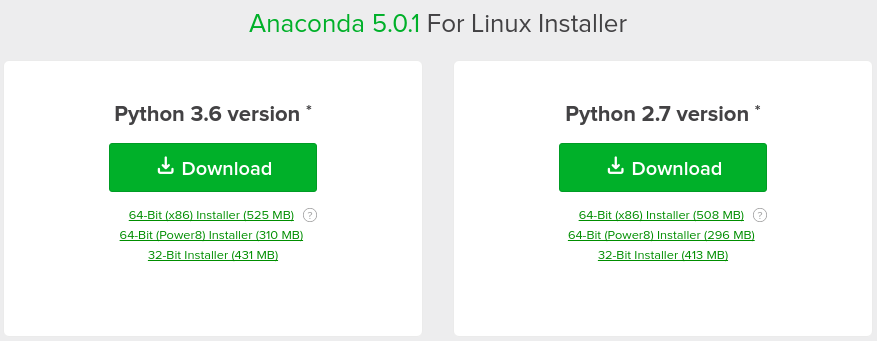
Open the URL https://www.anaconda.com/download/ in a browser.
Under Linux, download the package. Anaconda 5 is available with Python 2.7 also, download it only if you are sure and is necessary. But in this tutorial, we shall download Anaconda 5 with Python 3.6.
For a current Ubuntu installation, the downloaded file will usually be in the Downloads directory and will have a name similar to Anaconda3-<version>-Linux-x86_64.sh. Replace the file name in the commands below with the actual file name downloaded on your system.
cd ~/Downloads
ls Anaconda3-*-Linux-*.sh
If more than one Anaconda installer is present in the directory, use the latest file that you intentionally downloaded.
2. Optional check: verify the Anaconda installer file on Ubuntu
If the Anaconda download page provides a SHA-256 hash for your installer, compare it with the checksum generated on your Ubuntu system. This helps confirm that the downloaded installer file is complete and has not been accidentally changed.
cd ~/Downloads
sha256sum Anaconda3-*-Linux-*.sh
The long checksum printed in the terminal should match the checksum published for the same installer file. If it does not match, delete the installer and download it again.
3. Run the Anaconda shell installer in Ubuntu
The downloaded file is a shell script. For a current user-level installation, run the script with bash from the directory where it was downloaded.
cd ~/Downloads
bash Anaconda3-*-Linux-*.sh
The installer displays the license agreement and then asks where Anaconda should be installed. In most cases, accept the default path in your home directory, such as /home/username/anaconda3. This keeps Anaconda separate from Ubuntu system Python and avoids permission issues.
The older command below shows a system-wide style installation path. Keep it only if your setup requires it and you understand the permissions involved.
4. Run the package
The downloaded file is a shell script. You may run it as a Bash Script file.
$ sudo ./Anaconda3-5.0.1-Linux-x86_64.sh Accept the license agreement.
Do you accept the license terms? [yes|no]
[no] >>> yes
Provide the path for Anaconda installation.
Anaconda3 will now be installed into this location:
/home/tk/anaconda3

  - Press ENTER to confirm the location
  - Press CTRL-C to abort the installation
  - Or specify a different location below

[/home/tk/anaconda3] >>> /usr/lib/anaconda3
If you are fine with the default path mentioned, press ENTER, else you may provide the path as shown and press ENTER.
The installation of the required packages starts, and once finished, you would get the following ‘installation complete’ message.
Thank you for installing Anaconda3!Close the terminal.
Initialize conda after installing Anaconda in Ubuntu
During installation, Anaconda may ask whether you want to initialize conda. If you answer yes, the installer updates your shell startup file so that conda can be used from a new terminal window. If you answered no, you can initialize it later.
~/anaconda3/bin/conda initAfter running conda init, close the terminal and open a new terminal. If you installed Anaconda in a different location, replace ~/anaconda3 with your actual installation path.
Verify Anaconda Python installation on Ubuntu
To know if Anaconda is installed in Ubuntu, open a new terminal and check the conda and Python versions. These commands should run without a “command not found” message.
conda --version
python --version
conda list
If Anaconda is installed correctly, conda list prints a list of packages installed in the base environment.
# packages in environment at /home/username/anaconda3:
#
# Name                    Version                   Build  Channel
python                    3.x.x                     ...
conda                     ...                       ...
Run Anaconda Navigator in Ubuntu
Open a Terminal and navigate to the anaconda installation package.
Run Anaconda Navigator, present in bin as shown below.
/usr/lib/anaconda3/bin$ ./anaconda-navigatorIt could take some time for the startup.
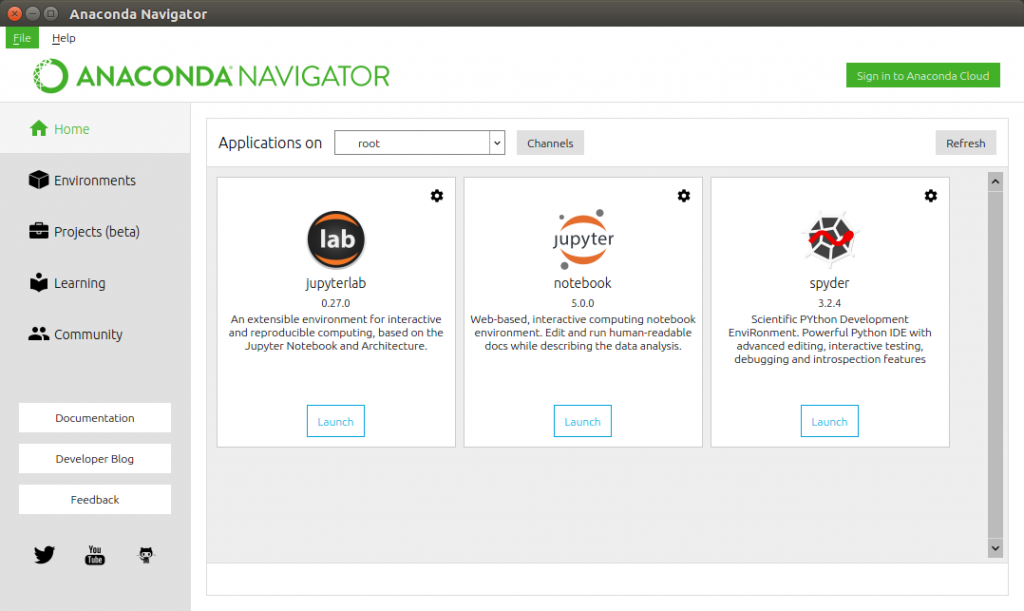
For a current user-level installation, you can usually start Anaconda Navigator with this command after opening a new terminal.
anaconda-navigatorIf the command is not found, run Navigator directly from the installation folder.
~/anaconda3/bin/anaconda-navigatorCreate a Python environment with conda in Ubuntu
After installing Anaconda, it is better to create a separate conda environment for each project instead of installing every package into the base environment. The example below creates an environment named pyproject with Python and activates it.
conda create -n pyproject python=3.12
conda activate pyproject
python --version
You can install packages into the active environment using conda install or, when required by a package, pip install.
conda install numpy pandas matplotlib
pip install package-name
Run a .py Python file after installing Anaconda on Ubuntu
A .py file is not installed in Ubuntu like an application package. It is a Python script that you run with Python. First activate the conda environment that has the required packages, then run the file.
conda activate pyproject
python app.py
If the script depends on packages listed in a requirements file, install them into the active environment before running the script.
pip install -r requirements.txt
python app.py
Fix conda command not found after Anaconda installation
If Ubuntu shows conda: command not found, the shell may not be initialized or the current terminal session may not have reloaded the updated path. Try these checks in order.
- Close the terminal and open a new terminal window.
- Run
~/anaconda3/bin/conda initif you installed Anaconda in the default home directory. - Use the full path
~/anaconda3/bin/condato confirm that conda exists. - Check whether you installed Anaconda in a custom location and update the command path accordingly.
~/anaconda3/bin/conda --version
~/anaconda3/bin/conda init
Update Anaconda and conda on Ubuntu
After installation, you can update conda and the packages in the base environment. Review package changes before confirming updates, especially on a system used for active projects.
conda update conda
conda update anaconda
For project environments, activate the specific environment first and then update only the packages needed by that project.
Uninstall Anaconda Python from Ubuntu
If you installed Anaconda in the default home directory and no longer need it, remove the installation directory after backing up any environments or notebooks you want to keep.
rm -rf ~/anaconda3You may also need to remove the conda initialization block from your shell configuration file, such as ~/.bashrc, and then open a new terminal.
Ubuntu Anaconda installation checklist
- The downloaded installer is the Linux installer for your Ubuntu architecture.
- The installer was run from the terminal with
bash. - The default user-level path, such as
~/anaconda3, was used unless a system-wide install was required. conda --versionworks in a new terminal window.conda listdisplays packages from the Anaconda environment.- Anaconda Navigator opens either from
anaconda-navigatoror from the full installation path. - Project work is done inside a separate conda environment instead of the base environment.
FAQs on installing Anaconda Python in Ubuntu
How do I install conda in Ubuntu?
Install Anaconda or Miniconda using the Linux shell installer. Download the installer, run it with bash, accept the license, choose the installation path, and initialize conda when prompted. After reopening the terminal, check it with conda --version.
How do I install Python through Anaconda on Ubuntu?
Anaconda installs Python along with conda and many commonly used packages. After installing Anaconda, open a new terminal and run python --version. For project-specific Python versions, create a conda environment with a command such as conda create -n pyproject python=3.12.
How can I know if Anaconda is installed in Ubuntu?
Run conda --version, python --version, and conda list in a new terminal. If conda is installed and initialized correctly, these commands print the conda version, Python version, and installed package list.
Should I use sudo to install Anaconda in Ubuntu?
For a normal personal installation, do not use sudo. Install Anaconda in your home directory, such as ~/anaconda3. Use sudo only when an administrator intentionally sets up a system-wide installation for multiple users.
How do I run a .py file after installing Anaconda?
Activate the conda environment that contains the required packages and run the script with Python. For example, use conda activate pyproject and then python app.py.
Conclusion
In this Python Tutorial – Install Anaconda Python in Ubuntu, we have installed Anaconda 5 with Python 3.6 on Ubuntu 16.
For a current Ubuntu setup, download the latest Anaconda Python 3 Linux installer, run it with bash, initialize conda, verify the installation with conda list, and create separate conda environments for your Python projects.