 TutorialKart.com
What is SAP Transaction Code (SAP TCode)?
In SAP, a transaction code, commonly called an SAP TCode, is a shortcut used to open a specific SAP transaction screen directly. A transaction usually represents a business or system task, such as creating a sales order, displaying a material master, maintaining a user, running a report, or changing configuration settings.
A transaction code is a technical shortcut that helps users access an SAP function without navigating through the full SAP menu path.
Many classic SAP transaction codes are four characters, such as SPRO, SE11, SU01, and MM01. However, not every SAP transaction code is limited to four characters. Some transactions, especially custom transactions and newer application areas, can have longer names.
How SAP Transaction Codes Are Used in SAP Easy Access
SAP transaction codes are entered in the command field of the SAP GUI screen. When the user enters a valid TCode and presses Enter, SAP opens the corresponding transaction if the user has the required authorization.
- Using SAP menu path: Users can navigate through SAP Easy Access folders and open the required transaction.
- Using transaction code: Users can enter the TCode directly in the command field to open the transaction faster.
- Using favorites: Frequently used transaction codes can be added to the Favorites folder for quick access.
SAP Command Field Prefixes for Transaction Codes
SAP users often use command prefixes with transaction codes. These prefixes control whether the transaction opens in the current session, a new session, or after ending the current transaction.
| Command | Meaning | Example |
|---|---|---|
| /n | Ends the current transaction and opens another transaction in the same session | /nSE11 |
| /o | Opens a transaction in a new SAP session | /oSU01 |
| /nex | Ends the current SAP session without a confirmation prompt | /nex |
| /i | Deletes the current session | /i |
For example, if you are already inside one transaction and want to open the ABAP Dictionary, enter /nSE11 in the command field. To open SE11 in a new session while keeping the current transaction open, enter /oSE11.
How to Find the SAP TCode for the Current Screen
When you are on a particular SAP screen and want to know the transaction code behind it, use the status option from the menu. This is useful when you reached a screen through the SAP menu and later want to open it directly with a TCode.
Go to System >> Status and check the Transaction field. The displayed value is the transaction code for the current SAP screen, where applicable.
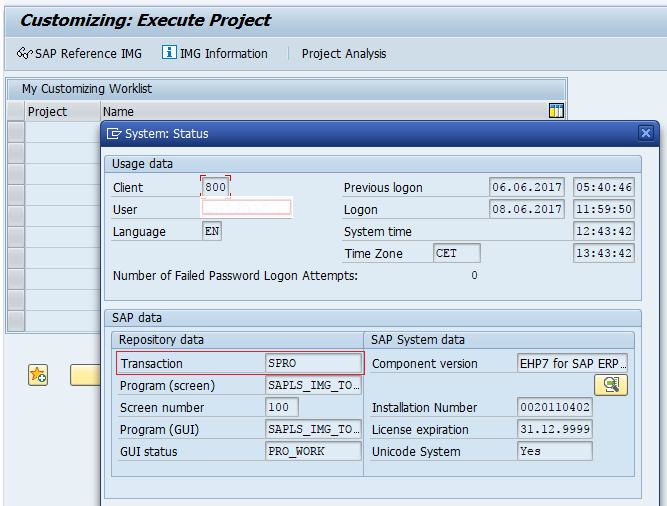
How to Display Technical Names in the SAP Menu
By default, SAP Easy Access may show only the menu description. To see transaction codes next to menu items, enable the display of technical names. This helps users learn which TCode belongs to each menu option.
Go to Extras >> Settings, select Display technical names, and press Enter. SAP then displays technical transaction names along with menu descriptions where available.
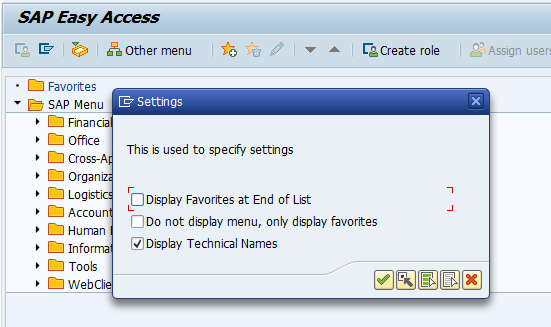
How to Add SAP Transaction Codes to Favorites
Favorites are useful for transaction codes that you use regularly. Instead of typing the TCode every time or navigating through the SAP menu, you can add it once to the Favorites folder.
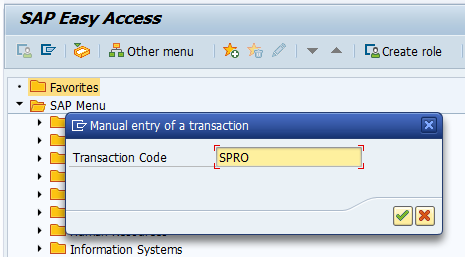
- On the SAP Easy Access screen, select the Favorites folder.
- Right-click and choose Insert Transaction.
- Enter the transaction code, for example SPRO.
- Press Enter to save the transaction under Favorites.
After saving, the selected transaction code appears under the Favorites folder. In this example, SAP transaction code SPRO is added to Favorites.
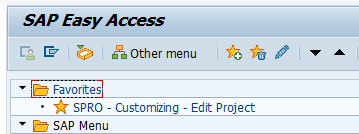
How to Check User Authorization for a SAP Transaction Code
A transaction code can be visible in SAP, but that does not always mean every user can execute it. SAP checks the user’s assigned roles and authorization objects before allowing access to a transaction. If the required authorization is missing, the system displays an authorization error.
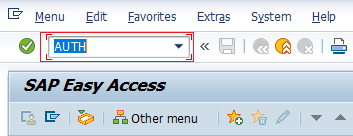
You can check whether users are authorized for a particular transaction code by using the authorization information system available in your SAP system. On the SAP Easy Access screen, enter T-code AUTH in the SAP command field if this transaction is available in your system.
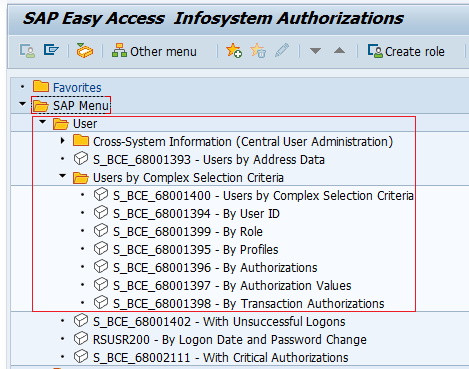
Now follow the path SAP Menu >> Users >> Users by Complex Selection Criteria and double-click By transaction authorizations.
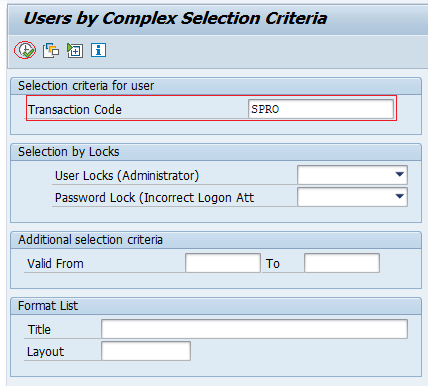
On the users by complex selection criteria screen, enter the transaction code in the Transaction code field and click the execute button.
SAP displays users based on the selection criteria, including user name, user group, and validity details. For security review, many SAP systems also use SUIM to analyze roles, users, authorization values, and transaction assignments.
How to Get a List of SAP Transaction Codes
There are several ways to find SAP transaction codes. The right method depends on whether you are searching from the SAP menu, checking technical tables, or looking for a module-wise list.
- From SAP Easy Access: Enable technical names and browse the SAP menu to see transaction codes beside menu entries.
- From the current screen: Use System >> Status to identify the transaction code of the screen you are using.
- From SAP table search: Technical users commonly check transaction-related tables such as TSTC and TSTCT, depending on access and system policy.
- From a module-wise reference: Search the complete list of SAP Transaction Codes (TCodes) module wise and sub-module wise.
In SAP S/4HANA systems, some older transactions may be replaced, redirected, or supported through SAP Fiori apps. When working on S/4HANA, always verify whether the transaction is still recommended for your business process and release.
How to Create a New Custom Transaction Code in SAP
Custom transaction codes are created when a business needs a shortcut for a custom report, program, screen, or application. In SAP, custom transaction codes are commonly created using transaction SE93. Custom transaction names usually start with Z or Y, based on the organization’s naming standard.
On the Maintain Transaction screen, enter the transaction code that you want to create and click the create button.
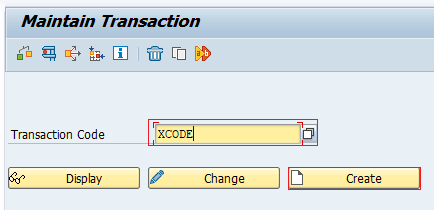
Maintain the required details, assign the program or object type as required, save the transaction code, and include it in the appropriate transport request if your system landscape requires transports. After creation, authorization and testing should be completed before using the custom TCode in production.
Important SAP Transaction Codes for Beginners
The following SAP transaction codes are commonly used by consultants, developers, security teams, and end users. Access depends on the user’s roles and authorizations.
| SAP TCode | Purpose | Typical user group |
|---|---|---|
| /O | Open a new SAP session | All SAP GUI users |
| /N | End current transaction and return to SAP Easy Access or open another transaction | All SAP GUI users |
| SPRO | SAP Customization Implementation Guide | Functional consultants and configuration teams |
| SE11 | ABAP Dictionary for database tables, views, and data elements | ABAP developers and technical users |
| SE80 | ABAP Development Workbench | ABAP developers |
| SP01 | Spool request selection for printouts | Basis, support, and business users |
| SU01 | Maintain users | Security and Basis teams |
| SUIM | User Information System for user and authorization analysis | Security and audit teams |
SAP Transaction Code Troubleshooting Notes
If a transaction code does not open, the reason is usually one of the following: the TCode does not exist in that system, the transaction is locked, the user is not authorized, the transaction is obsolete in the current SAP release, or the function is available through a different application such as SAP Fiori.
- Authorization error: Ask the SAP security team to review the missing authorization details shown after the failed attempt.
- Unknown transaction: Check the spelling of the TCode and confirm whether it exists in the current SAP system.
- Different SAP release: Verify whether the transaction is still used in your SAP ERP or SAP S/4HANA release.
- Custom transaction issue: Confirm whether the Z or Y transaction was transported to the target system correctly.
SAP TCode Editorial QA Checklist
- Does the tutorial explain that an SAP transaction code is a shortcut to a transaction, not the business document itself?
- Does the article avoid saying that all SAP TCodes are exactly four digits or four characters?
- Are SAP command prefixes such as /n and /o explained with practical examples?
- Does the authorization section explain that access depends on roles and authorization objects?
- Does the custom transaction section correctly refer to SE93 for creating custom SAP transaction codes?
- Are S/4HANA differences mentioned without making unsupported claims about every transaction code?
SAP Transaction Code FAQs
How do I use a transaction code in SAP?
Enter the transaction code in the SAP command field and press Enter. If you are inside another transaction, use /n before the code to open it in the same session, or /o before the code to open it in a new session.
How do I find the SAP TCode for the current screen?
Go to System >> Status and check the Transaction field. If the screen belongs to a transaction, SAP displays the transaction code there.
How do I get a list of transaction codes in SAP?
You can enable technical names in SAP Easy Access, search transaction-related tables such as TSTC and TSTCT if you have access, use SUIM for authorization-related checks, or refer to a module-wise SAP TCode list.
What is the SAP TCode to create a custom transaction code?
The commonly used transaction for creating and maintaining custom SAP transaction codes is SE93. Custom transaction codes are usually named with Z or Y prefixes according to the organization’s development standard.
How many transaction codes are available in SAP?
The number of transaction codes differs by SAP product, release, installed components, industry solutions, and custom development. A company’s SAP system may include standard SAP transactions along with custom Z or Y transaction codes.