 TutorialKart.com
How to create cost element group in SAP using KAH1
A cost element group in SAP Controlling is a hierarchy that collects related cost elements under one group key. You use it in reports, planning, assessment, distribution, allocation cycles, and other CO activities where entering individual cost elements one by one would be difficult. You can create cost element group in SAP by using transaction code KAH1 or by following the SAP menu path given below.
Transaction code : – KAH1
SAP Menu Path: – Accounting >> Controlling > Cost center accounting > Master data > Cost element group > create.
Cost element group transaction codes in SAP CO
| Activity | SAP Tcode | Purpose |
|---|---|---|
| Create cost element group | KAH1 | Create a new cost element group hierarchy |
| Change cost element group | KAH2 | Edit an existing group, description, subgroup, or assigned cost elements |
| Display cost element group | KAH3 | View the group structure without changing it |
For cost center groups, the transaction codes are different. Cost center group creation is normally done with KSH1, not KAH1. KAH1 is specifically used for cost element groups.
Before creating a cost element group in SAP
Before you start the KAH1 transaction, keep the following details ready.
- Controlling area: The cost element group is created for a controlling area, for example TK01 in this tutorial.
- Group key: A short technical name for the cost element group, such as TKCEGROUP or CELMT_PRIM.
- Description: A meaningful group name that helps users understand the purpose of the group.
- Cost elements: The cost elements or cost element intervals that should be assigned to the group.
- Hierarchy design: Decide whether you need a simple group or a parent group with lower-level subgroups.
In SAP S/4HANA systems, cost elements are closely integrated with G/L accounts. However, many CO reports and configuration activities still use cost element groups for selecting and organizing cost elements.
Example cost element group structure used in this tutorial
The following example shows the cost element group keys and descriptions used in this SAP CO tutorial. You can replace these sample names with your own company naming convention.
| Cost element group key | Description |
|---|---|
| CELMT_PRIM | TK Primary Cost Elements |
| CELMT_SCND | TK Secondary Cost Elements |
| TKRIM_COST | TK Cost Elements |
| CCOST_PRDS | TK Product Cost |
| CCOST_RMCS | TK Raw Material Consumption cost |
| CCOST_PRSN | TK Personal Cost |
| TKRIM_REVN | TK Revenue Elements |
| CCOST_MFGN | TK Manufacturing Cost |
| CCOST_FNCH | TK Financial Charges |
| CCOST_SLDT | TK Sales & Distribution cost |
| CCOST_OTCS | TK Other Indirect Cost |
Create cost element group in SAP: step-by-step procedure
Follow these steps to create a cost element group in SAP Controlling by using transaction code KAH1.
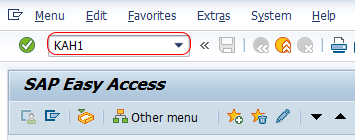
Step 1 : – Enter SAP Tcode “KAH1” on sap easy access command field and press enter.
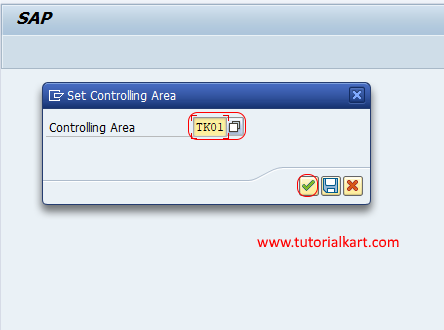
Step 2 : – Now a screen open for entering the controlling area key, enter controlling area “TK01” that you like to create cost element group in SAP.
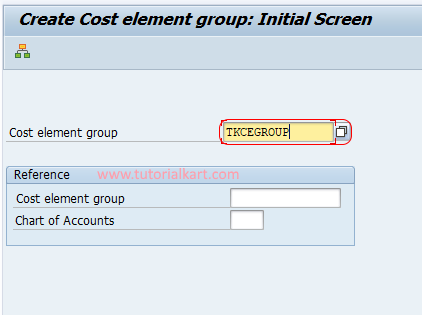
Step 3 : – On create cost element groups: initial screen, enter the key that identifies the cost element group in SAP CO. After you update the element group key, press enter to continue
Step 4 : – On create cost element group structure screen, update the descriptive name of group in the given field.
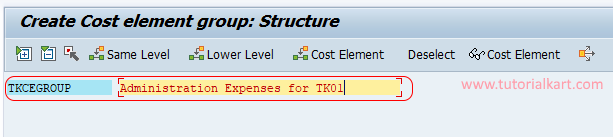
The description should be clear enough for reporting users. For example, use a name such as TK Cost Elements, Primary Cost Elements, Manufacturing Cost, or Sales and Distribution Cost, depending on the purpose of the group.
Step 5 : – Place the cursor on TKCEGROUP key and click on lower level button.

Update as CELMT_PRIM : TK Primary Cost Elements and press enter.
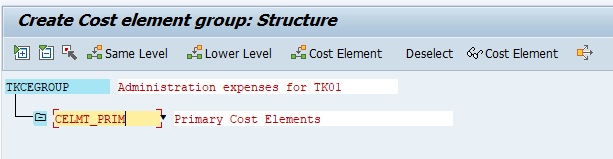
Now place the cursor on CELMT_PRIM and click on same level button and update as
CELMT_SECOND : TK Secondary Cost Elements
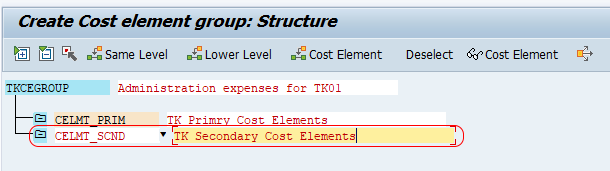
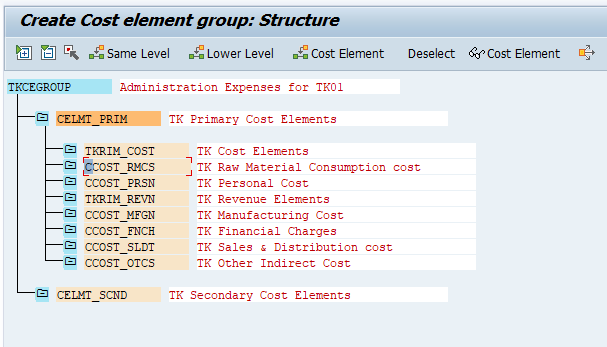
Similarly assign cost elements group under primary cost elements as shown below.
Now assign cost element to the groups by putting cursor on group and click on cost element.
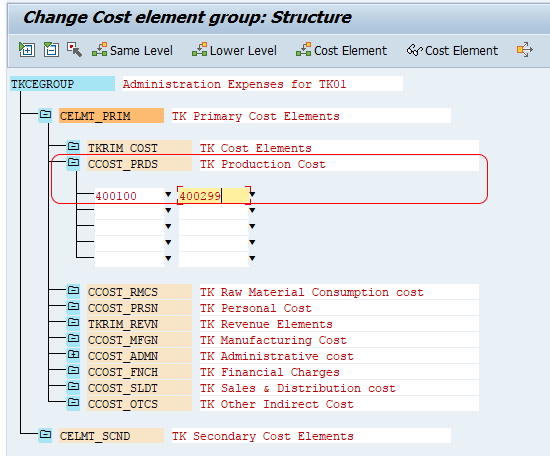
In Same procedure created cost elements can be assigned to a particular cost element group in SAP.
How to assign cost elements to the SAP cost element group
After creating the group node or subgroup node, assign the required cost elements to it. In the hierarchy screen, select the relevant cost element group, choose the cost element assignment option, and enter either individual cost elements or a valid interval.
| Assignment type | When to use it | Example |
|---|---|---|
| Single cost element | Use when only one cost element has to be included | Enter one specific cost element number |
| Cost element range | Use when a continuous number range belongs to the same reporting group | Enter From cost element and To cost element |
| Lower-level subgroup | Use when you want a parent group with several logical subgroups | Primary cost elements, secondary cost elements, revenue elements |
Use ranges carefully. A range is convenient, but it can also include cost elements that are created later within the same number interval. If your organization needs tight reporting control, assign individual cost elements or use smaller ranges.
Save and verify the cost element group created in KAH1
After assigning the required cost elements, save the cost element group. SAP displays a confirmation message after the group is saved. To verify the result, use transaction code KAH3 and enter the same controlling area and cost element group key.
- Use KAH3 to display the cost element group hierarchy.
- Expand the group nodes and check whether all required subgroups are visible.
- Check whether the assigned cost elements or cost element ranges are correct.
- If correction is needed, use KAH2 to change the cost element group.
How to find whether a cost element exists in a cost element group
To check whether a cost element is included in a group, open the group in display mode by using KAH3. In the group display screen, use the available find or check function from the menu and search for the required cost element. This is useful when a report is not showing expected values and you need to confirm whether the cost element is part of the selected group.
Common mistakes while creating cost element groups in SAP
- Using the wrong transaction: KAH1 is for cost element groups. KSH1 is for cost center groups.
- Creating the group in the wrong controlling area: Always check the controlling area before creating or changing the group.
- Using unclear group descriptions: Vague descriptions make reporting and future maintenance difficult.
- Assigning a broad range without review: Broad cost element ranges can include unwanted cost elements.
- Forgetting to save after assignment: The structure and cost element assignments are not final until the group is saved.
Cost element group creation checklist for SAP CO users
| Checklist item | Review point |
|---|---|
| Controlling area checked | Confirm that the group is created under the correct controlling area. |
| Group key naming reviewed | Use a naming convention that is easy to identify in reports and configuration. |
| Description maintained | Enter a meaningful description for each group and subgroup. |
| Hierarchy level checked | Use lower-level and same-level nodes correctly. |
| Cost element assignment reviewed | Check individual cost elements and ranges before saving. |
| Display check completed | Open KAH3 and verify the saved structure. |
FAQs on cost element group in SAP
What is the Tcode for cost element group in SAP?
The main Tcode to create a cost element group in SAP is KAH1. To change a cost element group, use KAH2. To display a cost element group, use KAH3.
What is a cost element group in SAP?
A cost element group in SAP is a collection of cost elements arranged under a group key or hierarchy. It helps users select related cost elements together for reporting, planning, allocation, and other Controlling activities.
How do I display a cost element group in SAP?
Use transaction code KAH3 to display a cost element group in SAP. Enter the controlling area and group key, then open the hierarchy to check the subgroups and assigned cost elements.
How do I change a cost element group in SAP?
Use transaction code KAH2 to change an existing cost element group. You can update the description, add lower-level groups, add same-level groups, and change assigned cost elements if you have the required authorization.
What is the difference between cost element group and cost center group Tcodes?
Cost element groups are created with KAH1, changed with KAH2, and displayed with KAH3. Cost center groups use different transaction codes, commonly KSH1 for create, KSH2 for change, and KSH3 for display.
Summary of creating cost element group in SAP
To create a cost element group in SAP, run KAH1, enter the controlling area, maintain the cost element group key and description, create the required same-level or lower-level group nodes, assign cost elements or ranges, and save the hierarchy. After saving, use KAH3 to display and verify the cost element group before using it in CO reports or configuration.