 TutorialKart.com
A Tableau data connection defines how Tableau accesses data stored in a file, database, cloud application, or published data source. In Tableau Desktop, you select a connector, provide the required connection details, choose the tables or files to use, and then decide whether Tableau should query the source directly or work from an extract.
This tutorial explains how to connect Tableau to a data source, the difference between live and extract connections, how a connection differs from a Tableau data source, and how to choose the appropriate connection type for a workbook.
How a Tableau Data Connection Works
A connection stores the information Tableau needs to reach the underlying data. Depending on the connector, this information may include a file path, server name, port, database name, authentication method, user name, or access token.
After Tableau establishes the connection, you use the Data Source page to select tables, combine related data, review field names and data types, apply filters, and configure the data model.
A typical Tableau connection workflow includes the following steps:
- Select a connector for the file, database, or application that contains the data.
- Enter the file location or server connection details.
- Authenticate when the source requires credentials.
- Select the required database, schema, tables, sheets, or files.
- Review relationships, joins, field names, and data types on the Data Source page.
- Choose a live connection or create an extract.
- Open a worksheet and verify that the required dimensions and measures are available.
Tableau Connectors for Files, Databases, and Cloud Data
Tableau provides connectors for several categories of data sources. The exact connectors available can depend on the Tableau product, operating system, installed drivers, and licensing.
- File-based data: Text files, CSV files, Microsoft Excel workbooks, JSON files, statistical files, and spatial files.
- Relational databases: Systems such as Microsoft SQL Server, MySQL, PostgreSQL, Oracle, and other supported databases.
- Cloud platforms: Cloud data warehouses, hosted databases, and supported software-as-a-service applications.
- Published Tableau data: Published data sources and virtual connections managed through Tableau Server or Tableau Cloud.
- Web-based data: Supported web connectors or other approved methods for obtaining data from web applications.
File-based connections usually require a path to a local or shared file. Server-based connections normally require a server address and authentication details. Some database connectors also require a compatible driver to be installed before Tableau can connect.
Connect Tableau Desktop to a Data Source
Use the following general procedure to create a Tableau data connection:
- Open Tableau Desktop.
- On the start page, locate the Connect pane.
- Select a file connector or a server connector.
- Choose the source file or enter the requested server information.
- Sign in when authentication is required.
- On the Data Source page, add the required tables or sheets to the data model.
- Check field names, field types, relationships, joins, and filters.
- Select Live or Extract when both options are available.
- Open a worksheet and begin the analysis.
The following example uses a text file containing company and profit data.
- Create a simple text file with the following data (Company name & profit) and save with first data.
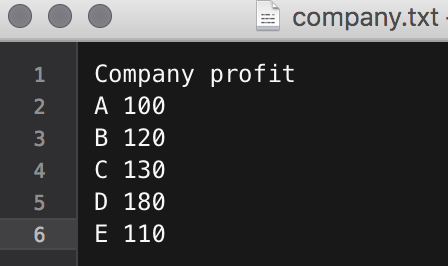
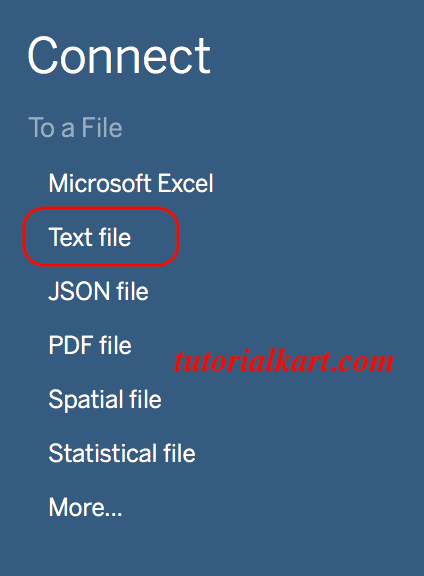
- In Tableau start page, click on connect to data and select Text file.
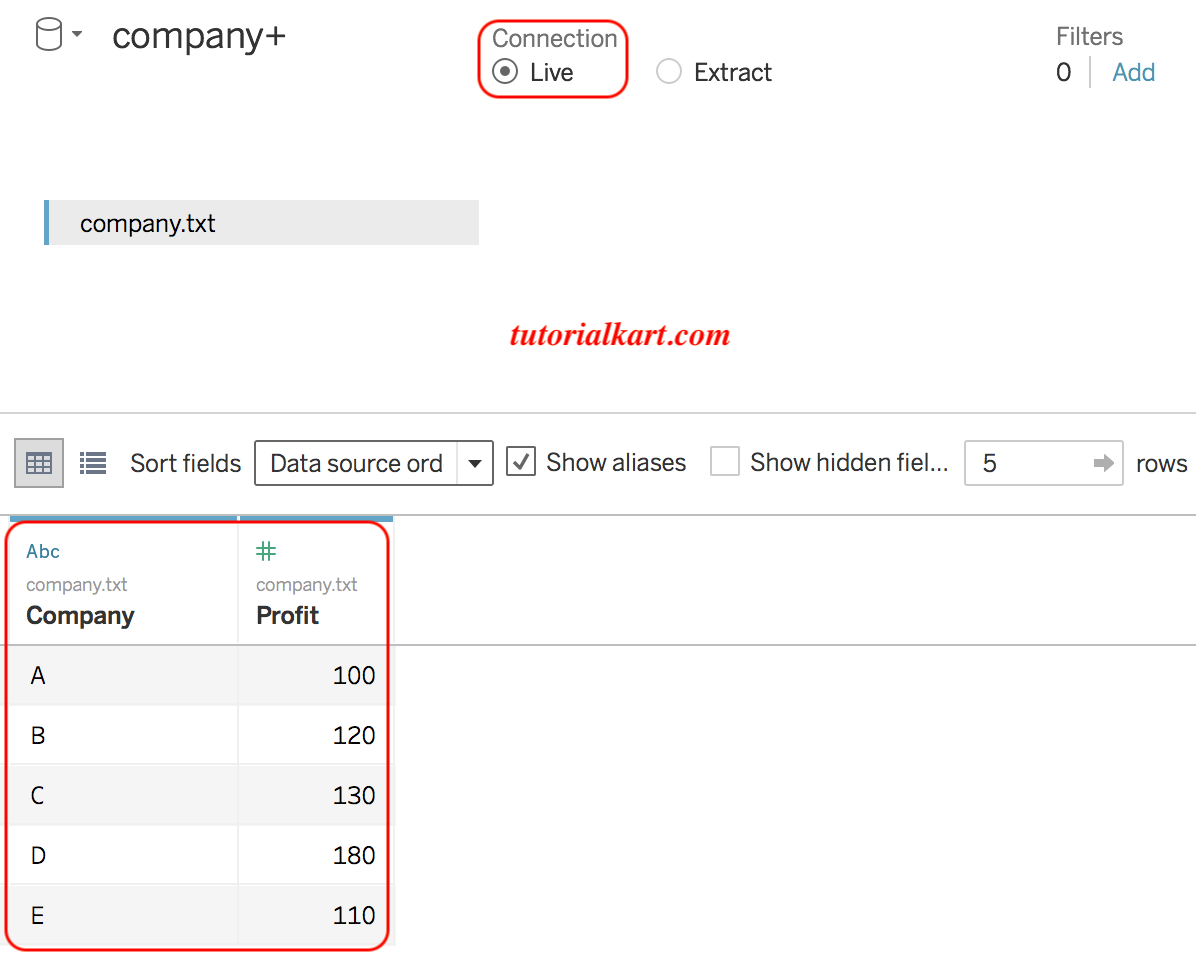
Live Connection in Tableau
A live connection keeps Tableau connected to the original data source. When a worksheet is opened, filtered, or refreshed, Tableau sends queries to the source and displays the results returned by that source.
Live does not always mean that every displayed value changes immediately without user action. Tableau may reuse cached results, and a workbook may need to be refreshed before recently changed source data appears.
- In the text file connection window, select connect live and in the data window of Tableau workspace, click on view data as shown below.
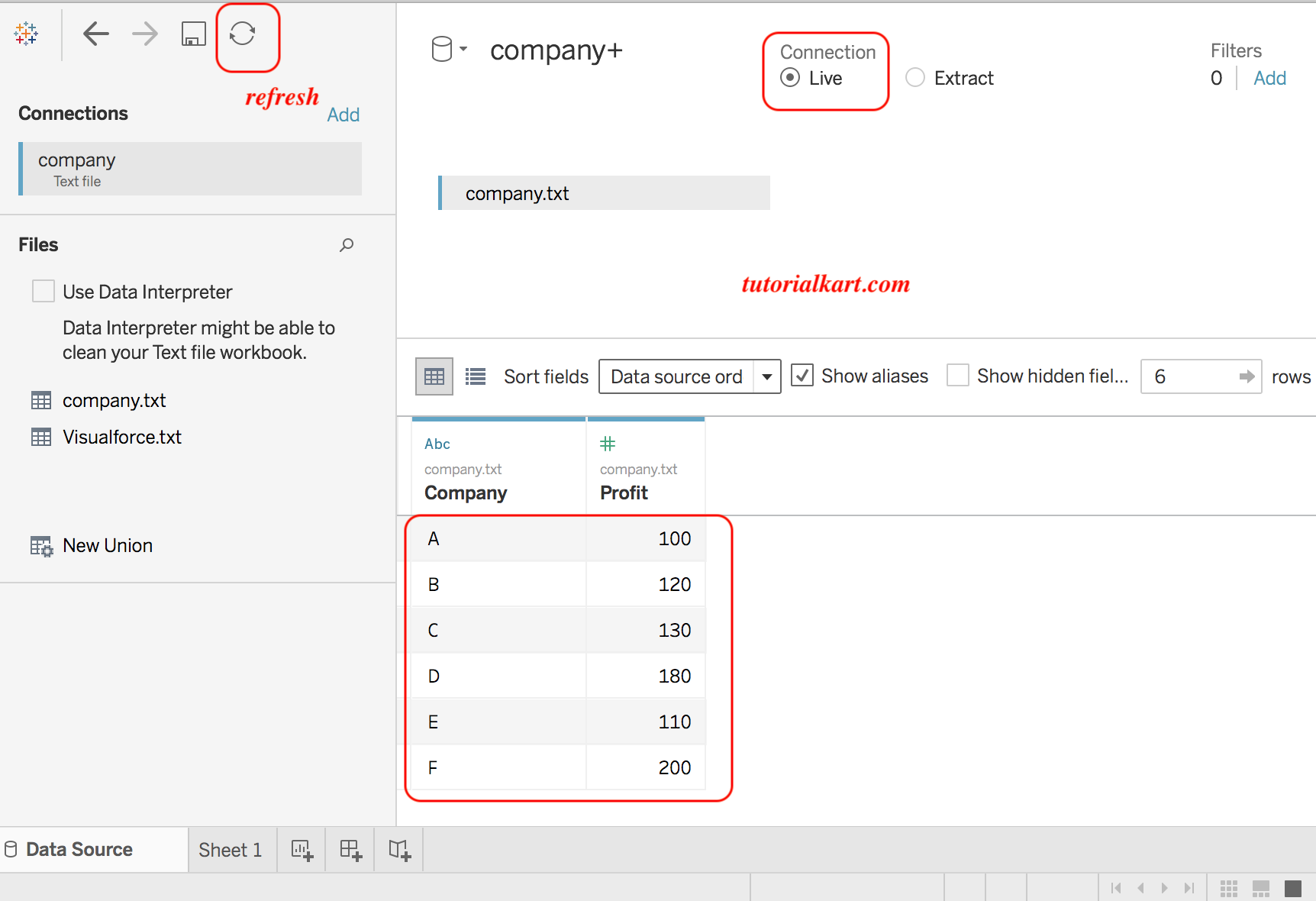
Again, go to the text file and add one new record on view data. Now click on view data form Tableau workspace (data is not updated yet). Right click on the data source connection and click on refresh. This time it will show the updated data.
When to Use a Tableau Live Connection
A live connection is generally suitable when the source is continuously updated and users need access to recent data. It can also be appropriate when database administrators want security rules, permissions, and query processing to remain in the source system.
- The source data changes frequently.
- Users need current values when they refresh or interact with the workbook.
- The database is designed to handle analytical queries efficiently.
- Data should remain in the source rather than being copied into an extract.
- Source-level security or database functions must be preserved.
Live connection performance depends on the database, query complexity, network latency, concurrent usage, data model, and workbook design. A live connection is therefore not automatically faster or slower than an extract.
Extract Connection in Tableau
An extract connection stores a copy of the selected data in Tableau’s extract format. Tableau queries this optimized copy instead of sending every analytical query to the original source.
Modern Tableau extracts use the Hyper engine and are normally stored in .hyper files. Older Tableau versions used .tde extract files. A tutorial or interview question that refers to TDE is usually discussing the earlier extract format.
An extract contains data captured at the time it was created or last refreshed. It does not automatically include later changes from the original source unless the extract is refreshed.
When to Use a Tableau Extract
- The live source is slow or has limited resources.
- The workbook must remain responsive during repeated analysis.
- Users need to work without a continuous connection to the source.
- The analysis requires only a filtered subset or aggregated copy of the source data.
- The source is available only during certain periods.
- Extract refreshes can be scheduled at intervals that match reporting needs.
Extracts can reduce repeated work for the source database, but they require storage, refresh management, and appropriate security. The extract may contain sensitive data, so access to the workbook, published data source, and extract file must be controlled.
Full and Incremental Extract Refreshes
A full refresh rebuilds the extract from the selected source data. An incremental refresh adds rows based on a field used to identify new records. Incremental refreshes can reduce refresh time, but they may not capture updated or deleted source rows unless the refresh strategy is designed for those changes.
Live Connection vs Extract Connection in Tableau
| Comparison point | Live connection | Extract connection |
|---|---|---|
| Query location | Queries are sent to the original source. | Queries are run against the Tableau extract. |
| Data freshness | Can return current source data after a query or refresh. | Contains data from the most recent extract refresh. |
| Network dependency | Usually requires access to the source. | Can support analysis without an active source connection. |
| Performance | Depends heavily on the source, network, and query design. | Often provides consistent analytical performance for the extracted data. |
| Storage | Does not create a complete local extract by default. | Requires storage for the extracted copy. |
| Source workload | Interactive queries add workload to the source. | Refresh operations access the source, while analysis queries use the extract. |
| Maintenance | Requires a reliable source connection and valid credentials. | Requires an appropriate refresh schedule and failure monitoring. |
The correct choice should be based on freshness requirements, source performance, network reliability, security, workbook complexity, data volume, and refresh expectations. Test the workbook with realistic data and typical user interactions before making the final decision.
Difference Between a Tableau Connection and a Data Source
A connection identifies how Tableau reaches data. A Tableau data source is the broader analytical definition built from one or more connections.
A Tableau data source can include:
- One or more connections
- Tables, sheets, or files
- Relationships and joins
- Unions
- Custom SQL
- Field names and data types
- Calculated fields
- Groups, sets, aliases, and hierarchies
- Data source filters
- Default field properties
- Extract settings
For example, a server address and database login belong to the connection. The selected tables, relationships, calculated fields, and extract configuration together form the Tableau data source used by worksheets.
Relationships, Joins, Unions, and Data Blending
Connecting to data is only the first part of preparing it for analysis. Tableau provides several methods for combining data, and each method serves a different purpose.
- Relationships: Connect logical tables while allowing Tableau to determine suitable joins during analysis.
- Joins: Combine rows from physical tables using matching fields and a join type such as inner, left, right, or full outer.
- Unions: Append rows from tables or files that have compatible columns.
- Data blending: Combine aggregated results from separate Tableau data sources through linking fields. It is generally used when the sources cannot be combined directly in one data model.
Do not use the terms connection, join, relationship, and blending interchangeably. A connection reaches the data, while the other features determine how data from different tables or sources is combined for analysis.
Tableau Data Types to Verify After Connecting
After connecting, review the data type assigned to each field. Tableau commonly works with text, number, date, date and time, Boolean, geographic, and cluster-related fields. Numeric fields may be represented as whole numbers or decimal numbers depending on the source and values.
- String: Names, categories, codes, and other text values.
- Number: Whole-number or decimal values used in calculations.
- Date: Calendar dates without a time component.
- Date and time: Timestamps containing both date and time.
- Boolean: True or false values.
- Geographic: Fields assigned a geographic role, such as country, city, state, or postal code.
- Cluster: A field generated by Tableau when clustering is used in an analysis.
A field can be interpreted incorrectly when the source contains inconsistent values. For example, an identification number with leading zeros should usually remain text rather than being converted to a number. Check the data type icon and change the type before building calculations or visualizations when necessary.
Common Tableau Data Connection Problems
Tableau Cannot Find a File
A workbook connected to a local file may fail when the file is moved, renamed, deleted, or opened on another computer. Restore the expected path or edit the connection so that it points to the correct file.
Database Driver Is Missing
Some database connections require a vendor driver. Install the driver version supported by the database, Tableau version, and operating system, and then restart Tableau before trying again.
Authentication or Permission Failure
Confirm the server name, database, authentication method, user name, password, and account permissions. A successful login does not always mean the account has permission to read every schema or table.
Live Data Does Not Show Recent Changes
Refresh the data source or workbook and check whether Tableau is reusing cached results. Also verify that the source transaction was committed and that the connected account can see the new records.
Extract Data Is Out of Date
Check when the extract was last refreshed, whether the refresh completed successfully, and whether stored credentials remain valid. For incremental refreshes, verify that the incremental field correctly identifies new records.
Tableau Data Connection Interview Questions and Answers
What are the two main types of data connections in Tableau?
The two main connection modes are live and extract. A live connection queries the original source, while an extract connection queries a stored copy of selected data.
Can a Tableau live connection be converted to an extract?
In many supported data sources, a live connection can be changed to an extract by selecting the extract option and creating the extract. An extract can also be replaced with a live connection when the connector and workbook configuration support it. Features that depend on extract-specific behavior may need to be reviewed after changing the connection mode.
What is the Tableau data engine?
The Tableau data engine processes extract data for analytical queries. Current extracts use the Hyper engine and the .hyper file format. TDE refers to the extract format used by older Tableau releases.
Can Tableau work offline?
Tableau Desktop can work with accessible local files and extracts without a continuous connection to the original server. A live server connection normally requires network access, and some authentication, publishing, or licensing operations may also require connectivity.
When should an extract be preferred over a live connection?
An extract is often preferred when the source is slow, users need offline access, only a subset of the source is required, or scheduled refreshes provide sufficient data freshness. The decision should be confirmed through performance and refresh testing.
Tableau Data Connection Editorial QA Checklist
- Confirm that the connector name and connection steps match the Tableau version shown in the tutorial.
- Verify that live connections are not described as updating every view automatically without refresh or caching considerations.
- Use .hyper for current Tableau extracts and identify .tde as the older extract format.
- Check that connection, data source, relationship, join, union, and data blending are described as separate concepts.
- Test the sample text-file connection and confirm that the existing screenshots still match the surrounding instructions.
- Verify that live-versus-extract guidance considers freshness, performance, network access, source workload, security, and refresh maintenance.
- Check field data types before publishing examples that use dates, numbers, identifiers, or geographic roles.