 TutorialKart.com
Tableau Server is an on-premises analytics platform used to publish, govern, share, and view Tableau workbooks and data sources through a web browser or supported Tableau clients. A working deployment involves more than installing the software: the administrator must choose an identity store, initialize the server, configure network access, set data-caching behavior, enable email services, secure external traffic, and verify the server topology.
This Tableau Server configuration tutorial explains the main decisions and the practical checks that follow installation. The exact options available can vary by Tableau Server version, operating system, license, and deployment architecture, so confirm version-specific requirements in the official Tableau Server installation and configuration documentation.
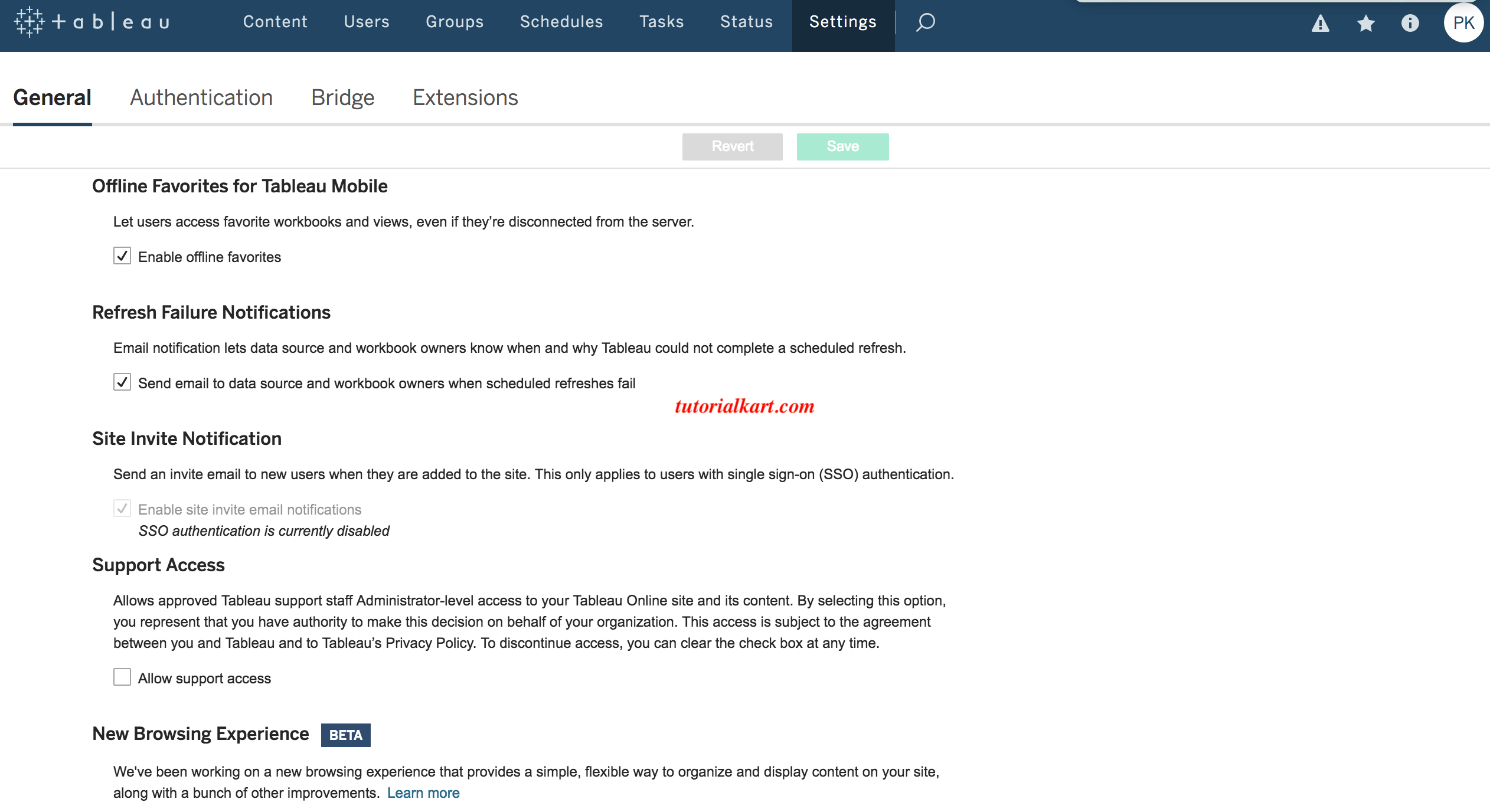
Tableau Server configuration workflow after installation
Tableau Services Manager (TSM) is the administration layer used to configure and maintain Tableau Server. Administrators can use the TSM web interface or the TSM command-line interface. The web interface normally runs on port 8850 of the initial node and should be restricted to trusted administrators and networks.
- Install Tableau Server and TSM on the initial node.
- Activate the product and register the installation.
- Select and configure the identity store.
- Initialize Tableau Server and create the initial server administrator.
- Configure the public gateway address, ports, reverse proxy, or load balancer as required.
- Set caching, SMTP, subscriptions, alerts, SSL, and authentication options.
- Review the process topology and add nodes only when workload, scale, or availability requirements justify it.
- Apply pending changes, restart when required, and validate user access.
Check Tableau Server and TSM status
Before changing configuration, verify that TSM can communicate with the deployment and review the status of Tableau Server processes.
tsm status -v
tsm version
The verbose status command helps identify processes that are stopped, unavailable, or still starting. The version command confirms which Tableau Server build is installed, which is important when following documentation or planning an upgrade.
Tableau Server identity store and user authentication
The identity store holds user and group information. Tableau Server can use a local identity store managed within Tableau Server or an external LDAP-compatible directory such as Active Directory. This choice must be made during initial configuration. After the identity store has been configured and applied, changing its type requires reinstalling Tableau Server.
Local identity store for Tableau-managed users
With a local identity store, Tableau Server administrators create and manage users directly in Tableau Server. This option is suitable when the deployment does not need to synchronize users and groups from an organizational directory.
Active Directory or LDAP identity store
With an external identity store, user and group information is obtained from Active Directory or another supported LDAP directory. Tableau recommends using the TSM web interface for standard Active Directory configuration. Non-Active Directory LDAP deployments generally require TSM CLI configuration and directory-specific values supplied by the LDAP administrator.
Identity store configuration and sign-in authentication are related but separate decisions. For example, a deployment can use an external directory as its identity store and later use Kerberos, OpenID Connect, trusted authentication, or SAML for user sign-in, subject to the requirements of the selected method.
Tableau Server network ports and browser access
Users normally connect to Tableau Server through the gateway using HTTP or HTTPS. TSM administration commonly uses port 8850. Do not expose TSM broadly to the internet. Permit only the ports required by the chosen architecture, and account for firewalls, security groups, DNS, reverse proxies, and load balancers.
A typical browser URL is https://tableau.example.com. If a reverse proxy or load balancer terminates TLS, configure Tableau Server with the externally visible host name, protocol, and port so generated links and redirects use the public address.
Tableau Server data connection and query cache settings
For a data connection, Tableau Server can cache query results generated while users interact with published views. When a suitable cached result is available, Tableau can reuse it instead of sending the same query to the source again. This can improve response time and reduce database load, but it also introduces a data-freshness decision.
Current Tableau Server releases configure server-wide caching with the tsm data-access caching command. The default low setting reuses cached data whenever possible. A time value limits the cache age in minutes, while always or 0 requests fresh data whenever a page is reloaded.
tsm data-access caching list
tsm data-access caching set -r low
tsm pending-changes apply
Use longer cache reuse when the source changes infrequently and users can tolerate a delay. Use a shorter freshness interval when dashboards must reflect recent source changes. Always evaluate the additional workload placed on the source database before forcing frequent refreshes.
Workbook owners may also set a data freshness policy for supported workbooks. This allows a workbook-specific balance between query-cache performance and data freshness instead of relying only on the server-wide default.
Tableau Server process topology and workload planning
Tableau Server is composed of multiple processes rather than a fixed list of six servers. The installed topology depends on the Tableau Server version, licensed features, node count, and configuration. Important processes include:
- Gateway: receives requests from browsers and clients and routes them to the appropriate server process.
- Application Server: handles browsing, permissions, projects, sites, and other application functions.
- VizQL Server: loads and renders views and processes user interactions with visualizations.
- Backgrounder: runs scheduled and asynchronous jobs such as extract refreshes, subscriptions, and flows when applicable.
- Data Server: manages connections to published data sources.
- Cache Server: provides a shared query cache across the cluster.
- Hyper: processes queries against Tableau extracts.
- Repository: stores Tableau Server metadata, including users, permissions, schedules, and content information.
- File Store: stores and replicates extract files and other managed content in supported deployments.
- Coordination Service: supports distributed coordination in a multi-node cluster.
A single-node deployment places the required processes on one computer and is simpler to operate. Multi-node deployments can separate interactive traffic from background workloads, increase capacity, and support high-availability designs. Adding nodes without measuring workload does not automatically improve performance; use administrative views, process status, background-task history, and resource monitoring to identify the actual bottleneck.
Tableau Server SMTP, subscriptions, and administrative alerts
SMTP configuration enables Tableau Server to send subscription emails and server notifications. The administrator needs the SMTP host, port, sender address, authentication details when required, and the organization’s TLS requirements. After server-wide SMTP is configured, subscriptions must also be enabled for the relevant site.
Test email delivery using a controlled recipient and verify that messages are not rejected by the mail relay, blocked by firewall rules, or filtered because the sender domain is not authorized. Use encrypted SMTP where required by the mail service, and do not store reusable mail credentials in unsecured scripts or documentation.
Tableau Server SSL configuration for HTTPS
SSL/TLS protects browser traffic between users and Tableau Server by encrypting data in transit and allowing clients to validate the server certificate. Tableau Server needs a certificate and corresponding private key in a supported format. The certificate name must match the host name users enter, and the full certificate chain should be supplied when required.
After enabling external SSL, confirm that HTTP requests are redirected as intended, browser certificate warnings are absent, embedded views still load, trusted tickets or SSO callbacks use the correct HTTPS URL, and automated clients trust the issuing certificate authority.
Tableau Server SAML single sign-on configuration
SAML can provide single sign-on by delegating user authentication to a SAML identity provider. Tableau Server and the identity provider exchange metadata and use certificates to sign and validate SAML messages. Server-wide SAML can apply one identity provider across the server, while supported multi-site deployments can also use site-specific SAML.
Before enabling SAML, confirm the Tableau Server return URL, entity ID, identity-provider metadata, user-name attribute, certificate files, and clock synchronization. SAML values and URLs are case-sensitive, and the return URL must match the address users actually access. Keep a local administrator recovery path and back up SAML certificate and metadata files as part of disaster-recovery planning.
Apply and verify Tableau Server configuration changes
Many TSM changes remain pending until they are applied. Applying changes may restart Tableau Server, so schedule production changes during an approved maintenance window and communicate expected service impact.
tsm pending-changes list
tsm pending-changes apply
tsm status -v
After the server returns to a healthy state, sign in through the public URL and test a published view, a live connection or extract, permissions, scheduled jobs, email delivery, and the selected authentication method. Review logs and administrative views if a process is degraded or a request fails.
Tableau Server configuration checklist
- Confirm that the installed Tableau Server version matches the documentation being followed.
- Record the selected local or external identity store before initialization.
- Restrict TSM port 8850 to authorized administration networks.
- Verify the public DNS name, gateway port, proxy settings, and firewall rules.
- Choose cache behavior based on measured freshness and database-load requirements.
- Review the number and placement of VizQL Server, Backgrounder, Cache Server, Data Server, Repository, and File Store processes.
- Configure SMTP and test both notifications and subscriptions.
- Validate the SSL certificate name, chain, expiry date, and private-key protection.
- Test SAML or another SSO method with a non-administrator account before broad rollout.
- Apply pending changes, check process health, and document a rollback or recovery procedure.
Tableau Server configuration FAQs
How do I configure Tableau Server after installation?
Use the TSM web interface or TSM CLI to activate and register the installation, configure the identity store, initialize the server, create the initial administrator, and then set network, cache, email, security, and topology options. Apply pending changes and verify all processes with tsm status -v.
Can the Tableau Server identity store be changed later?
No. After the identity store has been configured and applied, its type cannot be changed in the existing installation. Moving from local to Active Directory or LDAP, or in the opposite direction, requires a new Tableau Server installation and a planned migration.
How do I connect to Tableau Server?
Users connect through the Tableau Server URL in a web browser, Tableau Desktop, Tableau Mobile, or another supported client and then sign in with the configured authentication method. Administrators connect separately to the TSM web interface, normally at https://server-name:8850.
How can I check whether Tableau Server is installed and running?
On the server host, run tsm version to identify the installed version and tsm status -v to inspect process status. You can also check whether the public Tableau Server URL and the restricted TSM administration URL respond as expected.
Does Tableau Server require SSL and SAML?
They serve different purposes. SSL/TLS encrypts network traffic and is strongly recommended for production access. SAML is optional and provides federated single sign-on through an identity provider. A deployment can use HTTPS without SAML, or combine HTTPS with SAML when organizational SSO is required.