 TutorialKart.com
Bash Read Password without Showing Input in Terminal
Bash Read Password – In this Bash Tutorial, we shall learn to read username and password from user, with Password being not echoed back to shell.
When a shell script asks for a password, API token, passphrase, or other secret value, the input should not be displayed on the screen. In Bash, the usual way to do this is to use the built-in read command with the silent option -s. The password is still stored in a bash variable, but the characters typed by the user are not echoed in the terminal.
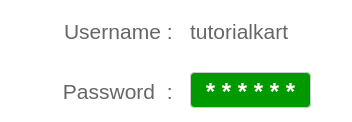
Bash read options used for username and password prompts
We shall use read command with following options,
read -p PROMPT <variable_name> displays PROMPT without a new line and echoes input read from user, character by character. The input is read to bash variable. This option p is suitable for reading Username.
read -sp PROMPT <variable_name> displays PROMPT without a new line and reads input from user in silent mode (does not echo back user input). The input is read to variable. These options s,p are suitable for reading Password.
| Option | Meaning in Bash read | Use in password input |
|---|---|---|
-p | Shows a prompt before reading input. | Useful for both username and password prompts. |
-s | Silent mode. Typed characters are not displayed. | Use this for passwords, tokens, and passphrases. |
-r | Reads backslashes as normal characters. | Recommended when passwords may contain backslashes. |
-n 1 | Reads one character at a time. | Useful only when you want to print masking characters such as *. |
Basic Bash syntax to read a password silently
The most common syntax is shown below. It prints the prompt, reads the password without displaying it, and then prints a blank line so the next terminal output starts on a new line.
read -rsp 'Password: ' password
echo
The -r option is added here because it prevents Bash from treating backslashes specially. This is safer for password input because users may choose passwords that contain characters such as \, $, !, spaces, or quotes.
Example 1 – Read Password
In this example, we will write a Bash Shell Script to read username and password from console.
Bash Shell Script
#!/bin/bash

echo 'Welcome to TutorialKart'

read -p 'Username: ' username
read -sp 'Password: ' password

echo
echo "Thank you $username for showing interest in learning with www.tutorialkart.com"

## this echo is for demo purpose only, never echo password
echo "Your password is $password"
Note : An empty echo is provided after reading Password because read -sp reads input in silent mode and does not echo back input including new line. However pressing enter key after password makes the input be loaded to password variable.
The last line in the script prints the password only to demonstrate that the value was read into the variable. Do not print real passwords in production scripts. Also avoid passing passwords as command-line arguments, because process lists and shell history may expose them.
Output
$ ./bash-read-username-password Welcome to TutorialKart
Username: Arjun
Password:
Thank you Arjun for showing interest in learning with www.tutorialkart.com
Your password is abc@1234
Safer Bash password prompt using read -rsp
The following version is a better pattern for scripts that only need the password for the next command. It does not display the password after reading it, and it exits early if the user leaves the password empty.
#!/bin/bash

read -rp 'Username: ' username
read -rsp 'Password: ' password
echo

if [[ -z "$username" || -z "$password" ]]; then
    echo 'Username and password are required.'
    exit 1
fi

echo "Password was received for user: $username"

# Use the password here, then remove it from the shell variable.
unset password
Use unset password after the secret is no longer needed. This does not make the script a complete password manager, but it prevents the variable from being reused later by mistake.
Username: Arjun
Password:
Password was received for user: Arjun
Example 2 – Read Password with *
In this example, we will read password from user with asterisk echoed back in the console/terminal.
Bash Shell Script
#!/bin/bash

unset username
unset password

# read username
read -p 'Username : ' username


echo -n "Enter password : "
stty -echo

#read password
charcount=0
while IFS= read -p "$prompt" -r -s -n 1 ch
do
    # Enter - accept password
    if [[ $ch ==
Output
arjun@arjun-VPCEH26EN:~/workspace/bash/readinput$ ./bash-read-username-password-2
Username : Arjun
Enter password : ********
Thank you Arjun for showing interest in learning with www.tutorialkart.com
Your password is abc@1234
Complete Bash password masking script with asterisks
If you want the terminal to show one * for every typed character, read the password one character at a time. The following script handles Enter and Backspace, restores terminal echo, and avoids printing the password.
#!/bin/bash

read -rp 'Username: ' username

password=''
prompt='Password: '
printf '%s' "$prompt"

while IFS= read -r -s -n 1 char; do
    # Enter key ends password input.
    if [[ $char == $'\0' || $char == $'\n' ]]; then
        break
    fi

    # Backspace or Delete removes the last character.
    if [[ $char == $'\177' || $char == $'\b' ]]; then
        if [[ -n "$password" ]]; then
            password=${password%?}
            printf '\b \b'
        fi
        continue
    fi

    password+="$char"
    printf '*'
done

echo

echo "Password was received for user: $username"
unset password
A masked prompt is useful when the user needs visual feedback that typing is being accepted. For simpler scripts, read -rsp is usually enough and is easier to maintain.
Username: Arjun
Password: ********
Password was received for user: Arjun
Reading password twice and comparing both values in Bash
For scripts that create a new password, ask the user to type it twice. This reduces mistakes caused by silent input because the user cannot see what was typed.
#!/bin/bash

read -rsp 'New password: ' password1
echo
read -rsp 'Confirm password: ' password2
echo

if [[ -z "$password1" ]]; then
    echo 'Password cannot be empty.'
    exit 1
fi

if [[ "$password1" != "$password2" ]]; then
    echo 'Passwords do not match.'
    exit 1
fi

echo 'Password confirmed.'

unset password1
unset password2
New password:
Confirm password:
Password confirmed.Common mistakes when using Bash read for passwords
- Printing the password after reading it: Do this only in learning examples. In real scripts, never use
echo "$password". - Forgetting the newline after silent input: Add
echoafterread -s, otherwise the next output may appear on the same line as the password prompt. - Skipping
-r: Without-r, Bash may treat backslashes specially. Useread -runless you intentionally need backslash processing. - Passing passwords as arguments: Avoid commands such as
some-command --password "$password"when the tool supports safer input methods such as stdin, prompt, or environment-specific secret handling. - Assuming masking is stronger security: Showing
*characters is only user feedback. It does not make the stored shell variable more secure.
Bash password input QA checklist
- The password prompt uses
read -sor an equivalent terminal-echo disabling method. - The script prints a newline after the password is entered.
- The password is not printed, logged, or included in demo output meant for production use.
- The script handles empty input when a password is required.
- Any custom masking logic handles Backspace and restores normal terminal behavior.
- The password variable is cleared with
unsetafter it is no longer needed.
Recommended Reading : Bash Read User Input
FAQs on Bash read password without echoing
How do I hide password input in a Bash script?
Use read -s with a prompt. A common form is read -rsp 'Password: ' password, followed by echo to move the terminal output to the next line.
Why is an extra echo needed after read -sp?
Silent input does not echo the Enter key as a visible newline. The extra echo prints a line break after the password is entered, so the next output starts cleanly on a new line.
Can Bash show asterisks while the password is typed?
Yes. Bash can read one character at a time with read -s -n 1 and print * for each character. This is more code than silent input and should also handle Backspace.
Is read -s enough to secure a password?
No. read -s only prevents the password from being displayed while typing. You should also avoid printing it, logging it, storing it longer than needed, or passing it in ways that other users or processes can inspect.
Should I use read -r when reading passwords in Bash?
Yes, in most cases. read -r prevents backslashes from being interpreted specially, which is useful because passwords may contain backslash characters.
Summary: reading passwords safely in Bash scripts
In this Bash Tutorial – Bash Read Password, we have learnt to read password without echoing back the password or masking it with some other characters. For most scripts, read -rsp is the simplest choice. Use a custom character-by-character loop only when you need visible masking with asterisks, and avoid exposing the password after reading it.