 TutorialKart.com
How to Configure an RFC Destination in SAP GRC
An RFC destination enables the SAP GRC system to communicate with a connected SAP backend system. The destination stores the technical connection details required for remote function calls between SAP GRC and the target ABAP system.
This tutorial explains how to create an ABAP RFC destination with transaction SM59, maintain the target-system settings, test the connection, and verify remote logon access.
SAP GRC RFC Destination Prerequisites
- The target SAP system must be reachable from the SAP GRC application server.
- You must know the target host name or IP address, system number, client, and logon language.
- A suitable communication user should exist in the target system.
- The communication user must have only the authorizations required for the intended SAP GRC integration.
- Required network, firewall, SAProuter, and gateway rules must permit the connection.
- You must have authorization to create and maintain destinations in transaction SM59.
Use a dedicated technical user instead of a personal dialog user for production integrations. Follow your organization’s security policy when storing credentials or configuring trusted RFC connections.
Post-Installation Configuration Areas in SAP GRC
RFC destination configuration is commonly completed with other post-installation activities, depending on the SAP GRC component and implementation scope.
- Configure RFC destinations and SAP GRC connectors.
- Activate the required applications in the client.
- Activate the required services.
- Perform the applicable workflow configuration.
- Define business processes and subprocesses where required.
Open the SAP GRC Connector Configuration
Transaction code: SM59
SAP IMG path: SPRO > SAP Reference IMG > Governance, Risk and Compliance > Common Component Settings > Integration Framework > Create Connectors.
Step 1: Execute transaction code SM59, or open the connector configuration from the SAP Reference IMG path.
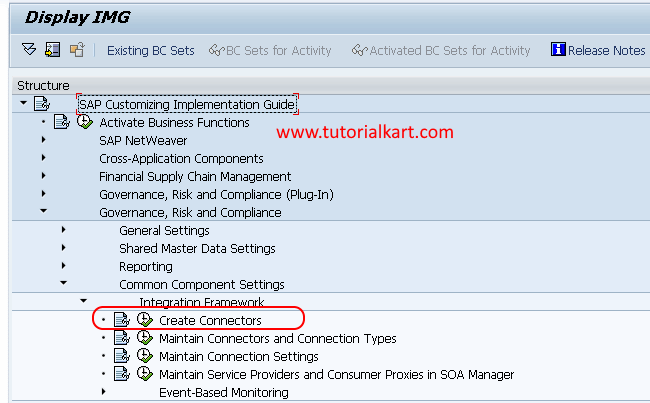
Create an ABAP RFC Destination in Transaction SM59
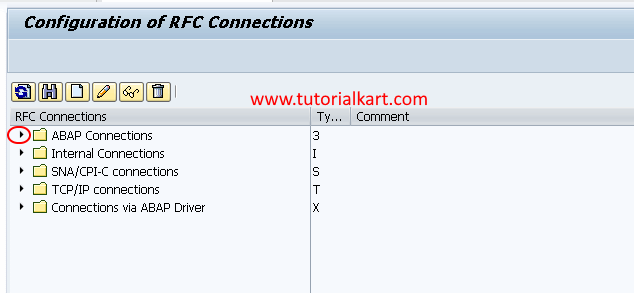
Step 2: On the Configuration of RFC Connections screen, expand ABAP Connections. ABAP destinations use connection type 3.
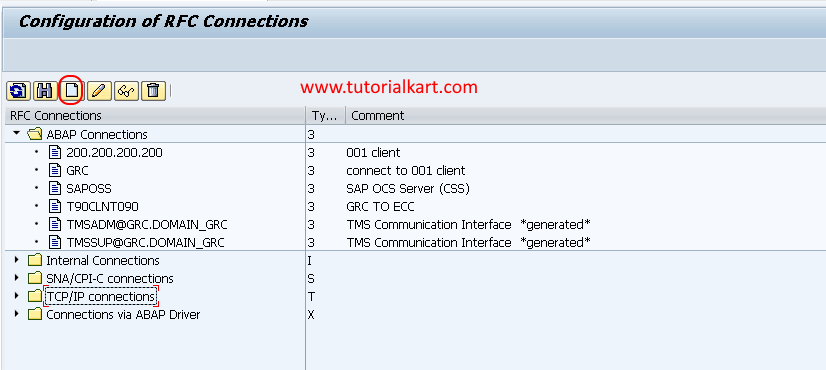
Step 3: Review the existing entries under ABAP Connections to avoid creating a duplicate. Select Create to define a new RFC destination.
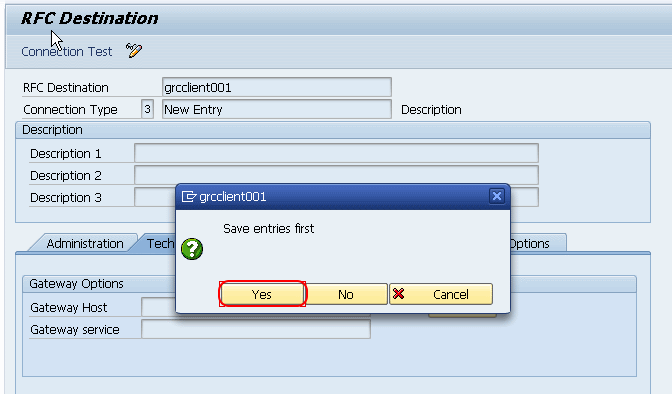
Step 4: Enter the basic RFC destination details.
- RFC Destination: Enter a unique logical name for the backend system. Use the naming convention approved for your SAP landscape.
- Connection Type: Enter or select 3 – Connection to ABAP System.
- Description: Enter a clear description identifying the target system and purpose of the connection.
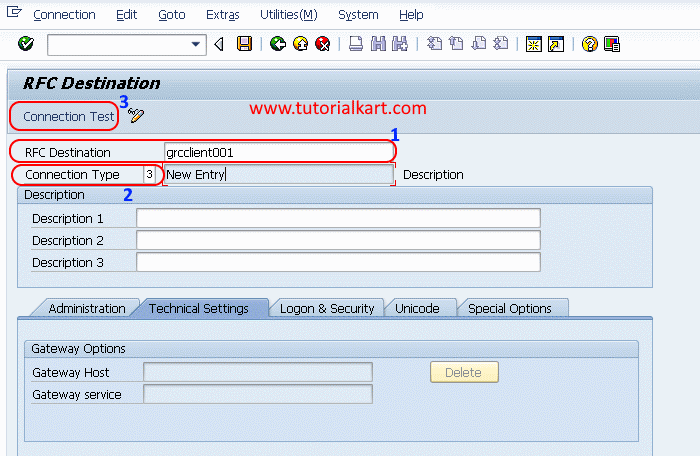
Choose Yes when prompted to save the destination entry.
Maintain the SAP GRC RFC Technical Settings
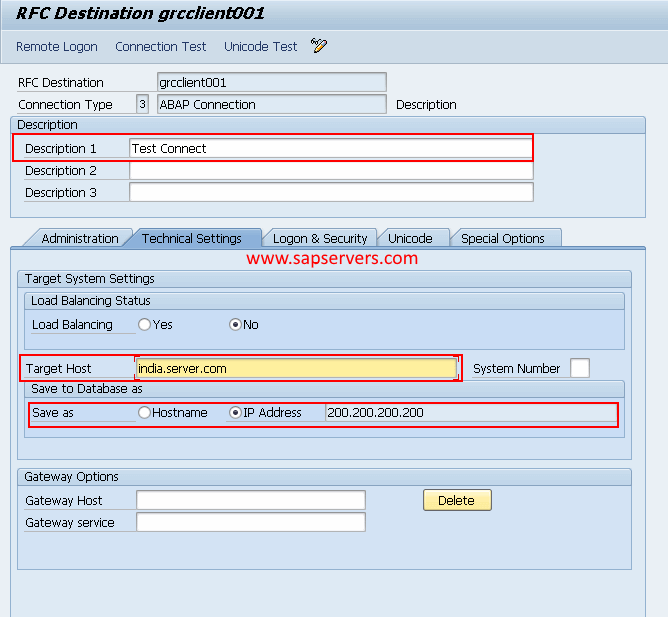
Step 5: On the Technical Settings tab, maintain the connection details for the target ABAP system. The available fields can vary depending on whether you use a direct application-server connection or load balancing.
- Description 1: Enter a meaningful description of the RFC connection.
- Connection Type: Confirm that the destination uses type 3.
- Target Host: Enter the application server host name. A resolvable host name is generally easier to maintain than a fixed IP address when infrastructure changes.
- System Number: Enter the two-digit SAP system number of the target application server.
- Load Balancing: Select this option only when the connection must use a message server and logon group instead of a specific application server.
- Gateway Options: Maintain gateway details only when required by the system landscape or SAProuter configuration.
Configure Logon and Security for the RFC Connection
Open the Logon & Security tab and maintain the values required by your SAP landscape.
- Client: Enter the client in the connected backend system.
- User: Enter the dedicated communication user created for the SAP GRC integration.
- Password: Maintain the password according to the applicable security policy.
- Language: Enter the required logon language, such as EN.
- Current User: Do not select this option unless the integration design specifically requires the current user’s credentials.
- Trusted System: Enable trusted RFC only when the source and target systems have been intentionally configured for a trusted relationship.
- SNC: Configure Secure Network Communications when it is required by your organization’s SAP security architecture.
A successful network connection does not prove that the configured user has sufficient authorization. Connection, logon, and authorization checks should therefore be tested separately.
Test the SAP GRC RFC Destination
Step 6: Save the destination and use the available test functions in SM59.
- Connection Test: Confirms that the SAP GRC server can reach the target SAP gateway and establish an RFC connection.
- Authorization Test: Checks whether the configured RFC user has authorization to log on and execute the required RFC-related checks.
- Remote Logon: Attempts to open the target system using the configured destination. This option may be restricted for non-dialog communication users.
- Unicode Test: Use this test when it is available and relevant to the connected systems.
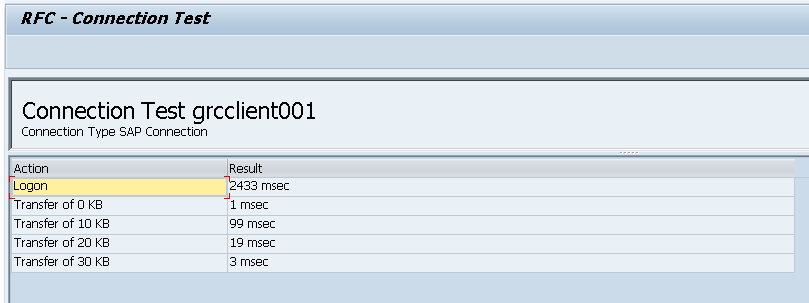
If remote logon is permitted for the configured user, select Remote Logon to verify access to the target SAP system. For production interfaces, a communication user may intentionally be configured without dialog access, so a failed remote logon does not always mean the RFC destination is unusable.
Register the RFC Destination as an SAP GRC Connector
Creating the SM59 destination establishes the technical RFC definition, but SAP GRC may also require a connector entry in the relevant Integration Framework configuration. The exact connector settings depend on the installed SAP GRC product, support package, and integration scenario.
When creating the connector, use the same RFC destination name and assign the connector to the correct application type or connector group. Complete any required synchronization, repository-object, authorization, or workflow-related configuration for the selected SAP GRC component.
Common SAP GRC RFC Connection Errors
- Partner not reached: Check the target host, system number, SAP gateway service, DNS resolution, firewall rules, and SAProuter string.
- Name or service not known: Verify the host name and confirm that it resolves from the SAP GRC application server.
- Logon failure: Check the client, user name, password, user validity period, lock status, and permitted logon type.
- Authorization failure: Review the authorization assigned to the communication user and the relevant security audit or system log.
- Timeout during connection test: Confirm network routing, firewall access, gateway availability, and whether the correct application server is being used.
- Remote logon unavailable: The user may be configured as a communication or system user without dialog access. Use the appropriate connection and authorization tests instead.
- Connector exists but GRC integration fails: Verify that the SM59 destination name matches the connector configuration and that the required SAP GRC plug-in components and synchronization jobs are available.
SAP GRC RFC Destination Security Practices
- Use a dedicated technical user for each integration purpose where practical.
- Assign the minimum authorizations required for SAP GRC operations.
- Avoid broad profiles such as SAP_ALL for routine connector operation.
- Restrict dialog logon when it is not required.
- Protect stored credentials and rotate passwords according to policy.
- Use trusted RFC only after validating the trust relationship and authorization model.
- Use SNC or other approved secure-communication controls when required.
- Review RFC destinations periodically and remove obsolete connections.
SAP GRC RFC Destination FAQs
Which RFC connection type is used for an SAP ABAP backend system?
Use connection type 3 – Connection to ABAP System when SAP GRC connects to an SAP ABAP backend system.
Is an SM59 destination the same as an SAP GRC connector?
No. The SM59 destination contains the technical RFC connection details. The SAP GRC connector configuration references that destination and defines how the connected system is used within the applicable SAP GRC integration framework.
Why does the connection test pass while the authorization test fails?
The connection test verifies network and gateway communication. The authorization test also checks whether the configured user can log on and perform the required RFC operations. Review the user credentials, user type, client, and assigned authorizations.
Should the RFC destination use a host name or an IP address?
Use the value required by your infrastructure standard. A correctly managed host name is usually easier to maintain when server IP addresses change, but it depends on reliable DNS resolution from the SAP GRC application server.
Can a communication user be used for remote logon testing?
A communication user is generally intended for non-dialog RFC communication and may not allow interactive remote logon. Use the connection and authorization tests to validate the destination, and follow the security design approved for the integration.
SAP GRC RFC Destination Editorial QA Checklist
- Confirm that the RFC destination name follows the current SAP landscape naming convention.
- Verify that connection type 3 is appropriate for the target ABAP system.
- Check that the target host, system number, client, and logon language match the intended backend system.
- Confirm that the communication user type and authorizations follow the current security design.
- Verify that the connection test and authorization test have been completed successfully.
- Confirm that the SM59 destination name matches the SAP GRC connector configuration.
- Check whether load balancing, SAProuter, trusted RFC, or SNC settings are required in the specific landscape.
- Remove screenshots or instructions that expose real production host names, users, IP addresses, or passwords before publication.
The RFC destination is ready for SAP GRC integration after the technical connection, authentication, authorization, and connector configuration have all been validated.