 TutorialKart.com
How to activate ICF services in SAP GRC using SICF
Internet Communication Framework (ICF) services enable HTTP and HTTPS access to browser-based SAP applications. In an SAP GRC environment, the required services may support SAP NetWeaver Business Client (NWBC), Web Dynpro ABAP applications, SAP Fiori components, and other web-based GRC functions.
Use transaction SICF to locate, maintain, activate, deactivate, and test ICF service nodes. Activate only the services required by the installed SAP GRC components and the relevant SAP implementation documentation.
SAP GRC post-installation configuration sequence
ICF service activation is commonly performed as part of the following SAP GRC post-installation activities:
- How to configure & test RFC connections
- Activate the application in the client
- Activate the required ICF services in transaction SICF
- Perform automatic workflow configurations
- Define the business processes and sub-business processes
Checks before activating SAP GRC ICF services
- Confirm that you are working in the correct SAP system and client.
- Identify the exact service path required by the SAP GRC application or Web Dynpro component.
- Verify that the HTTP or HTTPS communication ports are configured and available.
- Ensure that your user has authorization to maintain and activate services in transaction SICF.
- Follow the organization’s change-management and security procedures before activating services in production.
Open the SICF transaction in SAP
Step 1: Enter transaction code SICF in the SAP command field and press Enter.
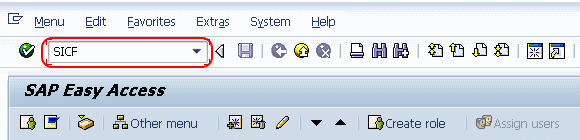
The Maintain Services screen displays the available ICF service hierarchy and search options.
Display the ICF service hierarchy
Step 2: On the Maintain Services screen, enter or confirm the following selection:
- Hierarchy Type: Choose Service or Services, depending on the SAP release.
- Select Execute to display the service hierarchy.
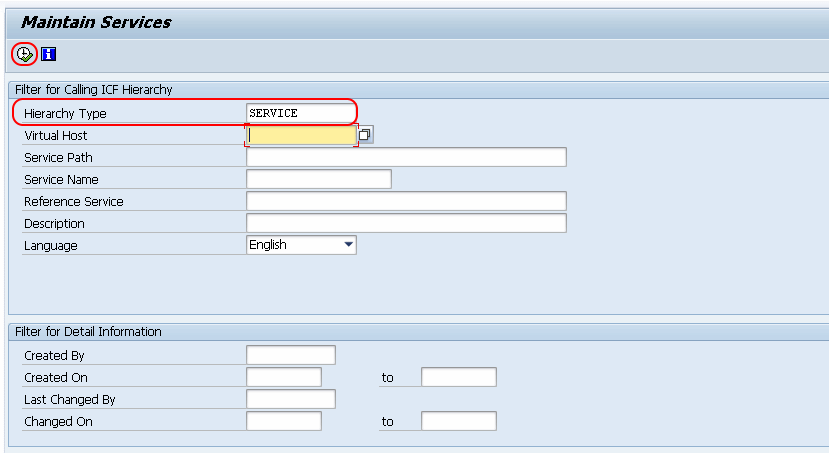
Locate the required service under the default host
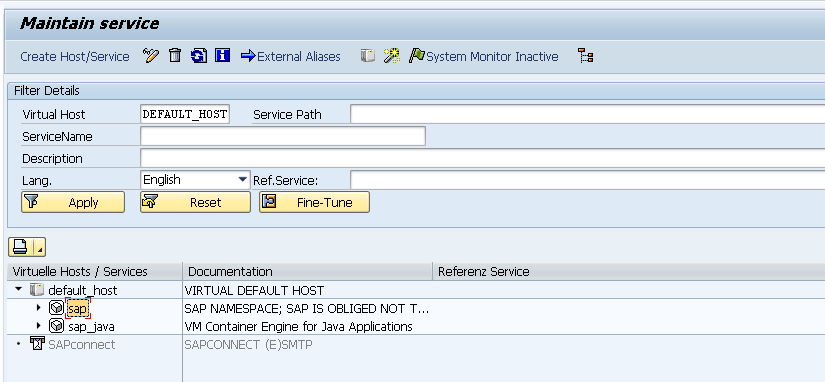
Step 3: Expand the required virtual host and navigate to the service path specified for the SAP GRC application.
- Virtual Hosts: Select the required host from the virtual-host hierarchy.
- Default Host: Expand default_host and select the relevant node, such as sap.
- Continue expanding the hierarchy until the required ICF service is visible.
Select the service node carefully. Activating a parent node may also make its inactive child services available for activation, so verify the selected hierarchy level before continuing.
Activate the selected ICF service in SICF
Step 4: Select the required service and choose Service/Host → Activate. You can also right-click the service node and select Activate Service when that option is available.
If SAP displays a confirmation dialog for activating the selected service or its subtree, review the scope before confirming. Activate the subtree only when all included child services are required.
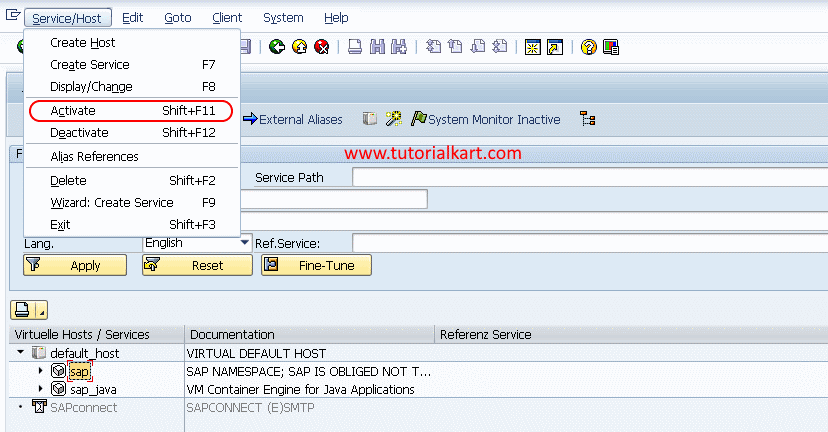
Check whether the ICF service is active
After activation, return to the service hierarchy and inspect the selected node. An active service is displayed without the inactive-service indication used by the SAP GUI. You can also right-click the service:
- If Deactivate Service is available, the selected service is currently active.
- If Activate Service is available, the selected service is currently inactive.
You can narrow the SICF results by entering the service name in the selection screen instead of manually browsing the complete hierarchy. This is useful when the exact technical service name is known.
Test an activated ICF service
To test the activated service, right-click its node and choose Test Service. SAP opens the corresponding URL in a browser or displays the generated address.
A login page, application page, or expected HTTP response indicates that the web endpoint is reachable. The exact result depends on the service type and its authentication configuration.
If the browser cannot open the service, verify the application server host, HTTP or HTTPS port, protocol, network access, Web Dispatcher or reverse-proxy configuration, and the relevant SAP authorizations.
Common SICF activation issues in SAP GRC
The required service is not visible
Confirm the technical service name and its complete hierarchy path. Check that the required SAP GRC, Web Dynpro, UI, or Gateway software component is installed in the current system. A service cannot be activated if its underlying component is unavailable.
The service is active but the browser returns an error
ICF activation only makes the HTTP endpoint available. The application may still require role assignments, backend connections, system aliases, workflow configuration, Web Dynpro settings, or other application-specific setup.
The Test Service option opens an incorrect URL
Review the SAP application server host name, fully qualified domain name, HTTP and HTTPS port settings, and any Web Dispatcher configuration. In environments that use a proxy or load balancer, the internally generated URL may differ from the externally accessible URL.
The user cannot activate a service
Request the required administration authorization through the organization’s access-control process. Avoid using broad emergency permissions for routine service maintenance.
Security practices for SAP ICF services
- Activate only the service nodes required by the implemented SAP GRC functions.
- Prefer HTTPS for browser-based access and protect the connection with valid certificates.
- Do not activate an entire service subtree unless every included service is required and reviewed.
- Deactivate obsolete services after confirming that no active application depends on them.
- Restrict access through appropriate SAP roles, network controls, Web Dispatcher rules, and authentication settings.
- Retest affected GRC applications after service activation, deactivation, upgrades, or support-package changes.
SAP SICF service activation checklist
- The correct SAP system and client were used.
- The technical ICF service name and hierarchy path were verified.
- The selected node is the required service rather than an unnecessary parent subtree.
- The service now shows as active in transaction SICF.
- The service URL was tested with the expected HTTP or HTTPS protocol.
- The related SAP GRC, NWBC, Web Dynpro, or Fiori function was tested end to end.
- Authorization and security reviews were completed for production use.
Frequently asked questions about SAP SICF services
How do I activate an ICF service in SAP?
Run transaction SICF, display the service hierarchy, expand the required virtual host and service path, select the service, and choose Service/Host → Activate. Confirm the activation scope when prompted.
What is the SICF transaction used for in SAP?
SICF is used to maintain Internet Communication Framework services. Administrators can search for service nodes, activate or deactivate them, configure service properties, assign handlers, and test HTTP or HTTPS endpoints.
How can I check whether a service is active in SICF?
Locate and select the service in the SICF hierarchy. If the context menu offers Deactivate Service, the service is active. If it offers Activate Service, the service is inactive.
Can I test an ICF service directly from SICF?
Yes. Right-click the active service and choose Test Service. SAP opens or generates the corresponding URL. The user may still need valid authentication and application authorizations.
Why should unused ICF services remain inactive?
Each active service exposes an HTTP or HTTPS endpoint. Keeping unnecessary services inactive reduces the available attack surface and makes the active web-service configuration easier to review and maintain.