 TutorialKart.com
Apache Spark can run on a single computer for local learning, but a real Apache Spark cluster uses one master process and one or more worker processes. In this tutorial, we shall set up an Apache Spark standalone cluster with a master node and multiple worker nodes. You can use Linux, macOS, or Windows machines, provided that the Spark installation, Java runtime, and network access are configured consistently on all nodes.
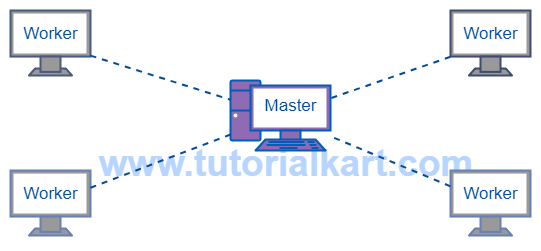
Apache Spark Cluster Setup in Standalone Mode
This guide uses Spark standalone mode, which is Spark’s built-in cluster manager. In this setup, the Spark master accepts applications and allocates resources from the workers. Each submitted Spark application then starts driver and executor processes according to the application configuration.
To set up an Apache Spark cluster, we need to complete two main tasks:
- Set up the Spark master node.
- Set up one or more Spark worker nodes.
Apache Spark Cluster Setup Requirements Before Starting
Before editing Spark configuration files, check the following points on every machine that will join the cluster:
- Install the same or compatible Apache Spark version on the master and worker nodes.
- Install a Java version supported by your Spark release.
- Set
SPARK_HOMEto the Spark installation directory, or know the full Spark installation path. - Make sure the worker machines can reach the master machine by IP address or hostname.
- Allow Spark master and web UI ports through the firewall. The common master URL port is
7077, and the master web UI commonly starts on8080or the next available port. - Avoid using
127.0.0.1orlocalhostas the master host when workers run on other machines. Use a reachable LAN IP address or DNS name.
In the examples below, the master node IP address is 192.168.0.102. Replace it with the actual IP address or hostname of your Spark master machine.
Set Up the Spark Master Node
Following is a step by step guide to setup Master node for an Apache Spark cluster. Execute the following steps on the node, which you want to be a Master.
1. Navigate to Spark Configuration Directory.
Go to SPARK_HOME/conf/ directory.
SPARK_HOME is the complete path to root directory of Apache Spark in your computer.
If you are working from a terminal, the commands usually look like the following. This command block is added only to show the navigation and template-copy step; keep using the actual path used by your Spark installation.
cd "$SPARK_HOME/conf"
cp spark-env.sh.template spark-env.sh
2. Edit the file spark-env.sh – Set SPARK_MASTER_HOST.
Note : If spark-env.sh is not present, spark-env.sh.template would be present. Make a copy of spark-env.sh.template with name spark-env.sh and add/edit the field SPARK_MASTER_HOST. Part of the file with SPARK_MASTER_HOST addition is shown below:
spark-env.sh
# Options for the daemons used in the standalone deploy mode
# - SPARK_MASTER_HOST, to bind the master to a different IP address or hostname
SPARK_MASTER_HOST='192.168.0.102'
# - SPARK_MASTER_PORT / SPARK_MASTER_WEBUI_PORT, to use non-default ports for the master
Replace the ip with the ip address assigned to your computer (which you would like to make as a master).
For newer Spark releases and shell environments, you may also see the same values written with export. The important point is that SPARK_MASTER_HOST should be a network-reachable address, not a loopback address.
# conf/spark-env.sh
export SPARK_MASTER_HOST=192.168.0.102
export SPARK_MASTER_PORT=7077
export SPARK_MASTER_WEBUI_PORT=8080
3. Start spark as master.
Goto SPARK_HOME/sbin and execute the following command.
$ ./start-master.sh~$ ./start-master.sh
starting org.apache.spark.deploy.master.Master, logging to /usr/lib/spark/logs/spark-arjun-org.apache.spark.deploy.master.Master-1-arjun-VPCEH26EN.out4. Verify the log file.
You would see the following in the log file, specifying ip address of the master node, the port on which spark has been started, port number on which WEB UI has been started, etc.
Spark Command: /usr/lib/jvm/default-java/jre/bin/java -cp /usr/lib/spark/conf/:/usr/lib/spark/jars/* -Xmx1g org.apache.spark.deploy.master.Master --host 192.168.0.102 --port 7077 --webui-port 8080
========================================
Using Sparks default log4j profile: org/apache/spark/log4j-defaults.properties
17/08/09 14:09:16 INFO Master: Started daemon with process name: 7715@arjun-VPCEH26EN
17/08/09 14:09:16 INFO SignalUtils: Registered signal handler for TERM
17/08/09 14:09:16 INFO SignalUtils: Registered signal handler for HUP
17/08/09 14:09:16 INFO SignalUtils: Registered signal handler for INT
17/08/09 14:09:16 WARN Utils: Your hostname, arjun-VPCEH26EN resolves to a loopback address: 127.0.1.1; using 192.168.0.102 instead (on interface wlp7s0)
17/08/09 14:09:16 WARN Utils: Set SPARK_LOCAL_IP if you need to bind to another address
17/08/09 14:09:17 WARN NativeCodeLoader: Unable to load native-hadoop library for your platform... using builtin-java classes where applicable
17/08/09 14:09:17 INFO SecurityManager: Changing view acls to: arjun
17/08/09 14:09:17 INFO SecurityManager: Changing modify acls to: arjun
17/08/09 14:09:17 INFO SecurityManager: Changing view acls groups to:
17/08/09 14:09:17 INFO SecurityManager: Changing modify acls groups to:
17/08/09 14:09:17 INFO SecurityManager: SecurityManager: authentication disabled; ui acls disabled; users  with view permissions: Set(arjun); groups with view permissions: Set(); users  with modify permissions: Set(arjun); groups with modify permissions: Set()
17/08/09 14:09:17 INFO Utils: Successfully started service 'sparkMaster' on port 7077.
17/08/09 14:09:17 INFO Master: Starting Spark master at spark://192.168.0.102:7077
17/08/09 14:09:17 INFO Master: Running Spark version 2.2.0
17/08/09 14:09:18 WARN Utils: Service 'MasterUI' could not bind on port 8080. Attempting port 8081.
17/08/09 14:09:18 INFO Utils: Successfully started service 'MasterUI' on port 8081.
17/08/09 14:09:18 INFO MasterWebUI: Bound MasterWebUI to 0.0.0.0, and started at http://192.168.0.102:8081
17/08/09 14:09:18 INFO Utils: Successfully started service on port 6066.
17/08/09 14:09:18 INFO StandaloneRestServer: Started REST server for submitting applications on port 6066
17/08/09 14:09:18 INFO Master: I have been elected leader! New state: ALIVE
Setting up Master Node is complete. The value after Starting Spark master at, such as spark://192.168.0.102:7077, is the Spark master URL that workers and applications will use.
Set Up a Spark Worker Node for the Cluster
Following is a step by step guide to setup Slave(Worker) node for an Apache Spark cluster. Execute the following steps on all of the nodes, which you want to be as worker nodes.
1. Navigate to Spark Configuration Directory.
Go to SPARK_HOME/conf/ directory.
SPARK_HOME is the complete path to root directory of Apache Spark in your computer.
2. Edit the file spark-env.sh – Set SPARK_MASTER_HOST.
Note : If spark-env.sh is not present, spark-env.sh.template would be present. Make a copy of spark-env.sh.template with name spark-env.sh and add/edit the field SPARK_MASTER_HOST. Part of the file with SPARK_MASTER_HOST addition is shown below:
spark-env.sh
# Options for the daemons used in the standalone deploy mode
# - SPARK_MASTER_HOST, to bind the master to a different IP address or hostname
SPARK_MASTER_HOST='192.168.0.102'
# - SPARK_MASTER_PORT / SPARK_MASTER_WEBUI_PORT, to use non-default ports for the master
Replace the ip with the ip address assigned to your master (that you used in setting up master node).
You may also set worker-specific resource limits in spark-env.sh. This is useful when a worker machine should not give all CPU cores or memory to Spark.
# Optional worker resource settings in conf/spark-env.sh
export SPARK_WORKER_CORES=2
export SPARK_WORKER_MEMORY=4g
export SPARK_WORKER_WEBUI_PORT=8081
3. Start spark as slave.
Goto SPARK_HOME/sbin and execute the following command.
$ ./start-slave.sh spark://<your.master.ip.address>:7077apples-MacBook-Pro:sbin John$ ./start-slave.sh spark://192.168.0.102:7077
starting org.apache.spark.deploy.worker.Worker, logging to /usr/local/Cellar/apache-spark/2.2.0/libexec/logs/spark-John-org.apache.spark.deploy.worker.Worker-1-apples-MacBook-Pro.local.outSome Spark installations use the newer script name start-worker.sh instead of start-slave.sh. If start-slave.sh is not available in your sbin directory, use the following command with the same master URL.
cd "$SPARK_HOME/sbin"
./start-worker.sh spark://192.168.0.102:7077
4. Verify the log.
You would find in the log that this Worker node has been successfully registered with master running at spark://192.168.0.102:7077 on the network.
Spark Command: /Library/Java/JavaVirtualMachines/jdk1.8.0_144.jdk/Contents/Home/jre/bin/java -cp /usr/local/Cellar/apache-spark/2.2.0/libexec/conf/:/usr/local/Cellar/apache-spark/2.2.0/libexec/jars/* -Xmx1g org.apache.spark.deploy.worker.Worker --webui-port 8081 spark://192.168.0.102:7077
========================================
Using Sparks default log4j profile: org/apache/spark/log4j-defaults.properties
17/08/09 14:12:55 INFO Worker: Started daemon with process name: 7345@apples-MacBook-Pro.local
17/08/09 14:12:55 INFO SignalUtils: Registered signal handler for TERM
17/08/09 14:12:55 INFO SignalUtils: Registered signal handler for HUP
17/08/09 14:12:55 INFO SignalUtils: Registered signal handler for INT
17/08/09 14:12:56 WARN NativeCodeLoader: Unable to load native-hadoop library for your platform... using builtin-java classes where applicable
17/08/09 14:12:56 INFO SecurityManager: Changing view acls to: John
17/08/09 14:12:56 INFO SecurityManager: Changing modify acls to: John
17/08/09 14:12:56 INFO SecurityManager: Changing view acls groups to:
17/08/09 14:12:56 INFO SecurityManager: Changing modify acls groups to:
17/08/09 14:12:56 INFO SecurityManager: SecurityManager: authentication disabled; ui acls disabled; users  with view permissions: Set(John); groups with view permissions: Set(); users  with modify permissions: Set(John); groups with modify permissions: Set()
17/08/09 14:12:56 INFO Utils: Successfully started service 'sparkWorker' on port 58156.
17/08/09 14:12:57 INFO Worker: Starting Spark worker 192.168.0.100:58156 with 4 cores, 7.0 GB RAM
17/08/09 14:12:57 INFO Worker: Running Spark version 2.2.0
17/08/09 14:12:57 INFO Worker: Spark home: /usr/local/Cellar/apache-spark/2.2.0/libexec
17/08/09 14:12:57 INFO Utils: Successfully started service 'WorkerUI' on port 8081.
17/08/09 14:12:57 INFO WorkerWebUI: Bound WorkerWebUI to 0.0.0.0, and started at http://192.168.0.100:8081
17/08/09 14:12:57 INFO Worker: Connecting to master 192.168.0.102:7077...
17/08/09 14:12:57 INFO TransportClientFactory: Successfully created connection to /192.168.0.102:7077 after 57 ms (0 ms spent in bootstraps)
17/08/09 14:12:57 INFO Worker: Successfully registered with master spark://192.168.0.102:7077
The setup of Worker node is successful.
Add Multiple Spark Worker Nodes to the Same Master
To add more worker nodes to the Apache Spark cluster, you may just repeat the process of worker setup on other nodes as well.
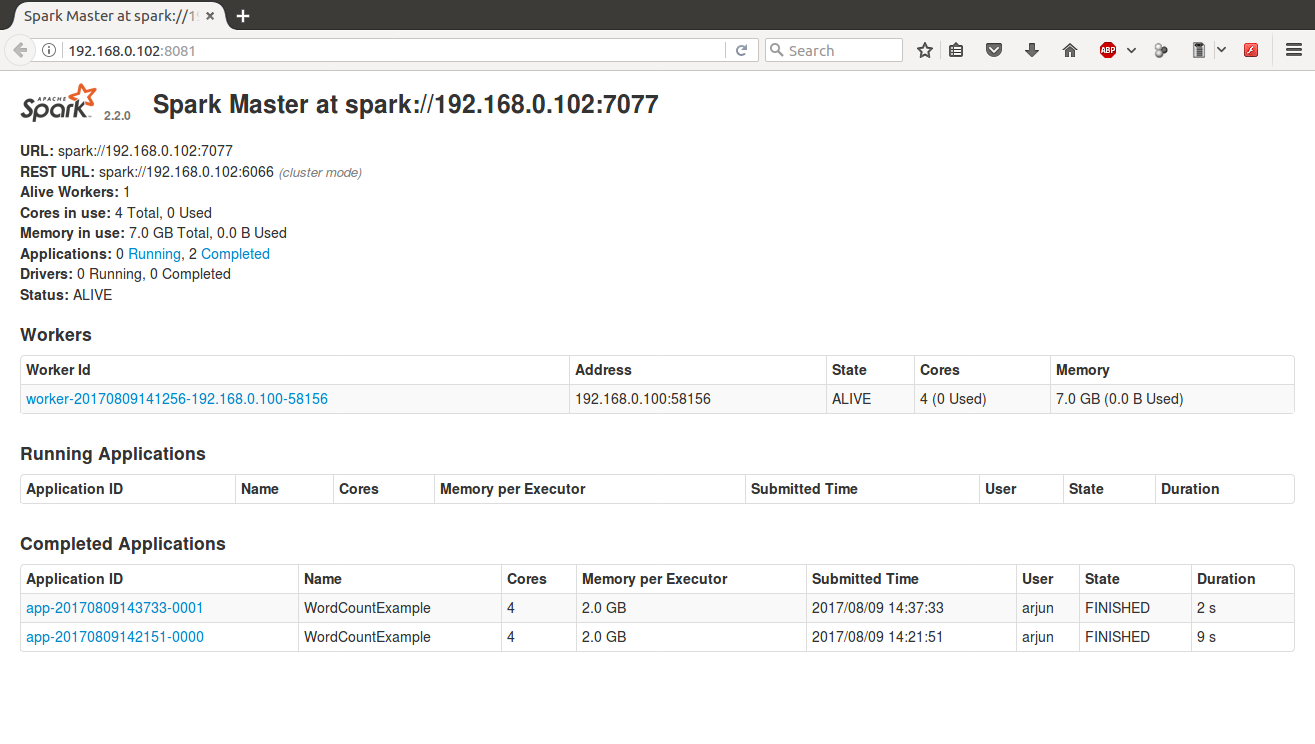
Once you have added some slaves to the cluster, you can view the workers connected to the master via Master WEB UI.
Hit the url http://<your.master.ip.address>:<web-ui-port-number>/ (example is http://192.168.0.102:8081/) in browser. Following would be the output with slaves connected listed under Workers.
If you prefer to start workers from the master machine, create a workers file and use Spark’s cluster start scripts. Newer Spark releases use conf/workers; older releases may use conf/slaves. This approach requires passwordless SSH from the master to the worker machines.
# conf/workers
192.168.0.100
192.168.0.101cd "$SPARK_HOME"
./sbin/start-workers.shRun a Test Spark Application on the Cluster
After the master and workers are visible in the Spark master web UI, submit a small Spark job to confirm that the cluster can actually run an application. The following example submits the built-in SparkPi example to the standalone master.
cd "$SPARK_HOME"
./bin/spark-submit \
  --class org.apache.spark.examples.SparkPi \
  --master spark://192.168.0.102:7077 \
  ./examples/jars/spark-examples_*.jar 10
The terminal output should include a value similar to the following. The exact value can vary slightly because the example estimates pi.
Pi is roughly 3.14For a basic check, the default client deploy mode is sufficient. For packaged applications, you can also review Spark standalone cluster deploy mode options and use --deploy-mode cluster when it is supported by your Spark version and application type.
Apache Spark Cluster Configuration Files and Ports
The two most common files used during standalone cluster setup are spark-env.sh and spark-defaults.conf. Use spark-env.sh for daemon settings such as master host, ports, and worker resources. Use spark-defaults.conf for application defaults such as executor memory, executor cores, serializer, and event logging.
# conf/spark-defaults.conf
spark.master                     spark://192.168.0.102:7077
spark.executor.memory            2g
spark.executor.cores             2
spark.eventLog.enabled true| Spark cluster item | Common value | Purpose |
|---|---|---|
| Master URL | spark://192.168.0.102:7077 | Used by workers and spark-submit to connect to the master. |
| Master web UI | http://192.168.0.102:8080/ or next free port | Shows workers, applications, cores, and memory available in the cluster. |
| Worker web UI | 8081 or configured worker UI port | Shows worker status, running executors, cores, and memory. |
| Standalone REST server | 6066 | Used for REST-based application submission when enabled by the standalone master. |
Troubleshooting Apache Spark Master and Worker Registration
If a worker does not appear in the master web UI, the issue is usually related to networking, host binding, version mismatch, or a blocked port. Use the checks below before changing application code.
| Cluster setup problem | Likely cause | What to check |
|---|---|---|
Worker keeps connecting to localhost | Master host was bound to a loopback address. | Set SPARK_MASTER_HOST to the master machine’s LAN IP or DNS name. |
| Master UI opens but no workers are listed | Worker cannot reach spark://host:7077. | Check firewall rules, IP address, network route, and the master URL used in the worker command. |
Master web UI moved from 8080 to 8081 | Port 8080 was already in use. | Use the UI port shown in the master log or set SPARK_MASTER_WEBUI_PORT. |
| Job submits but no tasks run | No free worker cores or memory are available. | Review worker memory, worker cores, and application executor settings. |
start-slave.sh is missing | The Spark release uses updated worker terminology. | Use start-worker.sh with the same spark://master:7077 URL. |
Apache Spark Standalone Cluster References
For production-like deployments, always compare the local setup with the official Spark documentation for your Spark release. The following references are useful when you need to confirm current script names, standalone deploy options, and available Spark configuration properties.
Apache Spark Cluster Setup FAQs
How to set up Spark configuration for a cluster?
For standalone mode, start with conf/spark-env.sh. Set SPARK_MASTER_HOST on the master to a reachable IP address or hostname. On workers, use the same master URL when starting the worker process. Use spark-defaults.conf for application-level defaults such as executor memory, executor cores, and the default master URL.
How to create an Apache Spark cluster with one master and multiple workers?
Install Spark and Java on all machines, start the master using start-master.sh, then start each worker with the master URL, for example spark://192.168.0.102:7077. After that, open the master web UI and confirm that every worker is listed with available cores and memory.
How to run Spark in cluster mode after the setup?
Use spark-submit with the standalone master URL. For a simple check, run a sample job in client deploy mode. For packaged applications, review whether your Spark version and application type support --deploy-mode cluster with standalone mode, then submit the job with the required class, JAR, and configuration options.
What are Apache Spark clusters?
An Apache Spark cluster is a group of machines that work together to run Spark applications. The cluster manager controls available resources, the master coordinates workers in standalone mode, and Spark executors run tasks on worker machines.
Why does the Spark master web UI show port 8081 instead of 8080?
If port 8080 is already occupied, Spark may bind the master web UI to the next available port. Check the master log for the actual web UI address and use that URL in the browser.
Apache Spark Cluster Setup QA Checklist
- The master node uses a reachable IP address or hostname in
SPARK_MASTER_HOST. - Each worker uses the exact master URL shown in the master log, including the
spark://scheme and7077port. - The Spark master web UI lists all expected workers with usable cores and memory.
- A small
spark-submittest job runs successfully before larger jobs are submitted. - Firewall rules allow the Spark master port and required web UI ports between the cluster machines.
- The article notes both
start-slave.shandstart-worker.shbehavior for older and newer Spark installations.
Apache Spark Cluster Setup Summary
In this Apache Spark Tutorial, we have successfully setup a master node and multiple worker nodes, thus an Apache Spark cluster. After the workers are registered, verify the setup from the master web UI and run a small spark-submit job before using the cluster for larger workloads. In our next tutorial we shall learn to configure spark ecosystem.