 TutorialKart.com
Connect to PostgreSQL from Python with psycopg2
Python applications can connect to a PostgreSQL database by using the psycopg2 adapter. A connection object created by psycopg2.connect() can then be used to create cursors, execute SQL statements, manage transactions, and read query results.
This tutorial shows how to install psycopg2, supply PostgreSQL connection parameters, verify the connection, close it safely, and troubleshoot common connection errors.
Install the psycopg2 PostgreSQL adapter
Install the binary distribution of psycopg2 with pip for a straightforward local setup:
python -m pip install psycopg2-binaryAfter installation, verify that Python can import the package:
python -c "import psycopg2; print(psycopg2.__version__)"For production environments, follow your deployment platform’s requirements when choosing between psycopg2 and psycopg2-binary.
PostgreSQL connection parameters required by psycopg2
Before running the Python program, confirm that PostgreSQL is running and that you have the following connection details:
- host: The hostname or IP address of the PostgreSQL server, such as
localhost. - port: The PostgreSQL server port. The default is usually
5432. - database: The name of the database to open.
- user: The PostgreSQL role used for authentication.
- password: The password associated with that role.
To connect to a PostgreSQL database from a Python application, follow these steps:
- Import the
psycopg2package. - Call
psycopg2.connect()with the host, database, user, password, and port when required. - Store the returned connection object.
- Use the connection to create cursors and execute SQL statements.
- Close cursors and the connection after the database work is complete.
Basic psycopg2 connection example
import psycopg2

conn = psycopg2.connect(host="localhost",database="mydb", user="postgres", password="postgres")

if conn is not None:
	print('Connection established to PostgreSQL.')
else:
	print('Connection not established to PostgreSQL.')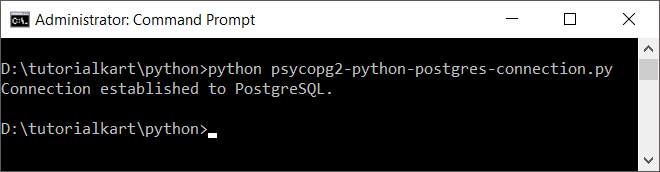
When the credentials and server settings are correct, psycopg2.connect() returns an open connection. If it cannot establish the connection, it raises an exception rather than returning None.
Connect with an explicit PostgreSQL port
Add the port parameter when PostgreSQL is listening on a non-default port or when you want the configuration to be explicit.
import psycopg2

connection = psycopg2.connect(
    host="localhost",
    port=5432,
    database="mydb",
    user="postgres",
    password="postgres"
)

print("Connected:", connection.closed == 0)
connection.close()
The closed attribute is 0 while the connection is open. After close() is called, the connection can no longer execute database operations.
Close a psycopg2 connection safely with try and finally
A database connection should be closed even when an operation fails. Initialize the connection variable before the try block so that the finally block can inspect it safely.
import psycopg2

try:
	conn = psycopg2.connect(host="localhost",database="mydb", user="postgres", password="postgres")

	if conn is not None:
		print('Connection established to PostgreSQL.')
	else:
		print('Connection not established to PostgreSQL.')

except (Exception, psycopg2.DatabaseError) as error:
	print(error)

finally:
	if conn is not None:
		conn.close()
		print('Finally, connection closed.')
In new code, declare conn = None before entering the try block. Otherwise, an exception raised before conn is assigned can cause a separate NameError in the finally block.
import psycopg2
from psycopg2 import Error

conn = None

try:
    conn = psycopg2.connect(
        host="localhost",
        port=5432,
        database="mydb",
        user="postgres",
        password="postgres"
    )
    print("Connection established to PostgreSQL.")
except Error as error:
    print("PostgreSQL connection error:", error)
finally:
    if conn is not None and conn.closed == 0:
        conn.close()
        print("PostgreSQL connection closed.")
Use a psycopg2 connection as a context manager
A connection context manager can commit a successful transaction or roll it back when an exception occurs. The connection should still be closed after leaving the transaction context.
import psycopg2

connection = psycopg2.connect(
    host="localhost",
    database="mydb",
    user="postgres",
    password="postgres"
)

try:
    with connection:
        with connection.cursor() as cursor:
            cursor.execute("SELECT current_database(), current_user;")
            database_name, user_name = cursor.fetchone()
            print(database_name, user_name)
finally:
    connection.close()
The cursor context closes the cursor automatically. The outer finally block closes the database connection itself.
Verify the PostgreSQL connection by running a query
Creating a connection proves that authentication succeeded. Running a small query also confirms that the connection can create a cursor and communicate with the selected database.
import psycopg2

conn = None

try:
    conn = psycopg2.connect(
        host="localhost",
        database="mydb",
        user="postgres",
        password="postgres"
    )

    with conn.cursor() as cursor:
        cursor.execute("SELECT version();")
        version = cursor.fetchone()[0]
        print(version)
finally:
    if conn is not None:
        conn.close()
Store PostgreSQL credentials outside the Python source file
Hard-coded credentials are convenient for a small local example, but application passwords should normally be supplied through environment variables, a secrets manager, or another protected configuration source.
export PGHOST="localhost"
export PGPORT="5432"
export PGDATABASE="mydb"
export PGUSER="postgres"
export PGPASSWORD="replace-with-your-password"import os
import psycopg2
connection = psycopg2.connect(
host=os.environ["PGHOST"],
port=os.environ.get("PGPORT", "5432"),
database=os.environ["PGDATABASE"],
user=os.environ["PGUSER"],
password=os.environ["PGPASSWORD"]
)
try:
print("Connected to PostgreSQL.")
finally:
connection.close()Do not commit password files, environment files, or connection strings containing credentials to a public source-code repository.
Connect to PostgreSQL with a psycopg2 DSN string
Instead of passing keyword arguments, psycopg2 can receive the connection settings as a data source name, or DSN.
import psycopg2

connection = psycopg2.connect(
    "host=localhost port=5432 dbname=mydb user=postgres password=postgres"
)

try:
    print("Connected to PostgreSQL with a DSN.")
finally:
    connection.close()
Keyword arguments are often easier to read, while a DSN can be useful when the complete connection configuration is already available as one string.
PostgreSQL connection errors in psycopg2
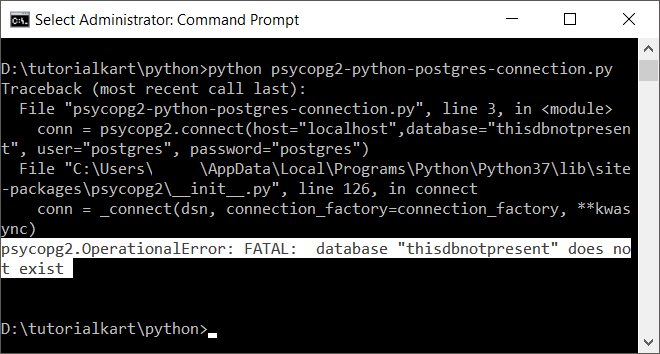
Database does not exist
If the database value is incorrect, PostgreSQL returns a fatal error stating that the requested database does not exist. Check the spelling and confirm that the database was created on the target server.
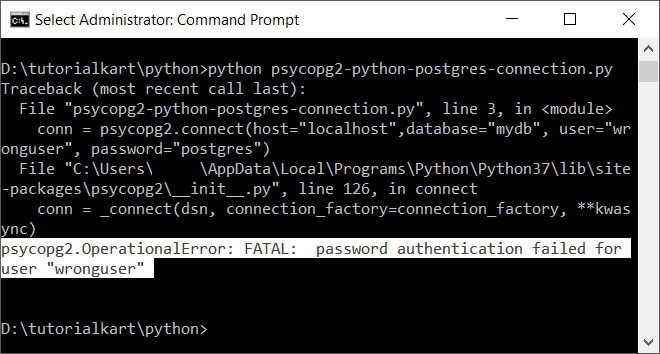
Password authentication failed for the PostgreSQL user
An incorrect username or password commonly produces a fatal error containing password authentication failed for user. Verify the role name and password, and confirm that the server’s authentication configuration permits the requested connection.
Connection refused on host or port
A connection-refused error usually means that PostgreSQL is not running, is not listening on the specified address or port, or is blocked by a firewall. Check the server service, hostname, port, network rules, and PostgreSQL listening configuration.
PostgreSQL server name cannot be resolved
A hostname resolution error indicates that the value supplied for host cannot be converted to an IP address. Correct the hostname, DNS configuration, container service name, or network configuration.
SSL is required by the PostgreSQL server
Some hosted PostgreSQL services require encrypted connections. Supply the SSL mode required by the provider, for example:
import psycopg2

connection = psycopg2.connect(
    host="database.example.com",
    port=5432,
    database="mydb",
    user="app_user",
    password="your-password",
    sslmode="require"
)

connection.close()
Use the certificate and SSL settings specified by the database provider rather than disabling certificate verification without reviewing the security implications.
Common questions about Python PostgreSQL connections
What is the default PostgreSQL port in psycopg2?
PostgreSQL commonly listens on port 5432. You can omit the port when the server uses its configured default, but supplying it explicitly can make the connection settings clearer.
Does psycopg2.connect() return None when a connection fails?
No. A successful call returns a connection object. A failed call raises an exception, which should be handled with try and except.
How do I check whether a psycopg2 connection is open?
Inspect the connection’s closed attribute. A value of 0 indicates an open connection; a nonzero value indicates that it is closed or broken.
Should one psycopg2 connection be kept open permanently?
A small script can open a connection, complete its work, and close it. Long-running or concurrent applications usually need controlled connection reuse, health checks, and a connection pool rather than one unmanaged global connection.
Python psycopg2 connection review checklist
- Confirm that psycopg2 is installed in the same Python environment that runs the application.
- Verify the PostgreSQL host, port, database name, username, and password.
- Check that the PostgreSQL server is running and reachable from the Python application.
- Initialize the connection variable before a
tryblock when it is referenced infinally. - Close cursors and connections after use.
- Keep production credentials outside the source code.
- Use the SSL settings required by the PostgreSQL server or hosting provider.
Summary of connecting Python to PostgreSQL
Use psycopg2.connect() with valid PostgreSQL connection parameters to create a database connection from Python. Handle connection errors with exceptions, verify the connection by executing a simple query, and close the connection reliably after use. In this PostgreSQL Tutorial, we learned the essential steps for establishing and managing a psycopg2 connection.