 TutorialKart.com
JavaFX ImageView for Displaying Images
JavaFX ImageView is a scene-graph node used to display an image in a desktop application. The image data is represented by an Image object, while ImageView controls how that image is shown in the user interface.
An ImageView can display an image loaded from a file, a classpath resource, a URL, or an input stream. It also provides properties for resizing, preserving the aspect ratio, smoothing scaled images, cropping with a viewport, and responding to mouse events.
Create a JavaFX ImageView from an Image Object
The basic process has two parts:
- Load the image data into a JavaFX
Imageobject. - Pass the Image object to the
ImageViewconstructor or assign it withsetImage().
The following syntax creates an ImageView from an existing Image object.
ImageView imageView = new ImageView(image);You can also create an empty ImageView and assign an image later.
ImageView imageView = new ImageView();
imageView.setImage(image);
JavaFX ImageView Example Using FileInputStream
In the following example, an image named camera.png is read from the images folder of the Java project. The input stream is used to create an Image, which is then displayed through an ImageView.
JavaFxImageViewTutorial.java
import java.io.FileInputStream;

import javafx.application.Application;
import javafx.scene.Scene;
import javafx.scene.image.Image;
import javafx.scene.image.ImageView;
import javafx.scene.layout.TilePane;
import javafx.stage.Stage;

public class JavaFxImageViewTutorial extends Application {

    public static void main(String[] args) {
        launch(args);
    }

    @Override
    public void start(Stage primaryStage) {
        try {
            // set title
            primaryStage.setTitle("JavaFX ImageView Tutorial - tutorialkart.com");

            //read image as stream
            FileInputStream input = new FileInputStream("images/camera.png");
            //prepare image object
            Image image = new Image(input);
            //create ImageView object
            ImageView imageView = new ImageView(image);

            // stack pane
            TilePane tilePane = new TilePane();

            // add ImageView to the tile pane
            tilePane.getChildren().add(imageView);

            //set up scene
            Scene scene = new Scene(tilePane, 450, 300);
            primaryStage.setScene(scene);
            primaryStage.show();
        } catch(Exception e) {
            e.printStackTrace();
        }
    }
}
Run the Java application. The ImageView is added to the TilePane, and the loaded image appears in the application window.
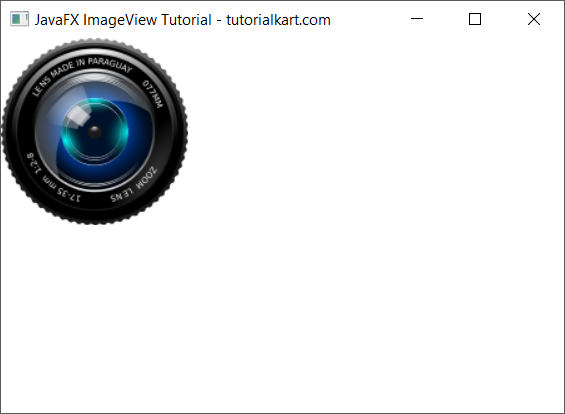
The relative path images/camera.png is resolved from the application’s current working directory. If the application is started from a different directory, that relative file path may no longer point to the image.
Load a JavaFX ImageView Image from the Classpath
Images packaged with an application are usually better loaded as classpath resources. This approach continues to work when the application is packaged into a JAR, provided the image is included in the application’s resources.
For example, place camera.png in a resource folder named images, and load it through the class loader.
var resource = JavaFxImageViewTutorial.class.getResource("/images/camera.png");

if (resource == null) {
    throw new IllegalStateException("Image resource not found");
}

Image image = new Image(resource.toExternalForm());
ImageView imageView = new ImageView(image);
The leading slash makes the resource path absolute from the root of the classpath. Checking for null produces a clear error when the image is missing or stored at a different path.
Resize a JavaFX ImageView Without Distorting the Image
Use setFitWidth() and setFitHeight() to define the displayed size. Set preserveRatio to true when the original proportions must be retained.
ImageView imageView = new ImageView(image);
imageView.setFitWidth(300);
imageView.setFitHeight(200);
imageView.setPreserveRatio(true);
imageView.setSmooth(true);
With preserveRatio enabled, the image is scaled to fit within the requested width and height without being stretched. As a result, one displayed dimension may be smaller than its specified fit value.
The smooth property controls whether JavaFX applies a higher-quality filtering algorithm while scaling. Smoothing is generally suitable for photographs and illustrations. Pixel-art images may look sharper with smoothing disabled.
Load a Scaled JavaFX Image More Efficiently
When a large source image will only be displayed at a smaller size, you can request dimensions while constructing the Image. This can reduce the amount of image data retained in memory compared with decoding the image only at its full original size.
Image image = new Image(
        resource.toExternalForm(),
        300,
        200,
        true,
        true
);

ImageView imageView = new ImageView(image);
The width and height arguments request a 300-by-200 bounding area. The final two Boolean values preserve the aspect ratio and enable smooth scaling.
Display an Image from a URL in JavaFX ImageView
The Image constructor accepts a URL string, so an ImageView can display an image hosted on a web server.
String imageUrl = "https://example.com/images/photo.png";
Image image = new Image(imageUrl);
ImageView imageView = new ImageView(image);
Loading a remote image depends on network availability and the remote server. Applications should provide a placeholder or an error state instead of assuming that every remote image will load successfully.
Check JavaFX Image Loading Errors
The Image class exposes error information when image decoding or loading fails. The following listener reports either the image dimensions or the loading exception.
Image image = new Image(imageUrl, true);
ImageView imageView = new ImageView(image);

image.errorProperty().addListener((observable, oldValue, hasError) -> {
    if (hasError) {
        System.err.println("Could not load image: " + image.getException());
    }
});

image.progressProperty().addListener((observable, oldValue, progress) -> {
    if (progress.doubleValue() == 1.0 && !image.isError()) {
        System.out.println("Image loaded: "
                + image.getWidth() + " x " + image.getHeight());
    }
});
The second constructor argument enables background loading. This is useful for remote images because the JavaFX Application Thread does not have to wait for the download to finish.
Crop a JavaFX ImageView with a Viewport
An ImageView viewport displays only a rectangular region of the source image. The rectangle coordinates are measured in the image’s coordinate system.
import javafx.geometry.Rectangle2D;

ImageView imageView = new ImageView(image);
imageView.setViewport(new Rectangle2D(50, 30, 200, 150));
imageView.setFitWidth(300);
imageView.setPreserveRatio(true);
This viewport starts 50 pixels from the left and 30 pixels from the top, then displays a region that is 200 pixels wide and 150 pixels high. The selected region is subsequently scaled according to the ImageView fit settings.
Make a JavaFX ImageView Respond to Mouse Clicks
ImageView extends Node, so it can receive mouse events like other JavaFX controls and nodes.
ImageView imageView = new ImageView(image);
imageView.setPickOnBounds(true);

imageView.setOnMouseClicked(event -> {
    System.out.println("Image clicked");
});
When setPickOnBounds(true) is used, the entire rectangular bounds of the ImageView can receive a click, including transparent areas. With it disabled, picking can depend on the visible portions of the image.
JavaFX ImageView Properties and Methods
| ImageView member | Purpose |
|---|---|
setImage(Image) | Assigns or replaces the image displayed by the ImageView. |
getImage() | Returns the currently assigned Image object. |
setFitWidth(double) | Sets the requested display width used for scaling. |
setFitHeight(double) | Sets the requested display height used for scaling. |
setPreserveRatio(boolean) | Prevents the image from being stretched out of proportion. |
setSmooth(boolean) | Controls filtering quality when the image is scaled. |
setViewport(Rectangle2D) | Selects a rectangular portion of the source image. |
setX(double) | Sets the horizontal position within the ImageView coordinate system. |
setY(double) | Sets the vertical position within the ImageView coordinate system. |
setCache(boolean) | Enables node caching, which may help in specific transformation or animation cases. |
JavaFX Image and ImageView Serve Different Roles
Image stores decoded image data and loading state. ImageView is the visual node placed in a layout and scene. More than one ImageView can reference the same Image object when the same picture must appear in multiple places.
Image sharedImage = new Image(resource.toExternalForm());

ImageView thumbnail = new ImageView(sharedImage);
thumbnail.setFitWidth(100);
thumbnail.setPreserveRatio(true);

ImageView preview = new ImageView(sharedImage);
preview.setFitWidth(400);
preview.setPreserveRatio(true);
Reusing the Image object avoids loading and decoding the same resource separately for each view.
Common JavaFX ImageView Problems
JavaFX ImageView shows no image
Check that the resource path is correct, including letter case. Verify that the resource is included in the runtime classpath and that getResource() does not return null. For file-system paths, check the application’s current working directory.
JavaFX ImageView stretches the image
This usually happens when both fit dimensions are set without preserving the original proportions. Call imageView.setPreserveRatio(true) to keep the source aspect ratio.
JavaFX ImageView displays a blurry scaled image
A small source image becomes blurry when enlarged beyond its natural resolution. Use a source image close to the required display size. For pixel art, test setSmooth(false); for photographs and illustrations, smoothing generally produces better scaling.
A relative JavaFX image path works in the IDE but not after packaging
A relative file path depends on the process working directory and does not automatically refer to a packaged resource. Store application images in the resources directory and load them with getResource().
JavaFX ImageView Questions
How do I resize an image in JavaFX ImageView?
Set fitWidth, fitHeight, or both. Enable preserveRatio to avoid distortion. For example, use setFitWidth(300) followed by setPreserveRatio(true).
How do I load an image from the resources folder in JavaFX?
Resolve the resource with YourClass.class.getResource("/images/file.png"), check that the result is not null, and pass its external URL form to the Image constructor.
Can multiple JavaFX ImageView nodes use the same Image?
Yes. Create the Image once and pass the same object to each ImageView. Each view can use different fit dimensions, viewport settings, transforms, and event handlers.
How do I change the image displayed by an ImageView?
Create or obtain another Image and call imageView.setImage(newImage). Setting the image to null clears the current image from the view.
JavaFX ImageView Tutorial Summary
In this JavaFX Tutorial, we learned how to create an ImageView, load images from files, resources, and URLs, resize images while preserving their proportions, detect loading errors, crop images with a viewport, and handle mouse clicks on an image.
JavaFX ImageView Editorial QA Checklist
- Confirm that packaged images are loaded from the classpath instead of relying on an IDE-specific working directory.
- Verify every resource lookup handles a missing or incorrectly cased file name.
- Check that resized images use
preserveRatiowhen distortion is not intended. - Use background loading or another non-blocking approach for remote images that may load slowly.
- Confirm viewport coordinates remain within the source image dimensions.
- Test transparent ImageView click areas when
pickOnBoundsaffects interaction.