 TutorialKart.com
HTML Lists: Ordered, Unordered, Description, and Nested Lists
HTML lists group related information so browsers, search engines, screen readers, and users can understand how the items belong together. HTML provides three list structures: unordered lists with <ul>, ordered lists with <ol>, and description lists with <dl>.
This tutorial explains the syntax and purpose of each HTML list type, shows ordered and unordered list examples, covers nested lists and useful ordered-list attributes, and demonstrates how to style list markers with CSS.
1 Three Types of Lists in HTML
Choose the list element according to the relationship between the items:
- Unordered list (
<ul>): Use when the item order does not affect the meaning, such as a shopping list or feature list. - Ordered list (
<ol>): Use when sequence, ranking, or position matters, such as instructions or a numbered procedure. - Description list (
<dl>): Use for terms and their associated descriptions, values, or explanations.
The <ul> and <ol> elements contain <li> elements. A description list instead uses <dt> for a term and <dd> for its description.
2 HTML Unordered List with <ul> and <li>
An unordered list is appropriate when the sequence of items is not significant. Create the list with <ul> and place each item in an <li> element.
<ul>
  <li>Apples</li>
  <li>Bananas</li>
  <li>Cherries</li>
</ul>
This will render as:
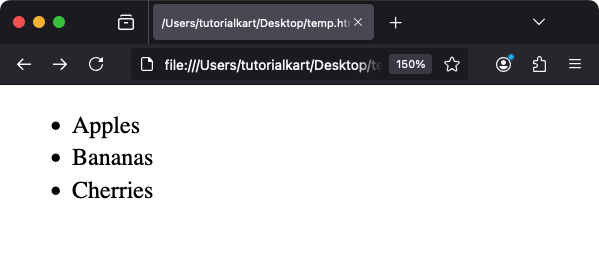
Browsers normally display each unordered-list item with a disc marker. The visual marker can change without changing the list’s semantic meaning.
2.1 Change HTML Unordered List Bullet Styles
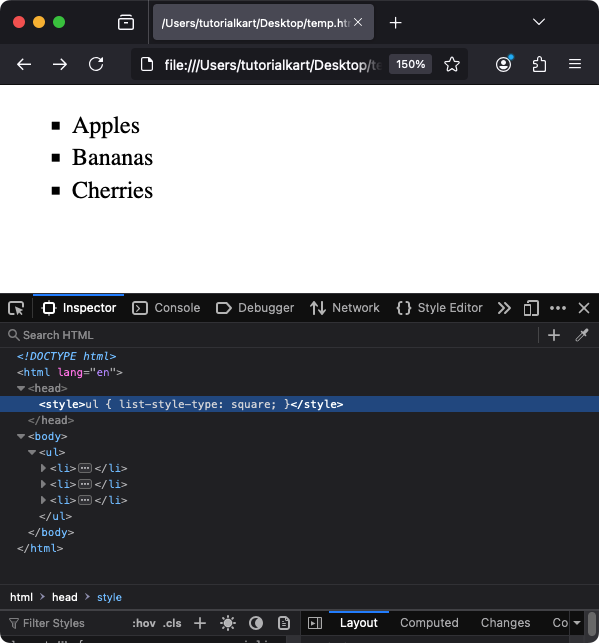
Use the CSS list-style-type property to change the marker displayed beside each item:
ul {
  list-style-type: square;
}
Common unordered-list values include:
disc: Filled circle and the usual browser default.circle: Hollow circle.square: Filled square.none: Hides the marker while retaining the list structure.
Applying the rule above to the fruit list displays square markers.
2.2 Create a Nested Unordered List in HTML
To create a nested unordered list, place the child <ul> inside the parent <li>. Keeping the nested list inside the relevant list item preserves the intended hierarchy.
<ul>
  <li>Fruits
    <ul>
      <li>Apples</li>
      <li>Bananas</li>
    </ul>
  </li>
  <li>Vegetables
    <ul>
      <li>Carrots</li>
      <li>Broccoli</li>
    </ul>
  </li>
</ul>
This will render as:
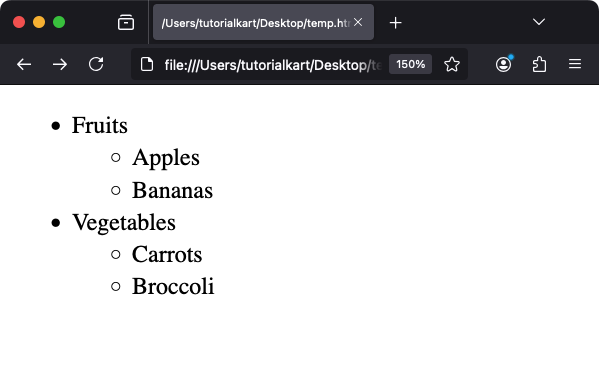
Nested lists are useful for menus, categories, outlines, and other parent-child relationships. Avoid unnecessary nesting because deeply indented content becomes harder to scan.
3 HTML Ordered List with <ol> and <li>
An ordered list communicates that position or sequence matters. Typical uses include instructions, rankings, procedures, and chronological steps.
<ol>
  <li>First step</li>
  <li>Second step</li>
  <li>Third step</li>
</ol>
This will render as:
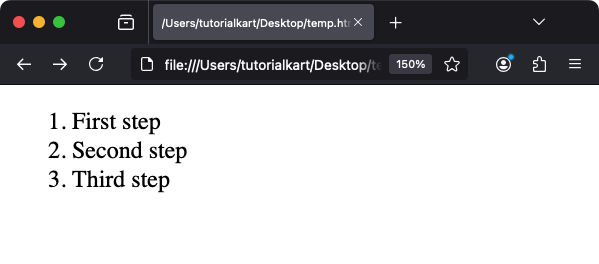
By default, an ordered list begins at 1 and uses decimal numbers.
3.1 Change Ordered List Numbering with the type Attribute
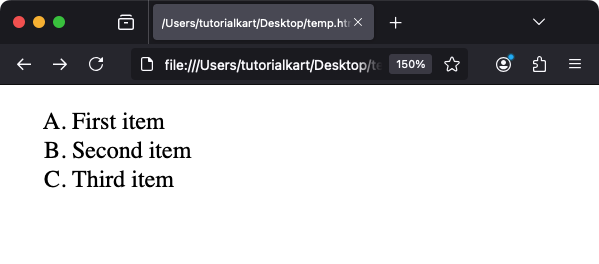
The type attribute changes the numbering format without changing the sequence represented by the list.
Supported type Values for HTML Ordered Lists
1: Decimal numbers.A: Uppercase letters.a: Lowercase letters.I: Uppercase Roman numerals.i: Lowercase Roman numerals.
Example:
<ol type="A">
  <li>First item</li>
  <li>Second item</li>
  <li>Third item</li>
</ol>
This renders as:
3.2 Style Ordered List Markers with CSS
CSS provides additional marker styles through list-style-type. Apply the property to the list or to a specific class so unrelated ordered lists are not affected.
ol {
  list-style-type: lower-alpha; /* Use lowercase letters */
}
Frequently used ordered-list values include:
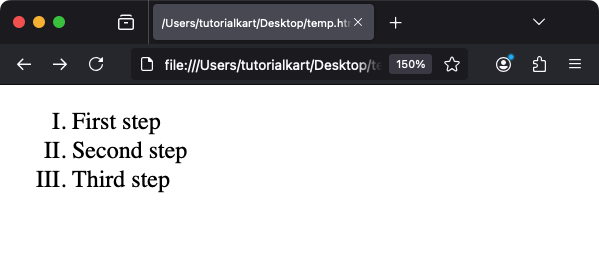
decimal: Decimal numbers.upper-alpha: Uppercase letters.lower-alpha: Lowercase letters.upper-roman: Uppercase Roman numerals.lower-roman: Lowercase Roman numerals.
Example:
<ol style="list-style-type: upper-roman;">
  <li>First step</li>
  <li>Second step</li>
  <li>Third step</li>
</ol>
This renders as:
3.3 Start, Reverse, or Override HTML Ordered List Numbers
HTML ordered lists support attributes for numbering that carries meaning:
startsets the number of the first item.reversedcounts downward.valueon an<li>sets that item’s number and affects following items.
<ol start="5">
  <li>Install the package</li>
  <li value="10">Configure the application</li>
  <li>Run the tests</li>
</ol>

<ol reversed>
  <li>Bronze</li>
  <li>Silver</li>
  <li>Gold</li>
</ol>
Use these attributes when the displayed numbers are part of the content. Use CSS when only the marker’s appearance needs to change.
4 HTML Description List with <dl>, <dt>, and <dd>
A description list associates one or more terms with one or more descriptions. It differs from <ul> because it does not represent a set of ordinary bullet items; it represents name-value or term-description groups.
<dl>: Wraps the complete description list.<dt>: Identifies a term or name.<dd>: Provides the associated description or value.
Example:
<dl>
  <dt>HTML</dt>
  <dd>A markup language for creating web pages.</dd>
  <dt>CSS</dt>
  <dd>A stylesheet language used to style HTML documents.</dd>
</dl>
This renders as:
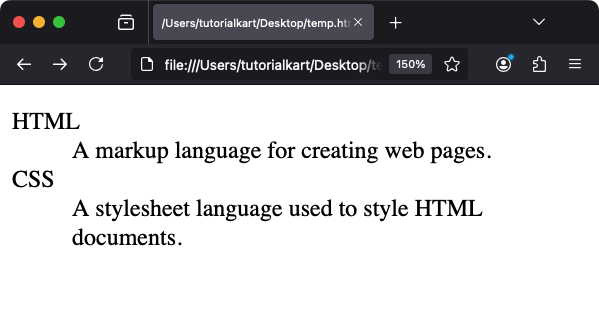
Description lists work well for glossaries, metadata, questions paired with answers, and labels paired with values. A term may have multiple descriptions, and multiple terms may share a description when the content requires that relationship.
5 Mixed and Nested Lists in HTML
HTML allows an unordered or ordered list to be nested within a list item. Different list types can be combined when the hierarchy genuinely changes—for example, an unordered category containing ordered steps.
<ul>
  <li>Fruits
    <ol>
      <li>Apples</li>
      <li>Bananas</li>
    </ol>
  </li>
  <li>Vegetables
    <dl>
      <dt>Carrots</dt>
      <dd>Orange root vegetables.</dd>
      <dt>Broccoli</dt>
      <dd>Green florets.</dd>
    </dl>
  </li>
</ul>
This renders as:
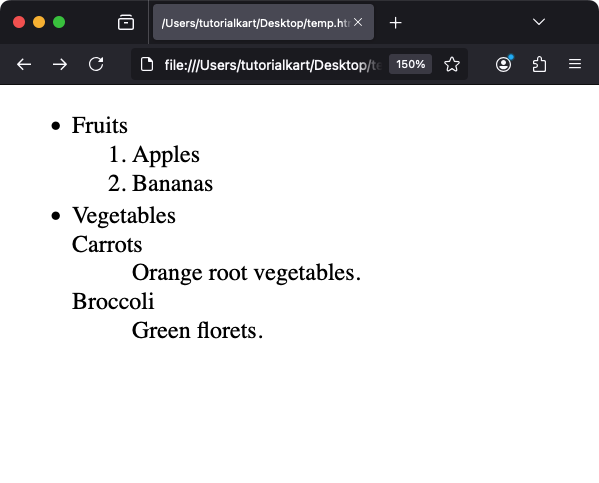
Each nested <ul>, <ol>, or <dl> should be placed inside the parent <li> it expands. This produces valid hierarchy and clearer assistive-technology output.
6 CSS Properties for HTML List Markers, Position, and Spacing
CSS can control marker type, marker position, spacing, and text appearance. The following existing example applies rules to all unordered and ordered lists on the page:
ul {
  list-style-type: square;
  margin: 20px;
  padding: 10px;
}

ol {
  list-style-type: decimal-leading-zero;
  color: blue;
}
For production pages, a class selector is usually safer than a global ul or ol selector. The list-style-position property accepts outside or inside, while the list-style shorthand can combine marker type, position, and image.
.feature-list {
  list-style: square outside;
  padding-inline-start: 1.5rem;
}

.feature-list li {
  margin-block: 0.4rem;
}

.feature-list li::marker {
  font-weight: 700;
}
The ::marker pseudo-element targets the marker itself. Browser support and the set of supported marker properties can vary, so verify the result in the browsers required by your project.
7 Semantic and Accessible HTML List Practices
- Use
<ol>when changing the order would change the meaning; otherwise use<ul>. - Use real list elements instead of manually typed bullets, hyphens, or numbers.
- Place list content inside
<li>elements, and place nested lists inside the relevant parent<li>. - Do not choose
<dl>merely to obtain indentation. Use it only for term-description or name-value relationships. - If CSS removes visible markers, preserve enough spacing and visual treatment for users to recognize the content as a list.
- Keep item wording parallel where practical—for example, begin every procedural step with a verb.
Semantic list markup allows assistive technologies to announce that content is a list and often report the number of items. CSS should change presentation without replacing the underlying structure.
8 Common HTML List Markup Mistakes
- Putting text directly inside
<ul>or<ol>: Wrap each list entry in<li>. - Placing a nested list beside its parent item: Move the nested list inside the parent
<li>. - Using an unordered list for sequential instructions: Use
<ol>when step order matters. - Using
<br>tags to imitate a list: Use semantic list markup so the grouping is machine-readable. - Removing markers and indentation globally: Scope list CSS with a class to avoid breaking navigation menus or article lists elsewhere.
9 HTML Lists FAQ
What are the three types of lists in HTML?
The three primary types are unordered lists using <ul>, ordered lists using <ol>, and description lists using <dl>.
What is the difference between <ul> and <dl>?
A <ul> contains unordered items represented by <li>. A <dl> represents associations between terms in <dt> and descriptions in <dd>.
How do I make a list in HTML?
Wrap related items in <ul> or <ol>, then place every item inside an <li>. Use <dl>, <dt>, and <dd> for term-description content.
How do I create a nested list in HTML?
Place the child <ul> or <ol> inside the parent <li> that the child list expands.
Should list bullets be added with HTML or CSS?
Use HTML to define the list structure and CSS to control marker appearance. Do not type bullet characters manually when the content is a real list.
10 HTML Lists Editorial QA Checklist
- Confirm that unordered content uses
<ul>and sequence-dependent content uses<ol>. - Verify that every
<ul>and<ol>has properly nested<li>children. - Check that description-list terms and descriptions use
<dt>and<dd>appropriately. - Validate nested lists and confirm each child list sits inside its parent list item.
- Test custom marker CSS at narrow widths and with long, wrapping list items.
- Confirm that removing visible markers does not make list grouping unclear.
Summary of HTML List Elements
Use <ul> for items without a meaningful order, <ol> for items whose sequence matters, and <dl> for term-description relationships. Keep list markup semantic, place nested lists inside their parent items, and use CSS for visual changes such as marker type, position, and spacing.