 TutorialKart.com
How to Create a Database Table in SAP ABAP Dictionary
A database table in SAP ABAP is defined centrally in the ABAP Dictionary and stored physically in the underlying database after activation. This tutorial explains how to create a custom transparent table in transaction SE11, define its fields with predefined ABAP types, maintain technical settings, save it in a package or as a local object, and activate it.
You can define table fields by using either of the following approaches:
- Predefined type: Specify the built-in ABAP data type, length, and decimal places directly in the table field definition.
- Data element: Assign a reusable ABAP Dictionary data element that provides the technical type and semantic information for the field.
This example uses the predefined-type method. For productive developments, reusable data elements and domains are generally preferable when fields share the same business meaning, validation rules, or field labels.
SAP ABAP Table Requirements Before Using SE11
- Use a customer namespace for custom objects. In many SAP systems, custom table names begin with Y or Z, such as ZEMPLOYEE.
- Decide which fields uniquely identify each record. These fields will form the primary key.
- Choose suitable data types and lengths for every field.
- Select the correct delivery class based on the purpose and transport behavior of the table data.
- Maintain the data class and size category in the table’s technical settings.
- Assign the table to a transportable package, or save it as a local object only when it is not intended to be transported.
The SAP ABAP database tables overview explains the role of tables in the ABAP Dictionary. The steps below create a custom transparent table named ZEMPLOYEE.
Create the ZEMPLOYEE Table in SAP Transaction SE11
Step 1: Open the ABAP Dictionary with SE11
Execute SAP transaction code SE11 in the SAP command field.
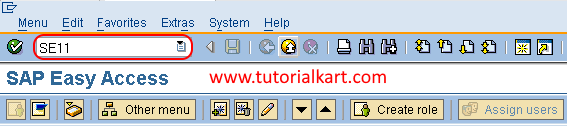
SE11 opens the ABAP Dictionary, where you can create and maintain database tables, views, data types, domains, search helps, and lock objects.
Step 2: Enter the Custom Database Table Name
On the ABAP Dictionary: Initial Screen, complete the following actions:
- Select the Database table option.
- Enter the custom table name, for example ZEMPLOYEE.
- Choose Create.
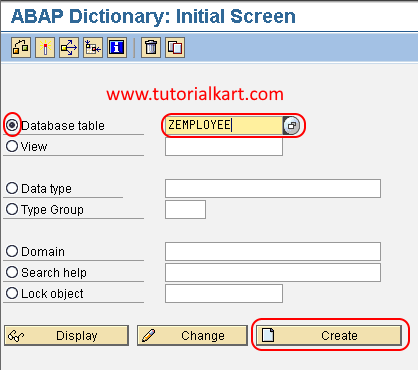
The exact customer namespace available to you depends on the SAP system configuration. Names beginning with Y or Z are commonly used for customer-developed objects because the remaining initial letters are generally reserved for SAP objects.
Step 3: Maintain Delivery and Table Maintenance Attributes
On the Dictionary: Maintain Table screen, enter the basic attributes of the table:
- Short Description: Enter a clear description, such as Employee Master Table.
- Delivery Class: Choose the class that matches the purpose of the table. For this example, use A for application data such as master and transaction data.
- Data Browser/Table View Maint.: Select the required display or maintenance setting according to your project’s authorization and maintenance requirements.
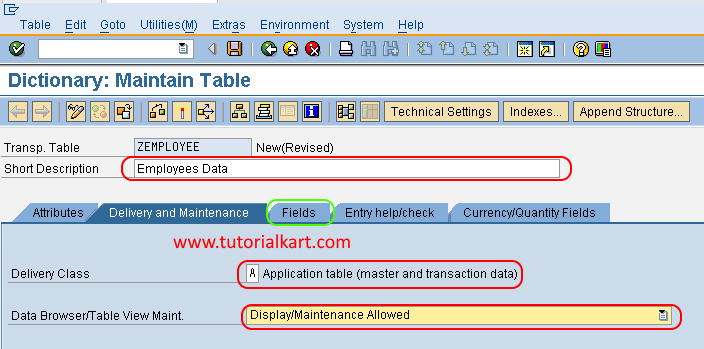
The delivery class affects how table contents are treated during installation, upgrade, client copy, and transport processes. Do not select a delivery class only because it appears in an example; use the class approved for the table’s actual data category.
After maintaining the delivery and maintenance attributes, open the Fields tab.
Define SAP ABAP Table Fields with Predefined Types
Step 4: Select the Predefined Type Option
Choose the Predefined Type option so that each field can be defined directly with an ABAP Dictionary data type, length, and decimal places.
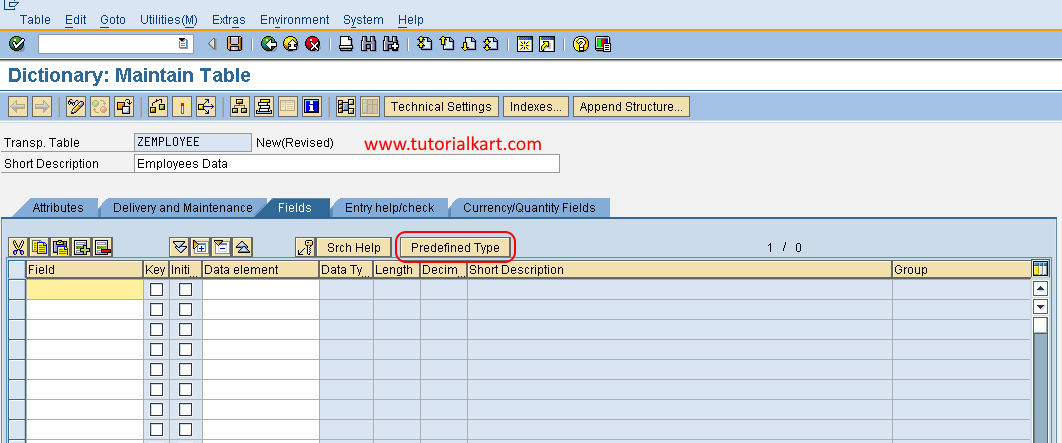
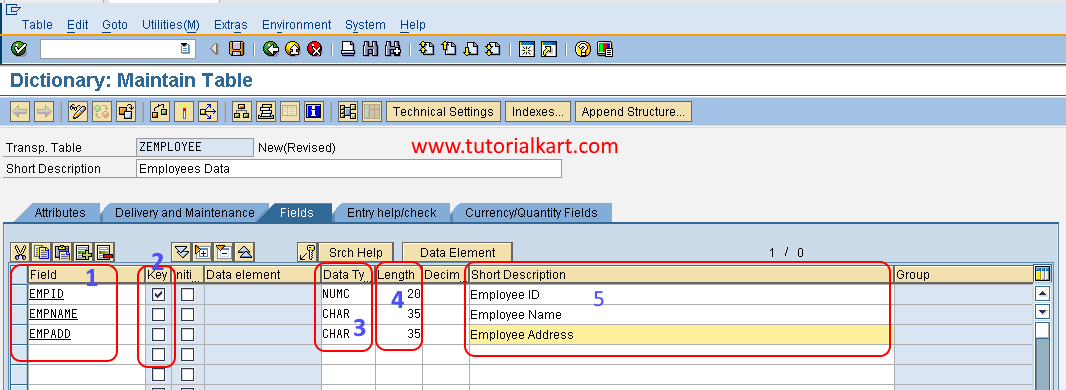
Step 5: Enter the Key Fields, Data Types, and Lengths
Define each field on a separate row. Maintain the following columns as required:
- Field: Enter the field name.
- Key: Select this option for every field that belongs to the table’s primary key.
- Initial Values: Specify whether the field must be initialized when new fields are added during table conversion, where applicable.
- Data Type: Select the appropriate built-in ABAP Dictionary type, such as CLNT, CHAR, NUMC, DATS, TIMS, CURR, QUAN, INT4, or DEC.
- Length: Enter the permitted field length.
- Decimal Places: Maintain decimal places for numeric types that support them.
- Short Text: Enter a meaningful description for the field.
A simple employee table can contain fields similar to the following:
| Field | Key | Data Type | Length | Purpose |
|---|---|---|---|---|
| MANDT | Yes | CLNT | 3 | SAP client |
| EMP_ID | Yes | NUMC | 8 | Employee identifier |
| EMP_NAME | No | CHAR | 40 | Employee name |
| JOIN_DATE | No | DATS | 8 | Date of joining |
| DEPARTMENT | No | CHAR | 20 | Department name or code |
If the table is client-dependent, MANDT is normally the first key field and uses the client data type. Whether a table should be client-dependent must be determined from the application’s data model rather than added automatically.
Primary Key Rules for a Custom SAP ABAP Table
The key fields identify a table row uniquely. Keep these rules in mind when defining the key:
- Place all key fields before non-key fields in the field list.
- Choose the smallest combination of fields that uniquely identifies a record.
- Do not mark a field as a key merely because it is frequently searched.
- For a client-dependent table, place the client field first in the key.
- Avoid fields whose values may frequently change as primary-key components.
Secondary indexes can be considered later for frequently used access paths. They are separate from the primary key and should be added only after reviewing actual query patterns and database impact.
Save the SAP Table in a Package or as a Local Object
After entering the required fields, choose Save. The Create Object Directory Entry dialog appears.
- Assign a package when the table must be transported to other SAP systems.
- Choose Local Object only for temporary, local, training, or non-transportable development.
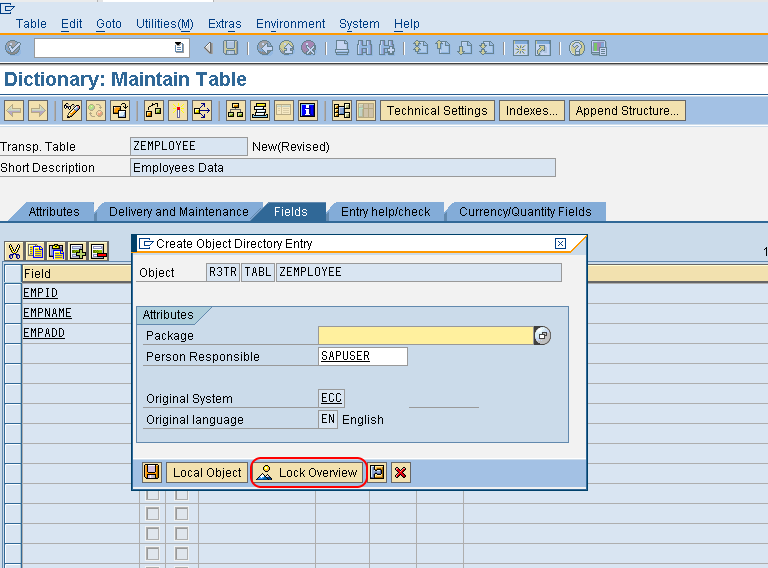
Confirm the object directory entry. SAP saves the inactive table definition and displays a creation message for the table, such as ZEMPLOYEE created.
Maintain Technical Settings for the SAP ABAP Table
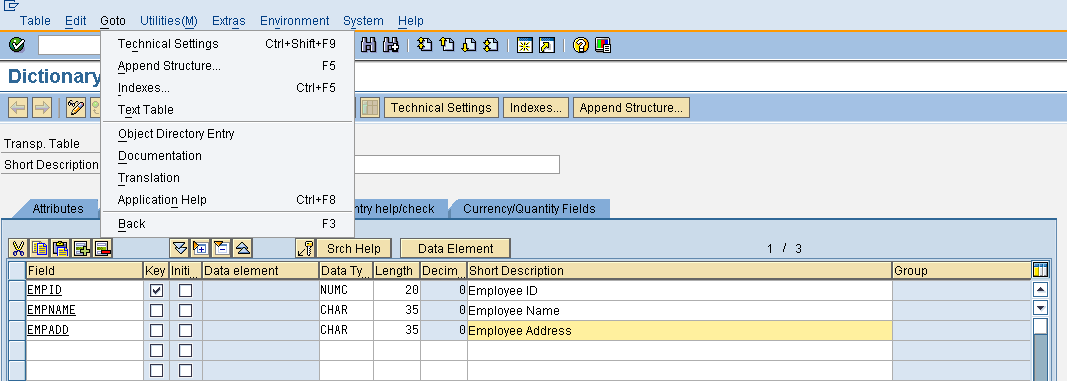
Before activating the table, maintain its technical settings. From the table maintenance screen, choose Goto → Technical Settings. Depending on the SAP GUI configuration, the available keyboard shortcut may also be displayed in the menu.
On the Dictionary: Maintain Technical Settings screen, maintain the settings required by your system release and project standards.
Select the SAP Table Data Class
The data class categorizes the logical type of data stored in the table and can influence the database storage area used by the system. Common categories distinguish master data, transaction data, organizational data, and system data. Select the value that accurately represents the table contents.
Set the Expected SAP Table Size Category
The size category represents the expected number of records and required storage allocation. Select a reasonable category based on anticipated data volume. It can be adjusted later if actual growth differs from the original estimate.
Other technical options, including buffering and logging, may appear depending on the SAP release and table type. Enable them only when the application design requires them. Incorrect buffering can produce stale reads or unnecessary synchronization overhead.
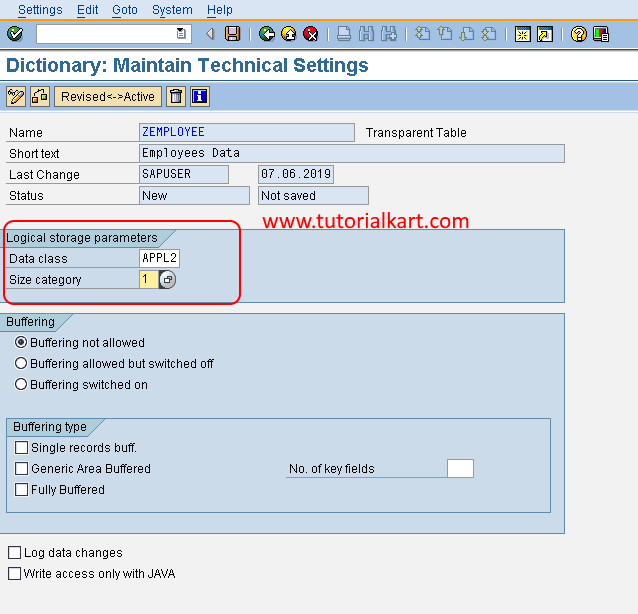
Choose Save to store the technical settings, and then return to the table definition.
Activate the Database Table in SAP ABAP
Choose the Activate icon or press Ctrl+F3. Activation checks the Dictionary definition and creates or adjusts the corresponding database object.
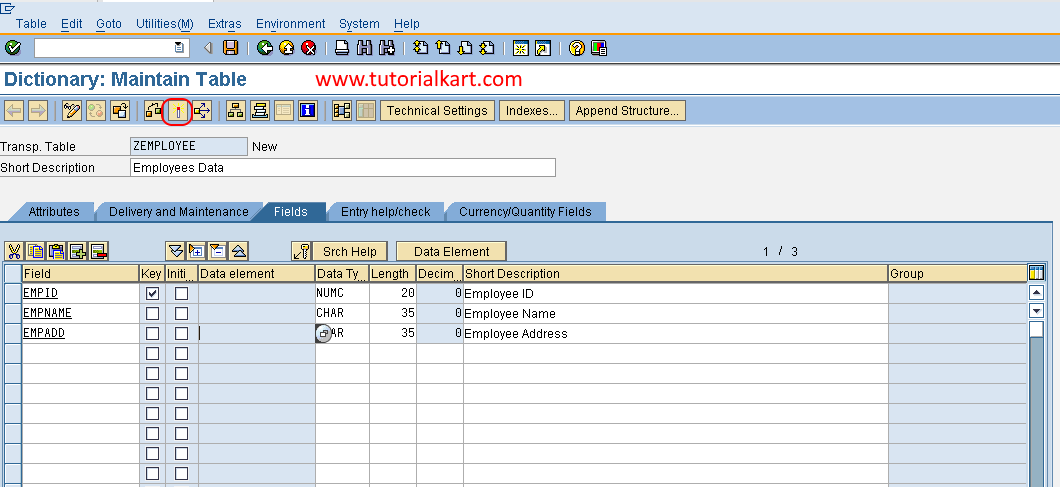
Review the status bar and activation log. The table is ready for use only after it has an active status and no unresolved activation errors remain.
Verify the Activated SAP ABAP Database Table
After activation, verify the table before using it in an ABAP program:
- Confirm that the table status is Active in SE11.
- Use the table consistency or database-object utility available in your SAP release when activation reports a database mismatch.
- Choose Utilities → Table Contents → Create Entries or the available data browser option only when direct maintenance is permitted.
- Enter a test record using valid key values.
- Display the table contents and confirm that the record was stored correctly.
Direct table maintenance should be restricted according to authorization and project policy. Productive application data is normally created and changed through controlled programs, services, transactions, or maintenance views rather than unrestricted manual entry.
Example ABAP SQL for Reading the Custom Table
After the table is active and contains data, an ABAP program can read it with Open SQL. The following example selects one employee record by its key:
SELECT SINGLE *
  FROM zemployee
  WHERE emp_id = @lv_emp_id
  INTO @DATA(ls_employee).

IF sy-subrc = 0.
  WRITE: / ls_employee-emp_name,
           ls_employee-join_date,
           ls_employee-department.
ELSE.
  WRITE: / 'Employee record not found'.
ENDIF.
The field names in the program must match the active Dictionary definition. In a client-dependent table, Open SQL normally handles the current client automatically unless client handling is explicitly overridden by an allowed statement.
Predefined Types Compared with Data Elements in SAP ABAP
| Definition Method | Best Used When | Main Consideration |
|---|---|---|
| Predefined type | A small field needs only a technical type and length | Semantic labels and reusable validation are limited |
| Data element | Several fields share the same business meaning | Provides reusable labels, documentation, and technical properties |
| Data element with domain | Fields require shared value ranges or fixed values | Improves consistency across Dictionary objects |
For example, an employee identifier used across multiple tables can be defined once as a data element and reused. This avoids repeating field labels, documentation, length, and validation-related definitions in every table.
Common SAP Table Activation Problems
Technical Settings Are Missing
Activation can fail when mandatory technical settings have not been maintained. Open the technical settings screen, enter the required data class and size category, save, and activate again.
Key Fields Are Not at the Beginning
All primary-key fields must appear before non-key fields in the table definition. Reorder the fields so that the complete key is defined first.
Field Type or Length Is Incomplete
Every field must have a valid technical definition. When using predefined types, verify the data type, length, and decimal places. When using data elements, confirm that the referenced Dictionary object exists and is active.
Dependent Dictionary Objects Are Inactive
A table cannot activate successfully when it references an inactive data element, domain, include structure, or other dependency. Activate the dependent objects first and then reactivate the table.
The Database Object Differs from the Dictionary Definition
This situation can occur after structural changes. Review the activation log and use the database utility available in the SAP system to analyze and safely adjust the database object. Structural changes to tables containing data should be handled carefully because conversion may be required.
SAP ABAP Database Table Creation Checklist
- The custom table uses the approved customer namespace.
- The short description states the table’s actual purpose.
- The delivery class matches the type and transport behavior of the stored data.
- The client-dependency decision is correct for the application.
- Primary-key fields uniquely identify each record and appear first.
- Every field has an appropriate type, length, and description.
- Reusable business fields use approved data elements and domains where appropriate.
- The data class and size category reflect the expected data and volume.
- Buffering, logging, and table maintenance settings follow project standards.
- The table is assigned to the correct package and transport request.
- The table and all dependent Dictionary objects are active.
- A controlled test confirms that records can be created and read correctly.
FAQs About Creating Database Tables in SAP ABAP
What is a database table in SAP ABAP?
A database table is an ABAP Dictionary object that defines persistent data in rows and columns. Its Dictionary definition contains fields, key information, technical attributes, and administrative settings. After activation, SAP creates or updates the corresponding object in the underlying database.
Why do custom SAP table names usually begin with Y or Z?
Y and Z are commonly used customer namespaces that separate custom developments from standard SAP objects. Some systems also use registered namespaces. Follow the naming convention configured for your SAP landscape.
What is the difference between a predefined type and a data element?
A predefined type defines the field’s technical properties directly in the table. A data element is a reusable Dictionary object that can also supply semantic information such as field labels and documentation. A data element may reference a domain for reusable technical attributes and allowed values.
What is delivery class A in an SAP table?
Delivery class A is used for application data, including master and transaction data. The correct delivery class depends on the table’s purpose, ownership, and required behavior during transports, upgrades, and client operations.
Can a database table be created in Eclipse instead of SE11?
Yes. In SAP development environments that support ABAP Development Tools, database tables can be created and maintained in Eclipse. The available editor, annotations, activation process, and supported table-definition syntax depend on the ABAP platform and development model. SE11 remains the conventional SAP GUI method covered in this tutorial.