 TutorialKart.com
In this tutorial, you will learn the prerequisites for creating an ABAP program in SAP, how to create an executable report with transaction code SE38, how to write and check ABAP code, and how to activate and run the program.
The steps below use the classic SAP GUI ABAP Editor. In systems that use ABAP Development Tools in Eclipse, the screens and project setup are different, but the same basic development cycle applies: create an object, write source code, check syntax, activate the object, and execute or test it.
Prerequisites for Creating an ABAP Program in SAP
Before creating an ABAP program, make sure that your SAP user has the required development authorization and that you know where the object should be stored.
- Program name: Custom ABAP program names normally begin with
ZorY. Names in the SAP namespace are reserved for SAP-delivered objects. - Title: Enter a clear description that explains the purpose of the ABAP program.
- Program type: Select the correct type, such as Executable Program, Include Program, or Module Pool.
- Package: Store the program in the package assigned to the relevant application, module, or development project.
- Transport request: For transportable development, assign the program to a package and a workbench transport request.
In project environments, packages are usually organized by application area, module, or submodule. A separate package is not normally created for every individual program.
Local Object and Transportable ABAP Program
A local object is stored in package $TMP. It is suitable for temporary learning, testing, or development that does not need to leave the current SAP system.
A program intended for quality assurance or production should normally be assigned to a transportable package. SAP then prompts you to assign the object to a transport request so it can move through the system landscape.
How to Create an ABAP Program with Transaction Code SE38
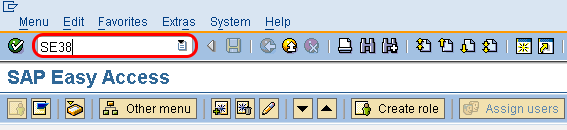
Step 1: Enter transaction code “SE38” in the SAP command field and press Enter.
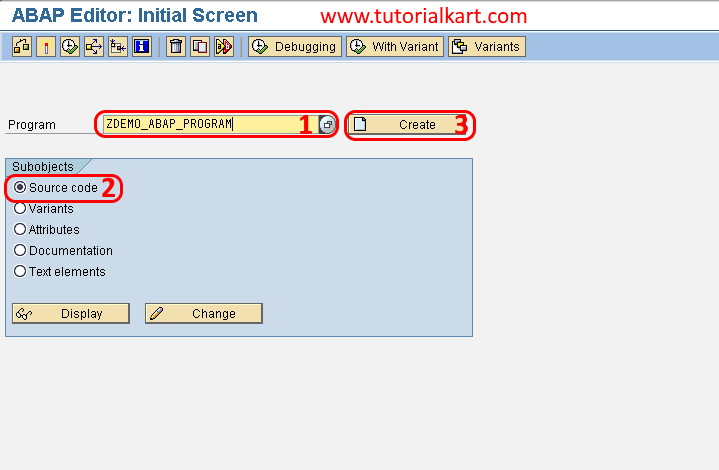
Step 2: The ABAP Editor initial screen appears. Enter the required program details.
- Program: Enter a custom program name, such as
ZDEMO_ABAP_PROGRAM. - Subobjects: Select Source Code.
- Choose Create to create the new ABAP program.
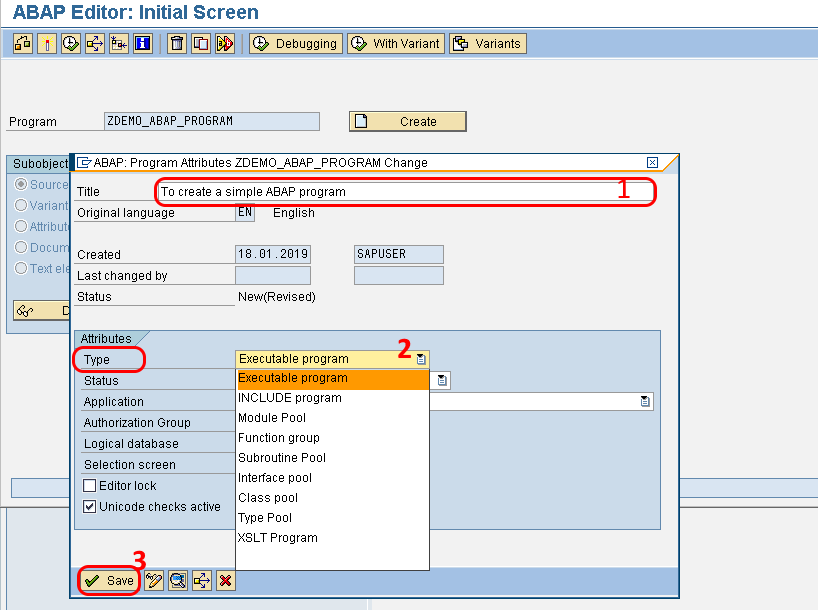
Step 3: The ABAP Program Attributes screen opens. Enter the program attributes.
- Title: Enter a meaningful description, such as
Demo ABAP Program. - Type: Select Executable Program for a report that can be started independently.
- Keep the other attributes at their appropriate project defaults unless your development standard requires different settings.
- Choose the Save icon.
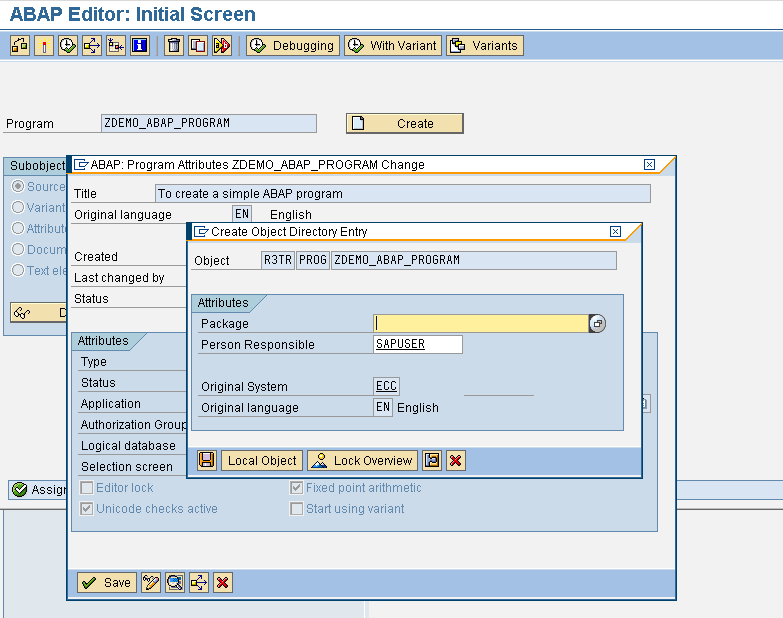
Step 4: The Create Object Directory Entry dialog appears. Choose the storage option that matches the purpose of the program.
- Choose Local Object for a temporary program that should remain only in the current system.
- Choose a transportable package for development that must move from development to quality and production systems.
- If a package is selected, assign the program to an existing transport request or create a new request when prompted.
In project development, avoid saving permanent business programs as local objects because local objects cannot be transported through the normal SAP transport landscape.
The ABAP Editor now opens for the program ZDEMO_ABAP_PROGRAM.
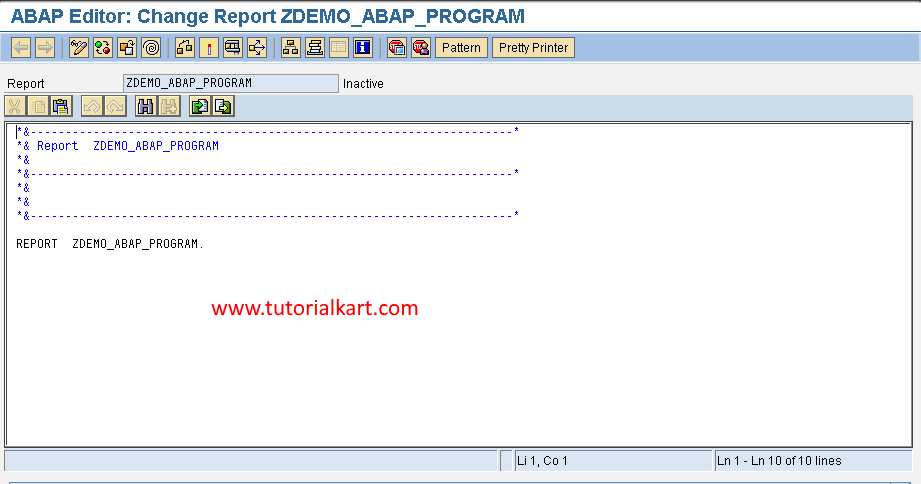
Write a Simple ABAP Program
Enter a simple executable ABAP report in the editor. The following program writes one line to the classic list output.
REPORT zdemo_abap_program.

WRITE: 'Hello from ABAP'.
The REPORT statement identifies the source as an executable report. The WRITE statement sends text to the program output.
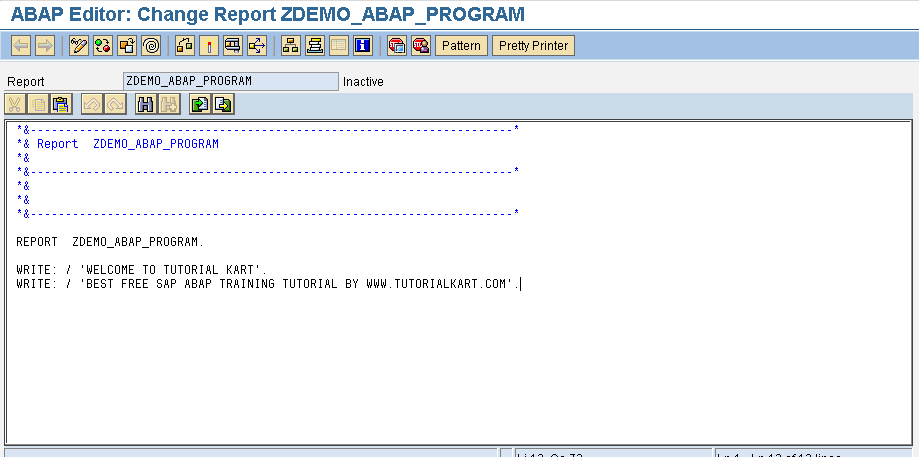
After entering the source code, choose the Save icon or press Ctrl+S.
Check and Activate the ABAP Program
Saving stores the source code, but the program must also pass a syntax check and be activated before the active version can be executed reliably.
To check the ABAP source code for syntax errors, press
Ctrl+F2or choose the Check icon.To activate the ABAP program, press
Ctrl+F3or choose the Activate icon.
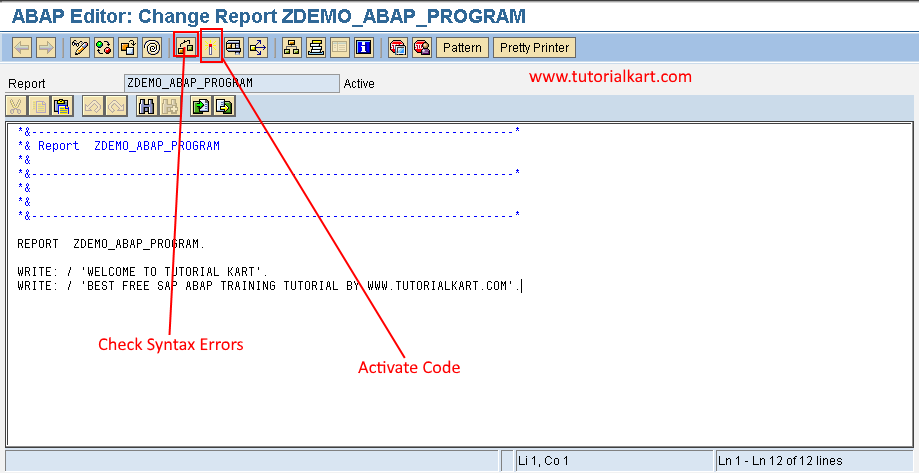
If the syntax check finds an error, SAP displays a message describing the problem and usually identifies the affected line. Correct the source, save it, and run the syntax check again.
After activation, SAP creates or updates the active version of the program. If an activation message appears, review it and press Enter to continue when appropriate.
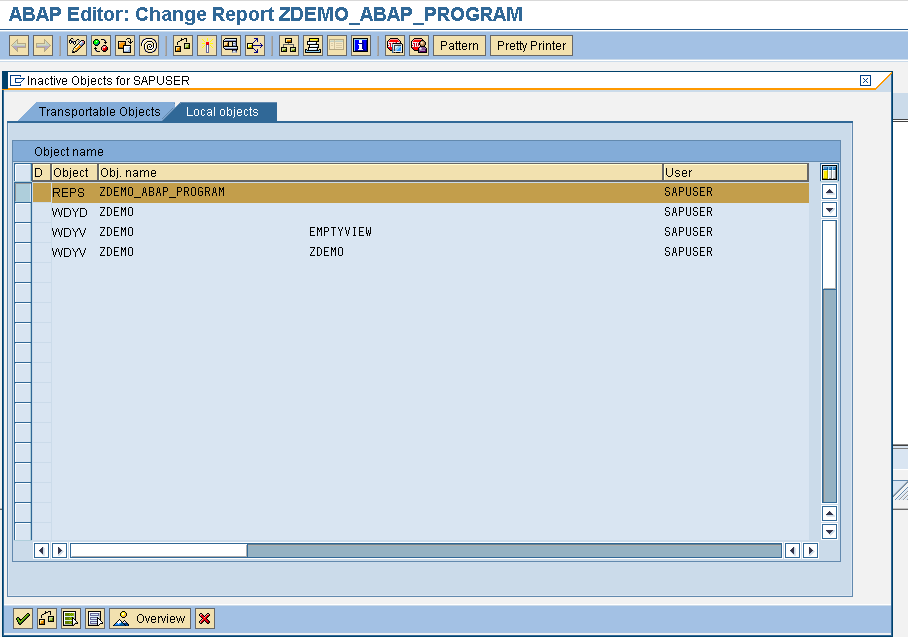
Run the ABAP Program and View Its Output
To execute the active ABAP program, press F8 or choose the Direct Processing icon.
For the sample program, the output is:
Hello from ABAP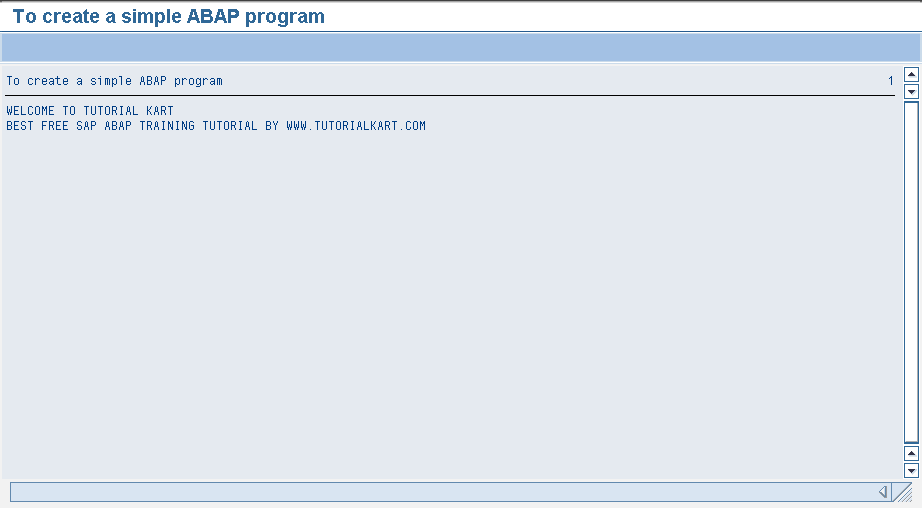
The ABAP program has now been created, saved, checked, activated, and executed.
ABAP Program with Input Parameters
An executable ABAP report can use the PARAMETERS statement to display an input field on the selection screen.
REPORT zdemo_abap_name.

PARAMETERS p_name TYPE c LENGTH 30.

START-OF-SELECTION.
  WRITE: / 'Hello', p_name.
When this program is executed, SAP first displays a selection screen. Enter a name and choose Execute. The report then writes the entered value to the output.
The START-OF-SELECTION event identifies the main processing block of a traditional executable report.
Common ABAP Program Types in SE38
The program type determines how an ABAP development object is used.
| ABAP program type | Typical purpose |
|---|---|
| Executable Program | A report that can be executed directly and may have a selection screen. |
| Include Program | A reusable source-code section included in another ABAP program. It is not normally executed by itself. |
| Module Pool | A dialog program used with screens, GUI statuses, and transaction processing. |
| Subroutine Pool | A program containing reusable subroutines for specific traditional ABAP scenarios. |
For a first ABAP example, choose Executable Program. Other program types require additional concepts and are created for different application designs.
SE38 and SE80 for ABAP Development
Transaction code SE38 opens the ABAP Editor and is commonly used to create, display, change, and execute report programs.
Transaction code SE80 opens the Object Navigator. It provides a broader development view for packages, programs, function groups, classes, web objects, and other repository objects. Developers often use SE80 when working with several related development objects in the same application.
Create an ABAP Project in Eclipse
Modern ABAP development can also be performed with ABAP Development Tools in Eclipse. This is especially relevant for newer ABAP platforms and cloud-based ABAP environments.
- Install Eclipse and the ABAP Development Tools plug-ins supported by your SAP environment.
- Open Eclipse and choose File > New > ABAP Project.
- Select or define the SAP system connection.
- Enter your SAP logon details when prompted.
- Select the required package and create the ABAP repository object.
- Write the source code, save it, activate it, and run the available test or execution option.
The exact wizard fields depend on whether you are connecting to an on-premise ABAP system, SAP BTP ABAP environment, or another supported SAP development system.
ABAP Program Troubleshooting
- The Create button is unavailable: Confirm that the program name is valid and that your user has development authorization.
- The program name is rejected: Use a valid customer namespace, normally beginning with
ZorY. - SAP asks for a package: Choose
$TMPonly for a local object, or select the project package for transportable development. - A transport request is required: Select an existing workbench request or create one according to the project transport procedure.
- Activation fails: Run the syntax check, correct all reported errors, save the source, and activate again.
- F8 does not produce the expected result: Confirm that the active version is current and that the program type is executable.
- No output is displayed: Check whether the program contains an output statement or whether it expects values on a selection screen.
ABAP Program Development Practices
- Use meaningful program names and descriptions that follow the project naming convention.
- Use
val-like immutability concepts where applicable in modern ABAP by avoiding unnecessary data changes and keeping variable scope limited. - Do not place permanent project objects in
$TMP. - Check syntax and activate after each meaningful change instead of waiting until the entire program is complete.
- Avoid hard-coded business values when configuration, constants, or selection-screen parameters are more appropriate.
- Handle database access carefully and select only the fields and records required by the program.
- Use comments to explain business reasoning, not to repeat obvious ABAP statements.
- Follow the project’s transport, review, naming, and testing standards.
Frequently Asked Questions About Creating ABAP Programs
What transaction code is used to create an ABAP program?
Transaction code SE38 opens the classic ABAP Editor and can be used to create an executable ABAP program. Transaction code SE80 can also be used through the Object Navigator.
What is an ABAP program in SAP?
An ABAP program is a repository object containing source code written in the ABAP language. Depending on its type, it may produce a report, process application logic, provide reusable code, or support dialog-based SAP transactions.
Why should a custom ABAP program start with Z or Y?
The Z and Y namespaces are conventionally used for customer-created development objects. This avoids name conflicts with SAP-delivered objects.
What is the difference between saving and activating an ABAP program?
Saving stores the current source code as an inactive version. Activation checks and generates the active repository version used by other objects and normal execution.
How do you create an ABAP project in Eclipse?
Install ABAP Development Tools, choose File > New > ABAP Project, connect to the SAP system, log in, and create development objects in an authorized package. The available setup options depend on the connected ABAP environment.
ABAP Program Tutorial Editorial QA Checklist
- Confirm that the custom program name begins with
ZorYand matches SAP naming rules. - Verify that the tutorial distinguishes a local object in
$TMPfrom a transportable package object. - Check that SE38 steps use the correct sequence: create, enter attributes, assign package, write code, save, check, activate, and execute.
- Confirm that keyboard shortcuts are stated correctly:
Ctrl+F2for syntax check,Ctrl+F3for activation, andF8for execution. - Ensure the sample ABAP source has a valid report statement, terminating periods, and output consistent with the shown result.
- Verify that all existing SAP GUI screenshots remain paired with the step they illustrate.
- Check that Eclipse instructions are clearly separated from the classic SAP GUI SE38 procedure.