 TutorialKart.com
apex:CommandButton component is used to create a button on Visualforce page. <apex:CommandButton>must always be a child of<apex:form> component, which means to create a button apex:CommandButton must written in apex:form tag. Button in Visualforce page is rendered as an HTML output element.
In practical Visualforce pages, <apex:commandButton> is used when a button must submit the form, call a controller action, save a record, navigate to another page, or refresh part of the page with AJAX. The component is different from a plain HTML button because it can work directly with Visualforce controller methods through the action attribute.
Where apex:commandButton is used in a Visualforce form
An apex:commandButton is normally placed inside <apex:form>. Without the form, the button cannot submit Visualforce view state or call an Apex action method correctly. This is the most common reason a command button appears on the page but does not call the expected controller method.
Example
<apex:commandbutton action=”{!save}” value=”save” id=”the button”/>In the example above, the action value points to a controller action named save. In new code, use the usual Visualforce component spelling <apex:commandButton> and use simple straight quotes in markup.
apex:CommandButton Component Attributes
The apex:commandButton component supports many attributes. The attributes below are the ones most beginners use first when creating Save, Cancel, Search, Delete, or navigation buttons in Visualforce.
| Attribute | How it is used with apex:commandButton |
|---|---|
| action | Calls a controller method or navigates to a page reference when the button is clicked. |
| value | Sets the text displayed on the button, such as Save, Cancel, Search, or Delete. |
| id | Gives the button a component ID that can be referenced by Visualforce, JavaScript, or partial page updates. |
| disabled | When set to true, the button is shown as disabled and cannot be clicked. |
| rerender | Refreshes one or more Visualforce components after the action completes, without refreshing the entire page. |
| immediate | Can bypass validation and update steps in some cases. It is commonly used for Cancel-style buttons. |
| onclick | Runs client-side JavaScript before the form is submitted. |
| oncomplete | Runs client-side JavaScript after an AJAX request completes. |
| styleClass | Applies a CSS class to the rendered button. |
| image | Displays an image for the button by using an absolute or relative image URL. |
The older table below is kept for reference, but note that rerender is not a Boolean setting. It usually contains the ID of the component that should be refreshed.
| Action | Action attribute is used to determine what action should be performed when we click on “Submit button”. |
| AccessKey | AccessKey attribute is a string type.The keyboard access key that puts the command button in focus |
| Disable | It is a Boolean type. If we want to disable the button we should give it as “True”. If set to true, the button appears disabled. If not specified, this value defaults to false. |
| Dir | Dir attributes is used to display text direction on the button. |
| Images | It is a String Type. The absolute or relative URL of the image displayed as this button |
| Rerender | It is a Boolean type. It specifies whether the component is rendered on the page. |
Basic apex:commandButton syntax inside apex:form
The minimal pattern is an apex:page, an apex:form, and a command button. The button value is what the user sees, and the action is what Salesforce runs when the user clicks the button.
<apex:page standardController="Account">
    <apex:form>
        <apex:commandButton value="Save Account" action="{!save}" />
        <apex:commandButton value="Cancel" action="{!cancel}" immediate="true" />
    </apex:form>
</apex:page>
Here, {!save} and {!cancel} are standard controller actions. When a custom controller or extension is used, the action can point to a public Apex method that returns a PageReference or returns null when the same page should remain open.
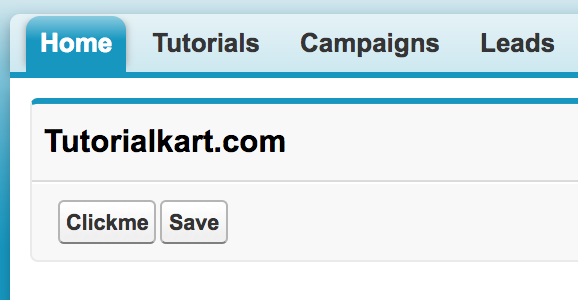
Visualforce page
<apex:page sidebar="false">
    <apex:form>
        <apex:pageBlock title="Tutorialkart.com" helpTitle="needHelp" helpUrl="https://www.tutorialkart.com">
            <apex:commandButton value="Clickme" action="https://www.tutorialkart.com"/>
            <apex:commandButton value="Save" action="{!save}" disabled="false"/>
        </apex:pageBlock>
    </apex:form>
</apex:page>
As shown in above Visualforce page, <apex:CommandButton>must always be a child of<apex:form> component. To create command button add apex:commandbutton component and enter the value for the button. Now we must add action attribute to the button. This action attribute is used to determine what action should be performed when we click on “Submit button”.
Calling a custom Apex controller method from apex:commandButton
A common use case is to call a method from a custom Apex controller. The method should be accessible to the Visualforce page, should not require parameters in the markup call, and should return a value that Visualforce can handle, commonly PageReference, void, or null.
public class AccountButtonController {
    public Account accountRecord { get; set; }

    public AccountButtonController() {
        accountRecord = new Account();
    }

    public PageReference saveAccount() {
        insert accountRecord;
        ApexPages.addMessage(new ApexPages.Message(
            ApexPages.Severity.CONFIRM,
            'Account saved successfully.'
        ));
        return null;
    }
}<apex:page controller="AccountButtonController">
<apex:form>
<apex:pageMessages id="messages" />
<apex:pageBlock title="Create Account">
<apex:pageBlockSection columns="1">
<apex:inputField value="{!accountRecord.Name}" />
</apex:pageBlockSection>
<apex:commandButton value="Save Account"
action="{!saveAccount}"
rerender="messages" />
</apex:pageBlock>
</apex:form>
</apex:page>In this example, clicking Save Account calls saveAccount() from the controller. The rerender="messages" setting refreshes the apex:pageMessages area after the action completes, so the confirmation message can appear without a full page refresh.
Using rerender with apex:commandButton for partial page refresh
The rerender attribute is useful when only part of the Visualforce page needs to change after the button click. It should refer to the ID of another Visualforce component on the page. For example, a Search button can refresh only the results panel instead of reloading the complete page.
<apex:page controller="SearchController">
    <apex:form>
        <apex:inputText value="{!searchText}" />
        <apex:commandButton value="Search"
                            action="{!runSearch}"
                            rerender="resultsPanel" />

        <apex:outputPanel id="resultsPanel">
            <apex:repeat value="{!accounts}" var="acc">
                <p>{!acc.Name}</p>
            </apex:repeat>
        </apex:outputPanel>
    </apex:form>
</apex:page>
When using rerender, make sure the target component has an id. Also avoid pointing rerender to a component that is not present in the rendered page, because Visualforce cannot refresh markup that was not created in the first place.
apex:commandButton with apex:actionSupport
apex:commandButton can run its own server-side action. apex:actionSupport is used when you want to attach AJAX behavior to another Visualforce component or a specific client-side event. In most simple button cases, using the action and rerender attributes directly on apex:commandButton is easier and clearer.
<apex:commandButton value="Refresh Details"
                    action="{!refreshDetails}"
                    rerender="detailsPanel" />
Use apex:actionSupport when the action is tied to events such as onchange, onclick, or onmouseover on a component that does not already provide the command behavior you need.
Why apex:commandButton does not call the controller method
If an apex:commandButton is visible but the controller method is not called, check these points first:
- The button is inside an
<apex:form>. - The method name in
action="{!...}"exactly matches the Apex method. - The controller method is public and does not require arguments in the Visualforce expression.
- Required field validation is not stopping the request before the action runs.
- The button is not disabled by
disabled="true". - JavaScript in
onclickis not returningfalsebefore the form is submitted. - The
rerendertarget ID exists on the page.
For Cancel buttons, consider immediate="true" when the button should skip validation and leave the page. For Save buttons, do not use immediate="true" unless you understand the effect on validation and model updates.
Output
Difference between apex:commandButton, HTML button, and custom button
| Button type | Best use |
|---|---|
apex:commandButton | Use in Visualforce when the button must submit a form, call an Apex action, or refresh part of the page. |
HTML <button> | Use for client-side behavior when no Visualforce controller action is needed. |
| Salesforce custom button or link | Use from an object page layout when you want to open a URL, call a Visualforce page, or start a defined action outside the page markup. |
If the requirement is to open a Visualforce page from a record detail page, create a Salesforce custom button or link and point it to the Visualforce page. If the requirement is to submit data from inside a Visualforce page, use apex:commandButton.
apex:commandButton FAQ
What is apex:commandButton in Visualforce?
apex:commandButton is a Visualforce component that renders a button and can submit an apex:form. It is commonly used to call a standard controller action, a custom controller method, or refresh part of the page.
Does apex:commandButton require apex:form?
Yes. An apex:commandButton should be placed inside <apex:form> when it needs to submit data or call a controller action. Without the form, the button cannot send the Visualforce form data and view state correctly.
How do I call an Apex method from apex:commandButton?
Set the button’s action attribute to the controller method expression, such as action="{!saveAccount}". The corresponding Apex method should be public and should not require parameters in the Visualforce action expression.
What is rerender in apex:commandButton?
rerender tells Visualforce which component IDs should be refreshed after the button action completes. It is used for partial page updates, such as refreshing a message area, a search results panel, or a section of record details.
When should I use immediate=true on apex:commandButton?
Use immediate="true" mainly for buttons such as Cancel or Back where validation should not block the action. Avoid using it on Save buttons unless you intentionally want to change the normal Visualforce validation and update flow.
Editorial QA checklist for this apex:commandButton tutorial
- Confirm every
apex:commandButtonexample is insideapex:form. - Check that custom controller action names match the Visualforce
actionexpressions. - Verify that
rerenderexamples point to existing component IDs. - Keep Save and Cancel examples separate when explaining
immediate="true". - Use
apex:commandButtonfor Visualforce form actions, not for general page-layout custom buttons.
Conclusion : In this Salesforce tutorial, we have learned about apex:CommandButton component and it’s attributes with an example. In our upcoming Salesforce tutorial, we will learn about apex:pageBlockButton.