 TutorialKart.com
apex:page is the root Standard Visualforce component used to define a Visualforce page. Every Visualforce page starts with <apex:page> and ends with </apex:page>. All Visualforce markup, standard components, custom components, HTML, and page-level controller settings must be placed inside this component.
The apex:page component controls page-level behavior such as the controller used by the page, whether the Salesforce header and sidebar are shown, whether the page is rendered as PDF, and whether a standard controller should work with a single record or a list of records.
Apex:Page Component in Visualforce
The <apex:page> tag wraps the complete page definition. It can be used with a custom controller, a standard controller, controller extensions, Salesforce styling, and page display options.
<apex:page>
    <h1>Welcome to Visualforce</h1>
    <p>This content is wrapped inside the apex:page component.</p>
</apex:page>
In a real Salesforce org, the page may also include attributes such as standardController, controller, extensions, showHeader, sidebar, and renderAs.
Common apex:page Attributes Used in Visualforce Pages
apex: page component has some attributes that are used in Visualforce pages. They are
action Attribute in apex:page
This invokes when this page is requested by the server, here we must use an expression language to reference an action method in APEX.
Action= {! do action} —> Must be defined in Apex class.
Example
action= {! int} or action= {!redir} —> re directions the page to new page referred —> Initializes
Use the action attribute carefully because it runs during page load. It is commonly used for initialization or navigation logic, but it should not be used for operations that unexpectedly change data when a user simply opens the page.
<apex:page controller="AccountPageController" action="{!init}">
    <apex:pageMessages />
</apex:page>
controller Attribute for a Custom Apex Controller
It’s a string type and the name given here must be implemented in an Apex class, controller means an custom controller, this cannot be used if we use standard controller.
<apex: page Controller=”class name implemented in APEX”>A custom controller is useful when the page needs business logic that is not available through a standard controller. The Apex class name is supplied in the controller attribute.
<apex:page controller="InvoiceController">
    <apex:form>
        <apex:commandButton value="Save" action="{!saveInvoice}" />
    </apex:form>
</apex:page>
extensions Attribute for Adding Logic to a Visualforce Controller
This is used to extend the custom controllers we can have any extension for an custom controller, this is used to add extra functionality.
<apex: page controller: “string” extension=”string”>The extensions attribute is often used with a standard controller when the page needs extra Apex methods while still keeping standard save, edit, delete, and view behavior.
<apex:page standardController="Account" extensions="AccountExtension">
    <apex:form>
        <apex:commandButton value="Custom Action" action="{!runCustomAction}" />
    </apex:form>
</apex:page>
id Attribute for Identifying the apex:page Component
It’s a string and gives an identification for the components which means this ID recognize the components uniquely. We can specify any name, but it should not be a duplicate, it’s generally used to refer this page by other components in the page.
Use a clear and unique id value when the page or its child components need to be referenced by other Visualforce components, JavaScript, or partial page refresh logic.
apiVersion Attribute in a Visualforce Page
This indicates the latest version of api.
The API version affects which platform features, component behavior, and Apex behavior are available to the Visualforce page. When maintaining an older page, review the page version before changing logic, because behavior may differ between older and newer API versions.
recordSetVar Attribute for Visualforce List Pages
It’s a string; this attribute indicates that the page users a set of records oriented by a standard controller only. Used to handle multiple records, this attribute converts a controller to a list controller.
recordSetVar is used with standardController when the Visualforce page works with multiple records instead of a single record. The value of recordSetVar becomes the variable name used to refer to the record collection on the page.
<apex:page standardController="Account" recordSetVar="accounts">
    <apex:pageBlock title="Account List">
        <apex:pageBlockTable value="{!accounts}" var="acc">
            <apex:column value="{!acc.Name}" />
            <apex:column value="{!acc.Phone}" />
        </apex:pageBlockTable>
    </apex:pageBlock>
</apex:page>
renderAs Attribute for Creating a PDF from Visualforce
It’s a string the name of any supported content converter, we can change the display in to a ‘PDF’ or another type currently it’s only a ‘PDF’ format.
<apex: page render as=’PDF’> displays a page in a pdf format.
The commonly used value is pdf. This is useful for invoices, printable summaries, confirmations, and other pages that should be downloaded or viewed as a PDF. PDF rendering has layout limitations, so keep the markup simple and test the generated file.
<apex:page standardController="Account" renderAs="pdf">
    <h1>Account Summary</h1>
    <p>Account Name: {!Account.Name}</p>
</apex:page>
rendered Attribute for Conditional Page Display
It’s a Boolean type, related to the displaying of a page by default it’s a ‘TRUE’, if we keep it false the page will not be displayed.
The rendered attribute accepts a Boolean value or a Visualforce expression that returns a Boolean value. It can be used to show or hide the page based on controller logic, permissions, record values, or other conditions.
<apex:page controller="AccessController" rendered="{!canViewPage}">
    <p>This page is visible only when canViewPage is true.</p>
</apex:page>
setup Attribute for Salesforce Setup Styling
It’s a Boolean type; it specifies whether the page should implement standard salesforce.com setup if its true.It will not implement by default if it’s “FALSE”
This attribute is used when a page should appear as part of the Salesforce setup experience. For most record pages and custom user-facing pages, developers usually control the layout using other page attributes and components.
showHeader Attribute for Showing or Hiding the Salesforce Header
It’s a Boolean type, displays or hides the salesforce header if true or false respectively.
Set showHeader="false" when you want a cleaner page without the standard Salesforce header. This is common for embedded pages, printable pages, or custom-designed pages.
sidebar Attribute for Hiding the Salesforce Sidebar
It’s a Boolean type, displays or hides the sidebar of standard salesforce site.
Set sidebar="false" when the page should not display the classic Salesforce sidebar. It is often used together with showHeader="false" for standalone Visualforce pages.
standardController Attribute for Salesforce Object Pages
It’s the salesforce object that’s used to control the behaviour of this page, this attribute cannot be specified if custom controller is used.
<apex: page standardcontroller=”Tutorial__C”>A standard controller gives the Visualforce page built-in behavior for a Salesforce object such as Account, Contact, Opportunity, or a custom object. Use standardController for pages that work with one record and standardController with recordSetVar for list pages.
<apex:page standardController="Account">
    <apex:detail />
</apex:page>
standardStylesheets Attribute for Salesforce Styling
It’s a Boolean type; it decides whether the standard salesforce style sheets are added to the generated page header if the showheader attribute is set false, if it’s set true the standard style sheets are by default, added to the generated page header. The other important tags are tab style title, help URL & help title.
Use standardStylesheets="false" when you want to avoid Salesforce default styling and apply your own CSS. If you are using standard Visualforce components such as <apex:pageBlock>, keeping standard styles enabled may produce a more familiar Salesforce layout.
Using standardController, controller, and extensions Correctly in apex:page
The most common confusion in apex:page is choosing between standardController, controller, and extensions. These attributes decide where the page gets its data and actions.
| apex:page attribute | Use it when | Example |
|---|---|---|
standardController | The page works with a Salesforce object and needs built-in record behavior. | standardController="Account" |
controller | The page needs a completely custom Apex controller. | controller="InvoiceController" |
extensions | The page needs extra Apex logic in addition to a standard or custom controller. | extensions="AccountExtension" |
recordSetVar | The page uses a standard controller for multiple records. | recordSetVar="accounts" |
A page should not define both controller and standardController at the same time. Use one main controller approach, then add extensions if extra logic is needed.
Visualforce page without Salesforce header and sidebar
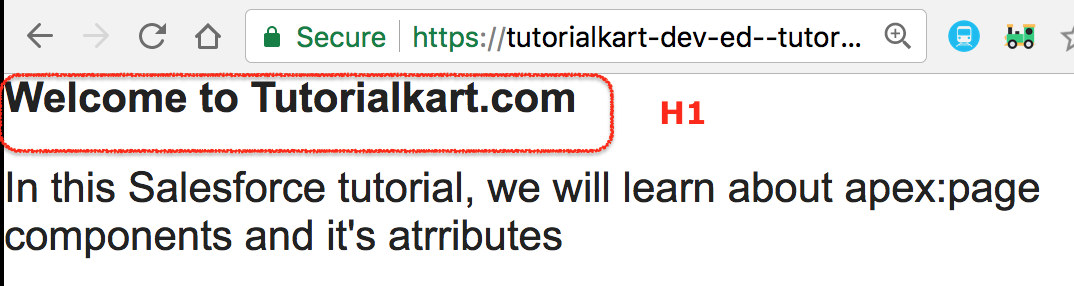
<apex:page sidebar="false" showHeader="false" >
    <h1>Welcome to Tutorialkart.com</h1>
    	<p> In this Salesforce tutorial, we will learn about apex:page components and it's atrributes</p>
</apex:page>
Output of apex:page with sidebar and header disabled
apex:page Attribute Examples for Common Visualforce Requirements
The examples below show how page-level attributes are combined in practical Visualforce pages.
Display an Account record using apex:page and standardController
<apex:page standardController="Account">
    <apex:pageBlock title="Account Details">
        <apex:outputField value="{!Account.Name}" />
        <apex:outputField value="{!Account.Phone}" />
        <apex:outputField value="{!Account.Industry}" />
    </apex:pageBlock>
</apex:page>
This page uses the Account standard controller and can access fields from the current Account record.
Create a clean Visualforce page using showHeader and sidebar
<apex:page showHeader="false" sidebar="false" standardStylesheets="false">
    <style>
        body { font-family: Arial, sans-serif; }
    </style>
    <h1>Custom Visualforce Layout</h1>
</apex:page>
This page hides the Salesforce header, sidebar, and default styles so the developer can control the visual layout.
Best Practices for the Visualforce apex:page Component
- Use
standardControllerwhen the page is mainly record-oriented and standard Salesforce behavior is enough. - Use a custom
controllerwhen the page needs custom data loading, custom actions, or logic that does not match one Salesforce object. - Use
extensionsto add methods to an existing standard controller instead of replacing standard behavior unnecessarily. - Avoid heavy data updates in the
actionattribute because the method runs when the page loads. - Use
renderAs="pdf"only after testing the page layout as a PDF, because not all browser-style layouts render the same way in PDF output. - Keep
showHeader,sidebar, andstandardStylesheetsaligned with the purpose of the page: Salesforce-style page, embedded page, standalone page, or printable page.
Common Mistakes with apex:page in Visualforce
- Using both
controllerandstandardControlleron the same page. - Misspelling
standardController,recordSetVar,showHeader, orrenderAs. - Using
recordSetVarwithout a standard controller. - Expecting
rendered="false"to hide only part of the page when it is applied to the root<apex:page>tag. - Using smart quotes such as
“Account”instead of normal quotes such as"Account"in Visualforce markup.
Official Visualforce References for apex:page
For deeper reference, check the Salesforce Visualforce component documentation for Standard Visualforce Components, the apex:component reference, and the apex:page component reference.
FAQ on apex:page Component in Visualforce
What is apex:page in Visualforce?
apex:page is the root Visualforce component used to create a Visualforce page. It wraps the complete page markup and defines page-level settings such as controller, standard controller, header, sidebar, styling, and PDF rendering.
Can an apex:page use both controller and standardController?
No. A Visualforce page should use either a custom controller or a standardController. If extra logic is needed with a standard controller, use the extensions attribute.
When should recordSetVar be used in apex:page?
Use recordSetVar when a Visualforce page uses a standard controller and needs to work with a list of records instead of a single record. It turns the standard controller into a list controller for that page.
How do showHeader and sidebar work in apex:page?
showHeader controls whether the Salesforce header appears, and sidebar controls whether the Salesforce sidebar appears. Setting both to false creates a cleaner standalone Visualforce page layout.
How is renderAs used in an apex:page component?
renderAs is used to render a Visualforce page in another supported format, commonly PDF. For example, <apex:page renderAs="pdf"> renders the page as a PDF output.
Editorial QA Checklist for this apex:page Tutorial
- Confirm that every new Visualforce code block uses normal double quotes and valid
<apex:page>syntax. - Verify that
controllerandstandardControllerare not presented as attributes to use together on the same page. - Check that
recordSetVaris explained only in the context of a standard controller list page. - Confirm that PDF rendering is described through
renderAs="pdf"and not as a general browser print feature. - Make sure the existing apex:page screenshot and its original URL remain unchanged.
Summary of apex:page Component in Visualforce
In this Salesforce tutorial, we have learned about <apex:page> component and its attributes. The apex:page component is the starting point of every Visualforce page, and its attributes define how the page connects to Apex, how it displays Salesforce UI elements, whether it works with a single record or a record list, and whether it renders as standard HTML or PDF. In our upcoming Visualforce tutorial, we will learn about different Visualforce components.