 TutorialKart.com
How to add CSS to Visualforce pages in Salesforce
You can add CSS to Visualforce pages in three main ways: inline CSS with the style attribute, internal CSS inside a <style> block, and external CSS from a Salesforce Static Resource. For production Visualforce pages, external CSS is usually the easiest to maintain, while inline CSS is best used only for very small one-off changes.
CSS stands for Cascading Style Sheets. In Visualforce, CSS controls how HTML elements and Visualforce components appear on the page, such as text alignment, colors, borders, spacing, font size, and layout. Visualforce pages can also use Salesforce styling options such as lightningStylesheets and the Salesforce Lightning Design System (SLDS) when the page must fit better into Lightning Experience.
Visualforce CSS options: inline, internal, external, and SLDS
| CSS method for Visualforce | Where the CSS is written | Best use case | Maintenance note |
|---|---|---|---|
| Inline CSS | Inside a component or HTML tag using style | Small, local formatting changes | Hard to reuse across pages |
| Internal CSS | Inside a <style> tag in the Visualforce page | Page-specific styles used in many places on the same page | Better than repeating inline styles |
| External CSS | In a .css file uploaded as a Static Resource | Reusable styles shared by many Visualforce pages | Recommended for larger pages |
| SLDS or Lightning styling | Through lightningStylesheets or <apex:slds /> | Pages that should visually match Lightning Experience | Requires correct SLDS class usage for custom markup |
Add inline CSS to a Visualforce page with the style attribute
Inline CSS is written directly on a Visualforce component or an HTML element. This is useful when only one element needs a quick style change. The attribute name is style, and the value contains CSS property-value pairs such as color:red; or border:2px solid blue;.
The example below applies CSS directly to <apex:form>, <h1>, and <apex:outputLabel>.
<apex:page showHeader="false" >
    <apex:form style="border-style:solid;border-width:2px;
                      border-color:blue;background-color:lightgrey">
        <H1 style="text-align:center;font-size:30px;">
            Welcome to tutorialkart.com
        </H1><br/>
        <apex:outputLabel style="color:red;font-size:25px;text-algn:center;border:2px;"> Learn how to use CSS in Visualforce page</apex:outputLabel>
    </apex:form>
</apex:page>
Inline CSS output in a Visualforce page

When CSS is written inline, the style applies only to that specific element. In real Visualforce code, check CSS property spellings carefully. For example, a browser ignores a misspelled property such as text-algn because it does not recognize it as text-align.
Useful CSS properties for Visualforce page styling
Visualforce accepts standard CSS for HTML markup and for many Visualforce components that render HTML. The following table lists common properties used when styling a Visualforce page.
| Text Properties | Background Effects | Font Properties | Border Properties |
| Center, Right, Justify | Background-color | Font-style | border-bottom |
| over-Line | Background-image | Font-variant | border-collapse |
| UnderLine | Background-repeat | Font-weight | border-color |
| Text-transformation:Lowercase | Background-attachment | Font-size | border-image |
| Text-transformation:uppercase | Background-position | Font-family | border-left |
| Text-transformation:Capitalize | Background-size | Caption | border-style |
| Text-Shadow | Background-clip | icon | border-width |
In normal CSS syntax, property names are written in lowercase with hyphens, such as text-align, text-transform, background-color, font-size, font-family, border-radius, and border-color.
.example-panel {
    background-color: #f4f6f9;
    border: 1px solid #d8dde6;
    border-radius: 4px;
    font-size: 14px;
    padding: 12px;
    text-align: left;
}
Add internal CSS to Visualforce with a style tag
Internal CSS is written inside the same Visualforce page, normally inside a <style> tag. It is not written inside a <script> tag, because <script> is for JavaScript. Internal CSS is useful when a page needs several repeated styles but those styles are not shared with other pages.
Internal CSS can target elements in three common ways:
- By using an ID selector, such as
#recentItems. - By using a class selector, such as
.recent. - By using an HTML tag selector, such as
h1ortable.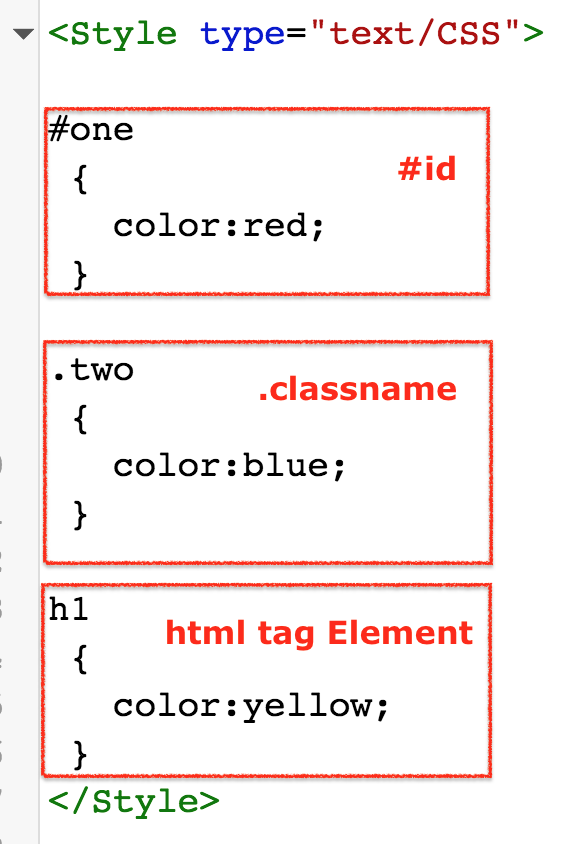
Internal CSS Visualforce page example
<apex:page standardController="contact" recordSetVar="items" sidebar="false">
	<apex:form>
        <style>
           .One
             {
            margin:20px;
            padding:10px;
            width:150px;
            height:100px;
            baclground-color:blue;
            border-radius:20px;
            border:2px solod red;
             }
            .outer
             {
            margin:10px;
            padding:10px;
            width:250px;
            height:500px;
            baclground-color:red;
             }
            .recent
             {
              margin:2px;
              padding:3px;
              width:150px;
              height:10px;
              baclground-color:green;
             }
        </style>
        <div>
            <div class="recent" >
                <apex:outputLabel style="font-size:20px"> Recent Items
                </apex:outputLabel>
            </div>
            <div class="One">
                <apex:dataTable value="{!items}" var="a" rows="5" first="3">

              <apex:column>
                  <apex:image url="https://tutorialkart-dev-ed--tutorialkart.ap4.visual.force.com/resource/1505707588000/tutorialkart__image"
                              style="width:10px;height:10px;padding:5px;float:left;"/>
                  <apex:commandLink value="{!a.name}" action="{a.id}"/>
              </apex:column>
                 </apex:dataTable>
            </div>
        </div>
    </apex:form>
</apex:page>
Internal CSS output in Visualforce
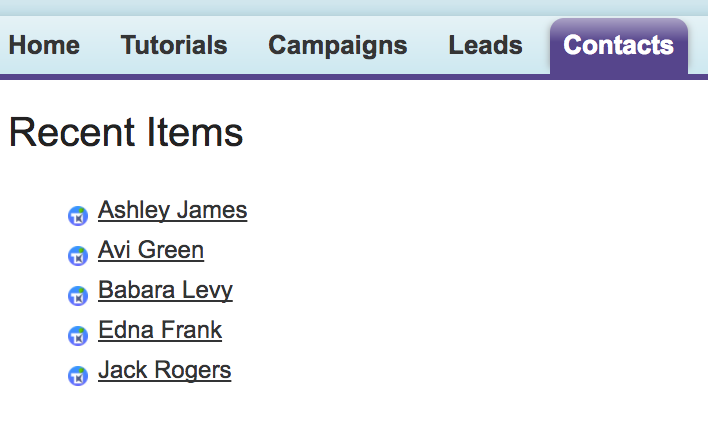
The following shorter example shows the same internal CSS idea with corrected CSS property spellings and a simple class name. Use this pattern when the CSS belongs only to one Visualforce page.
<apex:page standardController="Contact" sidebar="false">
    <style>
        .contact-card {
            background-color: #f4f6f9;
            border: 1px solid #d8dde6;
            border-radius: 4px;
            margin: 16px;
            padding: 16px;
            width: 320px;
        }

        .contact-card__title {
            font-size: 18px;
            font-weight: bold;
            margin-bottom: 8px;
        }
    </style>

    <div class="contact-card">
        <div class="contact-card__title">Contact Details</div>
        <p>Name: {!Contact.Name}</p>
        <p>Email: {!Contact.Email}</p>
    </div>
</apex:page>
Add external CSS to Visualforce using a Static Resource
External CSS is written in a separate .css file and uploaded to Salesforce as a Static Resource. This is the cleanest approach when the same CSS is used in multiple Visualforce pages. Salesforce Static Resources can store files such as style sheets, JavaScript files, images, and zipped asset folders that are referenced from Visualforce pages.
External CSS in Visualforce pages can be applied in three steps.
- Create a
.cssfile. - Upload the CSS file as a Static Resource in Salesforce.
- Reference the CSS file in the Visualforce page by using
<apex:stylesheet>or a standard HTML<link>tag.
For example, create a CSS file named contactStyles.css with the following content.
.vf-panel {
    background-color: #ffffff;
    border: 1px solid #d8dde6;
    border-radius: 4px;
    margin: 16px;
    padding: 16px;
}

.vf-panel-title {
    color: #16325c;
    font-size: 18px;
    font-weight: 600;
}
After uploading the file as a Static Resource named contactStyles, include it in the Visualforce page like this.
<apex:page standardController="Contact" sidebar="false">
    <apex:stylesheet value="{!$Resource.contactStyles}" />

    <div class="vf-panel">
        <div class="vf-panel-title">Contact Details</div>
        <p>Name: {!Contact.Name}</p>
        <p>Email: {!Contact.Email}</p>
    </div>
</apex:page>
If the CSS file is inside a zipped Static Resource, use URLFOR to point to the file path inside the zip archive.
<apex:stylesheet value="{!URLFOR($Resource.appAssets, 'css/contactStyles.css')}" />Use SLDS or lightningStylesheets in Visualforce pages
When a Visualforce page is used in Lightning Experience, you may want it to look closer to standard Salesforce Lightning pages. There are two common approaches: lightningStylesheets="true" for many standard Visualforce components, and <apex:slds /> when you want to write SLDS class-based markup.
To apply Lightning-style rendering to supported Visualforce components, add lightningStylesheets="true" to <apex:page>.
<apex:page standardController="Account" lightningStylesheets="true">
    <apex:form>
        <apex:pageBlock title="Account">
            <apex:pageBlockSection>
                <apex:outputField value="{!Account.Name}" />
            </apex:pageBlockSection>
        </apex:pageBlock>
    </apex:form>
</apex:page>
To include the Salesforce Lightning Design System in a Visualforce page, add <apex:slds /> and wrap SLDS markup in slds-scope. This helps avoid unwanted CSS conflicts with other page styles.
<apex:page showHeader="false" sidebar="false">
    <apex:slds />

    <div class="slds-scope">
        <div class="slds-box slds-theme_default">
            <p class="slds-text-heading_small">Styled with SLDS</p>
        </div>
    </div>
</apex:page>
SLDS classes do not automatically style every piece of custom HTML. You must use the correct SLDS class names on the markup you write.
Edit a Visualforce page before adding CSS
To edit an existing Visualforce page, open Setup in Salesforce, search for Visualforce Pages in Quick Find, choose the page, and click Edit. You can also edit Visualforce markup from Developer Console or from a source-driven development setup such as Salesforce CLI and Visual Studio Code. Before changing styling on a production page, test the page in a sandbox or Developer Edition org and verify it in the context where users will open it, such as a record page, tab, button, or embedded Lightning page.
Visualforce CSS best practices and common mistakes
- Use external CSS for reusable styles. A Static Resource keeps page markup cleaner and avoids copying the same CSS into many Visualforce pages.
- Use internal CSS for one-page styling. A
<style>block is acceptable when the style is specific to one Visualforce page. - Avoid too much inline CSS. Inline CSS is harder to review, override, and reuse.
- Check spelling in CSS declarations. Misspelled properties such as
baclground-coloror values such assolodare ignored by the browser. - Keep selectors specific but not excessive. Prefer meaningful class names like
.account-summaryinstead of styling everydivon the page. - Be careful with Salesforce standard styles. Custom CSS can unintentionally override standard Visualforce or Lightning styles.
- Test in both Classic and Lightning when required. Some orgs still open older Visualforce pages from Classic-style flows, buttons, or tabs.
- For new Lightning-first UI, consider LWC. Visualforce is still used, but Lightning Web Components are generally the modern choice for new component-based Salesforce UI.
Visualforce CSS QA checklist before publishing the page
- Confirm every Static Resource name used in
$Resourceexactly matches the uploaded resource name. - Open the Visualforce page as a user profile that will actually use the page, not only as System Administrator.
- Verify that required fields, buttons, tables, and messages remain readable after the CSS is applied.
- Check that custom CSS does not hide Salesforce error messages, validation messages, or required field indicators.
- Test the page in Lightning Experience if it uses
lightningStylesheetsor SLDS classes. - Review browser developer tools for missing CSS files, incorrect Static Resource paths, or overridden rules.
Official Salesforce references for Visualforce styling
- Salesforce Developer Guide: Styling Visualforce Pages
- Salesforce Developer Guide: Using Custom Styles
- Salesforce Developer Guide: apex:stylesheet
- Salesforce Developer Guide: apex:slds
- Salesforce Developer Guide: CSS Stylesheets in Lightning Web Components
FAQs on adding CSS to Visualforce pages
Are Visualforce pages still used in Salesforce?
Yes. Visualforce pages are still used in many Salesforce orgs, especially for existing custom pages, PDF rendering, custom buttons, and older implementations. For new Lightning-first user interfaces, Lightning Web Components are usually preferred, but Visualforce knowledge is still useful when maintaining existing Salesforce applications.
How do I edit a Visualforce page to add CSS?
In Salesforce Setup, search for Visualforce Pages, open the required page, and click Edit. Add inline CSS with the style attribute, add page-level CSS in a style tag, or reference an uploaded Static Resource with apex:stylesheet. Test the page before saving changes in production.
How do I add SLDS to a Visualforce page?
Add <apex:slds /> to the Visualforce page and wrap your SLDS markup in an element with the slds-scope class. Then use SLDS utility and component classes in your HTML markup.
What is the difference between external CSS and internal CSS in Visualforce?
Internal CSS is written inside the Visualforce page in a style tag. External CSS is stored in a separate CSS file and uploaded as a Static Resource. External CSS is better when the same styles are needed in more than one Visualforce page.
How is CSS added to a Lightning Web Component instead of Visualforce?
In LWC, create a CSS file with the same name as the component in the component folder, such as myComponent.css for myComponent.html. The stylesheet is applied to that component. This is different from Visualforce, where CSS is commonly added inline, in a style tag, or through Static Resources.
Key takeaway for CSS in Visualforce pages
Use inline CSS only for small local changes, internal CSS for styles that belong to one Visualforce page, and external CSS through Static Resources for reusable styling. If the Visualforce page must match Lightning Experience, review lightningStylesheets and SLDS before writing a large amount of custom CSS.