 TutorialKart.com
Read XLS and XLSX Excel Files in R with readxl
R can read both modern .xlsx workbooks and older .xls files. The readxl package provides three main functions for this task: read_excel(), read_xlsx(), and read_xls(). Each function imports a worksheet into R as a tibble, which can be used like a data frame.
Use read_excel() when you want R to detect the Excel format from the file extension. Use read_xlsx() or read_xls() when the file type is already known.
Install and load the readxl package in R
Install readxl once from CRAN. The installation output varies by operating system, R version, and the selected CRAN mirror.
> install.packages("readxl")
Warning in install.packages("readxl") :
  'lib = "C:/Program Files/R/R-3.5.2/library"' is not writable
--- Please select a CRAN mirror for use in this session ---
also installing the dependencies ‘magrittr’, ‘assertthat’, ‘utf8’, ‘rematch’, ‘hms’, ‘prettyunits’, ‘R6’, ‘crayon’, ‘cli’, ‘fansi’, ‘pillar’, ‘pkgconfig’, ‘rlang’, ‘cellranger’, ‘progress’, ‘Rcpp’, ‘tibble’

trying URL 'https://cloud.r-project.org/bin/windows/contrib/3.5/magrittr_1.5.zip'
Content type 'application/zip' length 155601 bytes (151 KB)
downloaded 151 KB

..

package ‘tibble’ successfully unpacked and MD5 sums checked
package ‘readxl’ successfully unpacked and MD5 sums checked

The downloaded binary packages are in
        C:\Users\TutorialKart\AppData\Local\Temp\Rtmpq4O6ls\downloaded_packages
Load the package in each new R session before calling its functions.
> library(readxl)You can also call a function with the package prefix, such as readxl::read_excel(), without first running library(readxl).
Read an XLSX file in R with read_xlsx()
The read_xlsx() function reads Excel workbooks that use the .xlsx format.
The syntax of read_xlsx() function is
read_xlsx(path, sheet = NULL, range = NULL, col_names = TRUE,
  col_types = NULL, na = "", trim_ws = TRUE, skip = 0,
  n_max = Inf, guess_max = min(1000, n_max),
  progress = readxl_progress(), .name_repair = "unique")
Only path is required. The remaining arguments control the worksheet, cell range, column names, missing values, skipped rows, imported row count, and column types.
In this example, sample.xlsx contains three columns and five data rows and is stored on a local drive.

The contents of the XLSX file are shown below.
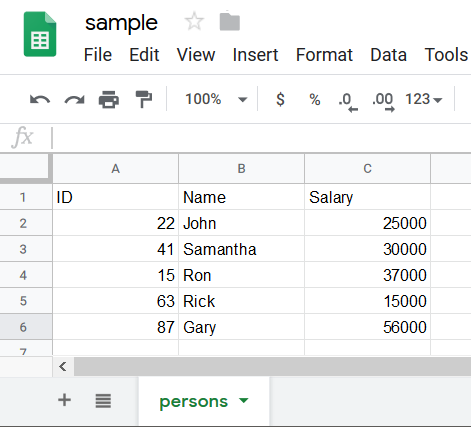
Pass the workbook path to read_xlsx().
> library(readxl)
> read_xlsx("C:\\tutorialkart\\r\\sample.xlsx")
# A tibble: 5 x 3
     ID Name     Salary
  <dbl> <chr>     <dbl>
1    22 John      25000
2    41 Samantha  30000
3    15 Ron       37000
4    63 Rick      15000
5    87 Gary      56000
>
The result is a 5-by-3 tibble. By default, read_xlsx() uses the first imported row as column names and guesses each column type from the cell values.
- The workbook produced five data rows and three columns.
- The first row supplied the column names
ID,Name, andSalary. - The displayed type abbreviations indicate the inferred R types:
<dbl>means a double-precision numeric column.<chr>means a character column.<dbl>is also inferred for the salary values.
Store the imported Excel worksheet in an R data frame object
Assign the result to an object when you need to inspect, transform, filter, or summarize the imported data. readxl returns a tibble, but you can convert it to a base R data frame when required.
employees <- readxl::read_xlsx("C:/tutorialkart/r/sample.xlsx")

employees_df <- as.data.frame(employees)

head(employees_df)
str(employees_df)
Forward slashes work in R paths on Windows and avoid the need to double each backslash. You may also use escaped backslashes, as shown in the earlier examples.
Read an XLSX or XLS file with read_excel()
read_excel() reads both .xlsx and .xls files. It determines the workbook format from the supplied file path.
The syntax of read_excel() function is
read_excel(path, sheet = NULL, range = NULL, col_names = TRUE,
  col_types = NULL, na = "", trim_ws = TRUE, skip = 0,
  n_max = Inf, guess_max = min(1000, n_max),
  progress = readxl_progress(), .name_repair = "unique")
Except for the path argument, the arguments are optional.
The following call reads the same XLSX workbook.
> library(readxl)
> read_excel("C:\\tutorialkart\\r\\sample.xlsx")
# A tibble: 5 x 3
     ID Name     Salary
  <dbl> <chr>     <dbl>
1    22 John      25000
2    41 Samantha  30000
3    15 Ron       37000
4    63 Rick      15000
5    87 Gary      56000
>
Choose between read_excel(), read_xlsx(), and read_xls()
For an XLSX workbook, read_excel() and read_xlsx() return the same imported data when given the same arguments. The practical difference is format handling.
| Function | Accepted format | When to use it |
|---|---|---|
read_excel() | .xls and .xlsx | Use when the extension may vary or you want one general import function. |
read_xlsx() | .xlsx | Use when the workbook is known to be in the newer XLSX format. |
read_xls() | .xls | Use when the workbook is known to be in the older binary XLS format. |
Read a specific Excel sheet by name or position
When a workbook contains multiple worksheets, use excel_sheets() to list their names. Then pass a sheet name or one-based sheet position to the sheet argument.
library(readxl)

excel_sheets("C:/tutorialkart/r/report.xlsx")

sales <- read_excel(
  "C:/tutorialkart/r/report.xlsx",
  sheet = "Sales"
)

summary_data <- read_excel(
  "C:/tutorialkart/r/report.xlsx",
  sheet = 2
)
A sheet name must match the workbook name exactly. A numeric value such as 2 selects the second worksheet.
Read a cell range or selected rows from an Excel worksheet
Use range when the required table occupies a known cell area. Use skip to ignore introductory rows and n_max to limit the number of data rows.
selected_cells <- read_excel(
  "C:/tutorialkart/r/report.xlsx",
  sheet = "Sales",
  range = "A2:D20"
)

first_100_rows <- read_excel(
  "C:/tutorialkart/r/report.xlsx",
  skip = 2,
  n_max = 100
)
When range is supplied, it defines the imported cells directly and takes precedence over row-skipping limits that would otherwise describe the worksheet.
Control Excel column names, missing values, and data types
Spreadsheet columns can contain blank cells, inconsistent values, or headings that are not in the first imported row. The following arguments help make the import predictable:
col_names: useTRUEfor headers,FALSEfor generated names, or supply a character vector of names.na: specify text values that should become R missing values, such as"NA"or"Not available".trim_ws: remove leading and trailing whitespace from text cells when set toTRUE.col_types: explicitly set types such as"text","numeric","date","logical","list","skip", or"guess".
employees <- read_excel(
  "C:/tutorialkart/r/sample.xlsx",
  col_names = c("employee_id", "employee_name", "salary"),
  na = c("", "NA", "Not available"),
  col_types = c("numeric", "text", "numeric")
)
Set col_types when identifiers must remain text, dates are being guessed incorrectly, or mixed values make automatic type detection unreliable.
Read an older XLS file in R
Use read_excel() to read an XLS file when you want automatic format detection.
> library(readxl)
> read_excel("C:\\tutorialkart\\r\\sample.xls")
Use read_xls() when the file is known to use the .xls format.
The syntax of read_xls() function is
read_xls(path, sheet = NULL, range = NULL, col_names = TRUE,
  col_types = NULL, na = "", trim_ws = TRUE, skip = 0,
  n_max = Inf, guess_max = min(1000, n_max),
  progress = readxl_progress(), .name_repair = "unique")
Following is an example to use read_xls() funtion to read XLS Excel file.
> library(readxl)
> read_xls("C:\\tutorialkart\\r\\sample.xls")
# A tibble: 5 x 3
     ID Name     Salary
  <dbl> <chr>     <dbl>
1    22 John      25000
2    41 Samantha  30000
3    15 Ron       37000
4    63 Rick      15000
5    87 Gary      56000
>
Fix common errors when reading Excel files in R
Could not find function read_xlsx
This error usually means that readxl has not been loaded in the current session. Run library(readxl), or call the function as readxl::read_xlsx().
Excel file path does not exist
Check the working directory and confirm that the path points to an existing file. file.exists() is a quick way to test the path before importing.
file_path <- "C:/tutorialkart/r/sample.xlsx"

file.exists(file_path)
getwd()
Wrong worksheet or unexpected headers
List worksheet names with excel_sheets(). If the table begins below titles or notes, use skip or a precise range. If there is no header row, set col_names = FALSE.
Numbers or dates imported as text
Mixed cell contents can cause a column to be interpreted as text. Clean the worksheet when possible, increase the number of rows considered by type guessing with guess_max, or set col_types explicitly.
Frequently asked questions about reading Excel files in R
Can R read XLSX files?
Yes. Install the readxl package and use read_excel() or read_xlsx(). Both functions import worksheet data without requiring Microsoft Excel to be installed.
What does read_excel() do in R?
read_excel() imports a worksheet from an .xls or .xlsx file and returns the data as a tibble. It can select a sheet, restrict the cell range, skip rows, limit rows, define missing values, and control column types.
How do I read an Excel file into an R data frame?
Assign the result of read_excel() to an object. The returned tibble already behaves like a data frame for most R operations. Use as.data.frame() when a base R data frame is specifically required.
How do I read a specific sheet from an XLSX file in R?
Pass the worksheet name or position to sheet, for example read_xlsx("report.xlsx", sheet = "Sales") or read_xlsx("report.xlsx", sheet = 2).
Does readxl edit or write Excel files?
No. readxl is designed for reading Excel files. Use a package that supports workbook writing when you need to create, format, or update an Excel file.
Editorial QA checklist for this R Excel import tutorial
- Confirm that every Windows path uses forward slashes or escaped backslashes.
- Verify that examples distinguish
.xlsfrom.xlsxcorrectly. - Check that worksheet names used with
sheetmatch the sample workbook. - Confirm that column types and tibble dimensions agree with the displayed Excel data.
- Test new examples with the current CRAN release of
readxlbefore publication.
Summary of reading Excel files in R
Use read_excel() for either XLS or XLSX files, read_xlsx() for XLSX workbooks, and read_xls() for older XLS workbooks. The sheet, range, skip, n_max, na, and col_types arguments provide control over how spreadsheet data is imported. In this R Tutorial, we have covered the common Excel import workflows and the errors most often encountered when loading a workbook into R.