 TutorialKart.com
SAP tutorials guides you how to activate cost center accounting in controlling area step by step using transaction code OKKP and the SAP IMG path. This setting is maintained at controlling area and fiscal year level, so confirm the correct controlling area key and fiscal year before you save the entry.
Activate cost center accounting in controlling area using OKKP
Cost center accounting is a Controlling component used to record, monitor, plan, and analyze costs by cost center. Activating cost center accounting in a controlling area makes the component available for the selected fiscal year. Creating cost centers is a separate master data activity; this tutorial covers only the controlling area activation step.
Transaction code : – OKKP.
IMG path : – SPRO >> IMG >> Controlling >> Cost center accounting >> Activate cost center accounting in controlling area.
Settings to confirm before activating SAP cost center accounting
| Configuration item | What to check |
|---|---|
| Controlling area | The controlling area key must already exist and be assigned as required in your enterprise structure. |
| Fiscal year | The activation is entered for a fiscal year. Use the year for which cost center postings, planning, or reporting must be enabled. |
| Cost centers component | The Cost Centers component should be marked active for the relevant fiscal year. |
| Activity type indicator | Select Activity Type when your configuration requires activity type planning or allocation. In this tutorial example, it is selected. |
| Customizing request | A transport request is required in most client settings when you save this configuration. |
Step 1 : – Enter SAP transaction code “SPRO” in the SAP command field and enter.
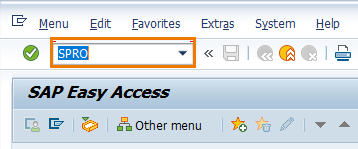
SPRO opens the Customizing screen. You can also use transaction code OKKP directly when you have authorization and you already know that the configuration is for maintaining a controlling area.
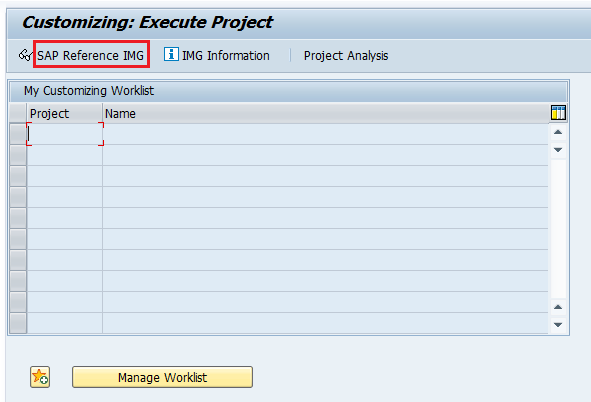
Step 2 : – On customizing execute screen, select “SAP Reference IMG“
Step 3 : – On display IMG screen, follow the navigation path as controlling – cost center accounting and click on IMG activity “Activate cost center accounting in controlling area“
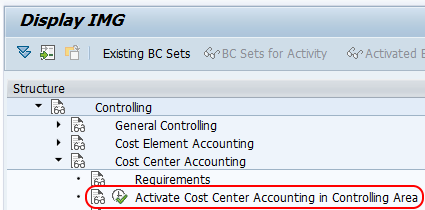
This IMG activity takes you to the controlling area basic data screen. From this screen you choose the controlling area and maintain the active Controlling components and control indicators.
Step 4 : – On change view basic data overview screen, click on position button and enter controlling area key “TKO1” so that our SAP controlling key displays on top of the window.
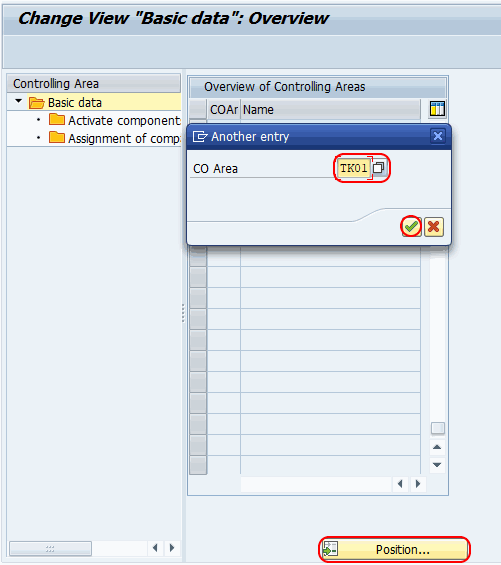
If your controlling area is not displayed, recheck the controlling area key, user authorization, and client. Do not continue with another controlling area unless it belongs to the same configuration requirement.
Step 5 : – Choose control area “TKO1” and double click on activate components/ control indicators for activation of cost center accounting.
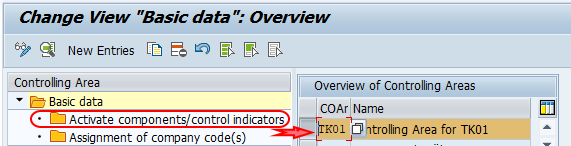
The Activate components/control indicators node stores the year-wise component activation. This is the place where you maintain Cost Centers as active for the controlling area.
Step 6 : – On change view “Activate components/control indicators”: overview screen, click on new entries button.
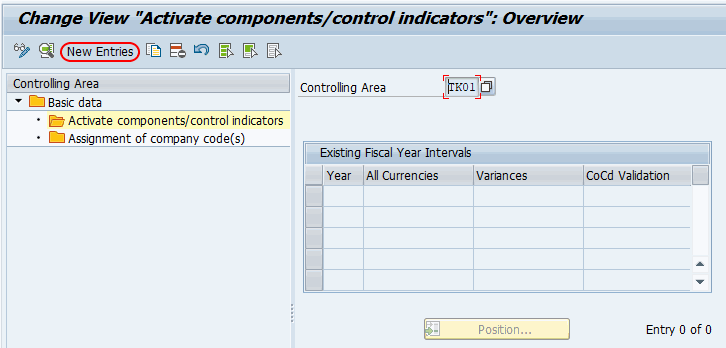
If an entry already exists for the fiscal year, select the existing line and verify the indicators instead of creating a duplicate entry.
Step 7 : – On new entries screen, update the following details.
- Fiscal Year : – Enter the fiscal year.
- Choose cost centers as component active.
- Check the option AA : Activity type
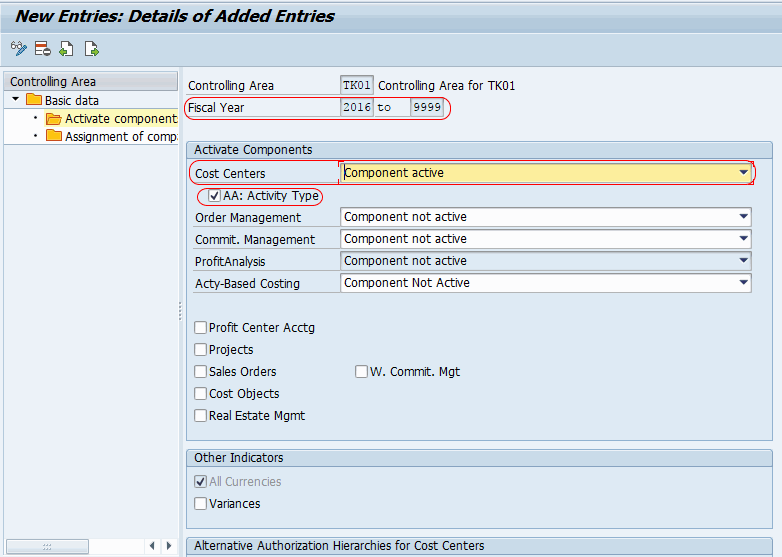
After maintaining all the required details, click on save button and choose the customizing request and save the data.
Successfully we have activated cost center accounting in SAP controlling area.
What each activation field means in SAP CO-CCA
The fiscal year field decides the year from which the component setting is valid for the controlling area. The Cost Centers active indicator enables cost center accounting for that year. The Activity Type indicator is used when the organization records or plans internal activity quantities and prices. If the business does not use activity types, confirm the requirement with the SAP CO functional owner before selecting or clearing the indicator.
Do not confuse this screen with cost center master data maintenance. After activation, cost center master records still need to be created and assigned to the correct hierarchy, validity dates, company code, business area, and responsible person according to your organization design.
Common issues while activating cost center accounting in controlling area
- Controlling area not found: Use the Position button and enter the exact controlling area key. If it still does not appear, check whether the controlling area was created in the same client.
- Entry already maintained for the fiscal year: Review the existing line instead of creating a new entry for the same year.
- Save button asks for a request: Assign a valid customizing transport request, because this is configuration data.
- Postings still fail after activation: Check cost center validity, company code assignment, cost element or G/L account setup, and posting date.
- Wrong fiscal year selected: Correct the configuration for the required year before transporting it to quality or production systems.
Difference between activating cost center accounting and creating cost centers
Activating cost center accounting in controlling area is a configuration step. It enables the Cost Centers component for a controlling area and fiscal year. Creating a cost center is a master data step that defines the actual cost center code, name, validity period, hierarchy area, and assignments used in postings and reports. Both are required in a working SAP CO-CCA setup, but they are not the same activity.
QA checklist for SAP cost center accounting activation tutorial
- Verify that the tutorial uses transaction code OKKP or the IMG path for activating cost center accounting in controlling area.
- Confirm that the controlling area key in the example is clearly identified as “TKO1” and should be replaced with the user’s own key in real projects.
- Check that the fiscal year is mentioned because the activation is maintained year-wise.
- Ensure the tutorial explains that creating cost centers is a separate master data activity after activation.
- Confirm that transport/customizing request handling is included before the configuration is saved.
FAQs on activating cost center accounting in controlling area
What is the controlling area of a cost center?
A controlling area is the SAP CO organizational unit under which cost centers are maintained and analyzed. Cost centers belong to a controlling area, and the controlling area settings decide how cost accounting is managed across assigned company codes.
What is the procedure for activating cost centers in SAP CO?
Use SPRO and follow the IMG path Controlling > Cost Center Accounting > Activate cost center accounting in controlling area, or use transaction code OKKP. Select the controlling area, open Activate components/control indicators, maintain the fiscal year, mark Cost Centers active, maintain the required indicators, and save the entry in a customizing request.
Is OKKP the correct transaction code for cost center accounting activation?
Yes. OKKP is used to maintain controlling area settings, including the active components and control indicators where cost center accounting is activated for a controlling area and fiscal year.
Is KP96 used to activate cost center accounting?
No. KP96 is not the IMG activity for activating cost center accounting in a controlling area. Use OKKP or the SPRO IMG path shown in this tutorial for the activation step.
Do I need to activate profit center accounting in the same step?
No. Profit center accounting and cost center accounting are different Controlling requirements. Activate only the components required by your project design and follow the relevant SAP configuration steps for profit center accounting separately.