 TutorialKart.com
The following SAP CO tutorial guides you how to maintain controlling area settings step by step. These settings are used in Profit Center Accounting to maintain the standard hierarchy, profit center reporting currency type, valuation view, ALE distribution method, and related controlling indicators for a selected controlling area.
This configuration is not the same as creating the controlling area itself. If you need to create or define a controlling area, first complete the basic controlling area setup in SAP controlling area configuration, and then maintain the Profit Center Accounting settings explained in this tutorial.
How to Maintain Controlling Area Settings in SAP CO
The settings for controlling area in SAP CO can be configured by using the following navigation method.
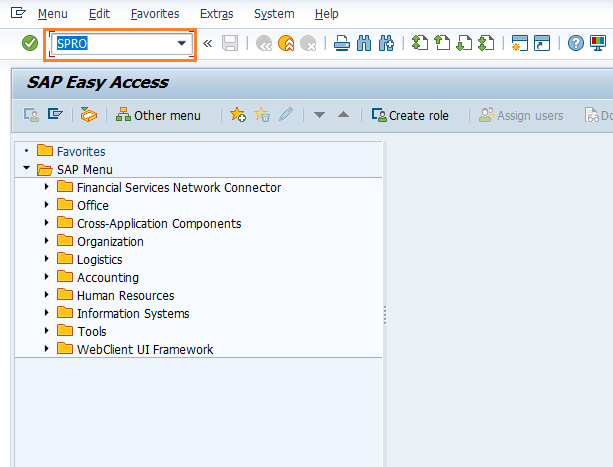
Transaction code: – SPRO
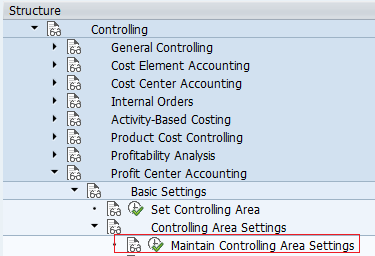
SAP IMG Path: – SPRO >> SAP Reference IMG >> Controlling >> Profit Center Accounting >> Basic Settings >> Control Area Settings >> Maintain Controlling Area Settings.
You can also use the direct transaction code 0KE5 in many SAP systems to open Maintain Controlling Area Settings for Profit Center Accounting. If your system menu or authorization differs, use the SPRO path shown above.
Before Maintaining Profit Center Accounting Settings for a Controlling Area
- The controlling area should already be created and assigned to the relevant company code or company codes.
- The controlling area currency and fiscal year settings should be checked before updating Profit Center Accounting settings.
- The profit center standard hierarchy key should be decided before it is entered in this screen.
- The person maintaining the settings should have authorization for SAP CO and Profit Center Accounting customizing.
- If your system uses classic Profit Center Accounting, confirm whether ALE distribution and valuation view settings are required for your landscape.
SAP CO Controlling Area Settings Step by Step
Step 1: – Enter SAP transaction code “SPRO” in the command field and enter.
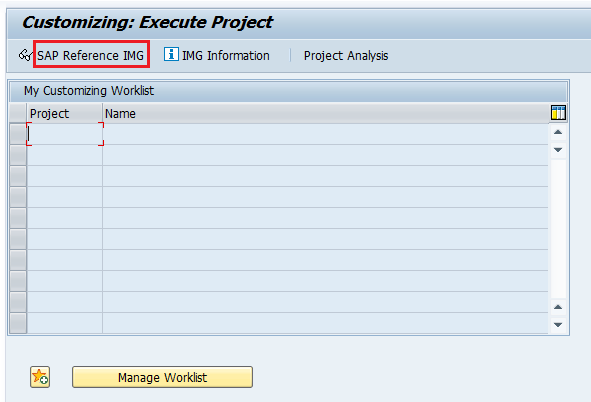
Step 2: – From customizing execute project screen, choose SAP Reference IMG.
Step 3: – On SAP Customizing implementation guide tree structure, follow the path Controlling – Profit Center accounting – basic settings and click on maintain controlling area settings.
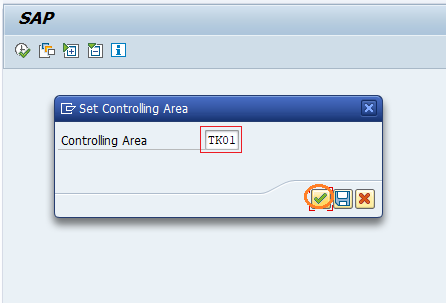
Step 4: – Now update SAP controlling area as “TK01” in the given field CO area and click on continue option.
Step 5: – On change view EC-PCA controlling area settings overview screen, update the following details.
- Standard Hierarchy: – Enter the standard_hierarchy key.
- PCtr Local Currency Type: – Update the currency for profit center reporting. Here we have updated as 20 (Controlling area currency)
- Profit Center Local Currency: – Update profit center local currency as INR.
- Valuation View : – Update the valuation option form the given list (i.e. Legal Valuation/ Group Valuation / Profit Center Valuation)
- ALE distribution method: – Choose Application Link Enabling (ALE) under given options and possible entries are (No distribution to other system/ Centralized profit center accounting / profit center decentralized or local).
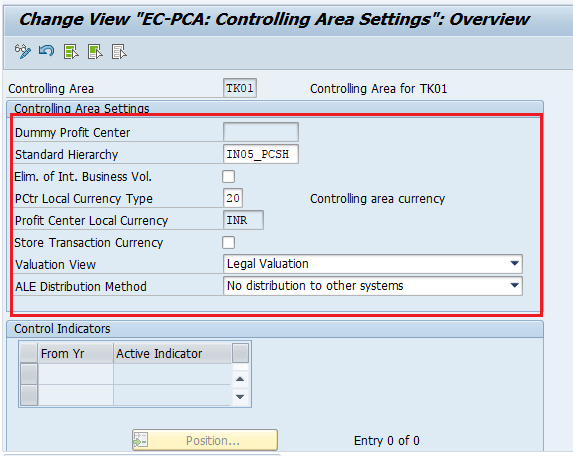
After maintaining all the settings for controlling area, click on save button and save the configured data.
Field Meaning in Maintain Controlling Area Settings
| Field in SAP CO | Purpose in controlling area settings | What to check before saving |
|---|---|---|
| Standard Hierarchy | Defines the profit center standard hierarchy used for reporting and structure maintenance. | Use the hierarchy key approved for the controlling area. |
| PCtr Local Currency Type | Controls which currency type is used for profit center reporting. | Confirm whether the requirement is company code currency, controlling area currency, or another permitted currency type. |
| Profit Center Local Currency | Stores the currency used locally for profit center accounting. | Use the correct currency key, such as INR, USD, or EUR, based on the organization setup. |
| Valuation View | Controls the valuation perspective used for profit center accounting, such as legal, group, or profit center valuation. | Select the valuation view that matches the accounting and reporting requirement. |
| ALE Distribution Method | Defines whether and how profit center accounting data is distributed to other systems. | Choose no distribution, centralized, or decentralized processing based on the system landscape. |
Difference Between OKKP, 0KE5, and OB13 in Controlling Area Configuration
Searches for controlling area settings often mention different SAP transaction codes. These codes are not always used for the same configuration activity.
| SAP transaction code | Used for | How it relates to this tutorial |
|---|---|---|
| SPRO | Opens SAP Customizing and SAP Reference IMG. | Used here to reach the IMG path for Maintain Controlling Area Settings. |
| 0KE5 | Maintains controlling area settings for Profit Center Accounting in many SAP systems. | Direct alternative to the IMG path shown in this tutorial. |
| OKKP | Maintains the basic controlling area definition and activates CO components. | Use this before this tutorial when the controlling area itself is not yet set up. |
| OB13 | Commonly used for credit control area maintenance, not for SAP CO controlling area settings. | Do not use OB13 for the Profit Center Accounting controlling area settings explained here. |
Activating Controlling Area Components Before Profit Center Settings
If the required controlling area is not active for the relevant CO functions, maintain the controlling area first in OKKP. In that activity, you can review the basic controlling area data and component activation settings such as Cost Center Accounting, Internal Orders, Profitability Analysis, and Profit Center Accounting, depending on the SAP system and business requirement.
After the controlling area and required components are active, return to the Profit Center Accounting path and maintain the controlling area settings shown in this tutorial. This order helps avoid configuration gaps where a profit center setting is entered for a controlling area that is not fully prepared for the required CO process.
Common Errors While Maintaining SAP CO Controlling Area Settings
- Using the wrong transaction code: OKKP is for the main controlling area setup, while 0KE5 or the SPRO path is used for the Profit Center Accounting controlling area settings explained here.
- Entering an incorrect standard hierarchy: The hierarchy should exist or be planned correctly for the controlling area before it is assigned.
- Selecting the wrong currency type: Reporting can become inconsistent if the profit center local currency type does not match the business requirement.
- Ignoring valuation view requirements: Legal, group, and profit center valuation views have different reporting meanings.
- Choosing ALE distribution without system design: ALE settings should match the centralized or decentralized SAP system landscape.
SAP CO Controlling Area Settings FAQ
How do I maintain controlling area settings in SAP CO?
Use transaction code SPRO and follow the path SAP Reference IMG >> Controlling >> Profit Center Accounting >> Basic Settings >> Control Area Settings >> Maintain Controlling Area Settings. In many SAP systems, transaction code 0KE5 can also be used directly for this activity.
What is the T-code for Maintain Controlling Area Settings in SAP?
The direct transaction code commonly used for Maintain Controlling Area Settings in Profit Center Accounting is 0KE5. You can also reach the same activity through SPRO using the SAP Reference IMG path.
What is the difference between OKKP and 0KE5 in SAP CO?
OKKP is used to maintain the main controlling area definition and activate controlling components. 0KE5 is used for Profit Center Accounting controlling area settings such as standard hierarchy, profit center local currency type, valuation view, and ALE distribution method.
Is OB13 used to maintain SAP CO controlling area settings?
No. OB13 is commonly associated with credit control area maintenance. For SAP CO controlling area configuration, use OKKP for the controlling area definition and 0KE5 or the SPRO path for Profit Center Accounting controlling area settings.
How do you activate a controlling area in SAP?
Use OKKP to maintain the controlling area and activate the required CO components. After the controlling area is active and assigned properly, maintain the Profit Center Accounting controlling area settings through 0KE5 or the SPRO path explained in this tutorial.
Editorial QA Checklist for SAP CO Controlling Area Settings Tutorial
- Confirm that the tutorial separates basic controlling area creation in OKKP from Profit Center Accounting controlling area settings in 0KE5.
- Check that the IMG path still matches the SAP system version used for screenshots.
- Verify that the sample controlling area TK01 is clearly treated as an example and not as a required SAP value.
- Review the currency type, profit center local currency, valuation view, and ALE distribution method explanations for SAP CO accuracy.
- Ensure that OB13 is not described as the SAP CO controlling area settings transaction.
Conclusion on Maintaining Controlling Area Settings in SAP CO
Successfully we have maintained controlling area settings in SAP. These settings help control Profit Center Accounting behavior for a selected controlling area, including hierarchy, currency, valuation, and ALE distribution settings. Continue to read how to define profit center standard hierarchy in controlling area.