 TutorialKart.com
Informatica Aggregator Transformation
Informatica Aggregator Transformation is an active and connected transformation used to perform aggregate calculations such as COUNT, SUM, AVG, MIN, MAX, and related summary operations on a set of rows. It is commonly used when a mapping has to calculate department-wise salary, product-wise quantity, customer-wise totals, or any other grouped summary before loading the target.
An Aggregator transformation changes the number of rows that pass through a mapping. If a Group By port is configured, it returns one output row for each group. If no Group By port is configured, it returns one output row for the complete input set. Because it can reduce multiple input rows into fewer output rows, it is classified as an active transformation.
How Aggregator Transformation works in Informatica PowerCenter
In a typical Informatica mapping, source rows are read through the Source Qualifier, optionally sorted using a Sorter transformation, and then passed to the Aggregator transformation. The Aggregator evaluates the Group By ports and aggregate expressions, stores intermediate values in aggregate cache, and sends the final grouped output to the downstream transformation or target table.
Informatica Aggregator Transformation has the following important components:
Aggregate expression: An aggregate expression is entered in an output port. It can contain aggregate functions, non-aggregate expressions, and conditional clauses. Informatica also allows nested aggregate functions in supported expressions.
Example : MAX(COUNT(ITEM)).
Group By port: A Group By port defines the level at which the aggregation is calculated. For example, if DEPTNO is selected as the Group By port, the Aggregator returns one row for each department. If no Group By port is selected, the Aggregator returns one row for all input rows.
Sorted Input: Sorted Input can improve Aggregator transformation performance when the incoming rows are already sorted by the Group By ports. When Sorted Input is not used, the Informatica Integration Service may need to keep data for each group until it reads the complete source data to ensure that all aggregate values are accurate.
Aggregator cache: When we run a workflow in Informatica PowerCenter with Aggregator transformation, the Informatica server stores group data and aggregate values in aggregate cache until it performs the final aggregate calculations.
Aggregate functions supported in Informatica Aggregator Transformation
The following aggregate functions are commonly used in Aggregator transformation expressions.
- AVG.
- COUNT.
- FIRST.
- LAST.
- MAX.
- MEDIAN.
- MIN.
- PERCENTILE.
- STDDEV.
- SUM.
- VARIANCE.
| Aggregator requirement | Example expression | Expected result |
|---|---|---|
| Department-wise salary total | SUM(SAL) | Total salary for each department when DEPTNO is Group By |
| Employee count by department | COUNT(EMP_ID) | Number of employees in each department |
| Highest salary by department | MAX(SAL) | Maximum salary value within each department |
| Average order amount by customer | AVG(ORDER_AMOUNT) | Average order amount for each customer |
Department-wise salary example for Informatica Aggregator Transformation
In this tutorial, we create an Aggregator transformation to calculate department-wise salary. The mapping reads employee data, sorts it by department number, groups the rows by department number, calculates SUM(SAL), and loads the result into the target table.
To use an Aggregator Transformation in a mapping, we must add the Aggregator transformation to Mapping in PowerCenter Designer and then configure the transformation with aggregate expressions and Group By ports where required.
Follow the steps given below to create an Aggregator Transformation in Informatica:
Before creating the transformation, create the target table and import it into Informatica PowerCenter Designer as a target. Open Informatica PowerCenter Designer and connect to the PowerCenter repository with your username and password.
- Navigate to Tools | Mapping Designer | Create.
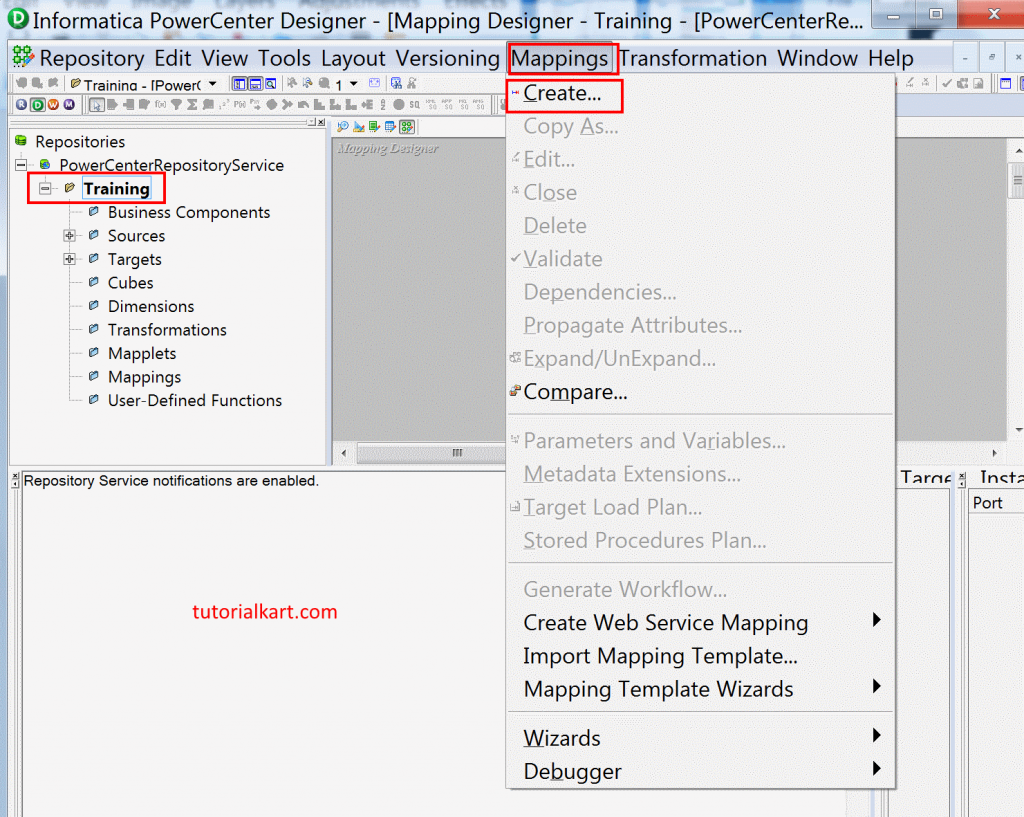
In this Informatica tutorial, we are creating Aggregator transformation, so name the mapping as m_AGG_EMP and click on OK button.
- Click on Folder, now drag and drop source and target into the Workspace as shown below.
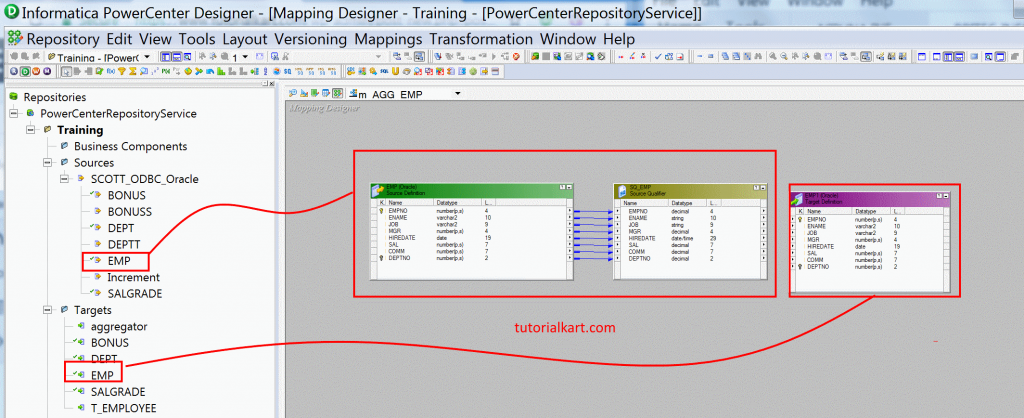
Creating Sorter Transformation before Informatica Aggregator
For this example, we use a Sorter transformation before the Aggregator transformation. Sorting the data by the same port used in Group By helps when the Aggregator transformation is configured with Sorted Input.
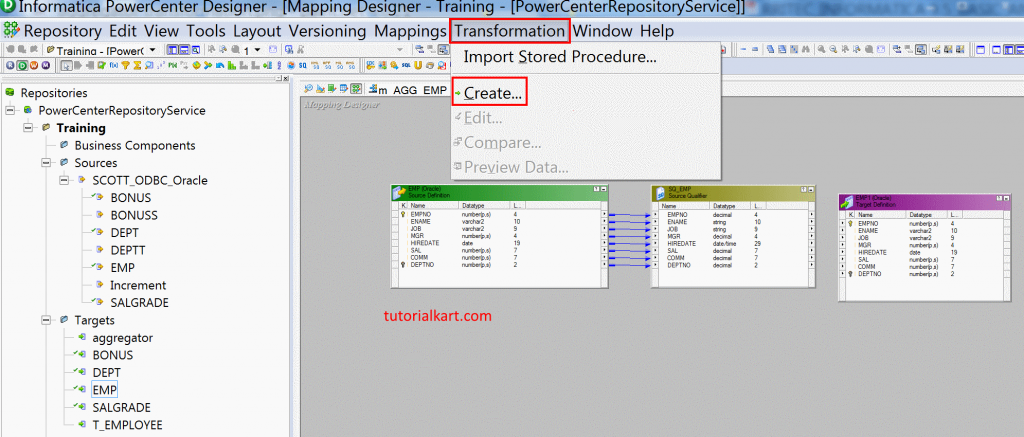
After adding the source and target into the workspace, create a Sorter transformation. Open Transformation | Create and create a Sorter transformation.
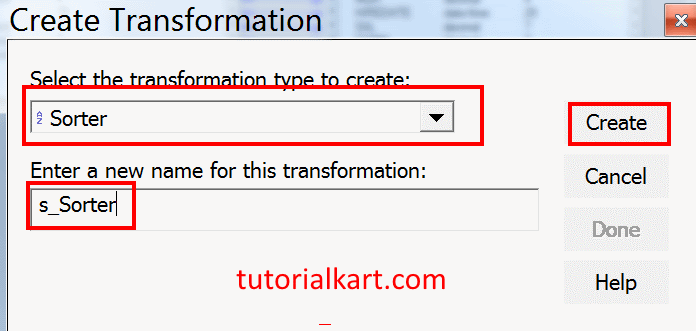
- Select the transformation and enter name as s_Sorter and click on Create button.
From the Source Qualifier transformation, drag and drop DeptNo and Sal into Sorter transformation as shown below.
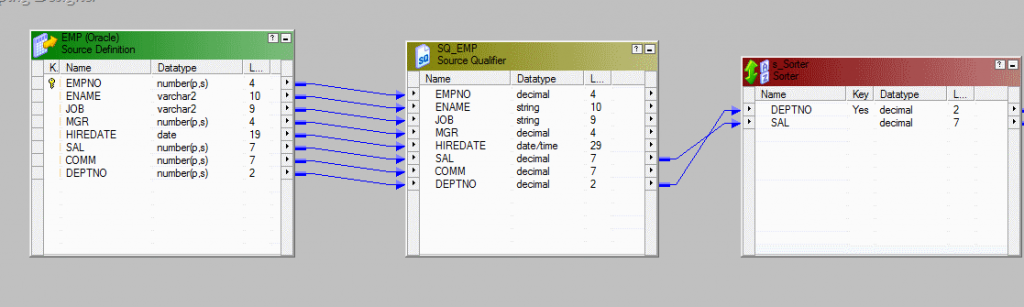
Now double click on the header of Sorter transformation. The Edit Transformations window opens. Click on the Ports tab as shown below.
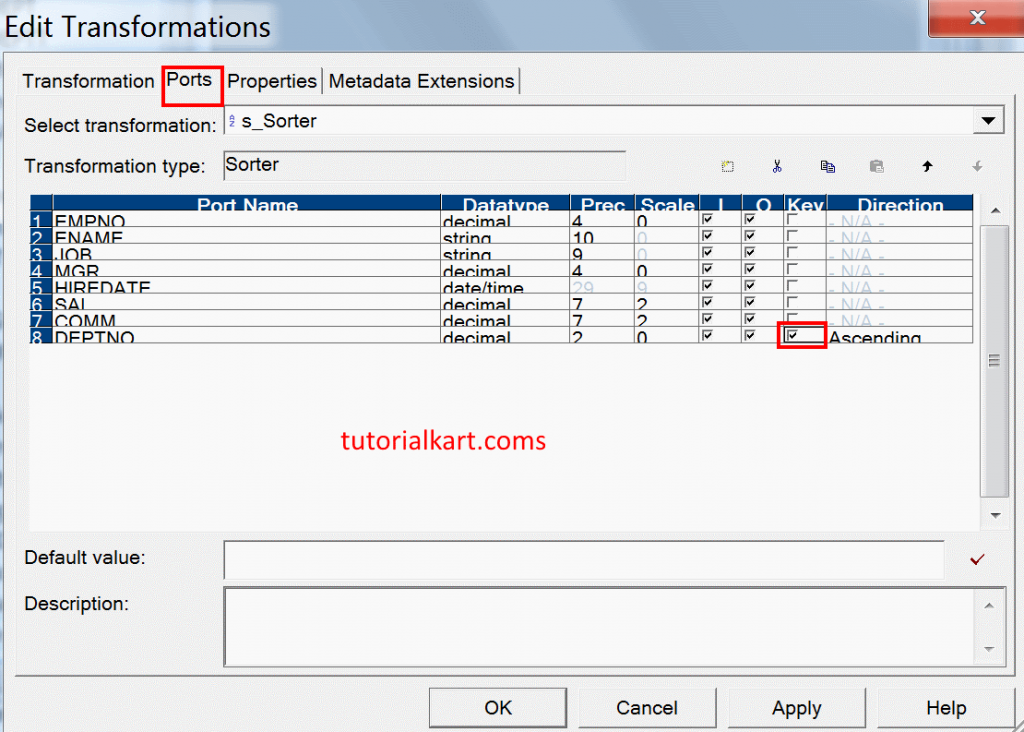
Enable the checkbox under Key, corresponding to the DeptNo port, which is marked by red color as shown above. Now click on OK button.
Creating Aggregator Transformation for department-wise salary
Now we should create Aggregator Transformation. To create it, go to Transformation | Create and name the transformation as t_AGG.
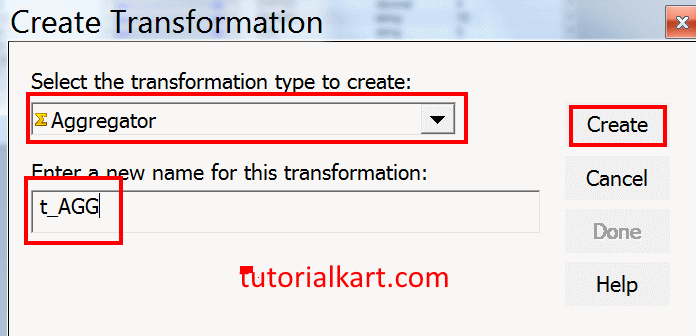
Click on Create button and click on Done button. Now drag and drop the DeptNo and Sal ports from Sorter transformation to Aggregator transformation as shown below.
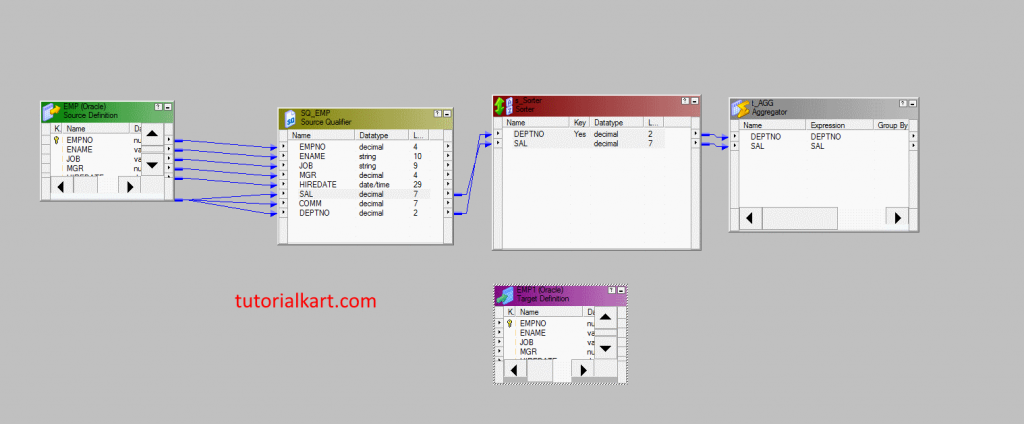
Double click on Aggregator Transformation and go to the Ports tab. Enable the checkbox under the Group By column corresponding to DeptNo port name. This tells Informatica to calculate one salary total for each department number.
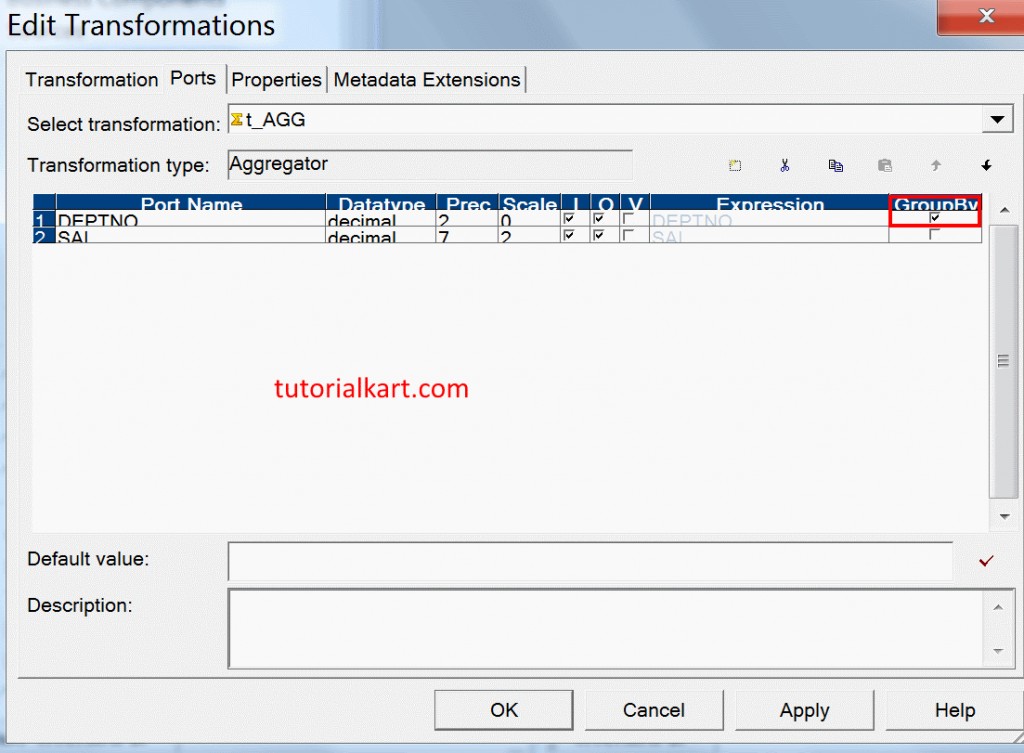
- Click on OK button.
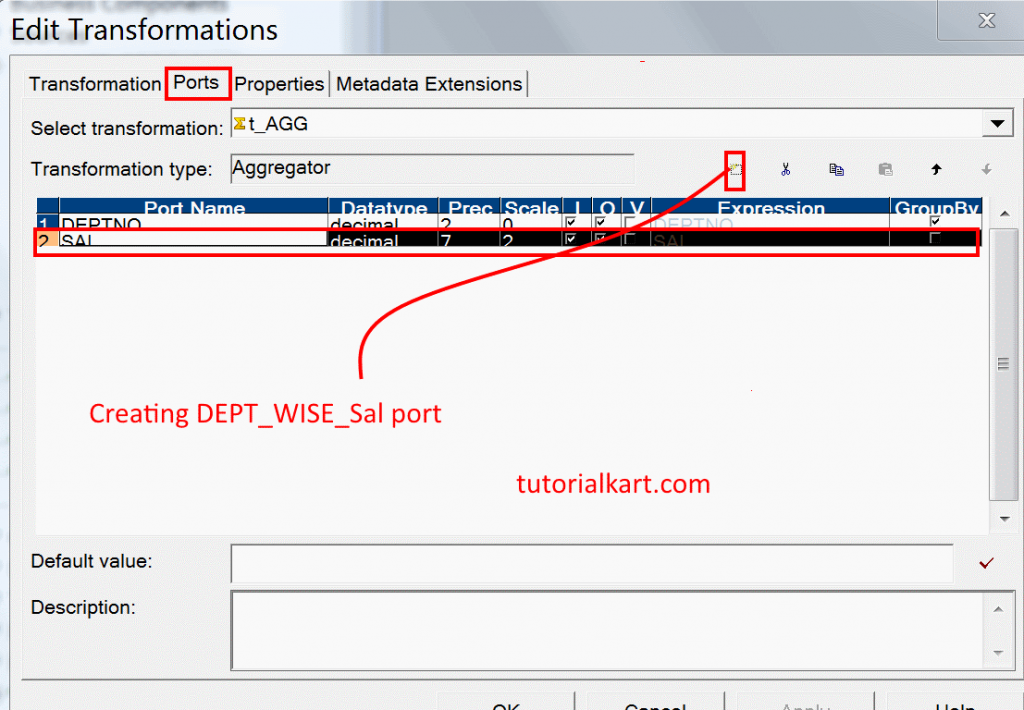
Select Sal column and click on Add New Port icon which is marked by red colored circle. Now a new column is added under Port Name field and rename it as DEPT_WISE_SAL.
Disable the Input checkbox for the newly created output port. In the Expression field for the same port, enter SUM(SAL). This expression calculates the total salary for each DeptNo group.
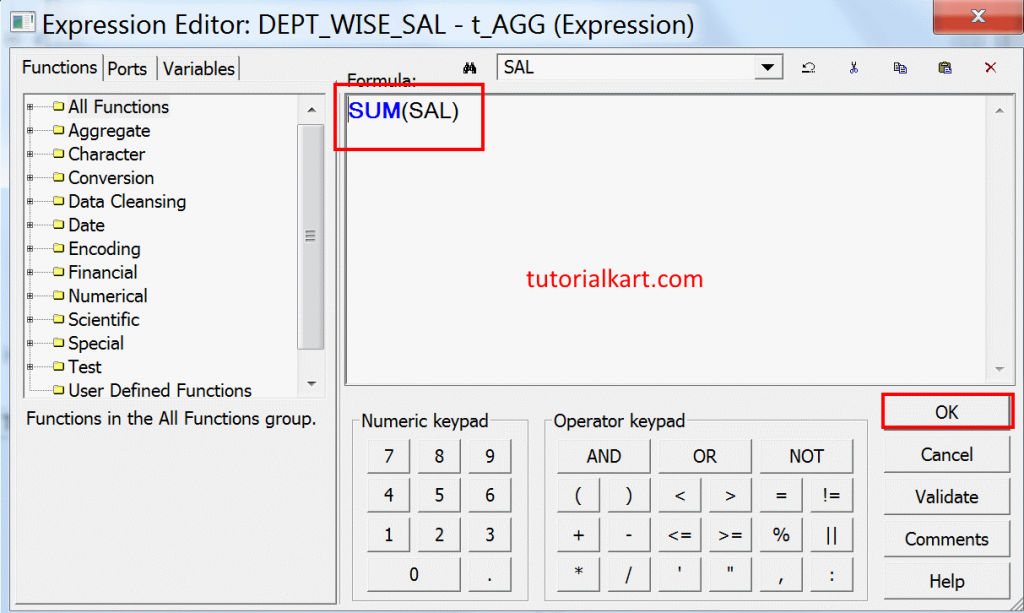
- Click on OK button.
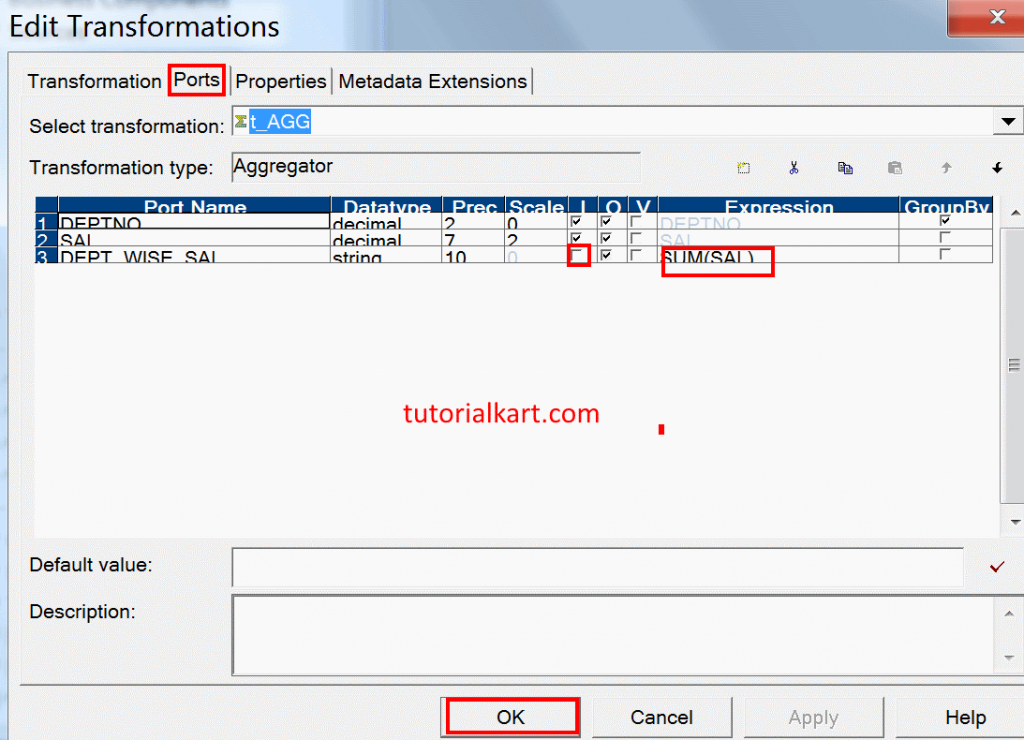
- Go to Properties tab on the same transformation as shown below to enable Sorted Input field checkbox.
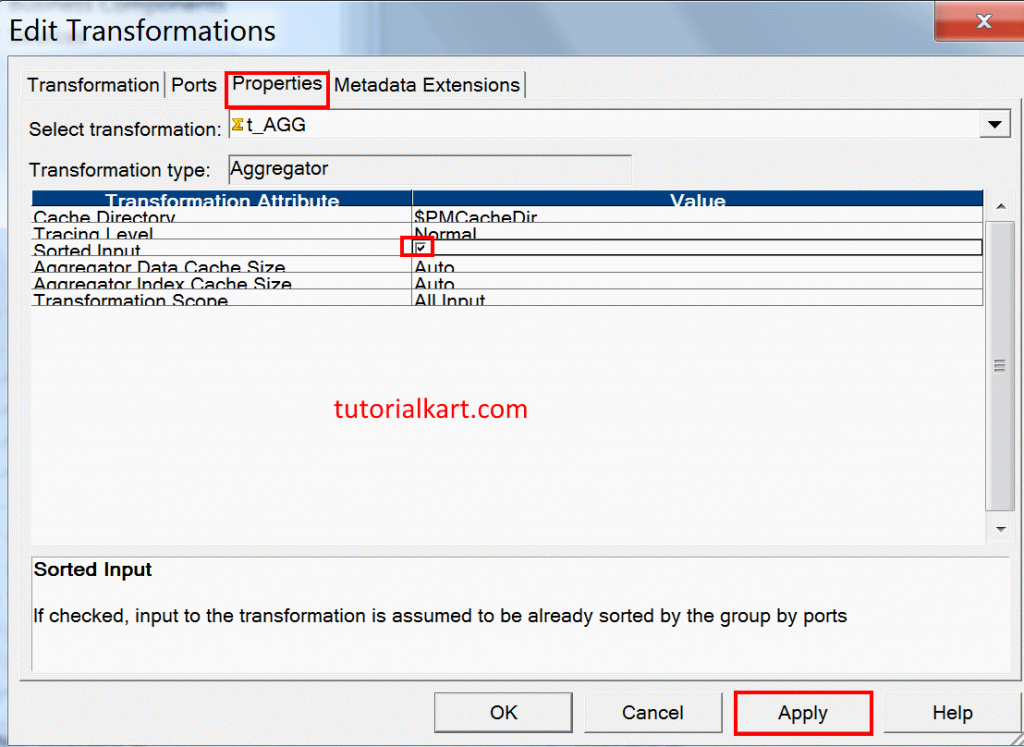
- Click on Apply button.
Connect DeptNo to DeptNo, and Dept_Wise_Sal to Dept_Wise_Sal from Aggregator Transformation to the Target table.
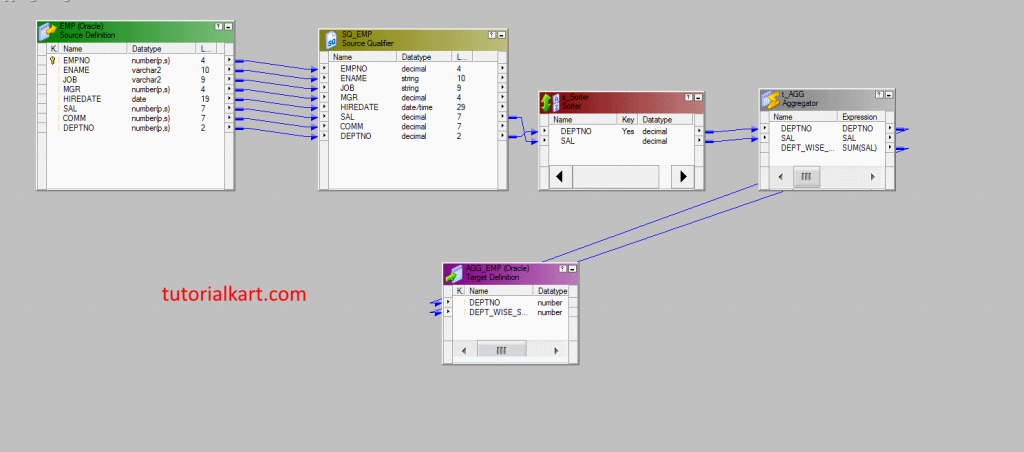
Finally go to Repository and click on Save button.
Sorted Input rule for Informatica Aggregator Transformation
Enable Sorted Input only when the incoming data is sorted by the same ports used in the Aggregator Group By configuration. In this example, the Sorter transformation sorts by DeptNo, and the Aggregator groups by DeptNo. This order is important because the Aggregator assumes that all rows for one group arrive together when Sorted Input is enabled.
If Sorted Input is enabled but the incoming data is not sorted correctly, the Aggregator can produce incorrect grouped results. If you are not certain that the data is sorted by the Group By ports, do not enable Sorted Input.
Aggregator cache and performance tips in Informatica mappings
Aggregator transformation can require more memory and cache than row-by-row transformations because it has to maintain intermediate grouped values. Use the following practices when building mappings with an Aggregator transformation.
- Pass only the required ports into the Aggregator transformation.
- Filter unwanted rows before the Aggregator when the business rule allows it.
- Use Sorted Input only when the input is sorted on the Group By ports.
- Keep aggregate expressions clear and avoid unnecessary nested calculations.
- Review cache settings when the mapping processes large volumes of grouped data.
- Validate the output row count against the expected number of groups.
Common errors while creating Aggregator Transformation in Informatica
| Issue | Reason | Correction |
|---|---|---|
| One output row only | No Group By port is selected. | Select the correct grouping port such as DeptNo. |
| Incorrect grouped totals | Sorted Input is enabled but data is not sorted by Group By ports. | Sort the data correctly or disable Sorted Input. |
| Expression validation error | The aggregate expression is entered on the wrong port or uses an invalid port reference. | Create a proper output port and enter a valid expression such as SUM(SAL). |
| Unexpected duplicate groups | Grouping is done on too many ports or inconsistent values are present. | Check Group By ports and source data values. |
| Slow session performance | Large grouped data volume or unnecessary ports increase cache usage. | Reduce ports, filter earlier, and review Aggregator cache settings. |
Informatica Aggregator Transformation FAQs
How does Aggregator transformation work in Informatica?
Aggregator transformation receives rows, evaluates the selected Group By ports, applies aggregate expressions such as SUM(SAL) or COUNT(EMP_ID), and returns grouped summary rows. If no Group By port is selected, it calculates one summary row for the full input set.
Is Aggregator an active transformation in Informatica?
Yes. Aggregator is an active transformation because it can change the number of rows that pass through the mapping. For example, many employee rows can become one department-wise summary row for each department.
What is the use of Group By port in Aggregator transformation?
The Group By port defines the aggregation level. If DeptNo is selected as Group By, Informatica calculates aggregate values separately for each department. Without a Group By port, the Aggregator calculates the expression across all input rows.
When should Sorted Input be enabled in Aggregator transformation?
Sorted Input should be enabled only when the input rows are already sorted by the Aggregator Group By ports. In this tutorial, DeptNo is sorted before the Aggregator because DeptNo is used as the Group By port.
Can conditional logic be used in Informatica aggregate expressions?
Yes. Aggregate expressions can include supported conditional logic and non-aggregate expressions depending on the business rule. For example, a mapping can calculate totals only for rows that satisfy a specific condition.
Editorial QA checklist for Informatica Aggregator Transformation tutorial
- Confirm that Aggregator is described as an active and connected transformation.
- Check that Group By behavior explains both grouped output and full-input aggregation.
- Verify that the Sorter key matches the Aggregator Group By port when Sorted Input is enabled.
- Ensure the department-wise salary example uses SUM(SAL) and maps the result to DEPT_WISE_SAL.
- Review every screenshot step to make sure the text matches the visible transformation flow.
- Confirm that performance notes mention Aggregator cache, required ports, filtering, and correct use of Sorted Input.
Conclusion: Informatica Aggregator Transformation for grouped summaries
In this tutorial, we learned how to create an Informatica Aggregator Transformation, configure Group By ports, write an aggregate expression, use Sorted Input with a Sorter transformation, and map the grouped result to the target table. Aggregator transformation is useful when a mapping needs summary output such as department-wise salary totals, row counts, averages, minimums, or maximums.