 TutorialKart.com
Target Designer in Informatica – Importing a Target Table from a Database
Target Designer in Informatica PowerCenter is used to create, import, and modify target definitions. A target definition describes the structure of the database table or file that receives data from an Informatica mapping.
Importing a target table brings its metadata, including column names, data types, keys, and other available properties, into the PowerCenter repository. It does not copy the table’s data into the repository.
Requirements for Importing a Database Target Definition
Before importing a target table through Target Designer, confirm that the following requirements are available:
- Access to the correct PowerCenter repository and target folder.
- An ODBC data source configured for the target database.
- A valid database username and password.
- Permission to view the required database schema and table metadata.
- The target table already created in the database when importing an existing table definition.
How to Open Target Designer in Informatica PowerCenter
Target Designer is available within the Informatica PowerCenter Designer client. Open PowerCenter Designer, connect to the repository, open the required folder, and select Tools | Target Designer.
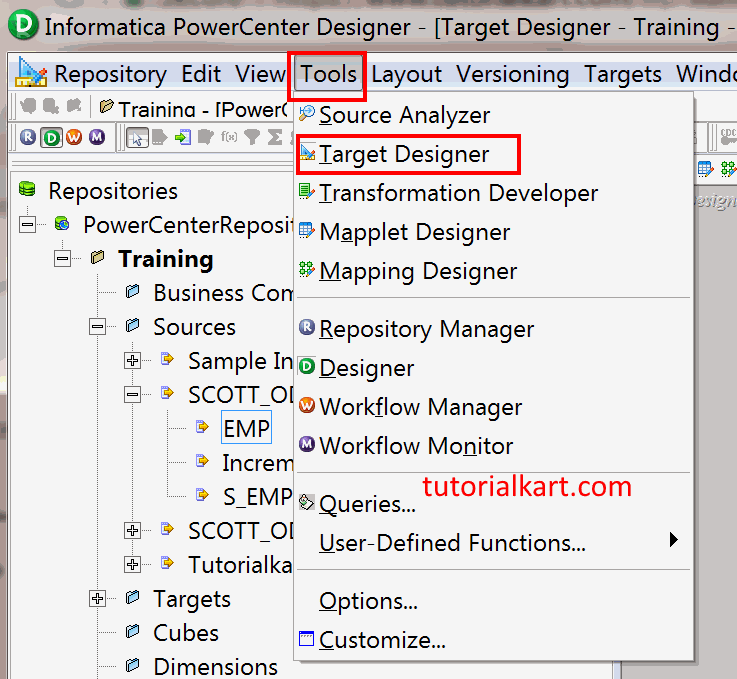
The Target Designer workspace displays target definitions stored in the selected repository folder. From this workspace, you can import an existing table definition or create a target definition manually.
How to Import a Target Table from a Database in Target Designer
After defining the source in Source Analyzer, you can import the destination table through Target Designer. The source and target definitions are then used while creating Mapping in Informatica.
- Open Informatica PowerCenter Designer and connect to the repository.
- Open the repository folder in which the target definition must be stored.
- Select Tools | Target Designer.
- Select Targets | Import from Database.
- Choose the configured ODBC data source and enter the database credentials.
- Connect to the database, expand the appropriate schema, and select the required table.
- Click OK to import the table definition.
- Save the repository changes.
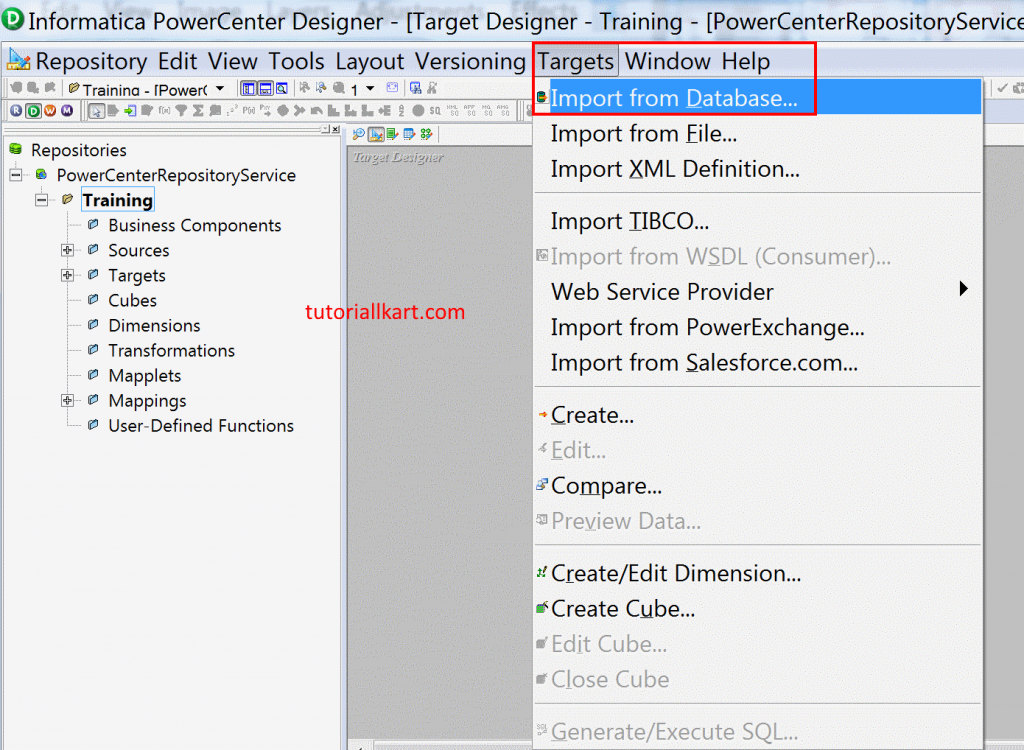
Connecting Target Designer to the Database Through ODBC
An ODBC connection must be available before Target Designer can read the database metadata. In this example, the previously configured target ODBC connection is named BATCH10AM_ODBC_Oracle.
- Select BATCH10AM_ODBC_Oracle from the ODBC data source list.
- Enter BATCH10AM as the database username.
- Enter the corresponding database password.
- Click Connect.
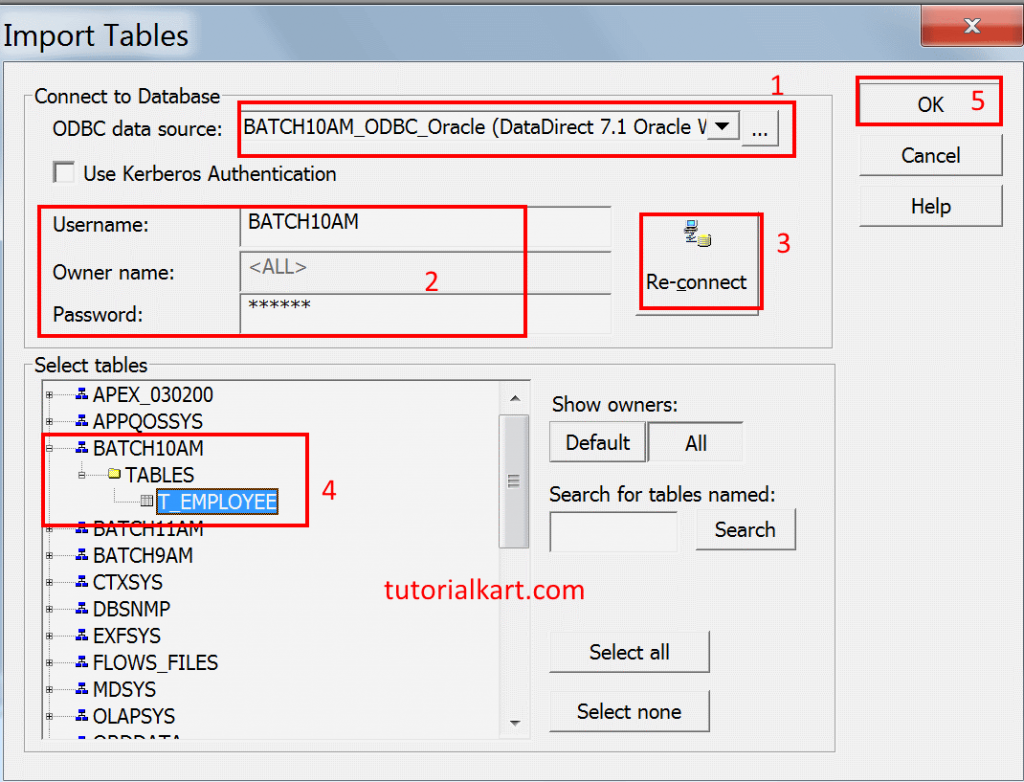
After the connection is established, the import window displays the database schemas and tables visible to the supplied account. Expand the BATCH10AM schema and select the T_Employee table shown in the example.
Click OK to import the selected definition, and then save the repository. The imported T_Employee definition should appear in the Target Designer workspace with its available columns and metadata.
What to Verify in the Imported T_Employee Target Definition
Open the imported target definition and compare it with the actual database table before using it in a mapping. Check the following details:
- The target definition name and database table name are correct.
- All expected columns have been imported.
- Column data types, precision, and scale match the database.
- Required key information is present where it is needed by the mapping or session.
- The definition has been saved in the intended repository folder.
You can drag the imported target definition from the Navigator into the Mapping Designer workspace and connect transformed source fields to its target fields. Importing the definition alone does not load any rows; data is written when a configured workflow and session run successfully.
Refreshing a Target Definition After Database Changes
If the physical database table changes after its definition has been imported, review the repository definition before running dependent mappings. Added columns, removed columns, or changed data types can make the stored metadata inconsistent with the database.
Re-importing a table may create naming conflicts or affect existing mapping dependencies. Before replacing or modifying a target definition, inspect its dependencies and compare the existing definition with the current database structure. Changes should be tested before the related workflow is used in production.
Importing Flat-File Targets in Target Designer
Target Designer can also work with flat-file target definitions. Delimited and fixed-width file structures are imported through the flat-file import process rather than through Targets | Import from Database. During that process, review the delimiter, column names, field widths, and data types before saving the definition.
Target Table Import Problems in Informatica
The ODBC data source is not listed
Confirm that the required ODBC driver and data source are configured on the machine running PowerCenter Designer. Also verify that the driver architecture is compatible with the installed client.
Target Designer cannot connect to the database
Check the database server details, username, password, network access, and database availability. Test the ODBC data source separately when possible to distinguish an ODBC configuration problem from a PowerCenter problem.
The required schema or target table is missing
The database account may not have permission to view the schema or table metadata. Confirm that the table exists under the expected owner and that the supplied account has the required access.
Imported columns do not match the database table
The repository may contain an older version of the target definition. Compare the definition with the current database table, review mapping dependencies, and update the metadata carefully.
Target Designer Import Verification Checklist
- Confirm that Targets | Import from Database is used for a database table.
- Verify that the selected ODBC data source points to the intended target database.
- Confirm that the correct schema owner and table are selected.
- Compare imported columns, data types, precision, and scale with the physical table.
- Save the repository after importing the target definition.
- Check dependencies before refreshing or replacing an existing target definition.
- Validate the mapping and session configuration before loading data into the target.
Target Designer and Database Target FAQs
Where do I import a target table in Informatica?
Open PowerCenter Designer, select the required repository folder, and choose Tools | Target Designer. Then select Targets | Import from Database to connect to the database and choose a table.
Does importing a target table also import its data?
No. Target Designer imports the table definition and its available metadata. Rows are loaded into the physical target table only when the corresponding mapping, session, and workflow are configured and executed.
How is data loaded from a source to a target in Informatica?
Import or create the source and target definitions, add them to a mapping, connect the required fields through any necessary transformations, and validate the mapping. Then create and run a session and workflow that use the appropriate source and target connections.
Why is a target table not visible in the import window?
The table may be under a different schema, or the database account may not have permission to view it. Confirm the table owner, database connection, and metadata privileges assigned to the account.
What should I do when the database target structure changes?
Compare the changed database table with the stored target definition and review all dependent mappings before updating the metadata. After making the necessary changes, validate and test the affected mappings and sessions.