 TutorialKart.com
A session in Informatica PowerCenter is a task that contains the runtime instructions used by the Integration Service to execute a mapping. The mapping defines how data should be transformed, while the session specifies operational details such as source and target connections, file locations, error handling, and load options.
Sessions are building blocks of Workflows. A workflow can contain one or more session tasks together with other tasks that control execution. A session can be reusable or non-reusable, depending on whether it needs to be used in multiple workflows.
How a Session Works in Informatica PowerCenter
When a workflow starts a session, the Integration Service reads the associated mapping and the session configuration. It then connects to the configured sources, processes the rows according to the mapping logic, and writes the results to the configured targets. Execution details, row counts, warnings, and errors are recorded in the session log.
- Mapping: Defines source objects, transformations, data flow, and target objects.
- Session: Supplies the runtime properties required to execute that mapping.
- Workflow: Controls when the session and other workflow tasks run.
- Integration Service: Executes the workflow and performs the data movement.
Reusable and Non-Reusable Sessions in Informatica
A reusable session is created in the Task Developer and can be added to multiple workflows. A non-reusable session is created directly inside a workflow and belongs only to that workflow.
| Session type | Where it is created | Typical use |
|---|---|---|
| Reusable session | Task Developer | Use the same configured task in more than one workflow |
| Non-reusable session | Workflow Designer | Run a mapping within one specific workflow |
How to Create a Reusable Session in Informatica
The following procedure creates a reusable session in PowerCenter Workflow Manager. Before starting, confirm that the required mapping has been created, validated, and saved in the repository.
- Open Informatica PowerCenter Workflow Manager and connect to the repository.
- Open the folder containing the mapping.
- Select Tools | Task Developer.
- Open the Tasks menu and select Create.
- Select Session as the task type.
- Enter a unique session name.
- Select the mapping that the session must execute.
- Finish creating the task, configure its runtime properties, and save the repository changes.
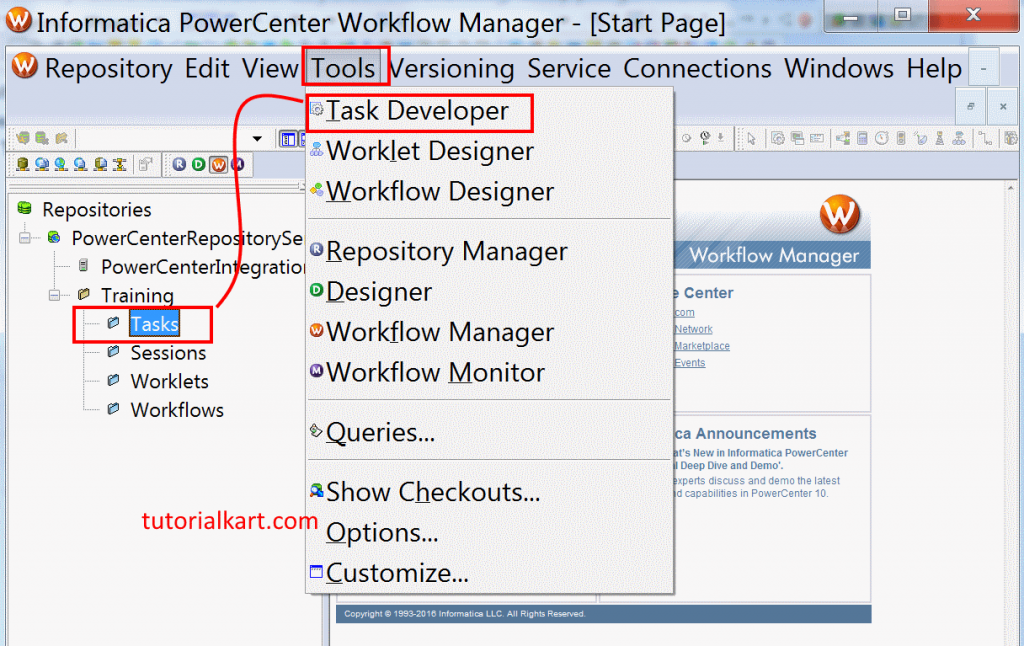
Reusable tasks are created in Task Developer. If the session is needed only in one workflow, open Workflow Designer and create a non-reusable Session task within that workflow instead.
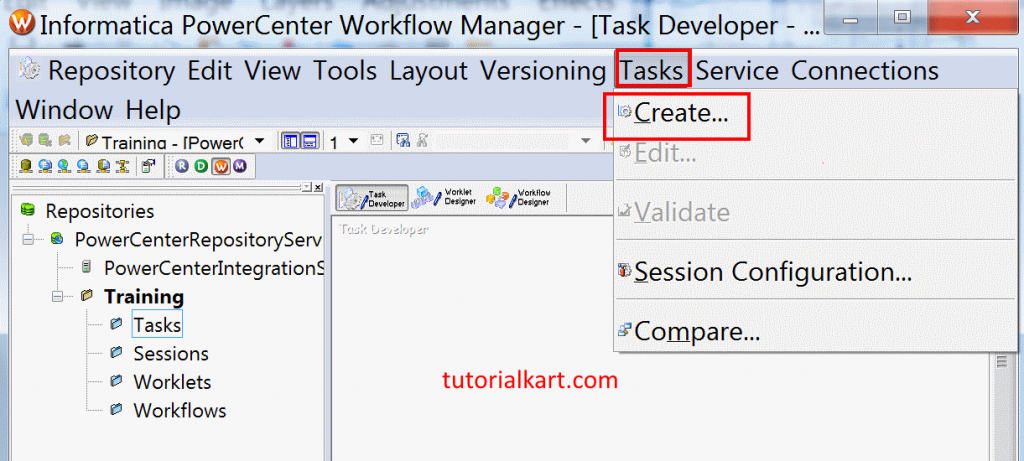
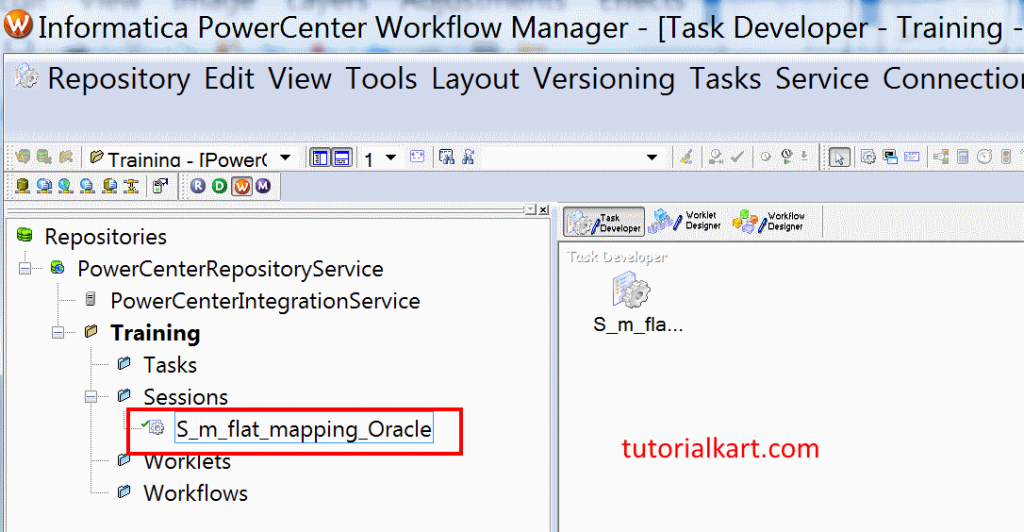
In the Create Task window, select Session from the task-type list. Enter a name such as S_m_flat_mapping_Oracle, following the naming standard used in your project, and click Create.
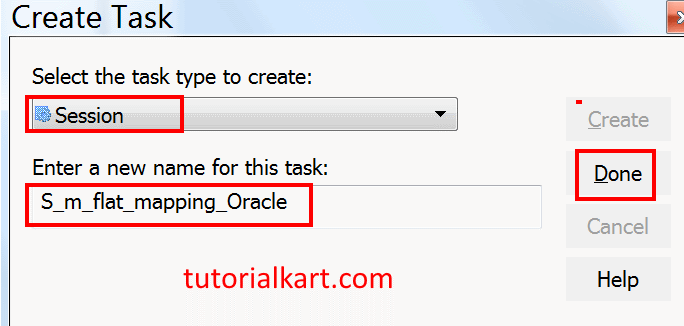
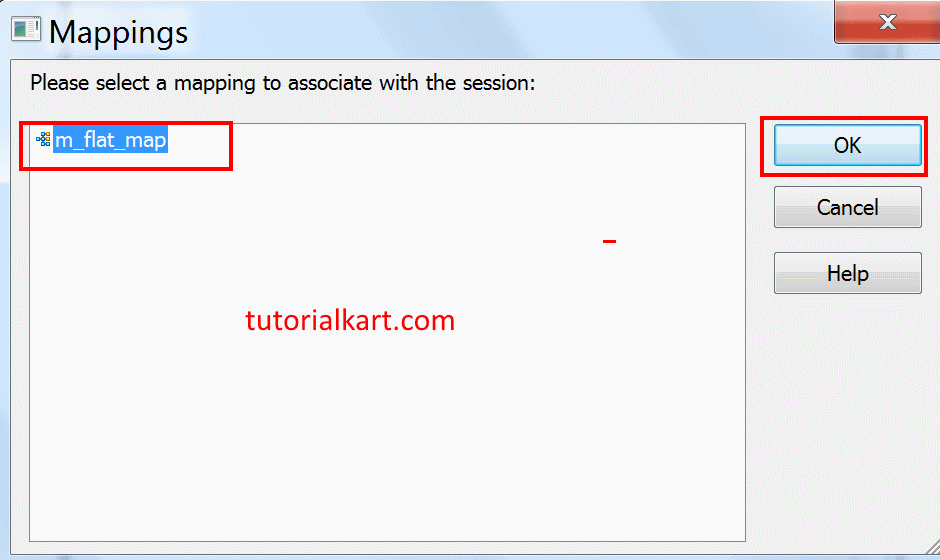
The mapping-selection window displays the mappings available in the current repository folder. Select the required mapping and click OK. Click Done after the session has been created, and save the repository changes.
Reader and Writer Connections in an Informatica Session
A mapping is a structural definition and does not, by itself, contain every environment-specific connection detail. The session must identify the connections the Integration Service will use at runtime. In general, a reader connection is assigned to a relational source, while a writer connection is assigned to a relational target.
| Connection role | Assigned to | Purpose |
|---|---|---|
| Reader connection | Relational source instance | Allows the Integration Service to read source rows |
| Writer connection | Relational target instance | Allows the Integration Service to insert, update, delete, or otherwise write target rows as configured |
The same relational connection object can sometimes be used for both reading and writing if the source and target use the same database credentials and permissions. Separate connection objects are commonly used when the source and target databases, users, privileges, or environments differ.
Creating the Relational Reader Connection
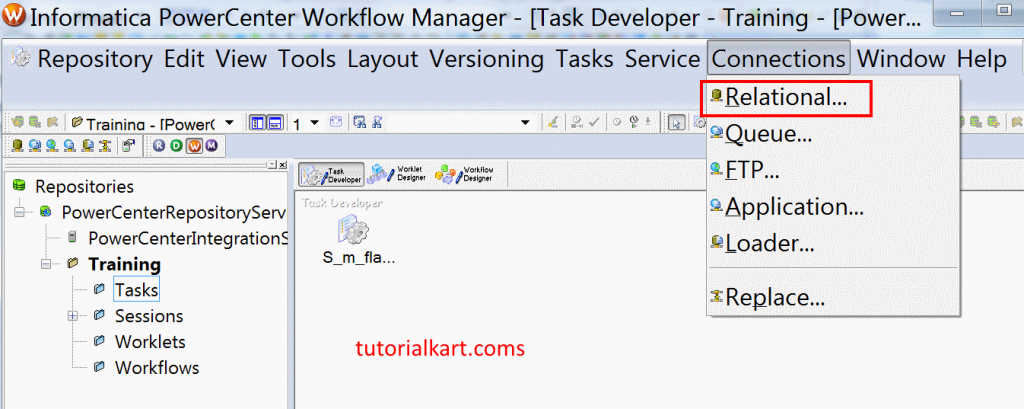
Open Informatica PowerCenter Workflow Manager and select Connections | Relational. The Relational Connection Browser displays the available connection objects. Create a connection whose database type matches the source database.
For an Oracle source, select the Oracle connection type and enter the connection details supplied by the database administrator. The values below illustrate the fields used in this example; use the credentials and connect string appropriate to your own environment.
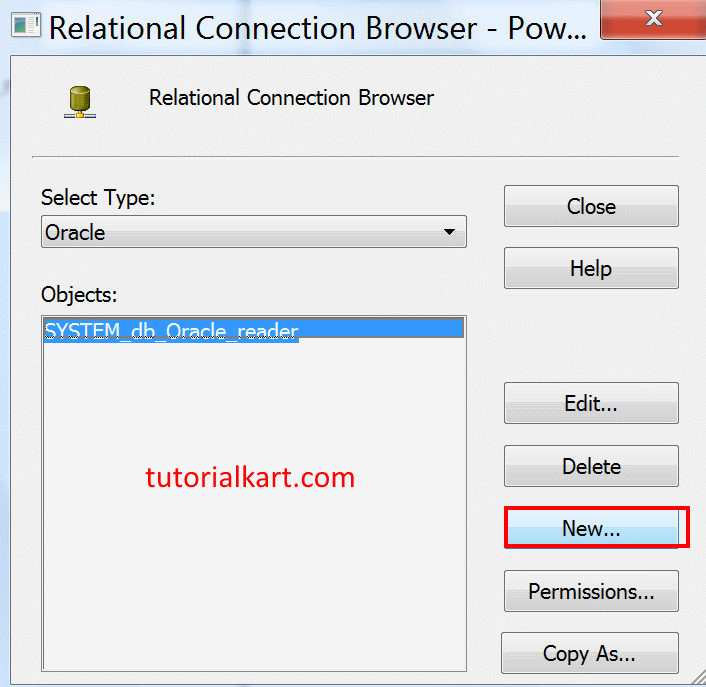
- Enter the connection name, such as SYSTEM_db_Oracle_reader.
- Enter the database username, such as SYSTEM in this example.
- Enter the corresponding password.
- Enter the Oracle connect string, such as ORCL in this example.
- Verify that the configured database user has permission to read the required source objects.
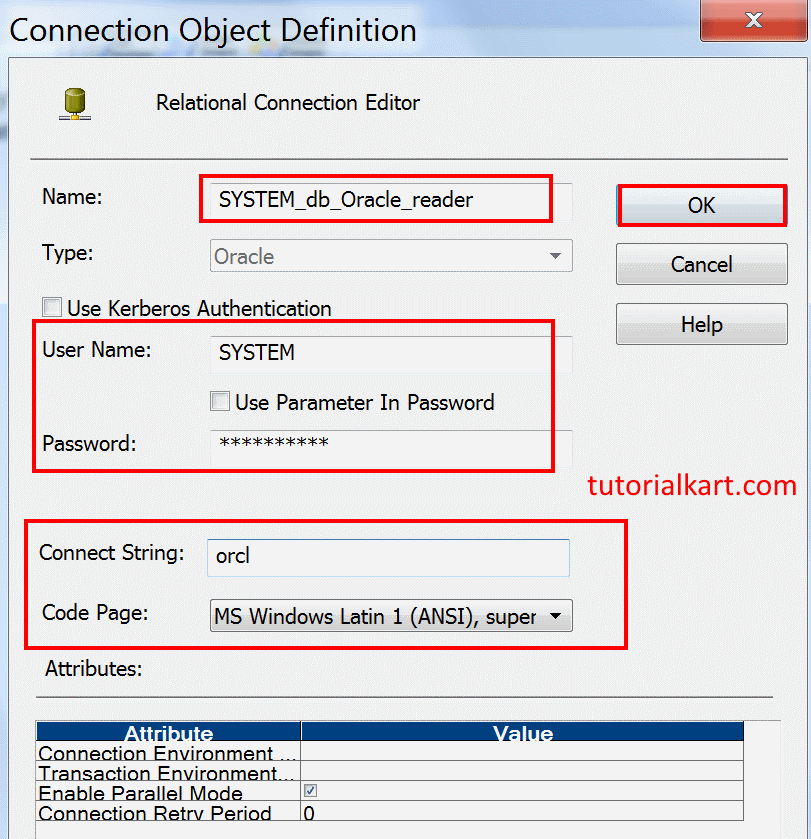
Save the relational connection after reviewing its database type, credentials, connect string, and other environment-specific properties.
Creating the Relational Writer Connection
To create the target writer connection, open Connections | Relational, select the target database type, and create a connection object. Enter the target database username, password, connect string, and any other required properties. The target account must have the permissions needed for the operations performed by the mapping.
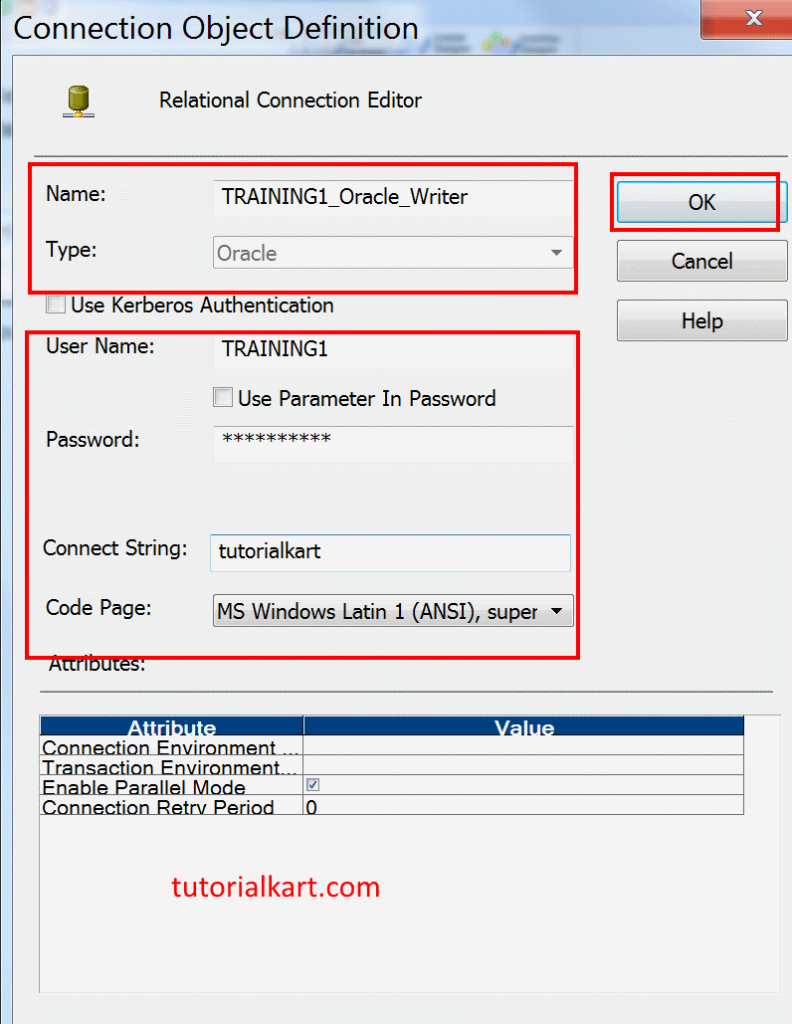
Click OK or Save, as applicable, after confirming the writer connection properties.
Assigning Source and Target Connections to the Session
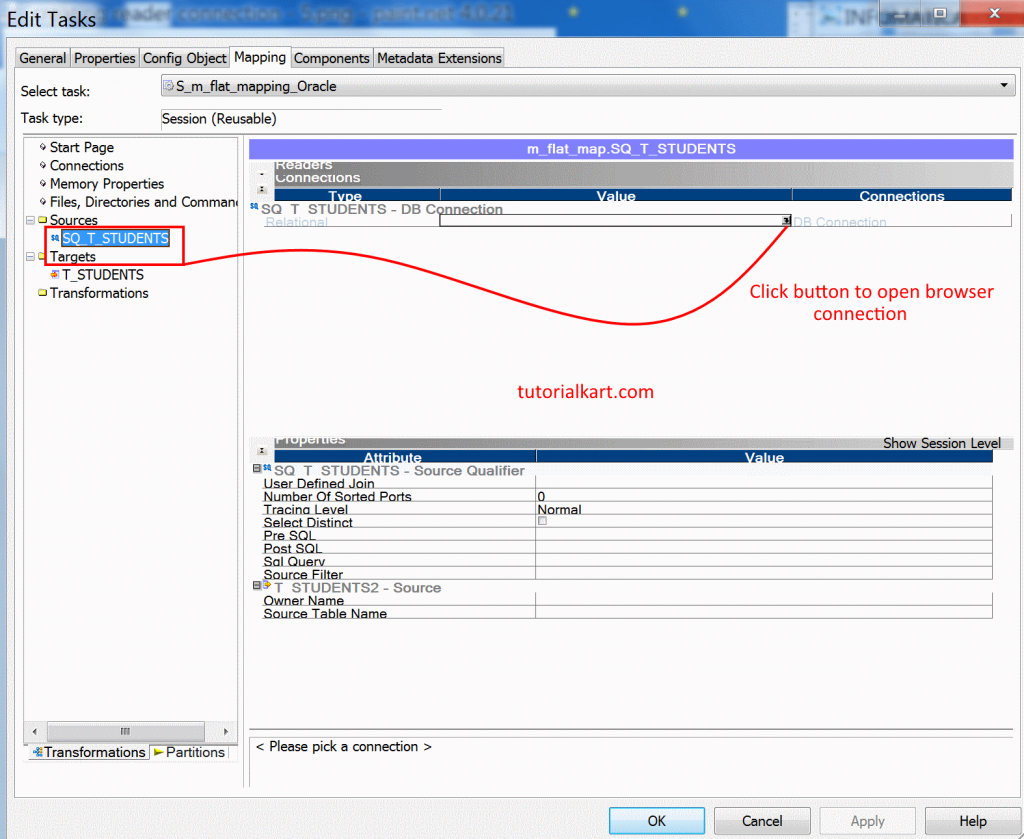
After creating the relational connections, open the session task and select the Mappings tab. The left pane lists the mapping instances. Select each source or target instance and assign its runtime connection in the connection settings displayed on the right.
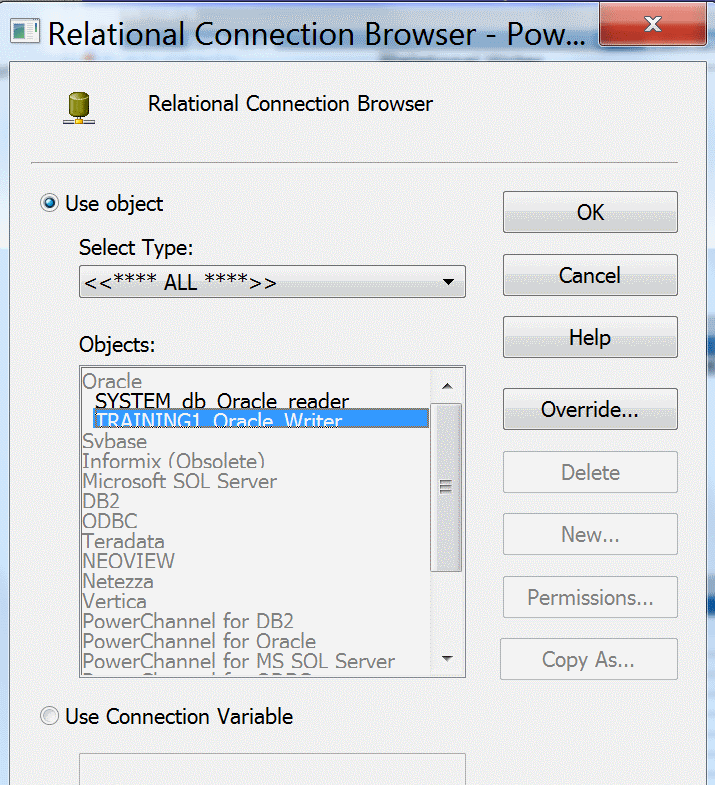
Select the relational source instance in the left pane. In its connection setting, click the connection-browser icon to display the available relational connections.
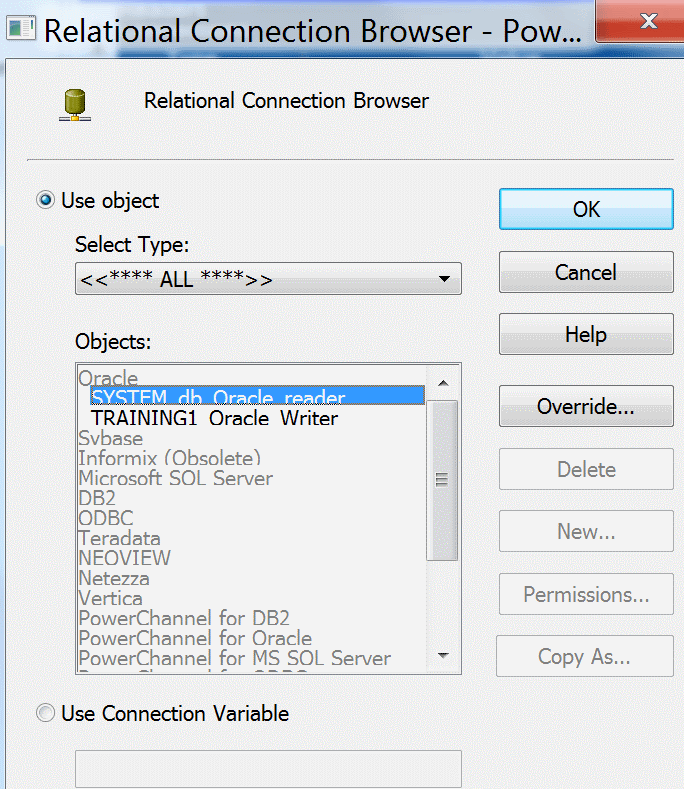
Select the reader connection named SYSTEM db Oracle reader in this example, and click OK. Confirm that the selected connection points to the database containing the source object.
Next, select the relational target instance in the left pane and open its connection browser.
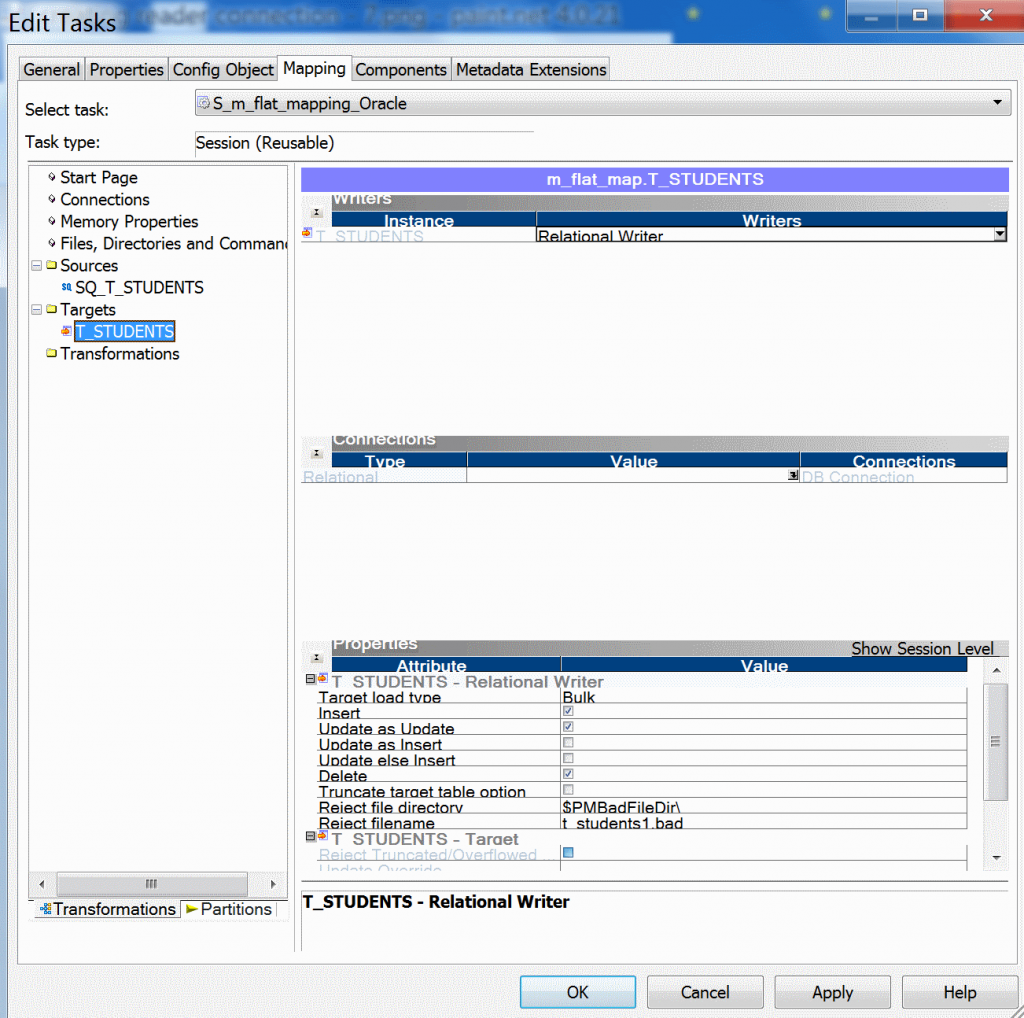
Select the writer connection named TRAINING1 Oracle writer in this example, and click OK. Confirm that this connection points to the intended target database and that its user can perform the required write operations.
Normal and Bulk Target Load Types in Informatica
For a relational target, review the Target Load Type property before running the session. The available behavior depends on the database and session configuration.
- Normal mode: Uses the database’s regular data manipulation path and supports the standard database behavior required by many mappings.
- Bulk mode: Uses a database-specific bulk-loading mechanism where supported. It can have restrictions involving indexes, constraints, recovery, logging, or other database features.
In this example, set the target load type to Normal and click Apply. Do not select Bulk solely because the data volume is large. Review the target database requirements, indexes, constraints, recovery expectations, and the connector documentation before choosing a load mode.
Session Error Handling and Stop on Errors
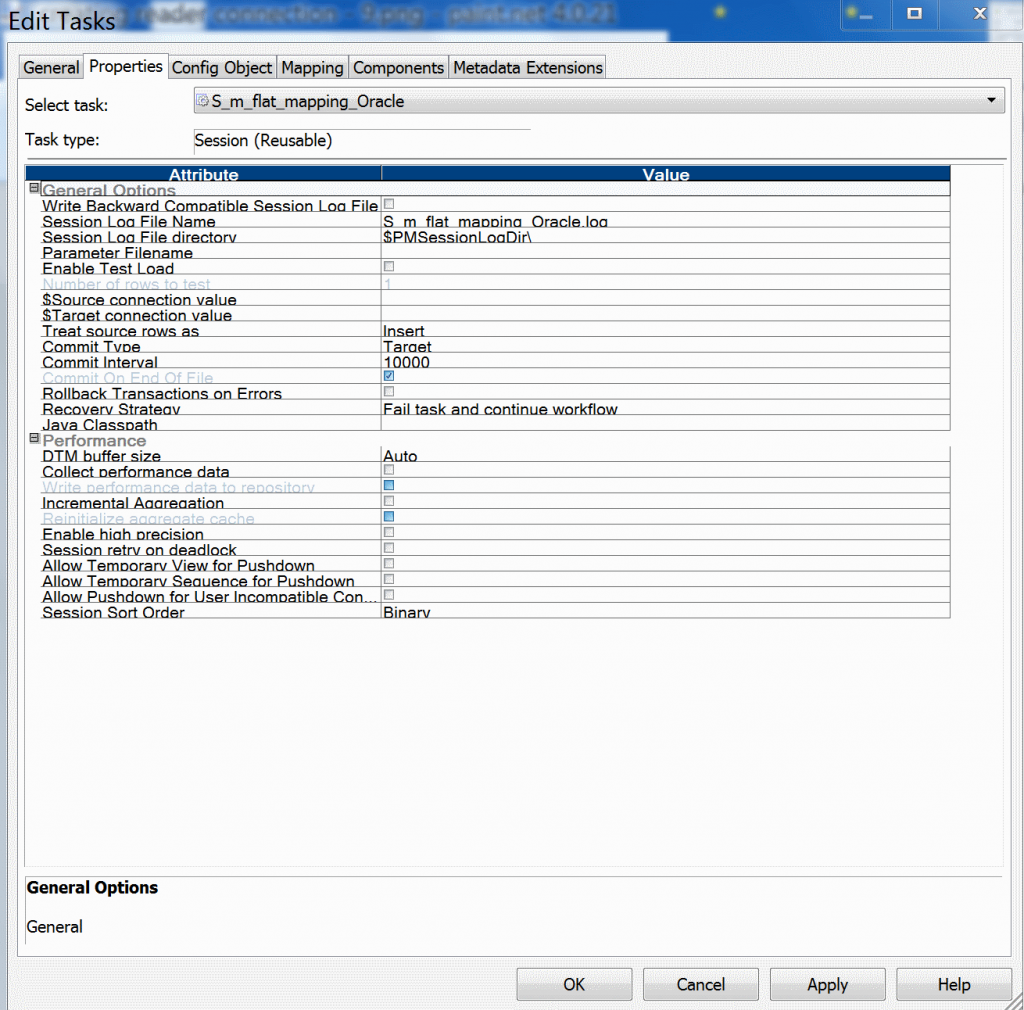
The Stop on Errors setting controls how many non-fatal errors the Integration Service permits before stopping the session. Setting it to 1 tells the service to stop after the first counted error. It does not guarantee that no row will be written to a reject or bad file; reject handling depends on the type of error, writer behavior, and other session properties.
Review error thresholds together with commit intervals, rejected-row handling, target update options, and recovery requirements. After configuring these properties, click OK and save the repository changes.
Validating and Running the Informatica Session
- Validate the mapping and the workflow.
- Confirm that every source and target instance has the correct connection assignment.
- Verify that database credentials and connect strings are valid for the runtime environment.
- Review target load type, target update options, commit settings, and error handling.
- Add the reusable session to a workflow if it has not already been added.
- Save the repository and start the workflow.
- Use Workflow Monitor to check the workflow and session status.
- Open the session log and compare the source, transformed, rejected, and target row counts.
Common Informatica Session Configuration Problems
- Wrong source connection: The session reads from an unintended database or cannot locate the source table.
- Wrong target connection: Rows are written to the wrong schema or the target object is not found.
- Insufficient database privileges: The configured user cannot select from a source or write to a target.
- Invalid connect string: The Integration Service cannot establish the database connection.
- Unsuitable load mode: Bulk-loading restrictions conflict with target indexes, constraints, or recovery requirements.
- Unsaved repository changes: The workflow runs with an older session configuration.
- Mapping changed after session creation: The session properties need to be reviewed after source, target, or transformation changes.
Informatica Session FAQs
What is a session in Informatica?
A session is a PowerCenter task containing the runtime instructions needed to execute a mapping. It defines properties such as source and target connections, load options, file locations, and error-handling behavior.
How do you create a session in Informatica?
Create a reusable session in Workflow Manager’s Task Developer by selecting Tasks | Create, choosing Session, naming the task, and associating it with a mapping. A non-reusable session can be created directly in Workflow Designer.
What is the difference between a mapping and a session?
A mapping defines the logical data flow and transformations. A session provides the runtime configuration used by the Integration Service to execute that mapping.
What is the difference between a reusable and non-reusable session?
A reusable session is created in Task Developer and can be used in multiple workflows. A non-reusable session is created inside a workflow and is available only within that workflow.
What is the difference between a session and a batch?
A session executes one mapping with a defined runtime configuration. The term batch generally refers to a group of jobs or tasks executed together or in a controlled sequence. In PowerCenter, workflows and worklets provide the task orchestration that older material may describe as batch processing.
Informatica Session Editorial QA Checklist
- Confirm that the tutorial identifies reader connections with sources and writer connections with targets.
- Verify that reusable sessions are created in Task Developer and non-reusable sessions in Workflow Designer.
- Check that the example connection names, usernames, and Oracle connect string are presented as examples rather than universal values.
- Confirm that Normal and Bulk load modes are described without assuming identical behavior across every database.
- Verify that Stop on Errors is not described as a setting that prevents every rejected row or bad-file entry.
- Check that all screenshots remain in the correct sequence and match the surrounding PowerCenter steps.
- Confirm that the final procedure includes workflow validation, execution monitoring, session-log review, and row-count verification.