 TutorialKart.com
Sorter Transformation in Informatica sorts incoming rows in ascending or descending order according to one or more selected key ports. It is an active transformation because it can change the order of rows and, when the Distinct option is enabled, can reduce the number of rows passed to the next transformation.
The transformation works similarly to an SQL ORDER BY clause. You select the ports that act as sort keys, define the sort direction for each key, and optionally remove duplicate rows. In this Informatica tutorial, we create a mapping that builds a customer full name, converts text values to dates, and sorts the resulting rows by city in ascending order.
How Sorter Transformation Works in Informatica
- Sort keys: One or more input ports can be marked as keys.
- Sort direction: Each key can use ascending or descending order.
- Multiple-key sorting: Informatica sorts by the first key, then uses the next key when values in the preceding key are equal.
- Distinct rows: The Distinct option removes rows that contain duplicate values across all output ports.
- Case-sensitive sorting: String sorting can be configured to consider uppercase and lowercase values separately.
- Null handling: Null values are placed according to the Integration Service sorting behavior and configured session settings.
A Sorter transformation can be reusable or non-reusable. In this example, it is created directly inside the mapping as a non-reusable transformation.
Customer-to-Staging Sorter Mapping Scenario
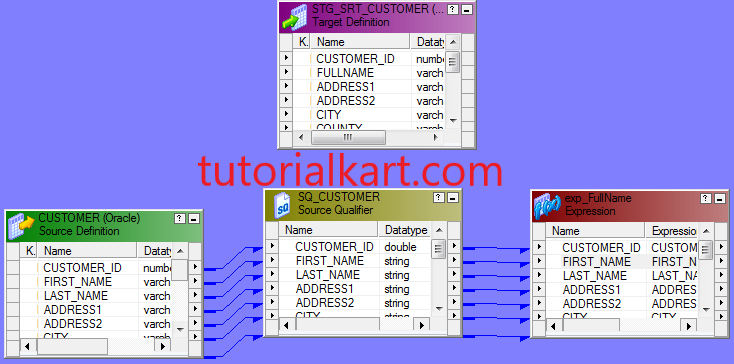
The mapping uses the Customer table as the source and Stg_SRT_Customer as the target. An Expression transformation calculates the full name and converts date strings. The Sorter transformation then orders the rows by CITY in ascending order.
| Mapping object | Purpose | Logic or configuration |
|---|---|---|
| Customer | Source table | Provides customer data |
| SQ_CUSTOMER | Source Qualifier | Reads rows from the Customer source |
| Exp_FULLNAME | Expression transformation | Creates FULL_NAME and converts CREATION_DATE and LAST_UPDATE_DATE to Date/Time values |
| SRT_CITY | Sorter transformation | Marks CITY as the sort key and uses ascending order |
| Stg_SRT_Customer | Target table | Receives the sorted customer rows |
Recommended Informatica Object Names
- Mapping name: m_Stg_srt_Customer
- Session name: s_m_Stg_srt_Customer
- Workflow name: wf_m_Stg_srt_Customer
- Expression transformation: Exp_FullName
- Sorter transformation: SRT_CITY
Create the Expression and Sorter Transformations
- Import the Customer source and Stg_SRT_Customer target definitions into Informatica Designer.
- Create a mapping named m_Stg_srt_Customer.
- Drag the source and target definitions into Mapping Designer.
- Create an Expression transformation named Exp_FullName.
- Connect the required ports from SQ_CUSTOMER to Exp_FullName.
Create the FULL_NAME Output Port
- Open the Expression transformation and select the Ports tab.
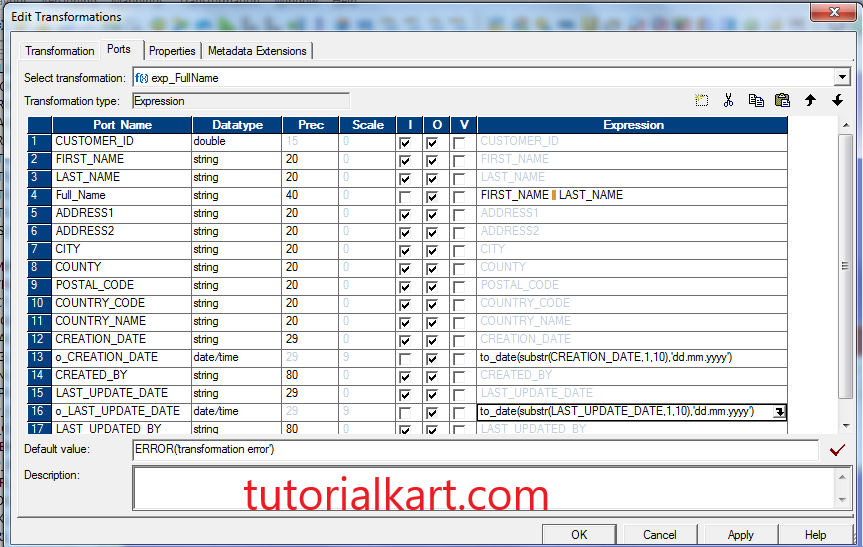
- Add a port named FULL_NAME.
- Clear the Input option and enable the Output option for the new port.
- Select a suitable string datatype and precision.
- Enter the full-name expression and validate it.
The original mapping uses the following concatenation expression:
FIRST_NAME || LAST_NAME
This expression joins the values without inserting a separator. To place a space between the first and last names, use the following expression in a new or revised output port:
FIRST_NAME || ' ' || LAST_NAMEIf either name may be null, handle it explicitly so that a null value does not make the complete expression null.
LTRIM(RTRIM(IIF(ISNULL(FIRST_NAME), '', FIRST_NAME) || ' ' || IIF(ISNULL(LAST_NAME), '', LAST_NAME)))Convert Customer Date Strings to Date/Time
Create two additional output ports in the Expression transformation for the converted creation and last-update dates. Confirm that the source strings actually use the dd.mm.yyyy format before applying these expressions.
to_date(substr(CREATION_DATE,1,10),'dd.mm.yyyy')to_date(substr(LAST_UPDATE_DATE,1,10),'dd.mm.yyyy')The output ports for these expressions should use the Date/Time datatype. Invalid source values or a format mismatch can cause conversion errors, so profile the input data before running the complete workflow.
Configure SRT_CITY for Ascending City Order
- Validate the Expression transformation and close its editor.
- Create a Sorter transformation named SRT_CITY.
- Connect all required ports from Exp_FullName to SRT_CITY.
- Open SRT_CITY and select the Ports tab.
- Enable the Key option for the CITY port.
- Keep the sort direction set to Ascending.
- Leave the Distinct option disabled unless duplicate rows must be removed.
- Connect the required output ports from SRT_CITY to Stg_SRT_Customer.
- Validate and save the mapping.
Sort by More Than One Port in Informatica
To sort by city and then by customer name, mark both ports as keys. Set CITY as the first key and FULL_NAME as the second key. Informatica first groups rows by city and then sorts equal city values by full name.
| Key order | Port | Direction |
|---|---|---|
| 1 | CITY | Ascending |
| 2 | FULL_NAME | Ascending |
The key order matters. Reversing these keys would sort primarily by full name and use city only when two rows have the same full name.
Distinct Option in Sorter Transformation
Enable the Distinct property when the mapping must remove completely duplicate rows. Informatica compares values across the Sorter output ports, not only the selected key port. Two records with the same city but different customer IDs are therefore not duplicates.
Use this option carefully. If the mapping must keep one record from each business-key group according to a date or priority rule, a Rank transformation, Aggregator transformation, or another deduplication design may be more appropriate than simply enabling Distinct.
Create the Sorter Mapping Session
- Open Workflow Manager from the Informatica client tools.
- Create a Session task named s_m_Stg_srt_Customer.
- Select the mapping m_Stg_srt_Customer.
- Open the session and select the Mapping tab.
- Select the source instance and assign the relational read connection, such as SRC_READ.
- Select the target instance and assign the relational write connection, such as TGT_WRITE.
- Review target load settings, error handling, and commit options.
- Apply the changes and save the session.
Create and Run the Sorter Workflow
- In Workflow Manager, create a workflow named wf_m_Stg_srt_Customer.
- Drag the session s_m_Stg_srt_Customer into the workflow.
- Use the Link Task tool to connect the Start task to the session.
- Validate and save the workflow.
- Choose Workflows > Start Workflow.
Verify Sorted Rows in Workflow Monitor
- Open Workflow Monitor.
- Select the repository folder containing the workflow.
- Confirm that the workflow and session complete successfully.
- Open the session log and review source, transformation, target, rejected-row, and error statistics.
- Query Stg_SRT_Customer to confirm that rows were processed as expected.
Do not rely only on the physical row order returned by an unrestricted database query. Relational databases do not guarantee display order unless the verification query includes an ORDER BY clause.
SELECT *
FROM Stg_SRT_Customer
ORDER BY CITY ASC;
Sorter Transformation Performance Considerations
- Pass only the ports needed by downstream transformations and the target.
- Choose key ports deliberately because additional keys increase comparison work.
- Review the Sorter cache size when processing a large data volume.
- Ensure the Integration Service has enough temporary disk space when the data cannot be sorted entirely in memory.
- Avoid enabling Distinct when duplicate removal is not required.
- When the source database can sort efficiently, compare database-side sorting with an Informatica Sorter before choosing the final design.
The best approach depends on source-system capacity, data volume, network transfer, available Integration Service resources, and whether a downstream transformation specifically requires sorted input.
Common Sorter Transformation Errors
- No key port selected: Mark at least one port as a sort key.
- Unexpected secondary order: Check the order assigned to multiple key ports.
- Missing rows: Verify whether the Distinct property was enabled unintentionally.
- Date conversion failure: Confirm that input date strings match the format passed to
TO_DATE. - Incorrect full name: Add a separator and handle null values in the concatenation expression.
- Session cache or disk failure: Review Sorter cache configuration and temporary storage availability.
- Target appears unsorted: Use an explicit
ORDER BYclause when querying the target table.
Sorter Transformation in Informatica FAQs
Is Sorter an active or passive transformation in Informatica?
Sorter is an active transformation. It changes the order of rows and can also reduce the row count when the Distinct option removes duplicates.
Can Informatica Sorter use multiple sort keys?
Yes. Multiple ports can be marked as keys. Informatica applies them according to their configured key order, similar to listing multiple columns in an SQL ORDER BY clause.
Does the Distinct option remove duplicates based only on the key port?
No. Distinct compares the values carried by the Sorter output ports. Rows that share the same key value but differ in another output port are retained.
Why does a target query not display rows in Sorter order?
A database table has no guaranteed retrieval order. Use an explicit ORDER BY clause in the validation query to display rows in the required order.
When should database sorting be used instead of a Sorter transformation?
Database sorting may be suitable when the source database can perform the operation efficiently and no mapping-specific sorting behavior is required. Compare execution plans, data-transfer volume, database workload, and Integration Service resources before deciding.
Sorter Mapping Editorial QA Checklist
- Confirm that CITY is marked as the first Sorter key.
- Confirm that the required direction is ascending rather than descending.
- Verify whether Distinct should remain disabled for this customer mapping.
- Check that FULL_NAME includes the intended separator and null handling.
- Validate that source date strings use the dd.mm.yyyy format.
- Confirm that converted date output ports use the Date/Time datatype.
- Verify source and target connection assignments in the session.
- Review the session log for rejected rows, conversion errors, and cache warnings.
- Use an
ORDER BY CITY ASCquery when checking target results.