 TutorialKart.com
What Is a Workflow in Informatica PowerCenter?
A workflow in Informatica PowerCenter is a collection of connected tasks that defines how and when an ETL process runs. A workflow begins with a Start task and can execute Session tasks, Command tasks, Email tasks, Decision tasks, and other workflow tasks in a specified sequence.
The workflow controls task execution. The Session task within the workflow runs a mapping, and the mapping defines how data moves from sources through transformations to targets. When the workflow starts, the Integration Service evaluates the workflow links and runs the connected tasks according to their configured order and conditions.
Informatica Workflow, Session, and Mapping Differences
| PowerCenter object | Purpose |
|---|---|
| Mapping | Defines the source-to-target data flow and transformation logic. |
| Session | Contains the runtime instructions used to execute a mapping, including connection and load properties. |
| Workflow | Controls the sequence, conditions, scheduling, and execution of sessions and other tasks. |
| Worklet | Groups reusable workflow logic that can be included in workflows or other worklets. |
A workflow is therefore not the ETL engine itself. It is an executable process definition that the PowerCenter Integration Service runs.
Prerequisites for Creating an Informatica Workflow
Before creating the workflow, confirm that the required repository objects and runtime settings are available.
- The mapping has been created, validated, and saved.
- A Session task has been created or can be created inside the workflow.
- The source and target connections use the correct runtime environment.
- The repository folder is open in PowerCenter Workflow Manager.
- The Integration Service assigned to the workflow is available.
How to Create a Workflow in Informatica PowerCenter
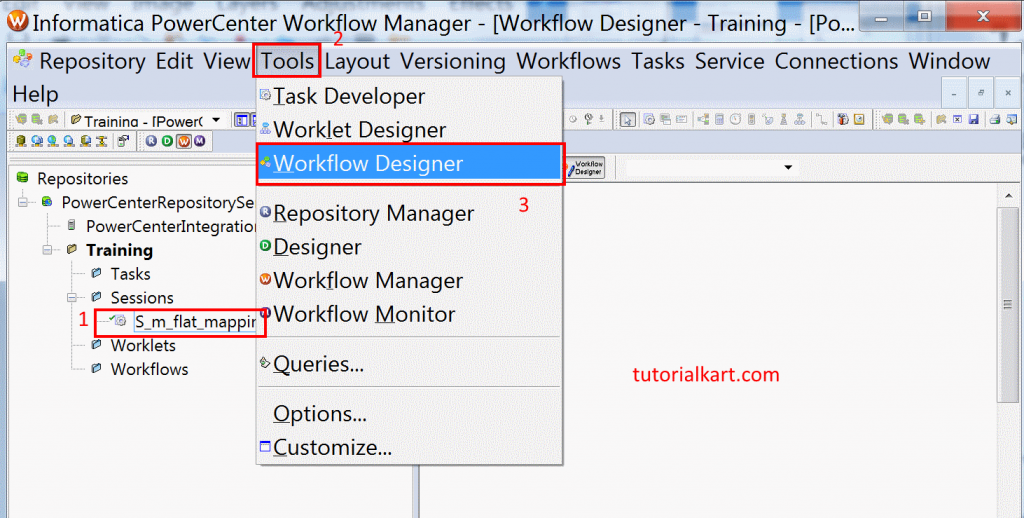
Open Informatica PowerCenter Workflow Manager and connect to the repository. Open the folder that contains the required mapping and Session task. Select Tools | Workflow Designer to open the workspace used to create and configure workflows.
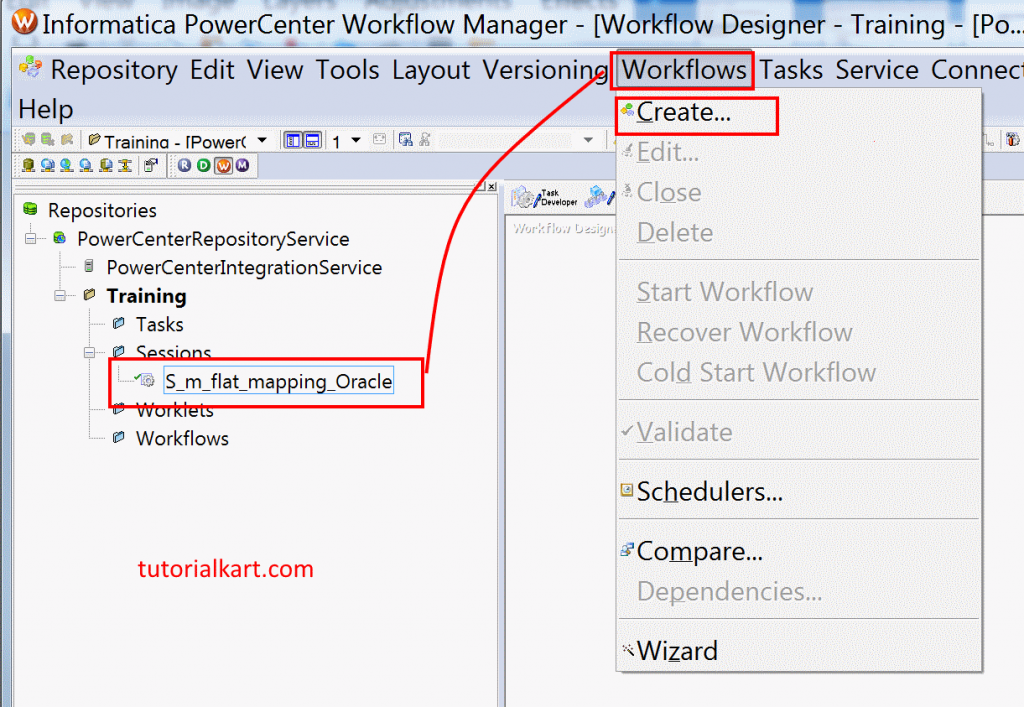
From the Workflow Designer menu, select Workflows | Create. This opens the Create Workflow window.
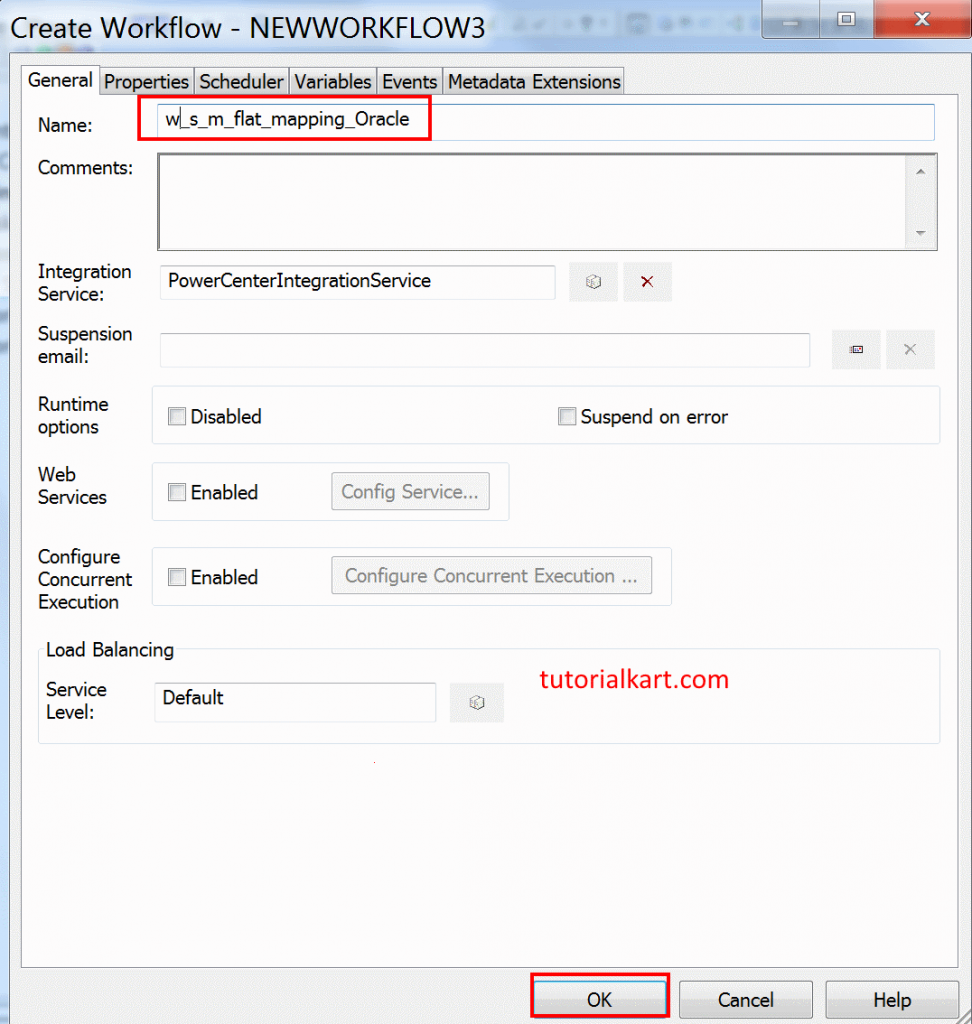
Enter a unique workflow name. In this example, the workflow is named W_s_m_flat_mapping_Oracle. A project naming standard can make it easier to identify the workflow, session, mapping, and target system.
- Enter W_s_m_flat_mapping_Oracle in the workflow name field.
- Select the appropriate Integration Service if the option is displayed.
- Click OK to create the workflow.
PowerCenter adds a Start task to the new workflow automatically. The Start task identifies the beginning of the workflow’s execution path.
Adding a Session Task to the Informatica Workflow
Locate the reusable Session task in the Navigator window. Drag the session from the Navigator and drop it into the Workflow Designer workspace beside the Start task.
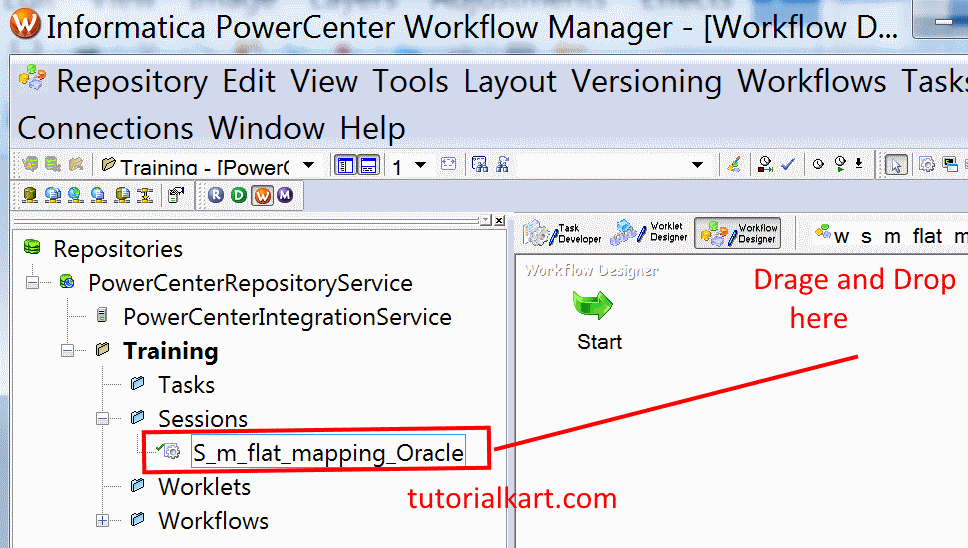
If a reusable Session task is not available, create a non-reusable Session task directly in the workflow and associate it with the required mapping. A reusable session can be used in multiple workflows, while a non-reusable session belongs to the workflow in which it is created.
Connecting the Start and Session Tasks
A task placed in the workspace does not run until it is part of an execution path. Select the Link Tasks tool from the toolbar, drag from the Start task, and drop the link on the Session task.
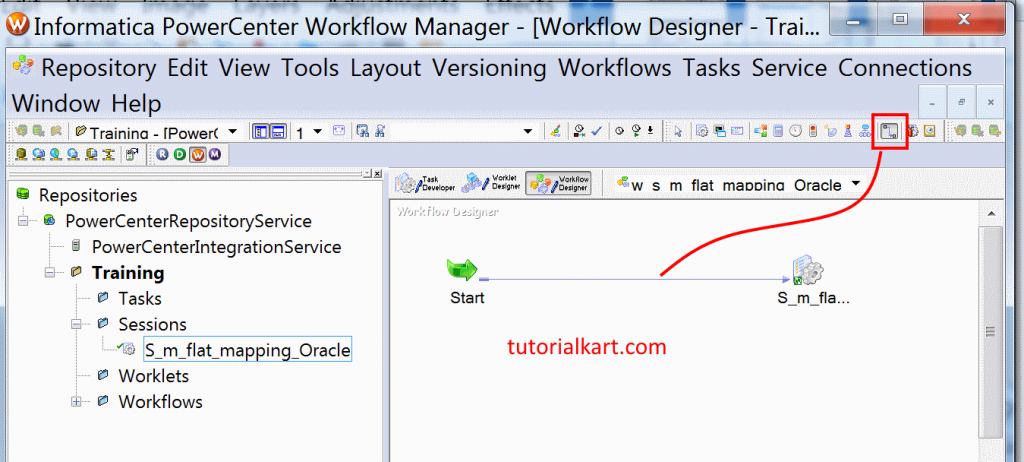
The resulting execution path is Start → Session. When the workflow starts, the Integration Service activates the Start task and then runs the connected Session task.
For workflows containing multiple tasks, links can also contain conditions. A downstream task may run only when the preceding task succeeds, fails, or satisfies another configured expression. Review conditional links carefully because an incorrect condition can leave a task in a non-running state.
Validating and Saving the Informatica Workflow
Validate the workflow before running it. Validation checks the workflow structure and identifies configuration issues that PowerCenter can detect before execution. It does not confirm that database credentials, files, network services, or external commands will succeed at runtime.
- Confirm that the Session task is connected to the Start task.
- Verify that the session is associated with the intended mapping.
- Check the source and target connection assignments.
- Review workflow variables, parameters, link conditions, and task properties.
- Select Repository | Save to save the workflow and related changes.
How to Run a Workflow in Informatica PowerCenter 10.1.0
After saving and validating the workflow, open it in Workflow Designer and select Workflows | Start Workflow. PowerCenter submits the workflow to its assigned Integration Service.
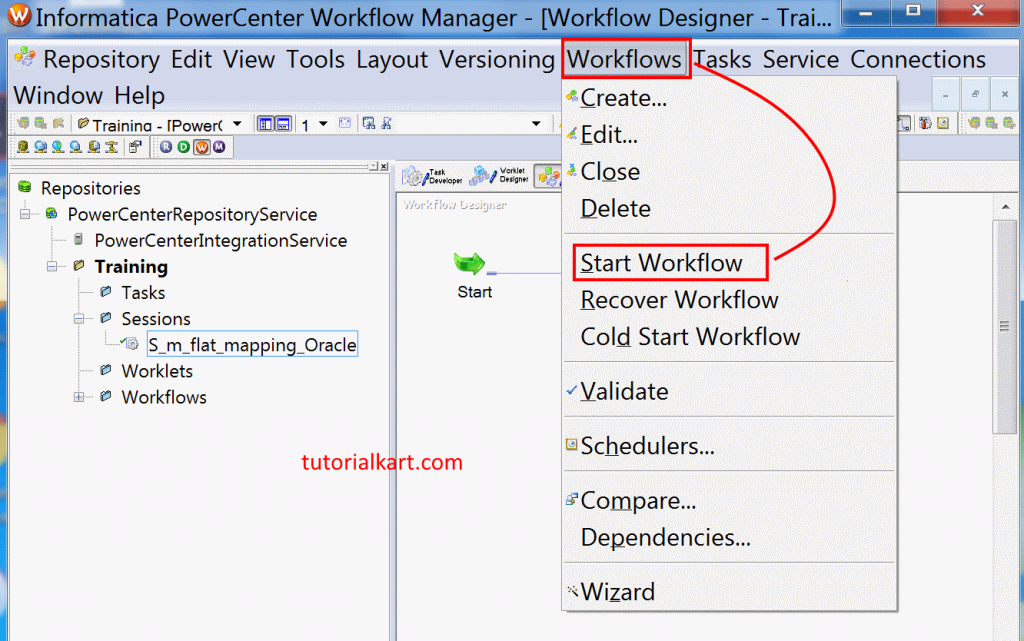
Starting the workflow creates a workflow run. If the workflow is already running, whether another run can start depends on its concurrent-execution configuration. Avoid starting an additional run unless the workflow and its targets are designed to handle concurrent processing.
Running an Informatica Workflow Manually or on a Schedule
A workflow can be started manually from Workflow Manager or configured to run on a schedule. Scheduling is appropriate for recurring loads, while manual execution is commonly used during development, testing, recovery, or controlled one-time processing.
| Execution method | Typical use | What to verify |
|---|---|---|
| Manual start | Development, testing, reruns, or one-time loads | Parameters, input readiness, target state, and concurrent runs |
| Scheduled start | Recurring ETL processing | Schedule time, recurrence, time zone, server availability, and dependencies |
| External automation | Enterprise scheduling or dependent processes | Authentication, command result, return status, logging, and failure handling |
When scheduling a workflow, review the start date, start time, recurrence settings, time zone, and end conditions. Also confirm that source files, database systems, and upstream processes will be ready when the schedule starts.
Monitoring the Informatica ETL Workflow and Session State
Open PowerCenter Workflow Monitor to view the workflow run. The monitor shows the status of the workflow and each task instance. Common states include Running, Succeeded, Failed, Aborted, Stopped, and Suspended, depending on the task and workflow configuration.
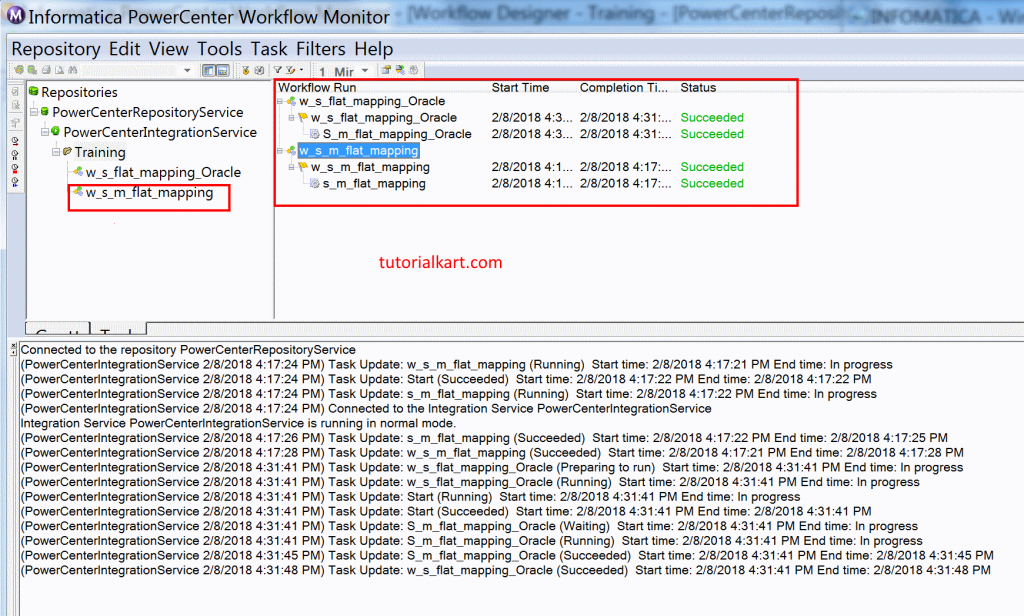
Select the workflow or Session task to review its execution details. If a session fails, open the session log and identify the first relevant error rather than relying only on the final failure message.
- Check the workflow start and end times.
- Review the status and duration of each task.
- Compare source, applied, rejected, and target row counts.
- Review reader, transformation, and writer errors in the session log.
- Confirm that downstream tasks ran or were skipped according to their link conditions.
- Record the workflow run ID when investigating or documenting a failure.
Common Informatica Workflow Execution Problems
- The Session task does not start: Check that it is connected to the Start task and that its link condition evaluates to true.
- The workflow cannot be submitted: Confirm that the assigned Integration Service is enabled and available.
- The session fails while connecting: Verify the source or target credentials, connection string, permissions, and network availability.
- The workflow runs with unexpected values: Check the parameter file, workflow variables, session parameters, and environment-specific paths.
- A scheduled workflow does not start: Review the schedule, time zone, recurrence, Integration Service availability, and whether the schedule is enabled.
- A downstream task is skipped: Inspect the preceding task status and the expression on the workflow link.
- Duplicate data appears after a rerun: Confirm that the mapping, target operation, recovery strategy, and restart procedure support rerunning the workflow safely.
Informatica Workflow FAQs
How do I create a new workflow in Informatica?
Open Workflow Manager, select Tools | Workflow Designer, and then select Workflows | Create. Name the workflow, add a Session task, connect the Start task to the session, validate the workflow, and save it to the repository.
How do I run a workflow in Informatica?
Open the saved workflow in Workflow Designer and select Workflows | Start Workflow. The Integration Service executes the connected tasks, and the resulting run can be viewed in Workflow Monitor.
Can an Informatica workflow contain multiple sessions?
Yes. A workflow can contain multiple Session tasks and other task types. The tasks can run sequentially or concurrently according to their links, dependencies, and link conditions.
What are the four types of Informatica workflows?
PowerCenter does not define a standard set of exactly four workflow types. A workflow is a container for executable tasks. Workflows may be described informally by their purpose, such as sequential, parallel, scheduled, or event-driven processing, but these are design patterns rather than four official PowerCenter workflow object types.
Where can I see why an Informatica workflow failed?
Open the failed run in Workflow Monitor. Review the workflow log for orchestration details and the session log for source, transformation, database, target, or connection errors. The earliest relevant error usually provides more useful diagnostic information than the final failure line.
Informatica Workflow Editorial QA Checklist
- Confirm that the workflow is described as an executable task flow run by the Integration Service, not as the ETL engine itself.
- Verify that the tutorial distinguishes mappings, sessions, workflows, and worklets correctly.
- Check that the Start task is linked to the Session task before the workflow is saved and run.
- Confirm that workflow validation is not presented as proof that databases, files, credentials, and external services are available.
- Verify that manual, scheduled, and externally automated execution methods are described without implying identical configuration requirements.
- Check that Workflow Monitor instructions include workflow status, task status, logs, row counts, and skipped-task conditions.
- Confirm that the FAQ does not present four informal workflow design patterns as four official PowerCenter workflow types.
- Verify that all PowerCenter screenshots remain in their original sequence and correspond to the surrounding instructions.
Related Informatica PowerCenter Tutorial
- What is Informatica PowerCenter ?
- What are Transformations in Informatica?