 TutorialKart.com
Sorter Transformation in Informatica is an active, connected transformation used to sort incoming rows in ascending or descending order before the data is passed to the next transformation or loaded into a target table. The port on which the sort is applied is marked as a key port.
In an Informatica PowerCenter mapping, Sorter transformation is commonly used when the target data must be arranged by one or more columns, when duplicate rows must be removed using the distinct option, or when downstream transformations work better with sorted input.
Sorter Transformation in Informatica PowerCenter
The Sorter transformation receives rows from an upstream transformation such as Source Qualifier, sorts them based on selected key ports, and then sends the sorted output rows to the next object in the mapping. You can sort by a single port such as DEPTNO, or by multiple ports such as DEPTNO and EMPLOYEE_ID.
Sorter transformation is an active transformation because it can change the order of rows and, when the Distinct Output Rows property is enabled, it can also reduce the number of output rows by eliminating duplicates.
Sorter Transformation Properties in Informatica
The most important Sorter transformation properties are listed below. These settings decide how the rows are sorted, how duplicate rows are handled, and where temporary sort files are written when the cache is not sufficient.
| Sorter property | Purpose in the mapping |
|---|---|
| Key | Marks the port used for sorting. More than one port can be selected as a sort key. |
| Direction | Defines whether the key port is sorted in ascending order or descending order. |
| Distinct Output Rows | Removes duplicate rows from the sorted output. This can change the row count. |
| Null treatment | Controls how null values are treated during sorting. |
| Case-sensitive sorting | When case-sensitive sorting applies, uppercase and lowercase values are sorted based on the selected collation behavior. |
| Work directory | Stores temporary files when the Sorter transformation needs disk space during sorting. |
| Sorter cache size | Controls the memory available for sorting. The default value commonly shown in PowerCenter examples is 16,777,216 bytes. |
When to Use Sorter Transformation Instead of Source Qualifier Sorting
If the source is a relational database and the sort can be pushed to SQL, sorting in the Source Qualifier query may be enough. Sorter transformation is useful when you want the sorting logic inside the mapping, when the source is not relational, when you need to remove duplicate rows using the distinct option, or when multiple source streams must be sorted in the mapping flow.
For large data volumes, always check cache size and work directory settings. A Sorter transformation can use temporary disk files when the data cannot fit in memory, so the integration service machine must have enough disk space in the configured work directory.
Example Requirement: Sort Employees by Department Number
Before creating the Sorter transformation in Informatica, connect to the repository service using valid administrator or developer credentials. In this tutorial, the mapping sorts employee rows based on the department number.
- Source table: Employees
- Target table: T_SORTER_EMP
- Transformation: Sorter transformation
- Sort key: DEPTNO
- Sort direction: Ascending order in this example
Mapping Diagram
Creating Sorter Transformation in Informatica Mapping Designer
To create a Sorter transformation in Informatica PowerCenter, build the mapping in a clear sequence. First import the source and target definitions, then add the Sorter transformation, mark the sort key, connect the ports, and finally create the workflow and session.
- Create or import the source definition.
- Create or import the target definition table.
- Create a mapping in Mapping Designer.
- Add the Sorter transformation to the mapping.
- Mark the required port as a key field.
- Create workflow and session.
- Run the workflow and monitor the result.
Create the Employees Source Definition for Sorter Mapping
In this example, we are using an already created Employees table in the Oracle HR schema as the source definition. You can also create a new source definition or import the source table from the database.
Create the Informatica Mapping for Sorter Transformation
To create a new mapping for the Sorter transformation, open Informatica PowerCenter Designer and navigate to Tools | Mapping Designer | Mappings, then select the create option. A new window opens where you can enter the mapping name.
- Select the mapping designer workspace and enter a meaningful mapping name such as M_SORTER_TRANS.
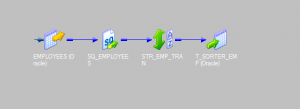
Adding Employees Source and T_SORTER_EMP Target to Mapping Designer
In this step, add the source and target tables to the Mapping Designer workspace. Drag and drop the source definition from the navigator to the workspace. Informatica automatically adds the Source Qualifier transformation for the relational source.
Adding Sorter Transformation to Sort Employee Data
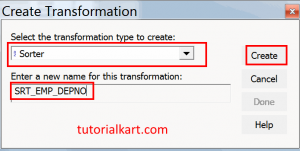
To create Sorter transformation in Informatica PowerCenter, navigate to Menu bar | Transformation tab and select the create option. Enter a unique name for the transformation, such as SRT_EMP_BY_DEPTNO.
After creating the Sorter transformation, it is added to the Mapping Designer workspace. Select the required ports from the Source Qualifier transformation and drop those ports into the Sorter transformation as shown below.
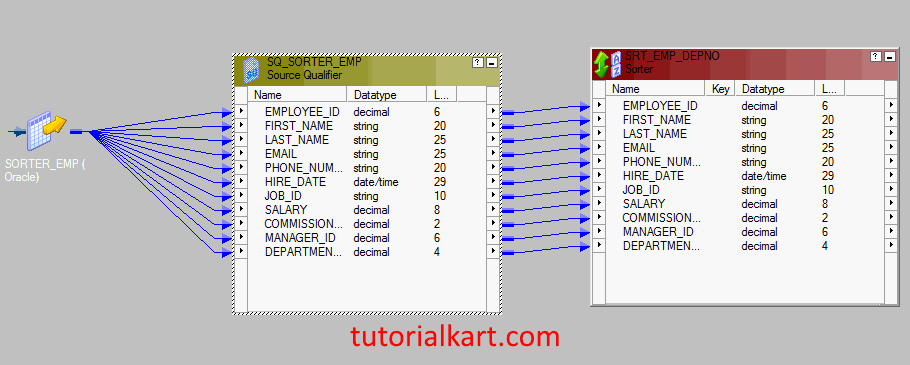
Connect all required ports using the Auto Link option provided in the menu bar. From the screenshot above, the Source Qualifier is connected to the Sorter transformation. The next step is to define the key field used for sorting the data based on DEPTNO.
Double click the header of the Sorter transformation and open the Ports tab. Enable the checkbox under Key corresponding to the DEPTNO port, which is marked by the red rectangle in the screenshot below.
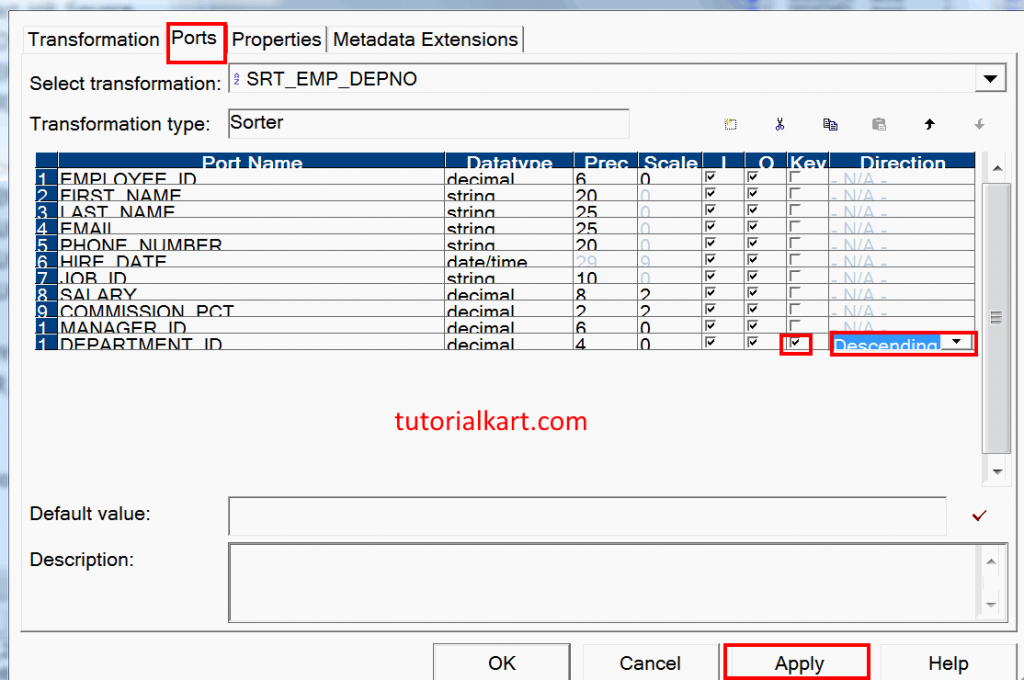
- Select Ascending if employee rows must be sorted from the lowest department number to the highest department number.
- Select Descending if employee rows must be sorted from the highest department number to the lowest department number.
- Click Apply and then click OK.
Sorting by Multiple Key Ports in Informatica Sorter Transformation
Sorter transformation can also sort by more than one key port. For example, if both DEPTNO and EMPLOYEE_ID are marked as keys, Informatica first sorts by DEPTNO. Rows with the same department number are then sorted by EMPLOYEE_ID.
When using multiple key ports, check the key order carefully in the Ports tab. The order of the keys decides the final sort sequence.
Removing Duplicate Rows with Distinct Output Rows
The Distinct Output Rows option removes duplicate rows from the output of the Sorter transformation. This option compares the complete output row, not only one selected column. Use it only when the target should receive unique rows.
If duplicate records must be handled using business rules, such as keeping the latest record or highest salary row, do not depend only on Sorter distinct output. Use the correct combination of Sorter, Aggregator, Rank, Expression, or other transformations based on the requirement.
Adding T_SORTER_EMP Target Definition
To create the target definition table, navigate to Menu bar | Target Designer | Target and choose Import from Database. After importing the target table, generate and execute SQL if the table has to be created in the database.
Drag and drop the target table to Mapping Designer. Select the required ports from the Sorter transformation and drop those ports into the target table T_SORTER_EMP.
- Connect all the ports as shown below.
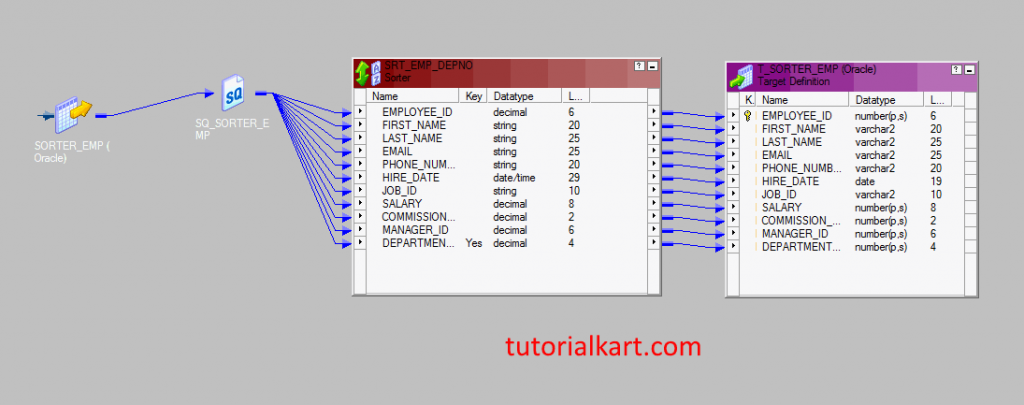
- Validate the mapping.
- Save the mapping.
Creating Workflow and Session for Sorter Transformation Mapping
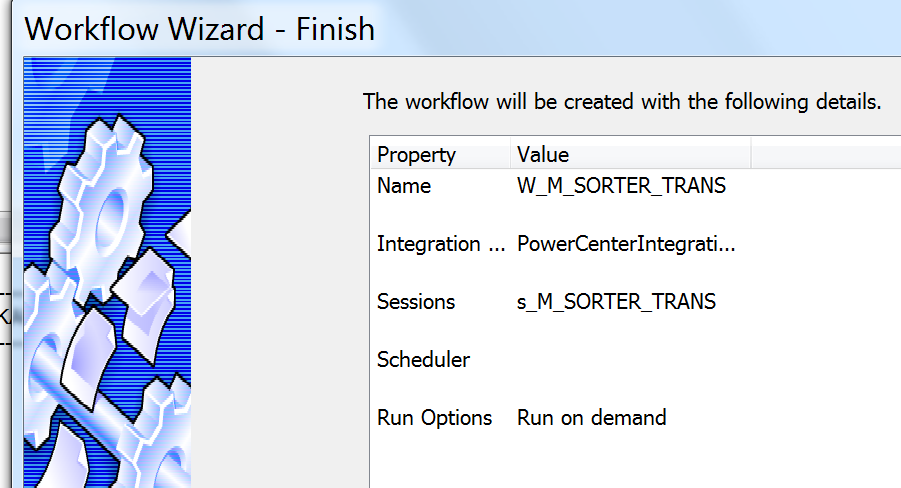
After creating the mapping, the next step is to create a workflow. A workflow in Informatica can be created manually or by using the wizard. In this Informatica tutorial, we will create workflow and session using the wizard.
- Open Workflow Manager | Workflows | Wizard.
The workflow wizard uses three main steps to create the workflow and session.
Step 1: Create the workflow.
- Enter a workflow name and click the Next button.
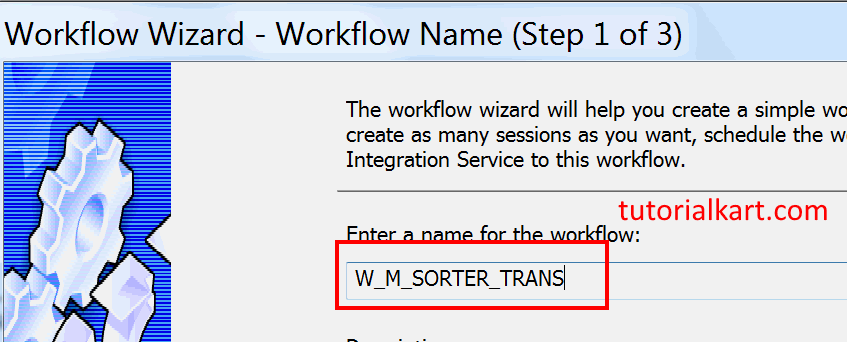
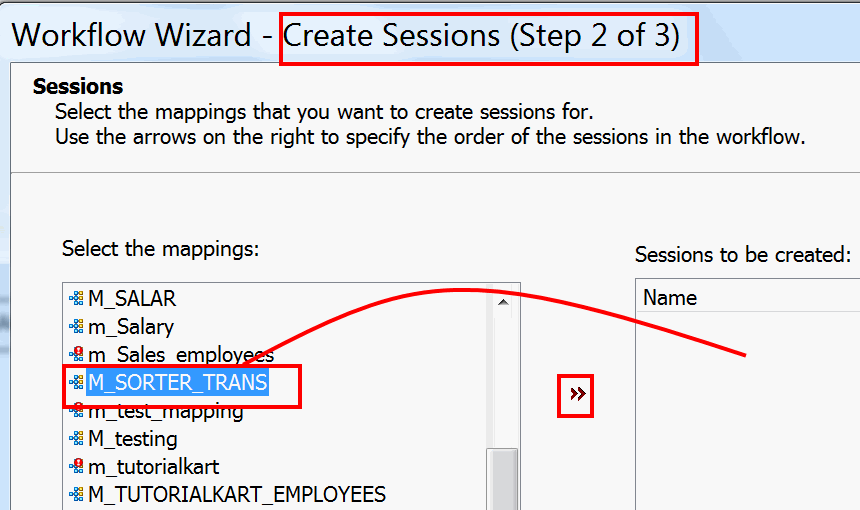
Step 2: Create the session.
In step 2, select the mapping M_SORTER_TRANS for which you want to create the session. Use the arrow on the right to specify the order of the session in the workflow.
- Click the Next button.
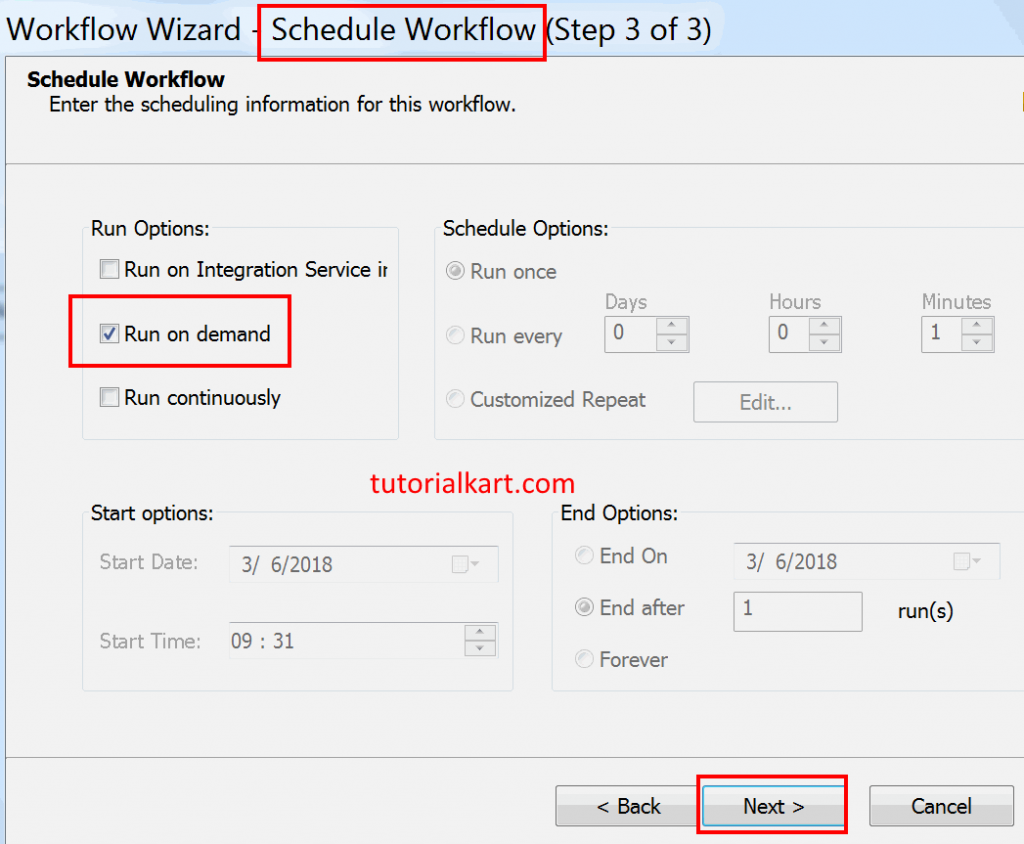
Step 3: Schedule the workflow.
Select the run option as Run on Demand and click the Next button.
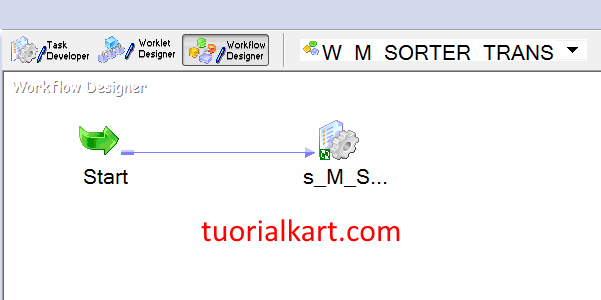
As shown below, the session s_M_SORTER_TRANS has been created and added to the workspace automatically.
Go to Informatica PowerCenter Workflow Manager and double click the session to configure sources, target, and common properties such as target load type and truncate target table.
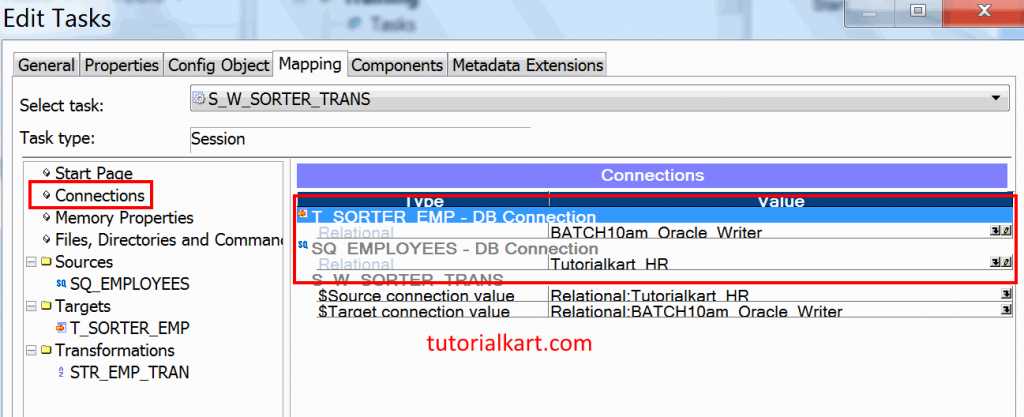
Navigate to Mapping tab | Connections and select the source and target database connections.
- SQ EMPLOYEES – DB connection – Tutorialkart HR source ODBC connection.
- T_SORTER_EMP – DB connection – BATCH10am Oracle writer target ODBC connection.
- Change the target load option from Bulk to Normal if the database and session requirement needs normal loading.
- Select the Truncate target table option when the previous target data must be removed before loading the sorted rows.
- Save the workflow.
Run and Monitor the Sorter Transformation Workflow
Before starting the workflow, validate it to check whether the Informatica workflow is valid. Start the workflow by navigating to the Workflows menu and selecting the Start Workflow option.
To monitor workflow status, open Informatica PowerCenter Workflow Monitor. As shown below, the workflow and session have completed successfully.
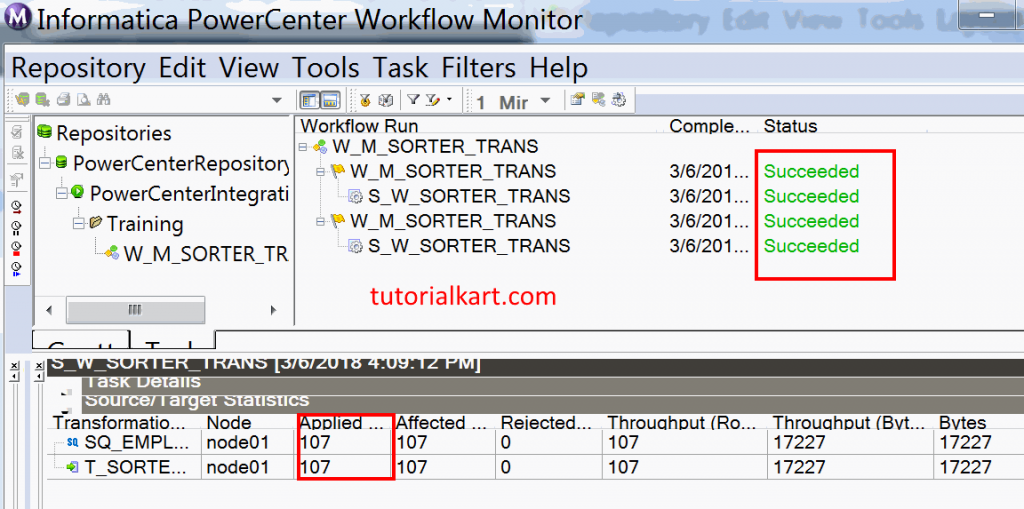
Sorter Transformation output in SQL Developer is shown below.
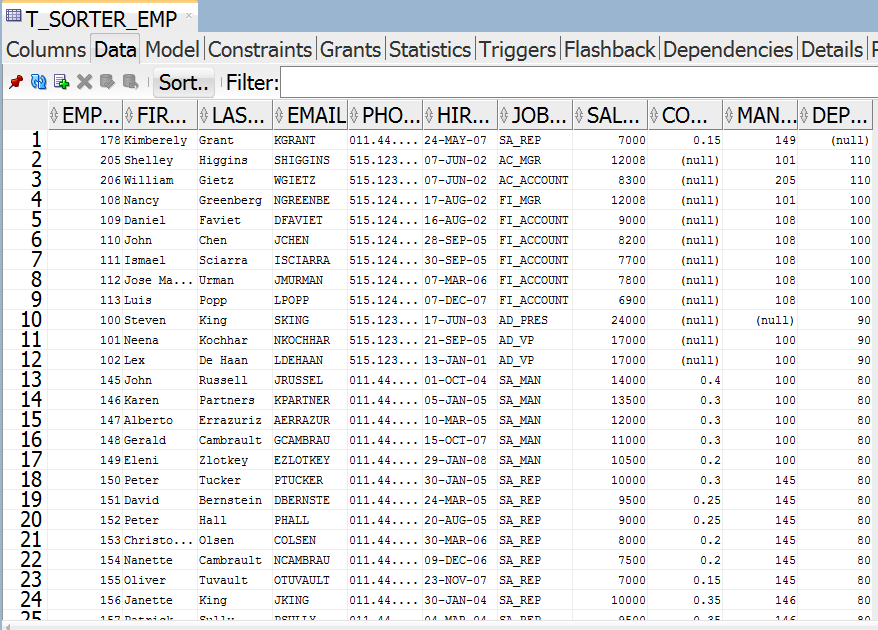
SQL Check for Sorter Transformation Output
After the workflow completes, you can verify the target rows in SQL Developer. The following query checks whether the employee data is loaded into T_SORTER_EMP in department order.
SELECT employee_id,
       first_name,
       last_name,
       deptno
FROM t_sorter_emp
ORDER BY deptno ASC;
If the mapping was configured correctly, the output rows should be arranged by DEPTNO. If the target still appears unsorted, check whether the correct key port was selected in the Sorter transformation and whether the target table is being queried with the expected order.
Sorter Transformation vs Rank Transformation in Informatica
Sorter and Rank transformations are used for different requirements. Sorter transformation arranges all incoming rows based on selected key ports. Rank transformation is used to select top or bottom rows based on a rank condition, such as top 10 salaries or lowest 5 sales values.
| Comparison point | Sorter transformation | Rank transformation |
|---|---|---|
| Main purpose | Sorts rows in ascending or descending order. | Selects top or bottom rows based on a ranking rule. |
| Output row count | Usually returns all rows unless distinct output is enabled. | Returns only rows that match the rank condition. |
| Typical example | Sort employees by department number. | Find top 5 employees by salary. |
| Key configuration | Mark one or more ports as sort keys. | Define rank port and number of ranked rows. |
Common Sorter Transformation Mistakes in Informatica
- Not selecting a key port: Without a key port, the Sorter transformation does not know which column should control the sort order.
- Expecting distinct to check only one column: Distinct output removes duplicate output rows, not duplicates based on only one selected field.
- Ignoring cache and work directory: Large data sets may need more sorter cache or enough disk space in the work directory.
- Using Rank when only sorting is needed: Use Sorter to arrange rows; use Rank only when top or bottom records are required.
- Checking target data without ORDER BY: A database table does not guarantee display order unless the query uses an ORDER BY clause.
Sorter Transformation QA Checklist for Informatica Mapping
- Confirm that the correct Sorter key port, such as DEPTNO, is selected in the Ports tab.
- Confirm that each key port has the correct ascending or descending direction.
- Check whether Distinct Output Rows is required before enabling it.
- Review sorter cache size and work directory settings for large data loads.
- Validate that all required ports are connected from Source Qualifier to Sorter and from Sorter to target.
- Confirm the source and target database connections in the session mapping tab.
- Run the workflow and verify the loaded rows in the target table using an ORDER BY query.
FAQs on Sorter Transformation in Informatica
What is Sorter Transformation in Informatica?
Sorter Transformation in Informatica is an active, connected transformation that sorts incoming rows based on one or more key ports. It can sort data in ascending or descending order before sending the rows to the next transformation or target.
Is Sorter Transformation active or passive?
Sorter Transformation is an active transformation. It can change the order of rows, and when the distinct output option is enabled, it can also change the number of rows by removing duplicate output rows.
How do you sort data in Informatica PowerCenter?
To sort data in Informatica PowerCenter, add a Sorter transformation to the mapping, connect the required input ports, mark one or more ports as key fields, choose ascending or descending direction, connect the output ports to the target or next transformation, and run the workflow.
What is the difference between Sorter and Rank transformation in Informatica?
Sorter transformation arranges all rows based on sort keys, while Rank transformation returns only top or bottom rows based on a ranking condition. Use Sorter for ordering data and Rank for requirements such as top 10 records or lowest 5 values.
Can Sorter Transformation remove duplicate rows?
Yes. Sorter transformation can remove duplicate rows when the Distinct Output Rows property is enabled. This compares the output row values and returns only distinct rows.