 TutorialKart.com
SQL Transformation in Informatica lets a mapping run SQL statements against a relational database while data is moving through the pipeline. It can execute queries and database operations such as SELECT, INSERT, UPDATE, and DELETE. The transformation can also receive database connection information at run time when the mapping design requires a dynamic connection.
Use SQL Transformation when the required database logic is easier to express in SQL than with standard mapping transformations. In this example, a source file supplies table names, the SQL Transformation counts the rows in each table, and the mapping writes the table name and row count to a pipe-delimited target file.
SQL Transformation modes in Informatica
- Script mode: Runs SQL statements stored in external script files. This mode is useful when a reusable or multi-statement script must be executed.
- Query mode: Runs the SQL query configured inside the transformation. Input ports can be referenced in the query so that each incoming row supplies values to the SQL statement.
In this Informatica tutorial, we create a mapping named m_TableRecord_Count. It reads a list of table names from Process_Tables.txt, executes a count query for each table, and writes the results to Process_Tables_CNT.txt.
| Mapping component | Name | Purpose |
|---|---|---|
| Source file | Process_Tables.txt | Provides one database table name per row |
| Source Qualifier | SQ_Employee | Passes the table name into the mapping pipeline |
| SQL Transformation | SQL_COUNT | Runs a row-count query for the incoming table name |
| Target file | Process_Tables_CNT.txt | Stores the table name and calculated row count with a pipe delimiter |
Source and target file layout for table row counts
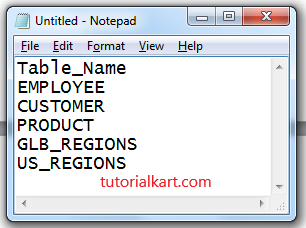
Create the source file Process_Tables.txt with one column named Table_Name. Add the table names that the Integration Service must process:
Table_Name
EMPLOYEE
CUSTOMER
PRODUCT
GLB_REGIONS
US_REGIONS
Create the file with the above data as shown below.
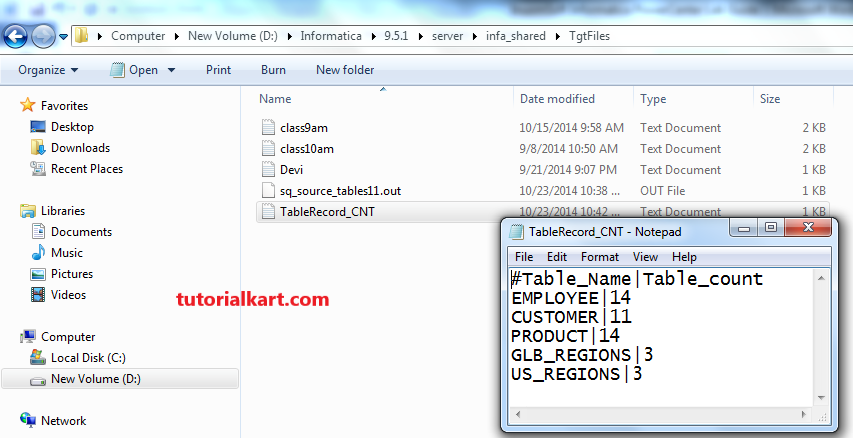
The target file is Process_Tables_CNT.txt. It contains two fields: Table_Name and Table_Count. The exact counts depend on the data in the connected database.
EMPLOYEE|11
CUSTOMER|10
PRODUCT|14
GLB_REGIONS|3
US_REGIONS|3
The target definition is created from the mapping and configured as a flat-file target with the pipe character (|) as its delimiter.
How to create a SQL Transformation in Informatica PowerCenter
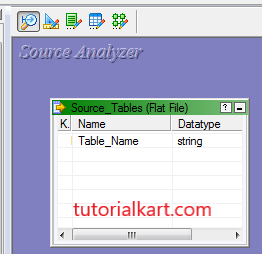
1. Import the table-name source file
Import Process_Tables.txt into Source Analyzer. Because the file contains only one field, no field delimiter is required for the source definition.
2. Create the mapping and add the source
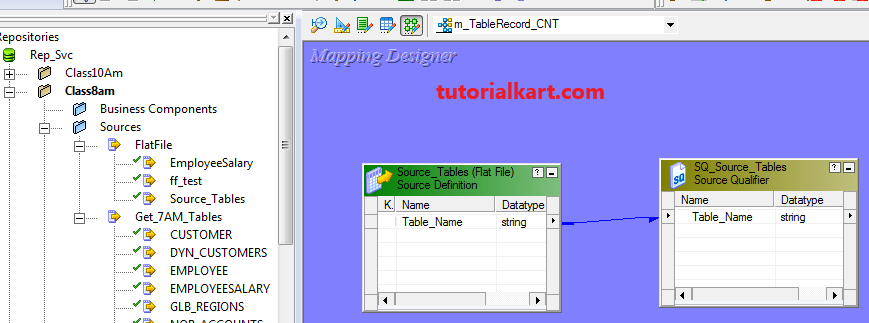
- Create a mapping named m_TableRecord_Count.
- Drag the source definition into the Mapping Designer workspace so that Informatica creates the Source Qualifier.
3. Create the pipe-delimited target definition
- Right-click the Source Qualifier and select Create and Add Target.
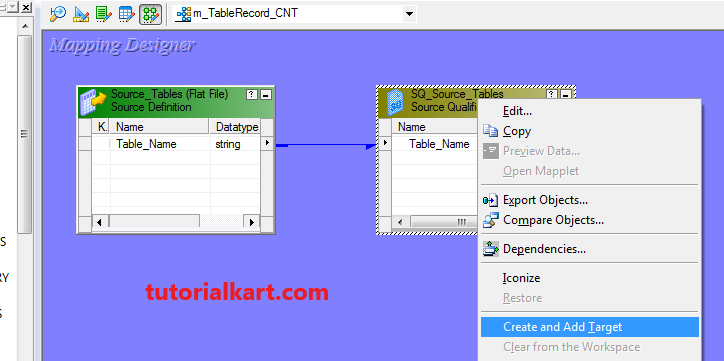
Informatica initially creates a target with the same columns as the Source Qualifier and may assign a relational database type by default.
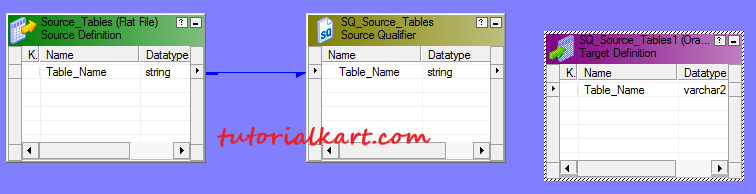
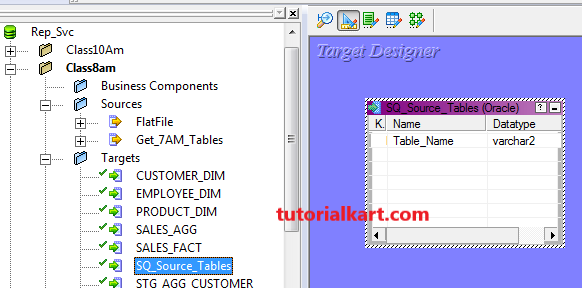
Open Target Designer and drag the new target definition into the designer workspace.
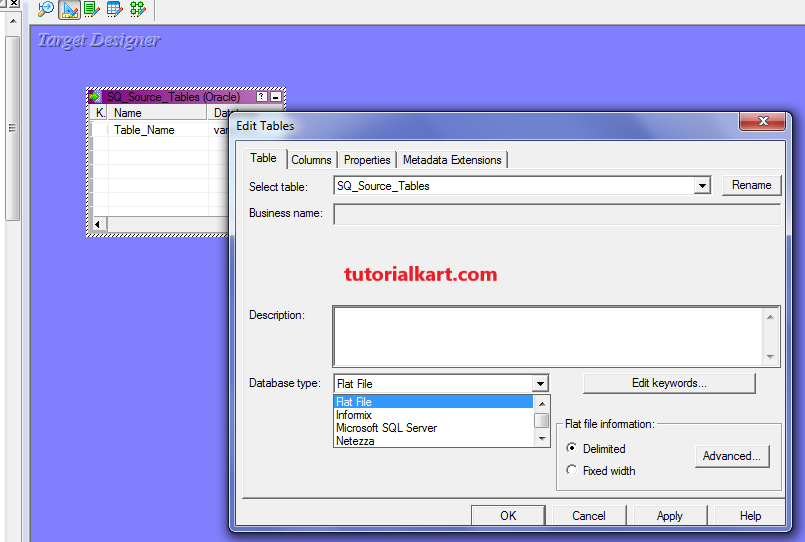
Double-click the target. On the Table tab, change the database type to a flat-file target as required by your PowerCenter version.
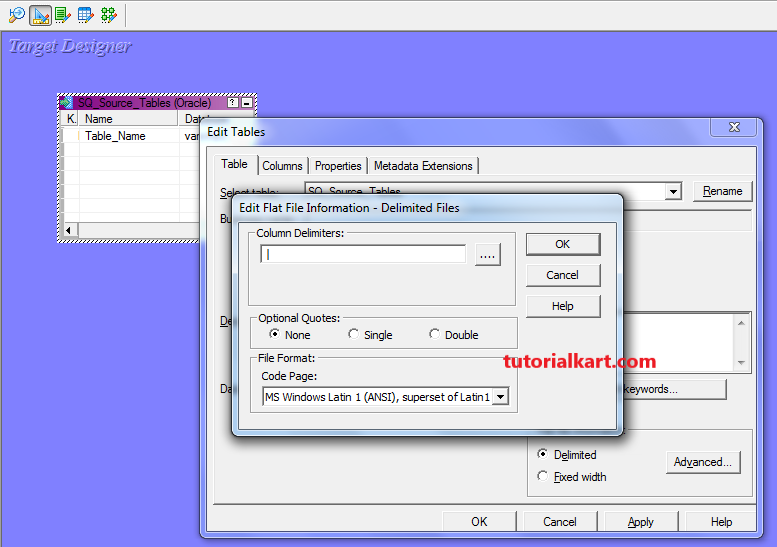
Open the delimited-file settings and enter the pipe character (|) as the field delimiter.
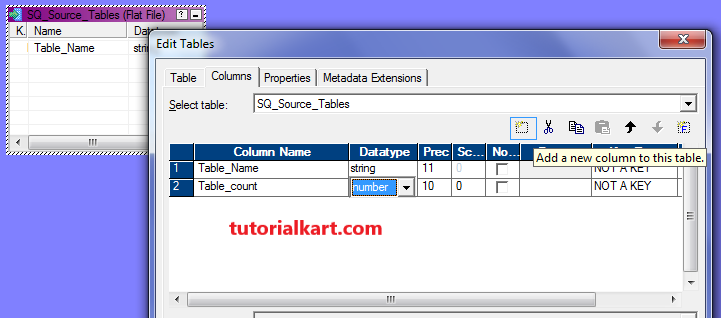
On the Columns tab, add a numeric column named Table_Count. The target should now contain the table name and the row count.
4. Add the SQL_COUNT transformation in Query mode
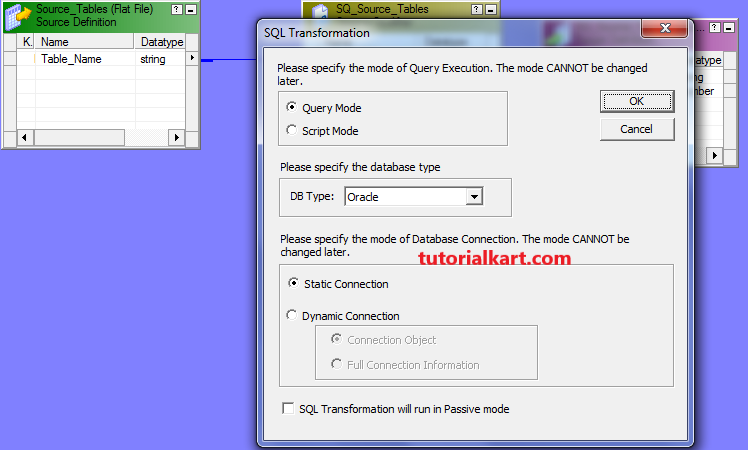
Return to Mapping Designer and create a SQL Transformation in Query mode. Name it SQL_COUNT.
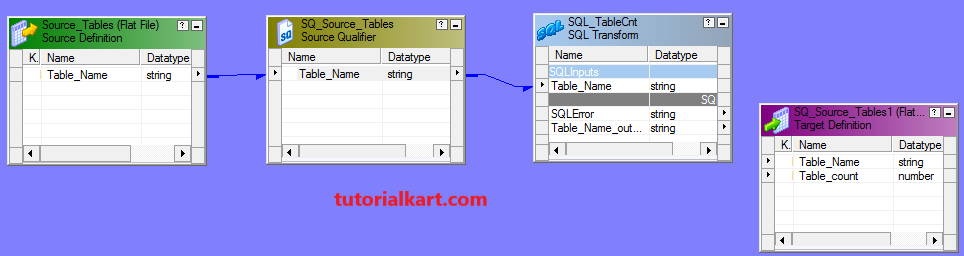
Connect the Table_Name port from the Source Qualifier to the SQL Transformation.
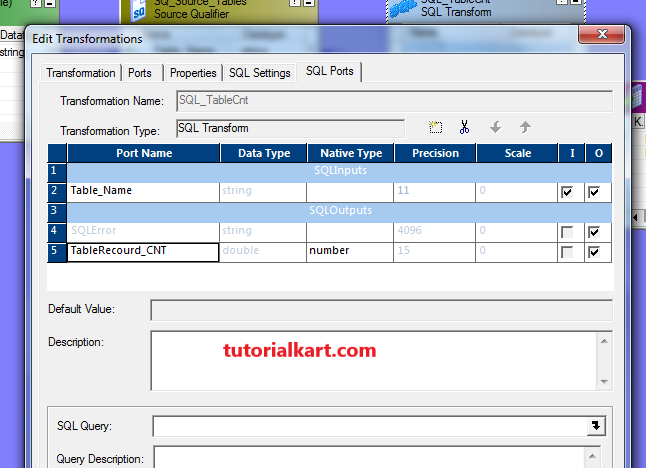
Open the transformation, select the SQL Ports tab, and create an output port named TableRecord_CNT with a numeric datatype compatible with the target column.
5. Configure the dynamic COUNT query
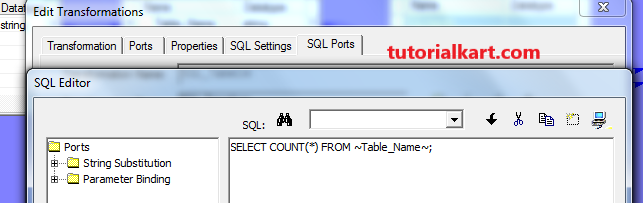
Open the SQL Query property and enter the query used by the transformation:
SELECT COUNT(*) FROM ~Table_Name~;The ~Table_Name~ token tells Informatica to substitute the value received through the input port. Table names are SQL identifiers, not ordinary bind values, so the source file should contain only approved table names. Do not allow untrusted or free-form input to populate this field.
6. Connect SQL output ports to the target
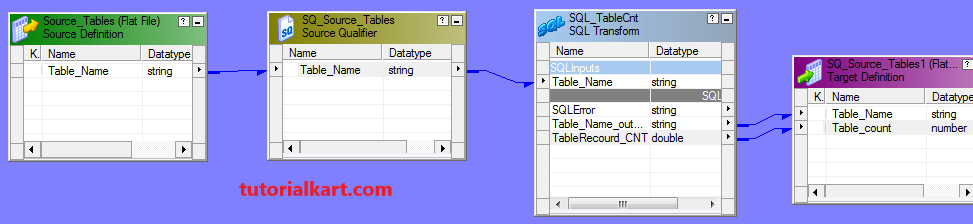
Connect the table-name port and the SQL count output port to the corresponding target fields.
7. Configure the session and database connection
- Save and validate the mapping.
- Open Workflow Manager and create a session for m_TableRecord_Count.
- Configure the source file directory and source filename.
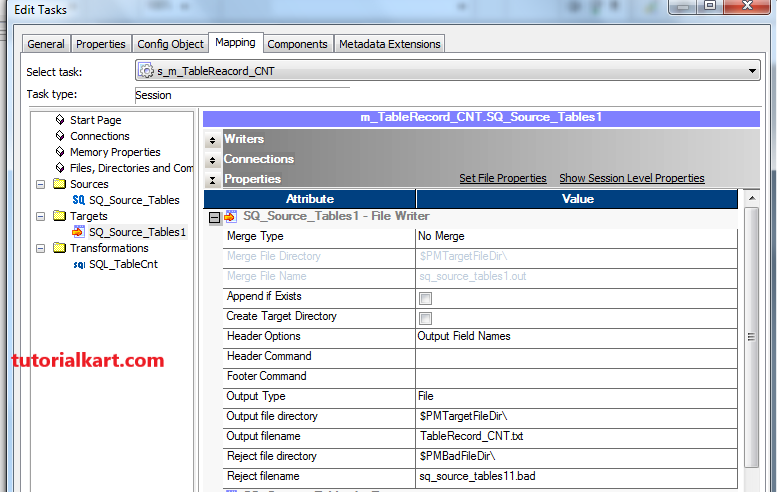
- Configure the target directory, target filename, and overwrite or append behavior.
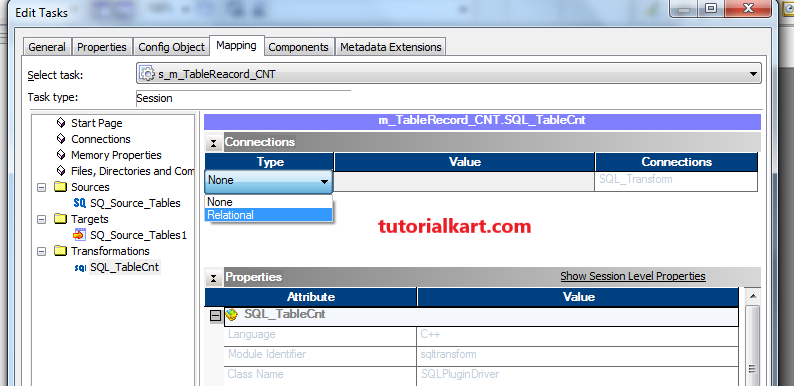
Assign a valid relational database connection to the SQL Transformation. The connection user must have permission to read every table listed in the source file.
8. Run the workflow and verify Process_Tables_CNT.txt
- Create the workflow and add the configured session task.
- Run the workflow.
- Review the session log for SQL errors, invalid table names, missing privileges, or connection failures.
- Open the target file and confirm that each source table has one corresponding count row.
The target file contains data in the format shown below. The row counts can differ from this example, but the two-column pipe-delimited structure remains the same.
Common SQL Transformation errors in this mapping
- Table or view does not exist: Check the table name, schema, database connection, and case-sensitivity rules of the database.
- Insufficient privileges: Grant the connection user permission to query every approved table.
- Invalid SQL statement: Confirm that the SQL override uses the correct Informatica substitution syntax and database-specific identifier rules.
- Null or missing output: Verify that the output port datatype and precision can store the returned count.
- Unexpected duplicate target rows: Confirm that the source file contains each table name only once.
SQL Transformation design checks for table-count mappings
- Confirm that Process_Tables.txt contains only approved database object names.
- Verify that the SQL Transformation is configured in Query mode and receives Table_Name as an input port.
- Check that TableRecord_CNT is an output port with sufficient numeric precision.
- Confirm that the target definition uses the pipe delimiter and has both Table_Name and Table_Count fields.
- Validate the database connection and read permissions before running the workflow.
- Compare a sample output count with a direct database query to confirm the mapping result.
SQL Transformation in Informatica FAQs
What is the difference between Query mode and Script mode?
Query mode stores and runs the SQL statement inside the transformation and can use input-port values. Script mode runs SQL statements from an external script file.
Can a SQL Transformation return multiple rows?
Yes, depending on its configuration and query. For this tutorial, COUNT(*) returns one row for each incoming table name.
Why must table names be validated before using them in the query?
A table name is inserted into the SQL statement as an identifier rather than passed as a normal bind value. Restricting the source to an approved list helps prevent invalid SQL and unsafe dynamic statements.
Which database connection does the SQL Transformation use?
It uses the relational connection assigned to the transformation in the session configuration. That connection must point to the correct database and have permission to query the listed tables.