 TutorialKart.com
Scheduling a workflow in Informatica PowerCenter allows the Integration Service to start a workflow automatically at a configured date, time, or recurring interval. This removes the need to start the workflow manually for every scheduled load.
Workflow schedules are configured in Workflow Manager. A workflow runs on demand by default, so you must open its scheduler settings and define when it should run.
Scheduling a Workflow in Informatica PowerCenter
When you edit a workflow, Informatica provides tabs for its identity, execution properties, and scheduling configuration.
- General tab: Displays basic workflow information, including the workflow name.
- Properties tab: Contains workflow execution properties, including the parameter file name or path when one is used.
- Scheduler tab: Controls whether the workflow runs on demand or according to a reusable or non-reusable schedule.
Reusable and Non-Reusable Informatica Schedulers
Informatica PowerCenter supports two scheduler configurations:
- Non-Reusable: A schedule created specifically for one workflow. Use this when the timing rules apply only to the current workflow.
- Reusable: A scheduler object that can be assigned to multiple workflows. Use this when several workflows must follow the same schedule.
The steps below use a non-reusable scheduler.
Step 1: Open the Workflow Properties
Open the required workflow in Workflow Manager and choose the option to edit the workflow. Confirm that you are modifying the correct workflow before changing its scheduler.
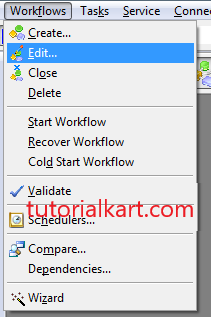
Step 2: Select a Non-Reusable Scheduler
Open the Scheduler tab. Select Non-Reusable, and then click the scheduler edit button to open the schedule configuration window.
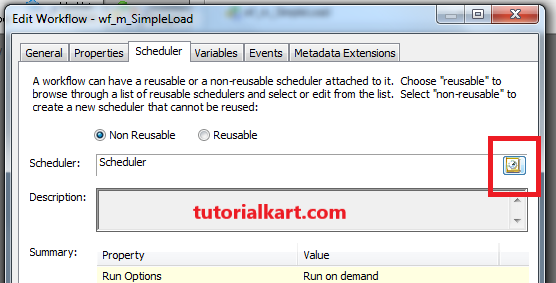
Step 3: Configure the Informatica Workflow Run Time
In the scheduler window, open the Schedule tab and choose the required run option. The available settings can include running the workflow when the Integration Service initializes or running it at a defined time and recurrence.
For a time-based schedule, specify the start date, start time, and repeat interval required for the workflow. Review the server time zone and repository settings before relying on the scheduled time.
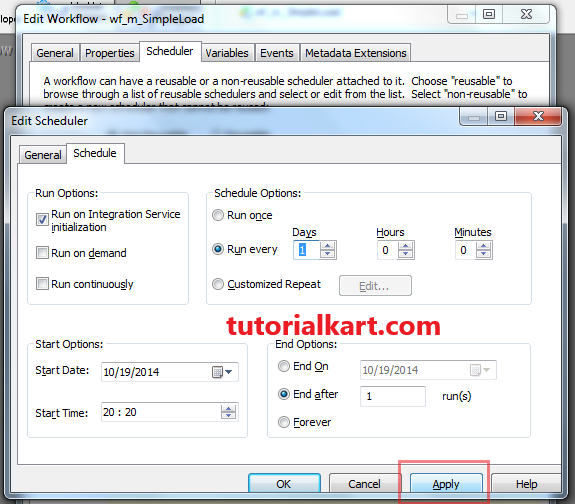
Step 4: Save and Activate the Workflow Schedule
Confirm the scheduler settings, close the configuration window, and save the workflow. The workflow must remain enabled and assigned to an available Integration Service for the schedule to run successfully.
How Informatica Workflow Schedule Options Affect Execution
- Run on demand: The workflow starts only when a user, command, or external process starts it.
- Run at a specified time: The workflow starts according to the configured date, time, and recurrence.
- Run on Integration Service initialization: The workflow starts when the associated Integration Service initializes, subject to the configured scheduler behavior.
- Reusable scheduler: Changes to the shared scheduler may affect every workflow that uses it.
Checks Before Relying on an Informatica Workflow Schedule
- Verify that the correct workflow and folder are open in Workflow Manager.
- Confirm that the workflow is assigned to the intended Integration Service.
- Check the scheduler start date, start time, recurrence, and time zone.
- Ensure that required source systems, target systems, files, and parameter files will be available at the scheduled time.
- Confirm that the workflow and its tasks are valid before saving the schedule.
- Review the Workflow Monitor after the first scheduled run to confirm that the workflow started and completed as expected.
Common Informatica Workflow Scheduling Problems
- The workflow remains on demand: Reopen the Scheduler tab and verify that a reusable or non-reusable scheduler has been selected and saved.
- The workflow starts at an unexpected time: Check the Integration Service host time, configured time zone, daylight-saving changes, and scheduler start time.
- The schedule does not start: Confirm that the Integration Service is running and that the workflow is enabled and valid.
- The workflow starts but fails: Review the workflow log, session log, connection availability, parameter file path, and source or target dependencies.
- A shared schedule changes unexpectedly: Check whether the workflow uses a reusable scheduler that was modified for another workflow.
Informatica Workflow Scheduling Questions
What is the default scheduler setting for an Informatica workflow?
A workflow is generally configured to run on demand until you assign and save a scheduler.
What is the difference between reusable and non-reusable schedulers?
A non-reusable scheduler belongs to one workflow, while a reusable scheduler can be assigned to multiple workflows that use the same timing rules.
Why did my scheduled Informatica workflow not start?
Common causes include an unavailable Integration Service, an unsaved scheduler, an incorrect start date or time, a disabled workflow, or a server time-zone mismatch.
Can the same Informatica scheduler be used for multiple workflows?
Yes. Create or select a reusable scheduler when multiple workflows need the same schedule. Review the impact before modifying it because changes can apply to every workflow that uses that scheduler.