 TutorialKart.com
PowerCenter Integration Service in Informatica
PowerCenter Integration Service in Informatica is the runtime service that executes PowerCenter workflows and sessions. When a workflow is started from Workflow Manager, a scheduler, or a command-line process, the Integration Service receives the request, reads the required metadata from the PowerCenter Repository Service, connects to the configured sources and targets, and runs the session logic defined in the mapping.
This tutorial explains what the Integration Service does, what must be ready before creating it, and how to create and enable a PowerCenter Integration Service from the Informatica Administrator console.
What the PowerCenter Integration Service does during workflow execution
- It manages the running of PowerCenter workflows, sessions, and tasks.
- It provides the runtime process required for data movement from source systems to target systems through Informatica PowerCenter.
- It extracts data from sources, applies mapping transformations, and loads processed data into target objects based on the workflow design.
- It works with the PowerCenter Repository Service to read metadata such as mappings, sessions, connections, workflows, and related configuration.
- One Integration Service can run many workflows, but administrators may create separate services when workloads need isolation, separate nodes, or different operational control.
PowerCenter Integration Service prerequisites before you create it
Before creating the Integration Service, verify the basic domain and repository setup. Most creation errors are caused by a missing repository service, an inactive node, a license mismatch, or incorrect repository login details.
- The Informatica domain must be created and visible in the Administrator console.
- The node where the service will run must be available.
- A valid PowerCenter license must be assigned in the domain.
- The PowerCenter Repository Service must already be created and available.
- You must know the repository username and password that the Integration Service will use to connect to the repository.
- Source, target, and repository database connectivity should be configured on the server where the service runs.
For vendor product terminology and version-specific options, also refer to the official Informatica documentation for PowerCenter Repository Service and PowerCenter Integration Service.
How to create a PowerCenter Integration Service in Informatica Administrator
To create Integration Service in Informatica, navigate to Domain name | Right click on Domain | New | PowerCenter Integration service.
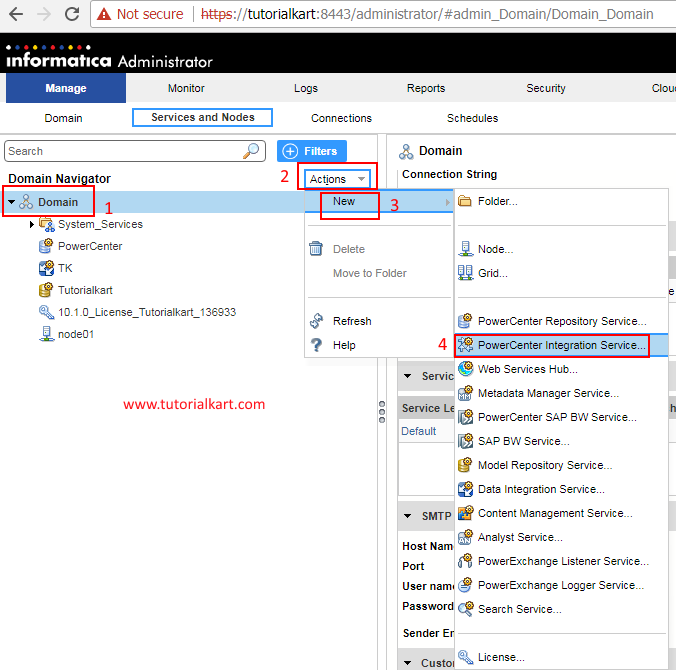
The wizard opens a service creation screen. The exact fields may vary slightly by PowerCenter version, but the main details are the service name, domain location, license, node, repository service, and repository login credentials.
Step 1: Specify PowerCenter Integration Service name, license, and node properties
In this step, specify PowerCenter Integration Service properties like name, description, location, license and Node details.
- Name: Add the name of the integration service. You can specify any name as per your liking. We are using Tutorialkart_Integration as shown below..
- Description: You can write some description of the integration service. This is an optional field.
- Location: Specify the domain name we created earlier. The domain name we created earlier will appear by default, as we have only one domain currently.
- License: Select the license key from the drop-down list. This is the default key, as we have only one key.
- Node: Specify the node name from the drop-down list. This is the default node, as we have only one node:
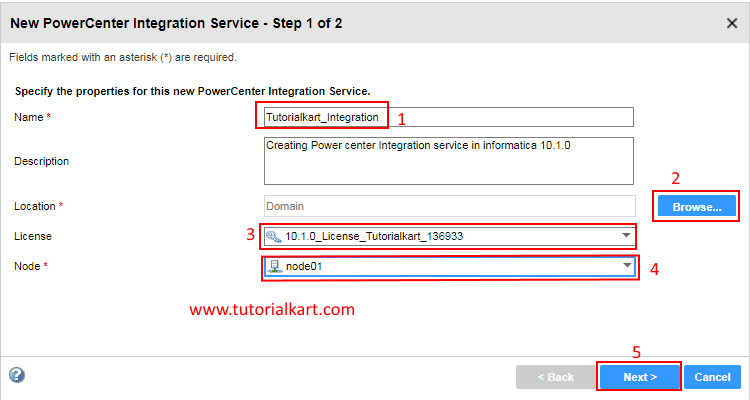
- Click on Next button.
Use a clear service name that identifies its purpose, such as the environment or repository it supports. For example, a development environment may use a name such as DEV_PC_IS, while a production environment should follow the naming standard used by your Informatica administrators.
Step 2: Select the PowerCenter Repository Service and enter repository login credentials
In this step, specify PowerCenter Repository Login credentials like entering Informatica login username and password.
- Select PowerCenter Repository service from the drop down list.
- Username : Enter Informatica login username.
- Password : Enter Informatica password.
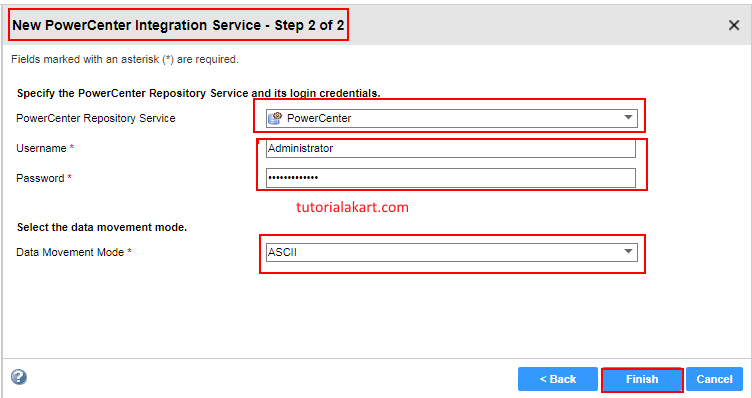
- Finally click on Finish button.
The repository user entered here must be able to connect to the PowerCenter Repository Service. If the username or password is wrong, the service may be created but may fail when it tries to start or connect to the repository.
Step 3: Enable the newly created PowerCenter Integration Service
To enable PowerCenter Integration service click on Enable service under action button.
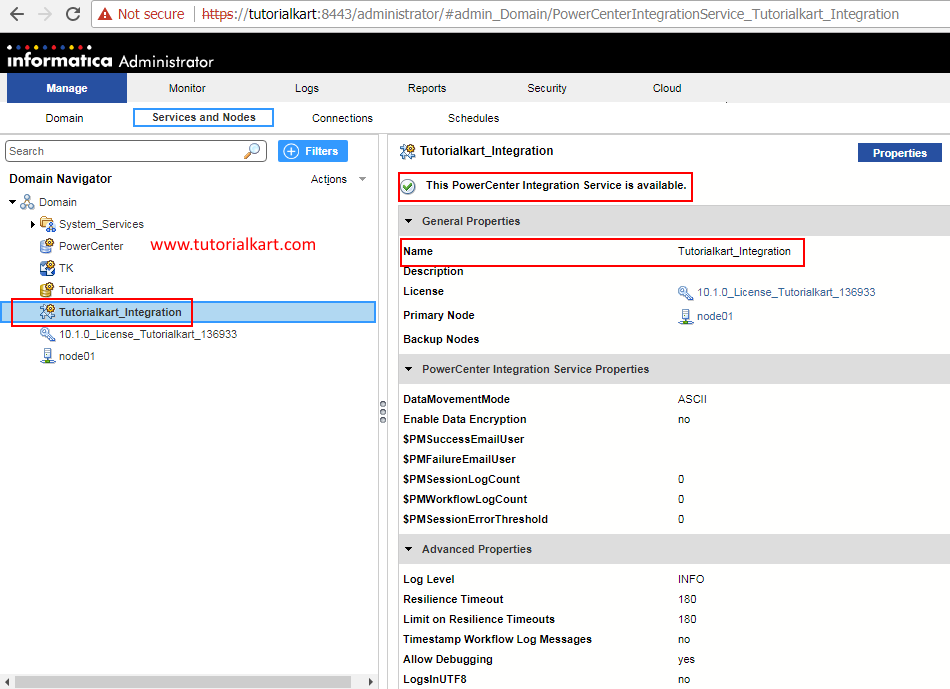
As shown above, PowerCenter Integration service in Informatica has been created and activated successfully.
PowerCenter Integration Service settings to review after enabling
After the service is enabled, open the service properties and review the settings that affect workflow execution. These settings are usually maintained by the Informatica administrator because they can affect performance, logging, and runtime behavior.
- Associated Repository Service: Confirm that the Integration Service is connected to the correct PowerCenter Repository Service.
- Node assignment: Confirm that the selected node is the server where the service should run.
- Service status: Verify that the service shows as enabled and available in the Administrator console.
- Connection availability: Make sure database clients, ODBC entries, environment variables, and connection objects required by sessions are configured on the runtime server.
- Log location and permissions: Confirm that the service can write workflow and session logs to the configured location.
PowerCenter Integration Service vs PowerCenter Repository Service
The Integration Service and Repository Service work together, but they are not the same service. Understanding the difference helps when troubleshooting workflow execution issues.
| Service | Main purpose in PowerCenter |
|---|---|
| PowerCenter Repository Service | Manages access to repository metadata such as mappings, sessions, workflows, users, folders, and connections. |
| PowerCenter Integration Service | Runs workflows and sessions, reads metadata from the repository, connects to sources and targets, and performs the data movement. |
Common issues while creating or enabling PowerCenter Integration Service
If the service does not enable successfully, check the basics first. The error message in the Administrator console and service logs usually points to one of the following causes.
- Repository Service is not running: Start or verify the PowerCenter Repository Service before enabling the Integration Service.
- Incorrect repository credentials: Re-enter the repository username and password used by the Integration Service.
- Node is unavailable: Check whether the node is running and reachable from the Administrator console.
- License is not valid for the service: Confirm that the selected license supports the PowerCenter service you are creating.
- Database or network connectivity fails: Verify repository database connectivity and required ports from the Informatica server.
- File or log permissions are missing: Make sure the operating system user running Informatica can access required directories.
PowerCenter Integration Service setup checklist before running workflows
- PowerCenter Integration Service has a clear and unique name.
- Correct domain, license, and node are selected.
- Correct PowerCenter Repository Service is associated with the Integration Service.
- Repository login credentials are valid.
- Service status is enabled and available.
- Required source and target connections are configured and tested.
- Workflow and session log directories are accessible.
- A small test workflow has been run to confirm the service executes sessions correctly.
PowerCenter Integration Service FAQ
How to create an Integration Service in Informatica PowerCenter?
Open the Informatica Administrator console, right-click the domain, choose New > PowerCenter Integration Service, enter the service properties, select the repository service, provide repository login credentials, finish the wizard, and then enable the service.
What is Integration Service in Informatica PowerCenter?
Integration Service is the PowerCenter runtime service that executes workflows and sessions. It reads workflow metadata from the repository, connects to sources and targets, performs transformations defined in mappings, and loads data into the target system.
Is PowerCenter Integration Service the same as Data Integration Service?
No. PowerCenter Integration Service is used for PowerCenter workflows and sessions. Data Integration Service is a different Informatica service used by other Informatica components and should not be confused with the PowerCenter service created in this tutorial.
Why is the PowerCenter Integration Service not enabling?
Common reasons include an unavailable node, inactive Repository Service, incorrect repository credentials, invalid license selection, database connectivity problems, or missing file permissions on the server where Informatica runs.
Do I need more than one PowerCenter Integration Service?
One Integration Service is enough for many environments. Multiple services may be used when administrators want to separate development and production workloads, isolate heavy workflows, run services on different nodes, or apply different operational controls.
PowerCenter Integration Service creation summary
In this Informatica tutorial, we learned how to create PowerCenter Integration Service in Informatica, connect it to the PowerCenter Repository Service, provide repository credentials, and enable the service from the Administrator console. After enabling it, verify the associated repository, node, connectivity, logs, and service status before running production workflows.