 TutorialKart.com
How to Install Express.js Using npm
Express.js is installed as a dependency inside a Node.js project. Before installing it, make sure Node.js and npm are available on your computer.
Check the installed versions from a terminal or command prompt:
node --version
npm --version
If both commands return version numbers, you can create a project and install Express.js.
Create a Node.js Project Before Installing Express.js
Create a directory for the application and move into it:
mkdir express-app
cd express-app
Initialize the directory as a Node.js project:
npm init -yThe command creates a package.json file. This file stores project metadata, npm scripts, and dependency information.
Install Express.js as a Project Dependency
To install express.js using npm, run the following command.
npm install expressThis command downloads Express.js and its required packages into the project’s node_modules directory. It also adds Express to the dependencies section of package.json and updates or creates package-lock.json.
The local installation command can also be written in its shorter form:
npm i expressInstalling Express locally is the normal approach because it keeps the required version associated with the project. Other developers and deployment systems can then install the same dependency from package.json and package-lock.json.
Verify the Express.js Installation
Use npm list to confirm that Express is installed in the current project:
npm list expressYou can also inspect the dependencies section in package.json. It should contain an entry for Express similar to the following:
{
  "dependencies": {
    "express": "^5.0.0"
  }
}
The exact version number may differ depending on the version available when the package is installed.
Should Express.js Be Installed Globally?
To install it globally, run the above command with -g option. g for global.
npm install -g express
A global Express installation is generally not required for building an Express application. Node.js resolves imported packages from the project’s local node_modules directory, so Express should normally be installed locally with npm install express.
A package is usually installed globally only when it provides a command-line tool intended to be used across multiple projects. Installing the Express library globally does not automatically make it available to require('express') or import express from 'express' in a local project.
Import Express.js with CommonJS
Once express.js is installed, you can import express.js into your node project using require statement.
var express = require('express')Now, express variable holds the reference to the express.js package.
The same CommonJS import can be written using const:
const express = require('express');Import Express.js with ES Modules
Node.js projects configured to use ES modules can import Express with the import statement. Add "type": "module" to package.json:
{
  "type": "module",
  "dependencies": {
    "express": "^5.0.0"
  }
}
You can then import Express in a JavaScript file:
import express from 'express';Use either CommonJS or ES module syntax consistently according to the project’s configuration.
Test the Express.js Installation with a Server
Create a file named app.js and add a basic Express server:
const express = require('express');

const app = express();
const port = 3000;

app.get('/', (req, res) => {
  res.send('Express.js is installed and running.');
});

app.listen(port, () => {
  console.log(`Server running at http://localhost:${port}`);
});
Run the file:
node app.jsThe terminal should display a message similar to:
Server running at http://localhost:3000Open http://localhost:3000 in a browser. If the response appears, Express is installed correctly and the application is running.
Fix the Cannot Find Module ‘express’ Error
If you do not install express.js prior to using it in your Node.js project, you will get an error as below:
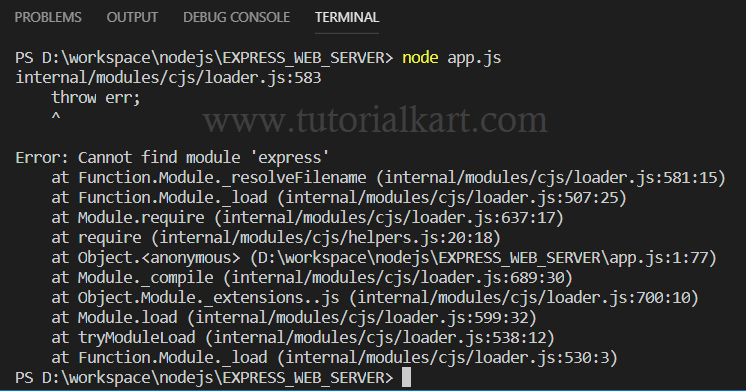
The error commonly appears when Express is missing from the current project, the command is being run from the wrong directory, or the project’s dependencies have not been restored.
First, move to the directory that contains package.json and install the dependencies:
cd path-to-your-project
npm install
If Express is not listed in package.json, install it directly:
npm install expressConfirm that the file name and import syntax are correct. Package names are case-sensitive on some operating systems, so use lowercase express.
Reinstall Express.js and Project Dependencies
If node_modules is incomplete or corrupted, remove the installed dependency directory and reinstall packages from the lock file.
On macOS or Linux:
rm -rf node_modules
npm install
In a deployment or automated build where package-lock.json is available, use:
npm cinpm ci performs a clean installation based on the exact dependency versions recorded in package-lock.json. It is intended for reproducible installations rather than adding a new package.
Install a Specific Express.js Version
To install a specific Express release, append the required version after the package name:
npm install express@5.0.0To view the Express version currently installed in the project, run:
npm list expressBefore changing major versions, review the application for incompatible APIs and test its routes, middleware, and error handling.
Uninstall or Update Express.js
Remove Express from the current project with:
npm uninstall expressUpdate Express within the version range permitted by package.json with:
npm update expressTo check whether a newer release is available, use:
npm outdated expressExpress.js Installation Questions
Do I need to install Node.js before Express.js?
Yes. Express.js runs on Node.js and is installed through npm, which is normally included with a Node.js installation.
Where does npm install Express.js?
A local installation places Express and its dependencies inside the project’s node_modules directory. npm also records Express in package.json and the resolved dependency tree in package-lock.json.
Do I need the global -g option for Express.js?
No. Express should normally be installed locally in each Node.js project. A global installation is not used by the project’s standard package-resolution process.
Why does Node.js still report that Express cannot be found?
The command may be running outside the project directory, Express may not be listed as a dependency, or node_modules may be missing. Open the directory containing package.json and run npm install.
Express.js Installation Review Checklist
- Confirm that
node --versionandnpm --versionreturn valid versions. - Run npm commands from the directory containing the project’s
package.json. - Install Express locally with
npm install express. - Verify that Express appears in
dependencies, not only in a global npm directory. - Keep
package-lock.jsonwith the project for consistent dependency resolution. - Use CommonJS or ES module import syntax according to the project’s configuration.
- Start a small Express server and test its local URL after installation.
- Resolve missing-module errors by restoring dependencies before changing application code.