 TutorialKart.com
Employee group in SAP HR is a personnel structure object used to classify employees at a broad employment level, such as active employees, pensioners, trainees, or external workers. It is maintained with a one-character key and is stored in the employee master data field PERSG.
Employee groups work together with employee subgroups to define how an employee is treated in SAP HCM processes such as master data maintenance, payroll, time management, reporting, and authorization-related grouping. In Personnel Administration, the employee group is visible in Organizational Assignment infotype IT0001.
Field name of employee group in SAP is “PERSG”
Employee group in SAP HR: purpose, field, and configuration table
| SAP R/3 Role Menu | Define Employee groups |
| Table | T503 |
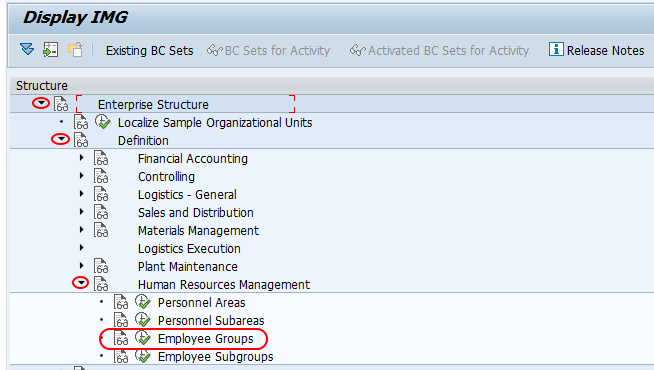
| SAP IMG Path | SPRO => SAP Reference IMG => Enterprise Structure => Human Resource Management (HRM) =>Employee Groups. |
The employee group is a high-level classification. The employee subgroup is a more detailed classification under an employee group. For example, an organization may use an employee group such as Active Employees and then create employee subgroups such as salaried employees, hourly employees, apprentices, or executives, depending on business requirements.
Employee group vs employee subgroup in SAP HR
| Comparison point | Employee group | Employee subgroup |
|---|---|---|
| Level of classification | Broad employment category | Detailed category within an employee group |
| Common field | PERSG | PERSK |
| Typical use | Separates major workforce types | Controls finer HR and payroll processing rules |
| Example | Active Employees | Monthly salaried, hourly paid, trainee |
Before you define employee groups in SAP, decide whether the requirement is a broad workforce category or a more detailed employment condition. If the category is too detailed, it usually belongs at employee subgroup level instead of employee group level.
How to define employee groups in SAP HR using SPRO
Refer below step by step configuration procedure for creating a new employee group in SAP.
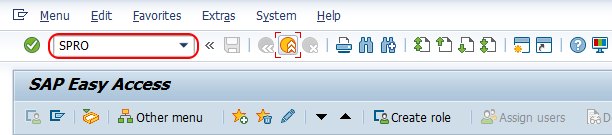
Step 1 : – Execute Tcode “SPRO” and SAP command field.
Step 2 : – From display IMG screen, follow the navigation menu as below image and choose IMG activity “Employee groups”.
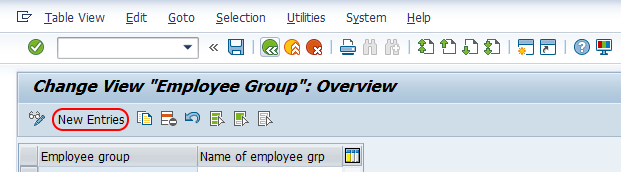
Step 3 : – On change view employee groups overview screen, the system displays a list of defined employee groups in SAP. To create new employee group in SAP, choose new entries button and create new employee groups as per the requirements of an organization.
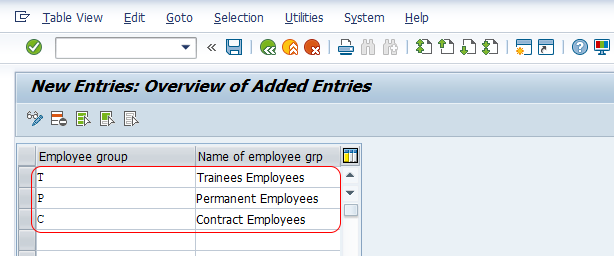
Step 4 : – On new entries employee groups screen, enter the following details.
- Employee group : – Enter a key that defines as employee group in SAP. You are allowed to enter a single digits key for new employee group key in SAP.
- Name of employee grp : – Update the descriptive name of an employee group.
After maintaining all the required employee groups in SAP as per requirements of an organization, choose save button and save the details. Now you a message as “data was saved”.

Successfully we have created new employee group in SAP HR.
What happens after saving an employee group in SAP table T503
When you save the configuration, SAP stores the employee group definition in table T503. The configuration is then available for assignment in personnel structure settings and for use during employee master data maintenance. In day-to-day HR processing, the employee group is normally seen along with personnel area, personnel subarea, employee subgroup, position, and organizational unit in IT0001.
Creating the employee group alone is not the final personnel structure setup. In a complete SAP HR configuration, you also maintain employee subgroups, assign employee subgroups to employee groups, and check the related payroll and time management groupings according to the project design.
Important checks before creating a new SAP employee group
- Use a short and clear employee group name that can be understood by HR, payroll, and reporting users.
- Do not create separate employee groups for every small payroll rule; use employee subgroups for detailed differences.
- Check whether an existing employee group can meet the requirement before adding a new key.
- Confirm the design with downstream SAP HR areas such as payroll, time management, benefits, and reporting.
- Transport the configuration through the correct landscape after testing it in a non-production client.
Employee group examples used in SAP HR projects
The exact employee group keys and names differ by organization. The following examples show how employee groups are commonly planned in SAP HR configuration.
| Employee group key | Employee group name | Possible business meaning |
|---|---|---|
| 1 | Active Employees | Employees currently working for the organization |
| 2 | Pensioners | Former employees receiving pension-related processing |
| 3 | Early Retirees | Employees who left under early retirement rules |
| 4 | External Employees | Non-regular workers maintained for HR tracking |
| 5 | Trainees | Employees or learners under training arrangements |
These are only sample categories. In an implementation, the employee group design should follow the organization’s HR policy, payroll model, reporting needs, and statutory requirements.
Common SAP HR mistakes while defining employee groups
- Creating too many employee groups: Employee group should remain a broad classification. Excessive groups make personnel structure maintenance harder.
- Using unclear names: Names such as “Group 1” or “General” are difficult for HR users to interpret later.
- Ignoring employee subgroup design: Employee subgroup settings often control more detailed HR processing, so both levels must be reviewed together.
- Changing live configuration without impact analysis: Existing employee records and reports may depend on the current employee group values.
- Not testing master data entry: After configuration, create or change a test employee record and verify that IT0001 accepts the expected employee group and employee subgroup combination.
FAQ on employee group in SAP HR
How do you create an employee group in SAP HR?
To create an employee group in SAP HR, go to transaction SPRO, open SAP Reference IMG, follow the HR enterprise structure path for employee groups, choose New Entries, enter the employee group key and name, and save the configuration.
What is the table for employee group in SAP HR?
The main configuration table for employee group in SAP HR is T503. The employee group field is PERSG.
What is employee group and employee subgroup in SAP HR?
Employee group is a broad employee classification, while employee subgroup is a more detailed classification within the employee group. For example, “Active Employees” may be an employee group, and “Monthly Salaried” or “Hourly Paid” may be employee subgroups.
Where is employee group shown in SAP HR master data?
Employee group is shown in the Organizational Assignment infotype, known as IT0001. It appears along with other organizational and personnel structure fields such as personnel area, personnel subarea, employee subgroup, position, and organizational unit.
Can employee group be changed for an existing employee?
Yes, it can be changed if the employee’s employment classification changes and the organization’s SAP HR process allows it. Such changes should be made carefully because they may affect payroll, time management, reporting, and other HR processes.
Editorial QA checklist for SAP HR employee group configuration
- Does the tutorial clearly explain that employee group is a broad SAP HR personnel structure category?
- Are the SAP field name PERSG and table T503 mentioned correctly?
- Does the step-by-step SPRO path match the screenshots already used in the article?
- Does the article distinguish employee group from employee subgroup without mixing the two concepts?
- Does the guidance warn readers to test payroll, time management, reporting, and IT0001 impact before using a new employee group in production?